Coralogix Integration
In this guide we will cover:
- What is the Coralogix Integration?
- Enabling the Coralogix Integration
- Creating an Alert Webhook in Coralogix
- Customising the Runbook
What is the Coralogix Integration?
The Coralogix integration creates a ticket in Halo when an alert is triggered in Coralogix, and when the alert is resolved in Coralogix, the ticket in Halo gets resolved. The integration works via a runbook, which can be customised if different behaviour is desired.
Enabling the Coralogix Integration
In Configuration > Integrations, navigate to the Coralogix module within the "Asset Management & Alerting" section. Hover over this, and click the "+" icon to enable the module.
Fig 1. Enabling the module
Clicking into the module, you'll see the option to click into the "Coralogix Runbook". This can also be found by navigating to Configuration > Integrations > Custom Integrations > Integration Runbooks.
If this button does not open the runbook, ensure your module is enabled as this is what will download the runbook.
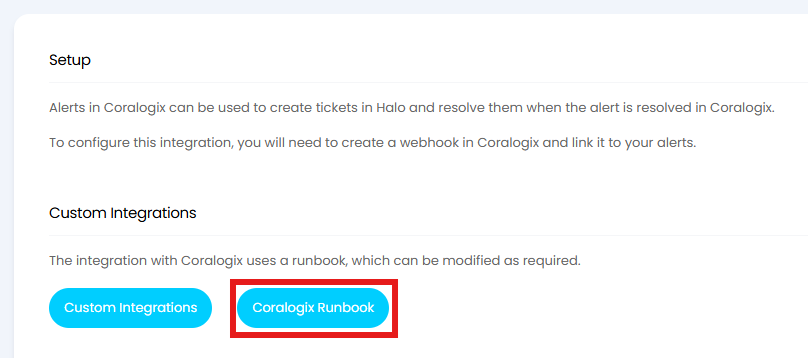
Fig 2. Navigating to the runbook
Creating an Alert Webhook in Coralogix
The Coralogix documentation to create an alert webhook can be found here.
Navigate to Integrations > Integrations. In "Sections", select "Outbound Webhooks". Click "Generic Webhook" > "Add New".
Enter a webhook name and the URL to which you want to send an event notification. The URL entered here should be the one within the "Details" tab of the runbook. The UUID field is auto-populated, take note of this for later.
Note: "$ALERT_ACTION" must be included in the webhook for the runbook to determine if it is an alert or a resolve webhook.
If multiple webhooks are triggered by one alert, only one ticket will be created in Halo until the ticket is resolved. A new ticket will be created for the next alert webhook.
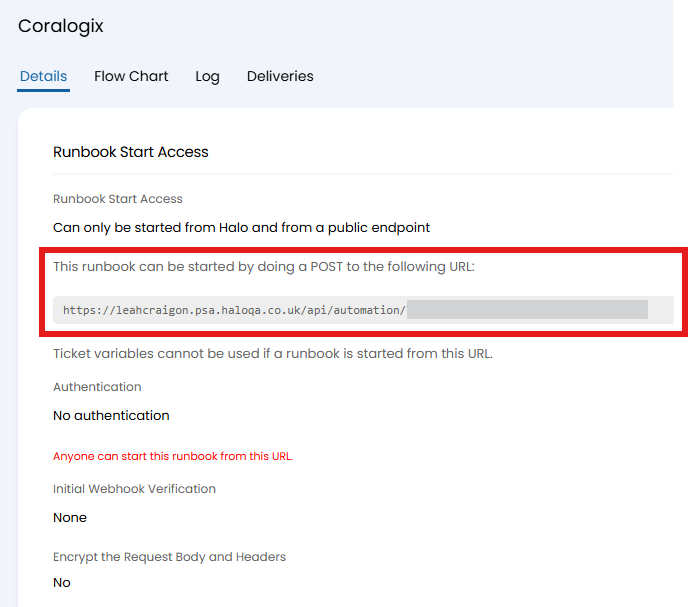
Fig 3. URL to trigger the runbook
Customising the Runbook
The UUID field from the webhook needs to be added to the runbook. In the "Flow Chart" tab, edit the runbook, then click the pencil icon on the first step.
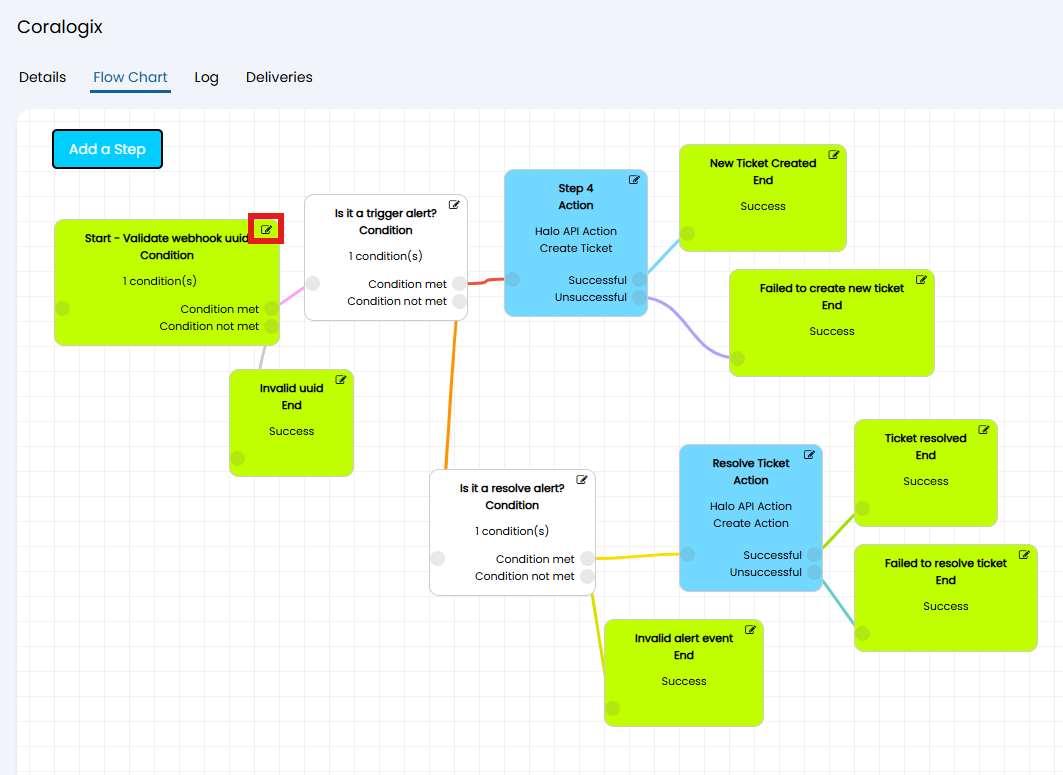
Fig 4. Editing the runbook step
Hover over the UUID condition, and click the pencil icon to edit it.
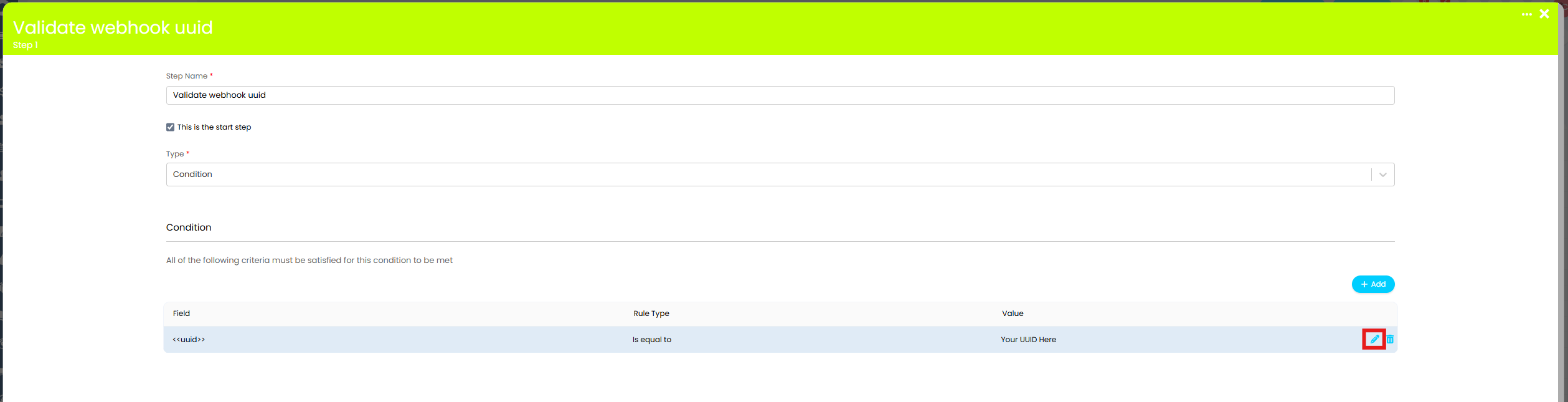
Fig 5. Editing the condition
Enter the UUID from the webhook in the popup, then save. Ensure to save the popup, the step and then the runbook itself.
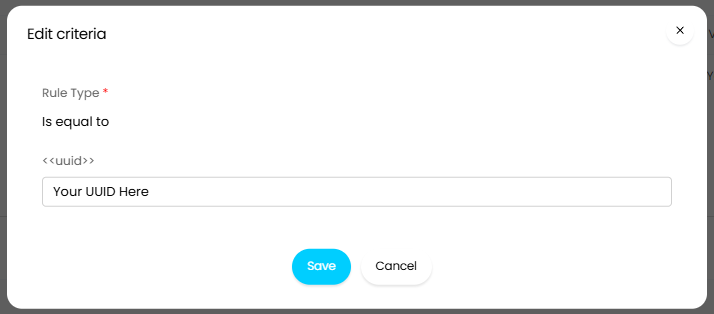
Fig 6. Entering the UUID
The runbook will create alert tickets when triggered.
- If the "ALERTACTION" variable is set to "trigger", it will log a ticket.
- If the "ALERTACTION" variable is set to "resolve", an "Coralogix Alert Resolved" action will be added to the ticket and the status will change to closed.
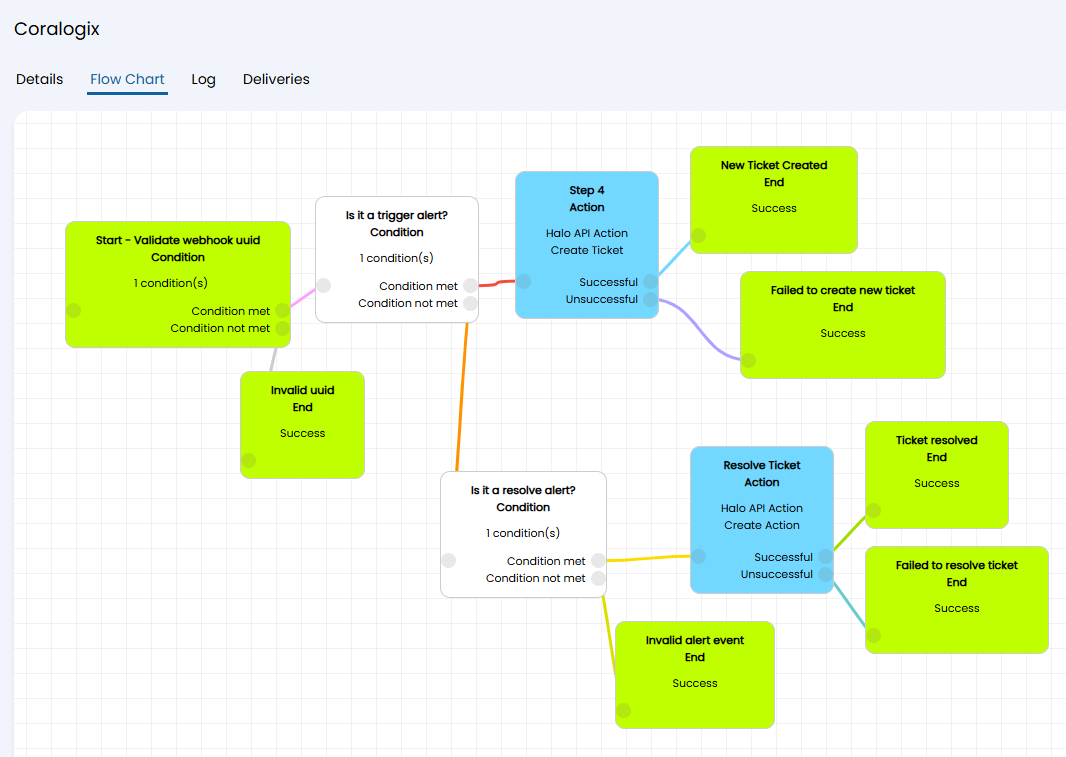
Fig 7. Runbook overview