Adobe Commerce Integration (Magento)
In this guide we will cover:
- What is the Adobe Commerce Integration?
- Enabling the Adobe Commerce Module
- Connecting to Adobe Commerce
- Users
- E-commerce Orders
- Halo Integrator
What is the Adobe Commerce Integration?
The Adobe Commerce integration allows users and their orders to be imported in Halo. Tickets can then be linked to these orders to track them.
Enabling the Adobe Commerce Module
In Configuration > Integrations, scroll to the "E-commerce Orders" section. Hover over the Adobe Commerce module, and click the plus icon to enable it.
Fig 1. Enabling the Adobe Commerce module
Connecting to Adobe Commerce
Clicking into the module, a button shows at the top to "Add/Edit Connections". Click into this.
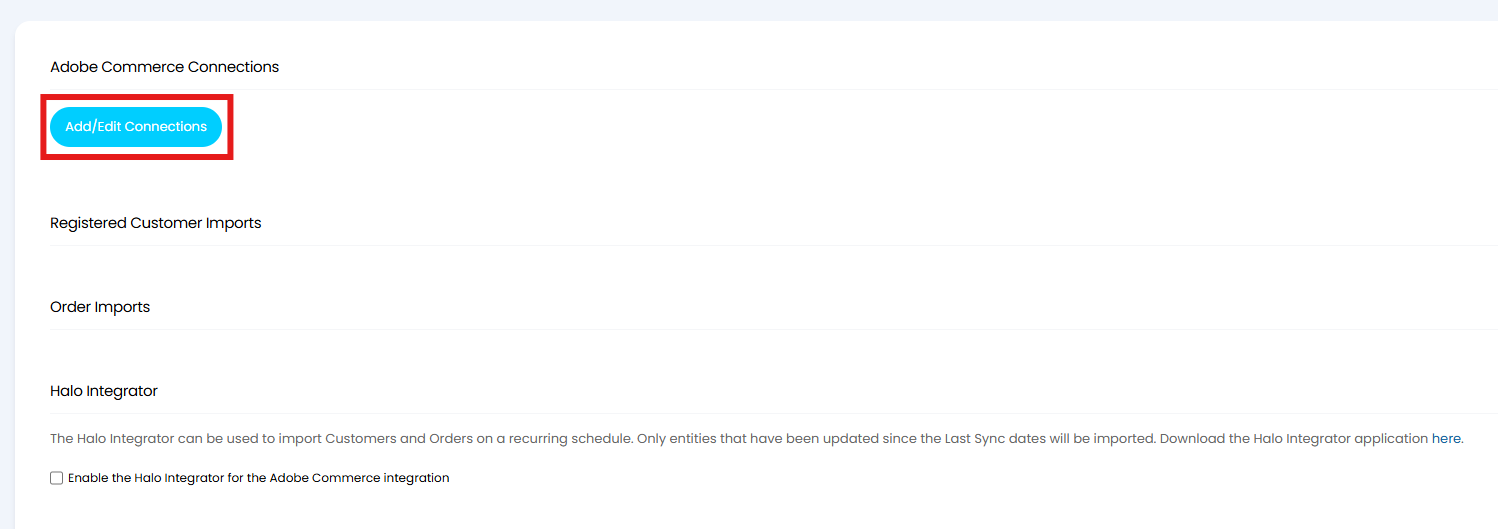
Fig 2. Navigating to add a connection
A list of any Adobe Commerce connections will show here, and multiple connections can be made. Click the "New" button to create one.

Fig 3. List of Adobe Commerce connections
Give the new connection a name, and add the URL of the Adobe Commerce site. Save the connection.
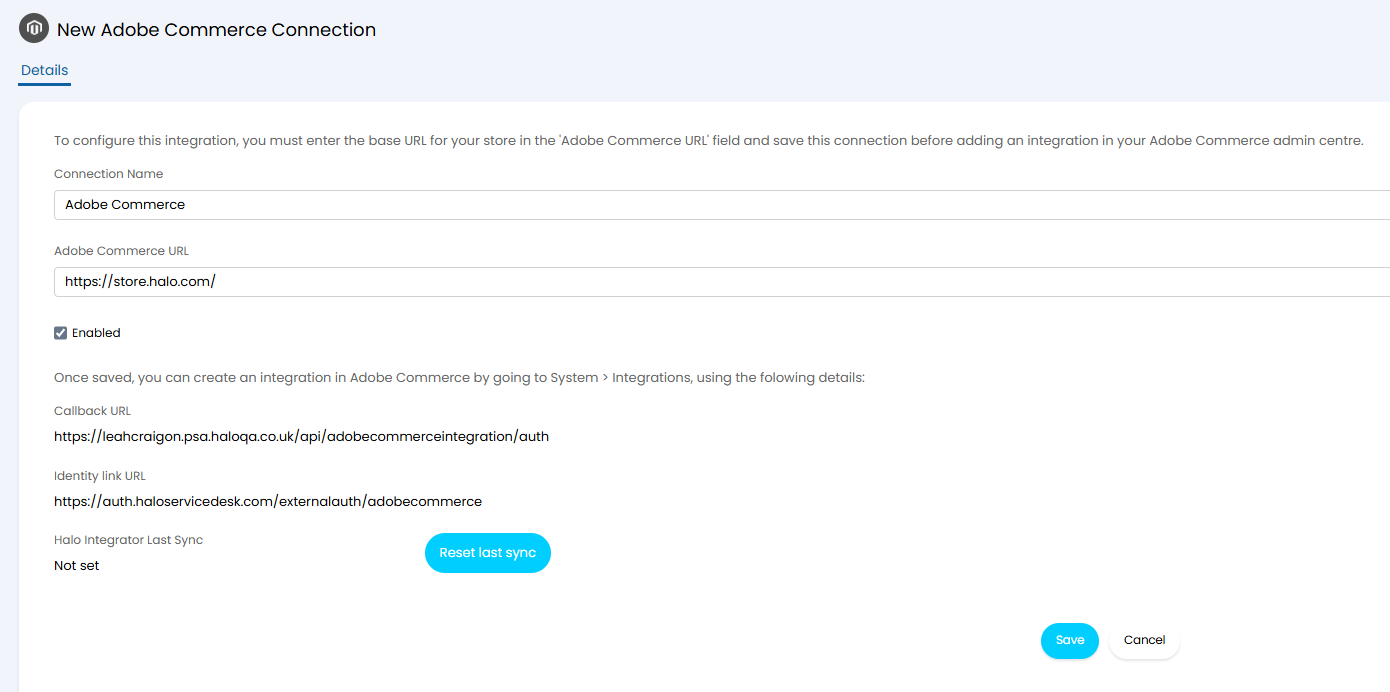
Fig 4. Adding the connection
A "Callback URL" and "Identity link URL" are given on this page that will be used to authorise the connection.
In Adobe Commerce, navigate to System > Extensions > Integrations and click "Add New Integration".
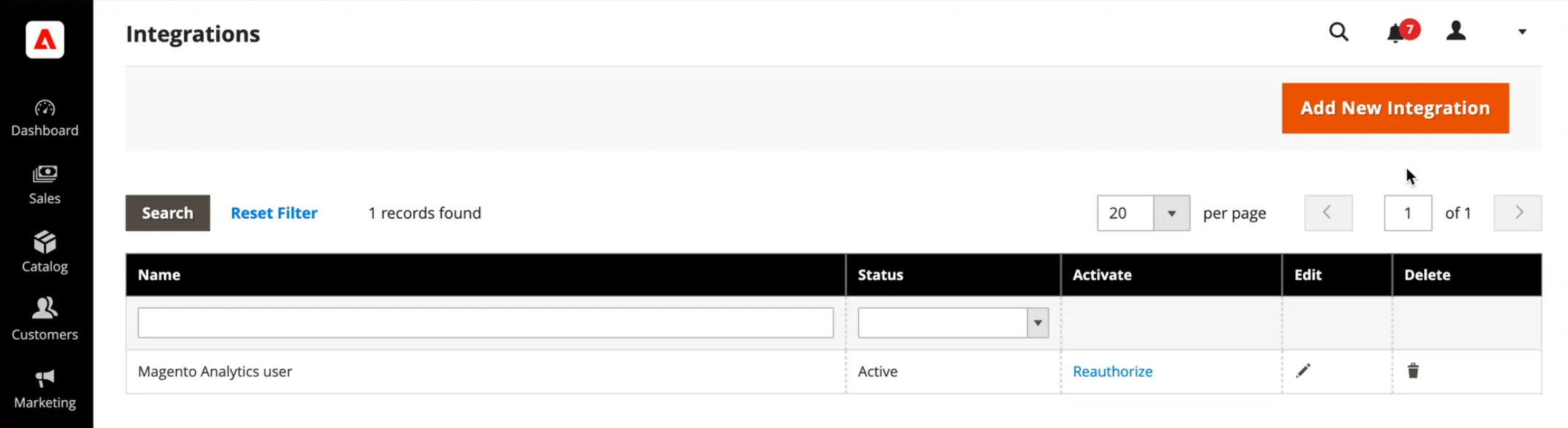
Fig 5. Integrations area in Adobe
Give the integration a relevant name, i.e. Halo, and add the URLs into the corresponding fields here.
Enter your password to confirm your identity, and save.
The full length documentation from Adobe on creating an integration can be found here.
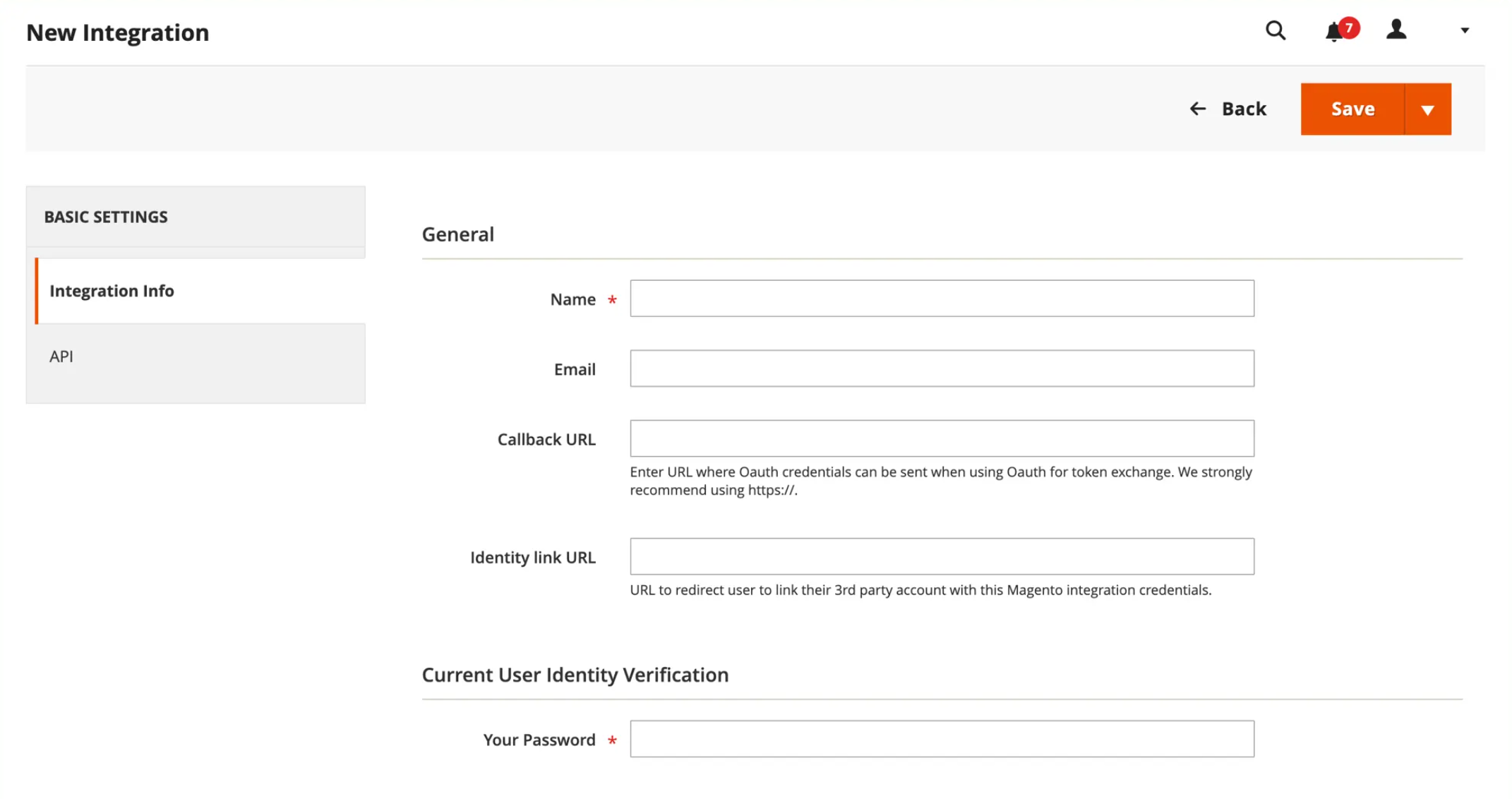
Fig 6. Creating the integration
Users
Before importing the orders, users need to be imported to match those orders against. Back on the main page of the module, open the "Registered Customer Imports" dropdown.
Set a default client/site for those users to be created under, then click "Import Customers" to import users under that site.
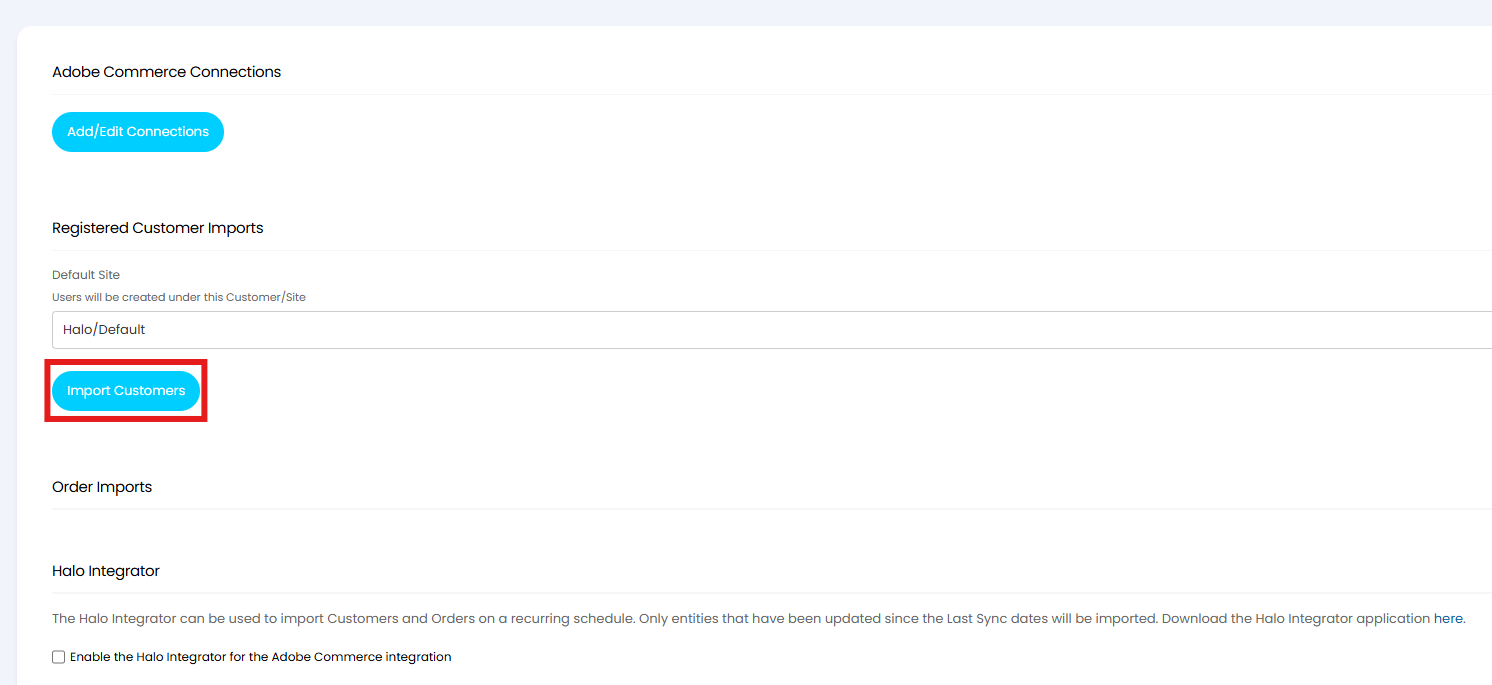
Fig 7. Importing users
E-commerce Orders
A tab will show on users for any E-commerce orders, either from Adobe Commerce or another e-commerce integration. This will show any orders associated with that user.

Fig 8. E-commerce tab on a user
A dedicated area can also be enabled to show orders for all users in one screen. Within the module, select "Enable the E-commerce Orders Area".
Note: If this setting is enabled on any e-commerce integration and that integration's module is enabled, the area will show, even if disabled in another integration.
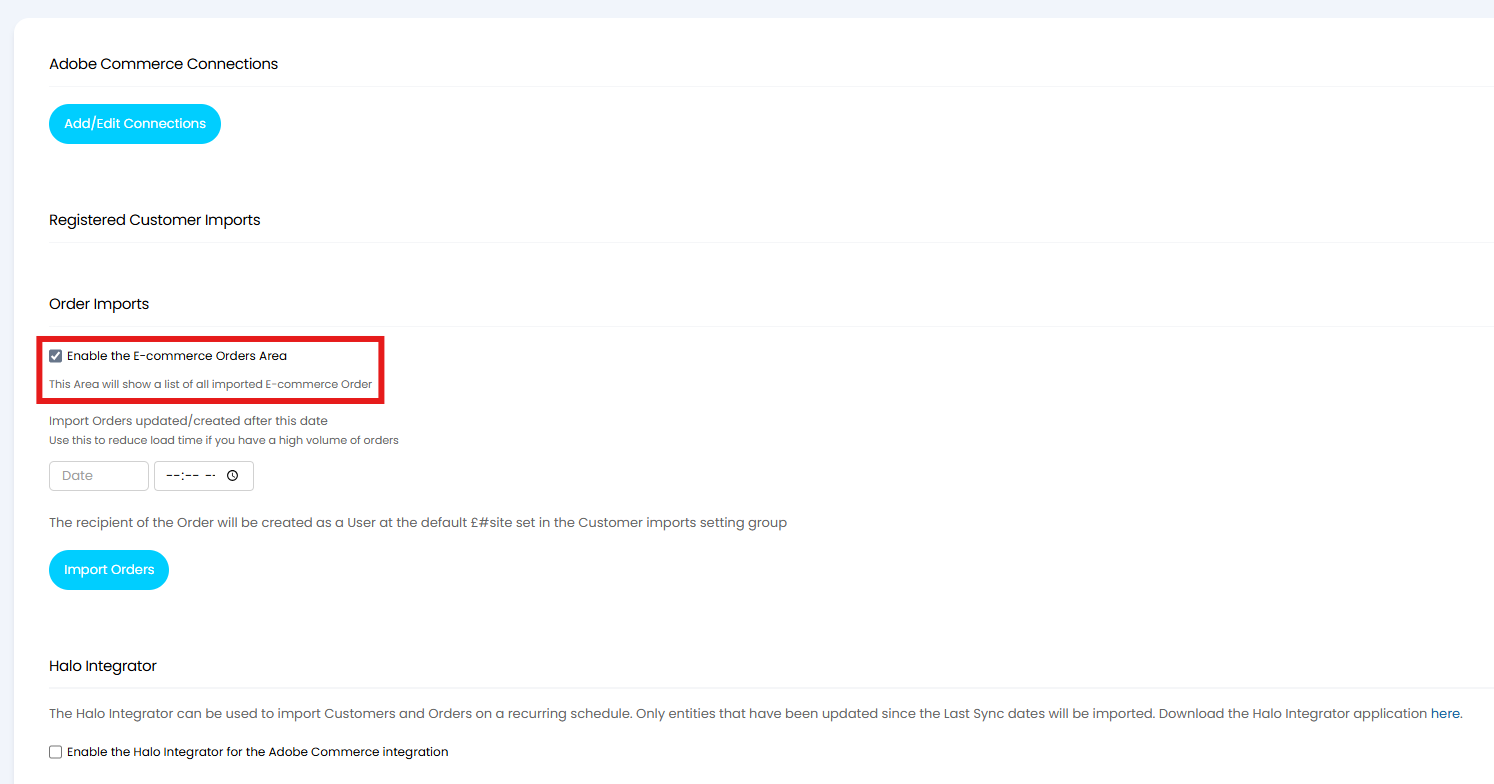
Fig 9. Enabling the E-commerce area
The area will show within the module bar like this by default.
Note: You will have to log out and in to see the area after enabling the setting and module.
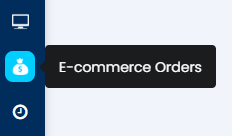
Fig 10. E-commerce Orders area in the module navigation bar
Orders can now be imported to show in this area and/or tab.
A date filter can be set to only import orders after a certain date.
Note: This field does not save. If using the Halo Integrator to automatically import orders, this will not filter this and the integrator will bring in all orders.
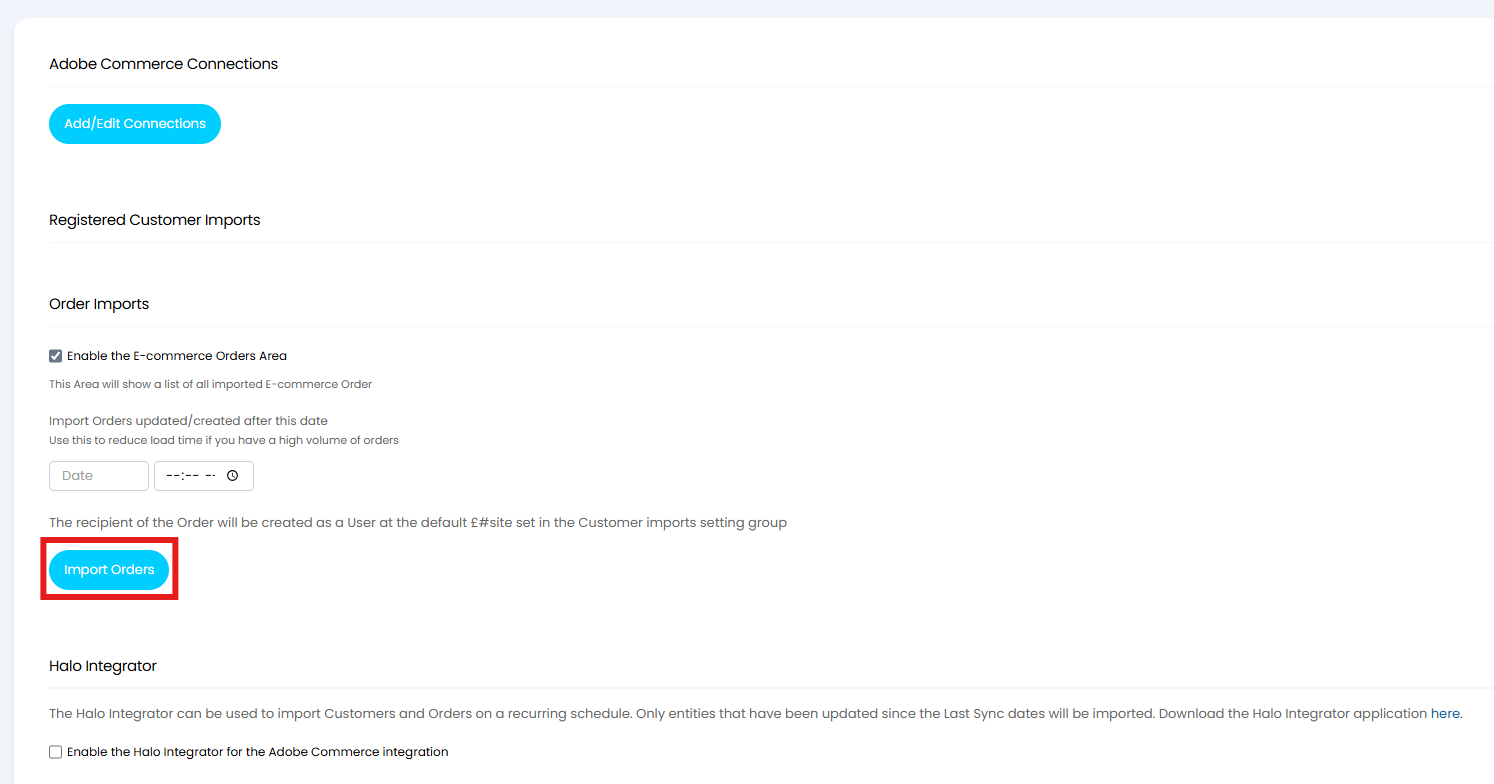
Fig 11. Importing orders
Orders will show in a table format within the area or tab. Orders can be linked to tickets from here by right clicking > "Show more details".

Fig 12. List of orders in the E-commerce Orders area
A popup will show to link the order to a ticket, and multiple orders can be linked to one ticket. Enter the ticket ID, and click save at the bottom of the popup.
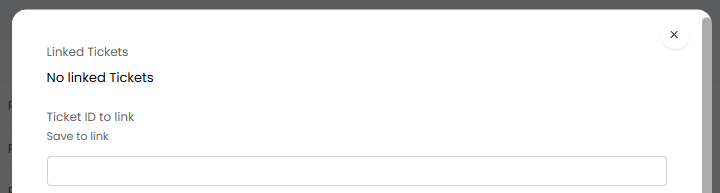
Fig 13. Linking an order to a ticket.
The order information will then show in the "E-commerce Orders" tab on the ticket.

Fig 14. E-commerce Orders tab on a ticket
Halo Integrator
Users and orders can be imported on a recurring basis via the Halo Integrator.
Select "Enable the Halo Integrator for the Adobe Commerce integration", then choose which entities to sync.
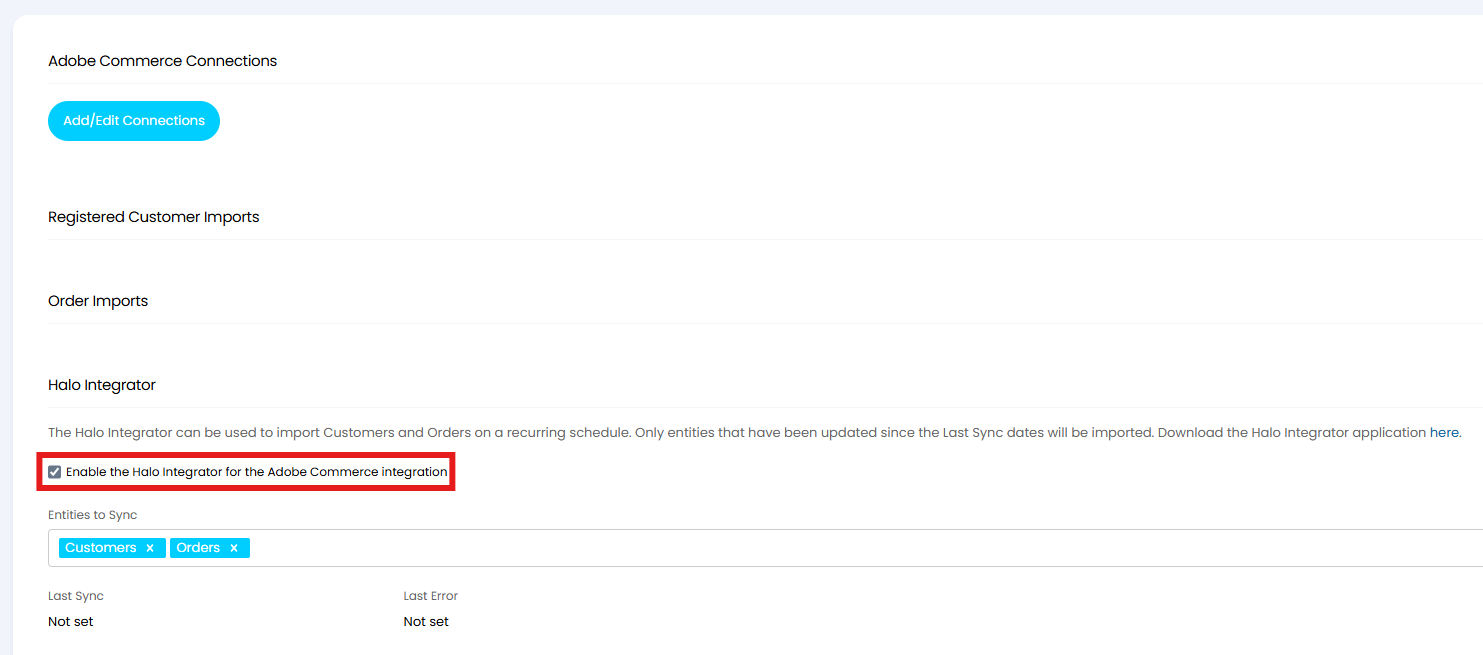
Fig 15. Enabling the Halo Integrator