Creating Purchase Orders
In this guide we will cover:
- Creating Purchase Orders
- Viewing Purchase Orders
- Sending Purchase Orders
Creating Purchase Orders
When not enough stock is available a Purchase Order will need to be created. Purchase Orders can be created using the "Order Items" button on a Sales Order.
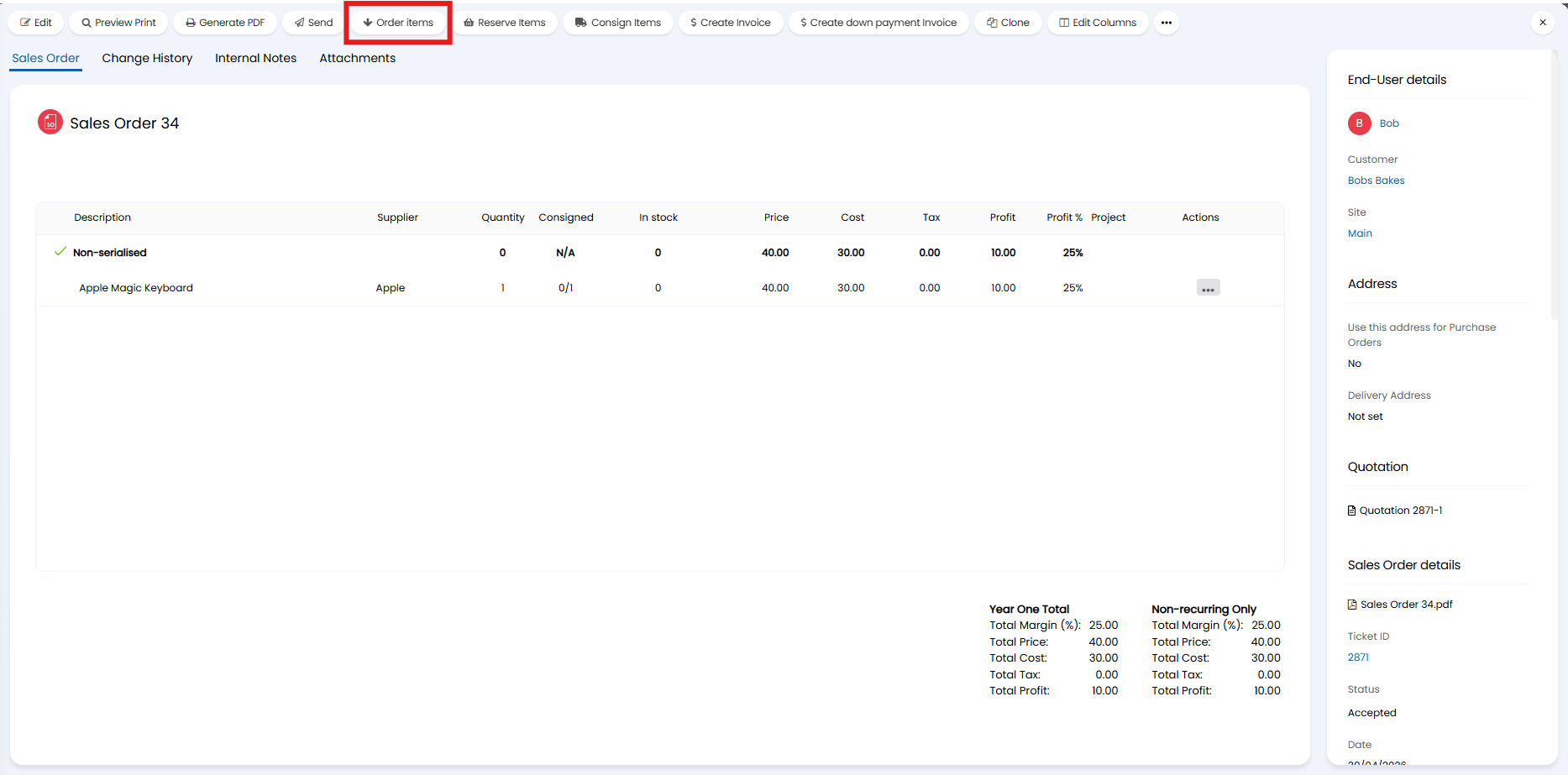
Fig 1. Order Items button in a Sales Order
When selected, a popup will show allowing you to set the Quantity, Supplier, and whether to create a new, or add to an existing Purchase Order for each Product.
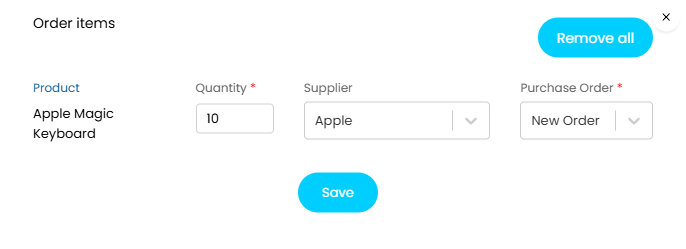
Fig 2. Ordering Items
Once saved you can determine who the Products should be delivered to.
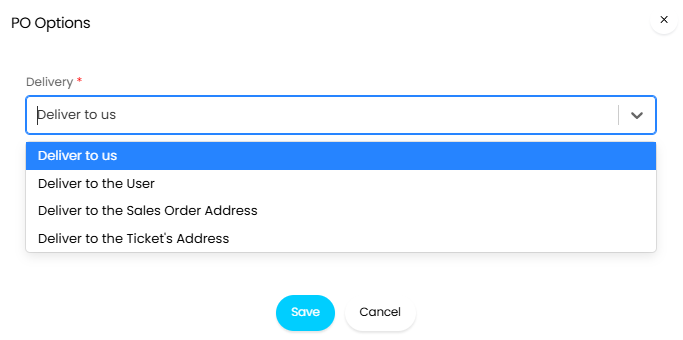
Fig 3. Purchase Order delivery options
Or to create a new Purchase Order directly from the Quotes & Orders section, navigate into this Area, make sure Purchase Orders is selected, and click "New".
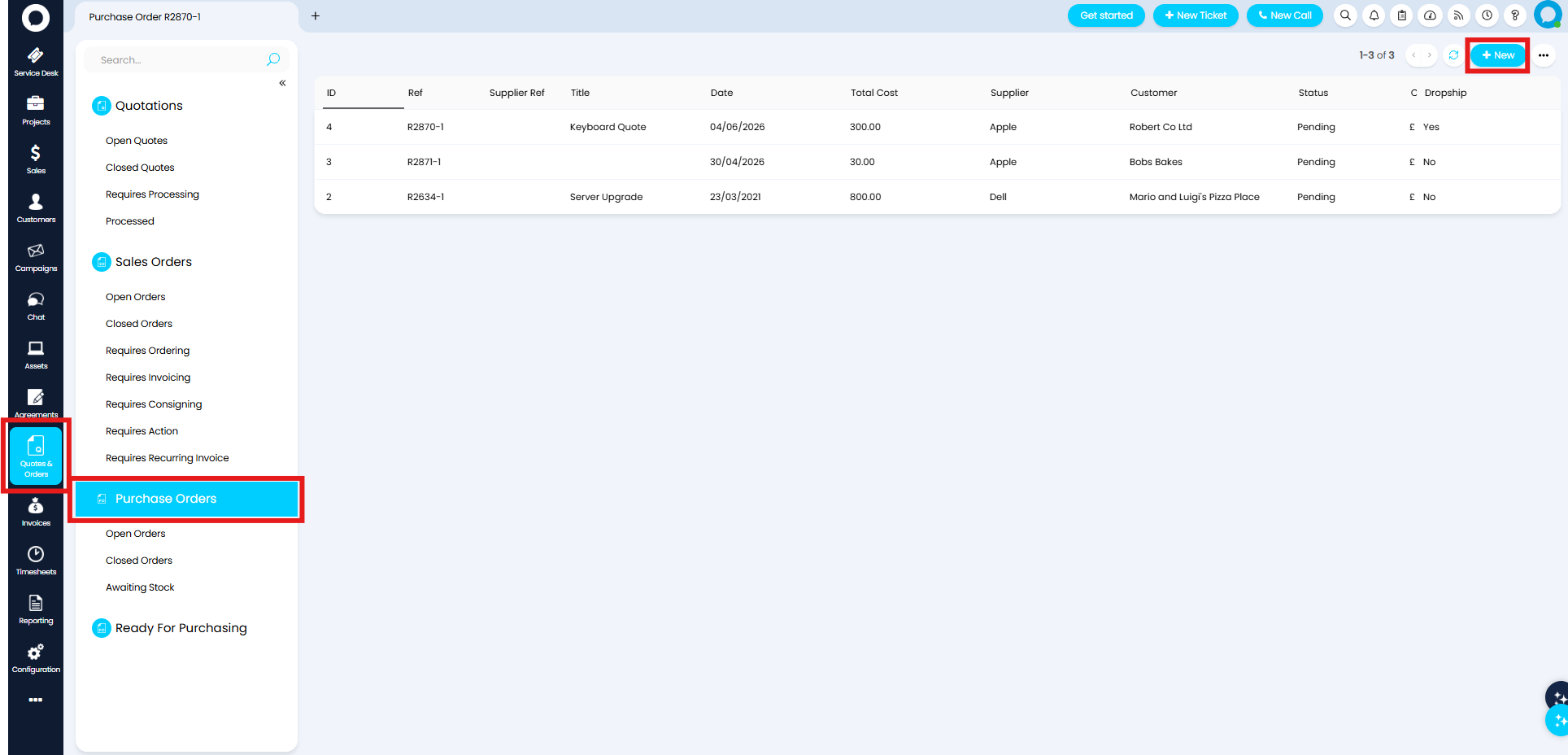
Fig 4. Raising a Purchase Order from the Purchase Orders Area
On the New Purchase Order screen you can add products to order.
If the Purchase Order has been raised from a Sales Order the End-User details will automatically be populated. Otherwise you will need to specify the User using the dropdown on the right. You can also set a Title to describe the order.
To add Products to the order, you will first need to choose if you would like to add an existing Product, new Product, Generic/Ad-hoc Product, existing Product Bundle, or a new Product Bundle. Once you know which type you would like to add, click the relevant button below the Purchase Order title.
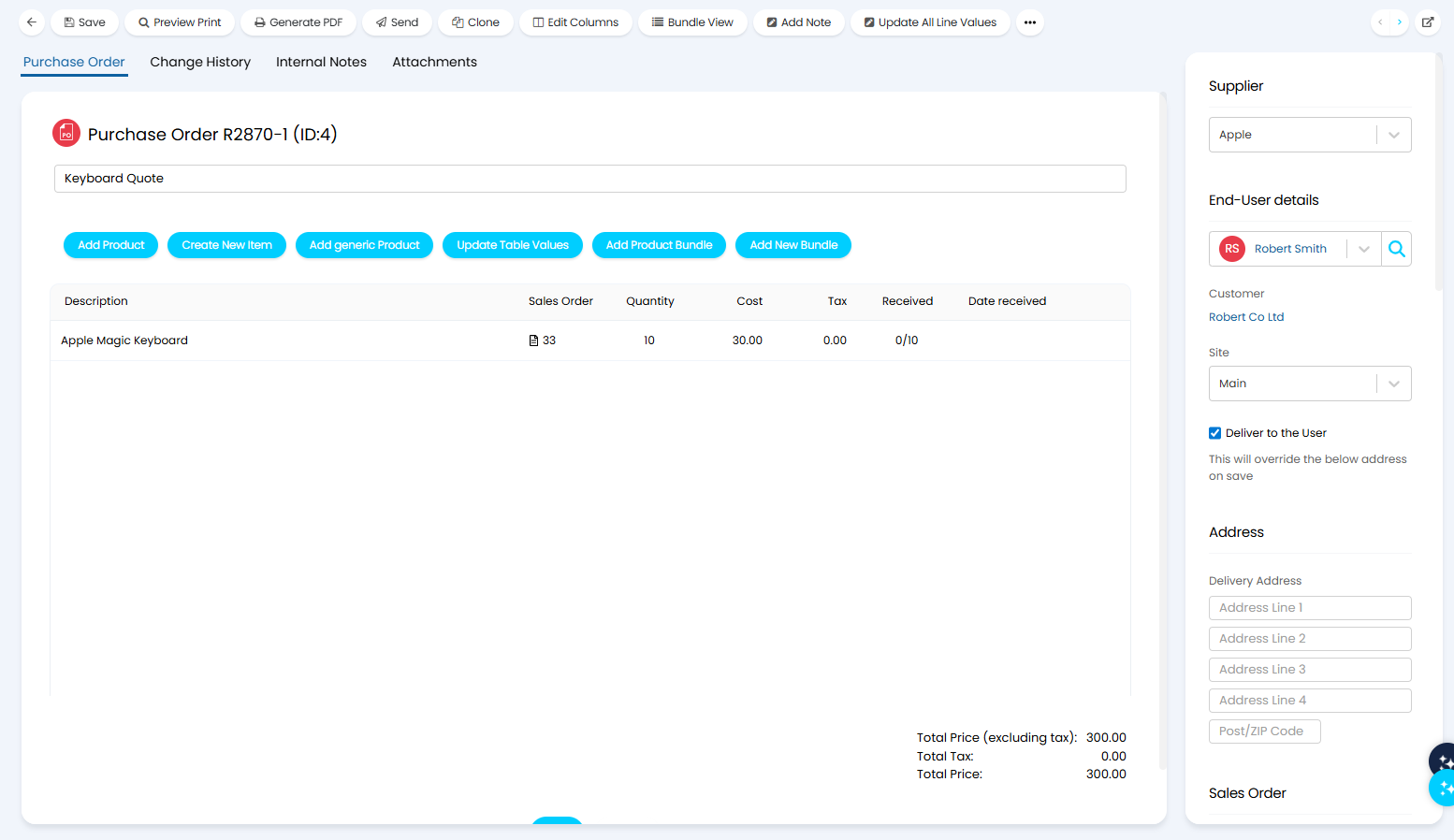
Fig 5. New Purchase Order Screen
When you add an existing Product you will need to specify the quantity. To do this type, or use the arrows within the quantity field to set the correct number. Click "Select" to confirm your Products.
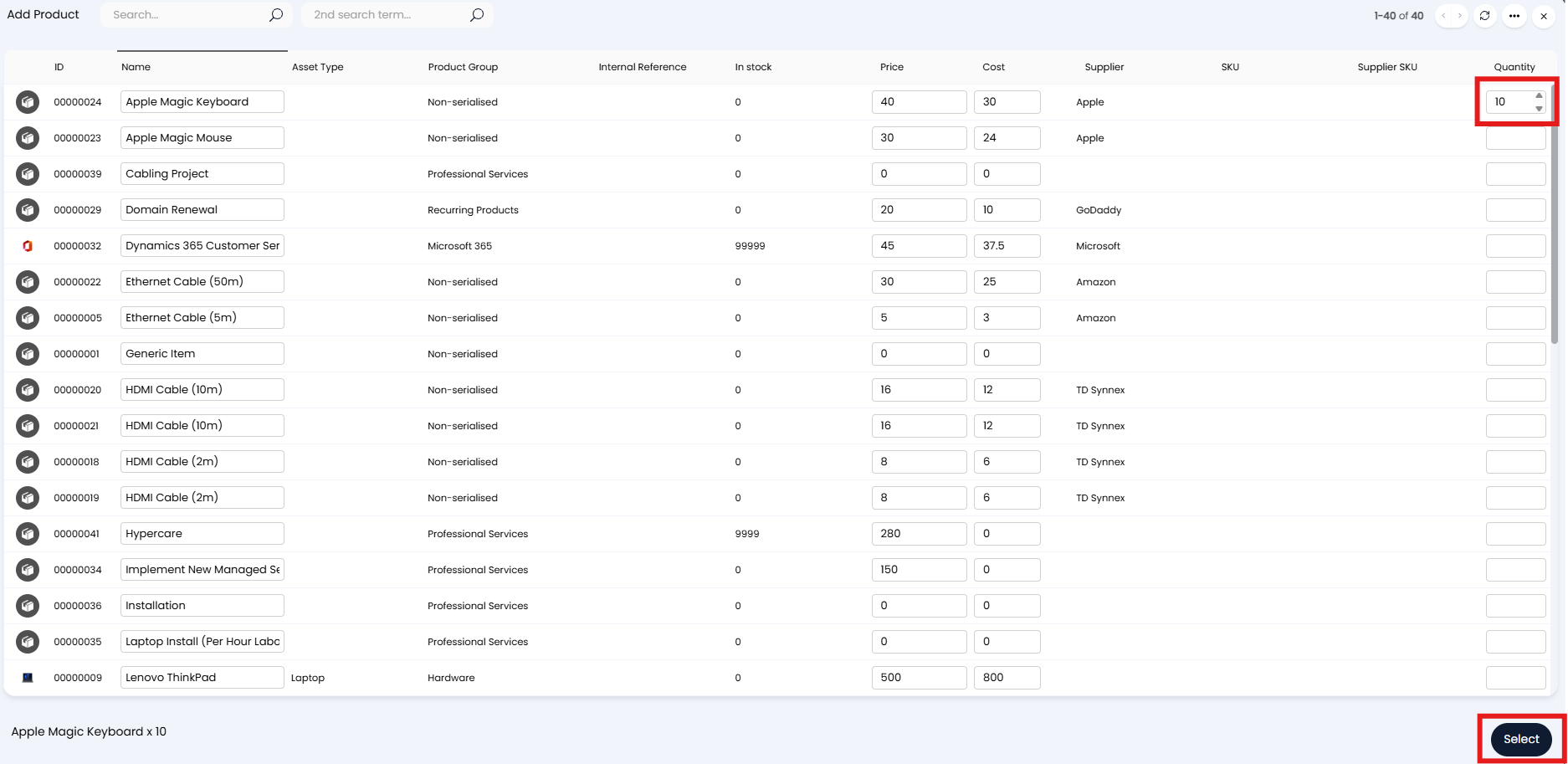
Fig 6. Adding Products to a Purchase Order
Creating a new Product will open the New Product modal screen allowing you to create a new Product directly from the Sales Order. Once created this can be viewed and edited in the Products Area.
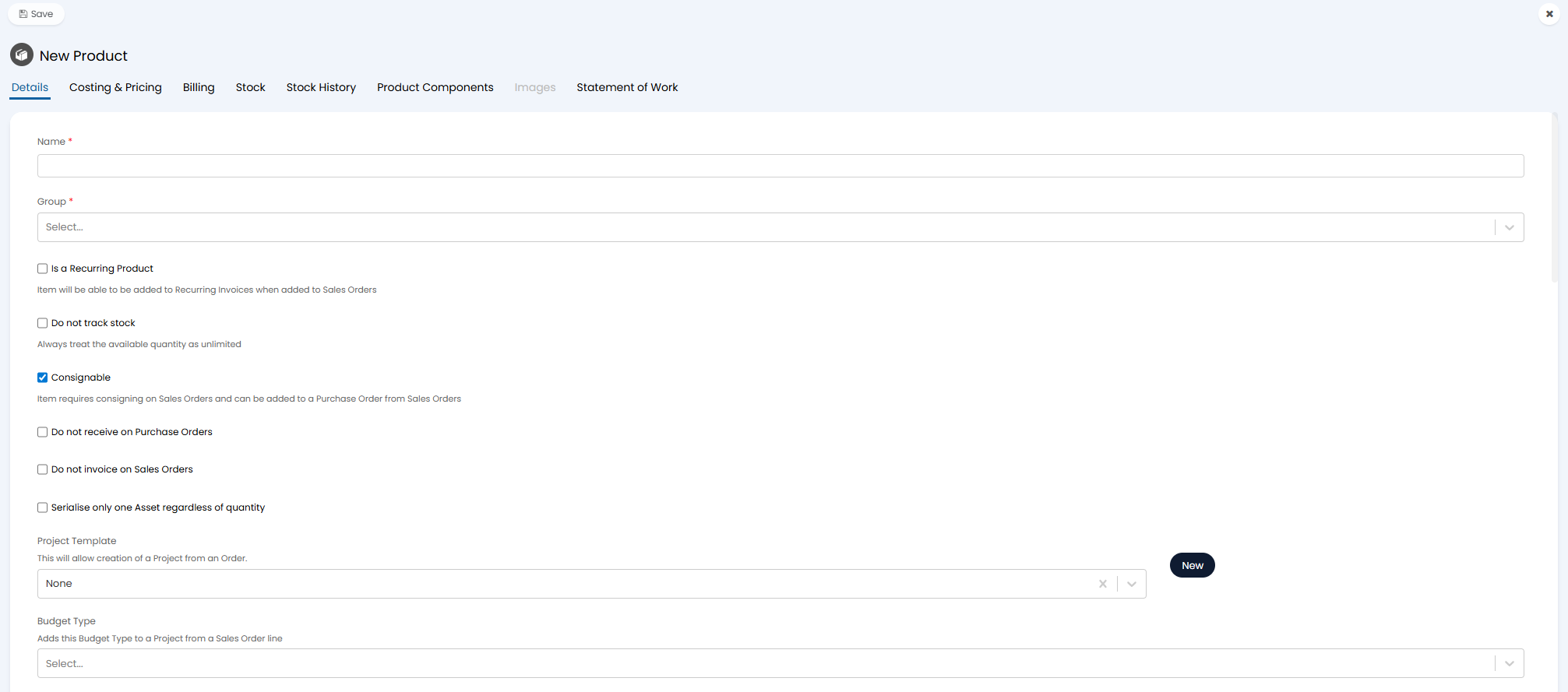
Fig 7. Creating a new Product from a Purchase Order
Generic Products act in a similar way to new Products, however they require less configuration as they will not be stored as a Product in the Products Area. Instead they can be created and used as a one-off Product in your Purchase Order.
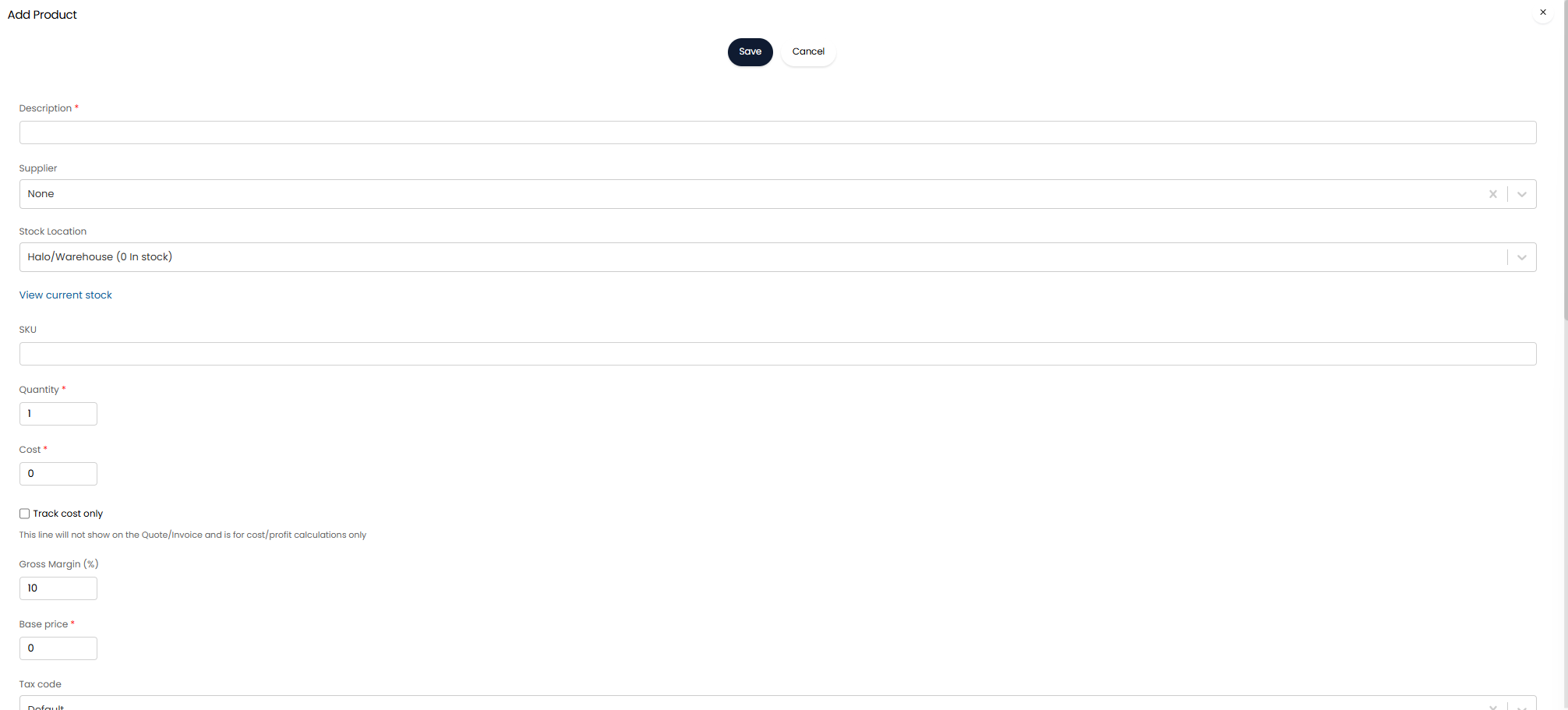
Fig 8. Adding Generic Products to a Purchase Order
If you are adding an existing Bundle you will need to use the dropdown show below to select which Bundle to add, and a quantity which will be used to multiply each individual Product quantity within the Bundle.
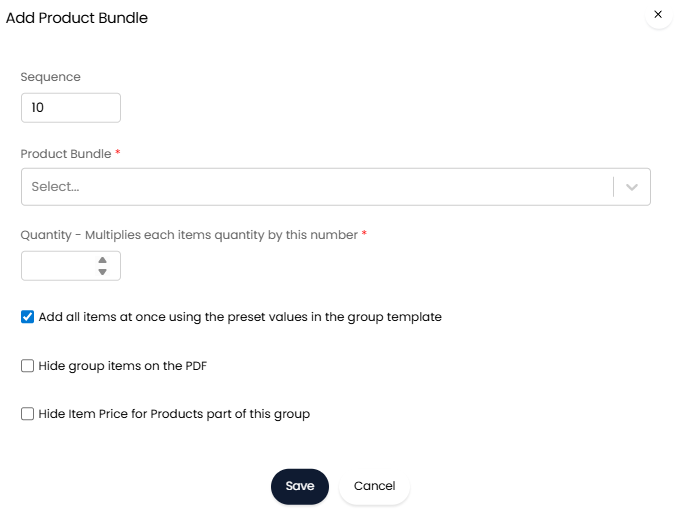
Fig 9. Adding a Bundle to a Purchase Order
If the combination of Items you would like to add would suit a Bundle, but the Bundle does not yet exist, you can create a one-off Bundle directly from the Sales Order. When you choose this option you will create a "Group" which subsequent Products can be added to.
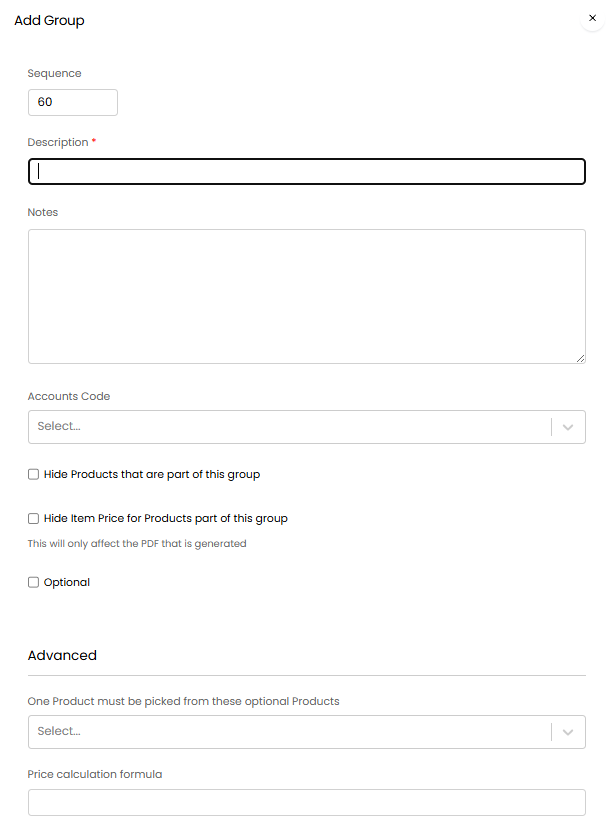
Fig 10. Creating a new Product Bundle from a Purchase Order
Any Products you would like added to this group will need to be added (or edited) and assigned to the group.
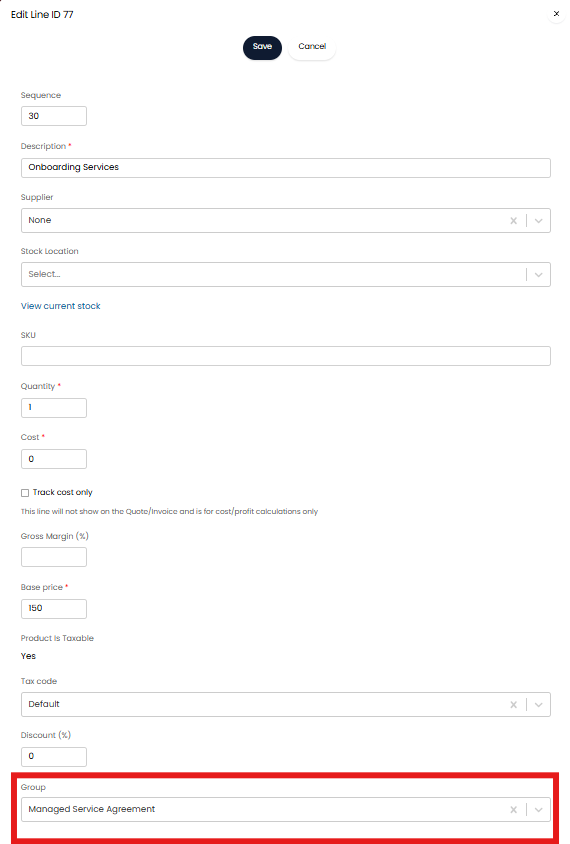
Fig 11. Adding Products to a Bundle
Set a name for your Purchase Order and click "Save" once you are happy with the contents.
Viewing Purchase Orders
Before sending a Purchase Order you may want to preview the order. To do this you can use the option "Preview Print" or "Generate PDF".
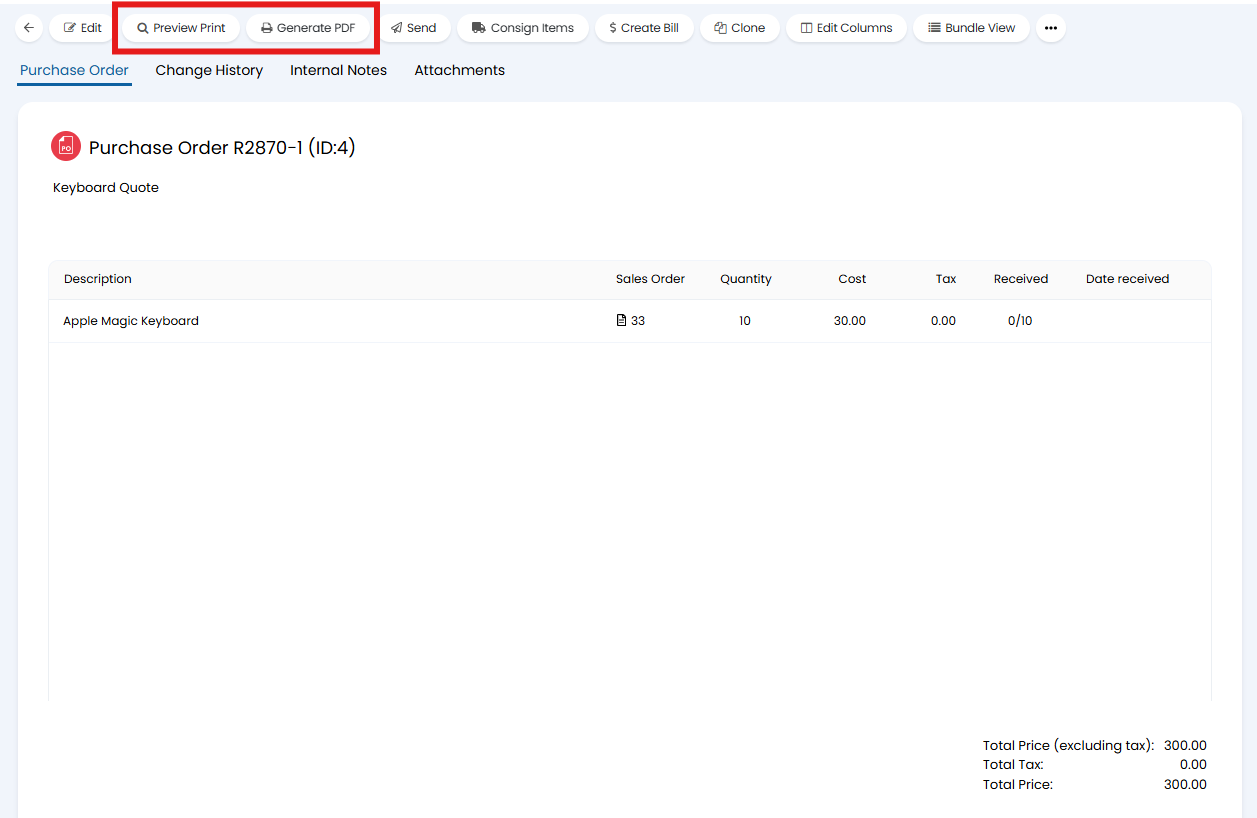
Fig 12. Viewing Purchase Orders
Preview Print will open a view of the Sales Order in the Purchase Order screen. To leave this view click "Exit Preview" or click the cross in the top right.
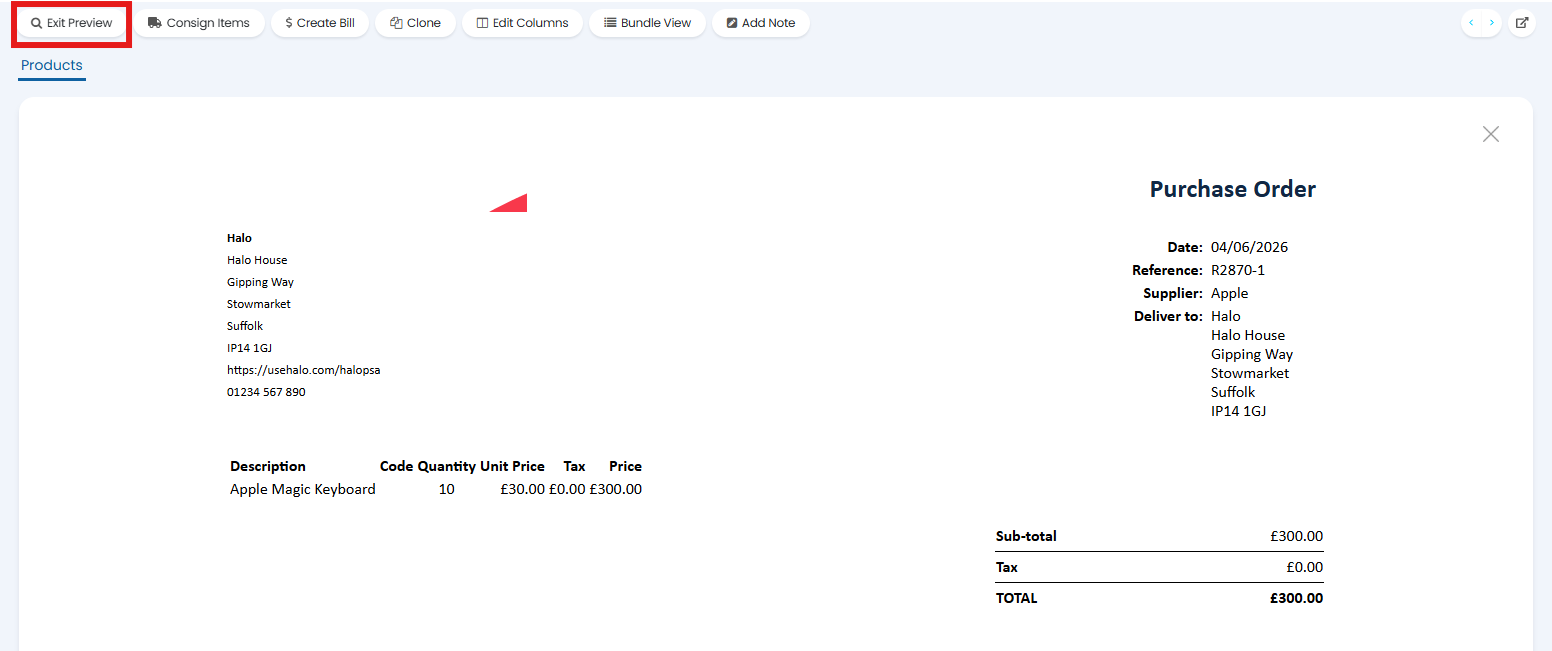
Fig 13. Preview Print option
Generate PDF will download the Purchase Order as a PDF.
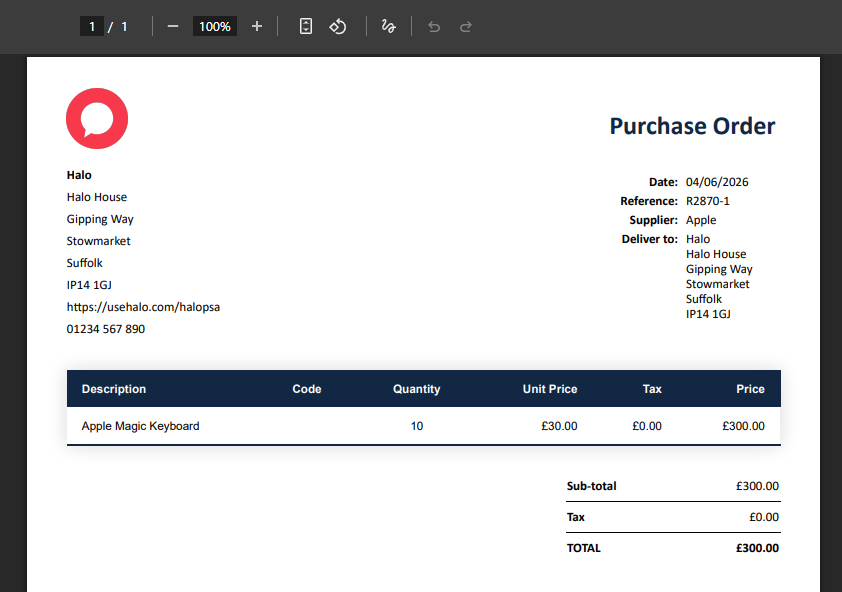
Fig 14. Generate PDF option
The template used for your Purchase Order can be overridden in the "Print Options" section to the side of your order
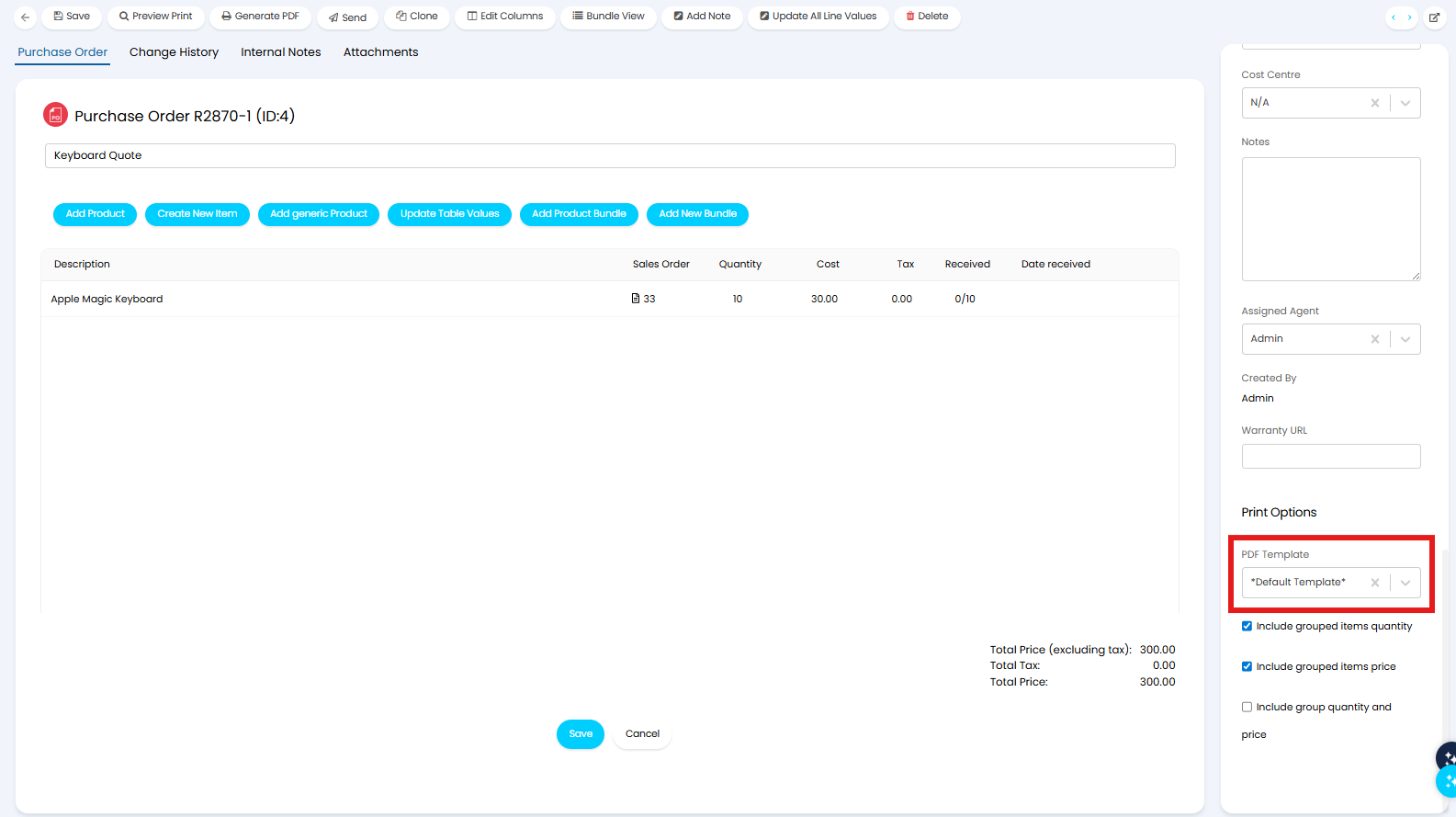
Fig 15. PDF Templates