Opportunity Management
In this guide we will cover:
- The Sales Ticket Flow
- Sending a Quote from a Ticket
- Converting a Prospect to a User
The Sales Ticket Flow
The Sales flow in Halo typically follows the process: Lead > Opportunity > Quote.
When a new Lead is created you will have the option to determine if the ticket is for an existing Customer or a new prospective User.
In Halo prospective Users are known as Prospects, and can be created directly from your new Lead ticket. To do this select the "Prospect" option under the Contact details section, and click into the dropdown field. Here you will see the option to create a new prospect.
Note: If Accounts and Prospects are not being used in your instance you will instead see the option to create a new Contact by specifying their name, company name, email, and title.
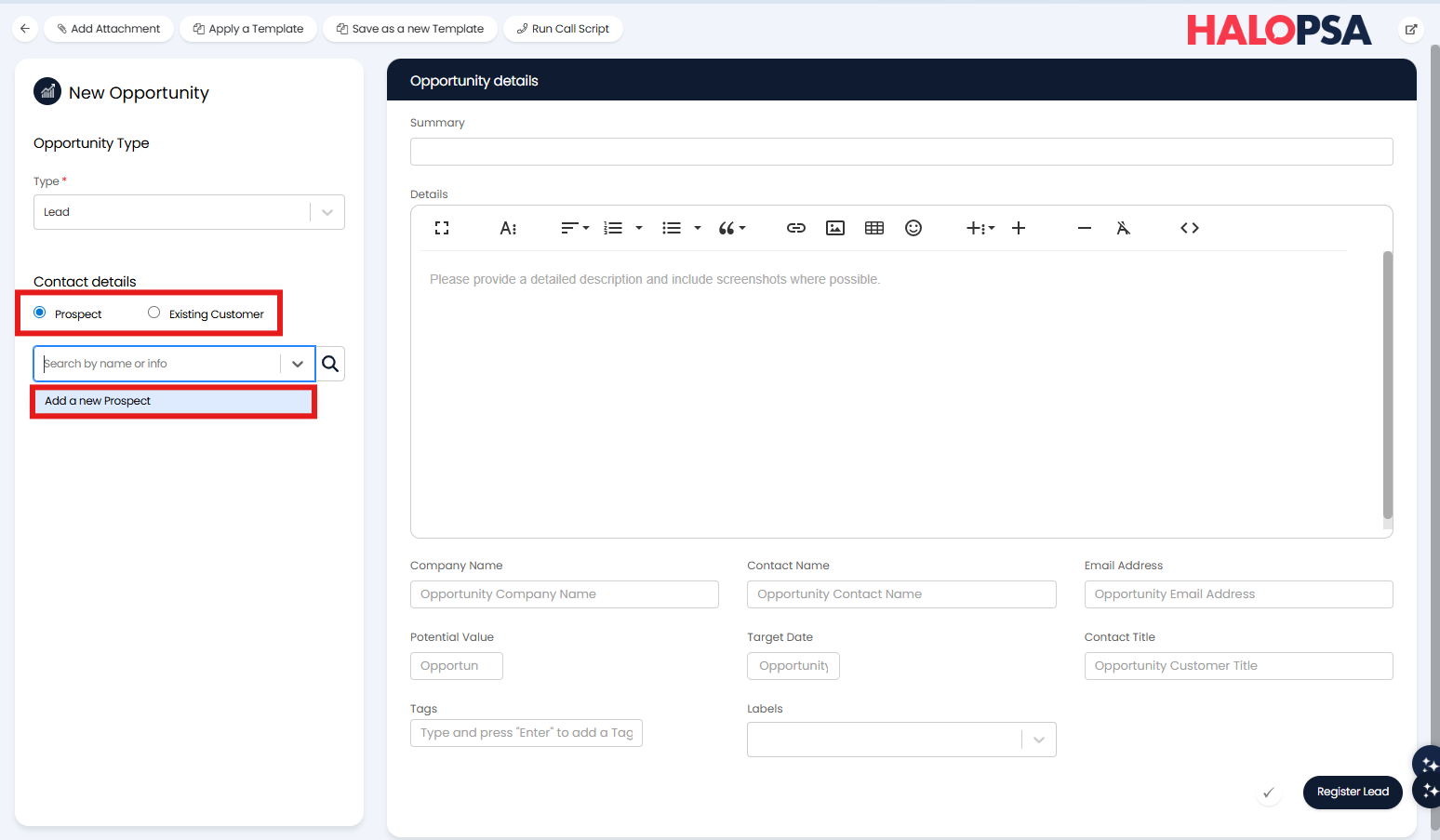
Fig 1. Contact/Prospect
Clicking this will open a modal window for the creation of the Prospect. If the prospective User is from a new company you will want to leave the Account Site field as "Create new Account Record". This gives you the option to provide the name for the prospective customer (or Account).
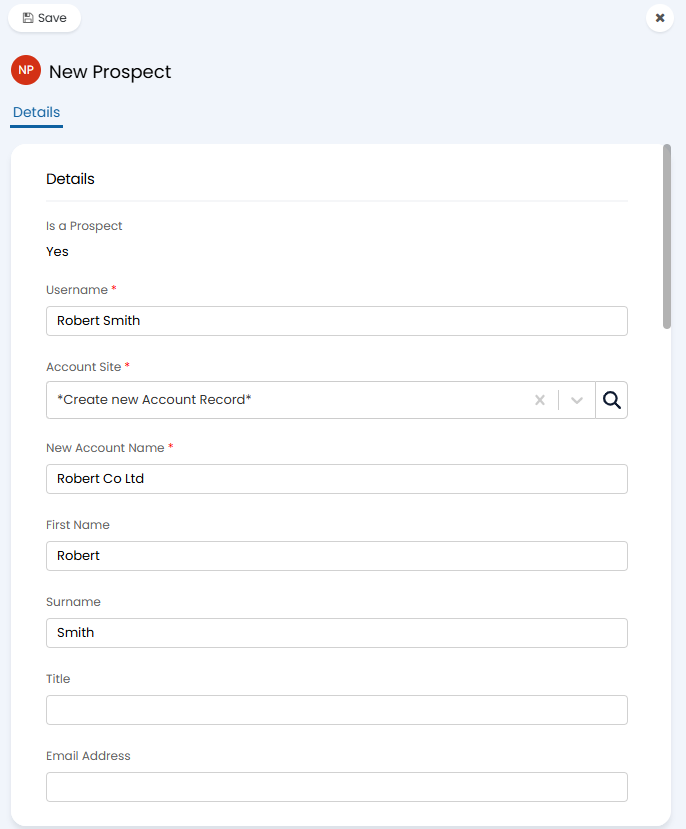
Fig 2. New Prospect
Once saved your newly created Prospect will be set as the End User of the Ticket. You will want to fill in any relevant information relating to the Lead in the Opportunity Details section in order to record the information on the ticket when it is logged.
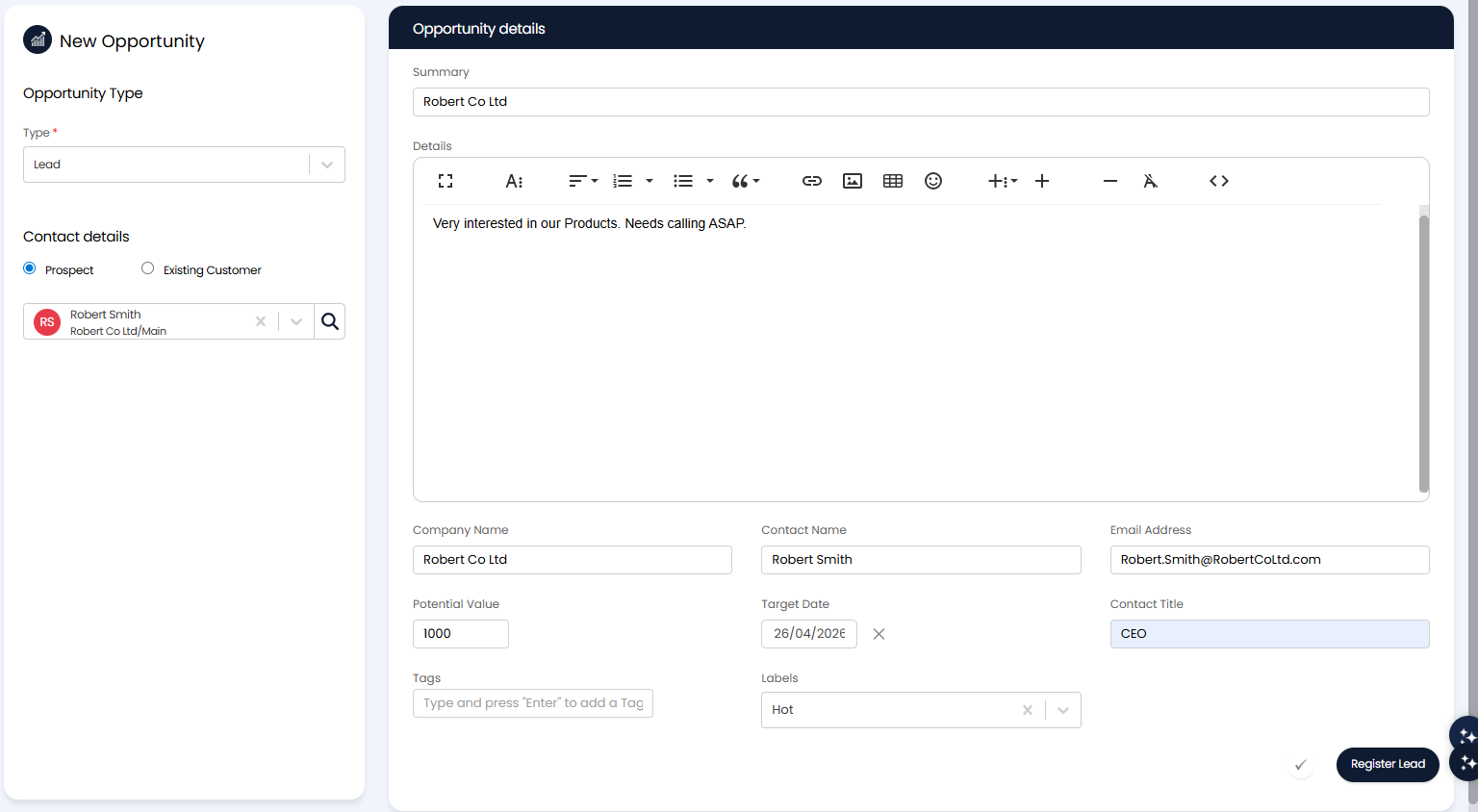
Fig 3. Registering a Lead
Once ready to log the Ticket click "Register Lead". This will create your Lead Ticket.
Check with an Admin Agent for details of your specific Sales flow.
In the example you will need to Qualify the Lead, then convert it to an Opportunity.
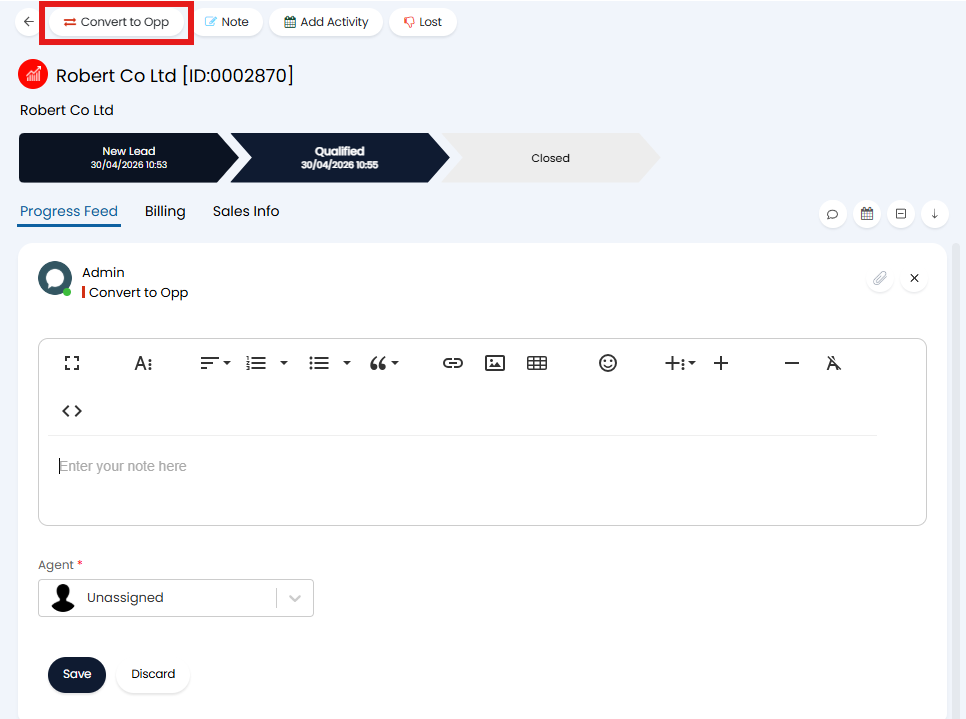
Fig 4. Converting a Lead to an Opportunity
Sending a Quote from a Ticket
Once the Quote has been created it can be sent from the Opportunity Ticket. You will see your linked Quote in the sidepane, and the option to send it to the Prospect.
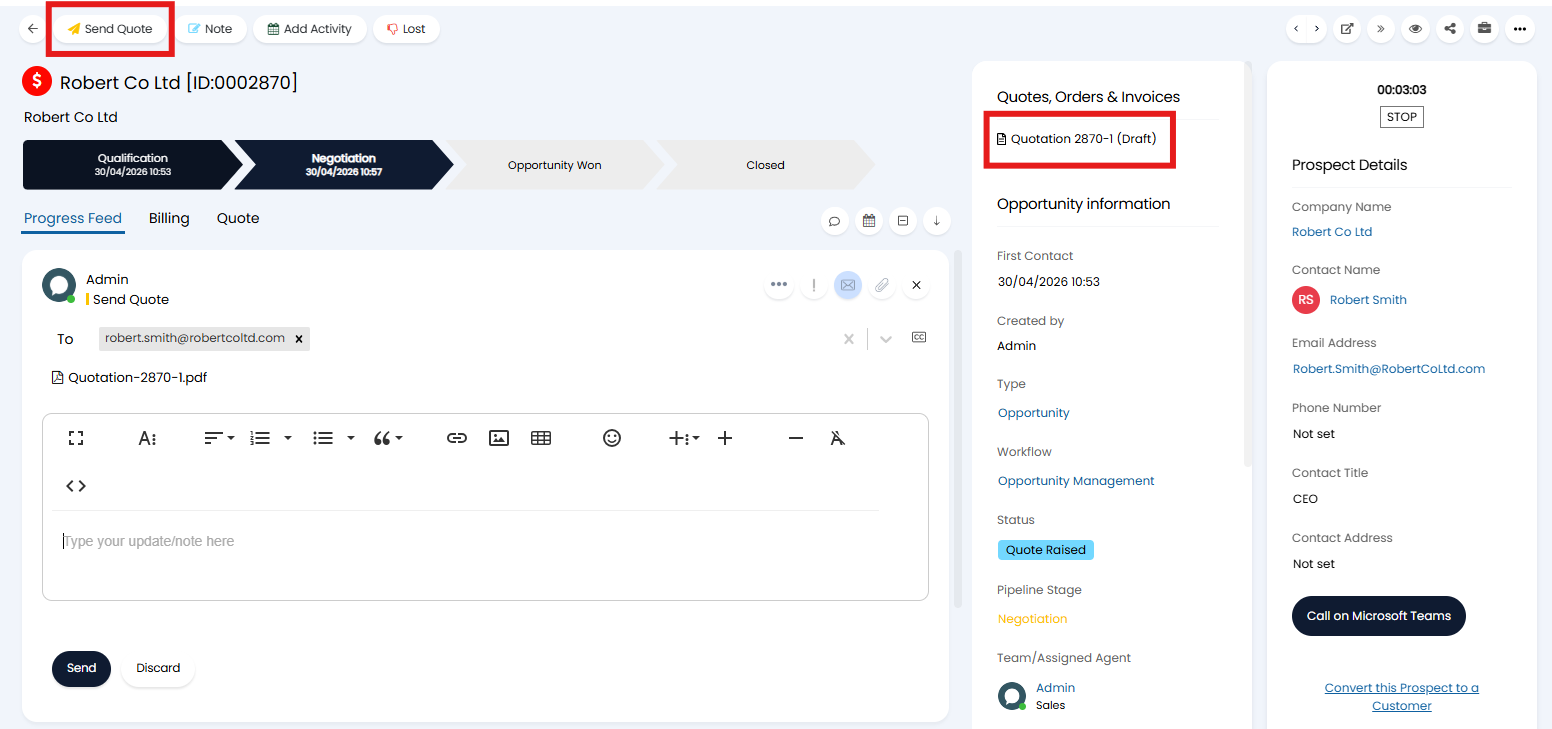
Fig 5. Send Quote Action
When the Quote is sent the prospect will receive the a PDF, and a link to view the Quote in the Portal. In the Portal they will be able to Accept/Reject, and sign the Quote.
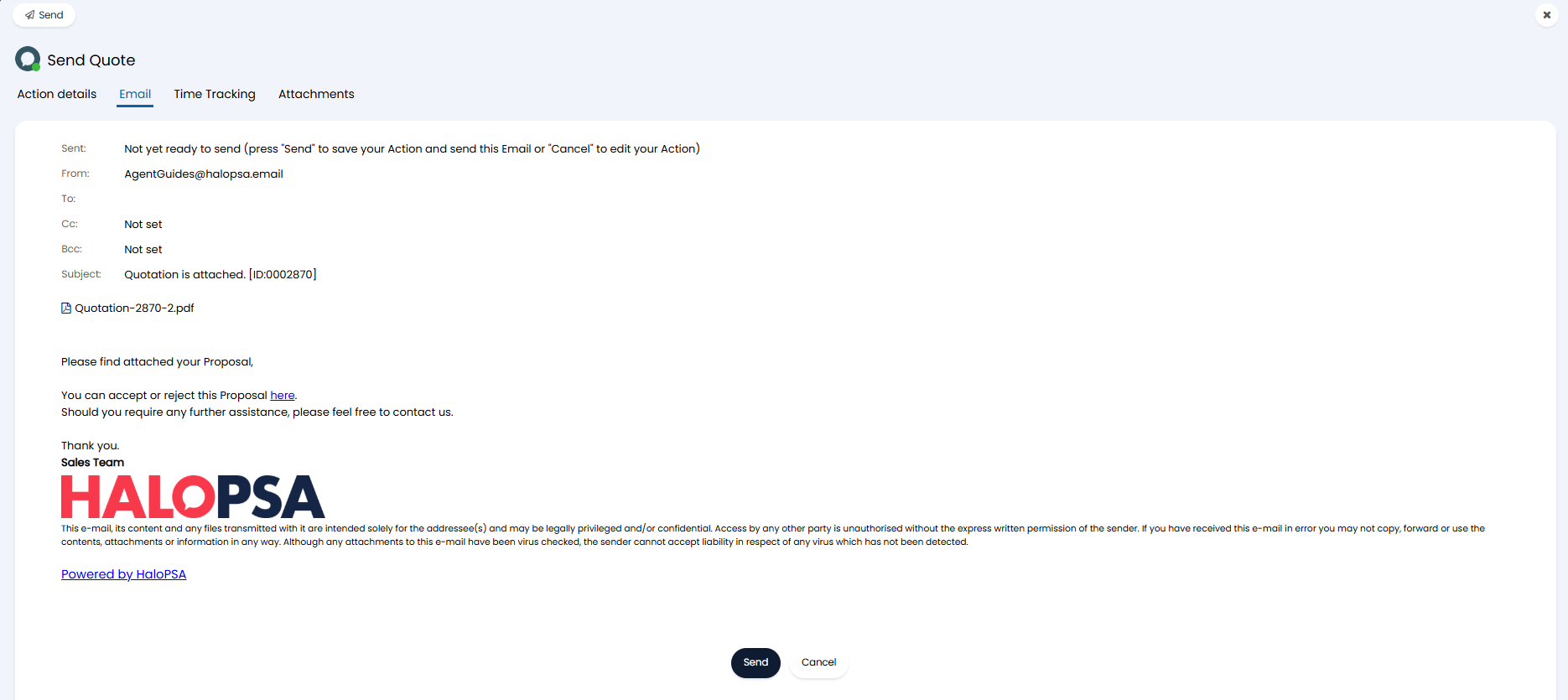
Fig 6. Quote attached to an email
Now the negotiation is complete and the Quote has been accepted the Account can be converted to a Customer using the "Convert this Prospect to a Customer" option.
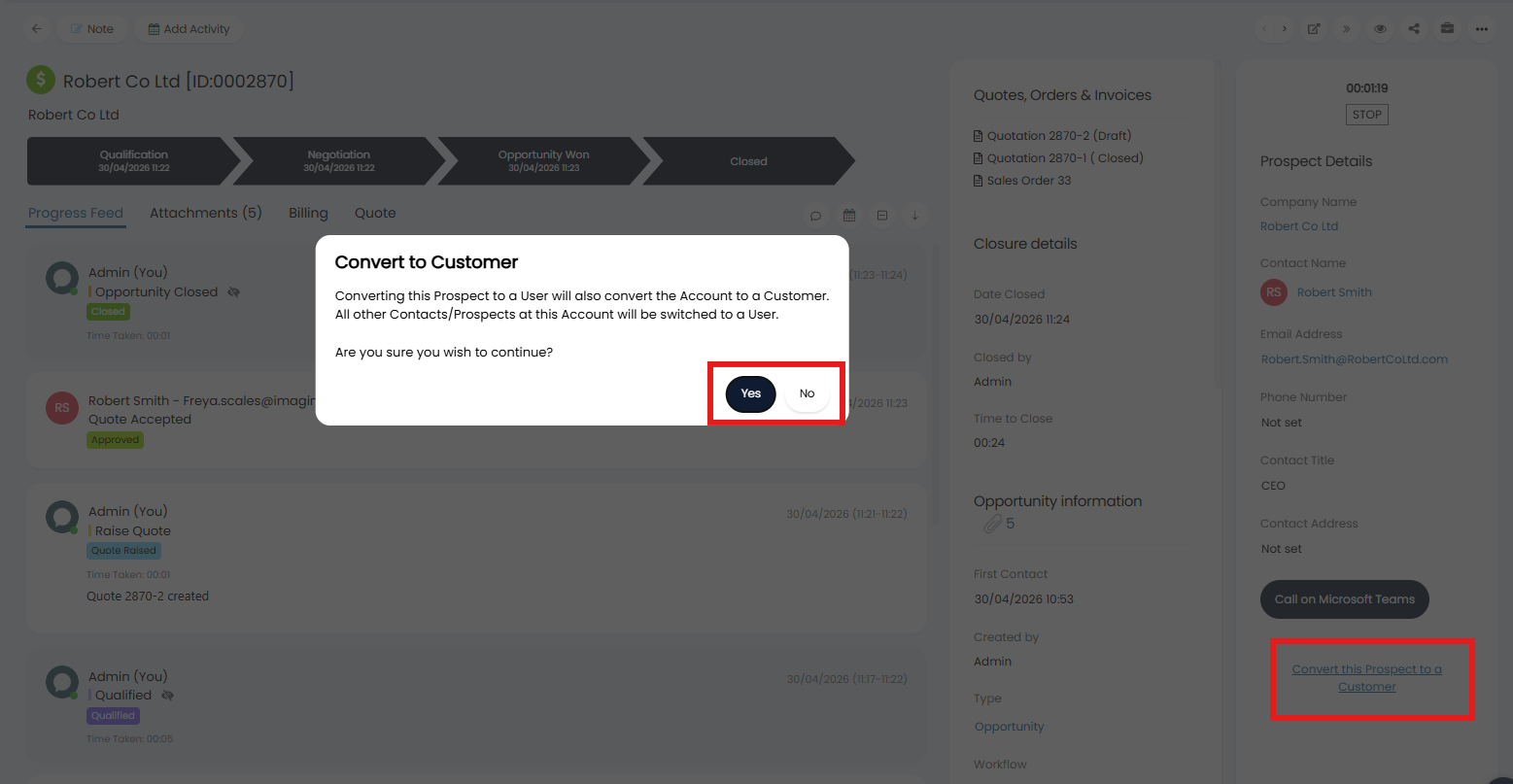
Fig 7. Converting a Prospect to a Customer