Connecting Claude to Halo's MCP Server
- ai
- mcp server
- Claude
- Anthropic
- Claude.ai
In this guide we will cover:
- What is the Halo MCP Server Connection?
- Enabling the MCP Endpoint
- Creating an API Application
- Adding the Connector to Claude
- Using the Connection
Configuration Settings:
Related Guides:
What is the Halo MCP Server Connection?
The Model Context Protocol (MCP) HTTP endpoint allows AI assistants such as Claude to connect and dynamically invoke tools in the Halo API such as knowledge search, ticket logging and updating/executing runbooks. Essentially, using AI to trigger a function similar to virtual agents.
The Halo MCP connection to Claude can be used to provide data insights and perform actions from a chatbot external to Halo.
Enabling the MCP Endpoint
In Configuration, ensure the AI module is enabled, and that you have chosen either the default Halo AI connection or connected your own credentials.
Navigate to the MCP configuration area via Configuration > AI > MCP Server. Enable the setting labelled 'Enable the MCP Endpoint', if it is not already enabled. This will give you a server URL for your instance, as well as the ability to customise which tools the MCP can use. For more information on this, check out the general "Halo MCP Server Connection" guide.
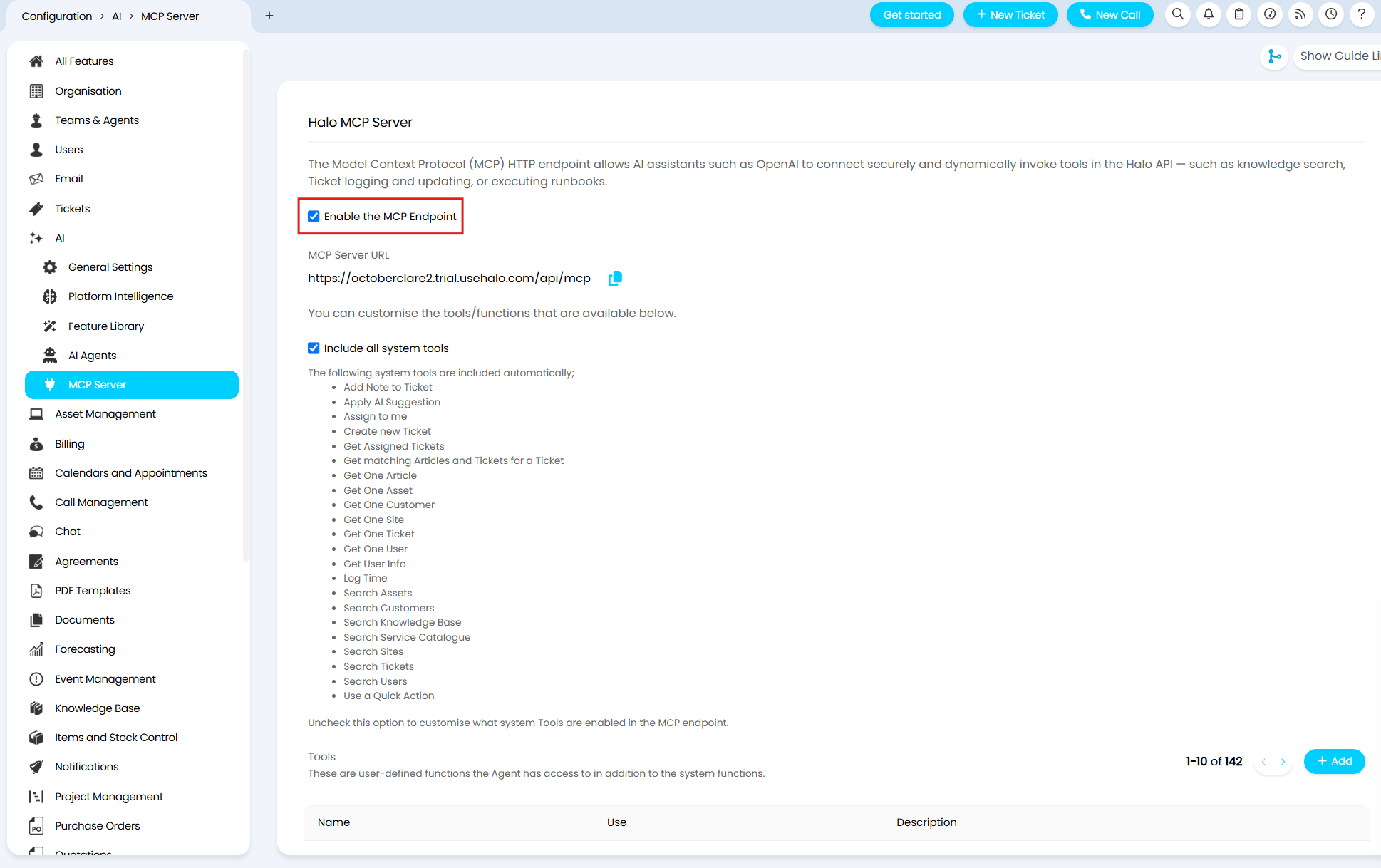
Fig 1. Enabling the MCP server
Creating an API Application
Once enabled, we need to create an API application for Claude to authenticate with. In Configuration > Integrations > Halo API, click the "View Applications" button, and create a new application.
Set the authentication method to "Authorisation Code (Native Application)". This will display a Client ID; make note of this.
The option to use a Client Secret will then show. Set this dropdown to "Use a client secret for the token request". A Client Secret will then show, only once, so be sure to copy it somewhere. If you forget it, you will need to generate a new one.
Finally, in "Login Redirect URL" and "Logout Redirect URL", add the following URLs to both fields.
- https://claude.ai/api/mcp/auth_callback
- https://claude.com/api/mcp/auth_callback
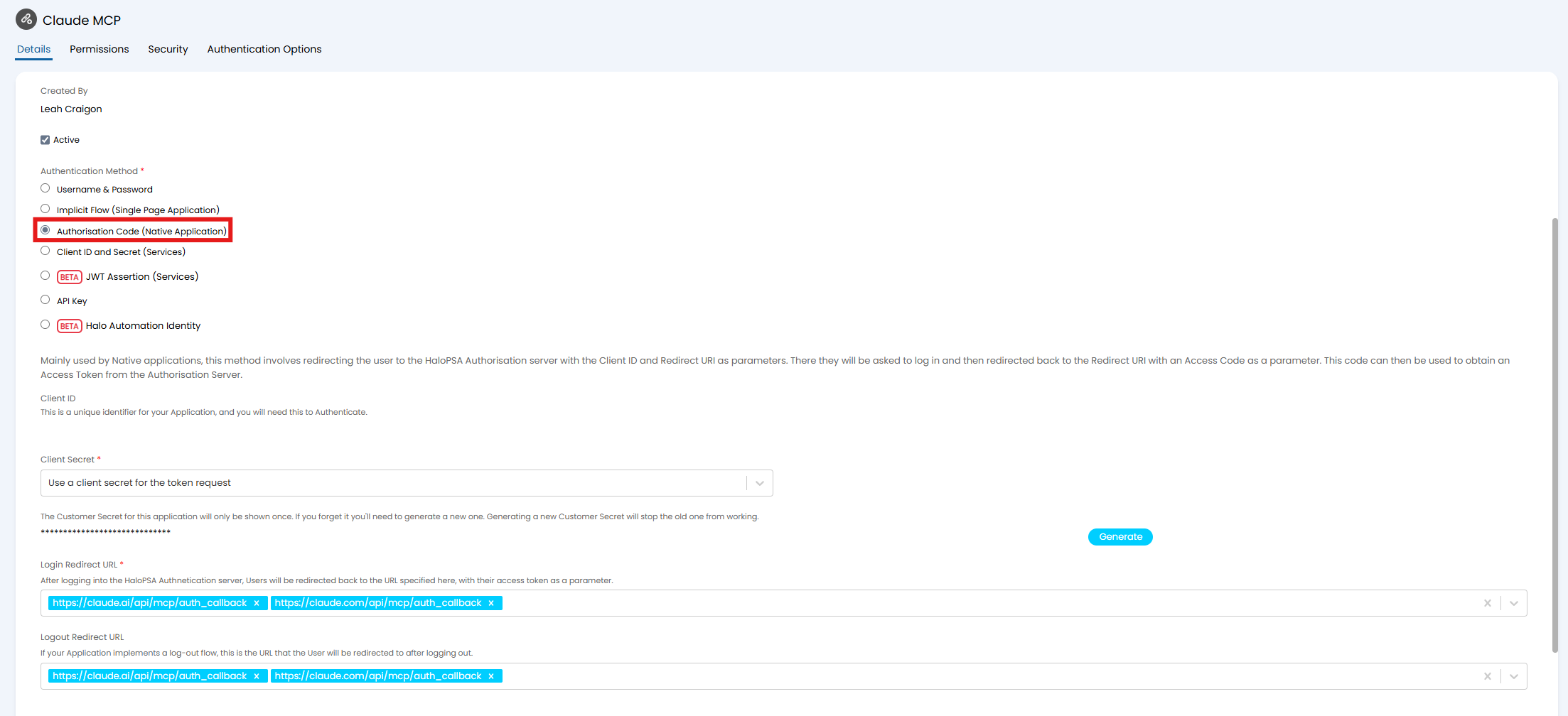
Fig 2. Creating the application credentials
Switch to the "Permissions" tab, and set "all:standard" as the scope of the application.
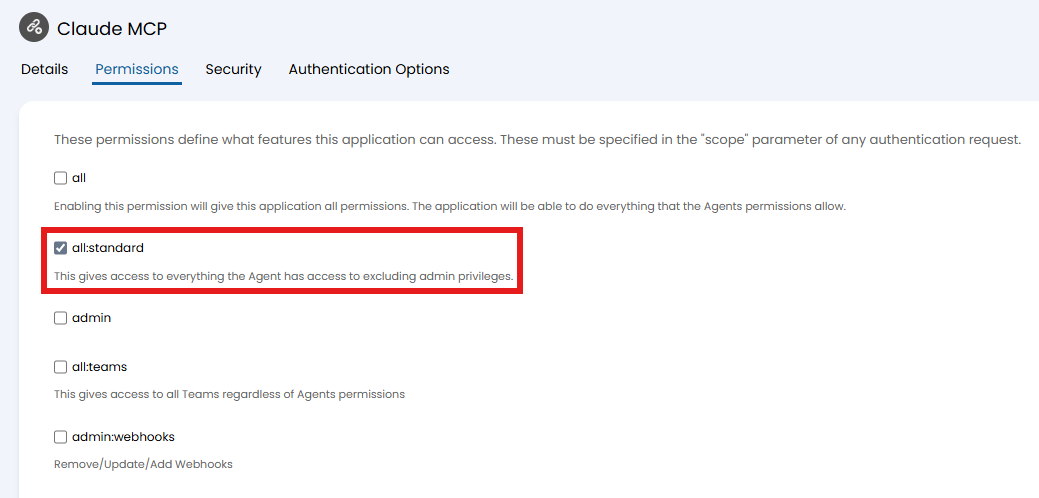
Fig 3. Giving the application permissions
In the "Security" tab, add the following URLs to the "CORS Whitelist" field.
- claude.ai
- claude.com
- www.anthropic.com
- api.anthropic.com
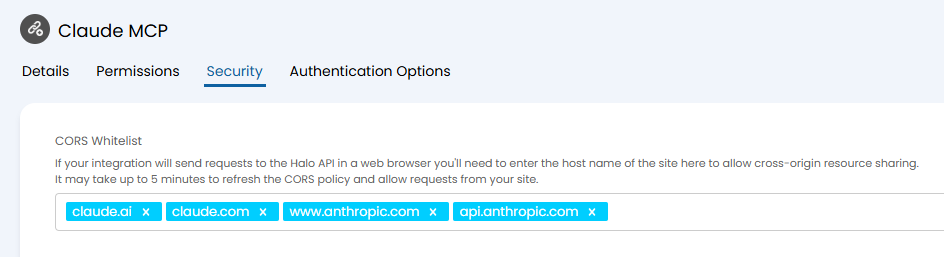
Fig 4. Whitelisting Claude URLs
Adding the Connector to Claude
Once the application is created, we will use these credentials to connect in Claude. This is found in a few different places, dependant on if you are using the Claude desktop app or website, and can be accessed via "Settings" or "Customize".
Via Settings
If on the website, go to the bottom left, click the arrow symbol > Settings > Connectors.
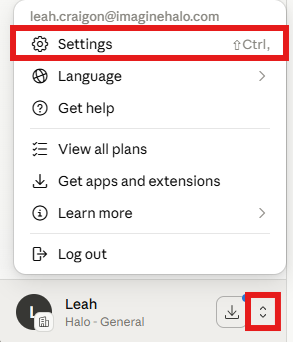
Fig 5. Connector via settings (Website)
If using Claude desktop, go to the top left corner, click the three lines, then File > Settings > Connectors.
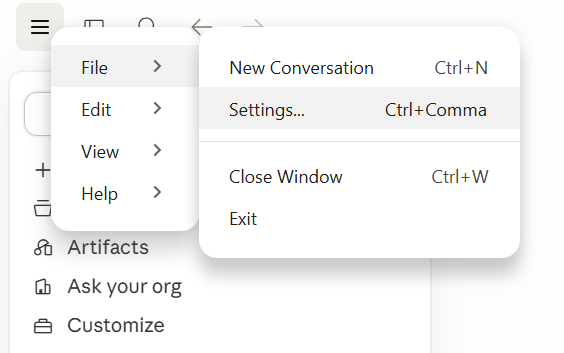
Fig 6. Connector via settings (App)
Via Customize
If on the website, click the "Customize" icon.
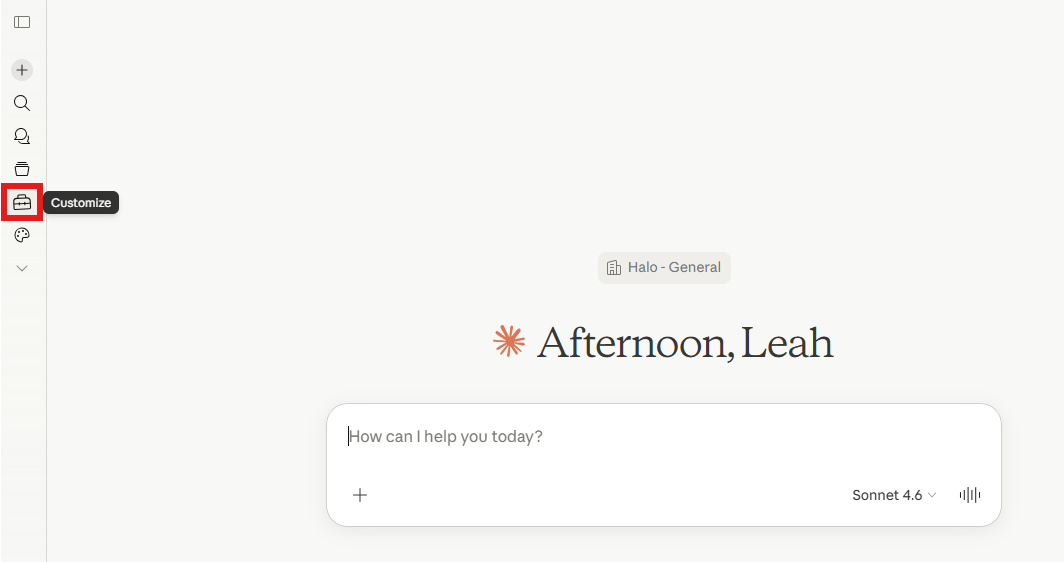
Fig 7. Connector via customize (Website)
Choose "Connectors", then click the plus icon and select "Add custom connector".
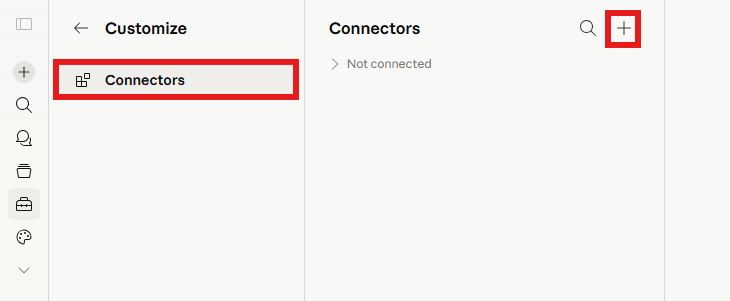
Fig 8. Connector via customize (Website)
If on the desktop app, click "Customize".
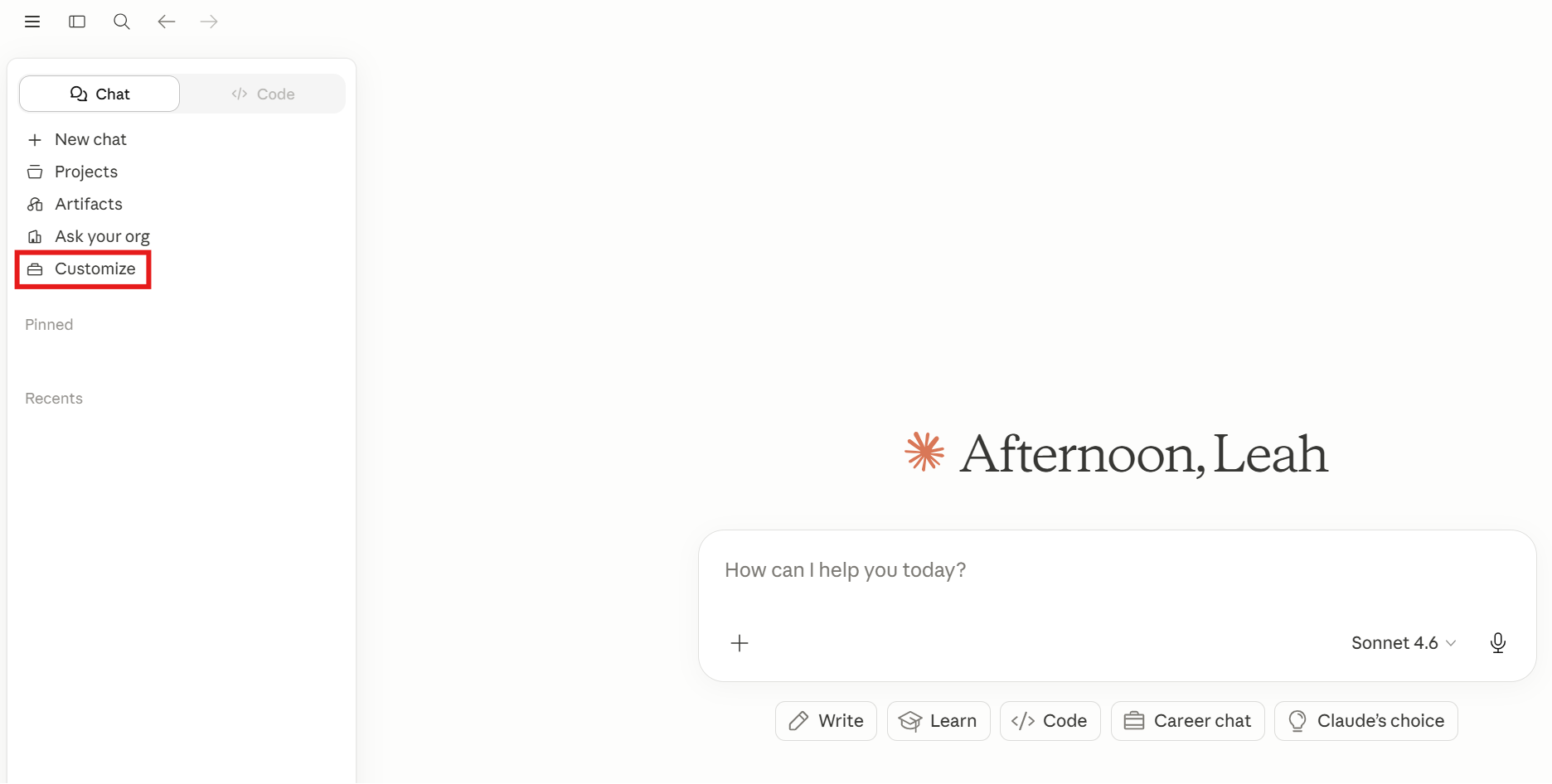
Fig 9. Connector via customize (App)
Choose "Connectors", the click the plus icon and select "Add custom connector".
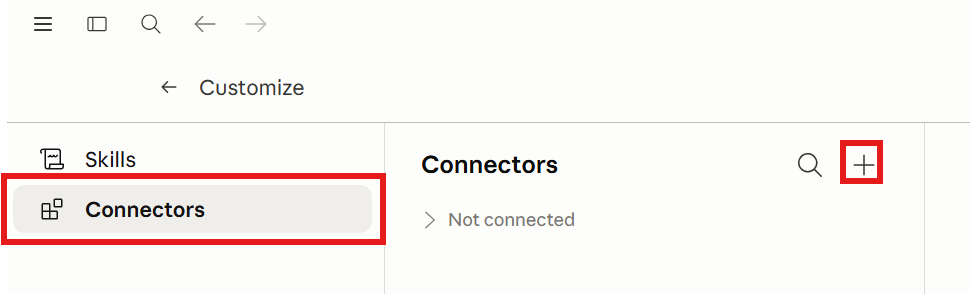
Fig 10. Connector via customize (App)
A popup will show to add the connection details.
- Name: Give the connector a relevant name for reference.
- Remote MCP server URL: Add the URL from Configuration > AI, which will be [YOURHALOURL].com/api/mcp.
- OAuth Client ID: Add the Client ID from the API application.
- OAuth Client Secret: Add the Client Secret from the API application.
Click the "Add" button to save and form the connection.
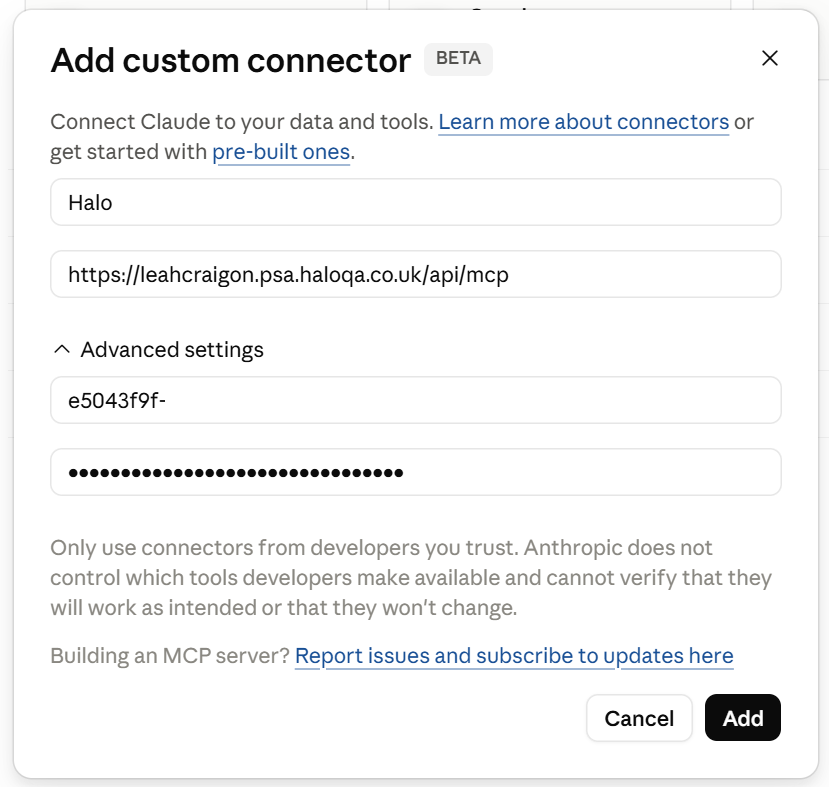
Fig 11. Adding the API credentials to the connector
Using the Connection
The connector can be enabled on or off within Claude via the plus icon > Connectors, and toggling the new connector.
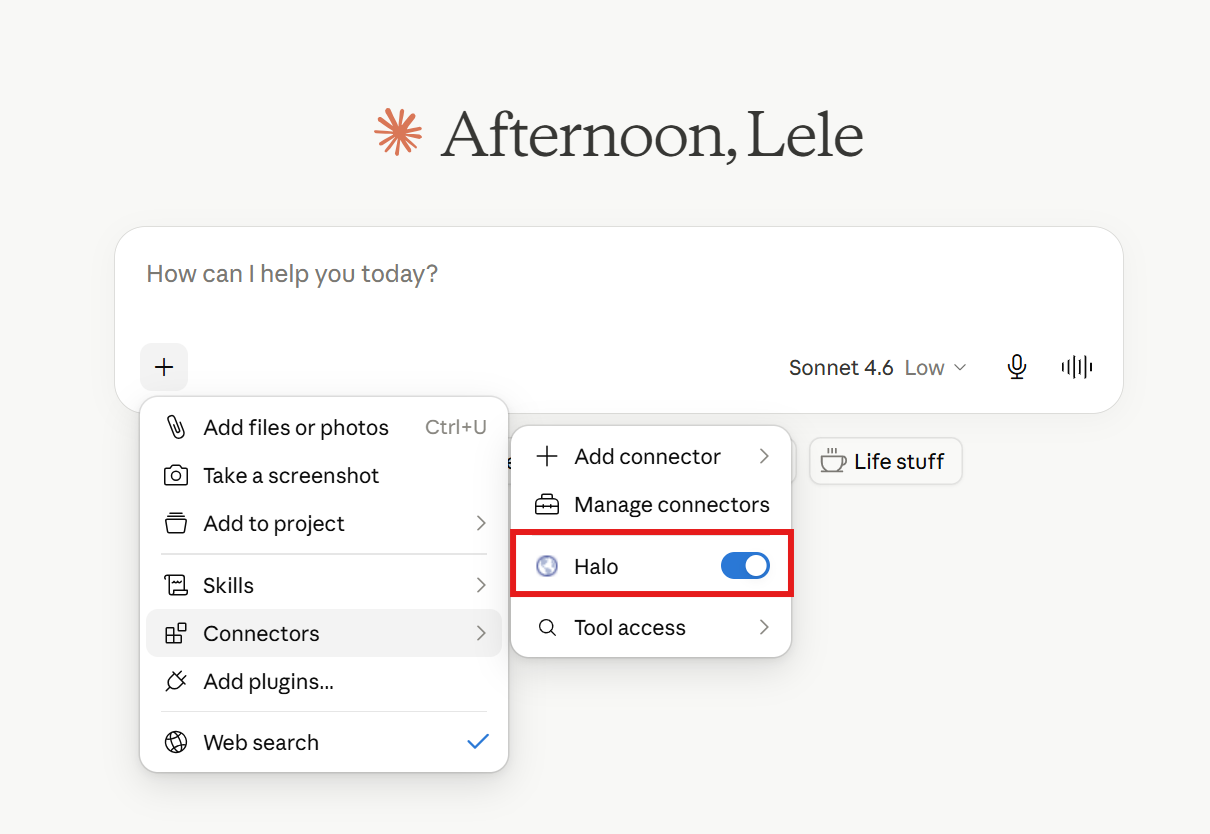
Fig 12. Claude connected to Halo MCP
Once connected, you will then be able to use any of the allowed system or custom tools to action Halo via Claude. These are listed in Configuration > AI > MCP Server.
For example, you could prompt: "Get me the open tickets report. Assign the ticket that has been open the longest for Acorn Construction to me"
This would use the custom function "CF_get_open_tickets" to view that report, then the system function of "Assign to me".
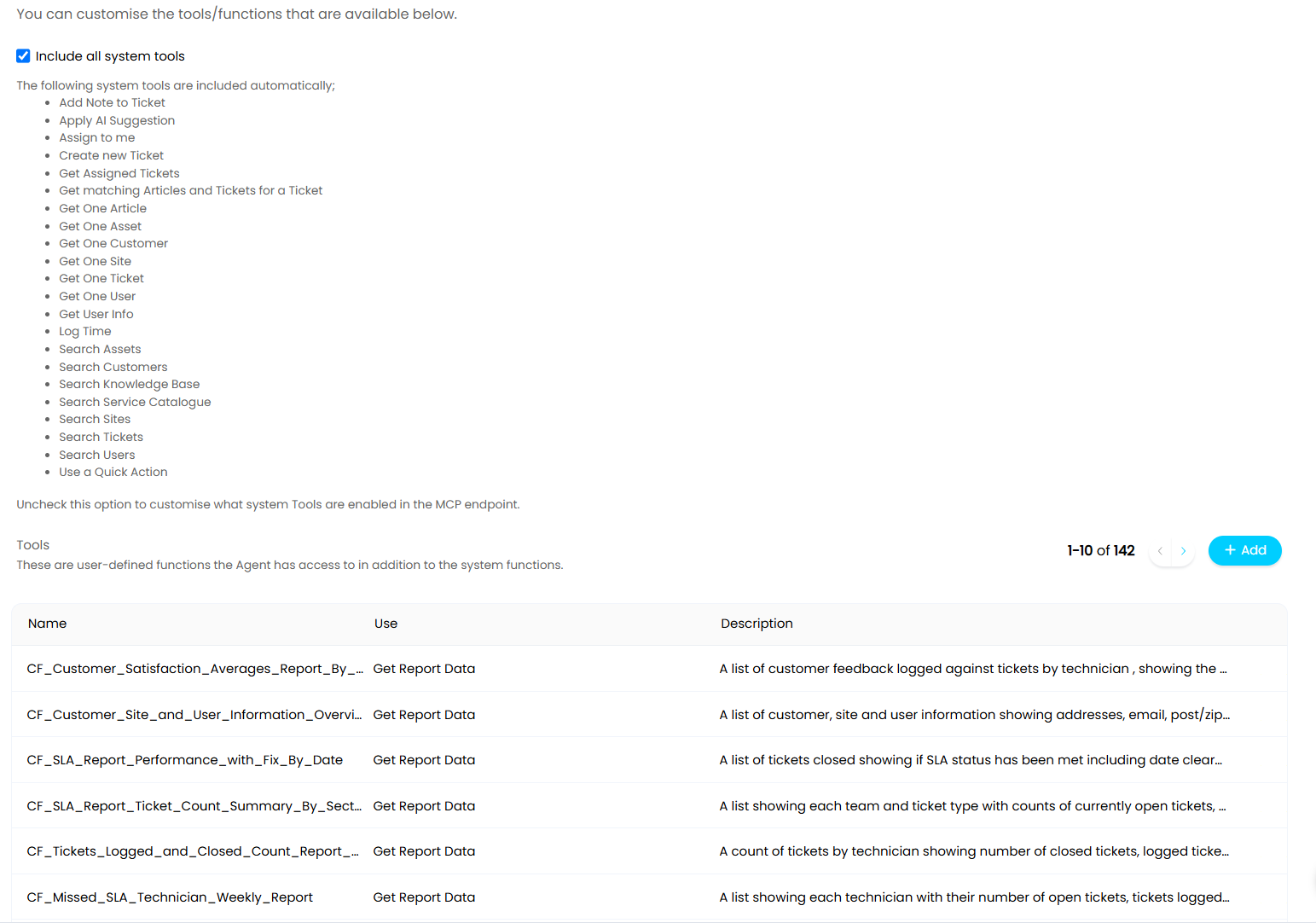
Fig 13. Available MCP functions
Let's ask Claude to run that example prompt.
It starts by referencing CF_get_open_tickets to get the report. Claude will ask for permission upon using each function for the first time.
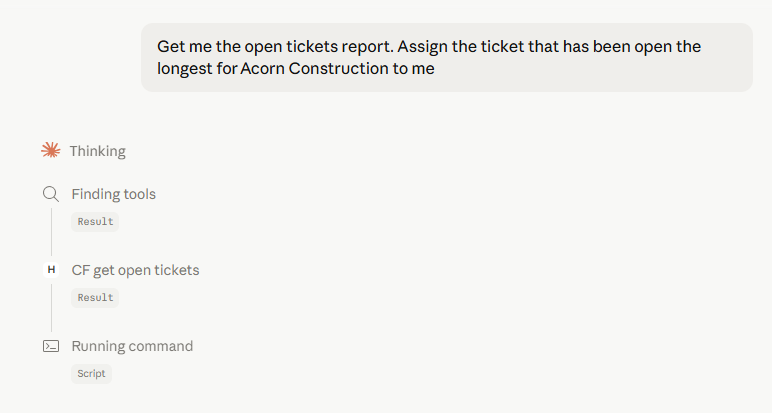
Fig 14. Running the MCP functions in Claude
After running the relevant functions, Claude has found the ticket and the relevant details about it, then ran the second function to re-assign it.
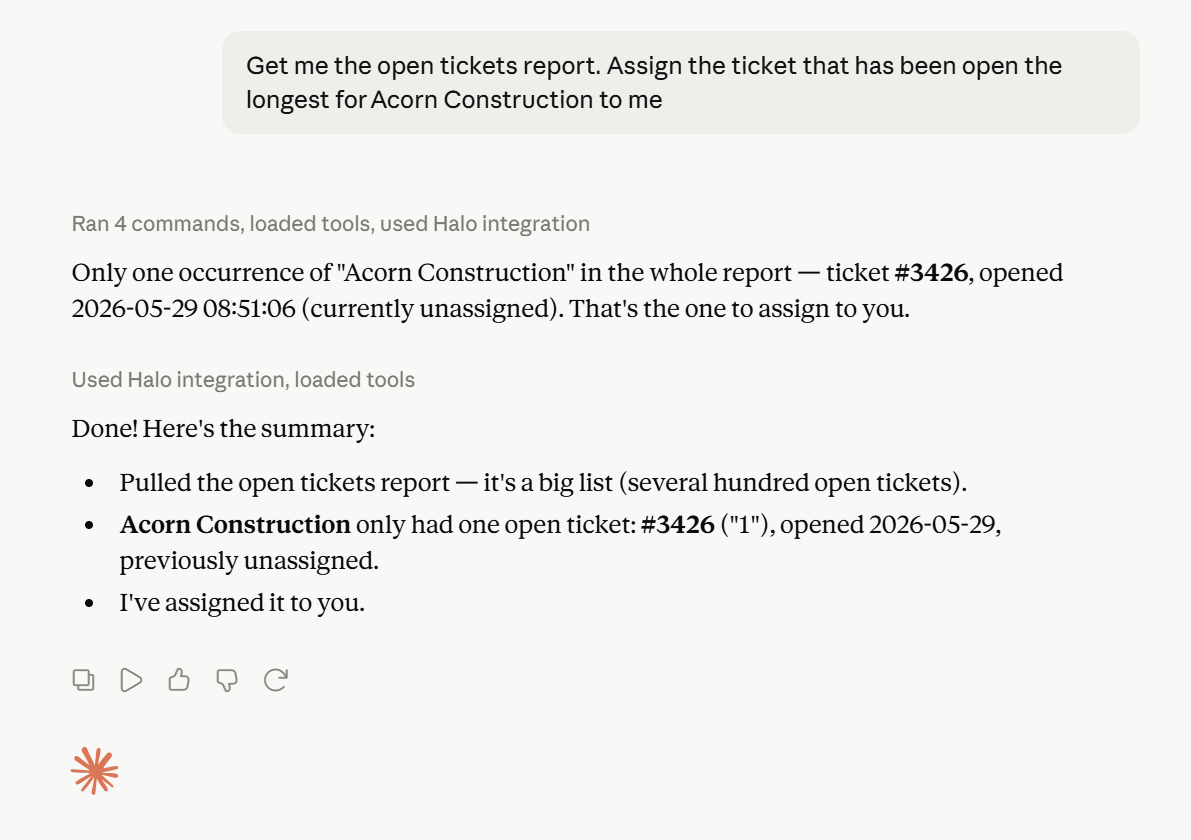
Fig 15. Completed prompt
In Halo, it has now been reassigned.

Fig 16. Ticket reassigned by Claude