Integrating with Other Accounts Tools
- Accounting Tools
- invoicing
- CSV templates
In this guide we will cover:
- Methods of Integrating
- Exporting via CSV Templates
- Exporting via Reports
Configuration Settings:
Related Guides:
Methods of Integrating
If using an accounting platform that Halo does not natively integrate with, there are alternate methods to sync your invoices across to that tool. This involves exporting a CSV file of the invoice from Halo, and importing this file into the accounting tool. The import requirements will differ per accounts platform, so the CSV will need to be formatted using the method that best matches yours.
The creation of invoices will work the same inside of Halo, this covers the steps that follow this to get the information into your accounting platform.
Some accounting platforms may instead require XML formats. If using an accounting tool that can read ZUGFeRD or Factur-X PDFs (primarily in the EU), these can be generated by linking an XML Template to a PDF Template. More information on these and e-Invoicing can be found here.
A list of all native accounting integrations can be found within Configuration > Integrations > Accounts and Payments. If you use one not listed here, you may wish to check with support if it is available on Beta versions, or upcoming on our roadmap.
Some platforms may also have integrations created by a third-party. These can often be found by searching "Halo [Platform Name] Integration" in your browser.
Note: Whilst the Halo Support team can assist in troubleshooting these, initial setup and most questions should be directed to the third-party platform.
Exporting via CSV Templates
CSV templates can be created to allow you to download CSV files of invoices in a specified column format, which can then be uploaded to the accounting platform each time.
In Configuration > Billing > General, click "Enable CSV Invoices". This will show a button to edit CSV templates (that can also be navigated to via Configuration > Reporting > CSV Templates).
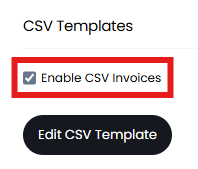
Fig 1. Enabling CSV invoices
A list of existing templates will show upon clicking into this area. Ensure the entity is set to "Invoices", then click "New".

Fig 2. List of invoice templates
First, give your template a name. You will then be able to set the type of template you need. It is important to note that there is a maximum download limit of 1000 rows at a time, so if you have a large number of invoices or are using the "Row for each Invoice Line" option, you may want to consider using the report method instead.
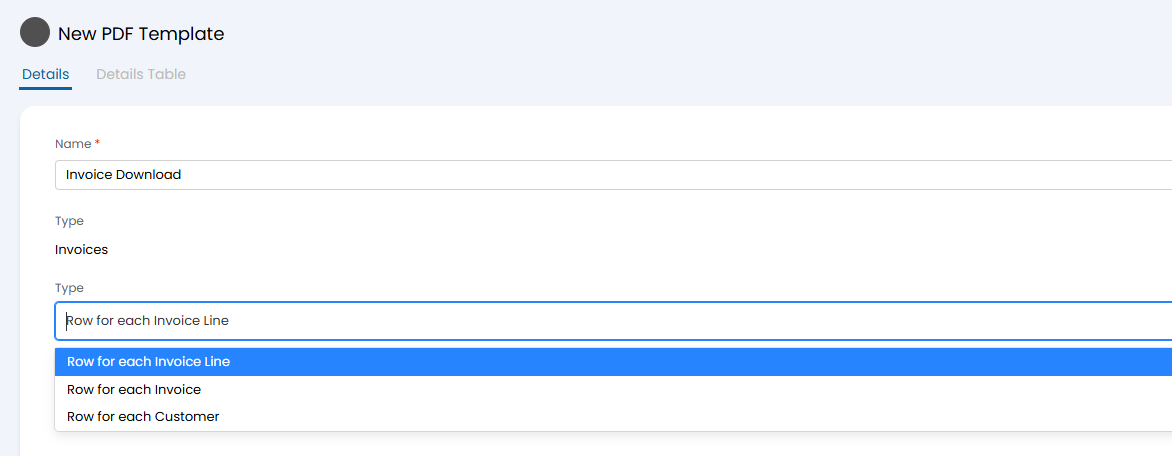
Fig 3. Creating an invoice template
After saving, you will then be able to see the "Details Table" tab, where you can configure what fields show on the CSV. Edit again, then click the "Add" button.

Fig 4. Creating the details table
You can then choose a column to add to the table. This is a single select field, so you will need to add each column individually.
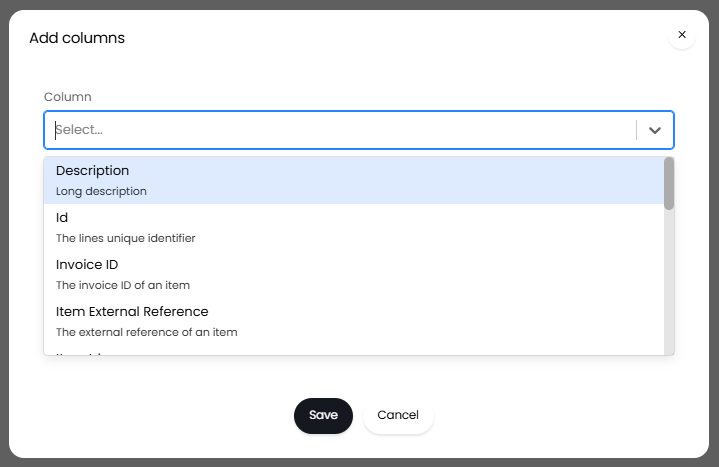
Fig 5. Adding columns
Once you have chosen a column, you can set the title for that column to use, as well as if it has a default value. This can be useful to set a default product code if none is set and will match on the invoice line once imported.
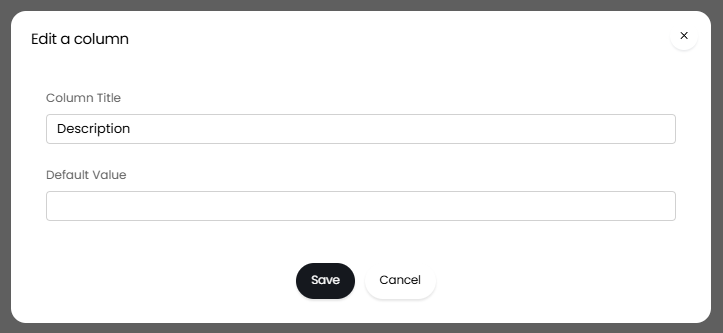
Fig 6. Choosing column name or default value
After adding all of the columns, you may want to use the "Preview Print" button to show what the table format will look like with an example invoice from your system.

Fig 7. Previewing template
Now that we have created the invoice template, go to the "Invoices" area.
The "Show invoices between" options will show if you enable the CSV Templates module in Configuration > Reporting, which can be used to filter the invoices that show to a specific time period. You can then click the checkbox in line with the column headers to select all the invoices within that date filter. Hover over the "Edit" button, and select "Create CSV".
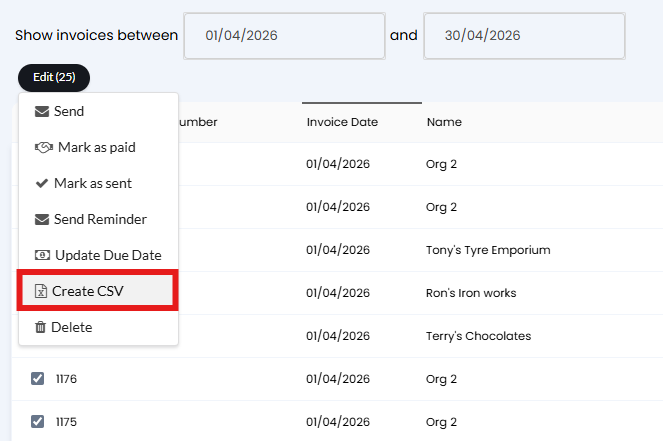
Fig 8. Selecting invoices to download
A popup will show to choose from your available CSV templates, and whether you want to mark these selected invoices as posted upon download.
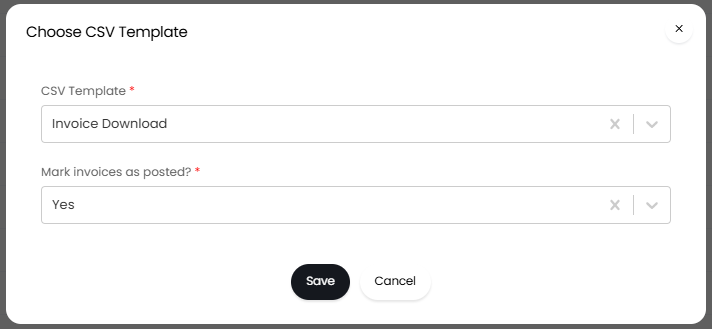
Fig 9. Choosing a template
A file will then be generated combining each of the invoices/invoice lines together.
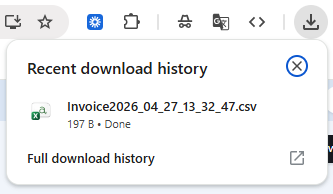
Fig 10. Downloaded file
Exporting via Reports
Reporting on the invoices created in Halo is an easy way to create a formatted CSV for download to your accounting tool. The report can then be scheduled to send a CSV file on a recurring schedule of your choice, which can then be downloaded and uploaded to the accounting platform each time.
This example report can be found in our Online Repository from this URL [YOURHALOURL.com]/reports?mainview=onlinerepository&id=2961. It is formatted to use one row per invoice line, with the "Invoice No" column used to match which rows go on an invoice together.
This format may need to be adjusted, depending on your tool. Reports can be created customised to your import requirements, please ask your consultant or our support team for assistance.
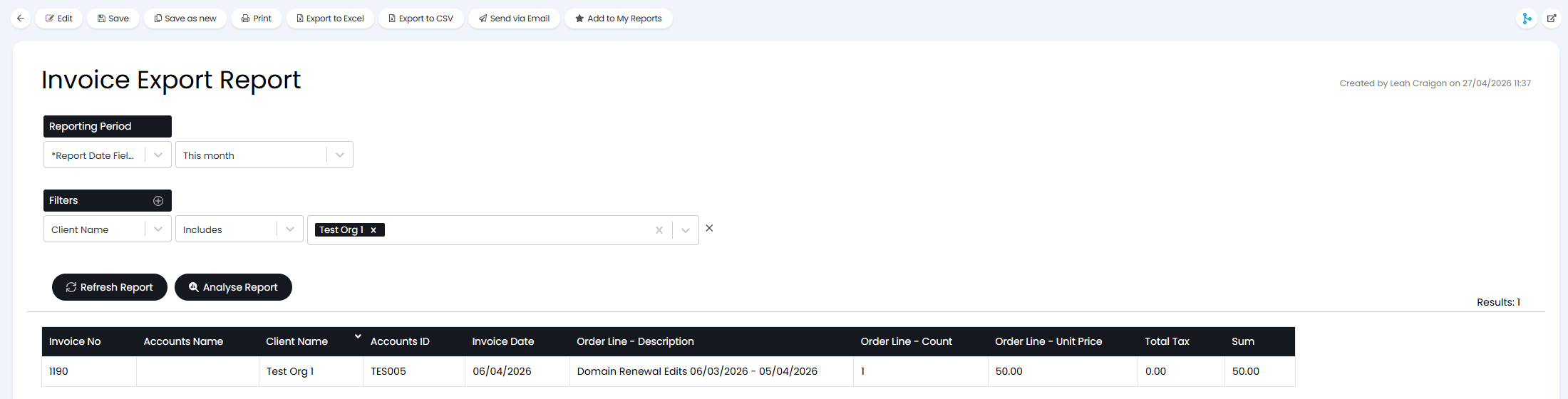
Fig 11. Example export report
If you need to adjust the column names to match the required format, this can be done within the "Data Source" tab on the Report, by changing the display names in brackets.
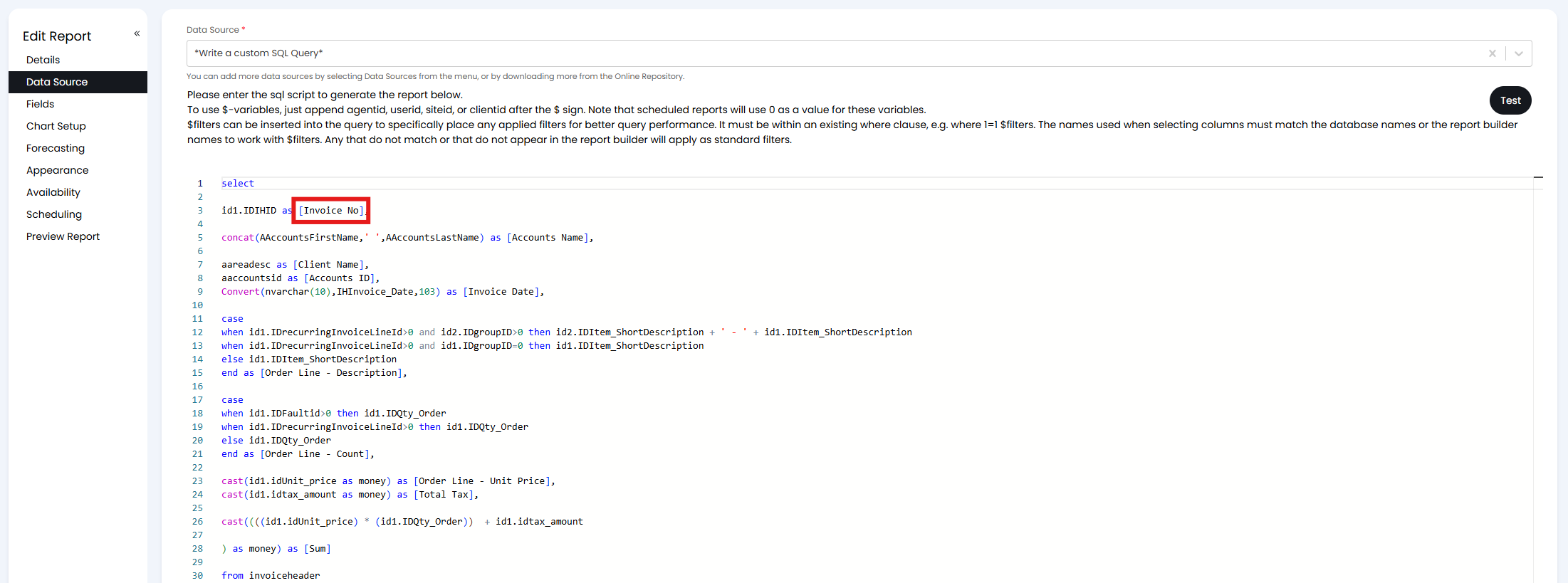
Fig 12. Changing report column names via SQL
These can also be changed in the "Fields" tab. Add all of the fields to this screen, click the pencil icon to edit a field, then rename the column in the "Name" field.
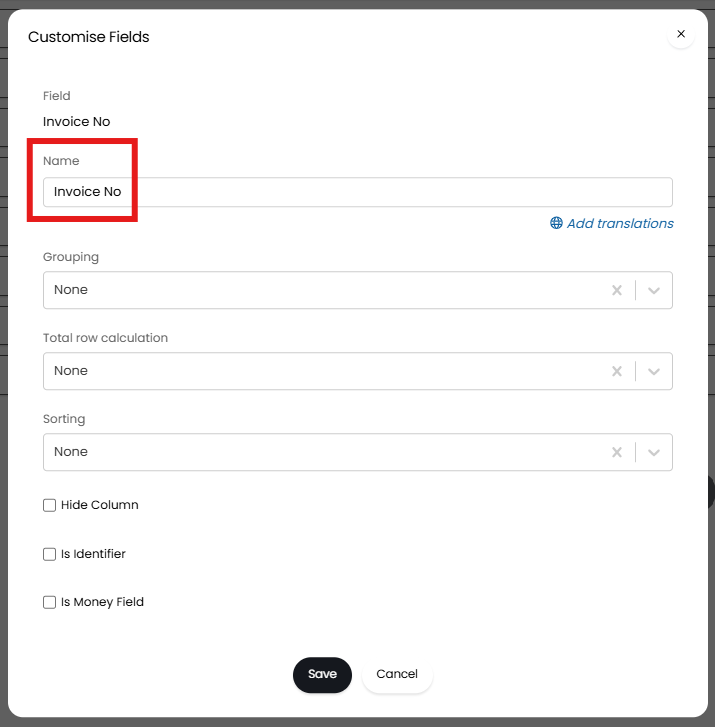
Fig 13. Changing report column names via field
Once the report is configured, we can then schedule this to send on a recurring schedule. In the "Scheduling" tab, click "Add" on the table.

Fig 14. Creating a report schedule
When creating the report schedule, you will need to ensure to click "Include CSV" to add a .CSV file to your email. If you require a .XLS file instead, click "Include Excel/CSV Table".
Add the email(s) you wish to send this report to, such as your accounts email or the email of someone on that team.
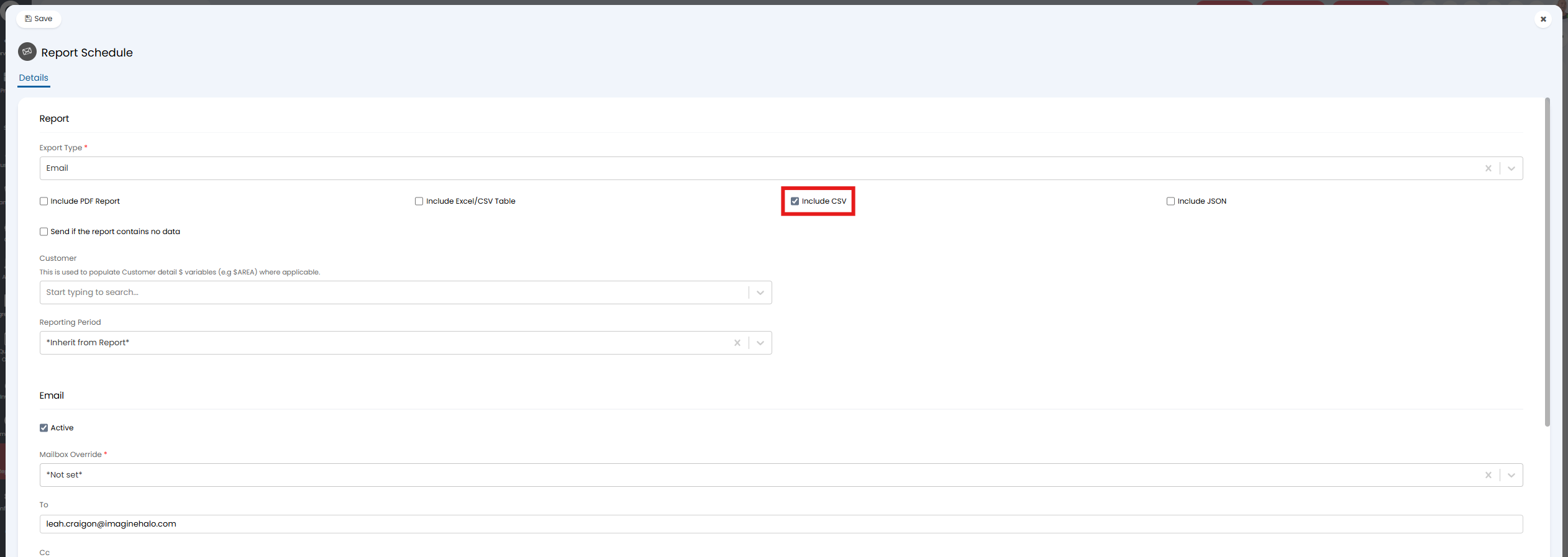
Fig 15. Adding a CSV file to the email
When the scheduled time occurs, the listed email(s) will get a file emailed that can be downloaded, and imported into the accounting platform to create the invoices.
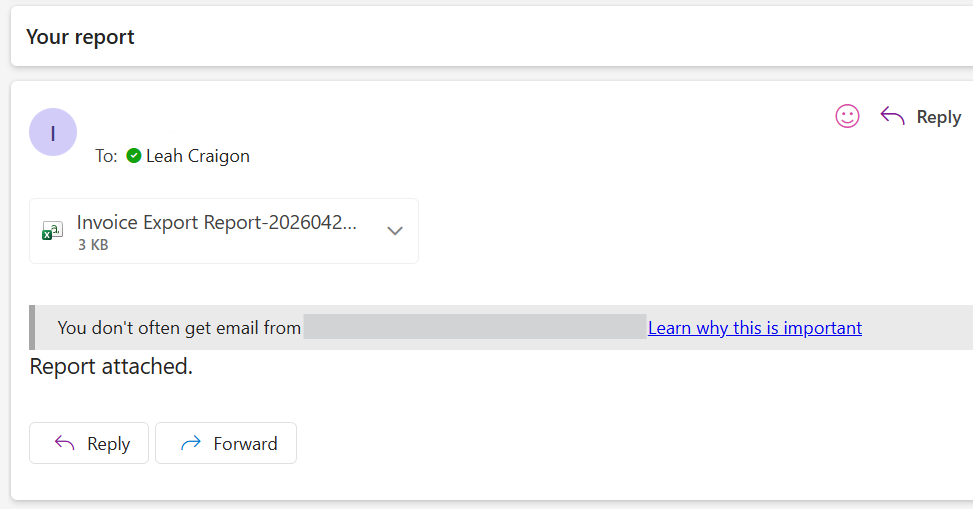
Fig 16. Report emailed as a CSV file