SeatGeek Integration
- Integrations
- ecommerce
In this guide we will cover:
- What is the SeatGeek Integration?
- Enabling the Module
- Generating your Client ID and Secret
- Connecting SeatGeek to Halo
What is the SeatGeek Integration?
The SeatGeek integration allows you to import your User Change Events from SeatGeek into Halo. Multiple instances of SeatGeek can be connected to one Halo instance.
Enabling the Module
In Halo head to Configuration > Integrations, and hover over the SeatGeek button. Click the plus (+) icon to enable the Module.
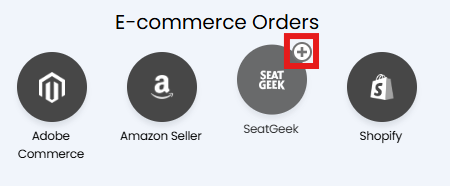
Fig 1. Enabling the Module
Generating your Client ID and Secret
Within your SeatGeek Developer platform, click "Manage Apps". Here you can create a new app for your Halo connection. Set a name for the connection, and click "Register".
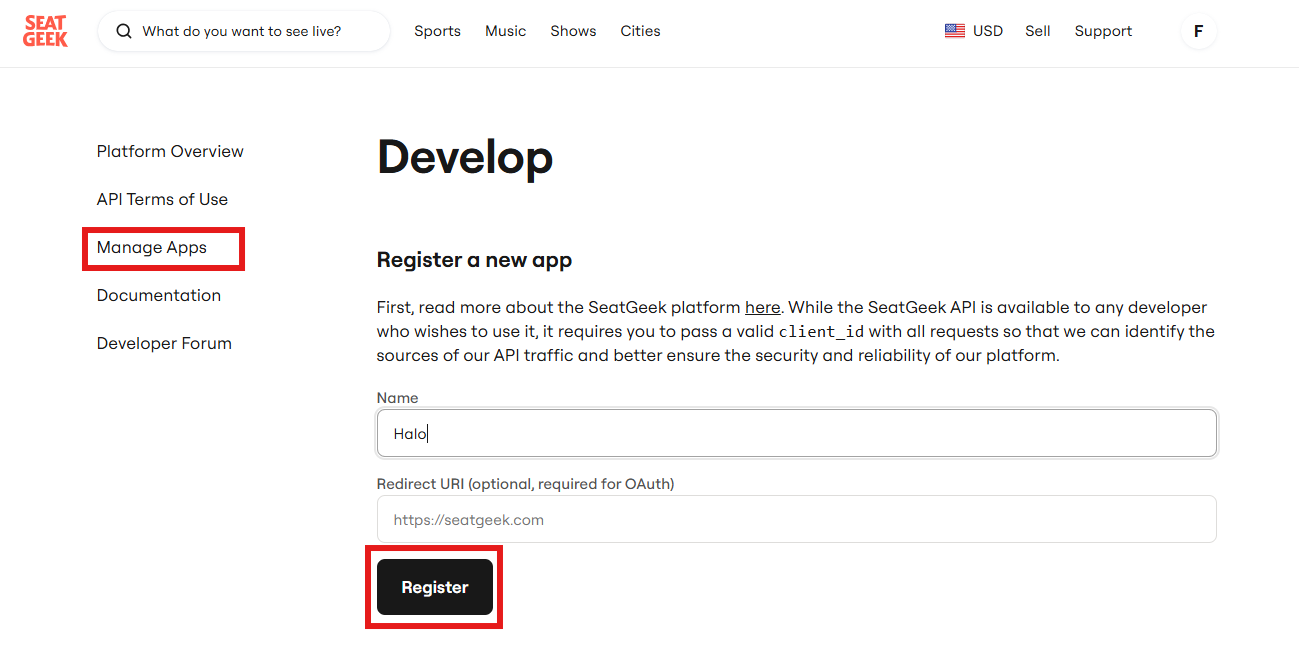
Fig 2. Registering your App
Once registered you will be able to see your Client ID and Secret. Copy both of these so they can be used to authorise the connection.
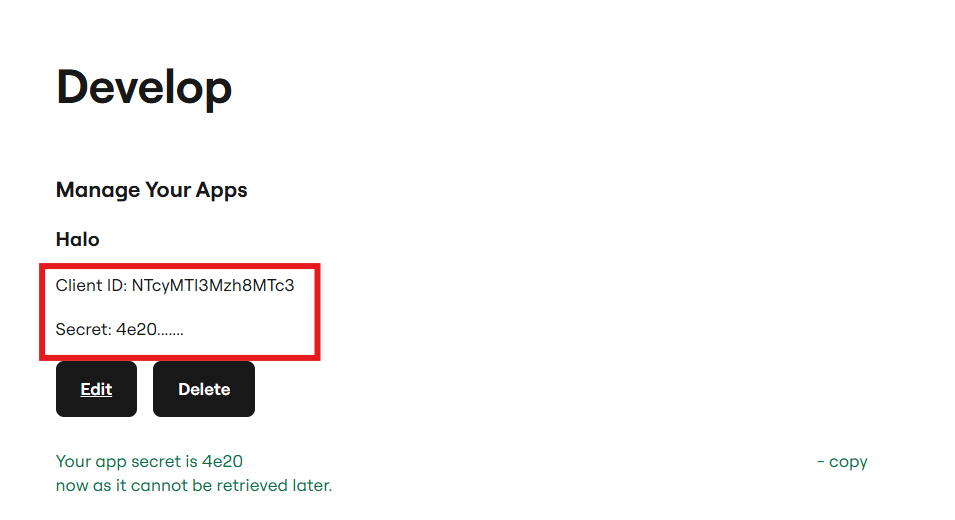
Fig 3. Client ID and Secret
Connecting SeatGeek to Halo
In Halo head to Configuration > Integrations, and click into the SeatGeek Module. Click "New" to add your SeatGeek connection. Multiple instances of SeatGeek can be connected to Halo by creating a new connection for each..
Once you have clicked "New" you will need to set a sensible name for your connection, and paste the Client ID and Secret generated previously into the relevant fields.
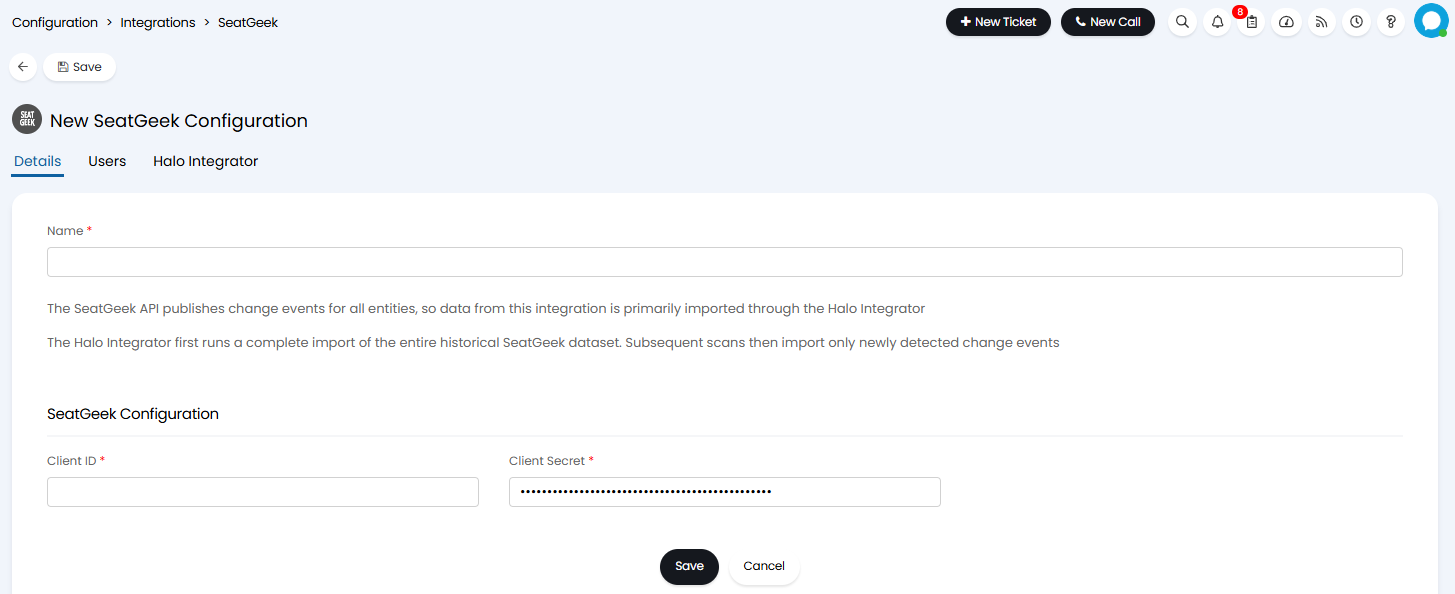
Fig 4. Cnnecting to SeatGeek
Save this and click the "Validate" button to enable the connection.
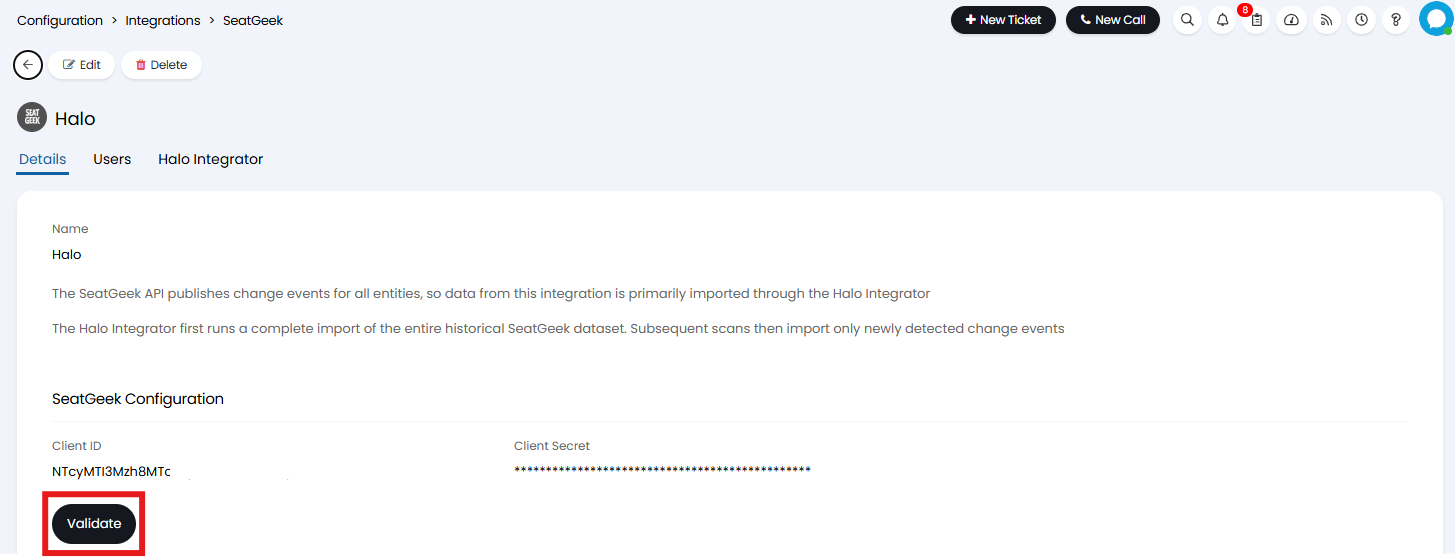
Fig 5. Validate Credentials
Importing Users
Before importing your Users you will need to configure mappings within the Users tab. Imported Users will match on SeatGeek ID, and if not found they will match on Email address. Therefore when you first import your Users you will want to make sure their email addresses match in Halo and SeatGeek. Any unmatched Users will be created in Halo. To determine where these Users are created you will need to specify a default Site for unmatched Users to be created under.
User fields can be mapped between SeatGeek and Halo User system and Custom Fields by adding to the Field Mappings table.
If you would like to import the Users' address fields as the "Primary address" in Halo, select the "Import primary adress" checkbox.
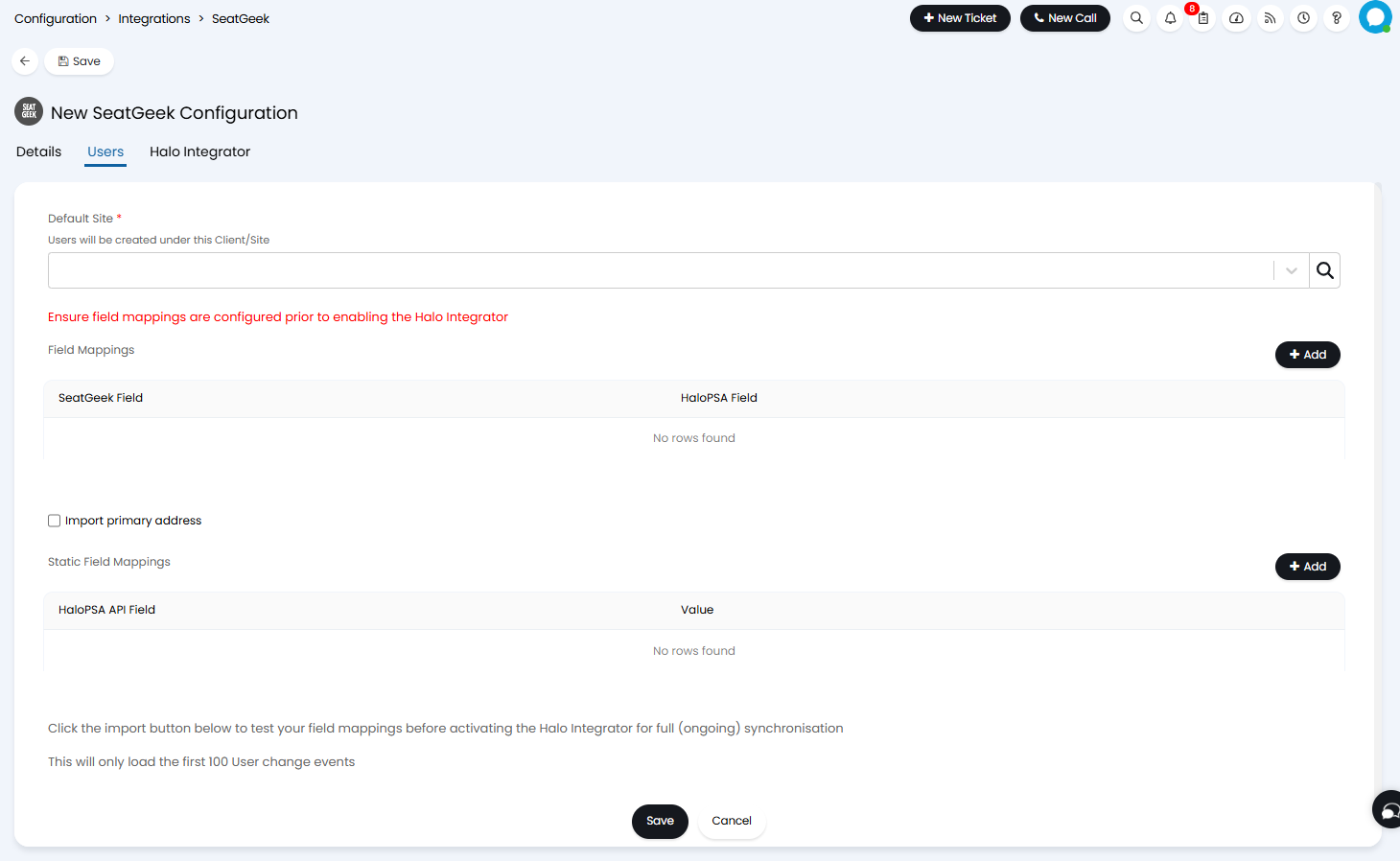
Fig 6. Users tab
You can also configure static User mappings.These mappings are used to set a specific value for a certain Halo property. You will need to use the field name that is returned by the API when specifying which Halo field to update. The below example is for users and sets all imported Users' active status, and a Custom Field:

Fig 7. Static mappings
Once you have set up all your mappings, save the page and click the "Import Users" button to test your field mappings. This will import the first 100 User Change Events.
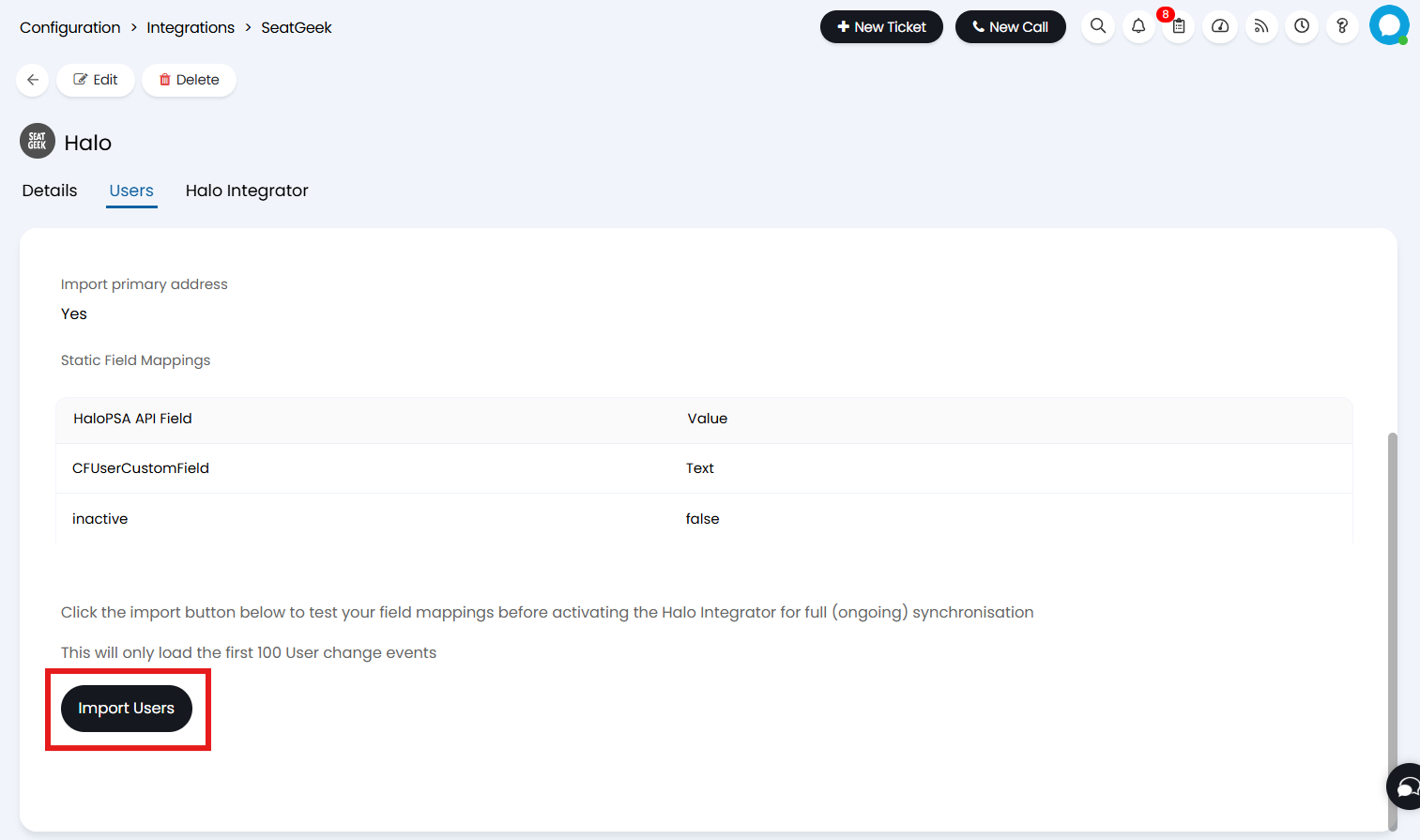
Fig 8. Import Users button
The Halo Integrator
The Halo Integrator allows you to import User Change Events on a schedule. After the initial import, the integrator will scan every 15 minutes.
Before enabling the Halo Integrator test your mappings using the "Import Users" button on the User tab.
The SeatGeek API publishes Change Events for all entities, so data from this integration is primarily imported through the Halo integrator.
The Halo integrator will run a complete import of all historical SeatGeek data when it is first enabled. Once all historical data is in Halo, only new Change Events will be imported.
When you have confirmed that your mappings are correct, head to the Halo Integrator tab, and select "Enable the Halo Integrator for the SeatGeek integration". This will show a new option where you can set the entities to import. here you will need to select Users from the dropdown.
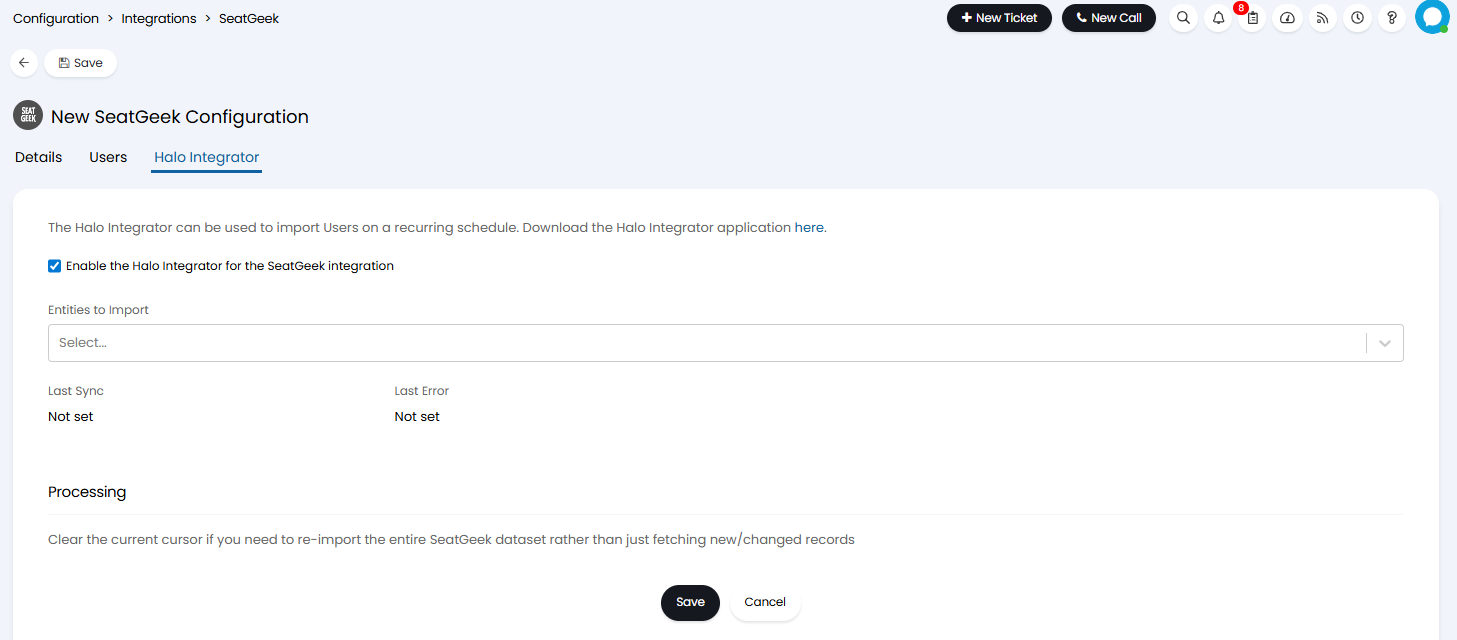
Fig 9. The Halo Integrator
The SeatGeek API uses cursor-based pagination, treating the cursor as a 'last synced' marker. As a result, only the initial import will retrieve all historical data. Any following imports only retrieve data that has changed or added since the last cursor position. If you would like to re-import all historical data, you will need to click the "Clear the Users cursor" button, available once the page has been saved.
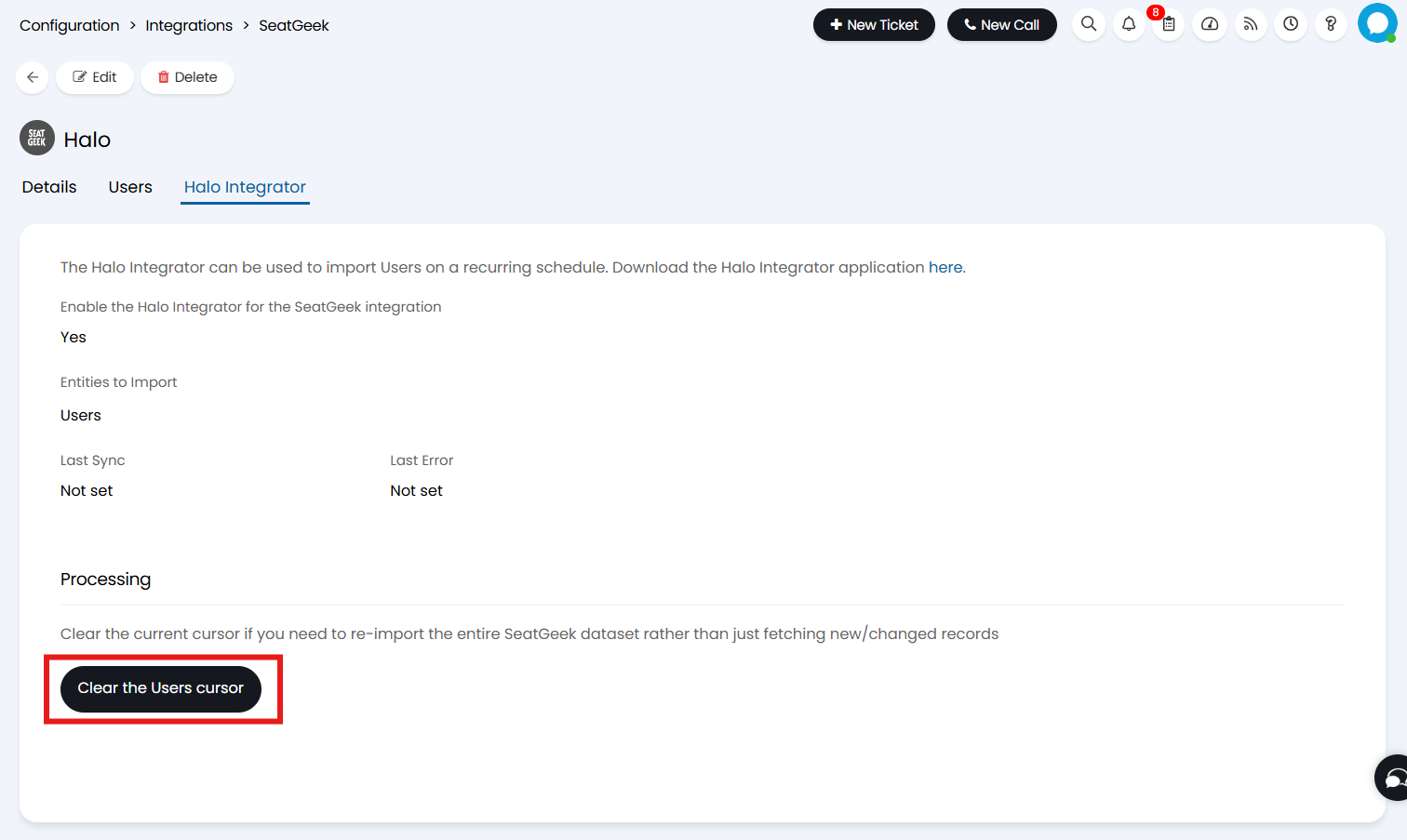
Fig 10. Clear the User cursor button