The Reporting Area
In this guide we will cover:
- The Reporting Area
- Online Repository
- Viewing a Report
- Creating/Editing a Report
The Reporting Area
To view or create a report you will need to access the Reporting Area. Here you can access the existing reports in the Report Libraries, and create a new report.
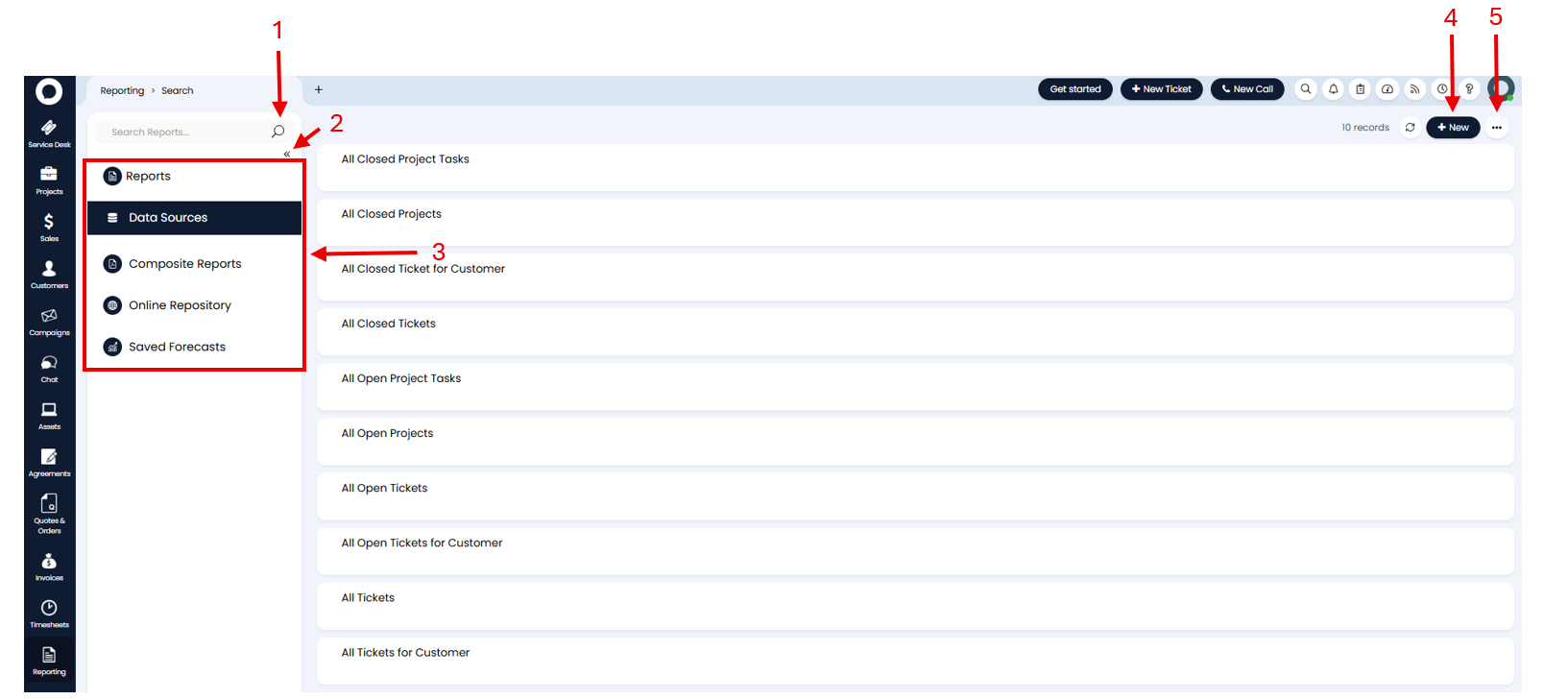
Fig 1. Reporting Suite
1. Search - This will search all areas of the reporting suite for the phrase entered.
2. Close side menu - Clicking this will collapse the side menu, clicking the vertical ellipsis (⋮) will reopen it.
3. Report sections - These groups hold different types of reports, including the "My Reports" section found under the main "Reports" group.
4. New - Click here to create a new report.
5. Switch view - Allows you to toggle between Table and Tile View.
The Online Repository
Under the Online Repository Section you can find pre-made reports. These can be added to your library by clicking the "Add this report to my library" button. If you head to the report in your libary you can edit it as needed.
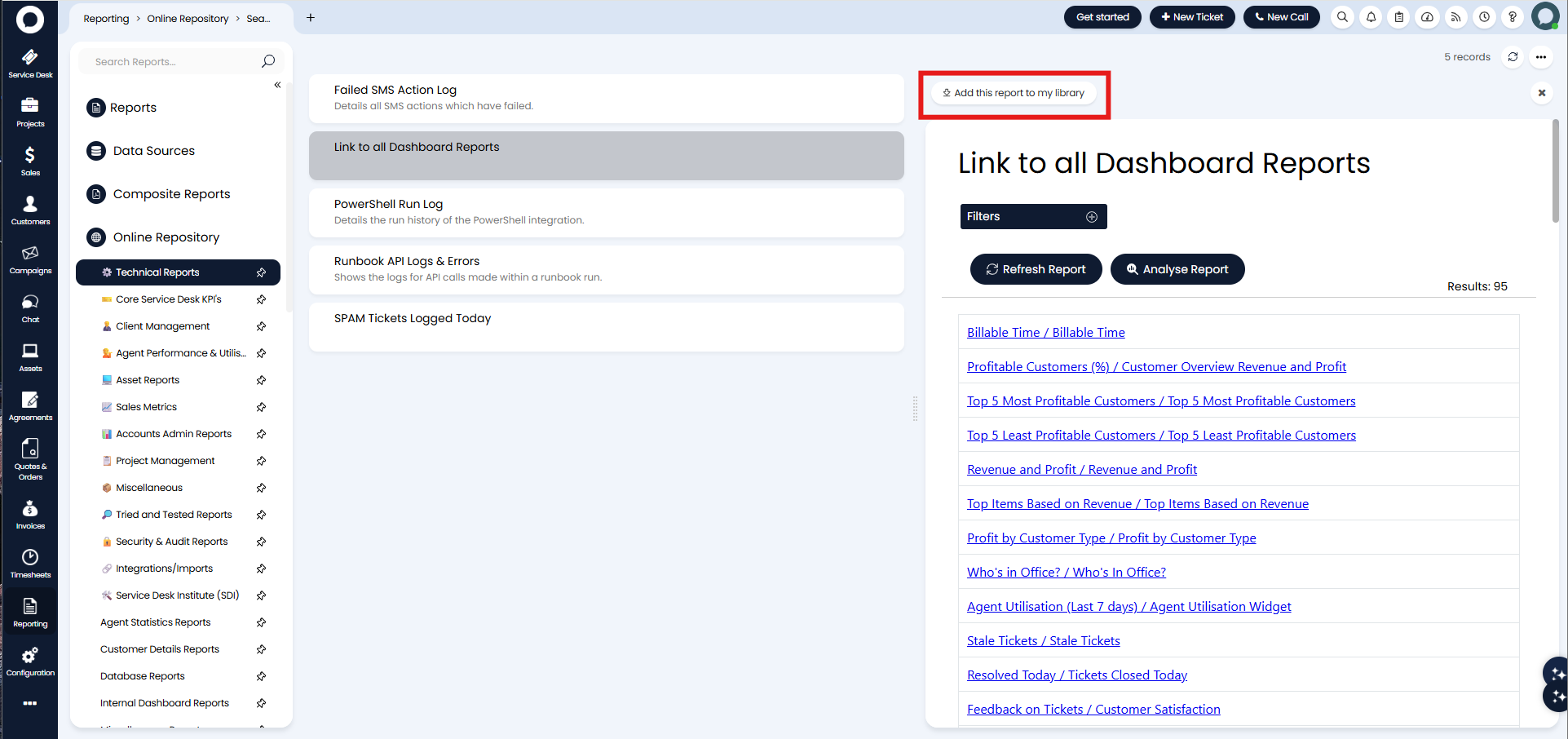
Fig 2. Adding a Report to your Library
Viewing a Report
When you open a report you will see options similar to the below:
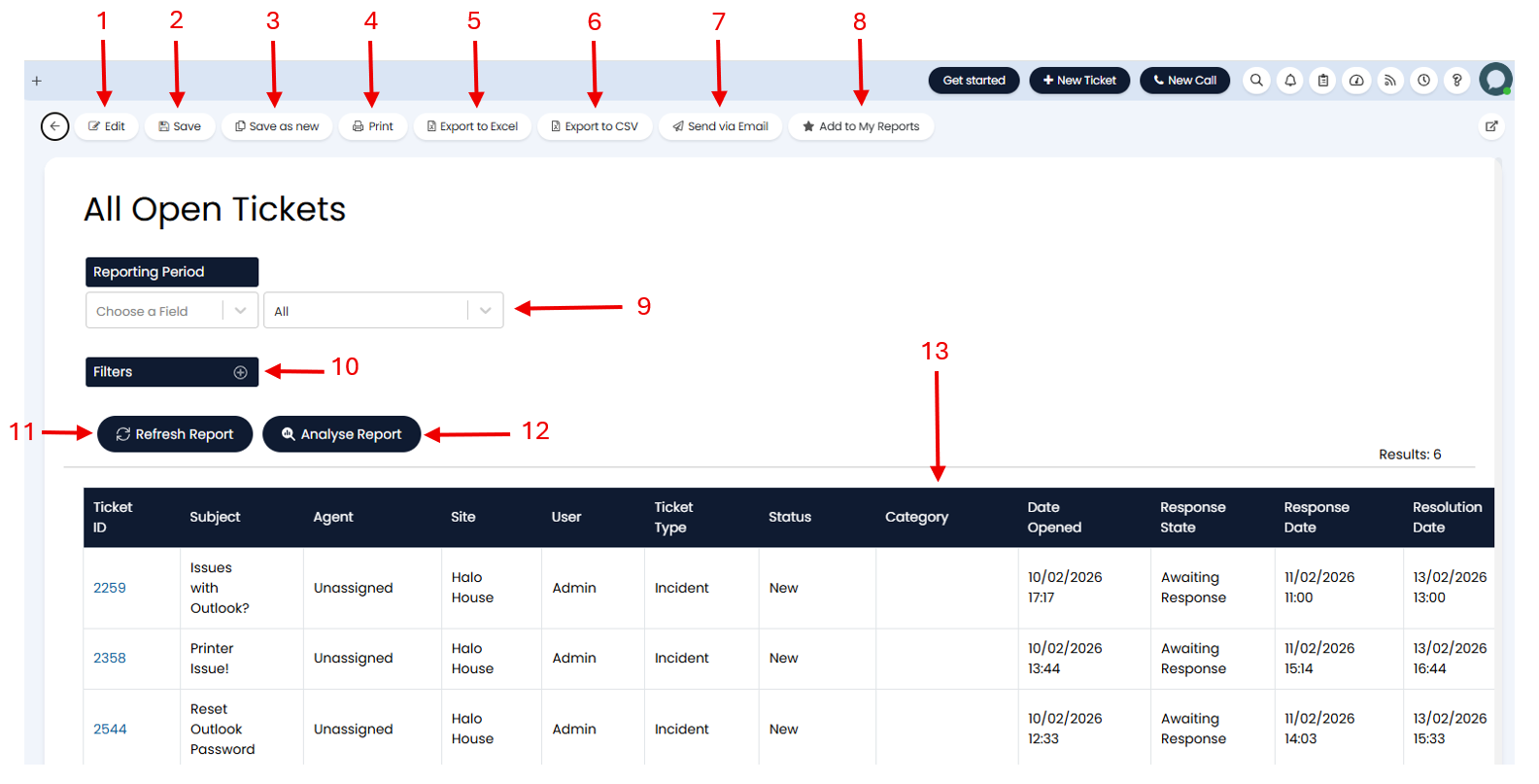
Fig 3. Report Options
1. Edit - Click here to edit your report.
2. Save - This option will save any changes to your report.
3. Save as new - This will open a modal window where you can title the duplicate report. Once saved you can edit this copy without effecting the original.
4. Print - This option will generate a PDF of your report for printing.
5. Export to Excel - This will export your data to as XLS file.
6. Export to CSV - This will export your data to a CSV file
7. Send via Email - This will generate a PDF and XLS file, and attach them to an email. Here you will be able to specify the "From", "To", "Cc", and "Bcc" addresses, as well as a subject and email body.
8. Add to/Remove from My Reports - Selecting this will add or remove the Report from the "My Reports" library.
9. Reporting Period - This shows if your SQL query includes any time metrics, allowing you to restrict the time-frame for the results.
10. Filters - Click the plus (⊕) to add a new filter. Here you can set the field, filter type, and value to filter on.
11. Refresh - Re-runs the report.
12. Analyse - Clicking this will run and generate an AI analysis which will show above your report.
13. Order by a Column - Clicking on a column header will order your results by this field. You can toggle between ascending and descending by clicking again.
Creating/Editing a Report
When you create a new report, or click the "Edit" button on an existing report you will be able to select from a series of tabs. These tabs include different report settings and details which can be configured as needed.
Details
The first tab is the Details tab. Here you can set a Title, Description, Timezone, and specify which group this report belongs to. You can also write an override prompt for the AI analysis, and write a Report Guide to display above the data.
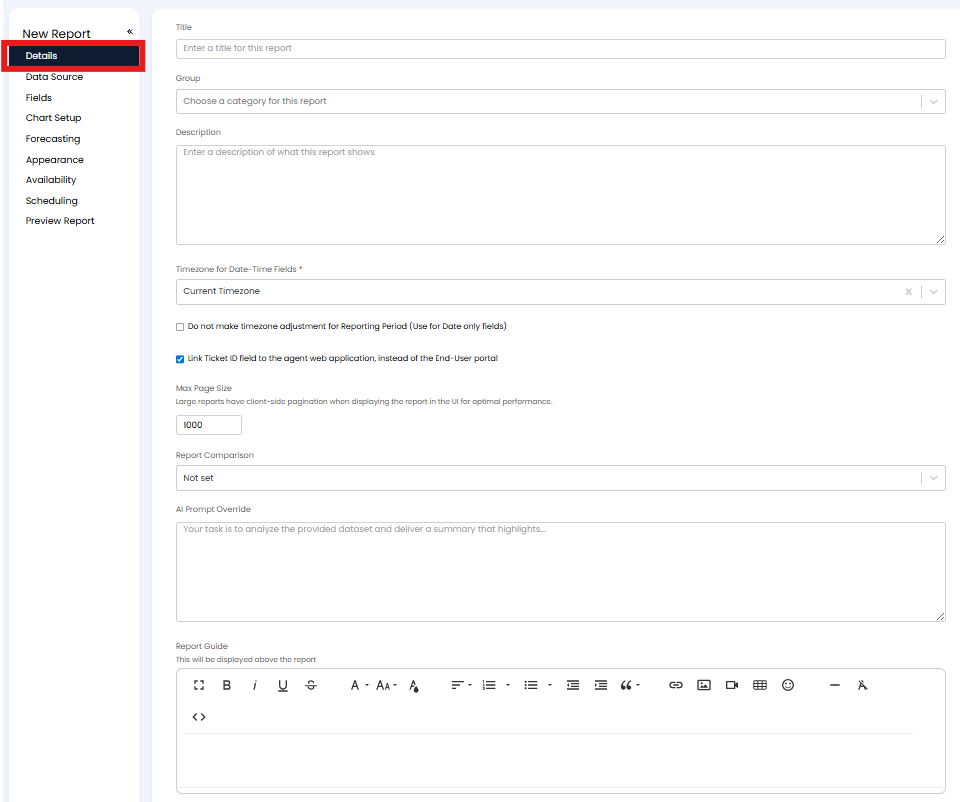
Fig 4. Report Details
Data Source
Under the second tab you will need to create your query. Using the Data Source drop-down select the method or you would like to use for your report. This can be:
- An existing ticket data source
- A System data source
- Query builder, if selected you be able to specify which entity to query.
- SQL query, this will being up a blank SQL script for you to type your query.
- AI query builder, when selected you will be able to write a prompt for the AI. Once you have written this click "Generate Report" to view and adjust the SQL.
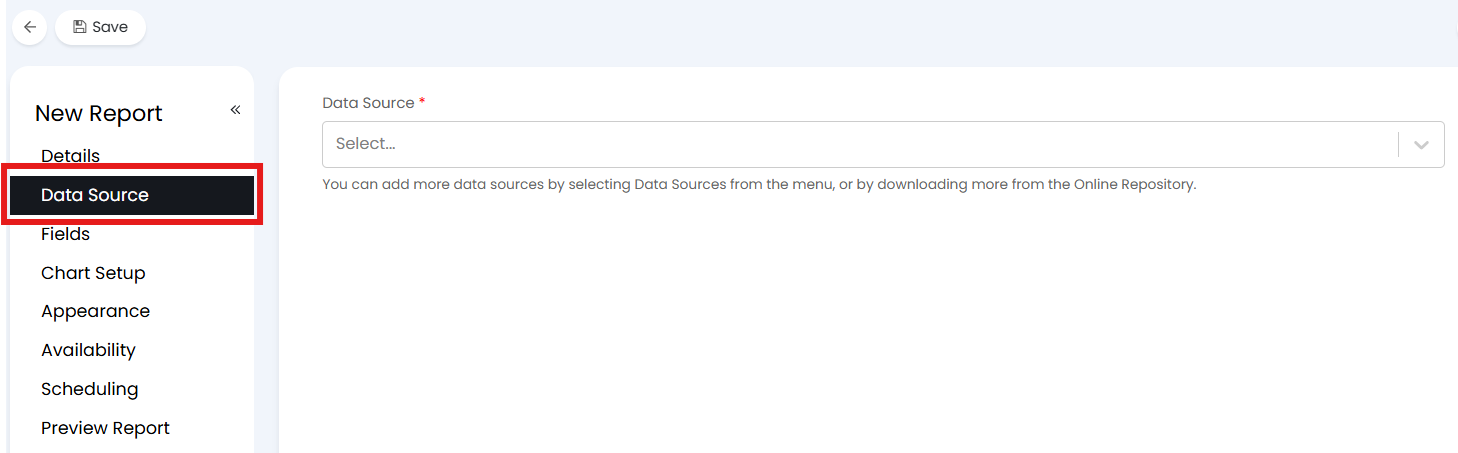
Fig 5. Report Data Source
Fields
The next tab is where you can specify which fields will show, and how they will display. To add a field click the "Add" button. Once you have fields added you can hover over each and use the 8 dots (similar to 𐧻) to drag and drop to order them. Using the pen icon you can override the name that displays, group, order, and sort.
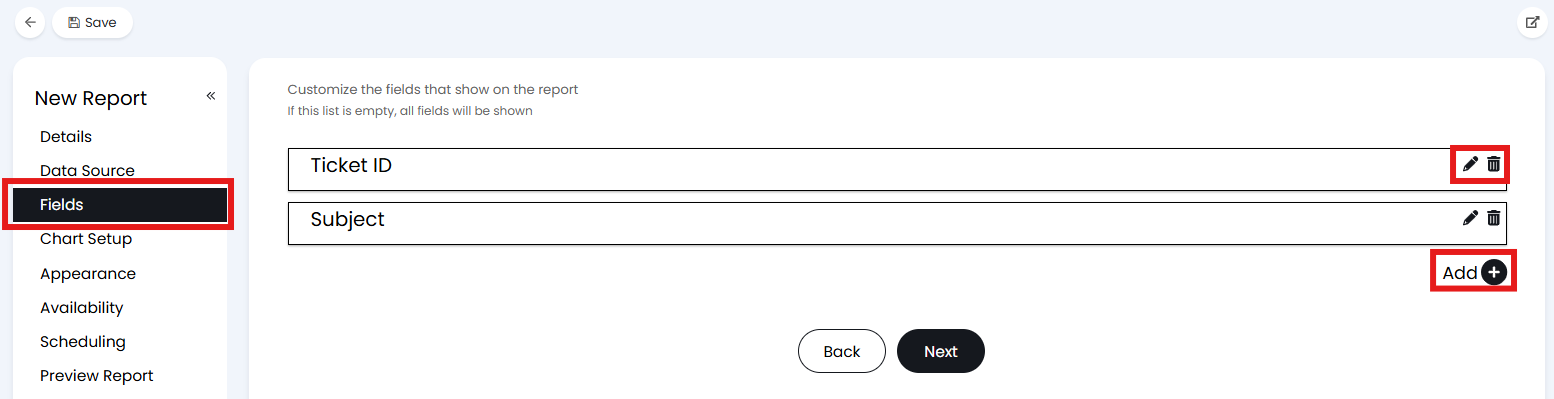
Fig 6. Report Fields
Chart Setup
Under the Chart Setup tab you can choose to create charts or graphs to display above your report. Select your Chart Type, and the fields to represent. Use the "Preview Chart" button to see how your Chart/Graph will look.
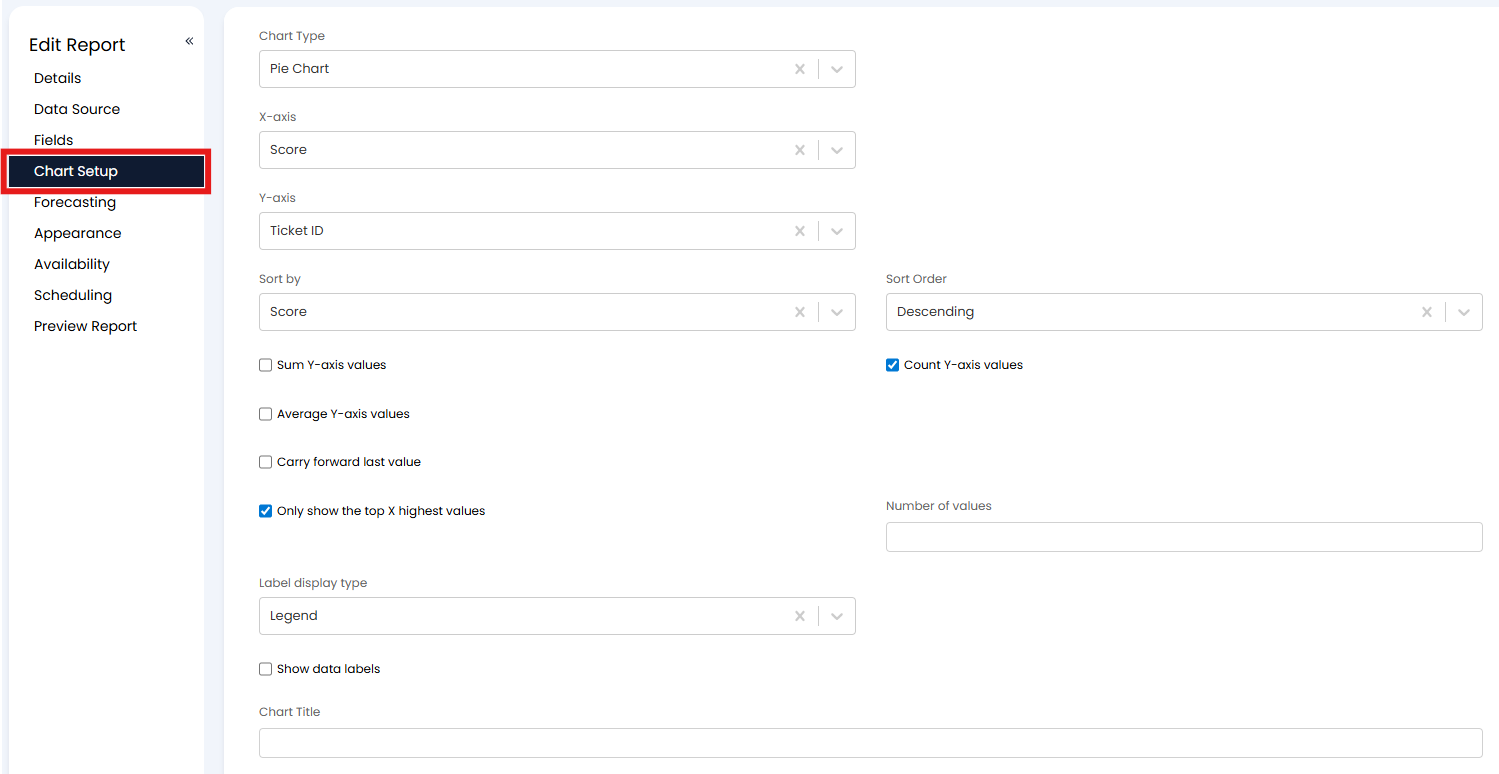
Fig 7. Creting a Chart
Appearance
Under the Appearance tab you can set a PDF template to use for the report, and can choose to customise the layout of the tables using HTML.
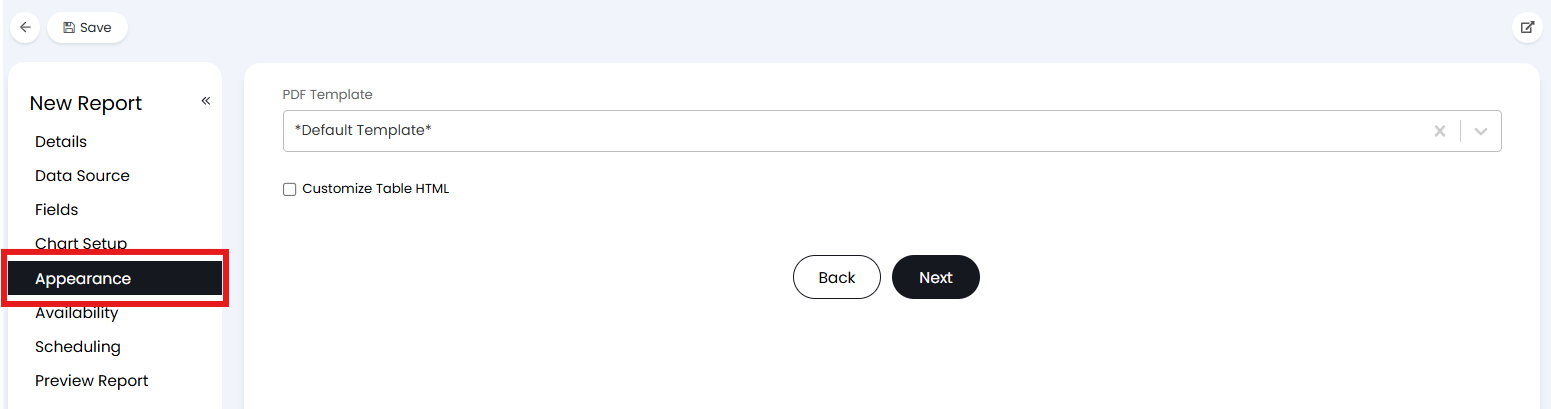
Fig 8. Report Appearance
Availability
In the Availability tab you can determine who can view and edit your report. To restrict which Agents can access the Report check the "Restrict access to this report" checkbox. This will show a table where you can add Agents who can view and edit the report. To allow Agents read only access, when adding the Agent to the table also select the "Read only" checkbox. Next you can set User access. To allow all Users to view your report select the "Allow All Users To Access This Report" checkbox. Alternatively you can allow specific Users to access the Report using the table. You can specify an entity here to allow access to all Users of a specific entity.
Finally here you can "Publish this report", which when selected allows you to allow anonymous access to your report, or use a Publish Profile for your Report access.
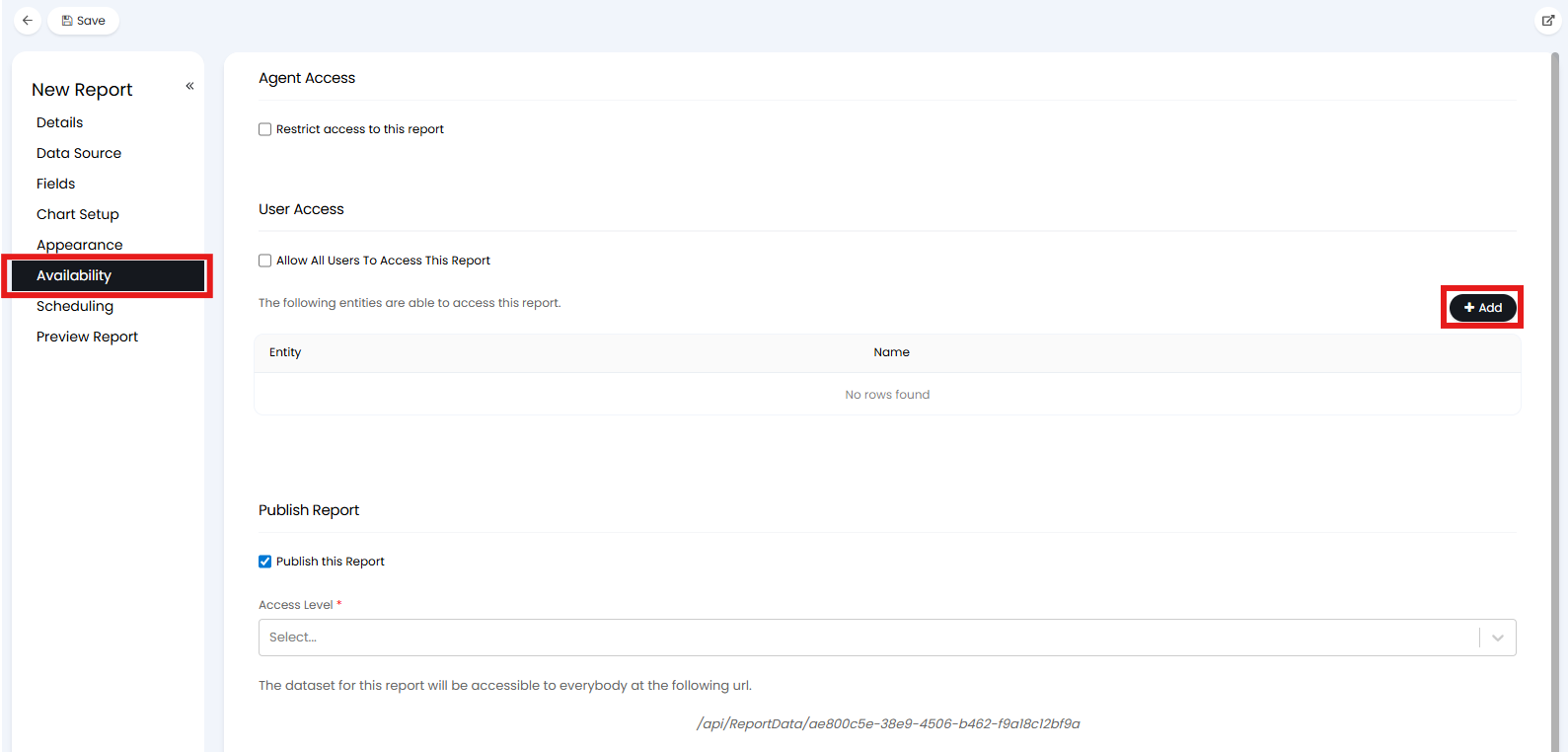
Fig 9. Report access
Preview Report
Click on the Preview Report tab to load your report. Make sure to click save in order to view your Report again.