Creating an Article Draft
In this guide we will cover:
- Navigating the Knowledge Base
- Creating an Article
- Viewing/Editing an Article
Navigating the Knowledge Base
When you enter the Knowledge Base area you will see either a screen similar to Figure 1, or a search screen. If you are using the search screen you will be able to select the FAQ List using the tile display, and add filters using the menu on the left hand side of the page. The "Add" and "All Articles" options will display on the top right.
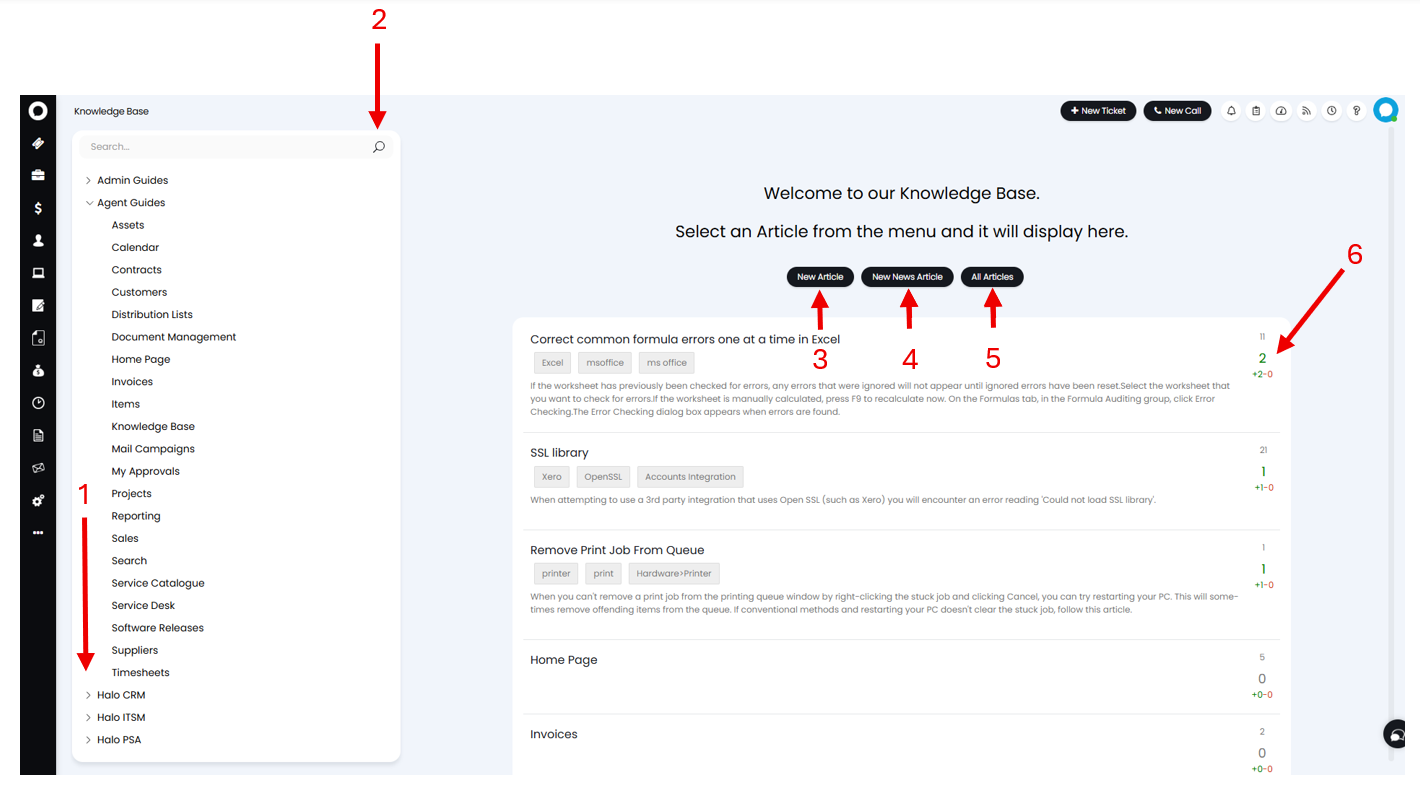
Fig 1. Navigating the Knowledge Base
1. FAQ drop-down - Clicking the greater than symbol (>) will expand the FAQ List, showing the Articles within the FAQ List.
2. Search - You can search for Articles using this search bar. Clicking the magnifying glass icon will open the advanced search.
3. New Article - Creates a new Article.
4. New News Article - Creates a new News Article.
5. All Articles - Shows a table with all the Articles in your Knowledge base, allowing you to quickly view the details of the Article.
6. Views/Rating - Here you can see the number of views (top number), and the rating given to the Article. The overall rating will show in the middle, with the breakdown of votes will be shown below.
Creating an Article
Once you have selected your "Add", "New Article" or "New News Article" button you will be able to log a draft.
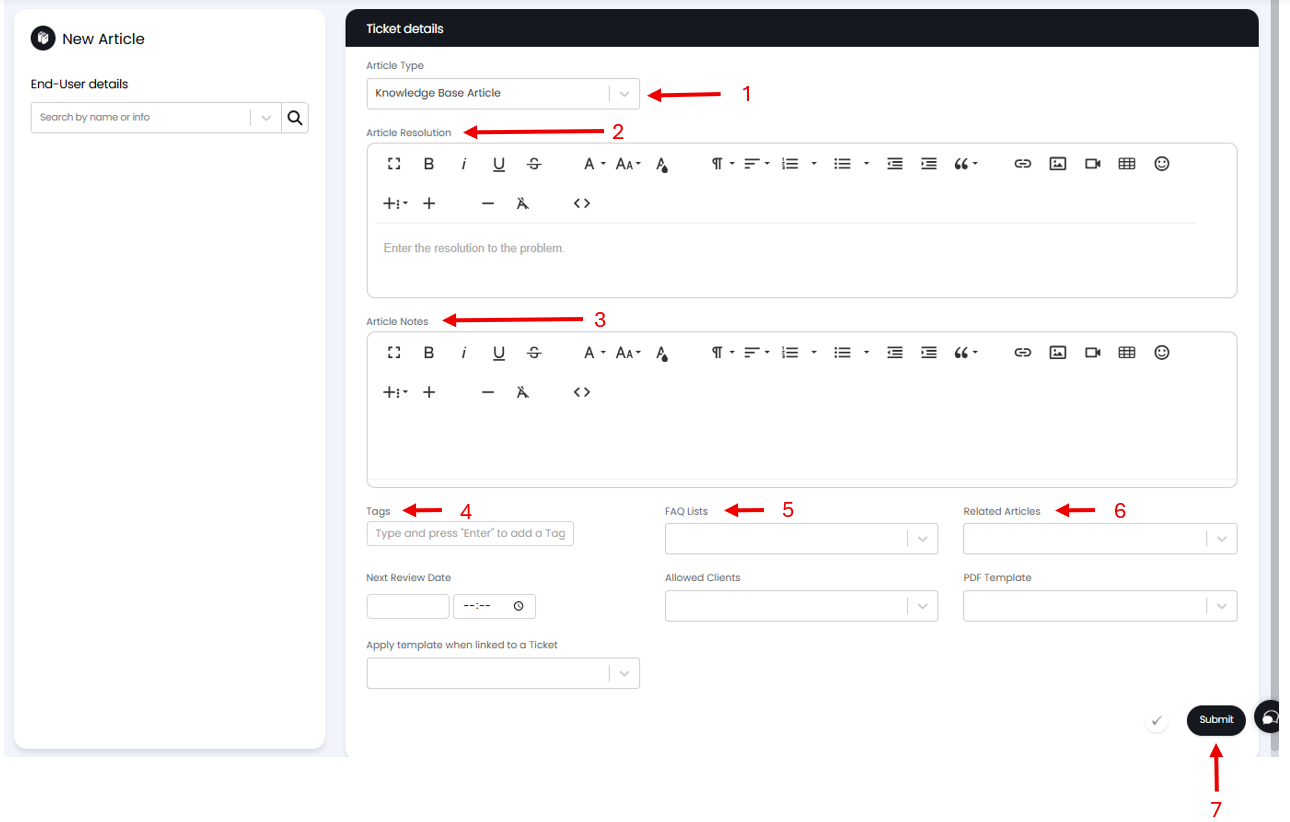
Fig 2. Raising an Article draft
1. Article Type - If using both Knowledge Base and News Articles, you can specify which of the two here.
2. Resolution - The main body of the Article, or a summary of how to solve the problem.
3. Article Notes - When published this will become an internal memo that Agents can see, but not End-Users.
4. Tags - Short words or phrases that users can search by to easily find an Article.
5. FAQ Lists that this article appears on - A multi-select field with what FAQ Lists an Article is contained on.
6. Related Articles - Articles that may have similar contents or be otherwise related. They will show linked at the bottom of the article once published.
7. Submit - This will log your Article draft as a Ticket.
Once you have created your draft, you can use your publish action to publish the Article. This Action is custom so may appear differently in your instance.
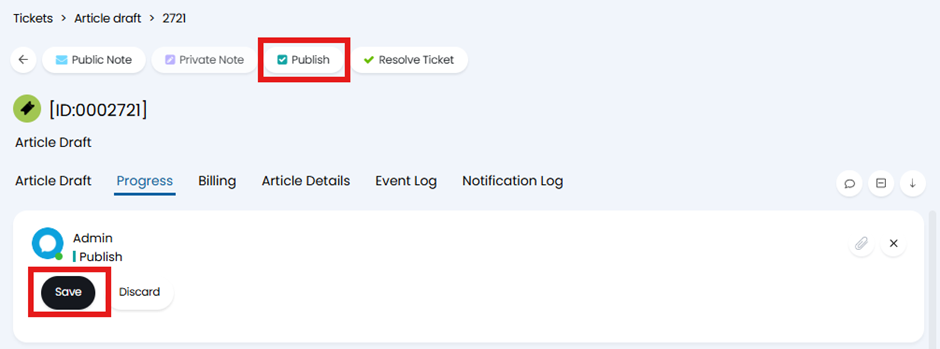
Fig 3. Publishing an Article draft
Viewing/Editing an Article
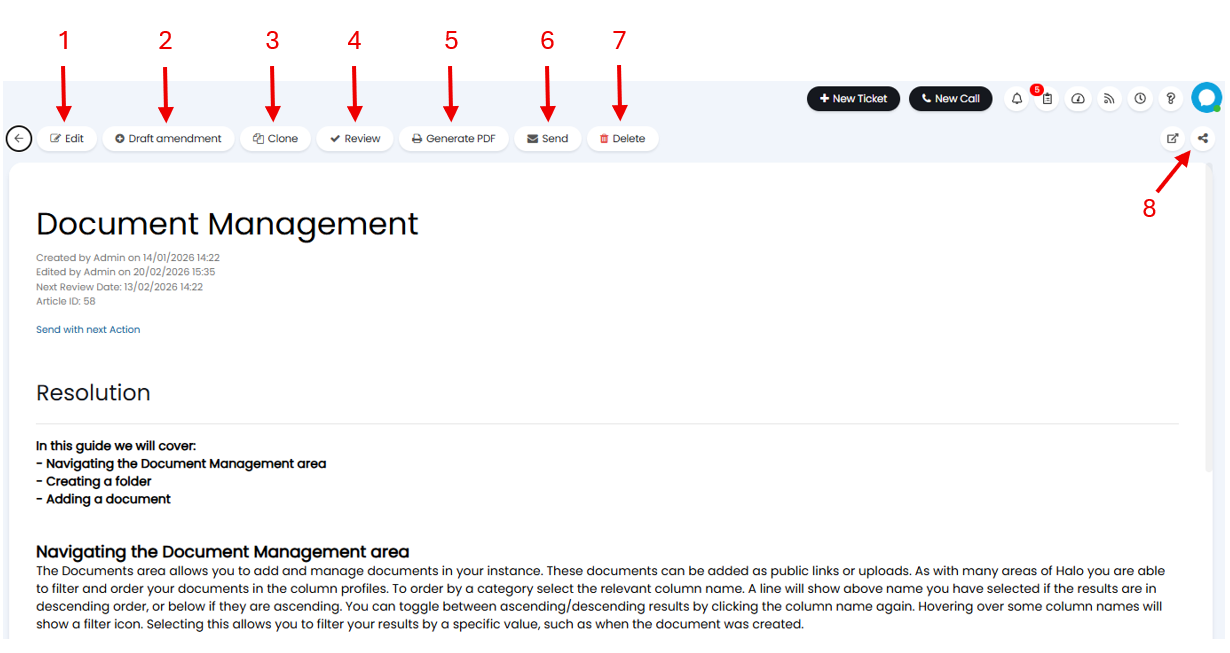
Fig 4. Viewing an Article
1. Edit - Click here to edit the content and details of your Article.
2. Draft Amendments - This will take the existing content and insert it into the Article Draft Ticket allowing you to save any changes as a draft.
3. Clone - This will make a copy of your Article.
4. Review - This button will allow you to review and edit the Article. Once saved the next review date will automatically update in line with your review schedule.
5. Generate PDF - This will create a PDF of your Article.
6. Send - Clicking here will start an email Action with the Article attached.
7. Delete - Deletes the Article.
8. Share - Hovering over this button will show you options to copy the User or Agent links.