Document Management
In this guide we will cover:
- Navigating the Document Management area
- Creating a folder
- Adding a document
Navigating the Document Management area
The Documents area allows you to add and manage documents in your instance. These documents can be added as public links or uploads. As with many areas of Halo you are able to filter and order your documents in the column profiles. To order by a category select the relevant column name. A line will show above name you have selected if the results are in descending order, or below if they are ascending. You can toggle between ascending/descending results by clicking the column name again. Hovering over some column names will show a filter icon. Selecting this allows you to filter your results by a specific value, such as when the document was created.
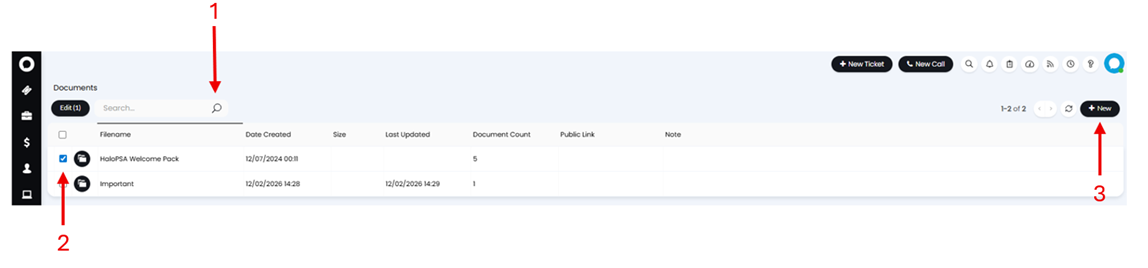
1. Search - Here you can search for your documents
2. Select - To delete a document, select it using the relevant checkbox in the Column Profile, and click "Edit". You will then see the delete option.
3. New - Hover over the "New" button to add a new document or folder.
Creating a folder
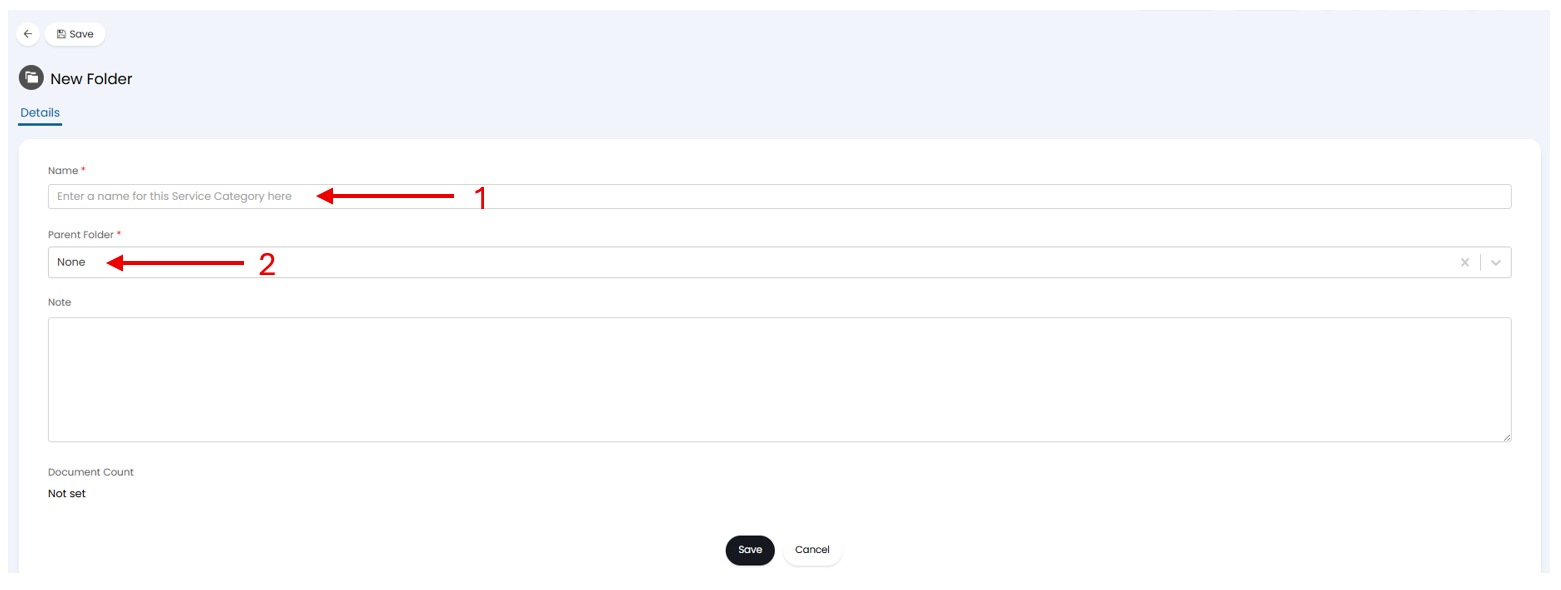
1. Name - This will be the name for the Folder.
2. Parent Folder - This allows you to contain your new folder within another folder for further categorisation. If you do not want your new folder to be contained in another folder set this option to "None".
Adding a document
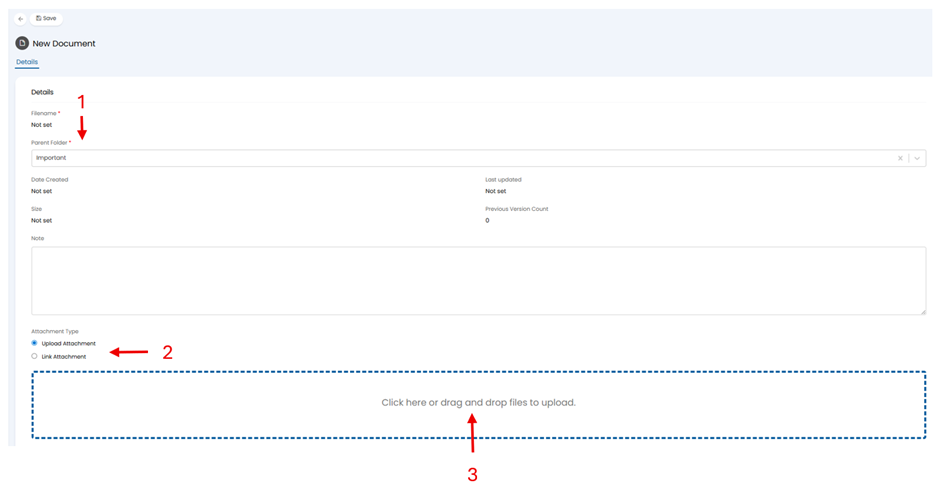
1. Parent Folder - Here you can set the folder to save your document under.
2. Attachment Type - Choosing ‘Link Attachment’ allows you to add your document as a Public Link. If selected you will need to enter your link into a text field, and set a name for your document. Alternatively, choose ‘Upload Attachment’ to attach a file.
3. File Upload - Click or drag files into this box to upload them as your document. The Filename will be taken from the file uploaded here.
From v2.250+, you can also set an expiry date and Document Type on your Document.