New Ticket Screen & Call Screen
In this guide we will cover:
- New Ticket Screen
- New Call Screen
New Ticket Screen
When you open the New Ticket screen you will find a page similar to Fig 1. On this page you can enter all the details relevant to the Ticket you are logging. On the left you will have the option to search for a User to log the Ticket against. On the right side is where you can choose the Ticket Type, set a Summary and provide any details for the Ticket. Any of the fields with a red asterisk next to them are mandatory, and you will not be able to log the Ticket unless they are completed.
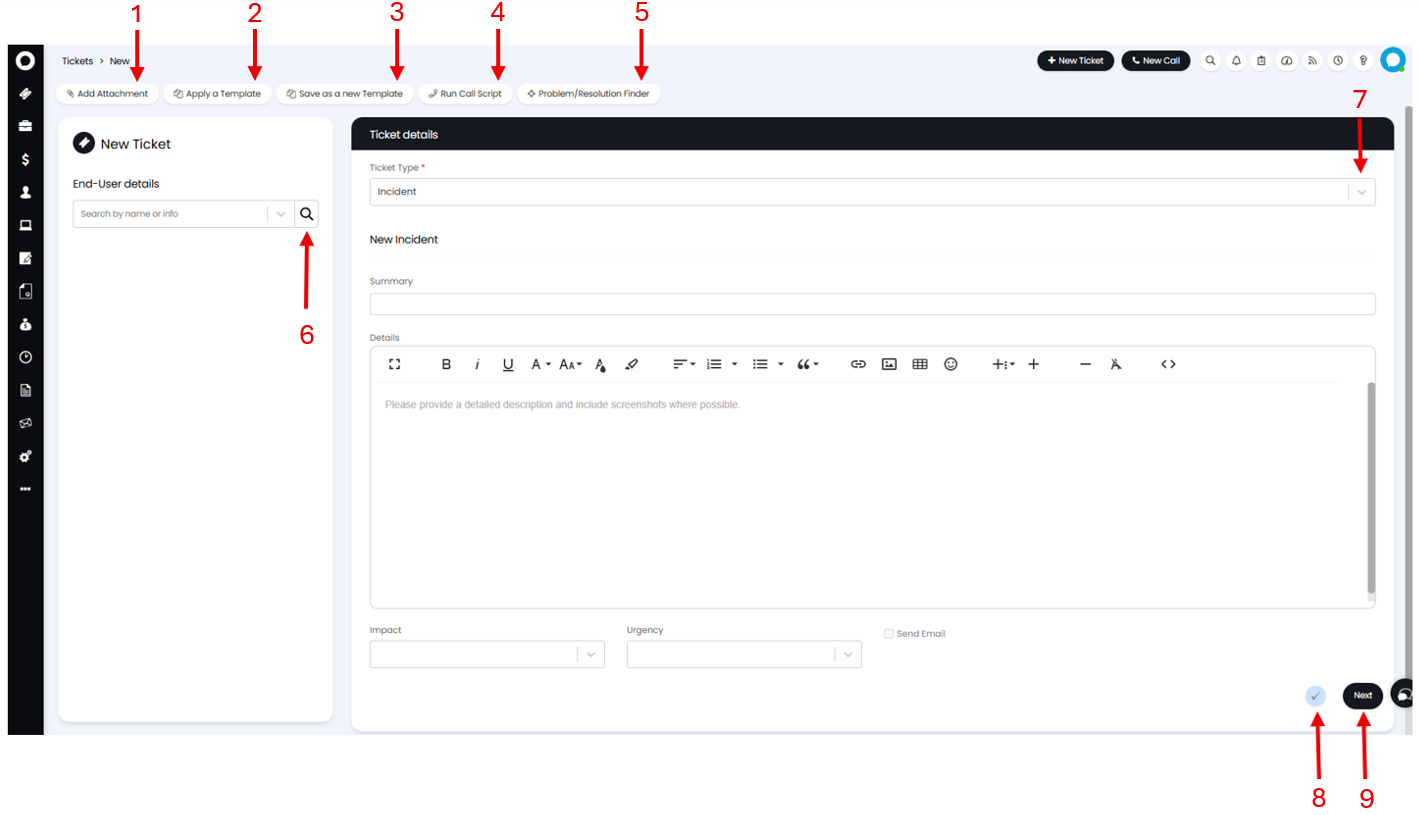
Fig 1. New Ticket Screen
1. Add Attachment - Here you will be presented with the options to upload a new attachment, or attach an internal document to the Ticket. If you select to upload a new attachment you will then be able to choose if this attachment will be uploaded or provided as a link.
2. Apply a Template - This opens a list of your Ticket Templates which can be applied to the new Ticket. You can filter these using the drop-down at the top of the modal window.
3. Save as New Template - This saves any information on the Ticket as a new Template which can be applied to future Tickets.
4. Run Call Script - This will allow you to select a Call Script to run. The details provided in the Call Script will populate the details field on the Ticket.
5. Problem/Resolution Finder - This brings up the Problem/Resolution Finder. Here you can switch between suggested Articles, matching Problems, similar open Incidents, and similar closed Incidents.
6. Advanced Search - Clicking the Magnifying glass symbol will open the Advanced Search page.
7. Ticket Type down-down - Here you can change the Ticket Type being logged.
8. Close Ticket - This will bring up a Closure details, allowing you to close the Ticket as it is logged.
9. Submit - Clicking here will log and open the Ticket.
New Call Screen
On starting a new call you will see a screen similar to below. This screen may automatically match to a Client or User, automatically populating the Caller details. If Call Scripts have been set to automatically run on calls, you will see the Call Script which you can work through, or exit using the cross in the top right, before seeing the screen below. The details entered in the Call Script will be shown in the Call details.
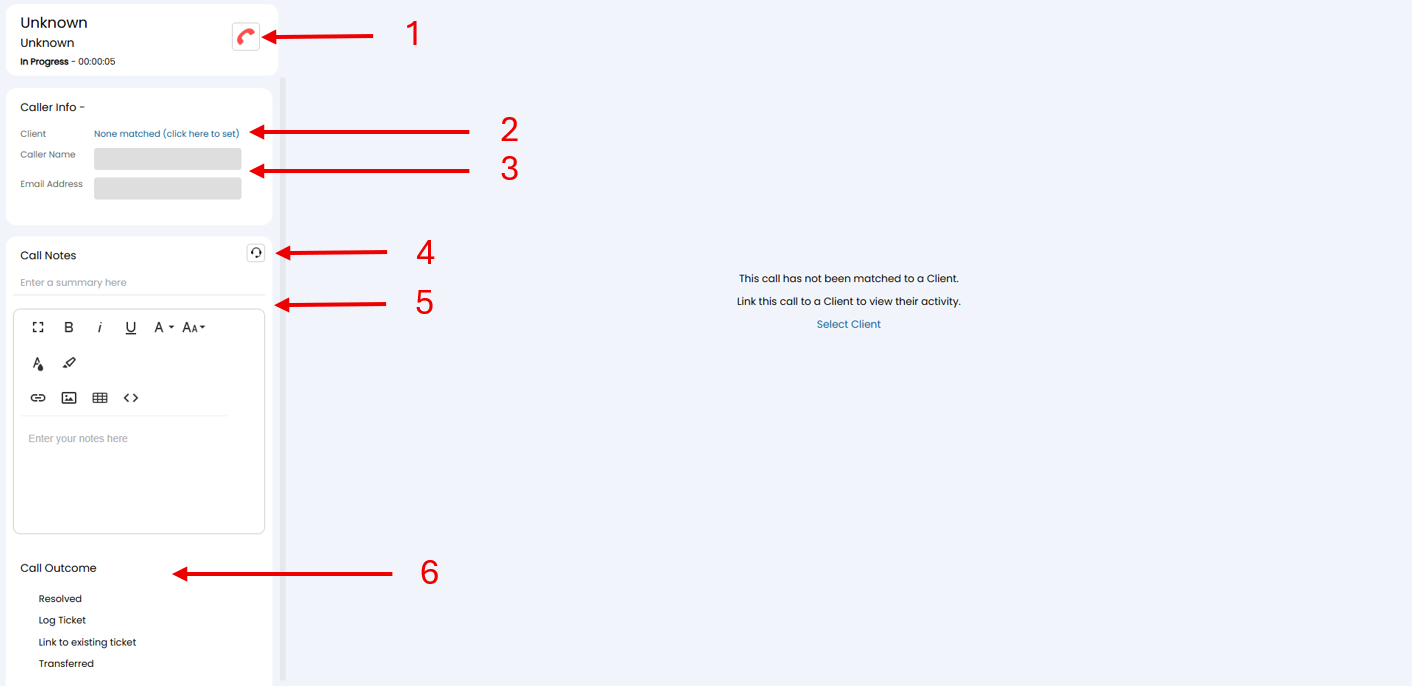
Fig 2. New Call Screen
1. End Call - Clicking here will mark the call as 'finished' in Halo, stopping the call timer.
2. Client - Clicking the blue text here will open a Client/Site/User Search.
3. Caller Details - You can manually set the callers name and email here. This will automatically populate if a User is selected above.
4. Call Scripts - This will show the available Call Scripts which can be run on the call.
5. Call Notes - The details you type in here will be used to populate the Summary and Details fields on the Ticket created by the call.
6. Call Outcome - Here you can select the outcome of your call.
- Resolved - This will log and close a Ticket.
- Log Ticket - This logs a new Ticket from the call. You may see the New Ticket screen when this option is selected.
- Link to existing Ticket - When selected a box will appear at the bottom of the Call Outcome section. The Ticket number entered here will be linked to a new Ticket created from the call.
- Transferred - Clicking this will allow you to select the Team and Agent that a call was transferred to.
When a Client Site or User has been matched, the right hand side of the call screen will show an overview for that Client/Site/User. Selecting the Tickets or activity here will open them in the right side of your call screen.
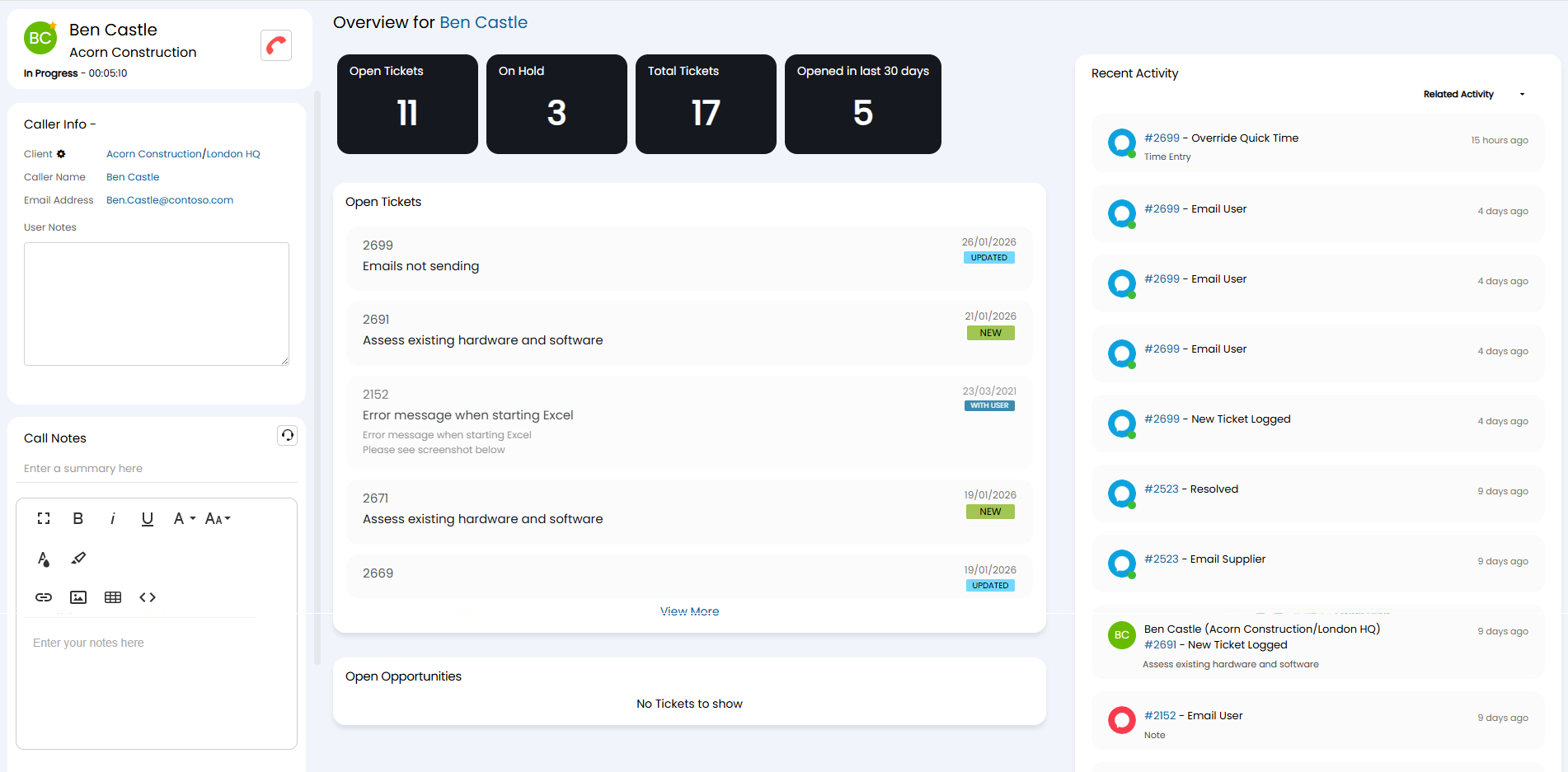
Fig 3. Call Screen with Matched User