Home Page
In this guide we will cover:
- Navigating the Home Screen
- Search
- Notifications
- To-Do
- Activity Feed
- Timesheets
Navigating the Home Screen
On your Home page you will find multiple different options. All the areas you can access will be displayed both on the navigation menu (Left side) and as modules on the Home page. You can view the current date and time in the top right, and may see a dashboard towards the bottom of the page.
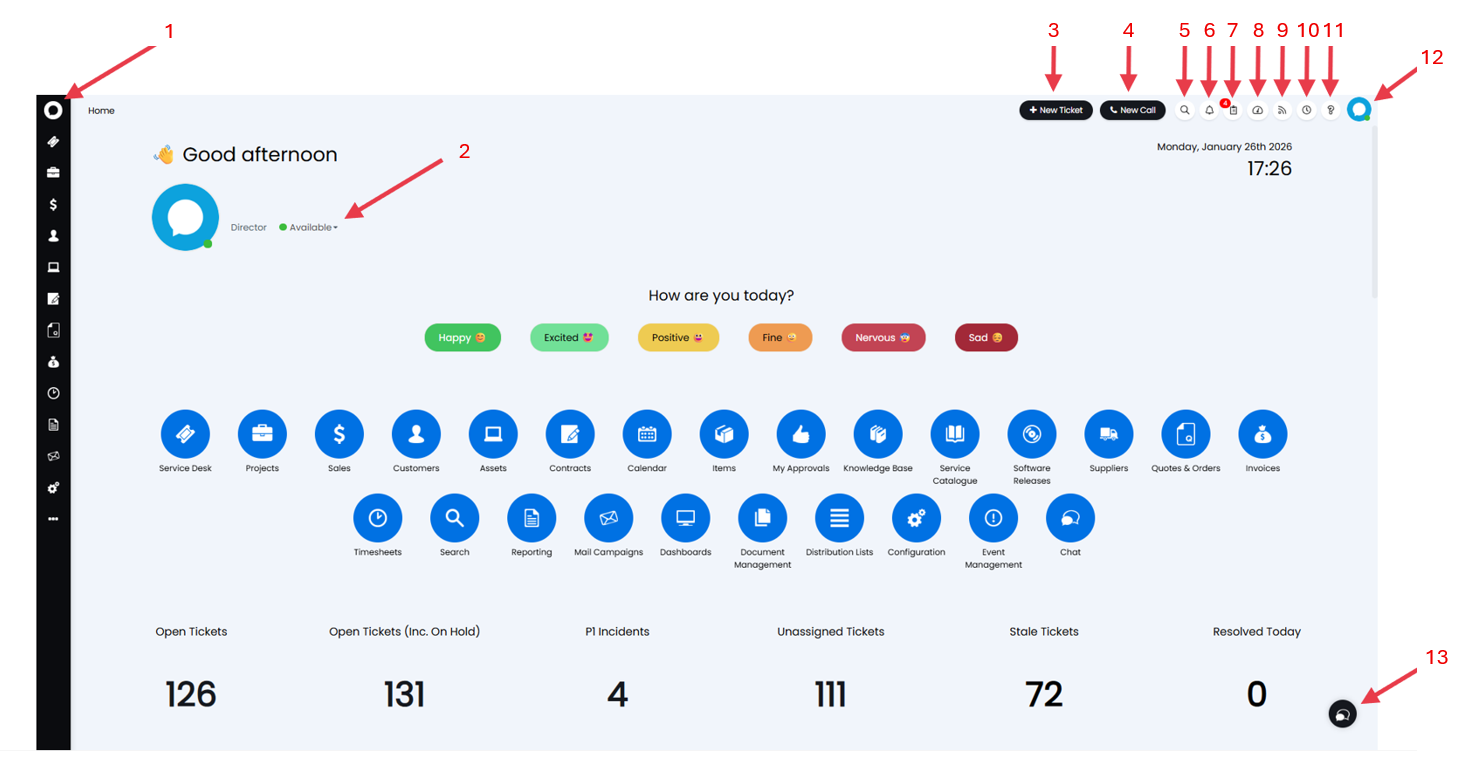
Fig 1. Home Page
1. Home Icon - Clicking here from any page in your Instance will return you to the Home Page.
2. Status Drop-down - Here you can manually override your current status.
3. New Ticket - This option allows you to manually log a ticket from any page in your Instance.
4. New Call - Clicking this will open the call screen.
5. Search - This will open up the search menu
6. Notifications - Here you can view your notifications from the last 3 days.
7. To-Do - Opening this will show you a list of your outstanding Tasks and Appointments.
8. Side Menu Dashboard - Here you will see a dashboard that has been chosen by an Admin Agent.
9. Activity Feed - This section will show recent activity. This can be filtered to help you find specific past actions.
10. Timesheet - Clicking here will show you today's timesheet. You can also add quick time here.
11. Help - This button brings up the help menu which contains links to documented Halo content
12. My Account - Selecting your profile icon/picture allows you to edit your details, preferences, and to log out.
13. Chat - Clicking this will open a new chat
Search
Searching in Halo can be performed by opening the Search menu in the top left. Once opened you will see a search bar where you can type to search for what you are looking for.
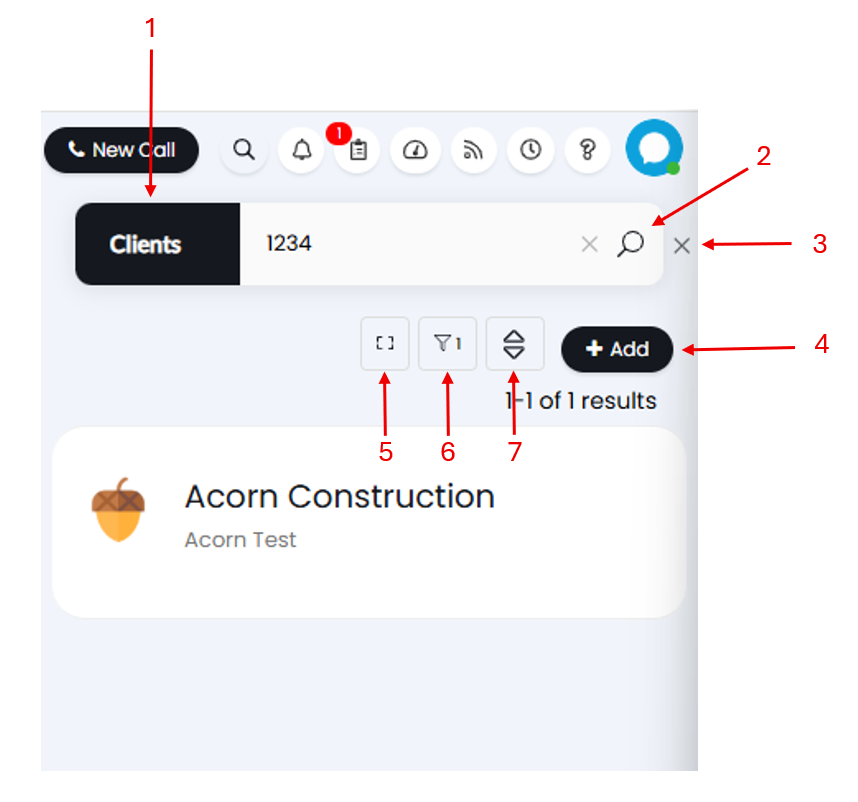
Fig 2. Search
1. Entity filter - Clicking here will bring up a list of all the entities you can search for, you can select one from this list to filter your search results.
2. Search - Once you have typed what you are looking for into the search bar you can either press enter or click the magnifying glass icon to search.
3. Close search menu - Click here at any time to close the search menu.
4. Add - This allows you to create a new record for the entity you are searching.
5. Expand search menu - Clicking this will open your search results in the search area instead of the side menu.
6. Filters - Here you can set filters for your search results. The options shown here will differ depending on the entity you are searching.
7. Order - Click here to set how the results will be ordered,.
Notifications
You may receive pop up notifications in Halo which will appear in the top right of your screen. Once these disappear you can view them for up to 3 days in the Notification menu. Clicking on a Notification in this menu will take you to the relevant Ticket and will mark the Notification as 'read'.
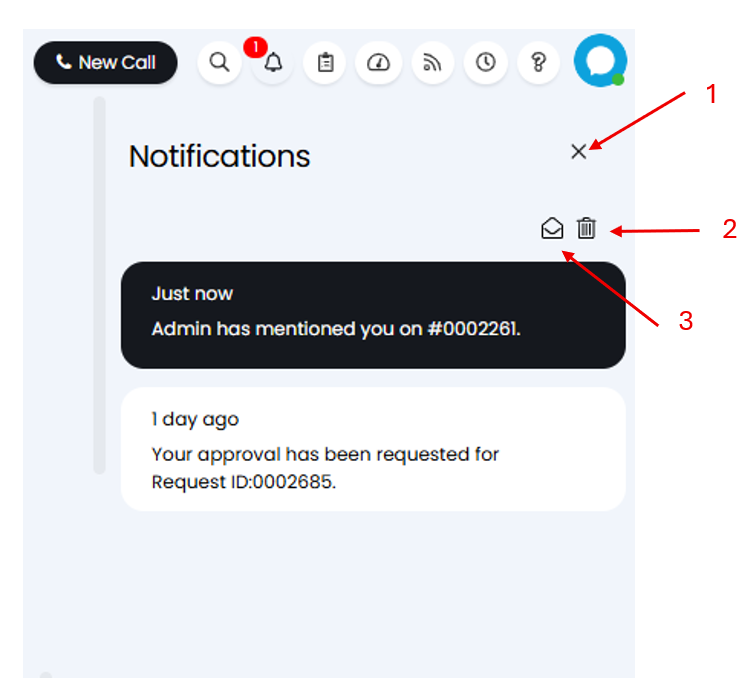
Fig 3. Viewing Notifications
1. Close - This closes the Notification menu.
2. Delete - Deletes all the existing Notifications shown in the Notification menu.
3. Mark as read - Marks all the Notifications currently in this menu as 'read'.
To-Do
To view a list of the upcoming events you need to complete, open the To-do menu. Clicking on an Appointment or Task in here will open the event details in the side-pane. From here you can edit, and complete the event.
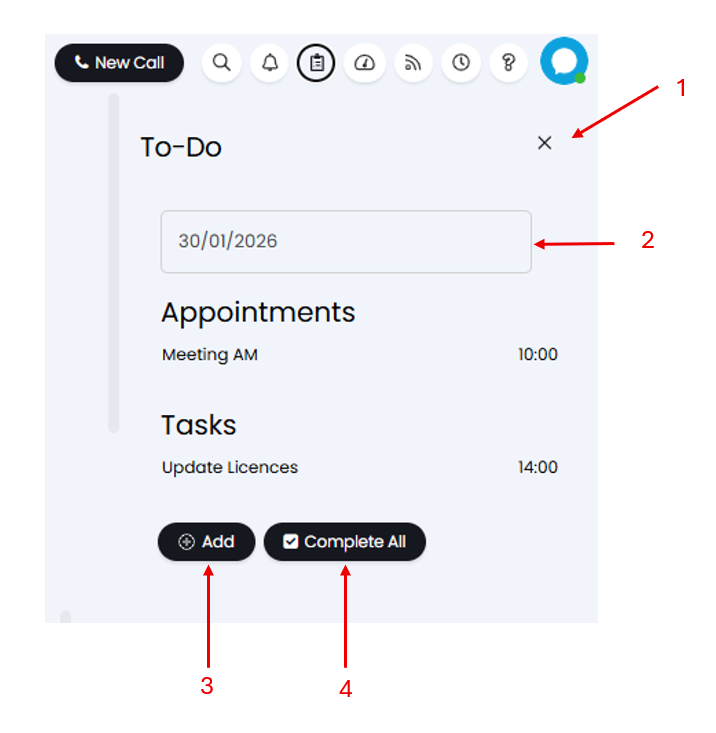
Fig 4. Viewing Appointments and Tasks
1. Close - This closes the To-Do menu.
2. Date filter - Clicking this brings up a calendar where you can select the date to show Tasks and Appointments up to.
3. Add - Here you can quickly add a new Task or Appointment in the side-pane.
4. Mark as Complete - This will mark all the Appointments currently displayed as 'complete'.
Activity Feed
To view your recent activity you can open your Activity Feed. Clicking on an activity in here will take you to the relevant Ticket.
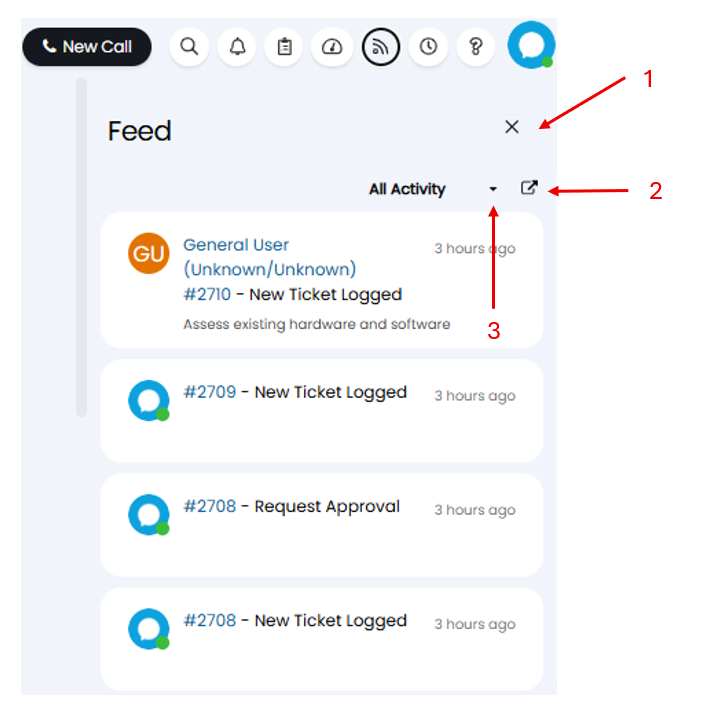
Fig 5. Viewing Agent Activity
1. Close - This closes the Activity Feed.
2. Open in a new window - Clicking this will open and expand your activity in a new tab
3. Filter - Clicking here will bring up a list of all the activity types you can search for, you can select one from this list to filter your search results.
Timesheet
Your Timesheet allows you to quickly log time against a Ticket or Client. Your Timesheet also allows you to monitor how your time was spent across the day.
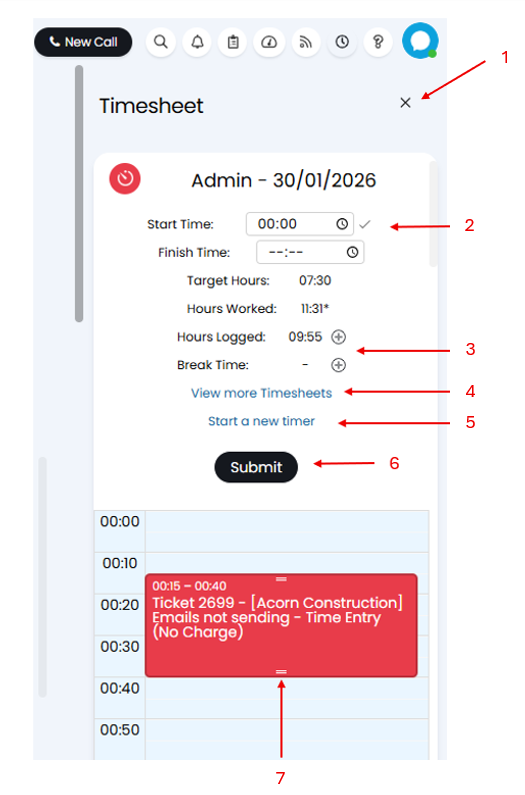
Fig 6. Viewing your Timesheet
1. Close - This closes the Timesheet menu.
2. Change Start/End Time - Here you can override your start and Finish time for the day.
3. Add Time/Break - Quick time can be added here by selecting the ⊕ icon next to "Hours Logged". You can also do this by clicking in or dragging to select the time window.
4. View more Timesheets - Clicking here will open the Timesheet area, where you can find all your Timesheets.
5. Start a new timer - Here you can start a new timer which will count up until stopped. Once stopped this time can be logged to a Ticket, or as a break.
6. Submit - When clicked this will submit your Timesheet for approval.
7. Adjust length of time logged - The time you have logged will show on your Timesheet as a block. Hovering over this you will be able to click and drag the white line to adjust the start or end time, increasing or decreasing the overall length of time logged. Clicking in the centre of this block will allow you to drag the entire block to a new start and end time, whilst keeping the overall length of time the same.