My Account
In this guide we will cover:
- Accessing your Account
- Agent Details
- Agent Activity
- Agent Preferences
Accessing your Accoun t
To access your account click on your Profile Picture in the Top Right Corner of the screen.
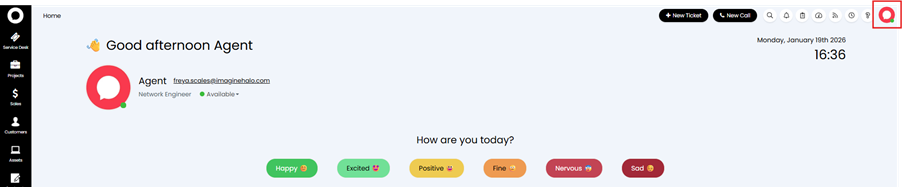
Fig 1. Your Profile Icon.
Here you will be presented with the options:
My Account – Here you will find your Details, Activity, and preferences.
Password & Security – allows you to change your password, set up two factor authentication, and revoke sessions.
Switch to End-User Portal - This will redirect you to the End-User Portal
Log out – Logs you out of you account
You will also see your status demonstrated by the coloured dot on your profile picture. You can manually override this status by clicking on the drop-down beneath your email address.
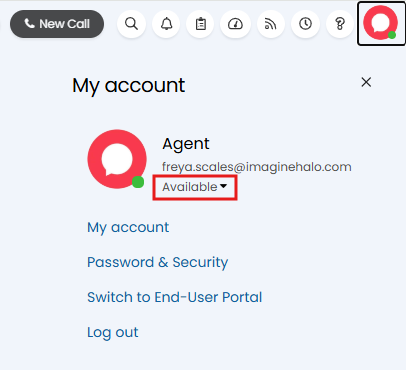
Fig 2. Manually changing your status.
Agent Details
If you click into “My Account” you will see a screen similar to Fig 3. To change or update your details click the “Edit” button. You will only be able to edit certain fields in this tab depending on your access level.
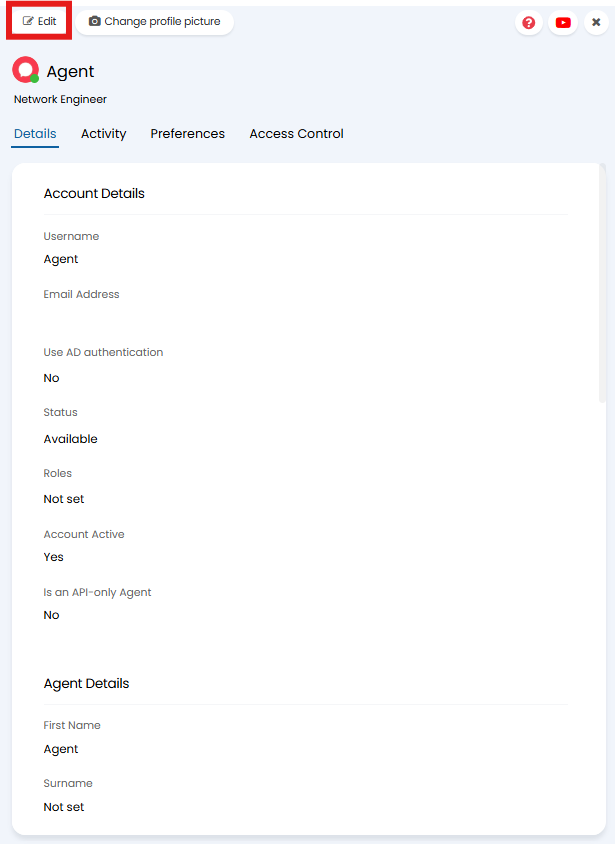
Fig 3. Editing your details.
If you would like to change your profile picture click on the “Change Profile Picture” button at the top of the page, and upload a new Image. Now click save for your new image to take effect. If this does not apply the photo automatically try logging out and logging back in.
Agent Activity
The next tab you will find is the Activity Tab. This tab shows you a list of your Ticket activity in Halo. The Ticket number displayed here contains a Hyperlink which opens the Ticket.
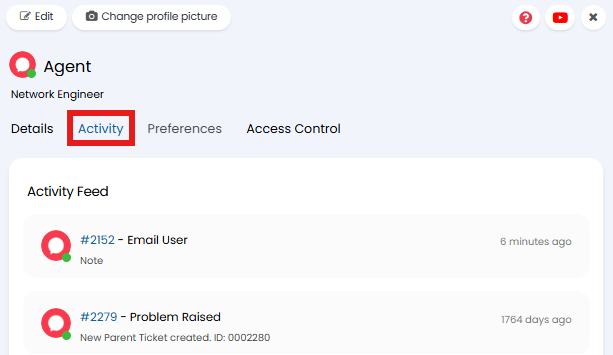
Fig 4. Your Activity
Agent Preferences
Within the Preferences tab you will find settings specific to you as an Agent. You will only be able to edit the fields if you have been granted the permission to by an Admin.
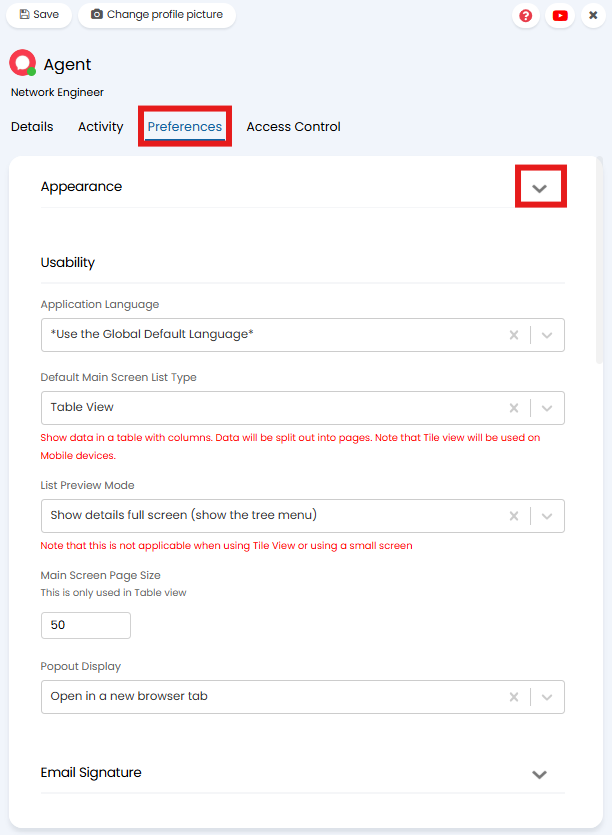
Fig 5. Your Preferences
Within the Appearance section you can set:
Application Theme
This can be used to set a light or dark theme, this can be for aesthetic or for visual reasons, as well as high contrast mode.
Application Colour
This is the colour of your Halo Web App.
Profile Colour
This is the colour that backs your initials when you have no profile picture set.
You can change your profile picture by clicking on the initials/picture at the top of this window.
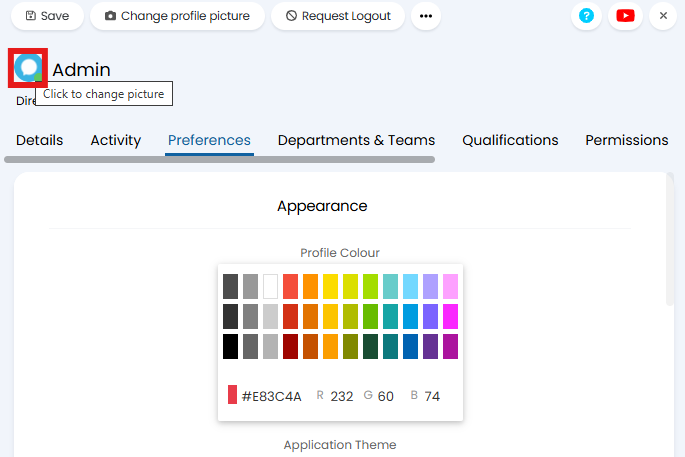 Fig 6. Appearance Preferences