Splunk On Call Integration
In this guide we will cover:
- What is the Splunk On Call Integration?
- Connecting to Splunk On Call
- Configuring and Integrating Splunk On Call
- Creating Splunk On Call Webhooks
What is the Splunk On Call Integration?
Splunk on Call is an incident management platform designed to help teams respond quickly to problems and incidents. The platform is designed to help Agents prioritise issues, and meet their SLAs.
Connecting to Splunk On Call
After logging into your Halo account as an administrator, go to Configuration > Integrations > Incident Management, where you will find the Splunk On Call module. Hover over this and click the plus "+" icon to enable the module.
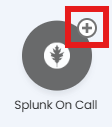
Fig 1. Enabling the module
Within Splunk on Call head to Integrations > API and click "Activate API".
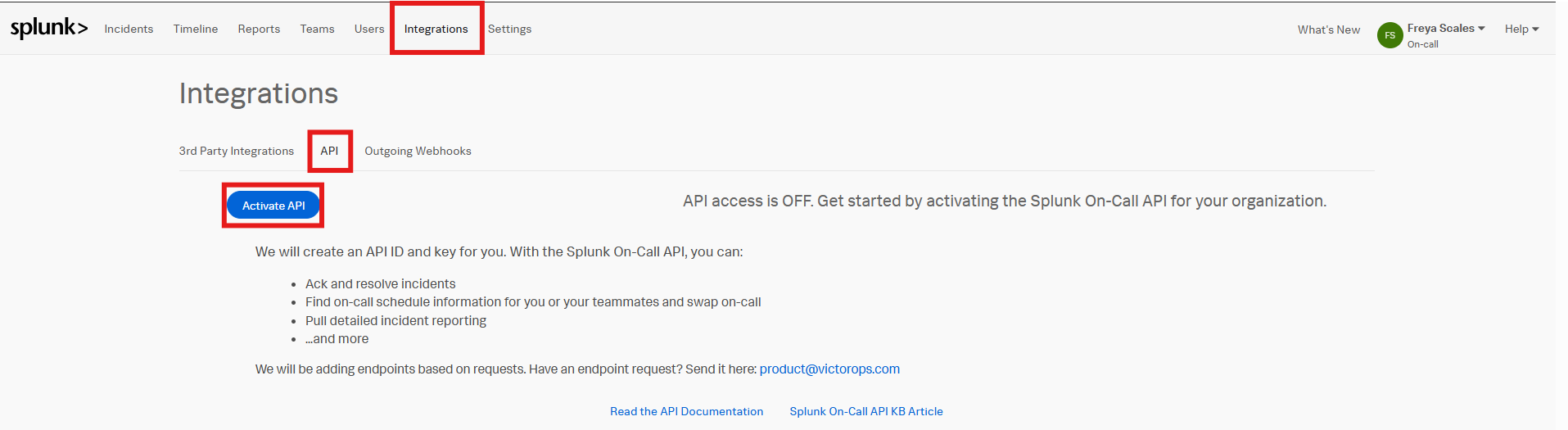
Fig 2. Activating your API in Splunk On Call
Once activated, you can create an API key using the "New Key button".
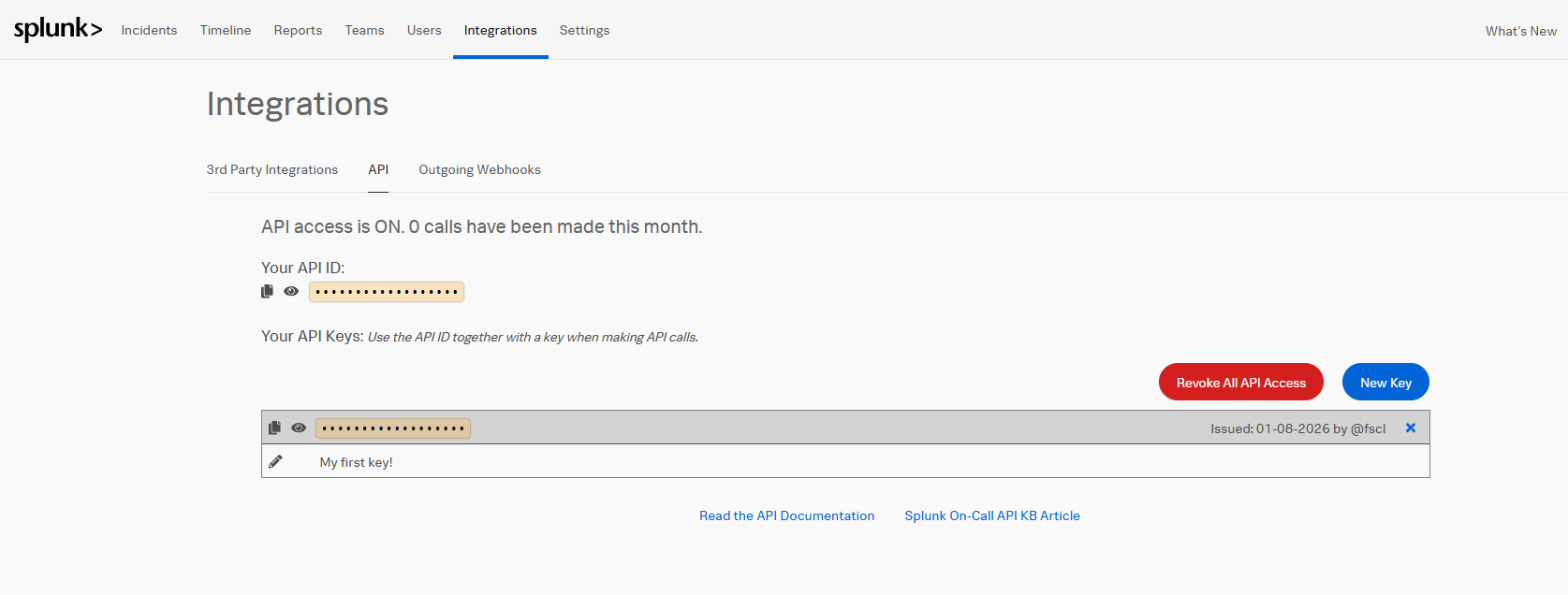
Fig 3. API ID & Key
Copy this new key and your API ID to your clipboard. Now head back to Halo and open the Splunk On Call module. Paste the ID and key respectively. Once set, validate the API Key using the button in Fig 4.
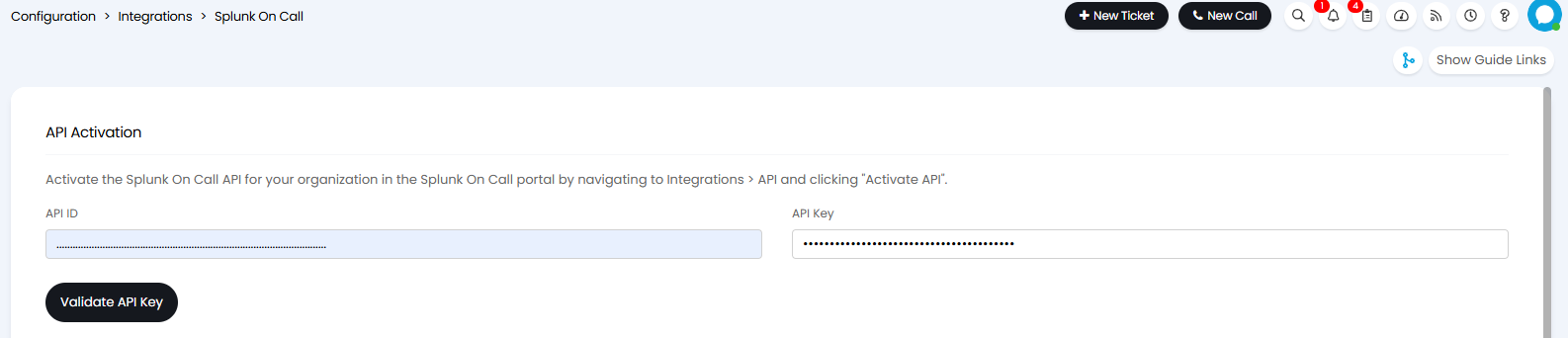
Fig 4. Filling in your API details
Configuring and Integrating Splunk On Call
To make sure Splunk On Call recognises the Agent in Halo, you will need to set the corresponding Splunk On Call Username in Configuration > Teams & Agents > Agents > Select Agent > Integrations tab.
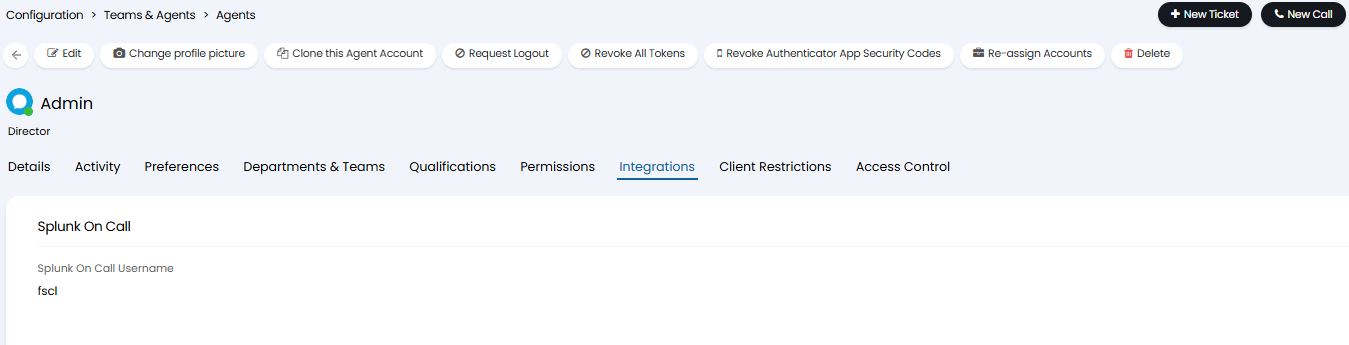
Fig 5. Setting your Splunk On Call Username
To find this head to the Users tab in Splunk On Call and check the username column.
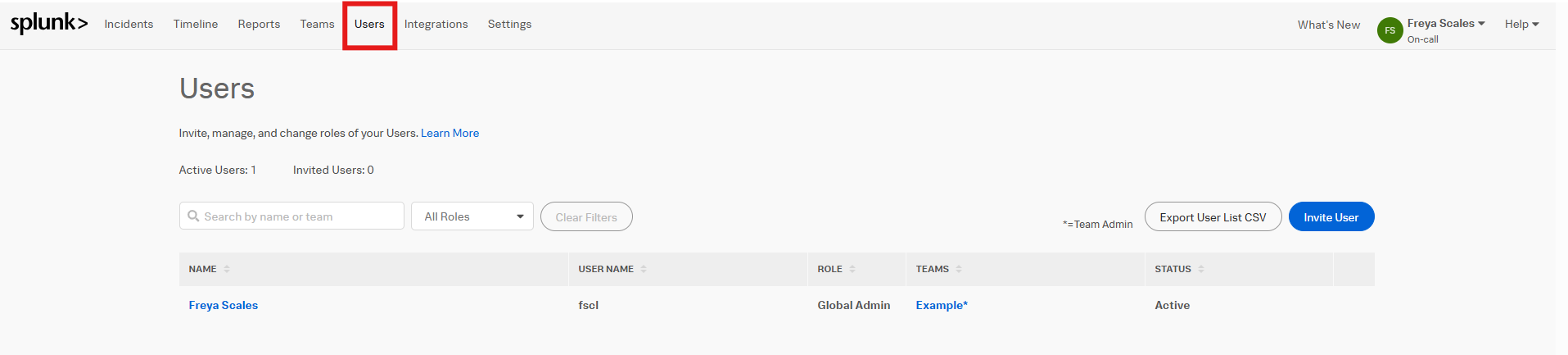
Fig 6. Finding your Splunk On Call Username
Next you will need to add the "Send to Splunk On Call" and "Splunk On Call Target" Fields to your Ticket Type.
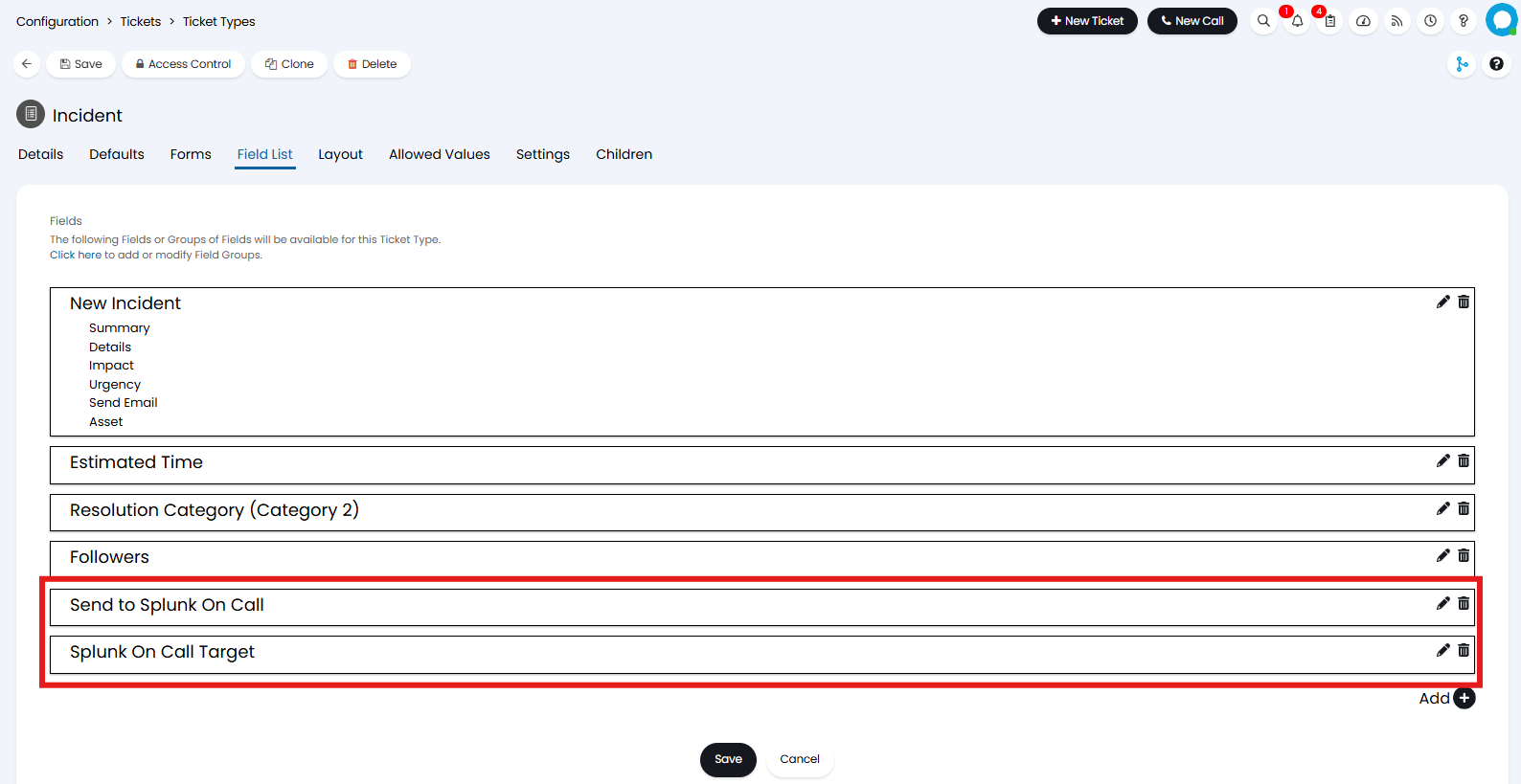
Fig 7. Adding the Splunk On Call Fields to a Ticket
Now when you create a ticket you will see the option to send the ticket to Splunk On Call. When checked the Splunk On Call target, and Team/Escalation Policy will become visible.
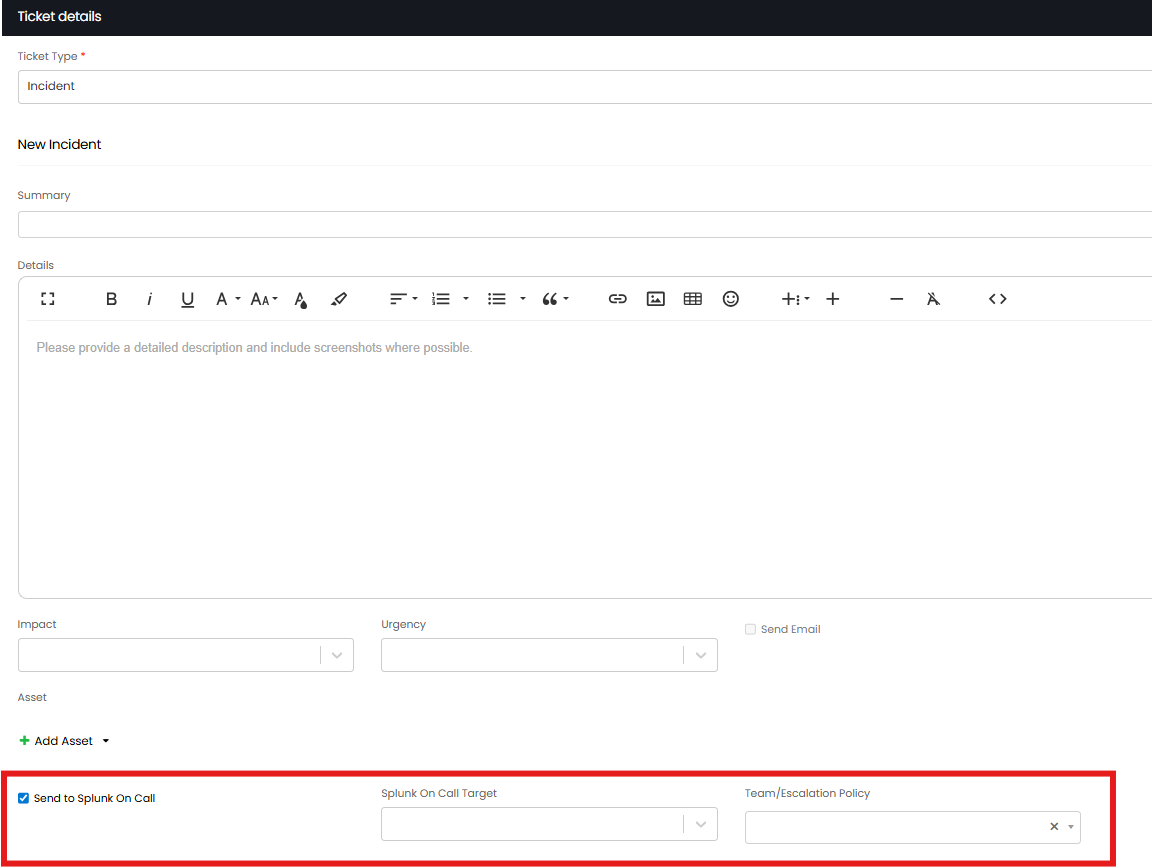
Fig 8. Sending to Splunk On Call
To add notes to the Ticket in Splunk On Call you can add the "Send to Splunk On Call" field to an Action.
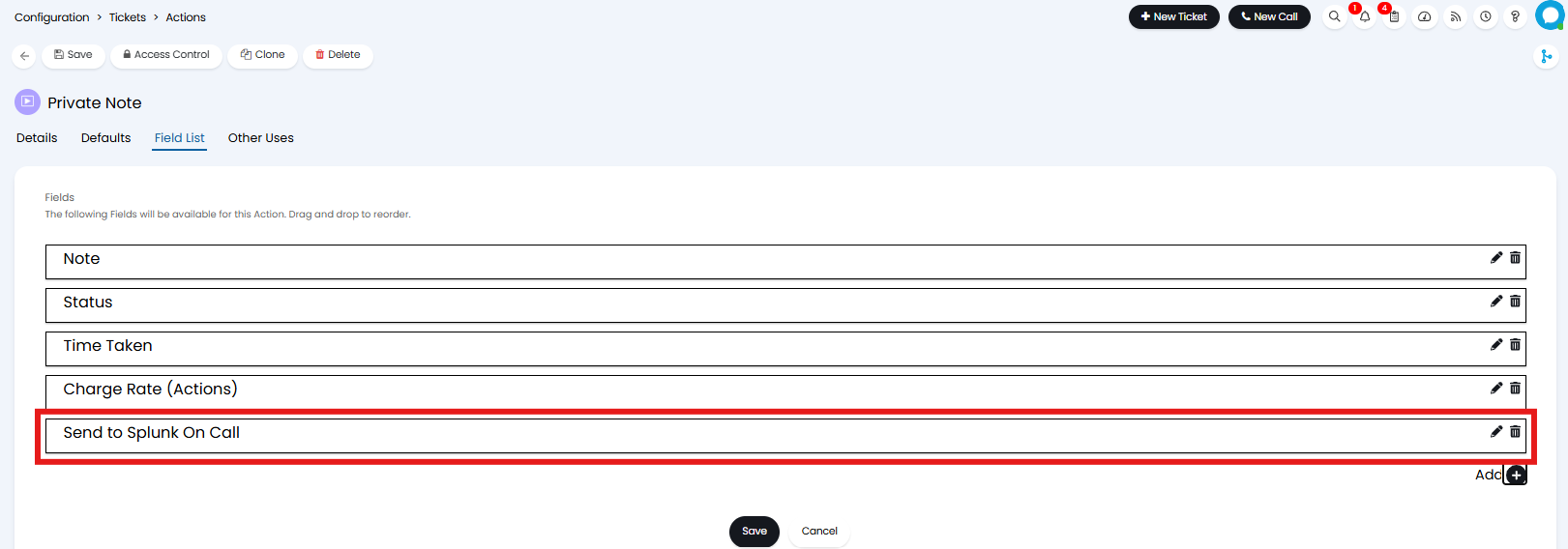
Fig 9. Adding the Splunk On Call Fields to an Action
Now when the Action is used you will see the "Send to Splunk On Call" checkbox.
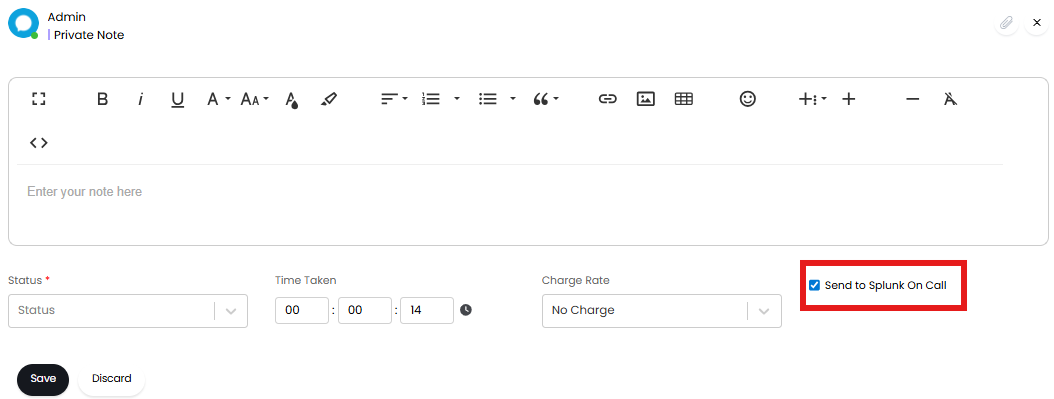
Fig 10. Sending to Splunk On Call form an Action
At the bottom of the Splunk On Call module you will find the option to "Show a message for each successful sync to Splunk On Call". This will display a pop-up whenever a sync has successfully occurred.
Creating Splunk On Call Webhooks
To create and update tickets in Halo from Splunk On Call you will need to create outgoing Webhooks.
Within the Splunk On Call module in Halo you will find the details required for your Webhooks. In the box under "Authentication" set a password. Keep note of this, as this will be used later to authorise the Webhook. Now you can set the Ticket type, and User for tickets that are created from Splunk On Call.
Now click into the button labelled with the event you would like to trigger the creation or update of a ticket. These events can be:
- Incident-Triggered
- Incident-Acknowledged
- Incident-Resolved
- Incident-Chats
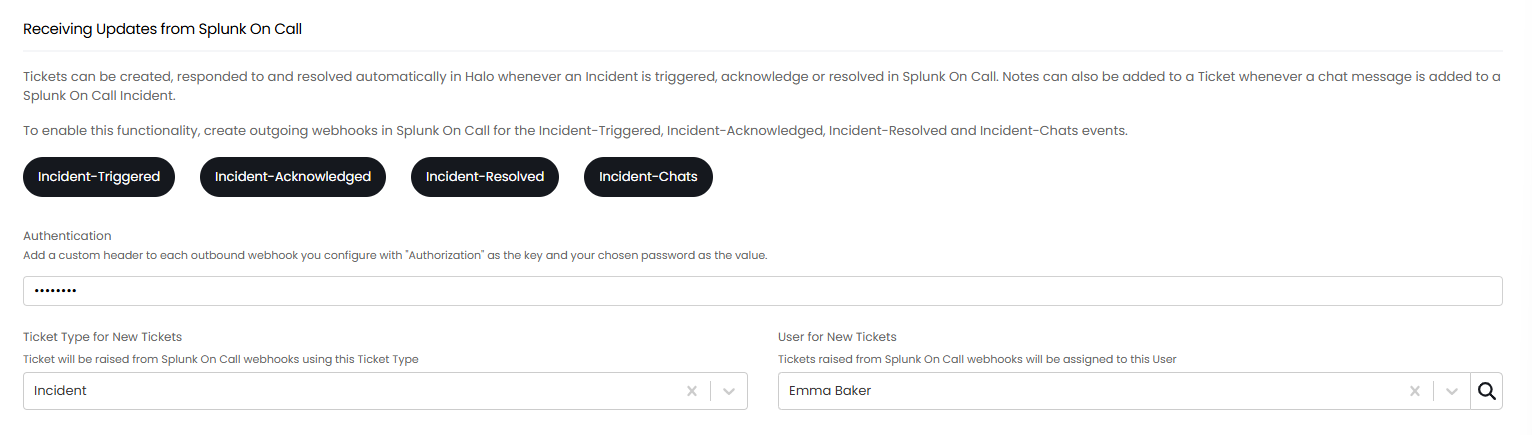
Fig 11. Receiving from Splunk On Call
This will show a pop-up with the details you need to add to the Webhook.
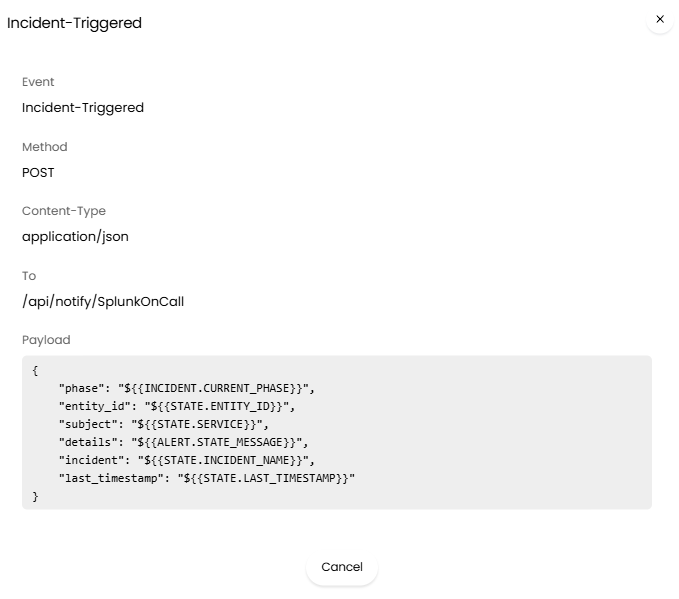
Fig 12. Webhook details
Now within Splunk On Call head to Integrations > Outgoing Webhooks, and add a Webhook.

Fig 13. Creating outgoing Webhooks in Splunk On Call
Fill in the details as in Fig 12 . For the "To" field follow the format "https://YOURHALO.COM/api/notify/SplunkOnCall". The Payload can be copied across from Halo, and inserted into the "Payload" field. Once you have filled in the Webhook information, select the "Add Custom Header" button.
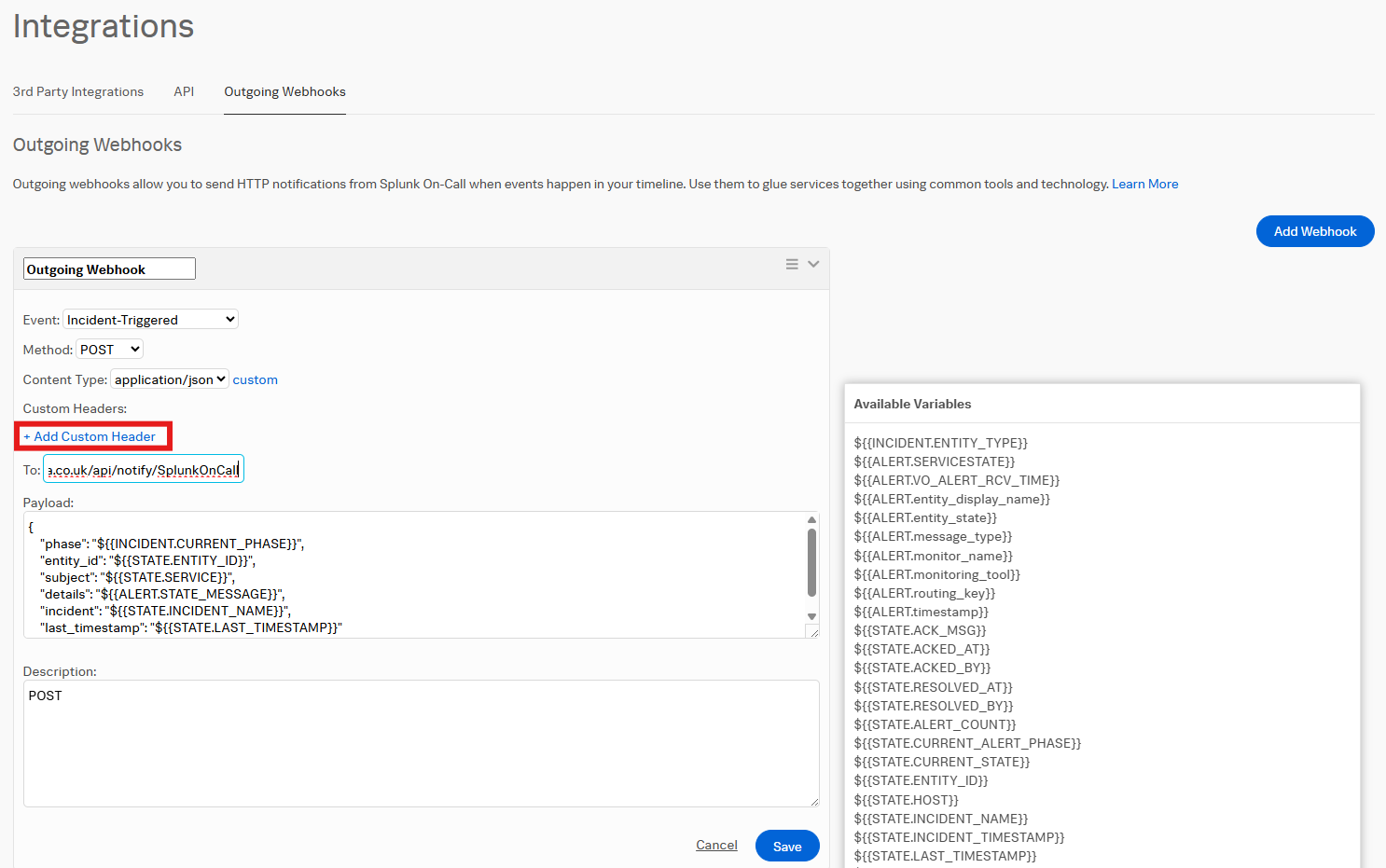
Fig 14. Adding a Custom Header
Here set the "Key" to "Authorization", and set the "Value" to your chosen password set in Fig 11.
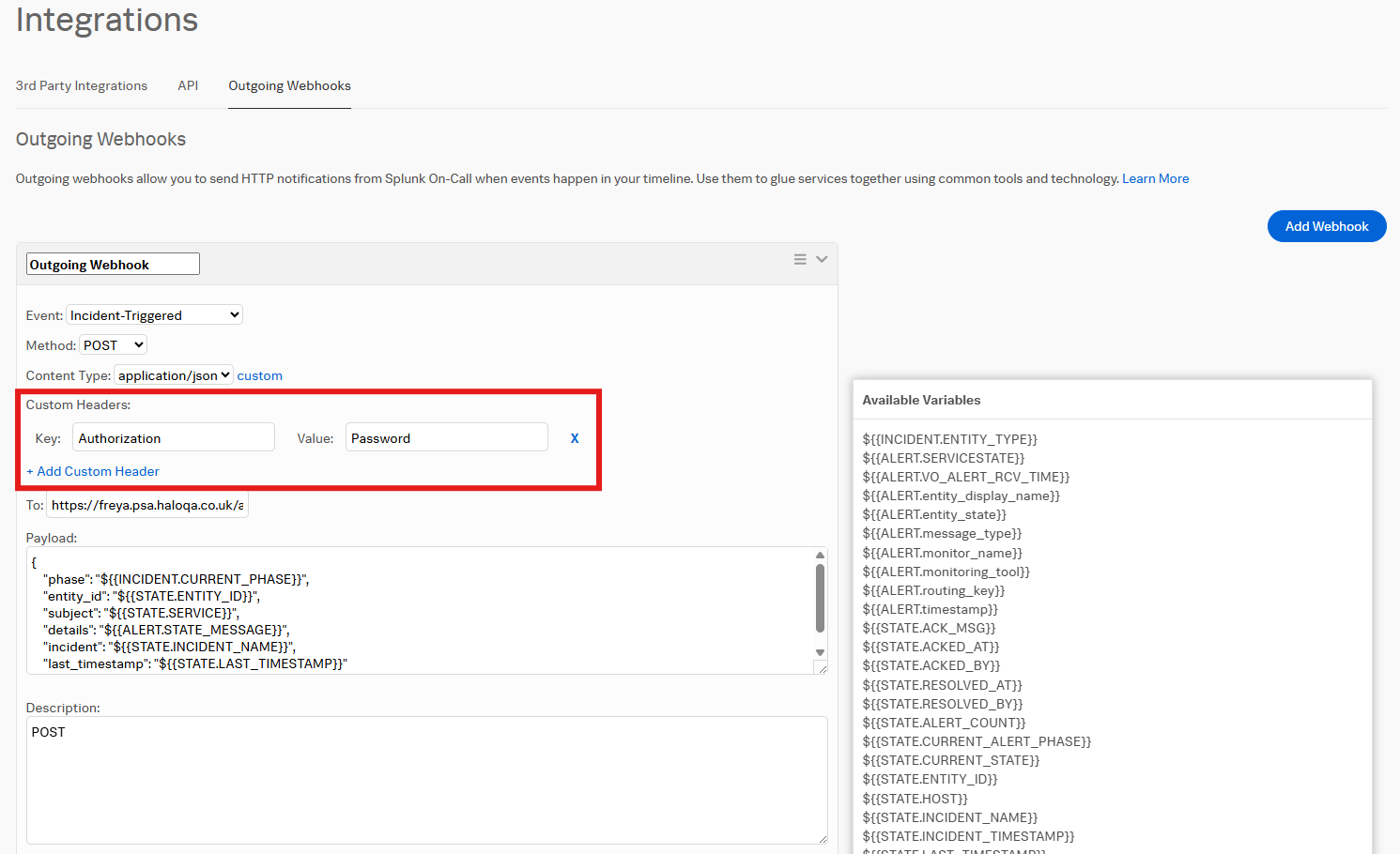
Fig 15. Authorising your Webhook
You can create custom Webhooks to add a note to your Incident in Splunk On Call from Ticket events in Halo. For example, this can be used to add a note on the Splunk On Call Incident when a User has updated the ticket. To do this, head to the "Splunk On Call Webhooks" section of the Module in Halo, and select "Create Webhook".

Fig 16. Creating a Webhook in Halo
Here set the name, ensure the Webhook Type is set to "Splunk On Call", and set the Events which will trigger the Webhook. Once completed ensure the "enabled" checkbox is selected.
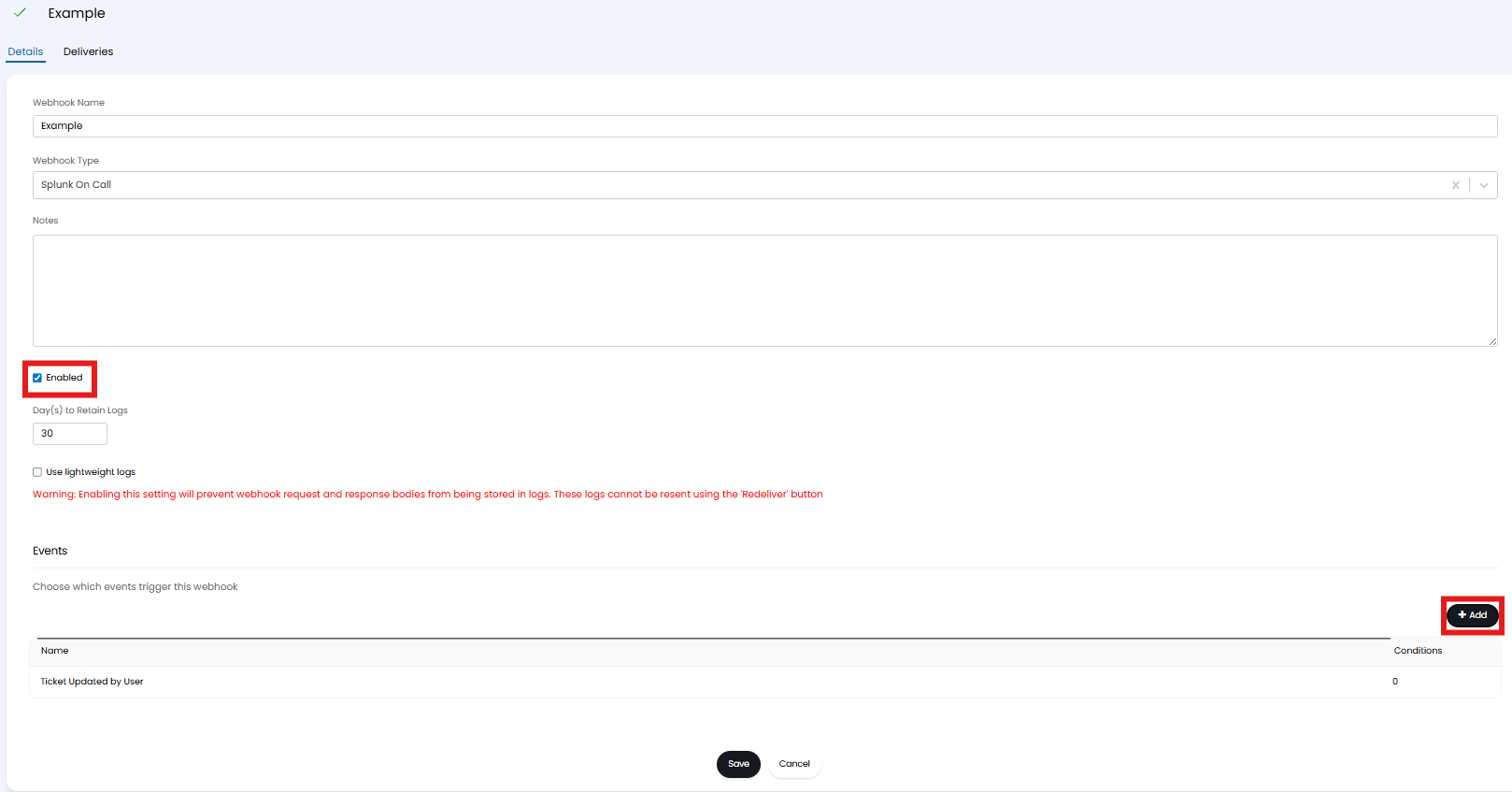
Fig 17. Configuring your Webhook
To view or edit this Webhook at a later stage you can click the "View Webhooks" button in Fig 16.
You can also customise the note that shows in Splunk On Call by editing the Notification Template. To do this select the "Notification Templates" button and choose the relevant template.

Fig 18. Notification Templates
You can edit this template as needed.
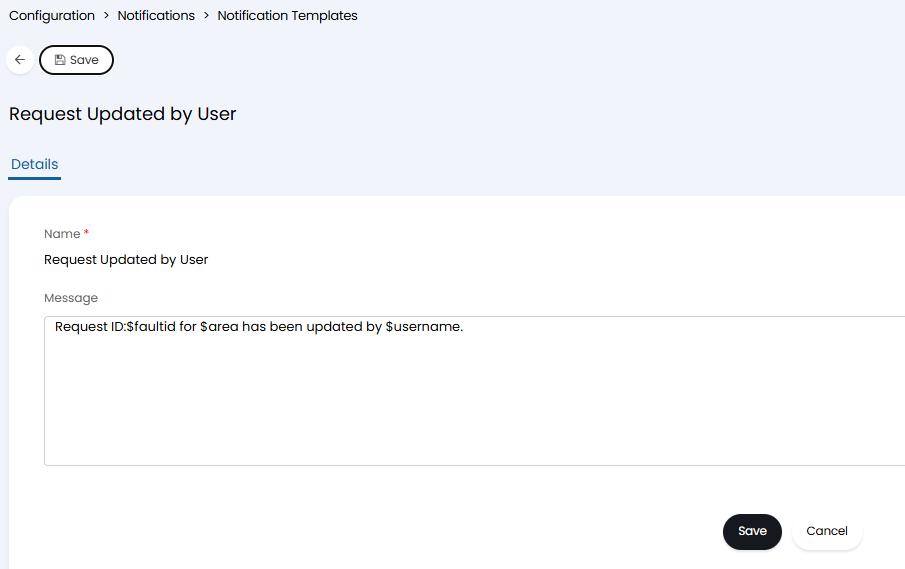
Fig 19. Editing Notification Templates