Connecting Copilot Studio to Halo's MCP Server
- integration
- ai
- mcp server
- copilot studio
In this guide we will cover:
- What is the Halo MCP Server Connection to Copilot Studio?
- Creating an Authorisation Code API Application
- How to connect Halo's MCP server to Copilot Studio
- Example Request to Halo's MCP Server - Invoking lead generation based on service gaps of a whitespace report
Pre-requisites:
- You will need to enable the MCP Server Connection for your Halo instance in Configuration > AI > MCP Server.
- Download a Halo trial to access the out of the box reports connected to the MCP Server
What is the Halo MCP Server Connection to Copilot Studio?
The Halo MCP connection to Copilot Studio can be used to provide data insights and perform actions from a chatbot external to Halo. You will need to configure an Agent inside of Copilot Studio and then add a "Tool" connection to the Halo MCP server, via Copilots native MCP Server connector tool.
Creating the Authorisation Code API Application in Halo
To register a new application, go to Configuration > Integrations > Halo API > Applications. Here you can create a new application with the authentication method "Authorisation Code (Native Application). This will need to be set to use a client secret.
The redirect URLs will be set later once they have been generated from the authentication setup in Copilot Studio (demonstrated later in this guide). However, for now put a placeholder here such as "https://global.consent.azure-apim.net/redirect" and select "Allow Agent Logins".
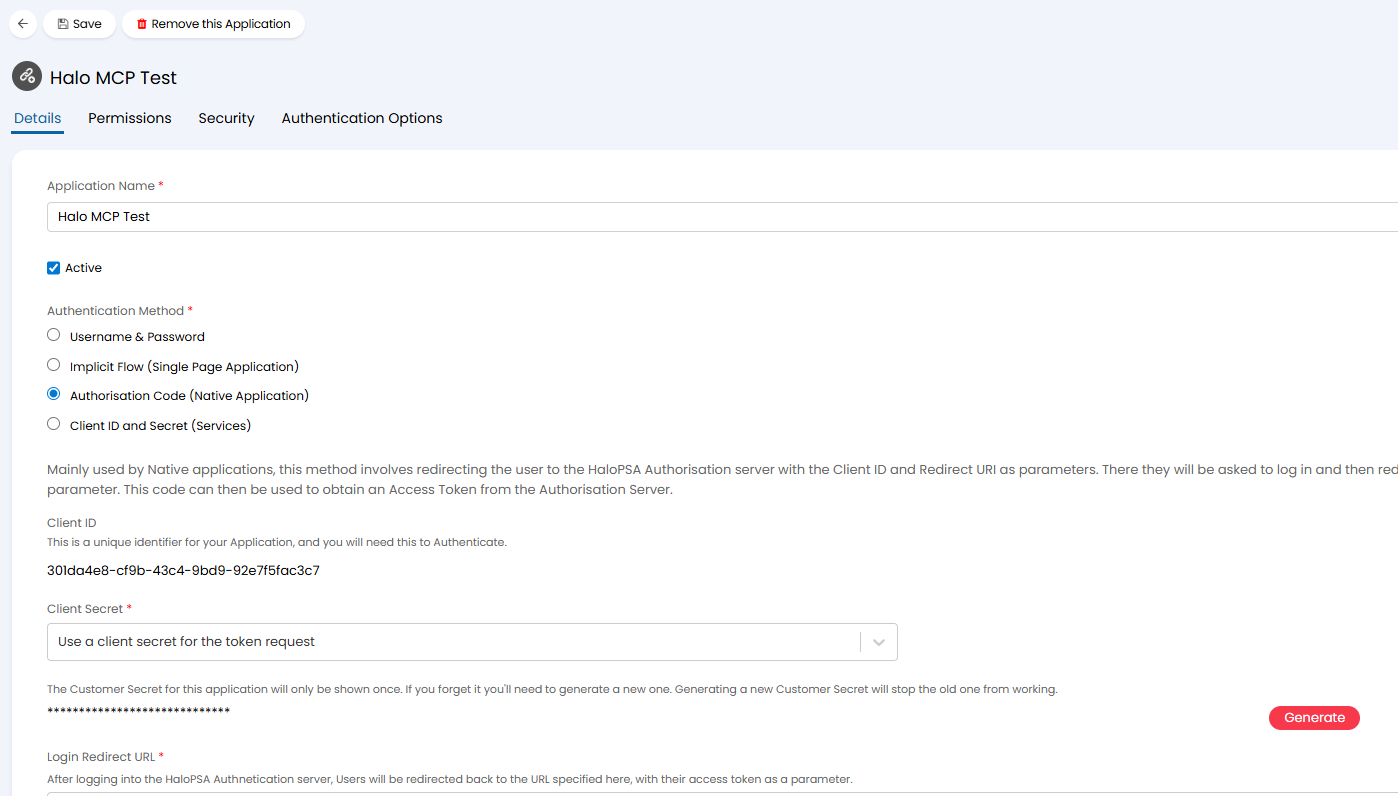
Fig 1. API Application in Halo
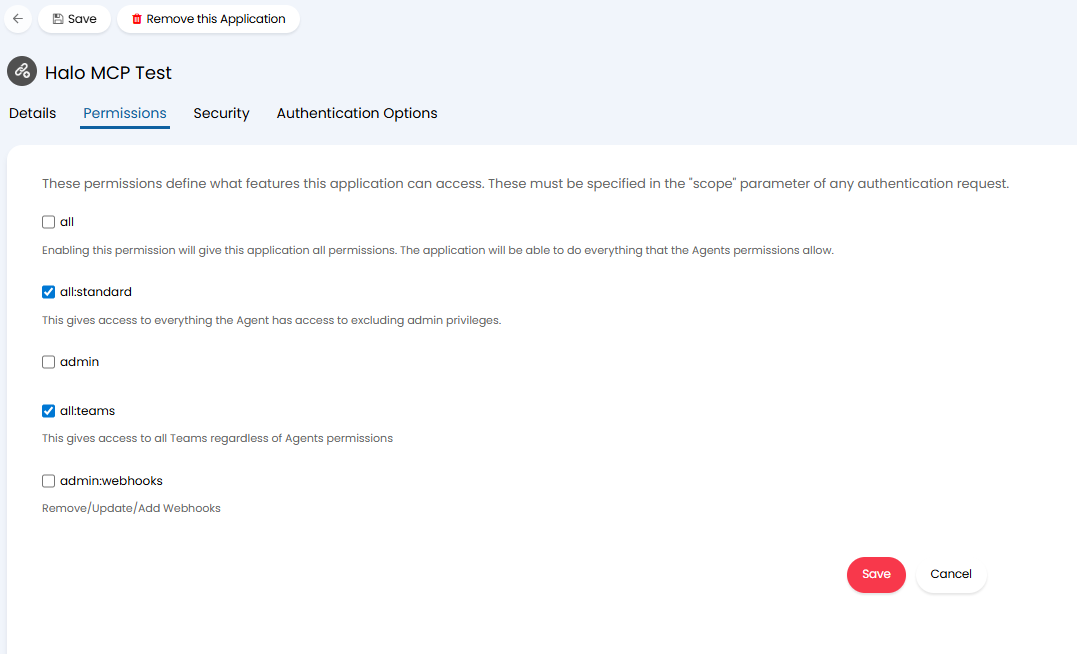
Fig 2. API application permissions
How to connect Halo's MCP server to Copilot Studio
Create an Agent in Copilot Studio, the instructions to give it can be along the lines of:
This agent is designed to interface with the Halo MCP server to manage and retrieve data such as tickets, articles, and service catalogue from the system. It will answer questions related to your Halo environment and assist in processing tasks like ticket creation, updates, and queries based on AI suggestions. In addition to system functions, your agent has access to user-defined tools. These tools allow the agent to execute custom functions, such as querying specific reports or performing specialized tasks beyond the standard capabilities of the Halo API. For example, if a user asks the agent to show "all SLAs missed this month by technician", the agent should invoke the tool CF_Missed_SLA_By_Technician_Monthly_Report.
Configure the new tool for your agent in Copilot Studio
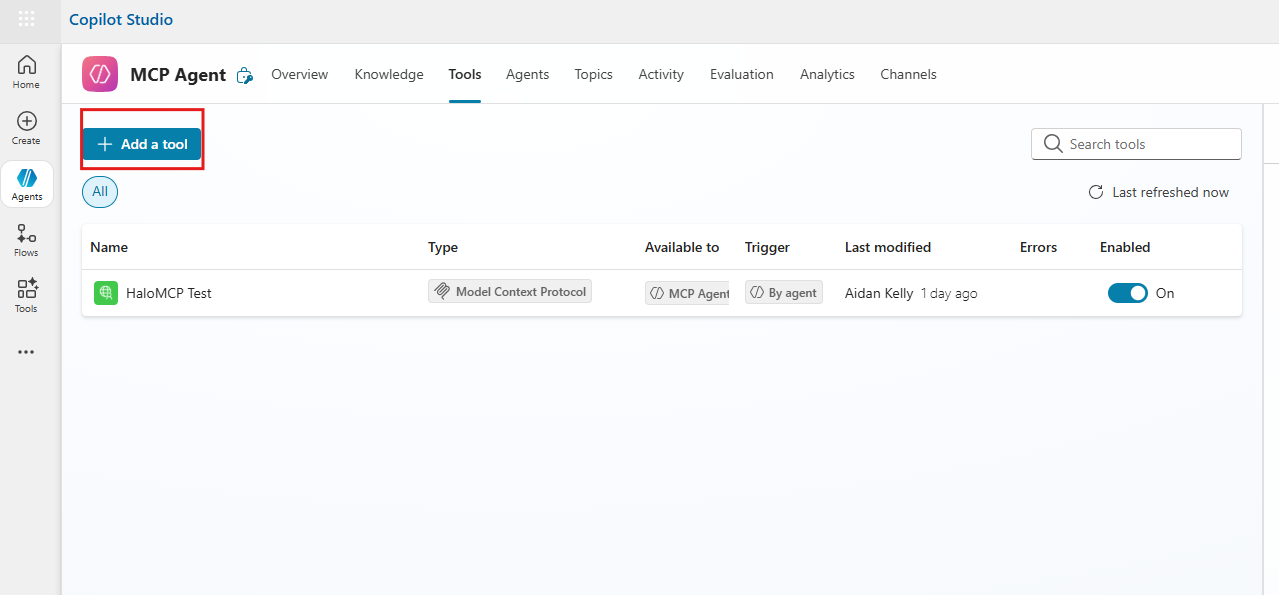
Fig 3. Create new tool in Copilot
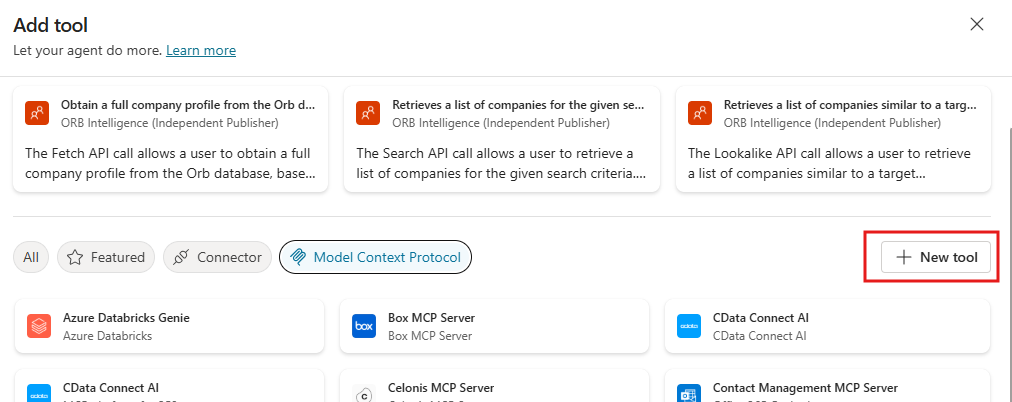
Fig 4. New tool screen
Choose the MCP option then use auth 2.0 and manual.
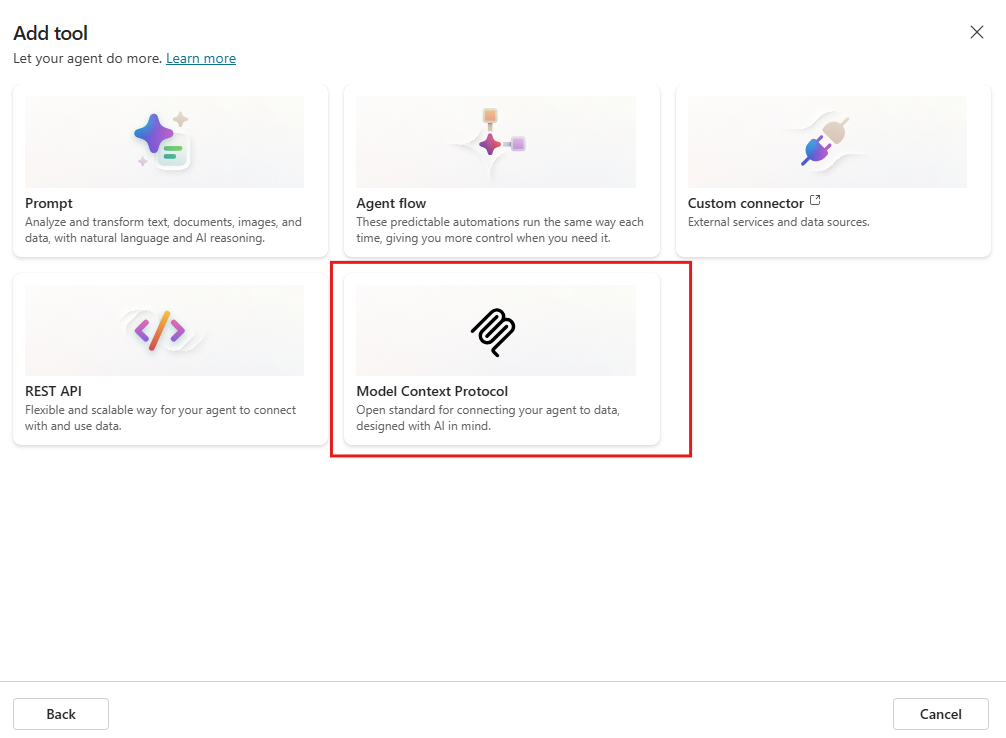
Fig 5. Choose MCP option
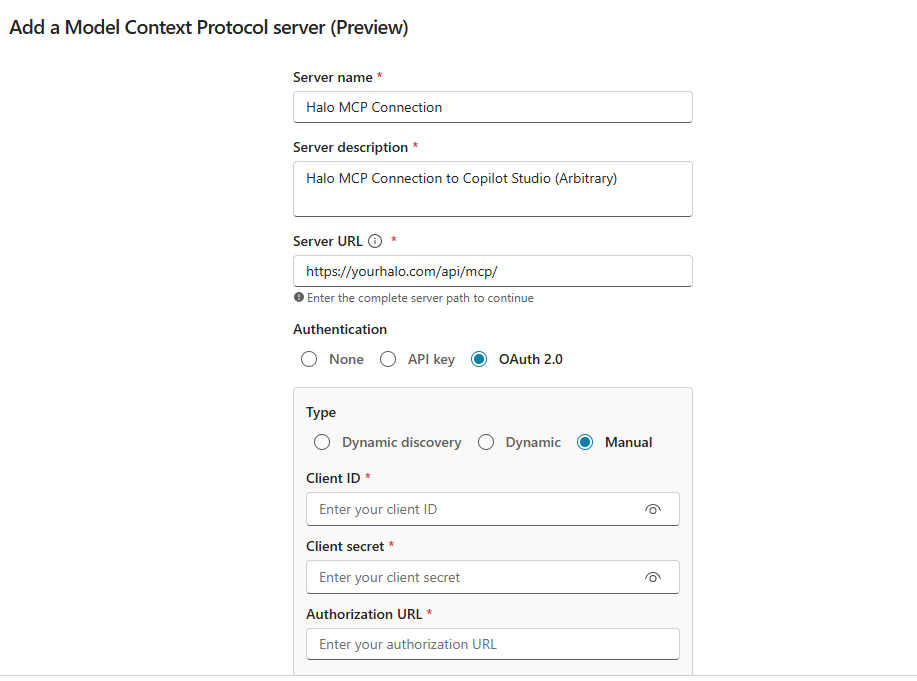
Fig 6a. Configure new MCP connection
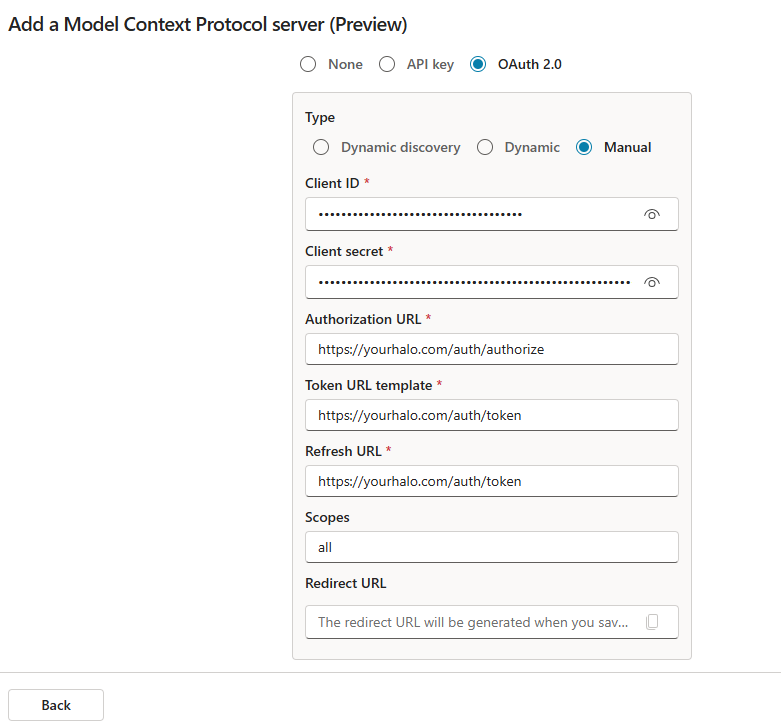
Fig 6b. Configure new MCP connection
After connecting, you will be given the Redirect URL to plugin into Halo:
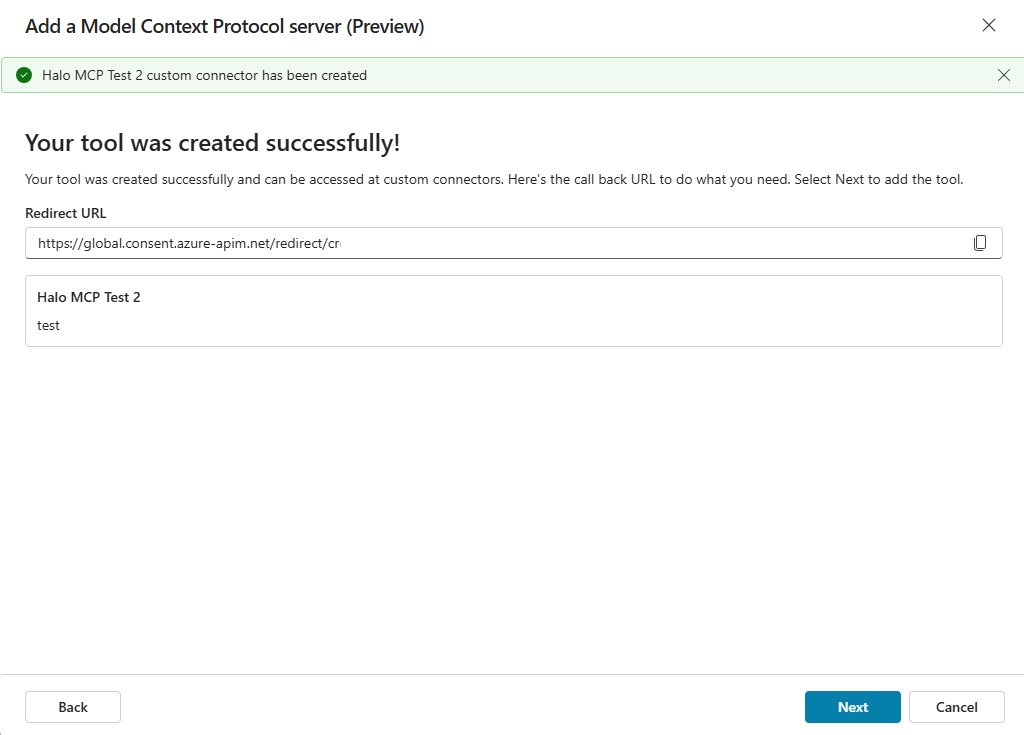
Fig 7. Redirect URI to plug into Halo
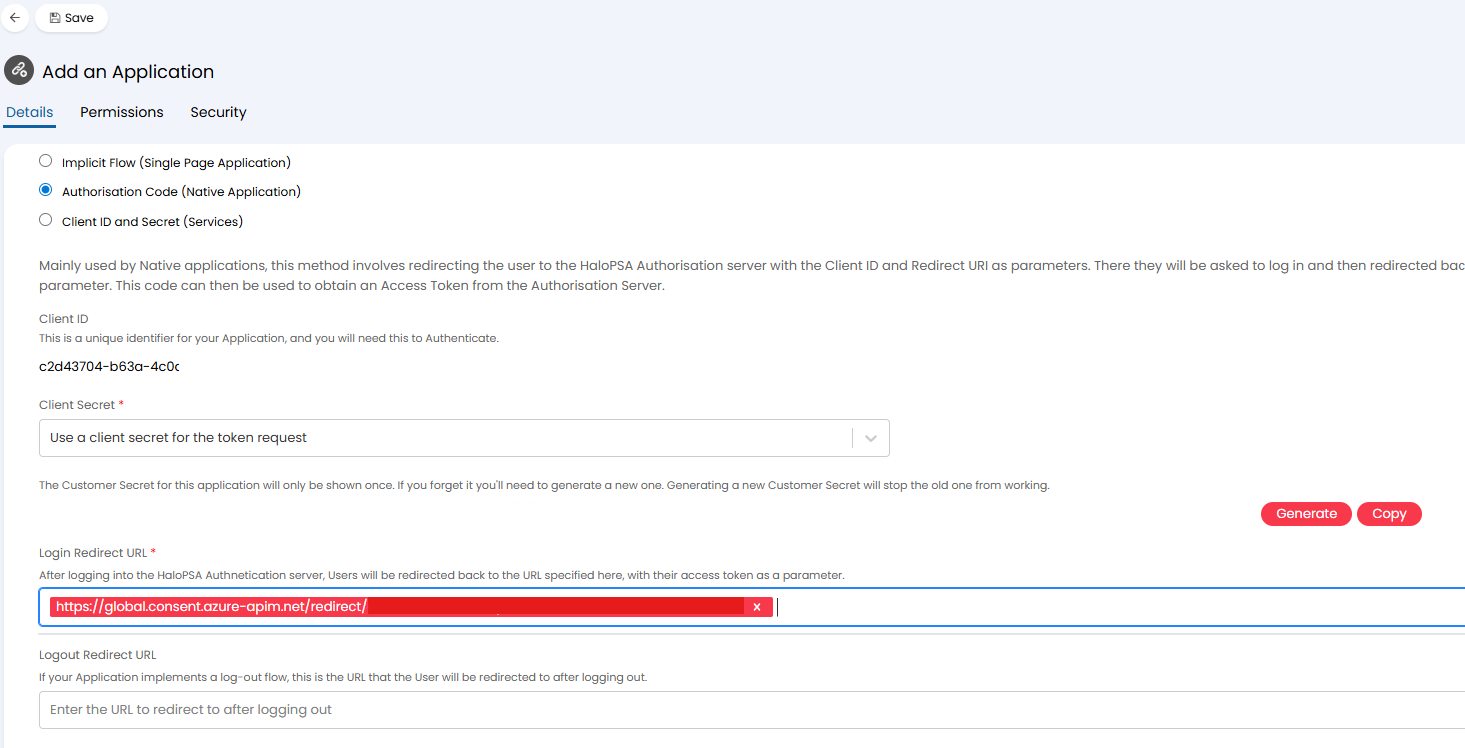
Fig 8. Adding the login redirect URL to the API application
Then click "Next" in the bottom right hand side of the screen in Copilot Studio. You will be given the option to connect to the server:
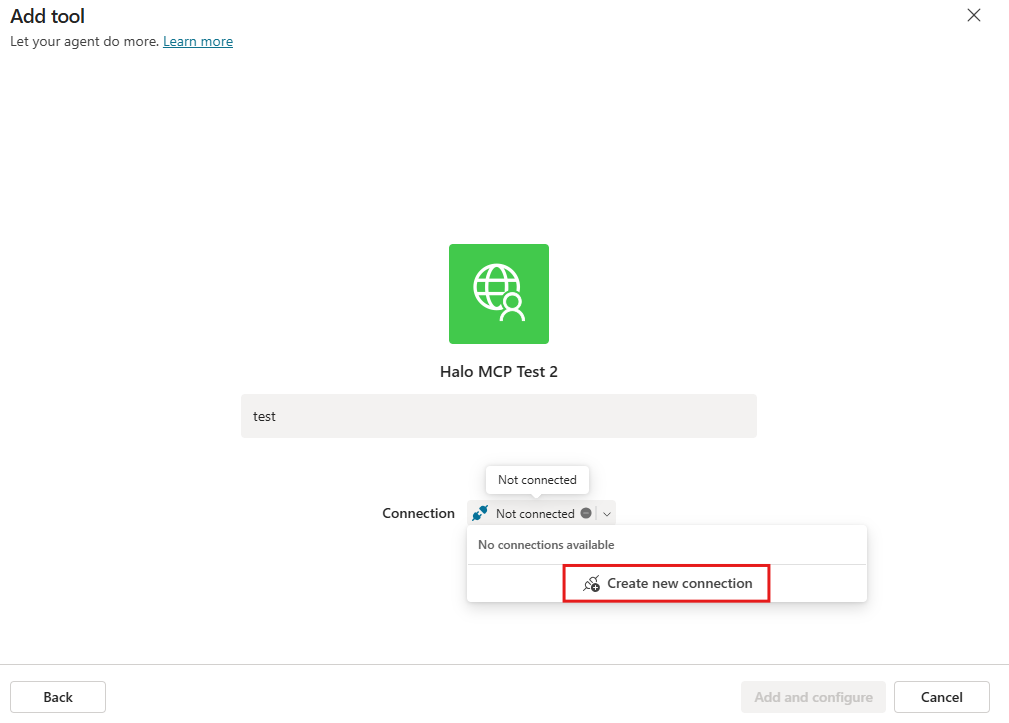
Fig 9. Creating the new connection
After connected, you can click "Add and configure" on the bottom right hand side.
Then messages can be sent to Copilot. On the first message you will receive an error, telling you to open the connection manager to connect the MCP server to your agents chat:
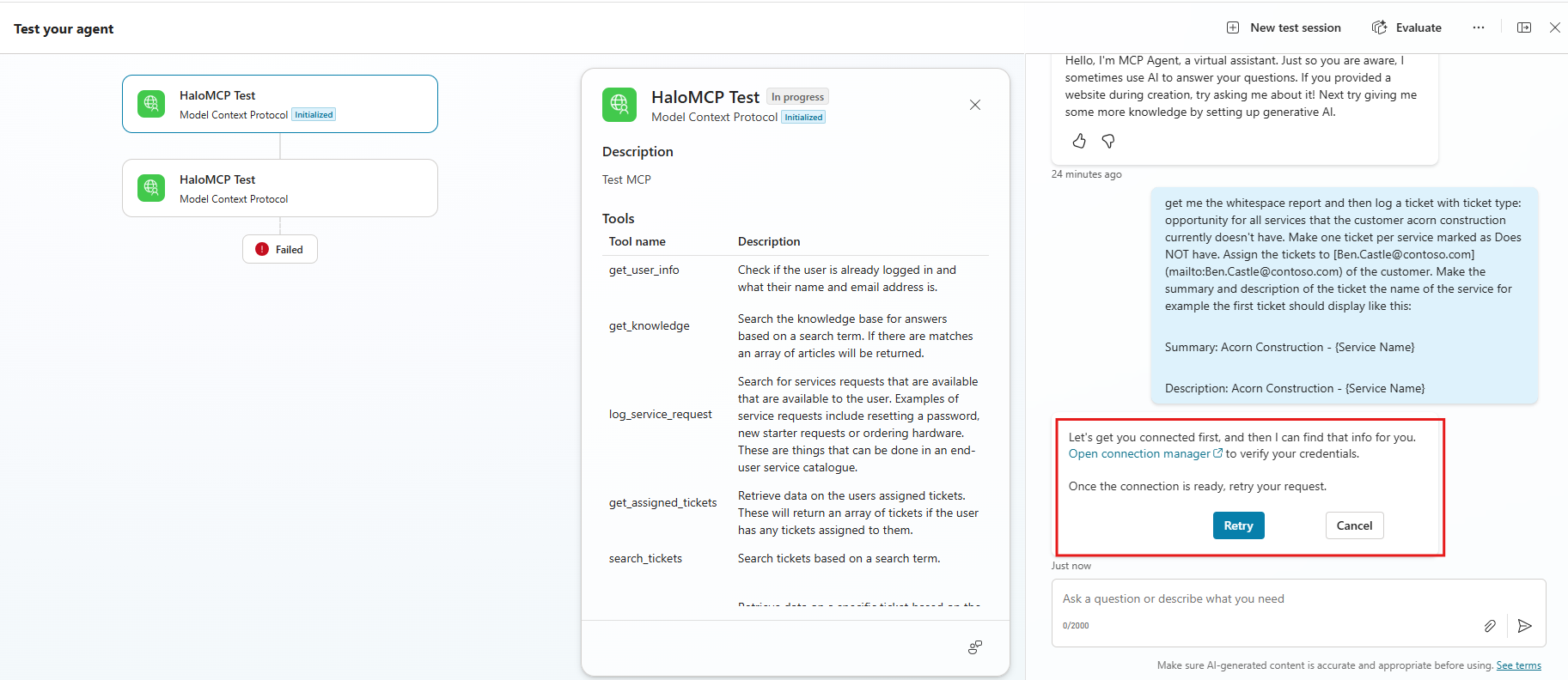
Fig 10. Inputs to the chatbot
You must use the link to open the connection manager in order to connect the tool.
Click on Connect:
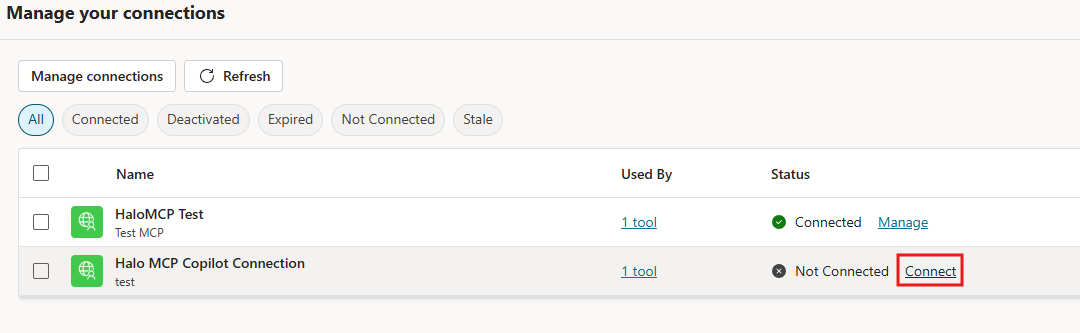
Fig 11. Connecting to the chatbot
It may take a few seconds for the screen to load, but after connecting, click submit and you will be connected. Close the connection manager and begin to use the MCP connection.
Example Request to Halo's MCP Server
Get me the whitespace report and then log a ticket with ticket type: opportunity for all services that the customer acorn construction currently doesn't have. Make one ticket per service marked as Does NOT have within the report. Assign the tickets to Ben.Castle@contoso.com of the customer. Make the summary and description of the ticket the name of the service for example the first ticket should display like this:
Summary: Acorn Construction - {Service Name}
Description: Acorn Construction - {Service Name}
The response:
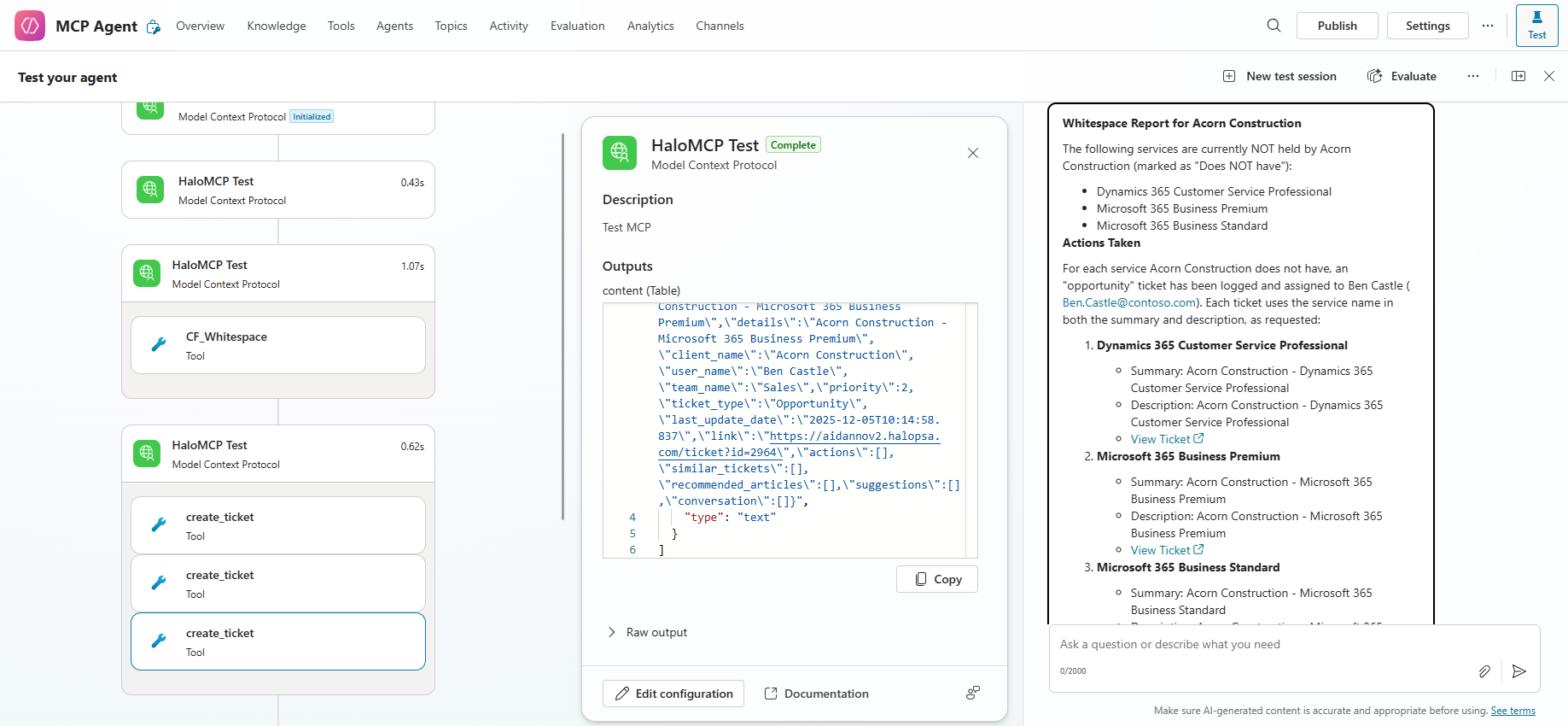
Fig 12. MCP Server Response
The server can be used for many operations such as creating tickets, running reports, trigger custom automations.
Now clicking back into Halo, inside of the "All opportunities" list shows my tickets that were created via the connection:
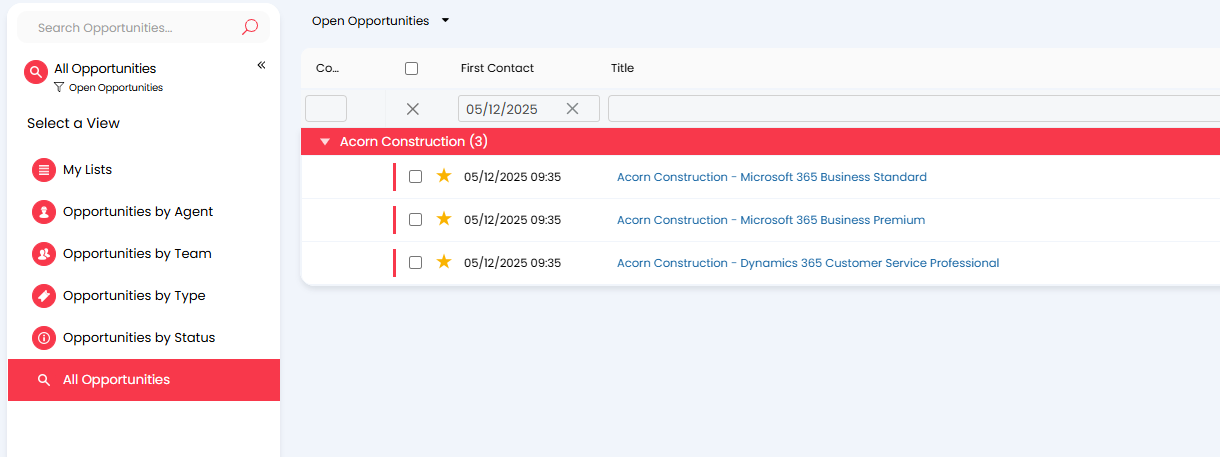
Fig 13. Opportunities created inside of Halo
Other tools and functions include:
The following system tools are included automatically;
- Action a Ticket
- Add Note to Ticket
- Apply AI Suggestion
- Assign to me
- Create new Ticket
- Get Assigned Tickets
- Search Knowledge Base
- Get matching Articles and Tickets for a Ticket
- Get One Article
- Get One Ticket
- Get User Info
- Search Service Catalogue
- Log Time
- Search Tickets
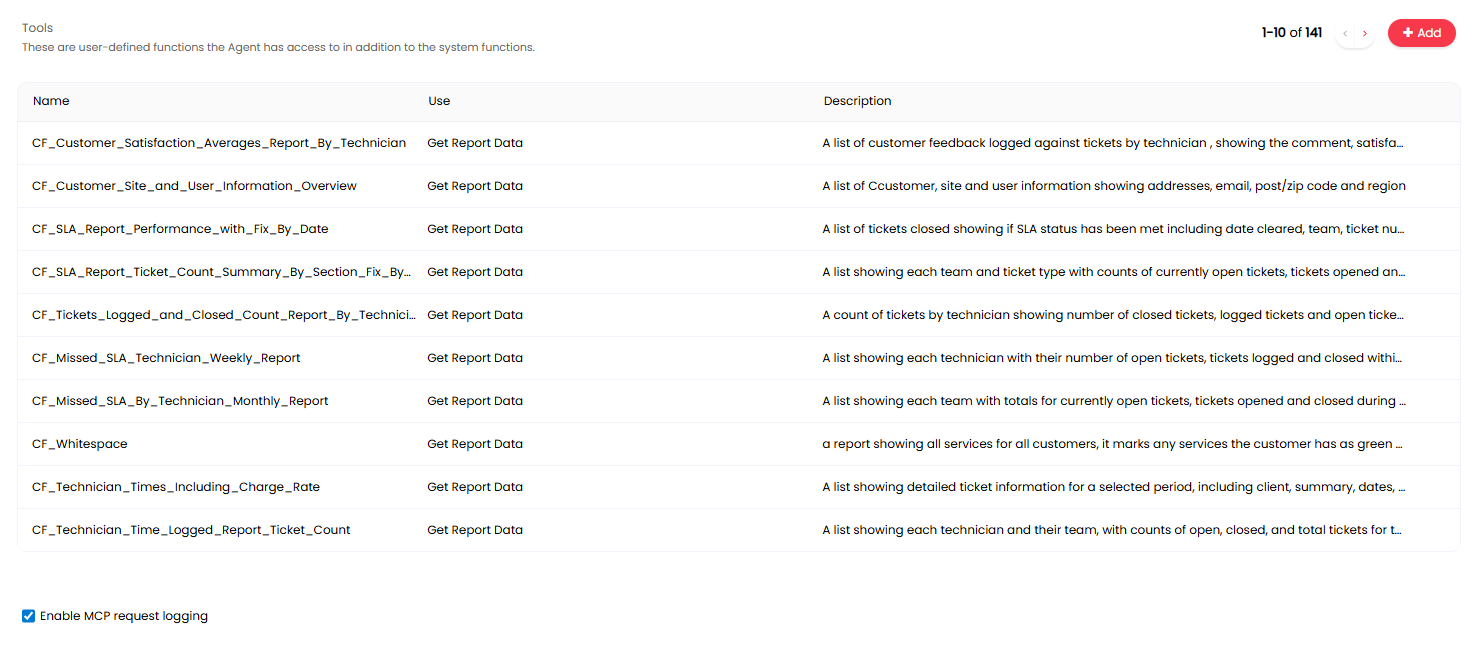
Fig 14. Custom tools for the Halo MCP server