Google Maps Integration
- integration
- google maps
In this guide we will cover:
- What is the Google Maps Integration?
- Connecting to Google Maps
- Configuring the Map
- Bulk Updating Data
What is the Google Maps Integration?
Google Maps can be integrated with Halo to show your Customers and Opportunities on a map, estimate their addresses and automatically add these to said map.
Note: Opportunities functionality only applies when using Opportunities and Contacts, not Accounts and Prospects.
Connecting to Google Maps
In Configuration > Integrations, hover over the Google Maps module and click the "+" icon to enable it.
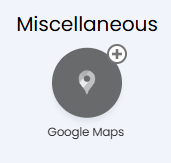
Fig 1. Enabling the module.
Clicking into the module, you will find Fields to enter two API Keys you will generate in Google's Cloud Console, as well as a URL and list of IPs to whitelist against these keys.
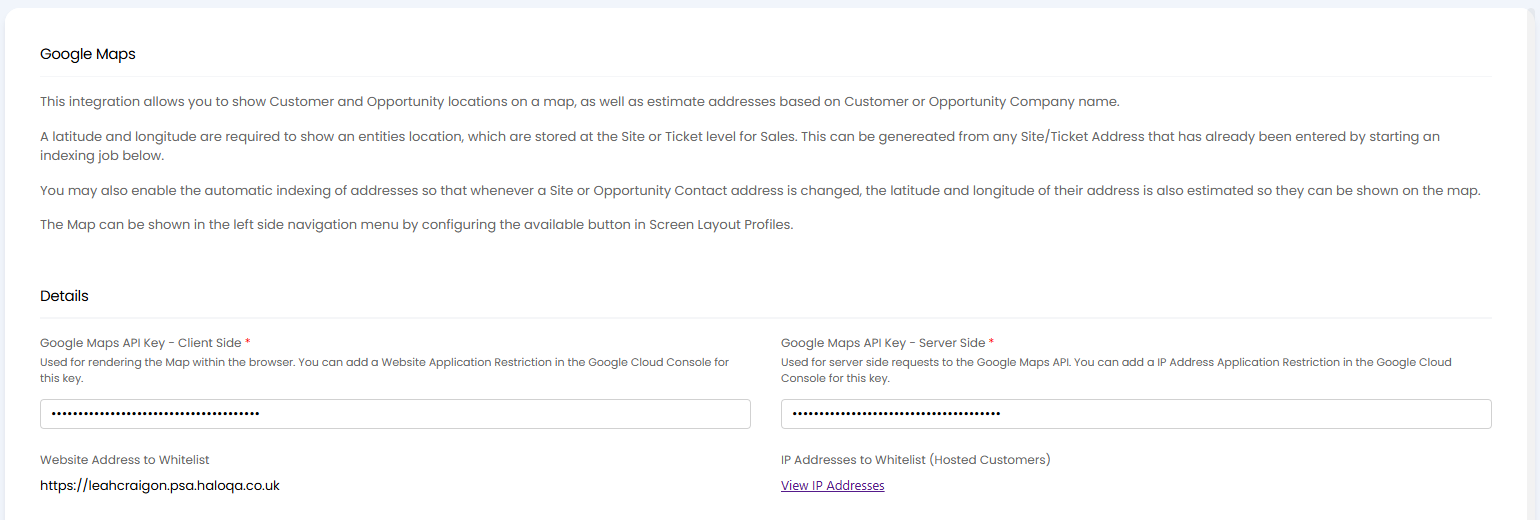
Fig 2. Connecting to Google Maps.
Within the Google Cloud Console, set up a Project if you do not already have one. Navigate to the "Marketplace" area where you will need to enable the "Geocoding API" and "Maps JavaScript API".
After enabling, navigate to "Keys & Credentials", which is where we will generate these API Keys and set the whitelisting.
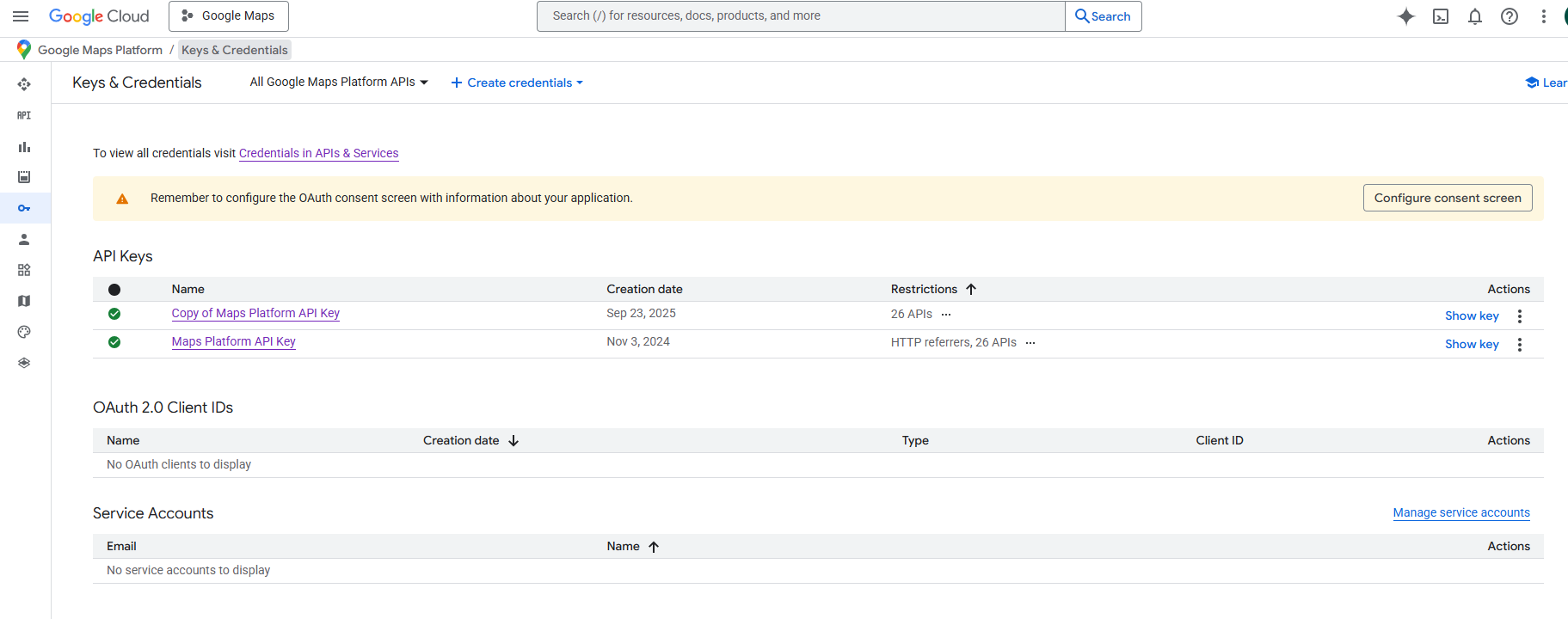
Fig 3. Google API Keys.
The first API key will whitelist the URL of your Halo instance, shown within the Google Maps module. This will go into the "Google Maps API Key - Client Side" Field in Halo.
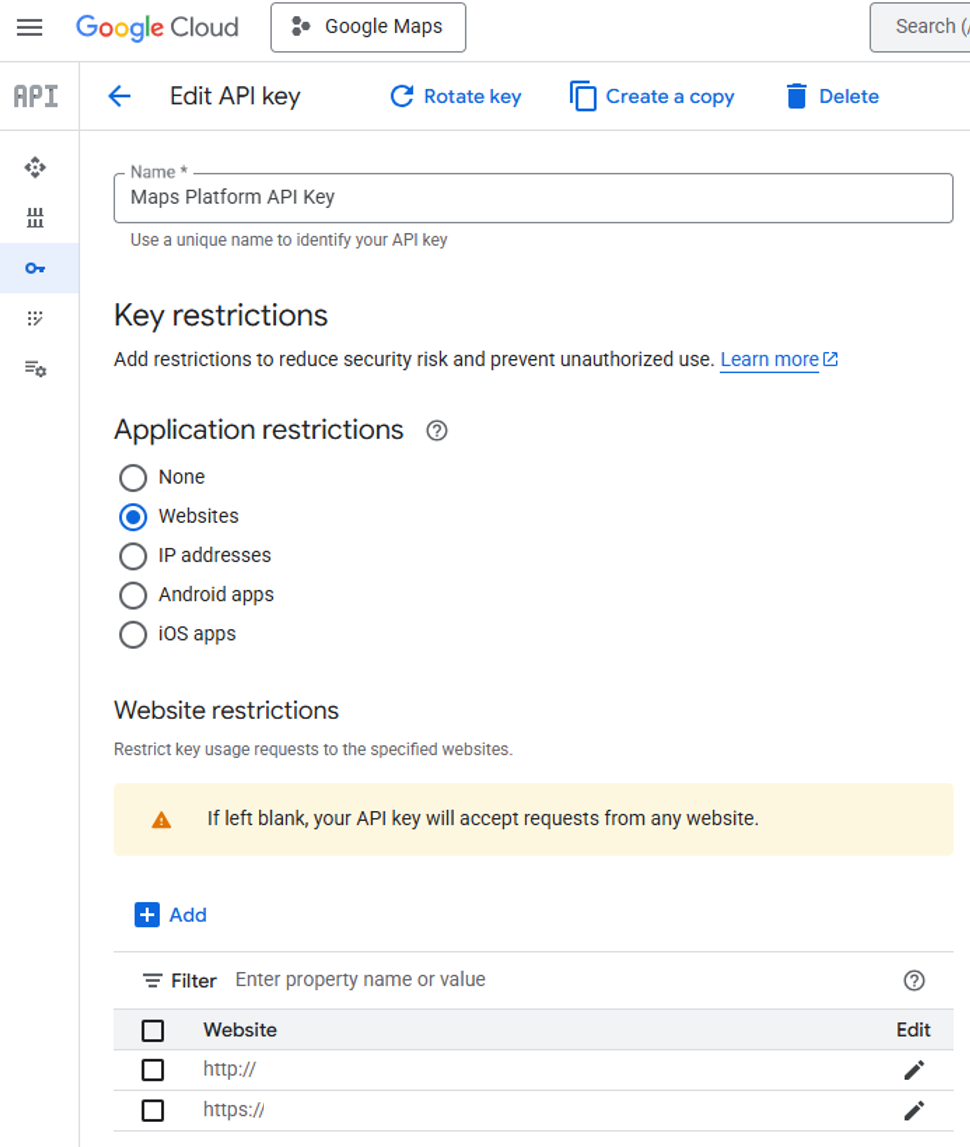
Fig 4. First API Key.
The second API key can whitelist the IPs if wished. If you are hosted by us, the list of IPs can be found here. If you are On-Prem, it will be your own IPs. This key will go into the "Google Maps API Key - Server Side" Field in Halo.
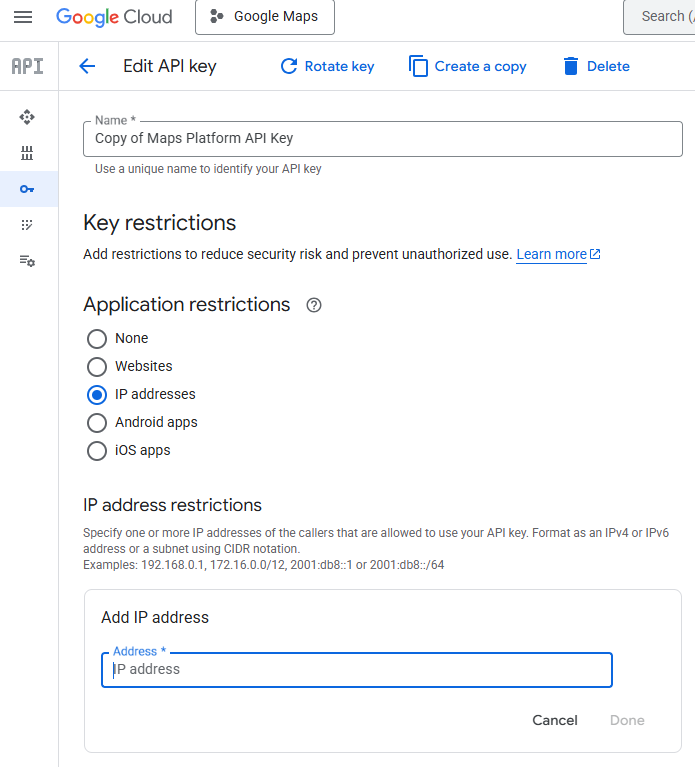
Fig 5. Second API Key.
Configuring the Map
At this point, you will have a new "Map" module that shows the Halo HQ within Google Maps.
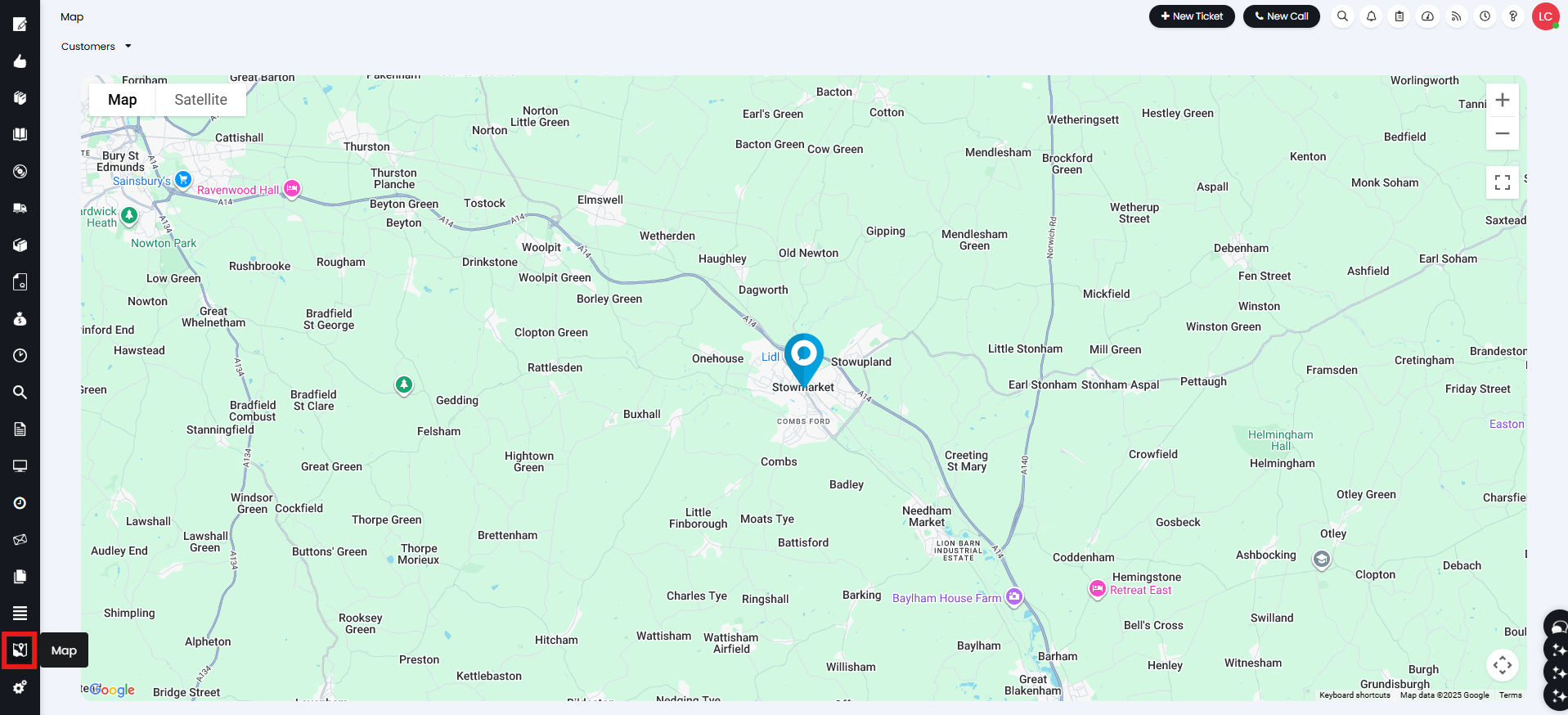
Fig 6. Map module.
Now the map is connected, you can configure how Customers and Opportunities are added to it.
- Enable automatic indexing of Latitude and Longitude when a Site/Opportunity Contact Address is changed: When enabled, the Latitude and Longitude will be automatically indexed and populated on the Site when editing an address.
- Attempt to find a businesses address from the Opportunity Company Name field: Setting or changing the Opportunity Company Name field on an Opportunity will trigger an attempt to find their address if not already set, and index the latitude and longitude if automatic indexing is enabled.
- Attempt to find a businesses address from the Customer Name field: Setting or changing the Customer Name on a Customer will trigger an attempt to find their address and set Primary Site Address if not already set, and index the latitude and longitude if automatic indexing is enabled.
- Use default map marker icons: When enabled, default Google Maps markers (red) will be used instead of the Halo-specific ones.
- Minimum conversion probability required to show an Opportunity on the map: Defaults to 30%. Any Opportunities with a conversion probability below this will not show on the map.
- Hide Halo HQ on the map: When enabled, Halo HQ (the marker shown above) will be hidden.
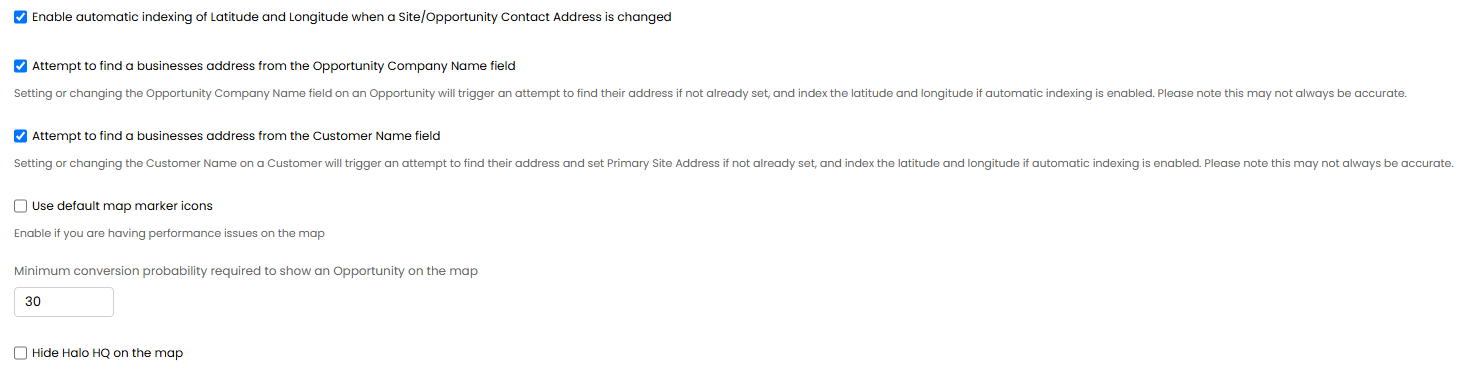
Fig 7. Additional configuration options.
When a Customer is indexed, the Latitude and Longitude Fields will be populated on a Site > Settings tab > Advanced.
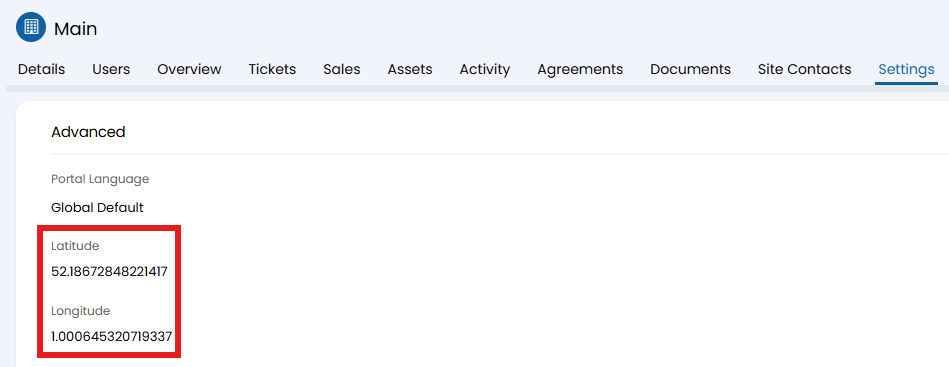
Fig 8. Latitude and longitude based on Site Address.
These coordinates will be used to show the Customer's address on the map. The above coordinates correspond with the Aldi below.
Clicking onto the marker will open the corresponding Site in a new tab.
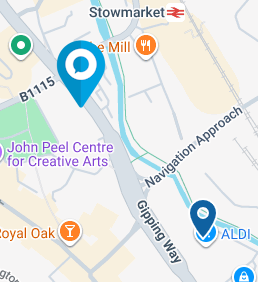
Fig 9. Customer showing on map.
To see Opportunities, change the highlighted dropdown to "Sales".
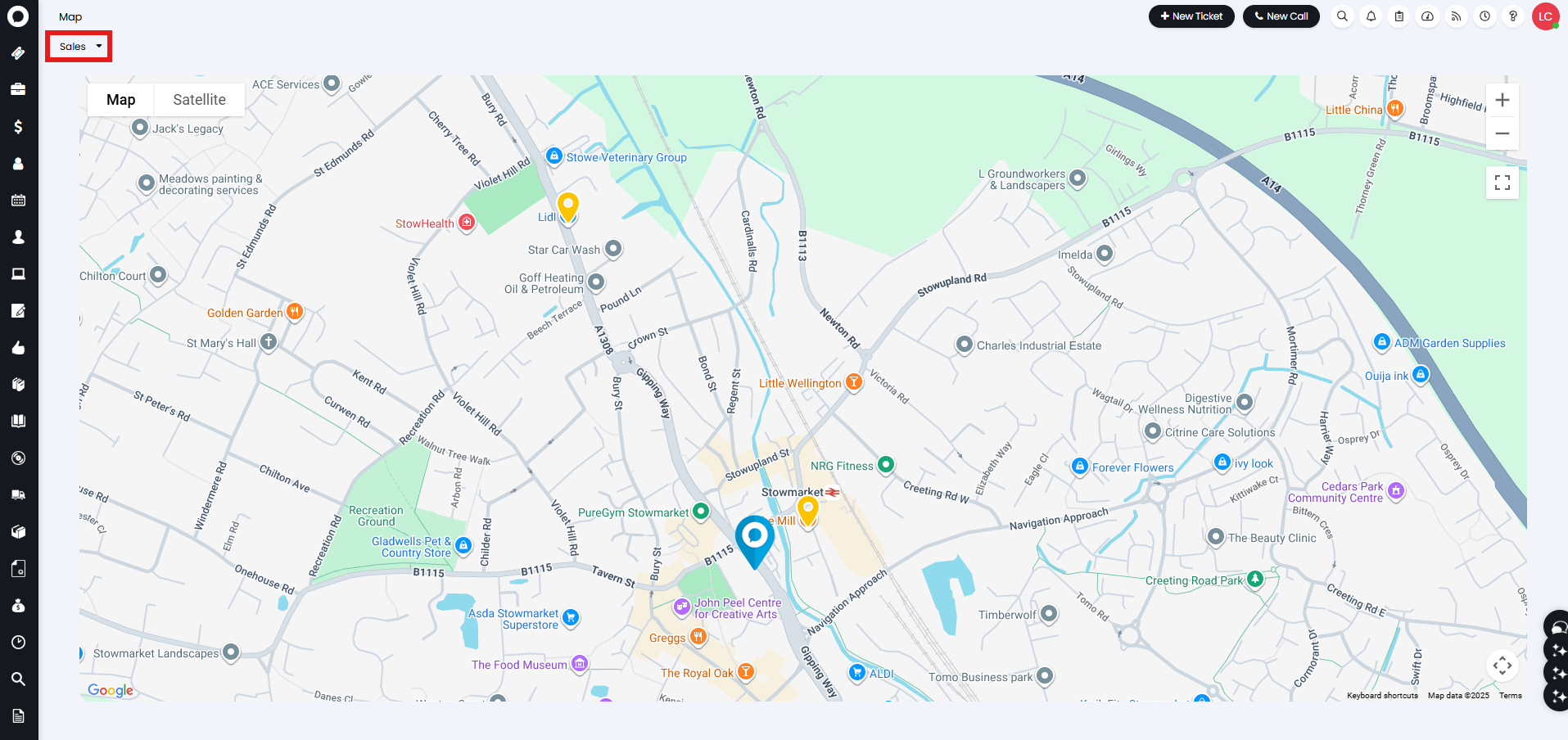
Fig 10. Opportunities map.
Bulk Updating Data
You can also queue bulk System Automations to update your existing Customers and Opportunities.
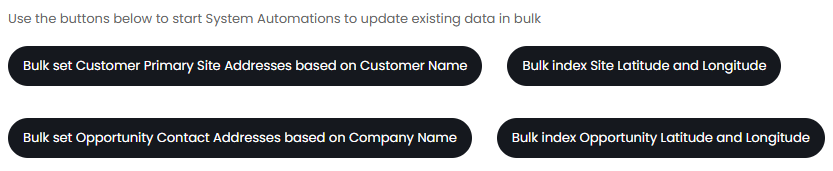
Fig 11. Bulk options.