Dicker Data Integration
- integration
- Distribution
- subscription
- dicker data
In this guide we will cover:
- What is the Dicker Data Integration?
- Connecting to Dicker Data
- Importing Customers
- Importing Subscriptions
- Halo Integrator
What is the Dicker Data Integration?
The Dicker Data integration can be used to import Customers and their Subscriptions into Halo.
Connecting to Dicker Data
In Configuration > Integrations, hover over the Dicker Data module and click the "+" icon to enable it.
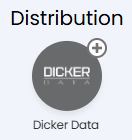
Fig 1. Enabling the module.
Clicking into the module will first show a section to enter details to connect to Dicker Data. The Region and type of Environment is selected first, followed by an API Token which can be obtained from your Dicker Data Account Manager.

Fig 2. Connecting to Dicker Data.
A button to "Test Configuration" is shown next to this. When clicked, a popup will show. If the credentials are correct, the following message will show. If there is a issue connecting, an error message will show to help troubleshoot.
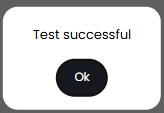
Fig 3. Test popup.
Importing Customers
Scroll down to the "Customers" section to map your Dicker Data Customers to Halo Customers. The first button here is to "Generate Mappings". Upon clicking this, if any customers in Halo exactly match the name of a customer in Dicker Data, a mapping will be automatically created between them.
For any customers that do not match by name, mappings can be manually created by clicking the "Add" button.
Note: Only Customers with assigned CSP Tenants will be able to be imported.
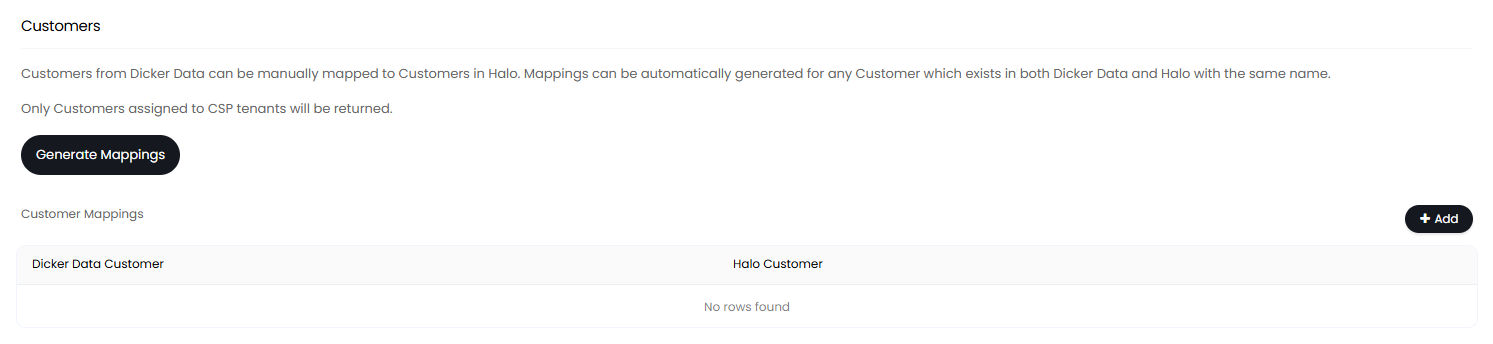
Fig 4. Creating mappings.
A popup will show to select an Dicker Data Customer and a Halo Customer.
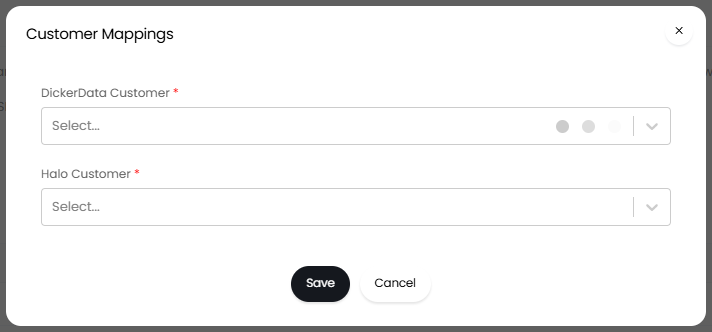
Fig 5. Manual mapping popup.
Scrolling down, there are a couple of options alongside an import button. If Top Levels are enabled in Configuration > Users > General Settings, you can set a Top Level for new Customers to be imported under.
You can also update the address of the Main Site of a Customer based on the Dicker Data address.
Finally, once Customers are mapped, click the "Import Customers" button to bring up the import screen and start the import. Any newly created Customers will be added to the "Customer Mappings" table automatically.

Fig 6. Miscellaneous configuration and import button.
Importing Subscriptions
Once Customers have been imported, their Subscriptions can then be imported. In the "Subscriptions" section, select which Customers you wish to import for, and click the "Import Subscriptions" button.

Fig 7. Import Subscriptions button.
The imported Subscriptions will now show on the "Subscriptions" tab of their corresponding customer, stating "Dicker Data" as the distributor.
Halo Integrator
The final tab is the "Halo Integrator". If enabled, Customers and/or Subscriptions can be imported on a recurring sync, keeping details on both up-to-date.
If using the Halo Integrator to sync, all Customers and Subscriptions will be imported regardless of what was manually imported previously. You cannot restrict these.
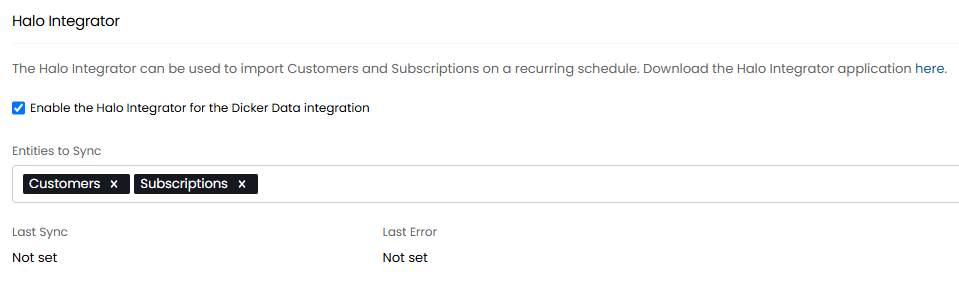
Fig 8. Enabling the Halo integrator.