Alemba Migration
- Migration
- alemba
In this guide we will cover:
- What is the Alemba Migration Tool?
- Connecting to Alemba
- Importing Data
What is the Alemba Migration Tool?
The Alemba migration tool can be used to import data from your Alemba instance into Halo. It can import the following by connecting via your Alemba credentials and a Client ID.
- Organisations
- Users
- Articles
- Tickets
- Change Requests
- Tasks
Connecting to Alemba
Navigate to Configuration > Migrations, where you will find the Alemba module. Click into this.
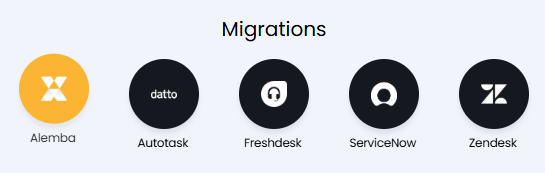
Fig 1. Alemba migration module.
The first step is to enter your Alemba details, starting with your URL.
You will need to configure an API client that allows password authorisation in Alemba, and instructions to do so can be found here. These details can then be entered into Halo.
Note: Do not log in with these credentials during the process of the import, as this will invalidate the access token and stop the sync from progressing correctly.
You can then click the "Test Configuration" button to ensure the connection is correct, before moving onto the import stage.
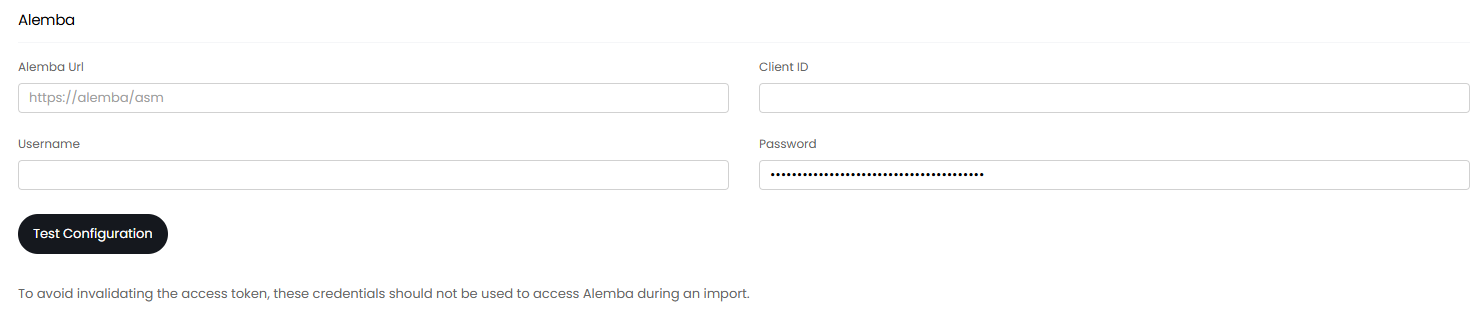
Fig 2. Alemba connection.
Importing Data
You can now configure your migration. The first option is a button for "Migration Exclude Values". This is where you can configure a list of action types to be excluded from the import.

Fig 3. Migration Exclude Values button.
Clicking into this will show a list of Action Types to exclude, and additional ones can be added here.
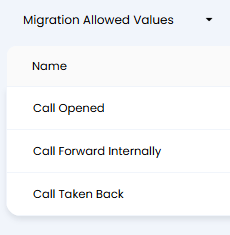
Fig 4. Migration Values.
Going back to the main Alemba module, you can select an Alemba Entity to import from the dropdown, and click "Import Now" to bring up the import screen.
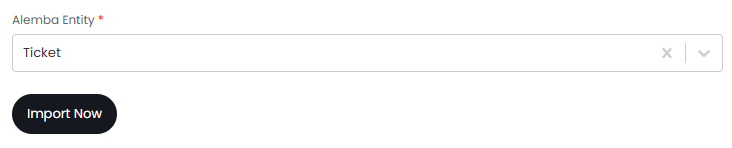
Fig 5. Selecting an entity to import.
With some entities, a popup will show before the import screen to set configuration for the imported entities. For example, "Tickets" will ask for a Ticket Type default, as well as what Statuses and Dates to include on the import.
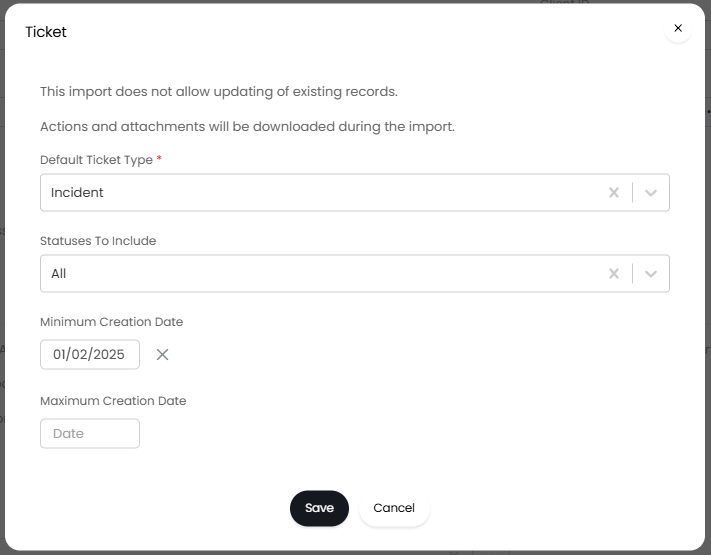
Fig 6. Configuring the entity defaults.
Upon saving, the import screen will then show for that entity. By default, all rows will be selected for import, but you can unselect all by clicking the checkbox at the very top (in line with the column headers), and then checking the ones you do want to import.
Once set, click the "Start" button in the top right.

Fig 7. Import screen.
Repeat this process with each entity you wish to import.