Autotask Migration
- Migration
- AutoTask
In this guide we will cover:
- What is the Autotask Migration Tool?
- Connecting to Autotask
- Importing Data
What is the Autotask Migration Tool?
The Autotask migration tool can be used to import data from your Autotask instance into Halo. It can import the following by connecting via an API User in Autotask.
- Companies and Locations
- Contacts
- Employees
- Products
- Service Catalogue
- Billing Codes
- Agreements
- Tickets
Connecting to Autotask
Navigate to Configuration > Migrations, where you will find the Autotask module. Click into this.
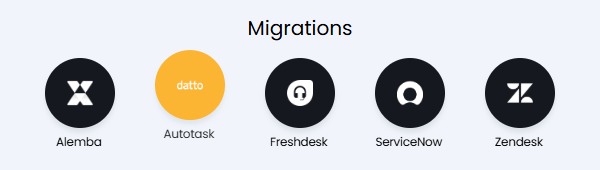
Fig 1. Autotask migration module.
The first step is to enter your Autotask details. You will need to create an Autotask User with the security level of "API User (API-only), and instructions on this can be found here.
Enter the Username and Password of that User here, alongside the Identifier that was set when the User was created.
You can then click the "Test Configuration" button to ensure the connection is correct, before moving onto the import stage.
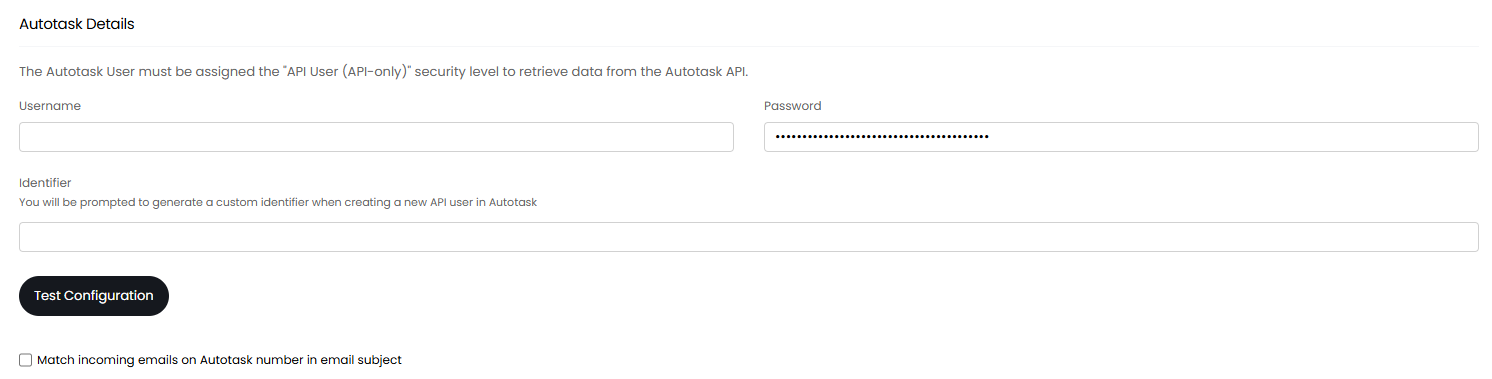
Fig 2. Autotask connection.
There is the additional option here to "Match incoming emails on Autotask number in email subject". If enabled, any incoming emails processed by Halo after the migration will be checked for an Autotask number in the format "T12345678.1234". If matched, they will be added to the imported Ticket instead of creating a new one.
Importing Data
Once connected, you can select an Autotask Entity to import from the dropdown, and click "Import Now" to bring up the import screen.

Fig 3. Selecting an entity to import
With some entities, a popup will show before the import screen to set configuration for the imported entities. For example, "Companies and Locations" will ask for a Tax Rate default, as well as a Top Level to assign the Customers to (if enabled).
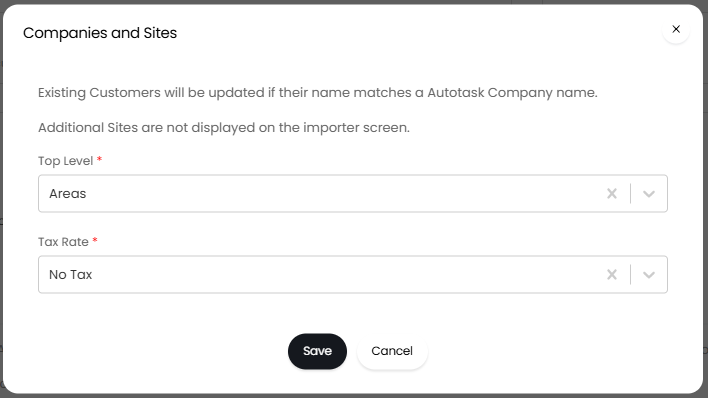
Fig 4. Configuring the entity defaults.
Upon saving, the import screen will then show for that entity. By default, all rows will be selected for import, but you can unselect all by clicking the checkbox at the very top (in line with the column headers), and then checking the ones you do want to import.
Once set, click the "Start" button in the top right.

Fig 5. Import screen.
Repeat this process with each entity you wish to import.