Benji Pays Integration
In this guide we will cover:
- What is the Benji Pays Integration?
- Connecting to Benji Pays
- Add Payment buttons to the Halo Portal
- Add Payment link to Email Template
- Use Halo invoice PDF when viewing Invoices in Benji Pays
- Additional Integration Features
Disclaimer: This is a third party integration, built by Benji Pays. Therefore should you have any queries we recommend directing these direct to the Benji Pays support team, however, our support team are always happy to help.
If you are looking to use this integration we recommend checking out Benji Pay's documentation on this too:
- HaloPSA Invoice PDF Integration
- Invoice Payment buttons in HaloPSA
- HaloPSA integration - QuickBooks Online
- HaloPSA Integration - Xero
- HaloPSA Quotations Integration Guide
What is the Benji Pays Integration?
The Benji Pays integration connects Halo invoices to your payment processor (e.g. Stripe). Customers can pay invoices directly from Halo emails (via pay now links) or from the Halo user portal (via a pay button). You can also use it to choose whether to show the Halo-generated invoice PDF in your Benji Pays portal or the one from your accounting system. For additional features available checkout the end of this guide.
Connecting to Benji Pays
Log in to Benji Pays and navigate to Settings > Integrations.
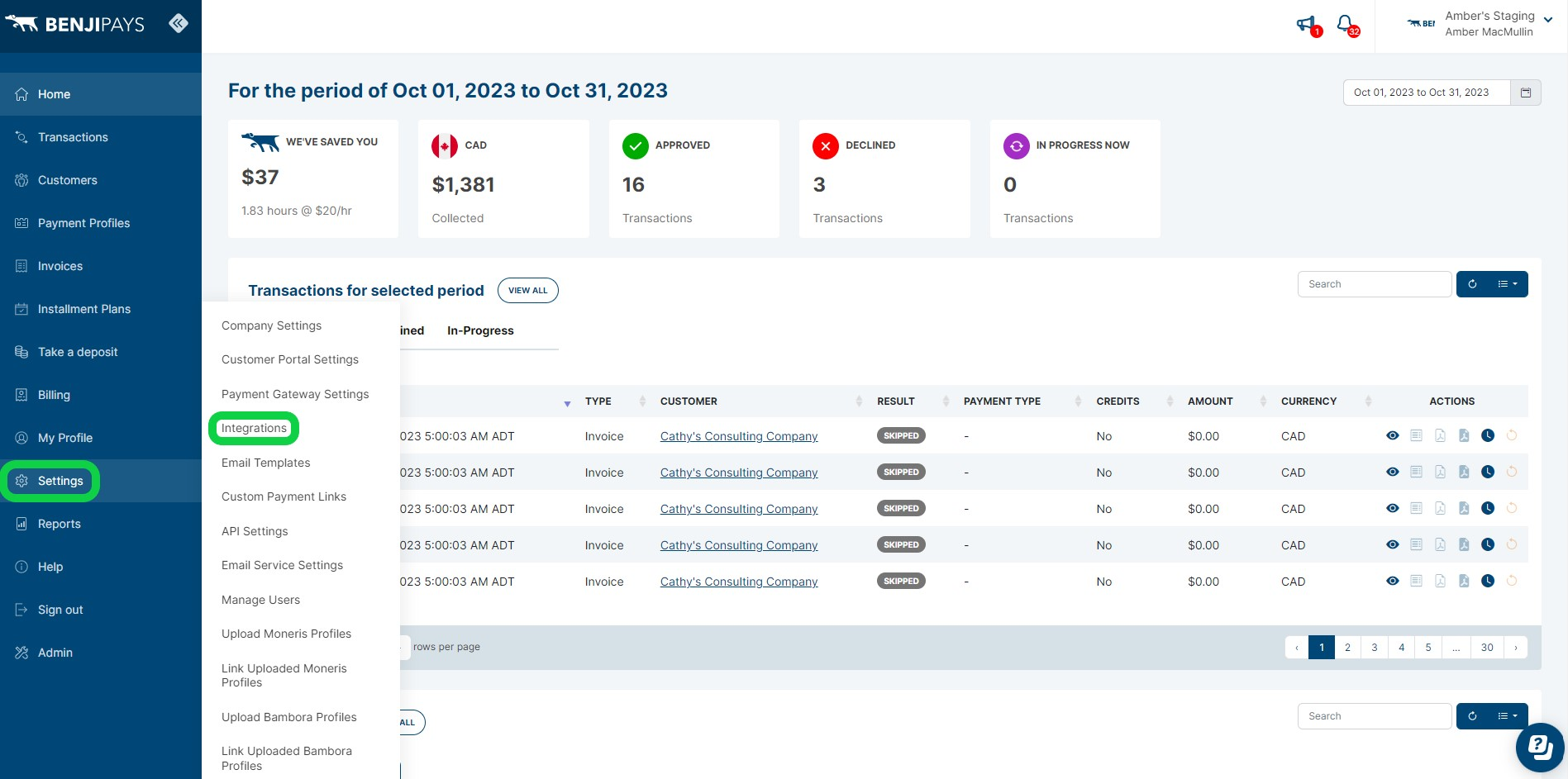
Fig 1. Integrations area in Benji Pays
Select the 'Configure' button on the integration to bring up the configuration page.
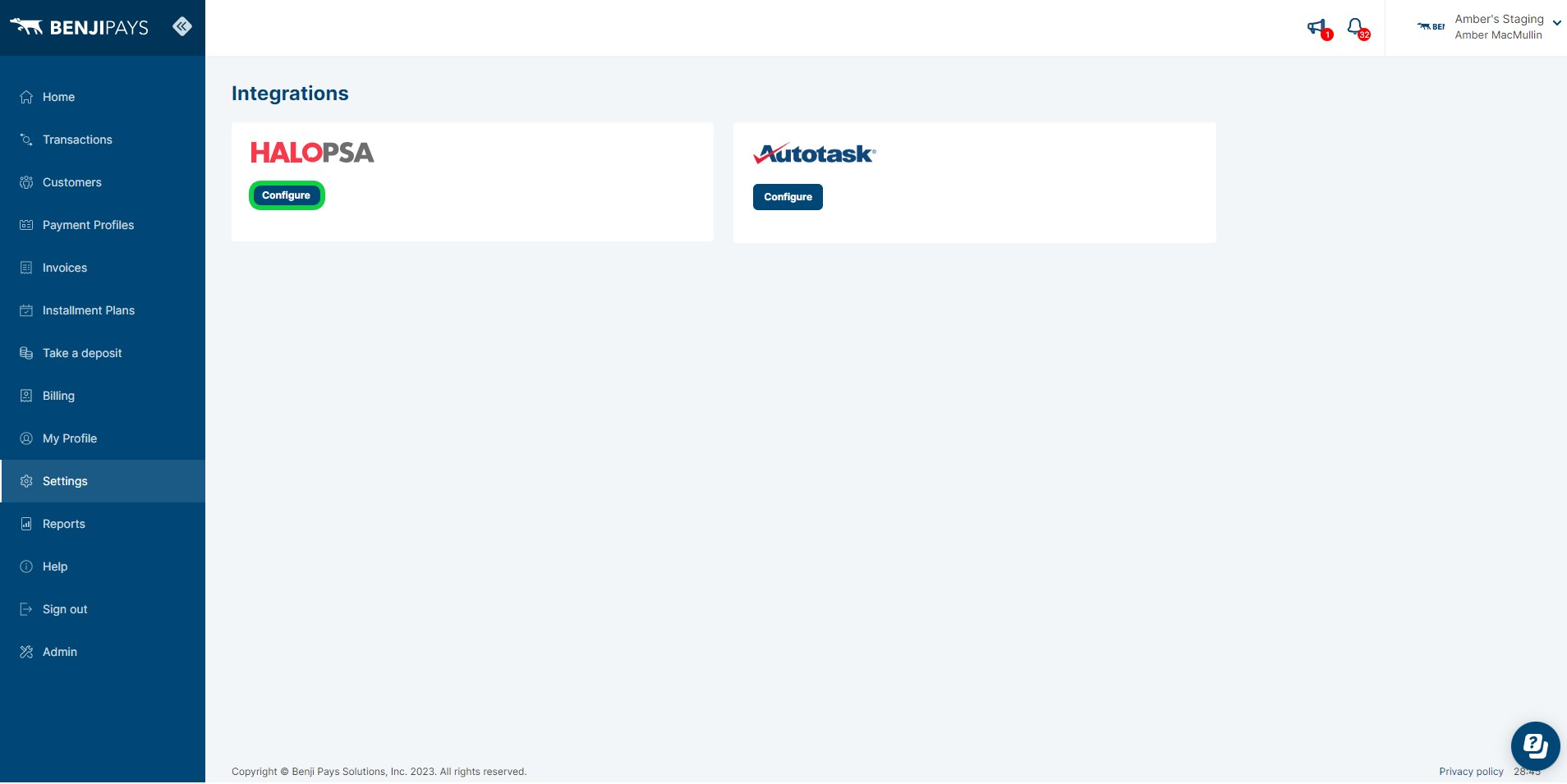
Fig 2. Configure the HaloPSA integration
On the configuration page you will need to enter your Halo Authorisation server Url, your Halo Tenant ID, and a client ID and secret for an application created in Halo.
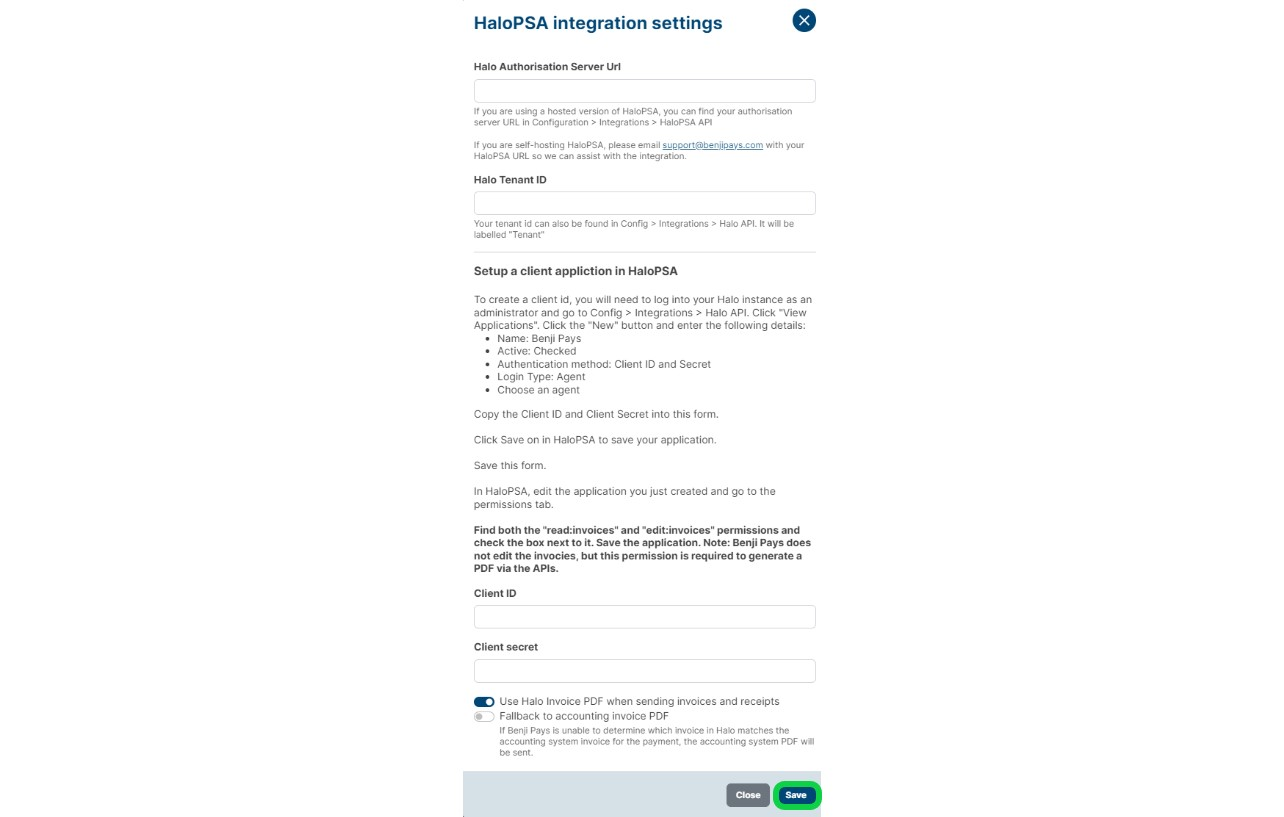
Fig 3. Integration connection settings
Obtaining Credentials
To obtain these credentials, head in Halo and head to Configuration > Integrations > Halo API. The page here will display the Authorisation Server URL and your tenant name.
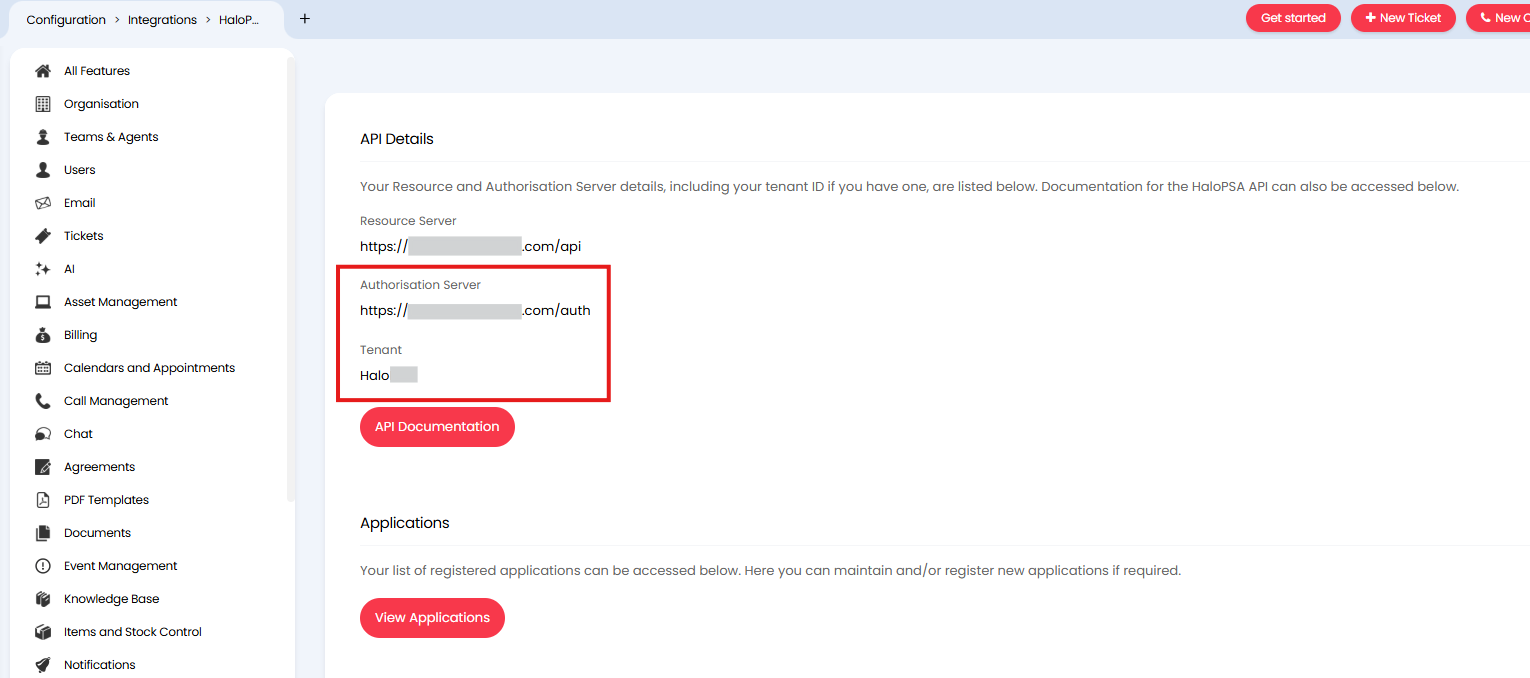
Fig 4. Auth server URL and tenant in Halo
Once you have these, you will need to create an API application in Halo.
On this same page use the 'View Applications' button then hit 'New' to create a new application. Give the application a name, choose 'Client ID and Secret (Services)' as the authentication method, select the 'Login Type' as 'Agent' then choose an Agent to log in as.
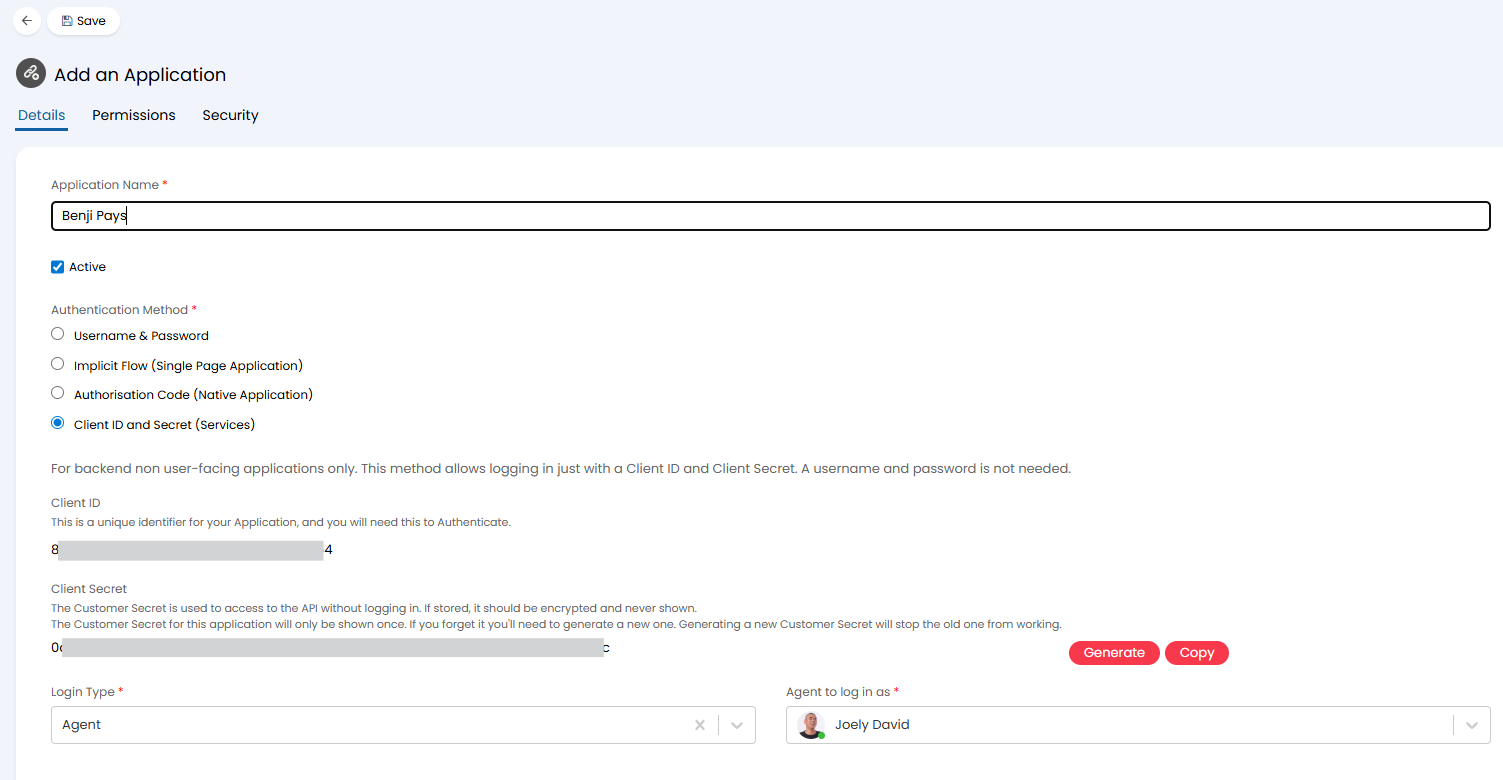
Fig 5. API Application in Halo
Ensure the agent chosen to log in as has permission in Halo to read and modify invoices.
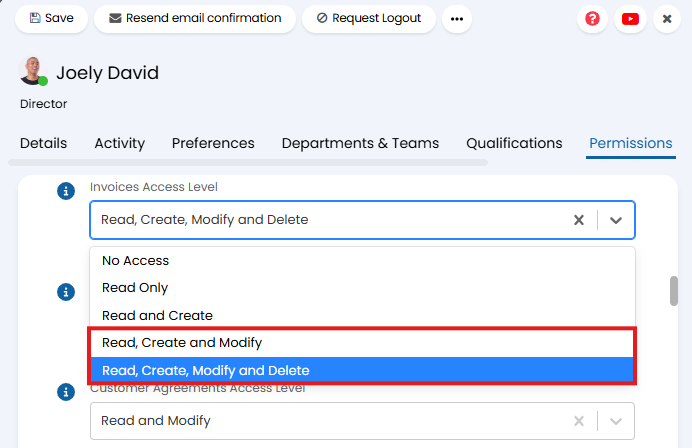
Fig 6. Invoices access level permission in Halo
Give the application permissions in the 'Permissions' tab. Add the following permissions:
- read:invoices
- edit:invoices
Save the application, copy and paste the Client ID and Secret into the integration connection settings in Benji Pays.
Now you have the credentials for connection there are a couple of settings to consider.
Use Halo Invoice PDF when sending invoices and receipts - When enabled, this will use the Halo PDF for the invoice when users view their invoices in Benji Pays. If disabled the PDF from your integrated accounting tool will be used.
Fallback to accounting invoice PDF - When enabled, if an invoice cannot be found in Halo, the PDF for the invoice in your accounting tool will be used. Enable this when you have invoices in your integrated accounting tool that are not in Halo.
Save the integration connection settings in Benji Pays and you should be connected.
Add Payment buttons to the Halo Portal
Payment buttons can be added to invoices in the Halo portal that allow customers to pay for their invoices using Benji Pays. When used customers will not have to login to Benji Pays to complete the payment.
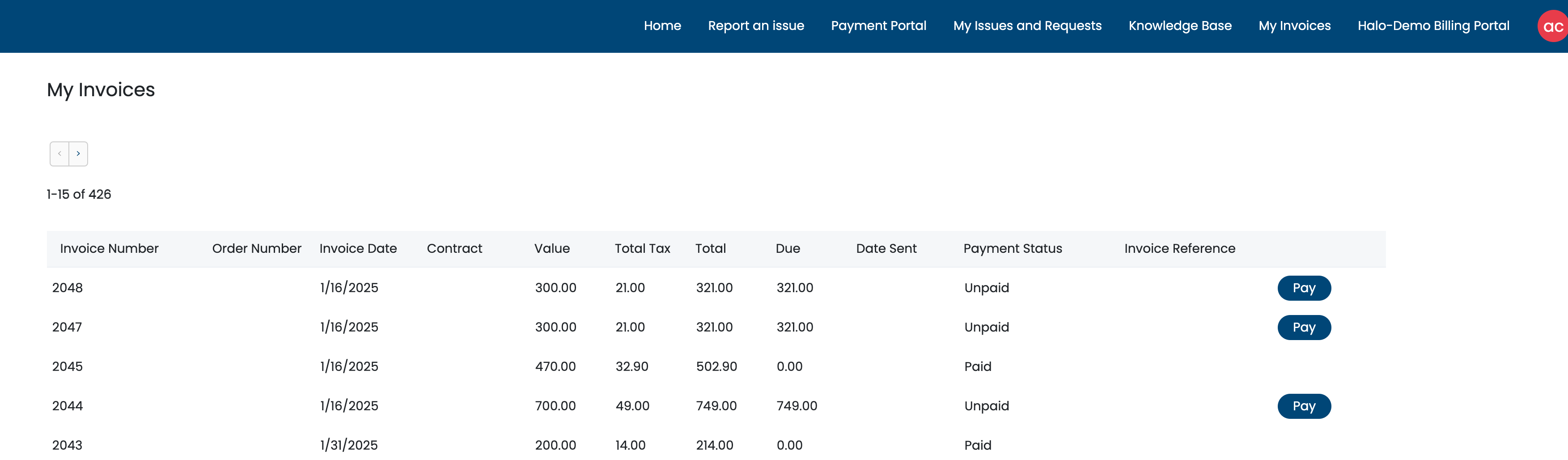
Fig 7. Payment buttons in the portal
To setup this feature head to Benji Pays > Settings > Integrations > 'Configure' the HaloPSA integration > ensure the 'Add Payment Button' option is enabled and then click save.
In order for this to work the invoices must be syncing with your accounting tool. The link will be added automatically after the invoice is synced with your accounting tool.
Once enabled, any newly created invoices will have the 'Pay' option in the Halo portal. If you would like the 'Pay' button to be added to existing invoices select the "Add Payment Links to Open Invoices" button. This will update any existing unpaid invoices with a payment link.
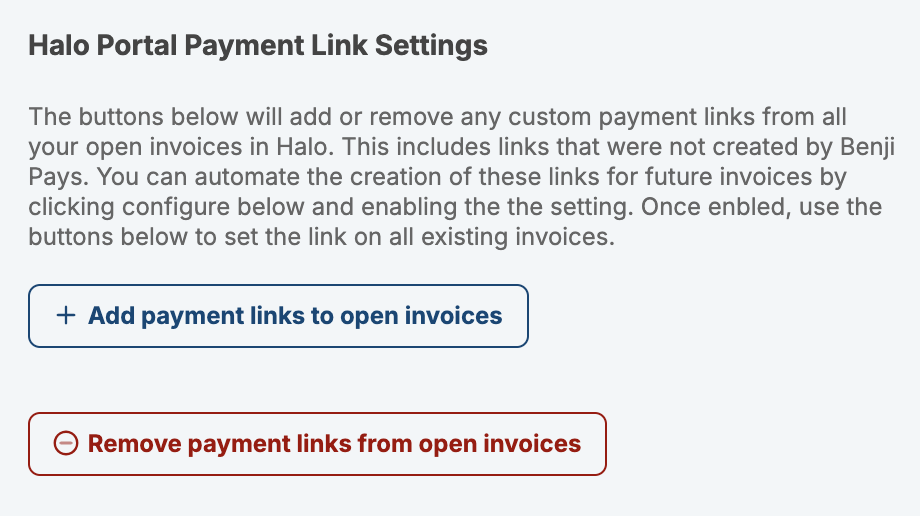
Fig 8. Option to add payment link to open invoices
When the pay button is used the customer will be re-directed to the Benji Pays payment page where they can see the payment they need to complete payment for and make this payment.
Add Payment link to Email Template
A payment link can be generated in Benji Pays and added to your email templates in Halo. Customers can then use this link to pay for the invoice when the invoice is emailed to them.
Setup for this differs slightly depending on the accounts tool you are using.
Obtaining the link - Quickbooks
First in Benji Pays head to Settings > Company Settings > Customer Portal Settings > enable 'Require transaction amount on Pay Now invoices to match the invoices total' > 'Save Portal Settings'.
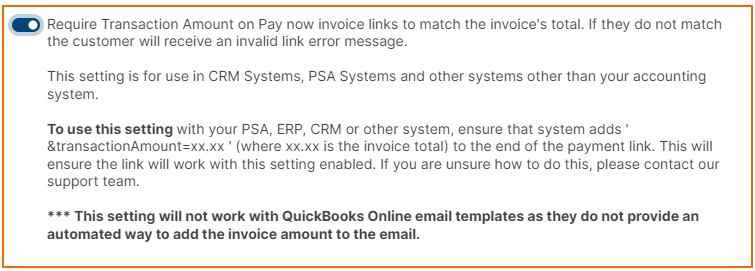
Fig 9. Require transaction amount on Pay Now invoices
Now head to Settings > Custom Payment Links > find the link under the title 'Use this link in QuickBooks Online in your email templates' > copy this link.
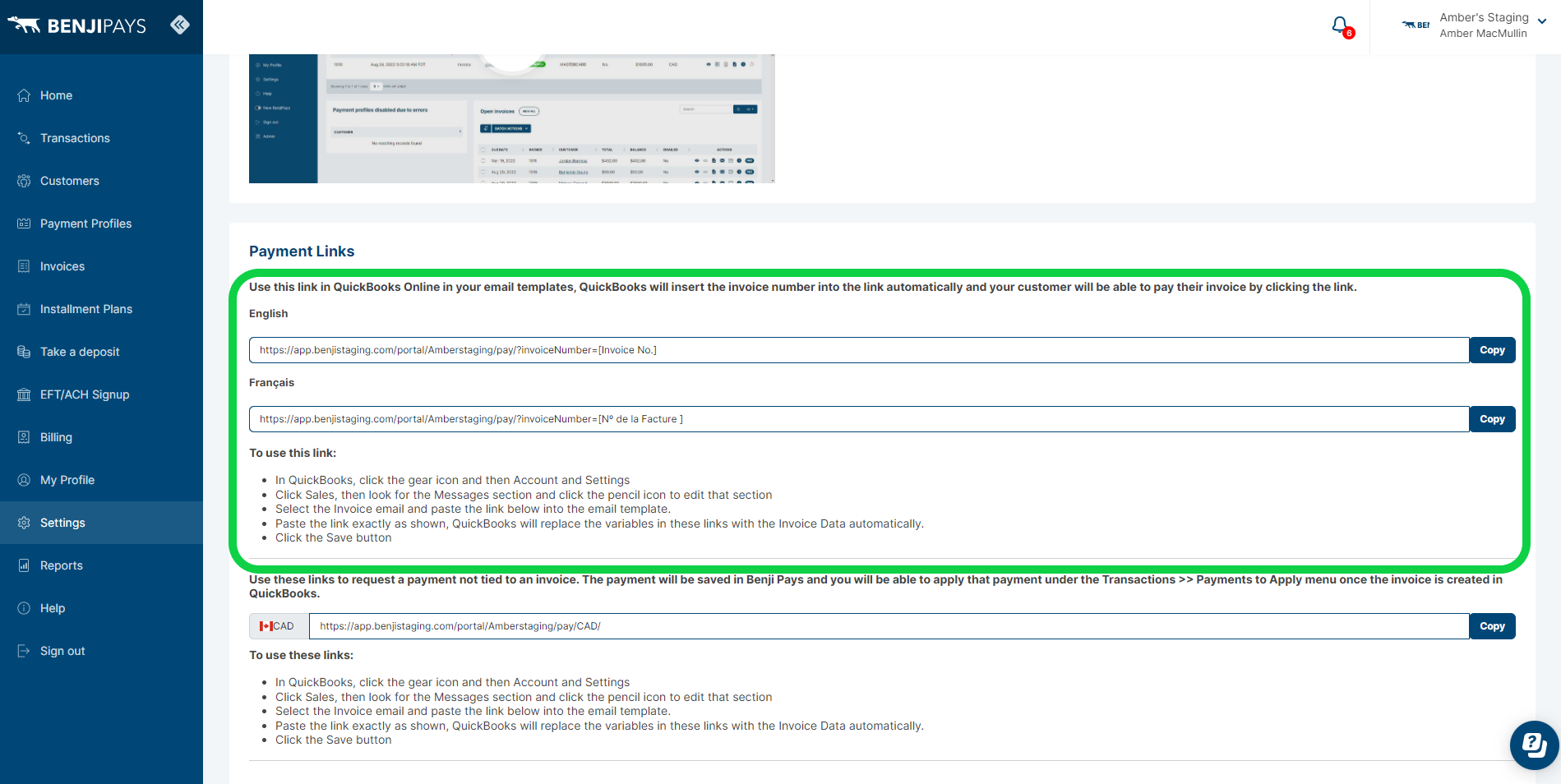
Fig 10. Payment link for QuickBooks
You will need to adjust the link depending on which invoice number you are using in Halo:
- If you have enabled the setting to Sync Halo invoice number to QuickBooks Online, In the link, replace [Invoice No.] with $INVOICEID
- If QuickBooks Online is setting the invoice numbers, replace [Invoice No.] with $THIRDPARTYINVOICENUMBER
Obtaining the link - Xero
To generate the payment link head to Benji Pays > Settings > Custom Payment Links > PSA/ERP and other 3rd Party Payment Links section > copy the link here. 
Fig 11. Payment link
Add link to Email Templates
To add this to your email templates in Halo head to Configuration > Email > Email Templates > select the template 'Invoice Email Subject', edit this template and paste in the payment link here.
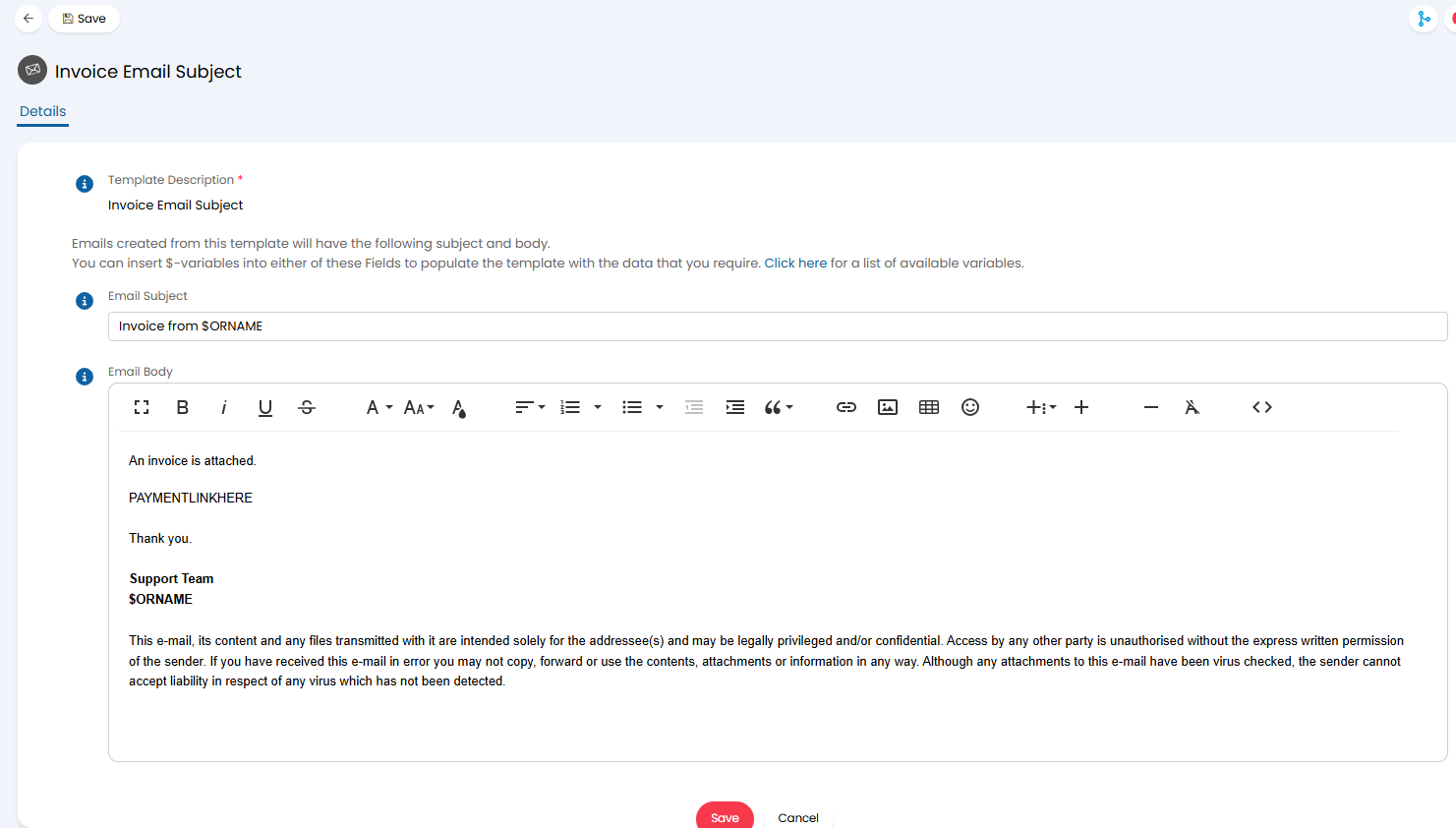
Fig 12. Add payment link to email template
Note: If you embed the payment link into your invoice PDF's, it's possible that some email filtering services will block the email.
Use Halo invoice PDF when viewing Invoices in Benji Pays
When customers view an invoice in Benji Pays you can choose whether the PDF of the invoice displayed uses the Halo PDF or the PDF from your accounting tool.
To allow the Halo PDF to be used ensure you enable 'Use Halo Invoice PDF when sending invoices and receipts' when configuring the integration settings in Benji Pays.
Additional Integration Features
Benji Pays offers some additional integration features not covered in this article. Such as: