Incoming Webhook Processing Service
- webhook
- incoming service
- incoming webhooks
- webhook processing
In this guide we will cover:
- What is the Incoming Webhook Service?
- Available Integrations
- Processing Methods
- Viewing Webhook Logs
- Viewing Individual Webhooks and Managing Attempts
What is the Incoming Webhook Service?
The incoming webhook service allows behaviour customisation of how Halo processes webhooks from integrations. In addition to the previous functionality, two additional methods have been added through this service.
This service can be enabled in Configuration > Advanced Settings > Backend Monitoring, and will allow the service to then be configured per integration.

Fig 1. Enabling incoming webhook service.
Available Integrations
This method is currently available for the following integrations:
- QuickBooks Online
- Xero
- Juniper Mist (v2.248+)
Processing Methods
Once the above is enabled, you can then go to each integration to configure the processing method. Below is the example dropdown within the Xero integration.

Fig 2. Webhook processing options.
1. Use the default webhook processing functionality.
This is the default option. Each incoming webhook will be processed immediately, and failed webhooks will not be retried.
2. Use the incoming webhook service with immediate processing
This means the webhook service is in use for the integration. Each incoming webhook will be processed immediately, and any failed webhooks will then be automatically retried a further 2 times via the task scheduling service. This is the recommended option.
3. Use the incoming webhook service with delayed processing
The same as option 2, but webhooks are not processed immediately when they are received. Instead, they are automatically queued and picked up by the task scheduling service. This option is only necessary if option 2 is failing to process webhooks after 3 attempts due to rate limits, i.e. the webhook result is returning 429 too many requests.
Logic has been added to the task scheduler to retrieve webhook resource data in batches. This greatly reduces the number of requests made to the third-party API, thus reducing the chance of hitting third-party rate limits. This logic is always used for option 3, and is used before retrying webhooks when using option 2.
Viewing Webhook Logs
If the integration has an "Inbound Requests" tab, incoming webhooks can be viewed there as before.
Another "Incoming Webhook Log" tab is available in Configuration > Advanced > Backend Monitoring, and can be used to view inbound webhooks for any integration that has enabled the incoming webhook service.
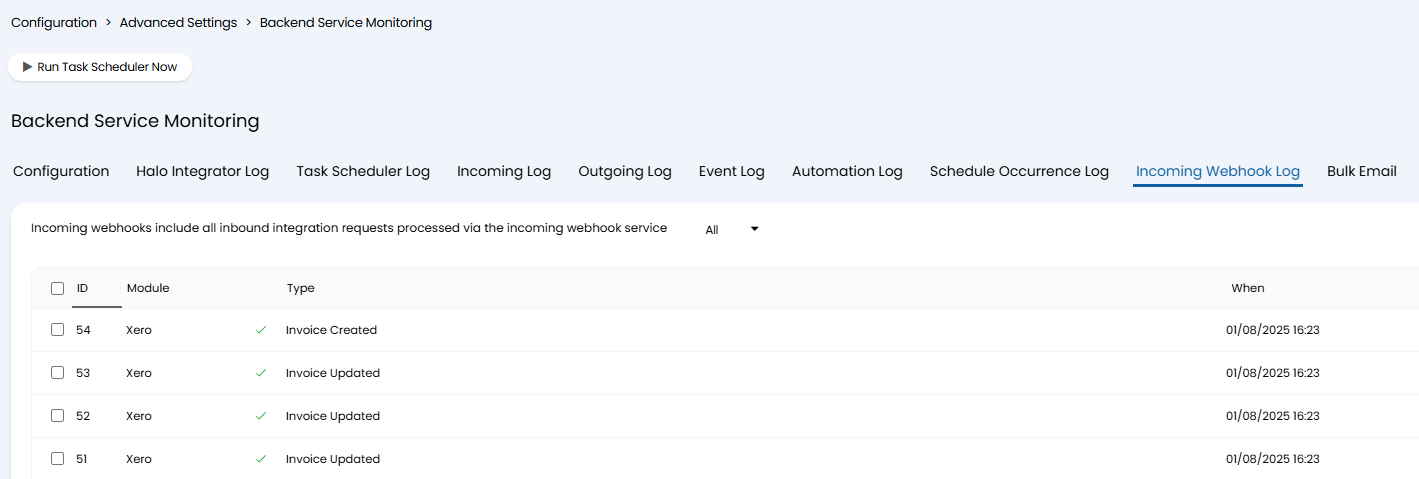
Fig 3. Incoming Webhook Log tab.
Webhooks can still be viewed on the "Integration Inbound Requests" tab in the Backend Monitoring area. When viewing these requests, the response tab will show a "202 Accepted" result with the following message if they have been deferred to the new service:
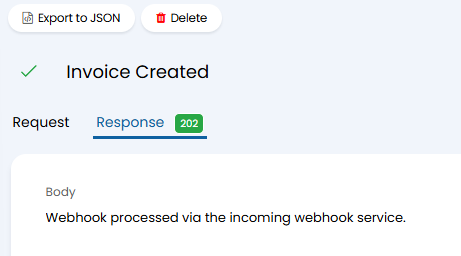
Fig 4. 202 message example.
Viewing Individual Webhooks and Managing Attempts
When viewing an incoming webhook that is processed by the new service, additional tabs will now be displayed when compared to the old method.
The "Details" tab records the current status of the webhook and how many automatic attempts are remaining. Unprocessed webhooks can be manually retried individually using the "Retry" button when viewing the webhook, or in batch by selecting multiple webhooks from the list. Each attempt can be viewed on the "Attempts" tab of the webhook.
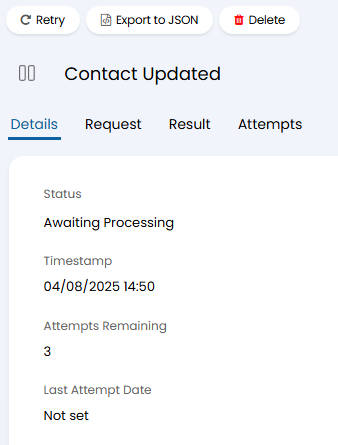
Fig 5. Webhook log tabs.
The "Resource Data" tab on successful webhooks shows any resource data that has been downloaded during the request processing, as well as the date that the data was downloaded. This date is used to prevent the service from processing stale webhooks if newer webhooks are received and processed for an entity before the previous one has been processed.
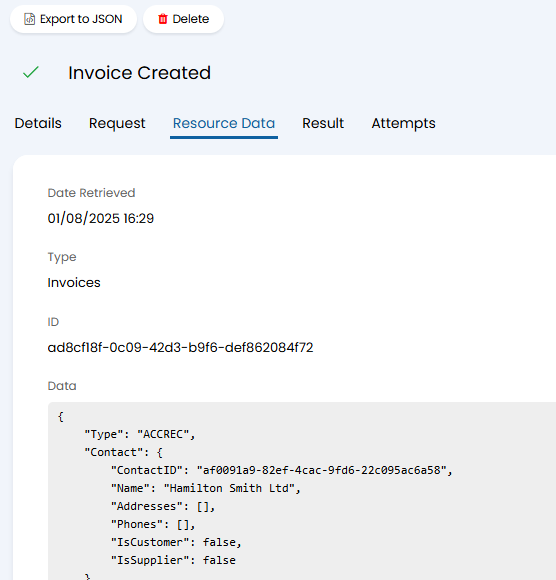
Fig 6. Resource Data tab.