Google Business Integration
In this guide we will cover:
- What is the Google Business Integration?
- Setting up the Integration
- Import Reviews and Questions
- Respond to reviews/questions from Google
- Receiving Updates to tickets from Google Business
What is the Google Business Integration?
The Google Business integration allows you to import responses and reviews received from your Google Business account as tickets. Once these tickets are created you can then respond to each review/question from Halo.
Setting up the Integration
First you will need to enable the integration module, head to Configuration > Integrations, enable the module using the '+' icon.
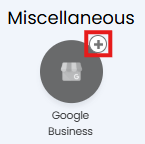
Fig 1. Enable integration module
Once enabled click into the module to begin configuration.
First, you will need to connect your Google Business account with your Halo instance. Add a new connection by selecting 'Add/Edit Google Business Connections' > New.
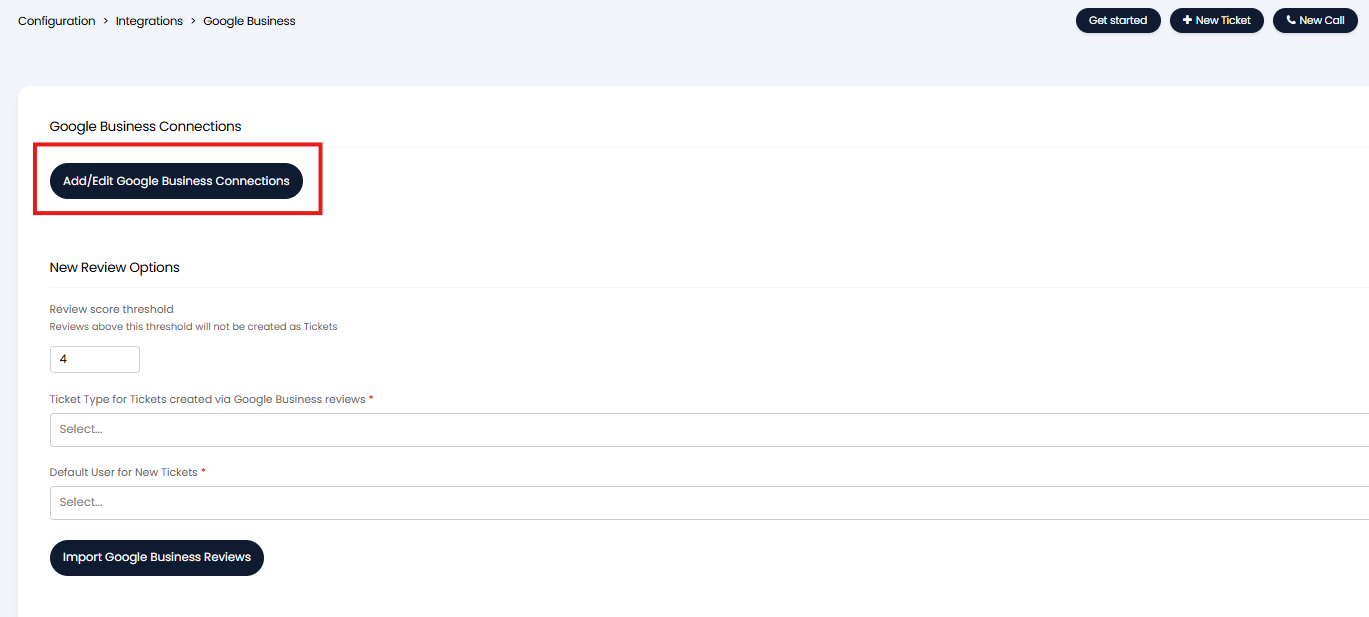
Fig 2. Add new connection
In order to create a new connection you will need to generate a client ID and secret from your Google Cloud console.
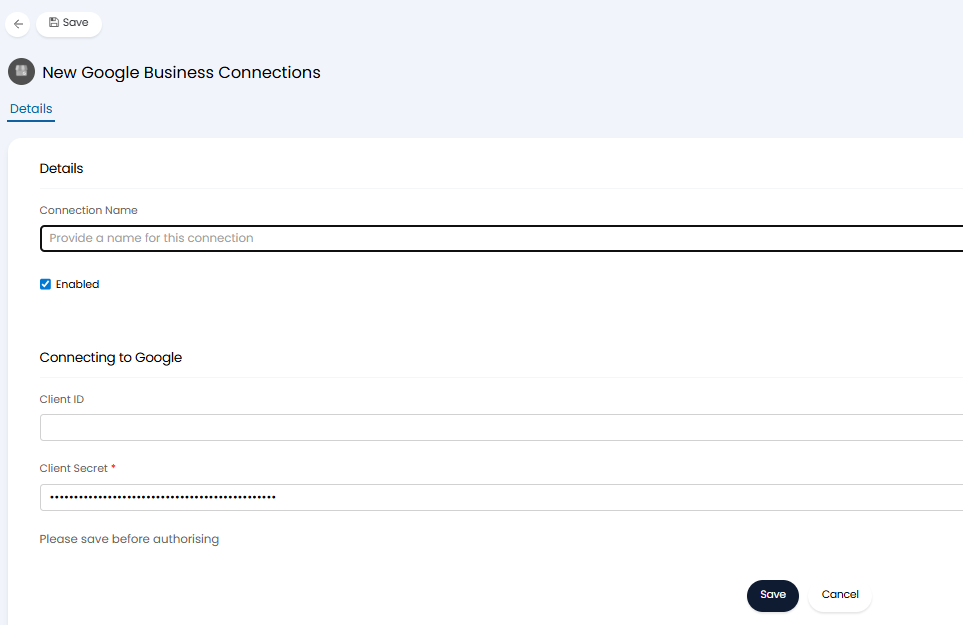
Fig 3. Credentials for connection
Create a Google Project
To obtain a client ID and secret required for connection you will need to create access credentials within your Google cloud console.
First you will need to create a new project within your Google could console, this is where access credentials will be granted and stored.
To create a new project, open up your Google Cloud console and select the project you are currently on.
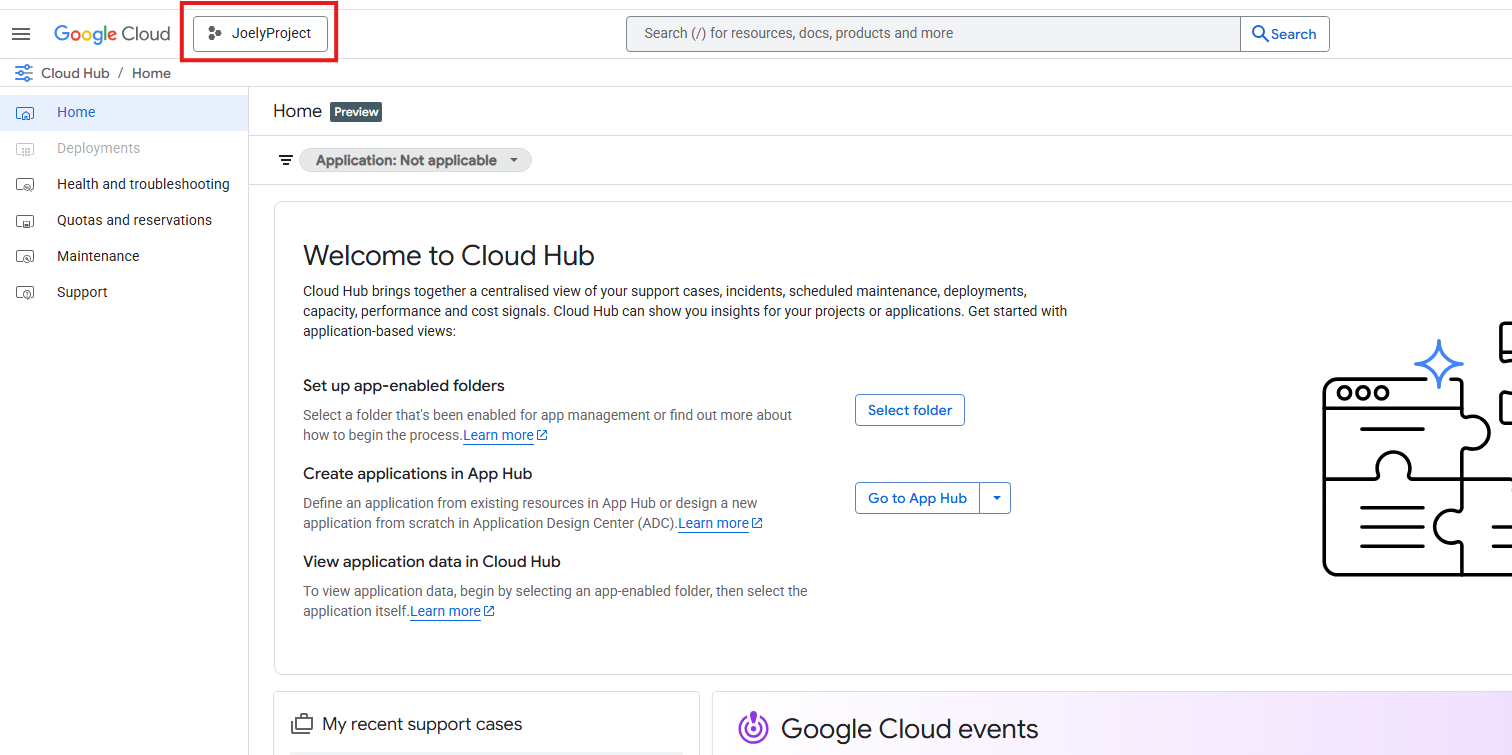
Fig 4. Current Project in Google
When selected, you will see an option to create a new project. Give the project an appropriate name, choose a location (if applicable) and hit create. Once created you will need to enable the Google Business APIs for the project.
Enabling Google Business APIs
Important: Before Google will allow you to use Business APIs, you must first request access to them. For information on how to request access checkout Google's documentation here.
Once you have been granted access you will need to enable the following APIs for the project:
- Google Business Profile API
- My Business Account Management API
- My Business Lodging API
- My Business Place Actions API
- My Business Notifications API
- My Business Verifications API
- My Business Business Information API
- My Business Q&A API
To do this head to APIs and services > Enabled APIs and services > Enable APIs and services.
Note: You may not be able to see these APIs if your project has not been whitelisted by Google. Your project will be whitelisted when applying for access to the Google Business APIs .
From here search for the API you need to add > select this from the list and enable.
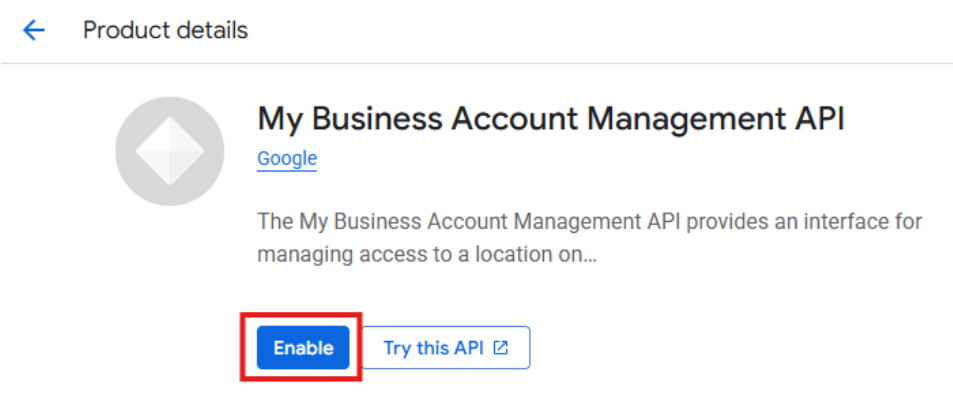
Fig 5. My Business Account Management API
You can check to see that your project has been granted access to the APIs by checking the quota for each API once they are enabled. If your quota is 0 QPM (Queries Per Minute), your project has not yet been approved. If your quota is set to 300 QPM, your project is approved.
Once the APIs are enabled you can generate a client ID and secret for the project.
Generate Client ID and Secret
Within your Google cloud console head to Menu > Google Auth Platform > Clients, if this is a new project you will need to configure your Google auth platform for this project.
To start configuration hit the 'Get Started' button on the Google auth platform page.
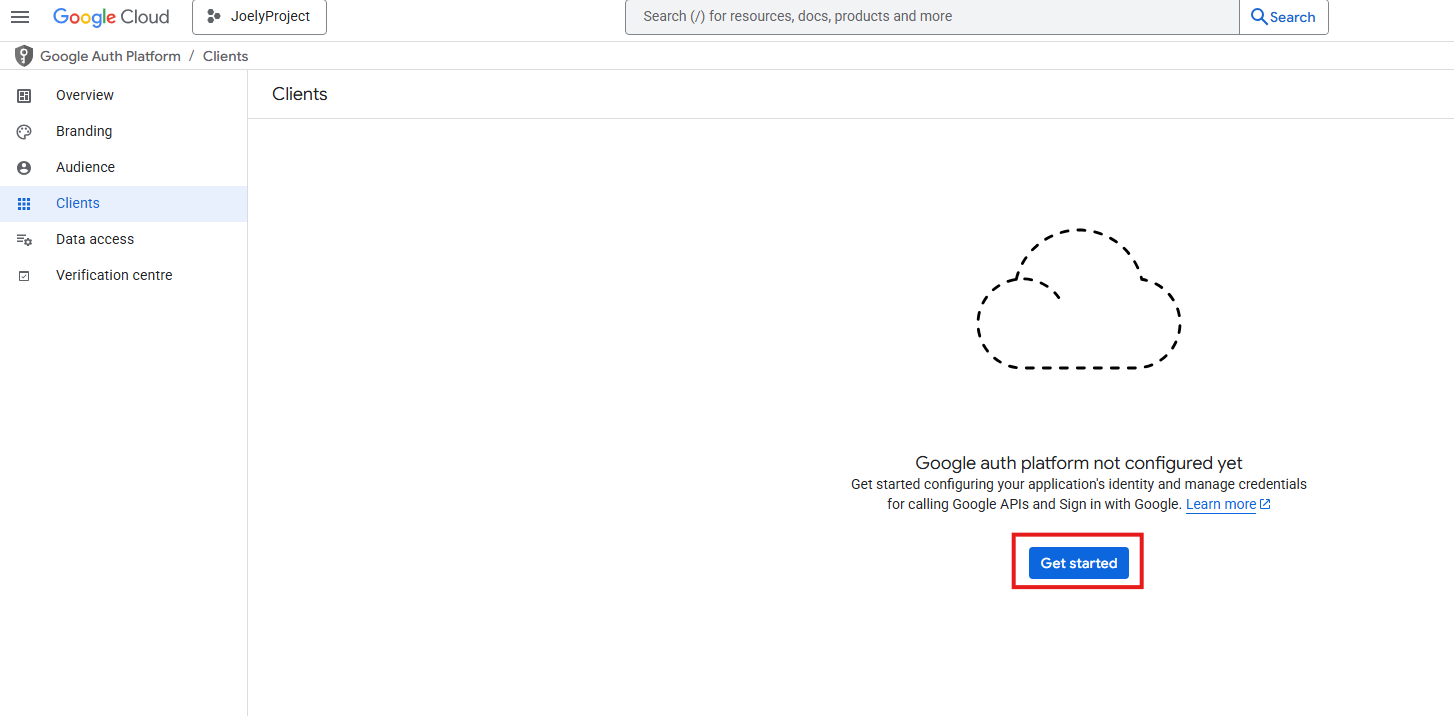
Fig 6. Start configuring Auth platform
When setting up give the app a name and choose a support email. Set the audience to be external.
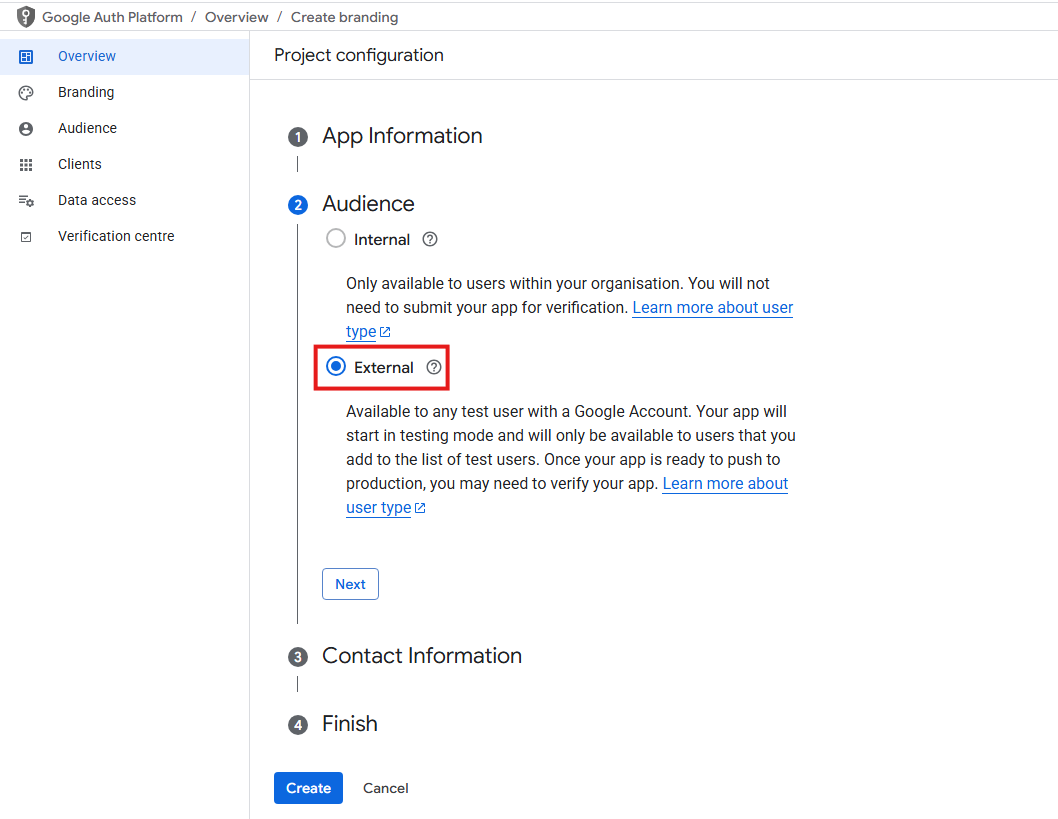
Fig 7. Set audience to external
Then you will just need to enter a contact email and agree to the Google API services and data policy. Hit create.
Now your Auth Platform is set up you can generate a client ID and secret.
Create a new Client here.
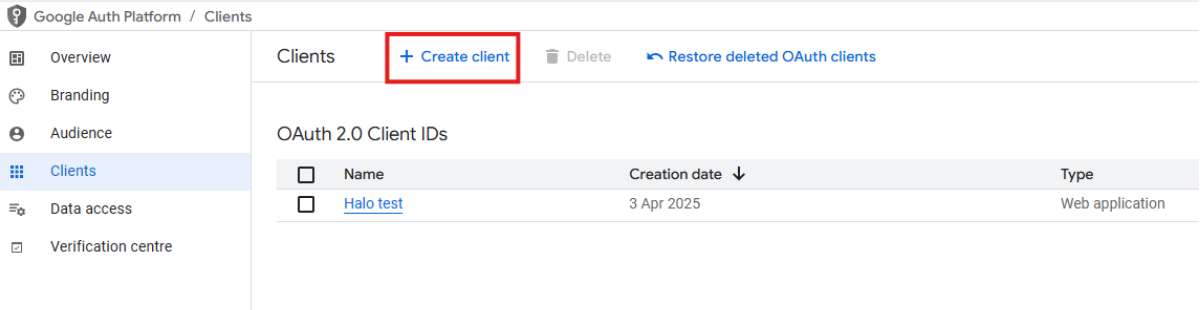 Fig 8. Create new client
From here, select 'Web application' from the dropdown, give the application a name.
The redirect URI used will differ depending on the Halo product and version you are using. You can refer to the below table to see which redirect URI is needed.
Redirect URI needed | Halo Product | ||
|---|---|---|---|
Halo Version | HaloITSM/ESM | HaloPSA | HaloCRM |
Versions prior to v2.200 | |||
Version 2.200 or above | |||
Note: If you have disconnected to the integration and are reconnecting, if your Halo instance is on v2.200+ you will need to use the new redirect URI (https://YOURHALODOMAIN/authcallback).
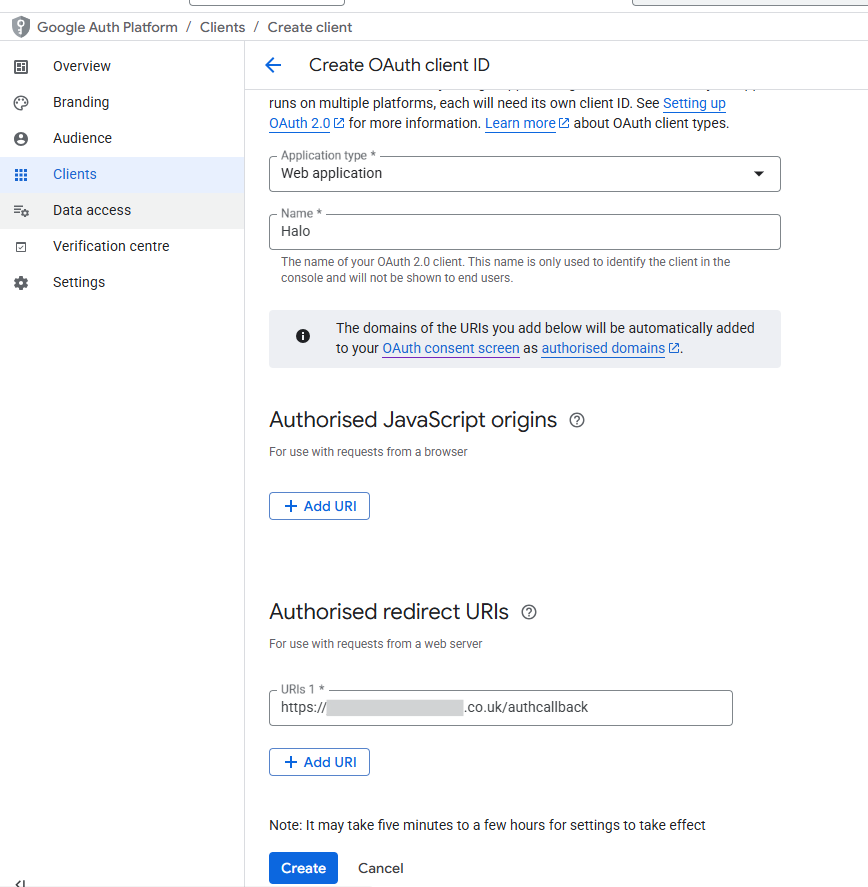
Fig 9. OAuth Client
Then hit create. Upon creation you will be provided with a client ID and secret.
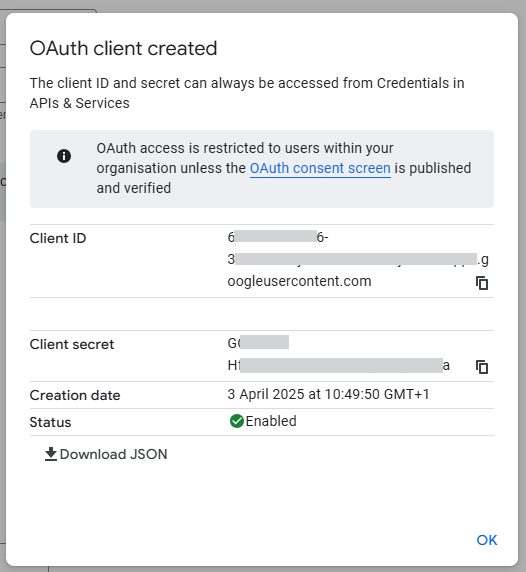
Fig 10. Client ID and secret
Copy and paste this into a notepad for now.
Note: The whole client ID and secret will need to be used, including the '.apps.googleusercontent.com' section.
Now you will need to assign the following scopes to the project (under the Data Access section of the project):
- My Business Account Management API
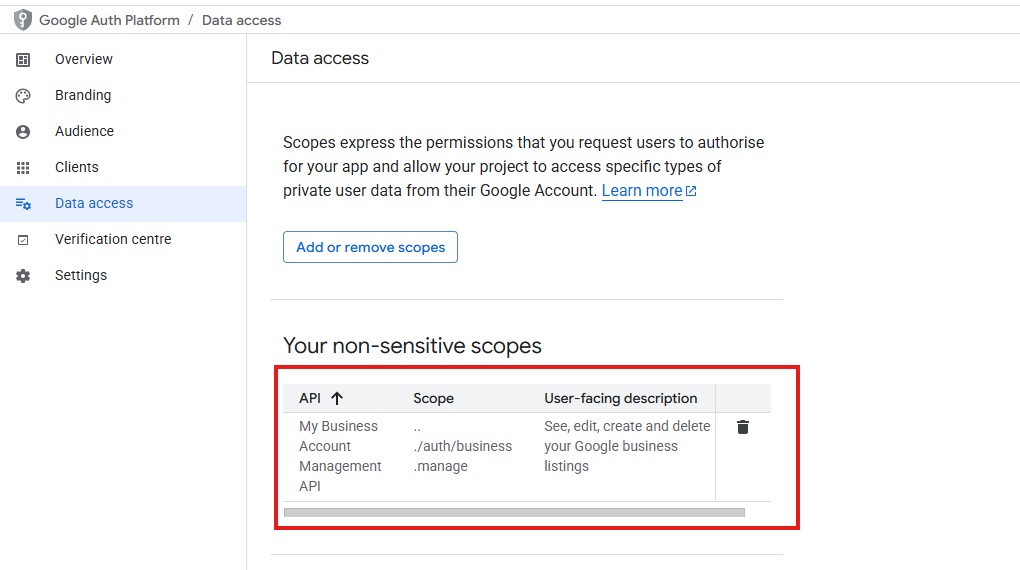
Fig 11. Scopes for Project
Now you will need to assign test users to the OAuth Client to allow the connection to be authenticated. Head to the 'audience' tab and select 'Add users' under the test user section.
Note: We recommend using test users to authenticate your Google app before publishing the app as this ensures your app works correctly and securely before exposing it to broader users.
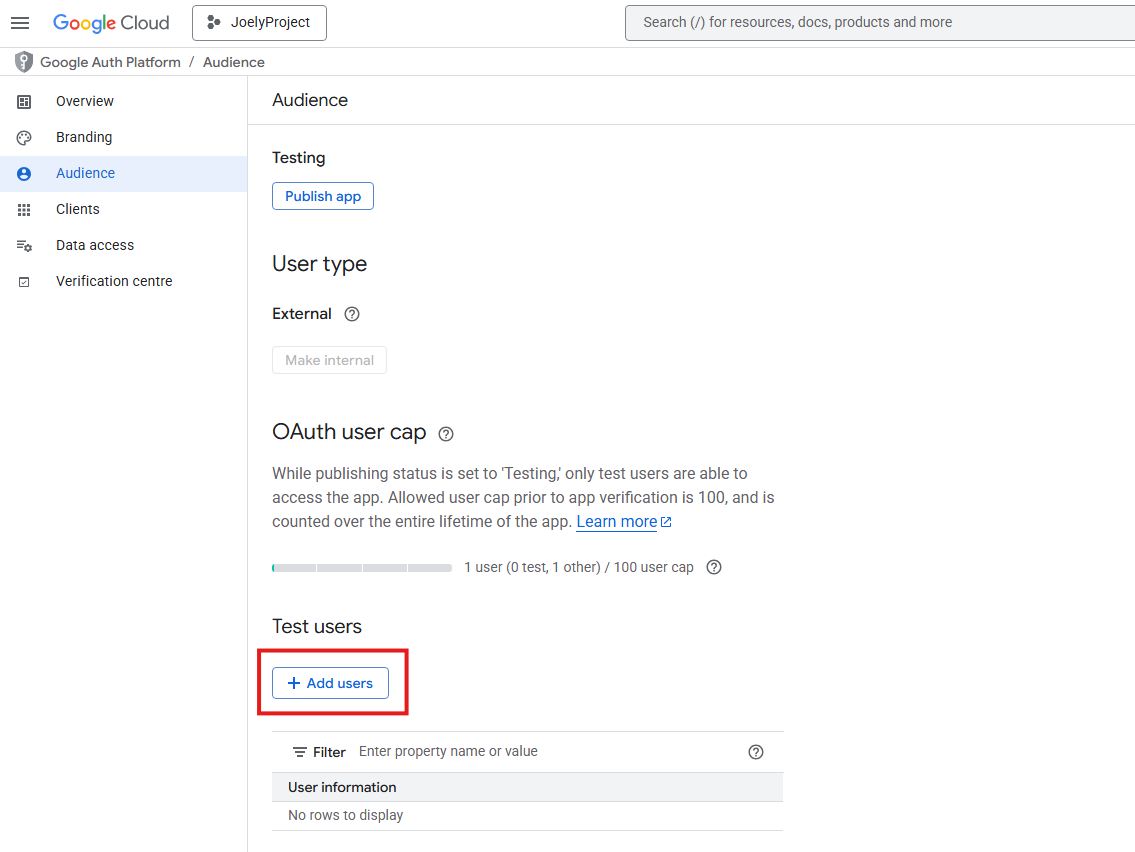
Fig 12. Add test user to OAuth Client
When adding a test user you must enter the email (Gmail) of the user you would like to be able to authenticate the connection. You can add multiple users here, then when authenticating the connection between Google Workspace and Halo you must login with an account that has been added to the project as a test user.
Test user authorisation will expire after 7 days, therefore once you have connected successfully and are happy with the setup you will need to publish your application using the 'Publish app' button shown in figure 9. Once the app is published the authentication will not expire.
For more information on testing/publishing apps in Google workspace see Manage App Audience.
Add Connection details into Halo
Once saved you will have the option to 'Sign in with Google'. Use this and sign in with your Google Business account.
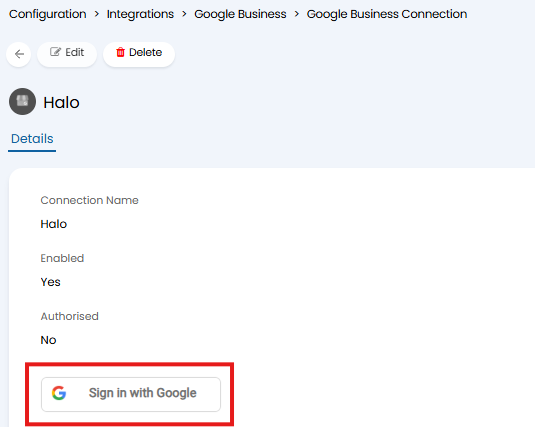
Fig 13. Sign in with Google
Once you are signed in, choose which Google Account and location to use for this connection. Start typing in the location field to for your desired location to appear.
Now you are connected you can begin configuring how reviews and questions are imported.
Import Reviews and Questions
Head back to Configuration > Integrations > Google Business, here you can import reviews and questions and control how these are logged as tickets in your Halo.
Import Reviews
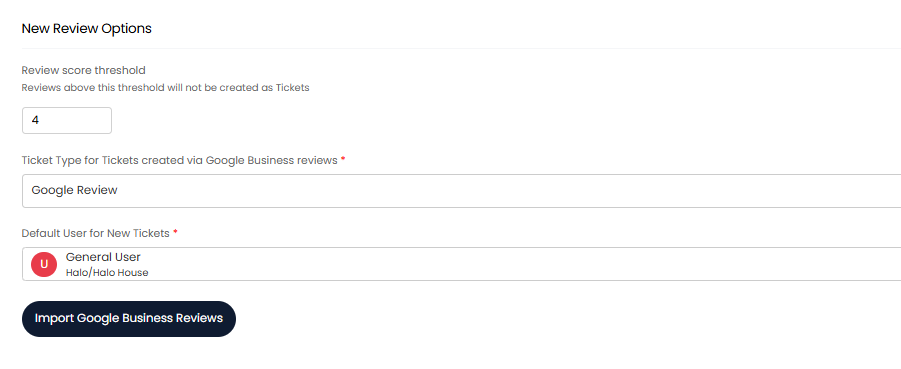
Fig 14. Google review import configuration
Before importing reviews, set which reviews should be imported, what ticket type should be logged for these reviews and the end user the ticket should be assigned to. In the figure 14 example a new ticket type has been created for the use of Google Reviews.
Review score threshold - Here set the threshold for imported reviews to log tickets. This threshold is out of 5, any reviews above this threshold will not be logged as tickets.
Then import reviews using the 'Import Google Business Reviews' button.
The tickets created from the imported reviews will contain the review comment in the 'Details' field on the ticket.
Import Questions
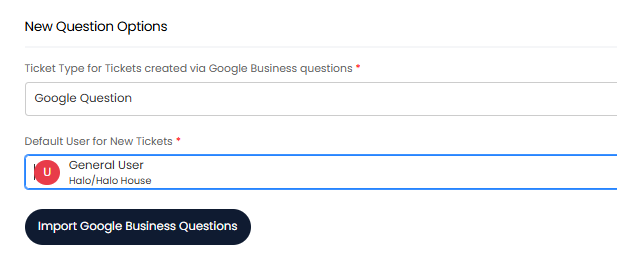
Fig 15. Google question import configuration
Before importing questions set which ticket type should be logged for each question and the end user the ticket should be assigned to. In the figure 16 example a general user under my internal customer has been selected, however, you may wish to create a dedicated user profile for these tickets to be assigned to.
Then import questions using the 'Import Google Business Questions' button.
The tickets created from the imported questions will contain the question in the 'Details' field on the ticket.
Automatically Import reviews/questions on a schedule
To have reviews/questions automatically imported on a schedule, you will need to enable the Halo integrator for this integration.
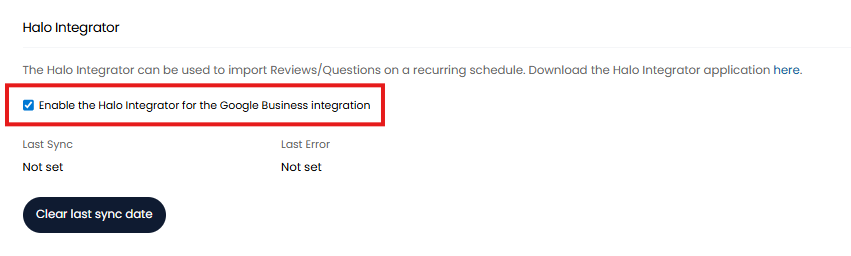
Fig 16. Enable the Halo Integrator for the Google Business integration
When enabled reviews and questions from Google will be imported automatically on a daily basis.
Respond to reviews/questions from Google
Once tickets have been logged in your Halo for Google Business questions/reviews you can respond to these from Halo. In order to do this you will need to configure chosen actions to send updates back to Google Business.
Head to Configuration > Tickets > Actions > select an action, or create new > Details tab. Here, enable the option 'Show the 'Send to Google Business' toggle'.
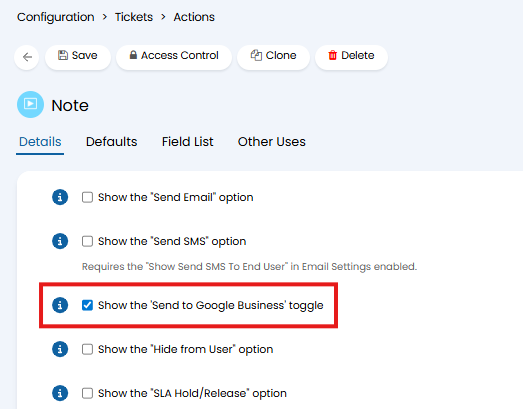
Fig 17. Send to Google Business toggle
Once enabled this action will have a new toggle field, this can be used to choose if the action is sent to Google Business or not.
Then you will need to ensure the 'Note' field is added to the action. The contents of the Note field will be used as the reply to the review, no other fields on the action will sync to Google Business.
You can enable this on any existing actions you have that you would like to be used to send updates to Google Business. Alternatively you may wish to create a dedicated action for this.
Receiving Updates to tickets from Google Business
Any updates to reviews/questions that have logged a ticket in your Halo instance will update the corresponding ticket. Updates will only be processed once the import is re-run so ensure you have the Halo integrator enabled to ensure this is done automatically.
To determine the status tickets have when an update is received from Google Business head to Configuration > Integrations > Google Business, use the settings shown in figure 18 and 19.
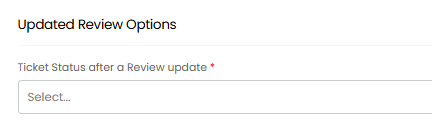
Fig 18. Setting to determine ticket status after Google review update
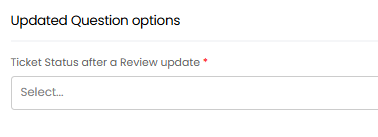
Fig 19. Setting to determine ticket status after Google question update
We recommend choosing statuses here that take the ticket off SLA hold (such as Updated).