Refreshing an Azure Token
- azure
- token refresh
- Microsoft
- troubleshooting
- token
- azure token
- token expired
- expired token
In this guide we will cover:
- What is an Azure Token?
- When does a Token Need Refreshing?
- Refreshing the Token
What is an Azure Token?
An Azure token is the method Microsoft use to allow access from external sources (in this case, Halo) temporarily. However, this token will eventually expire and need to be refreshed, and a token refresh failure happens when Halo can no longer access the account used to authorise the integration.
When does a Token Need Refreshing?
The token determines how long Halo can access an admin account within Microsoft, and this can expire for a number of reasons, including:
- The time limit on the token has been reached.
- Security changes, such as a new password.
- Microsoft marking the token as idle if it has not been used frequently/recently.
If your Microsoft integration is no longer syncing as expected, navigate to Configuration > Advanced Settings > Backend Service Monitoring. For detailed information of how to navigate this area, check out the "Backend Services Monitoring" guide.
If it is an Azure mailbox, take a look in the "Outgoing Log" tab.
If it is another integration, such as Exchange Calendars, take a look in the "Integration Errors" tab or the "Inbound Requests"/"Outbound Requests" tabs within the integration module.
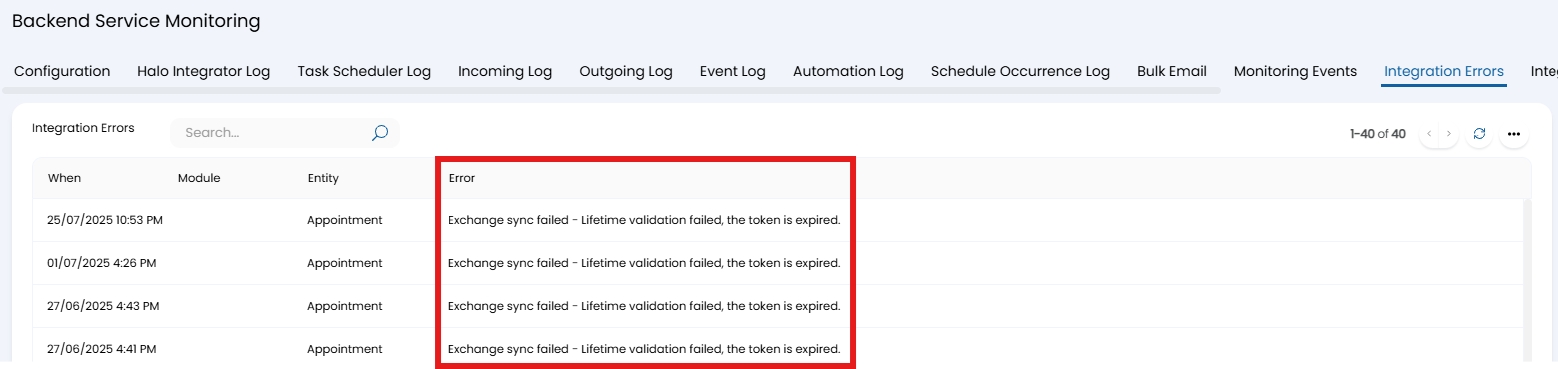
Fig 1. Exchange Calendar token error example.
If the error contains the phrase "System.Exception: Lifetime validation failed, the token is expired", a token refresh is needed. There may be other errors where support suggest completing this process as well.
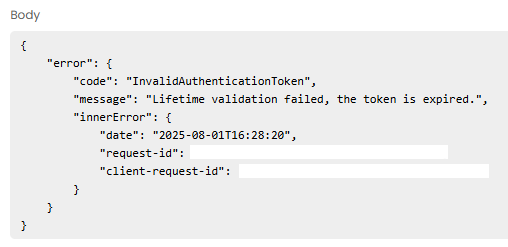
Fig 2. Token refresh error in the log.
Refreshing the Token
To refresh the token, you will need to disconnect and reconnect the application.
Navigate to the relevant mailbox or integration, click the "Edit" button, and a button to "Disconnect from Application" will show.
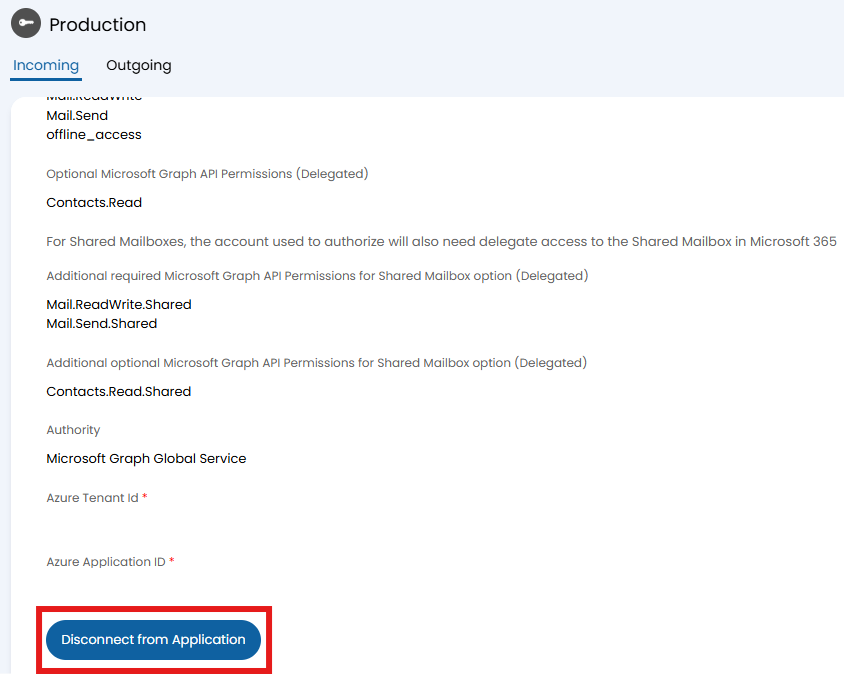
Fig 3. Disconnecting the application.
This button will then disappear, and be replaced with the below "Azure Application Secret" field. This is the same configuration you would have seen when initially setting up the mailbox/integration.
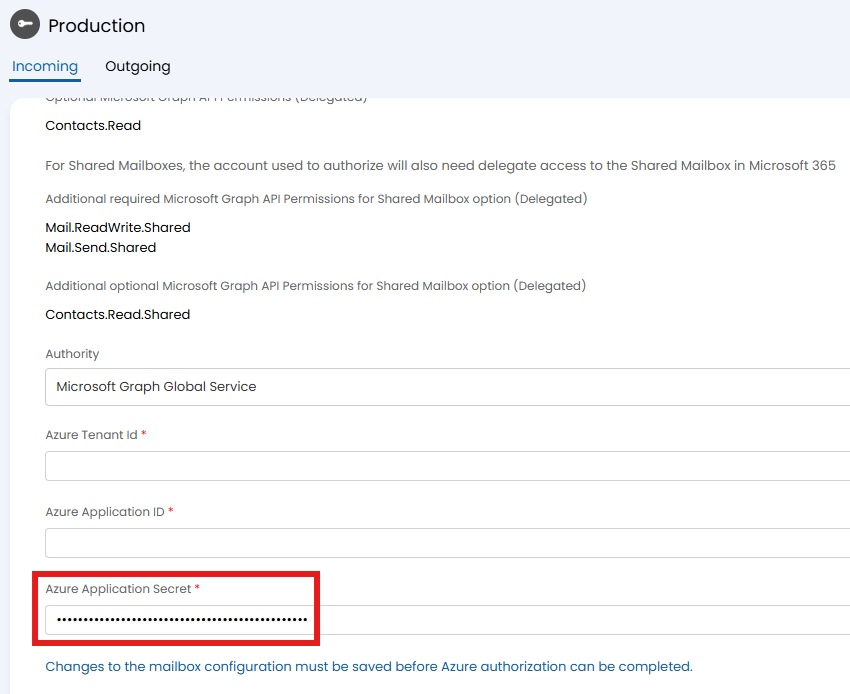
Fig 4. Secret field now showing.
Within your Azure portal, navigate to the app registrations, and switch to the "Certificates and Secrets" tab. Generate a new secret with a sensible expiry date in the same way you did when connecting initially. Make a note of the "Value" field and its expiry date.
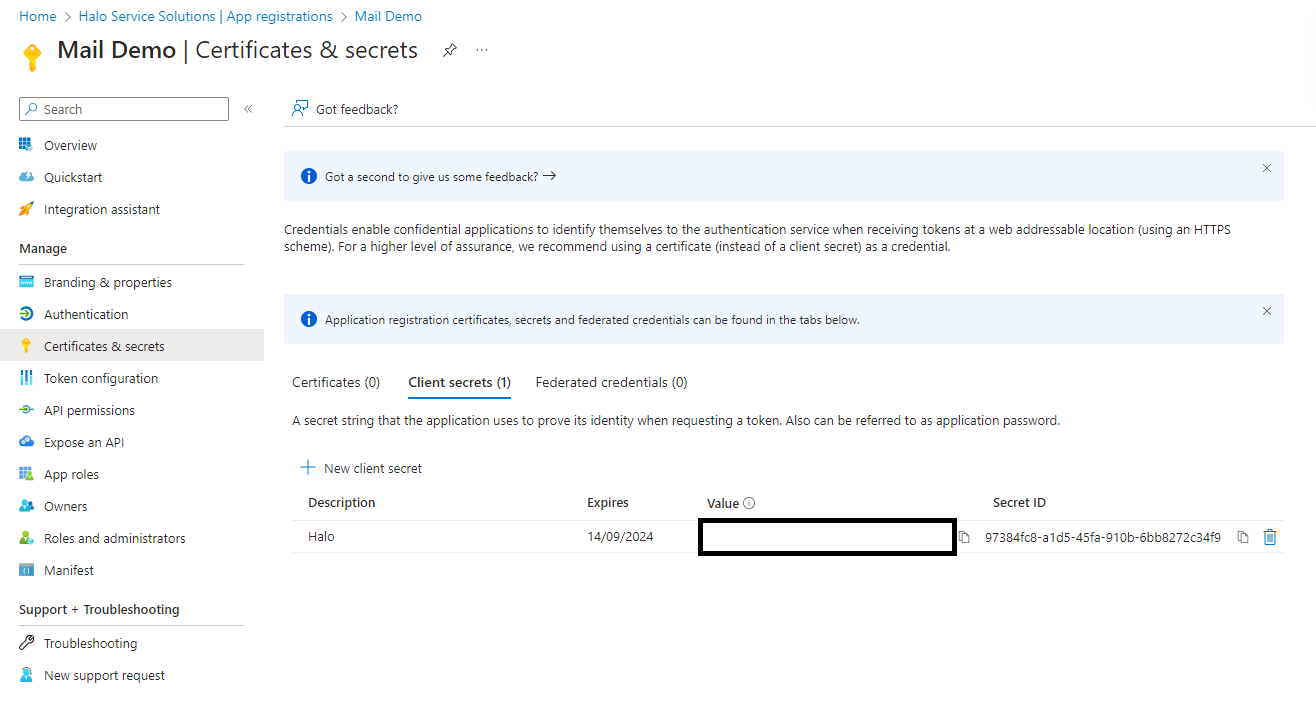
Fig 5. Generating a new secret.
Switch back to Halo and paste this into the "Azure Application Secret" field.
Fig 6. Re-entering the new secret value.
Upon pasting this in, save and the option to "Sign in with Microsoft" will show. Click this and login like before to re-form the connection between Microsoft and Halo.
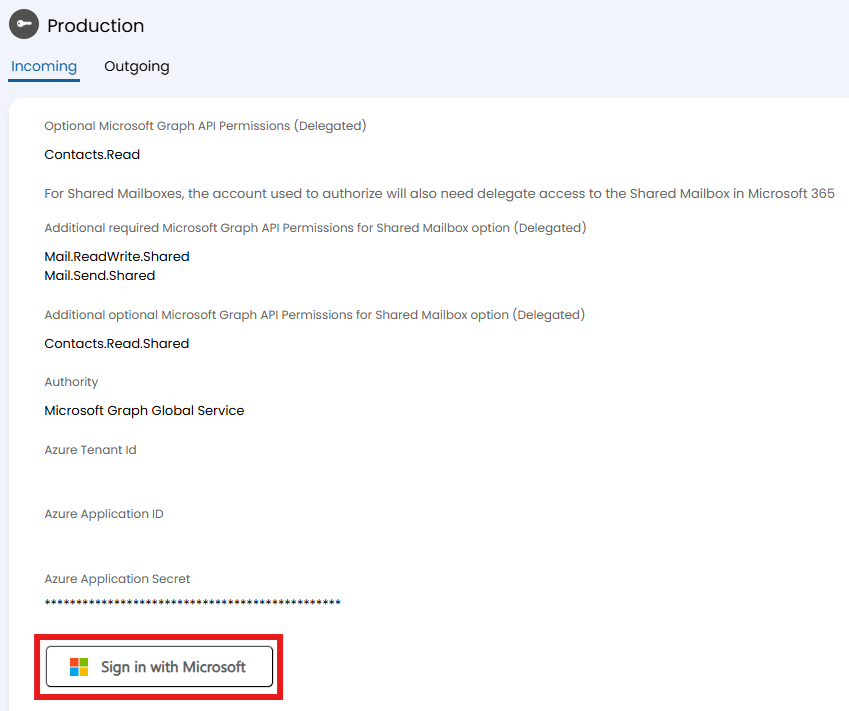
Fig 7. Re-sign in with Microsoft.
Your token has now been refreshed, and the integration can be used again.