Keeper Integration
- integration
- passwords
- keeper
- keeper integration
In this guide we will cover:
- What is the Keeper Integration?
- Connecting to Keeper
- Runbook Creation
- Ticket Creation
What is the Keeper Integration?
The Keeper integration allows tickets to be created from Keeper alerts via a Halo runbook. The alerts are set up on your Keeper account, so can be set to trigger with any of their available event types.
Connecting to Keeper
Within Configuration > Integrations, enable the "Keeper" module by hovering over the module and clicking the "+" icon. This will additionally download the runbook required for this integration onto your instance.
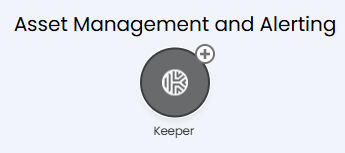
Fig 1. Enabling the Keeper integration.
Once enabled, click into the module. The first section is the "Setup", detailed with instructions on how to configure the Keeper alert.
Halo has provided a webhook URL to use for the alert, alongside a token to authenticate it. Click the "Generate" button here to create the token, and copy this for later - once you leave this page you will not be able to see the token again without generating a new one.

Fig 2. Credentials for the alert webhook.
Once copied, navigate to your Keeper console > Reporting & Alerts > Alerts tab. Click "Add Alert" to make a new one.
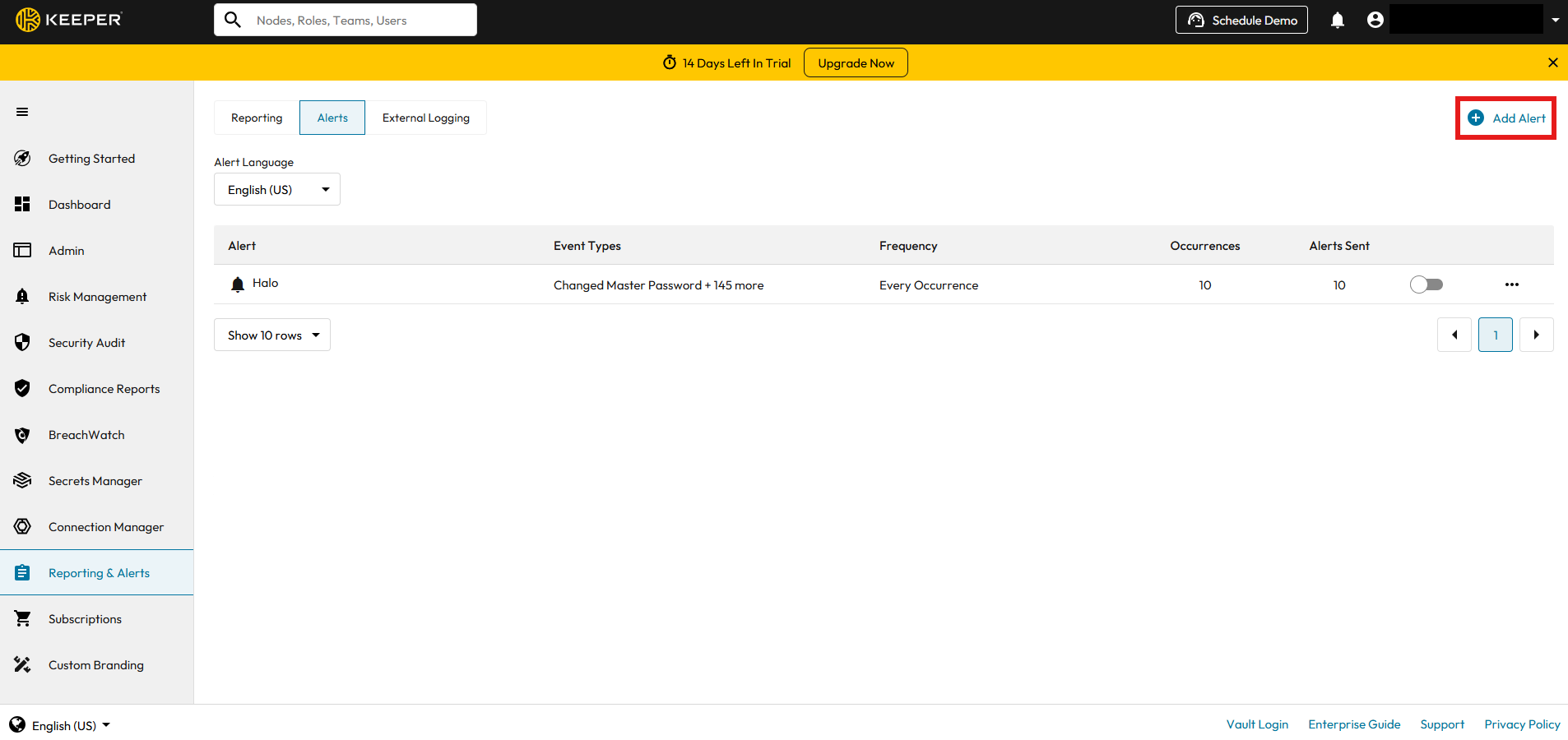
Fig 3. Adding a new alert.
Here you can name your alert, and choose the event types/attributes. The name of the alert will be added into the summary of the ticket in Halo, so give it a logical name you wish to identify these tickets by.
Now click "Add Recipient".
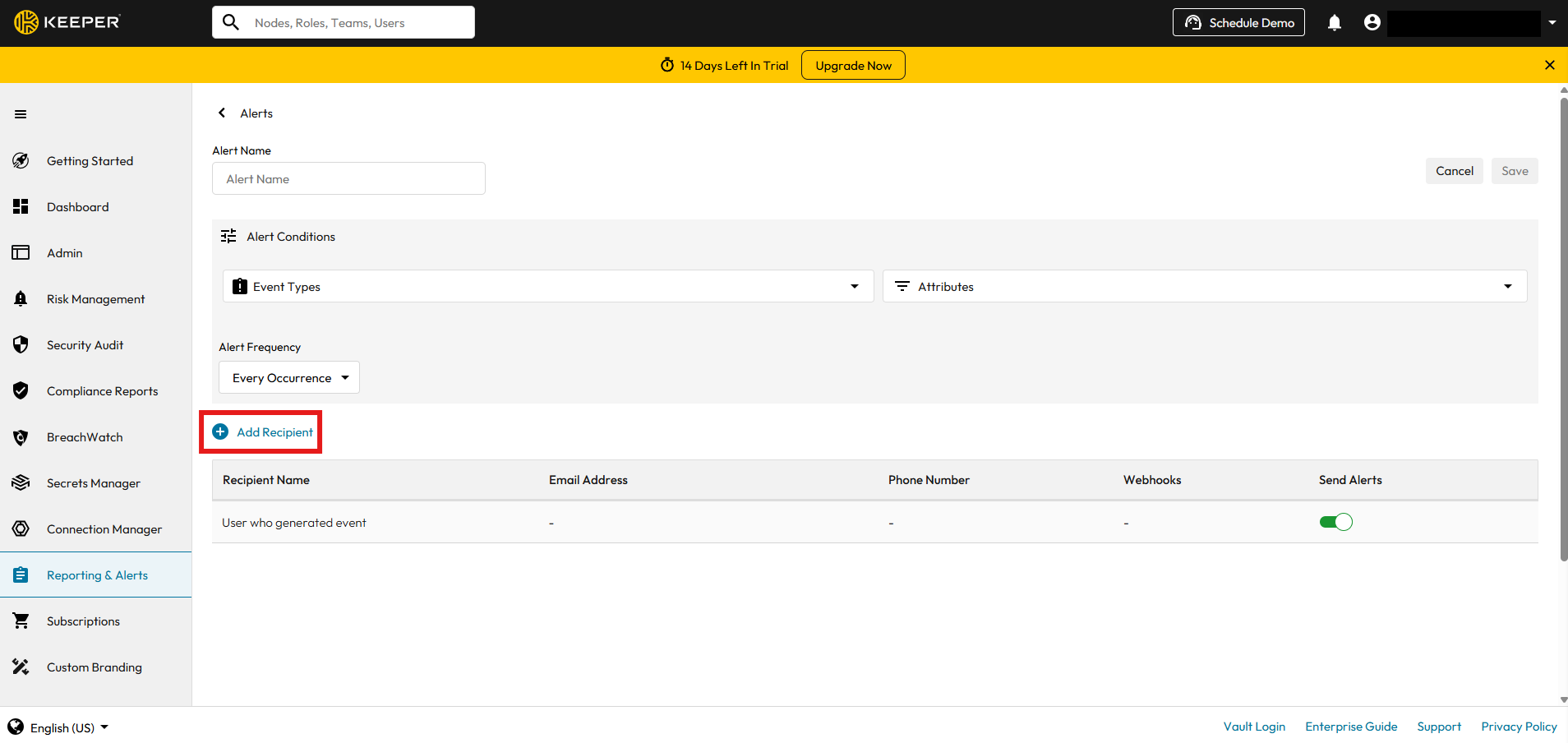
Fig 4. Configuring the event type and going to add a recipient.
A popup will show to add another recipient. Complete the name and email fields, and click "Add Webhook" to configure the corresponding alert webhook.
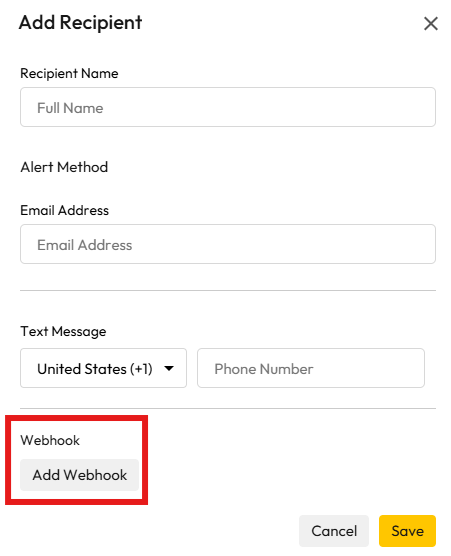
Fig 5. Adding a recipient.
Upon clicking, fields will show to enter a URL, HTML body, and a token (scroll down to see the token field). Enter the URL and token from Fig 2 in the corresponding fields, and leave the HTTP Body field empty.
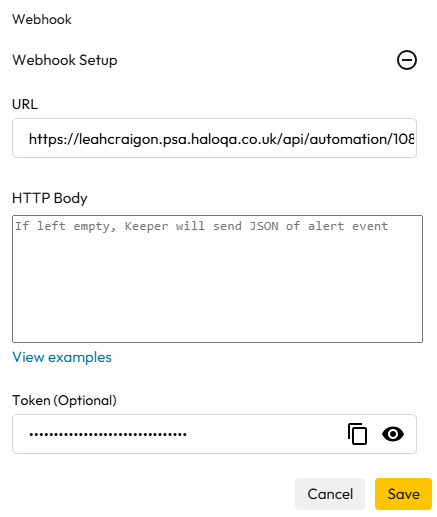
Fig 6. Adding the webhook.
Upon saving, the webhook recipient will then be visible in the recipient table. Save to create the alert.
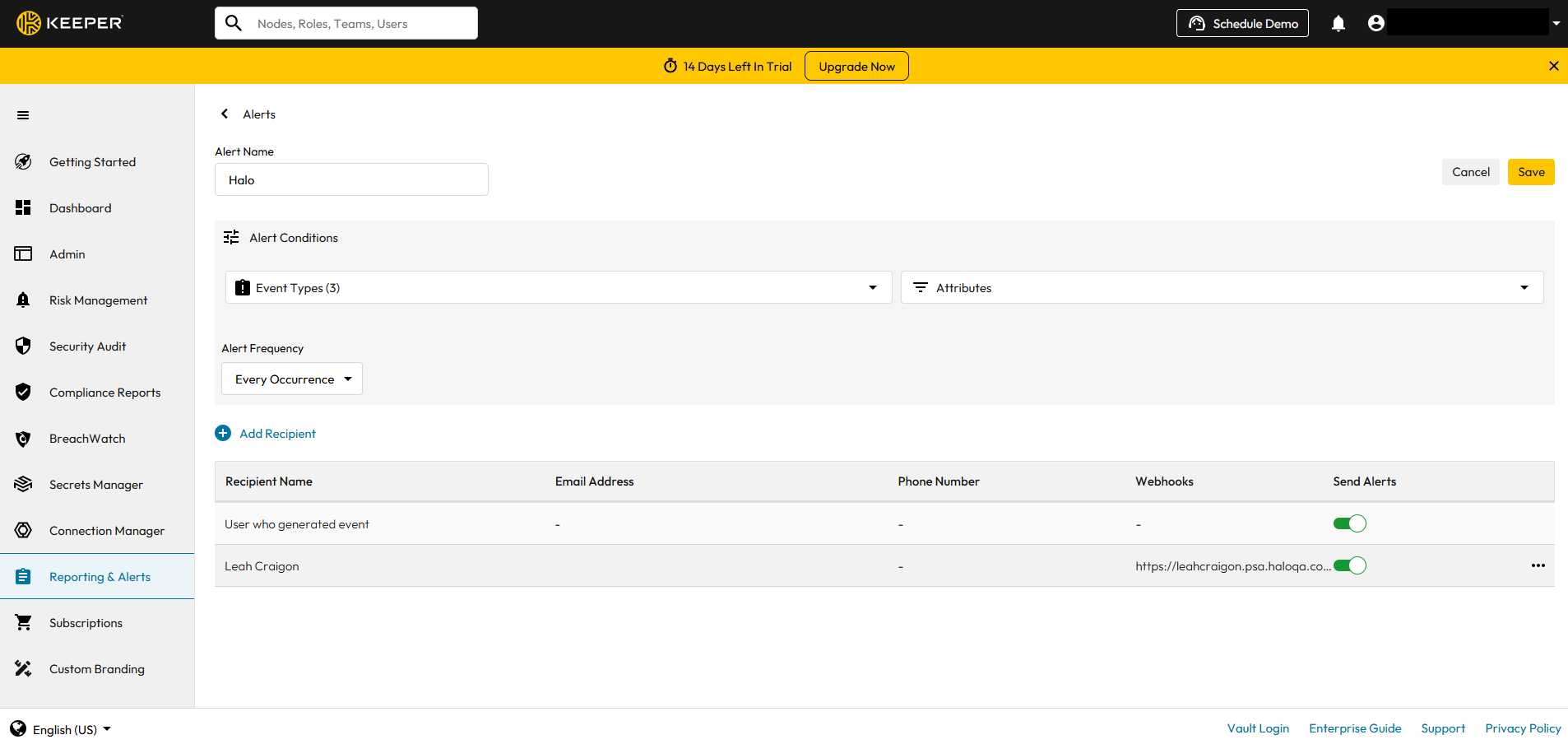
Fig 7. Alert configuration.
Runbook Creation
When alert webhooks are sent from Keeper, Halo uses a runbook to turn these into tickets. This runbook will be downloaded when the module is enabled in Fig 1, and a shortcut to access it can be found in the Keeper module via the button below.
Fig 8. Shortcut button to view runbook.
The below runbook will show to use for Keeper.
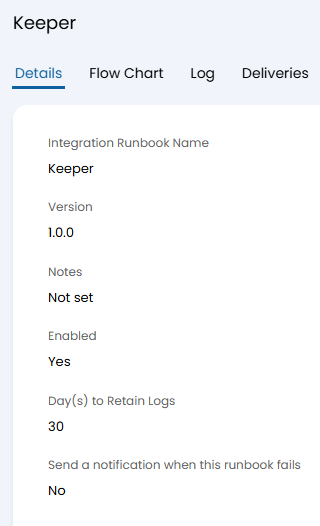
Fig 9. Keeper runbook.
Ticket Creation
The Keeper runbook will create a ticket by the following flow.
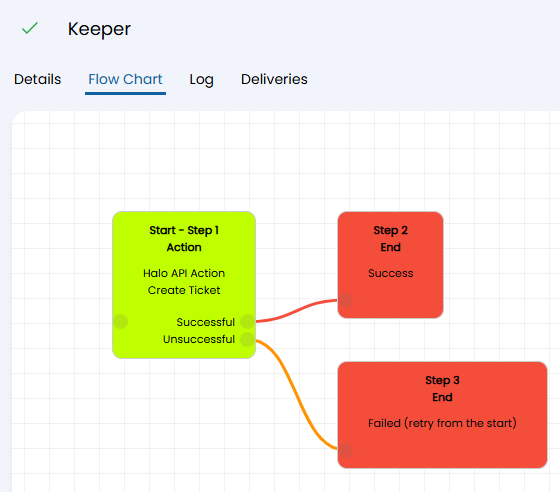
Fig 10. Keeper runbook flowchart.
When the alert is triggered from Keeper, it will send a webhook to Halo. The runbook above will then create a ticket from it, like the below. The name of the alert will be added to the ticket summary, and the details will be set by the Keeper alert.
The ticket type configuration will be the default ticket type set in Configuration > Tickets > General > "Default Ticket Type for New Tickets".
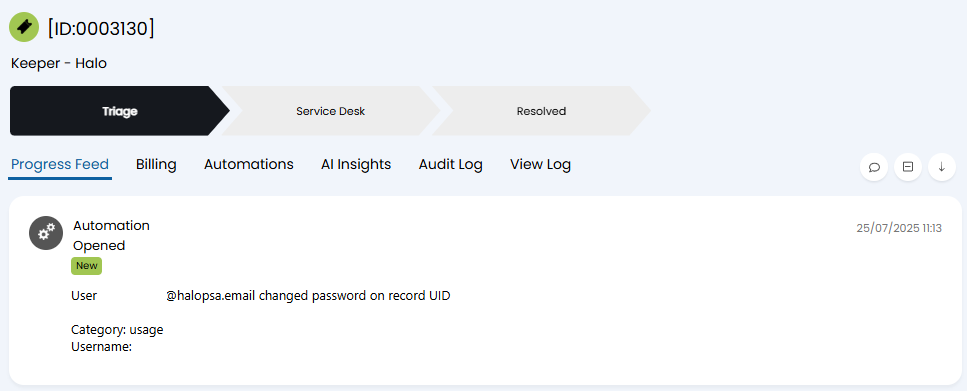
Fig 11. Alert ticket.