Nixtla TimeGPT Integration
- integration
- ai
- ticket forecasting
- nixtla timegpt
- ai predictions
- ai integration
- timegpt
In this guide we will cover:
- What is the Nixtla TimeGPT Integration?
- Connecting to Nixtla TimeGPT
- Configuring Forecasting
Related Guides:
What is the Nixtla TimeGPT Integration?
Nixtla TimeGPT can be integrated with Halo to provide future forecasts based on previous Ticket Volumes.
Connecting to Nixtla TimeGPT
Within Nixtla TimeGPT, navigate to the "API Keys" section, and click the "Create API Key" button. This will automatically generate a key below - copy this.
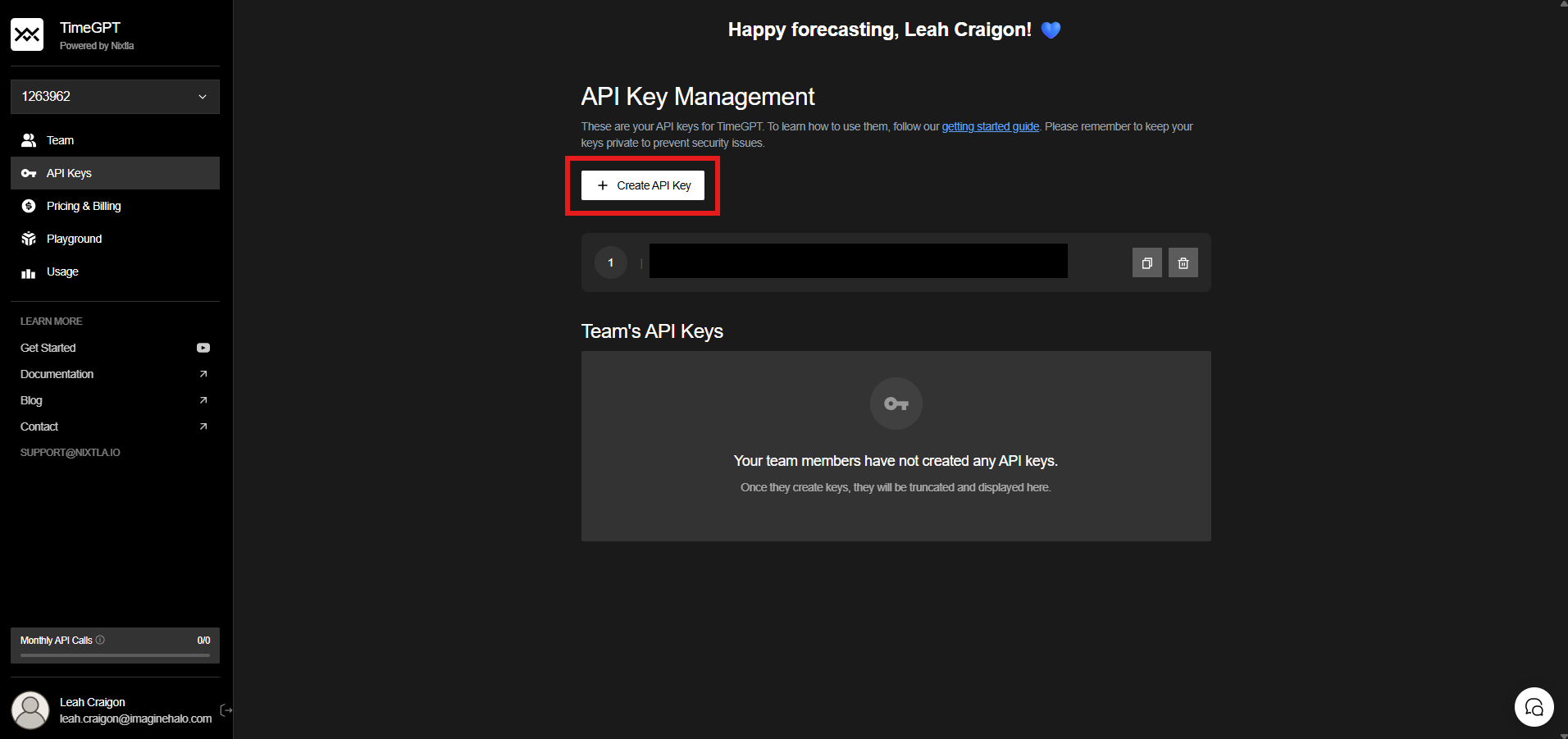
Fig 1. Generating an API Key.
Within Halo, navigate to Configuration > Integrations. Within the AI section, you will find the Nixtla TimeGPT module. Hover over this, and click the "+" to enable the module.
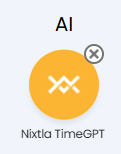
Fig 2. Enabled Nixtla TimeGPT module.
Clicking into the integration will show a field to add the API Key you copied.
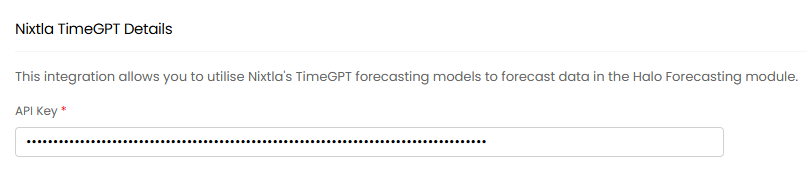
Fig 3. API Key field.
Configuring Forecasting
Once connected, Nixtla TimeGPT allows additional model options when configuring a forecast. Check out the related guide on "Ticket Volumes and Forecasting" for the full setup of this.
Navigate to Configuration > Optional Features, and hover over the "Forecasting" module. Click the "+" icon to enable the module.
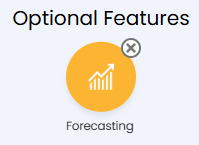
Fig 4. Forecasting module.
Clicking into the module will show a list of any existing forecasts. Click the "New" button in the top right to create one.

Fig 5. List of forecasts.
Within the Forecast configuration, there is an option to choose a "Model to use". There are two options here specific to Nixtla TimeGPT.
- timegpt-1
- timegpt-1-long-horizon
Use "timegpt-1-long-horizon" for forecasting if you want to predict more than one seasonal period given the frequency of your data.
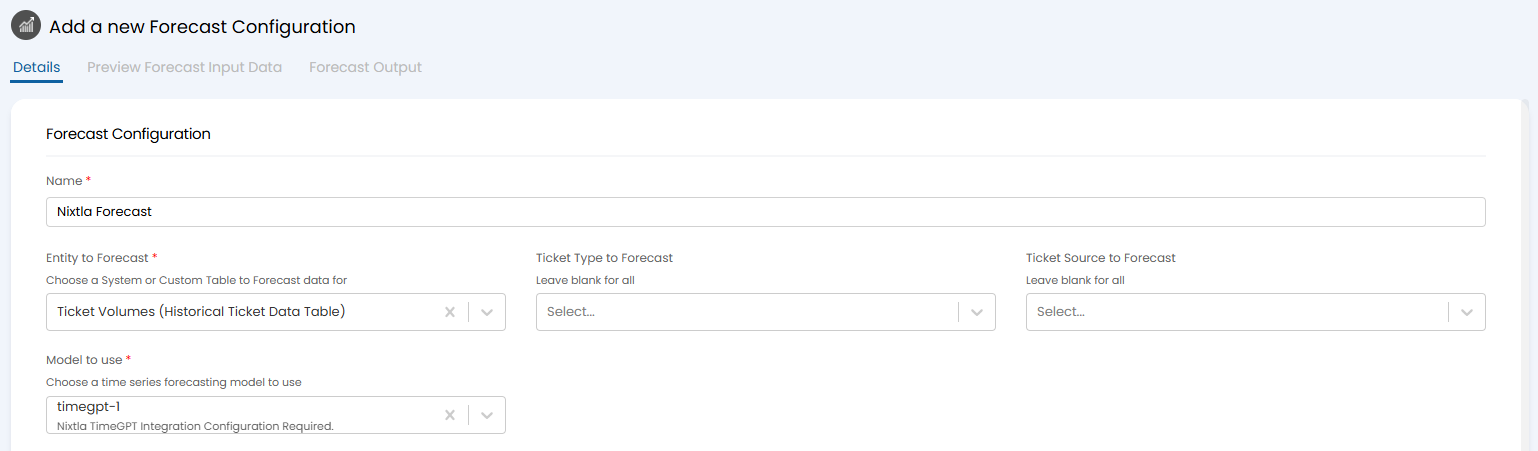
Fig 6. Configuration for a Forecast using Nixtla TimeGPT.
Using these models provide an additional option to "Use Events (Exogenous Variables)". An Event is a period of time marked as something that would influence the inbound volume, for example a public holiday, or marketing drive. This can be marked against your historical data, and added for the future so the Model can take the previous, historical data into account for an event which is going to happen in the horizon of the forecast. This should provide a more accurate forecast.
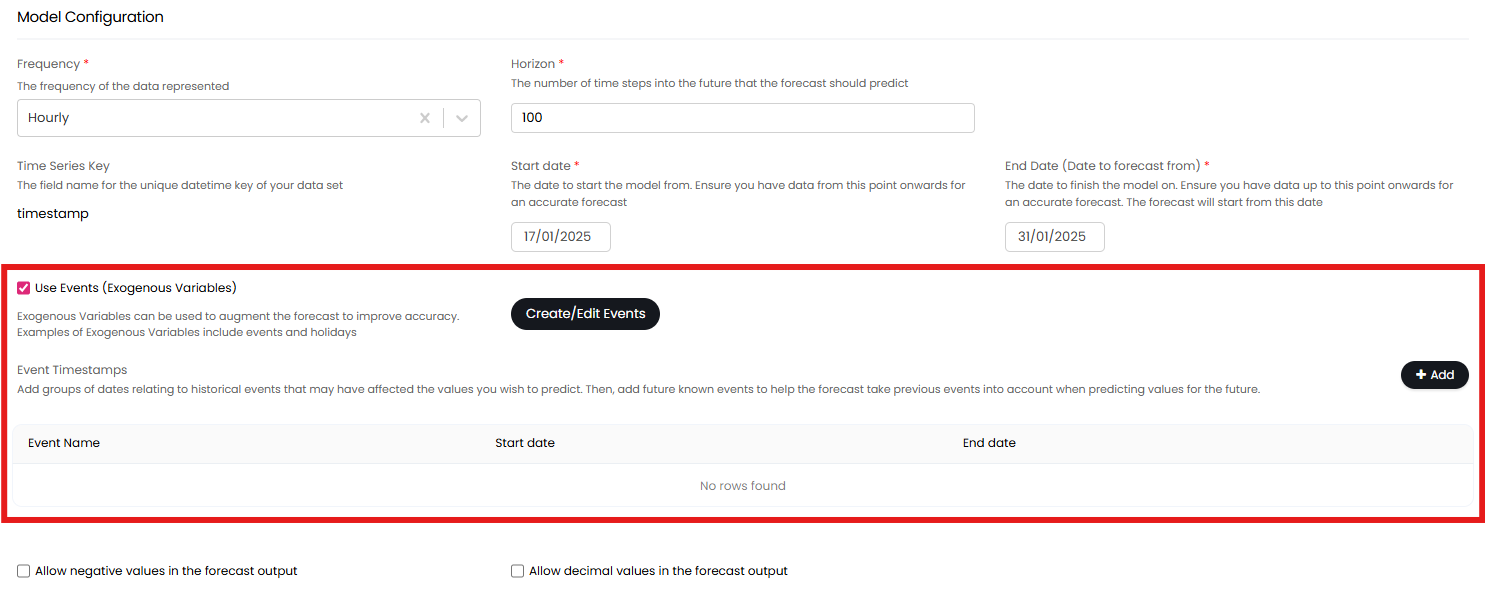
Fig 7. Event configuration.
Clicking the "Add" button on the "Event Timestamps" table will show the below popup. Select an event type, the start and end dates, and the forecasts this event impacts.
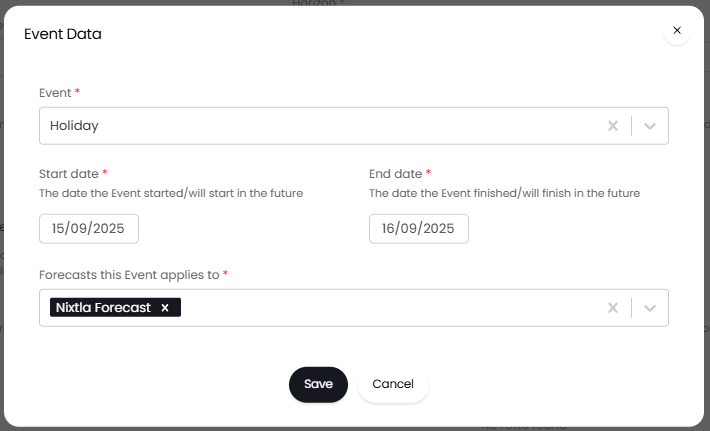
Fig 8. Adding an event.
The forecast can then be run by clicking the "Run Forecast" button.
Fig 9. Run Forecast button.