ArrowSphere Integration
- integration
- Distribution
- arrowsphere
In this guide we will cover:
- What is the ArrowSphere Integration?
- Connecting to ArrowSphere
- Importing Customers
- Importing Subscriptions
- Halo Integrator
What is the ArrowSphere Integration?
The ArrowSphere integration can be used to import customers and their subscriptions into Halo. This is a multi-tenanted integration, so multiple instances of ArrowSphere can be connected.
Connecting to ArrowSphere
In Configuration > Integrations, hover over the ArrowSphere module and click the "+" icon to enable it.
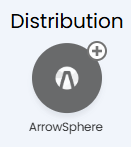
Fig 1. Enabling the module.
Clicking into the module will bring up a list of connections if you already have any. Click the "New" button to create a new connection.

Fig 2. List of connections.
You will then see a screen to connect to ArrowSphere. Enter a relevant name for the connection, and paste in an API key. To generate this key, go to ArrowSphere > API > API Keys.
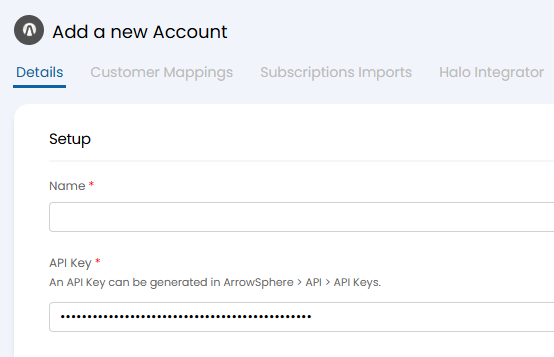
Fig 3. Connecting to ArrowSphere.
Upon saving, a button to "Test Configuration" will appear.
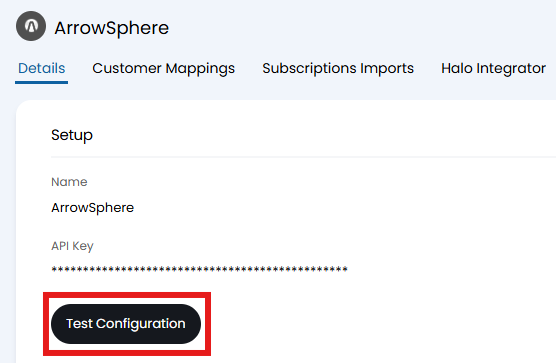
Fig 4. Test Configuration button.
When clicked, a popup will show. If the credentials are correct, the following message will show. If there is a issue connecting, an error message will show to help troubleshoot.
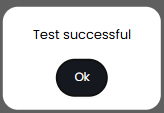
Fig 5. Test popup.
Importing Customers
Switch to the "Customer Mappings" tab. The first button here is to "Generate Mappings". Upon clicking this, if any customers in Halo exactly match the name of a customer in ArrowSphere, a mapping will be automatically created between them.
For any customers that do not match by name, mappings can be manually created by clicking the "Add" button.
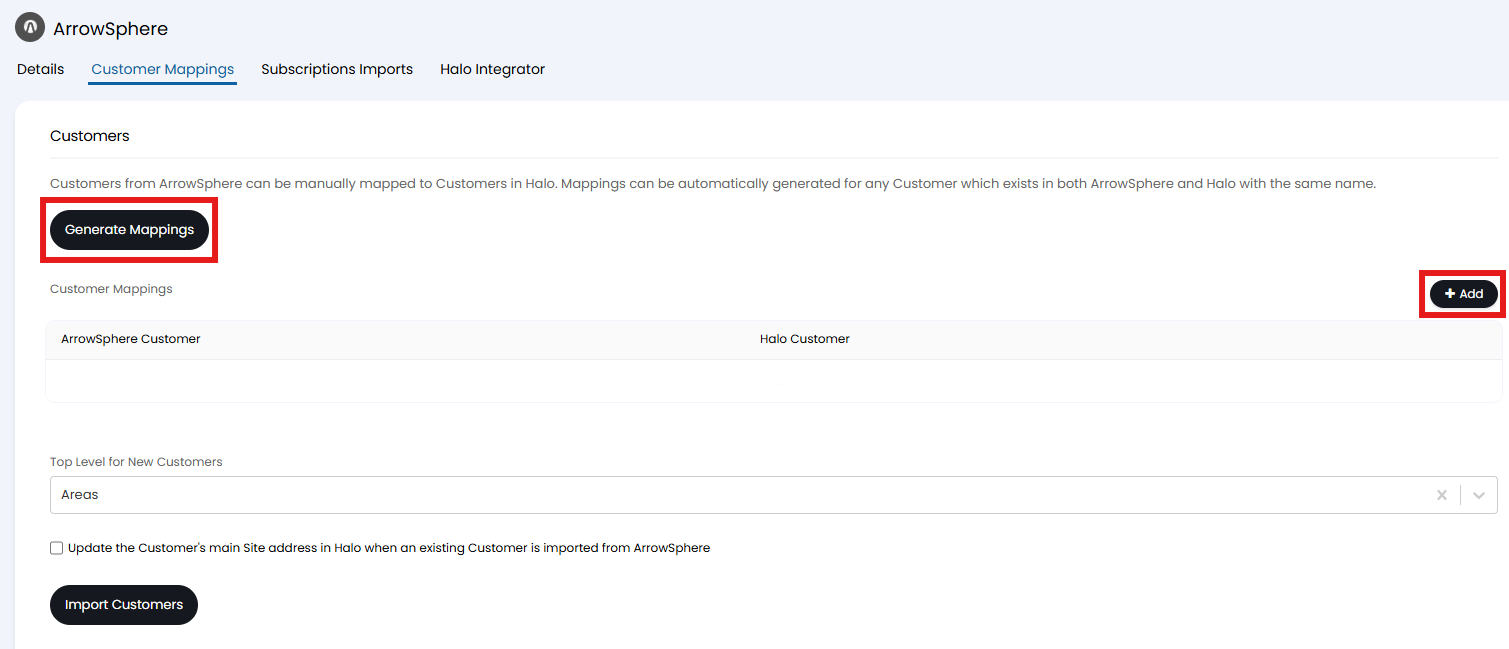
Fig 6. Creating mappings.
A popup will show to select an ArrowSphere customer and a Halo customer.
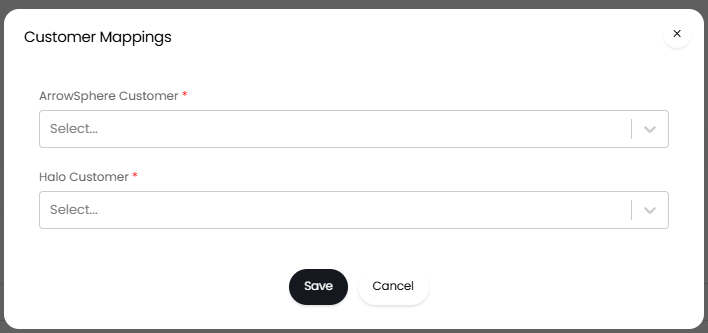
Fig 7. Manual mapping popup.
Scrolling down on this tab, there are a couple of options alongside an import button. If top levels are enabled in Configuration > Users > General Settings, you can set a top level for new customers to be imported under.
You can also update the address of the main site of a customer based on the ArrowSphere address.
Finally, once customers are mapped, click the "Import Customers" button to bring up the import screen and start the import. Any newly created customers will be added to the "Customer Mappings" table automatically.
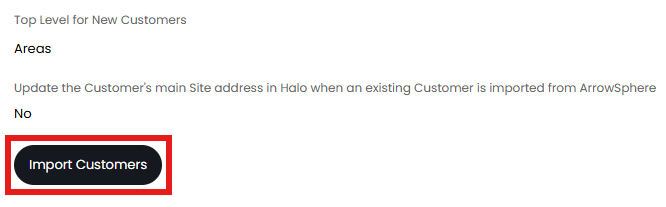
Fig 8. Miscellaneous configuration and import button.
Importing Subscriptions
Once customers have been imported, their subscriptions can then be imported. Switch to the "Subscriptions Imports" tab, and click the "Import Subscriptions" button.
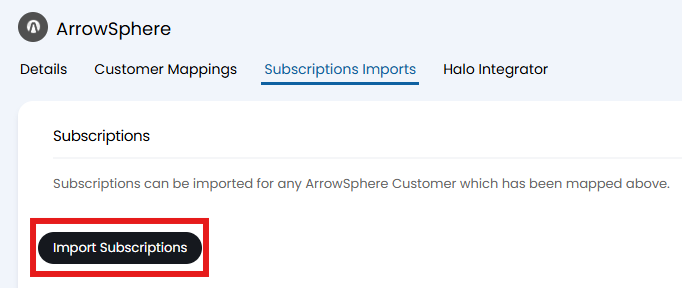
Fig 9. Import Subscriptions button.
A popup will show to set which subscriptions to import. This can be set to include all customers, or a specific one.
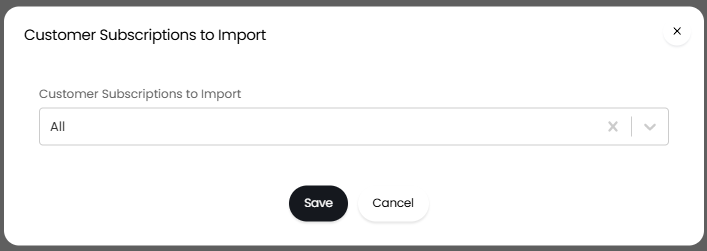
Fig 10. Customer selection.
The imported subscriptions will now show on the "Subscriptions" tab of their corresponding customer, stating "ArrowSphere" as the distributor.
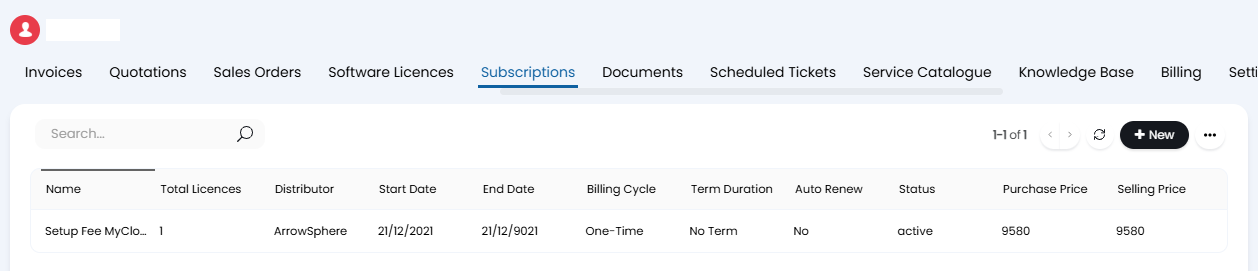
Fig 11. Subscription imported.
Halo Integrator
The final tab is the "Halo Integrator". If enabled, customers and/or subscriptions can be imported on a recurring sync, keeping details on both up-to-date.
If using the Halo Integrator to sync, all Customers and Subscriptions will be imported regardless of what was manually imported previously. You cannot restrict these.
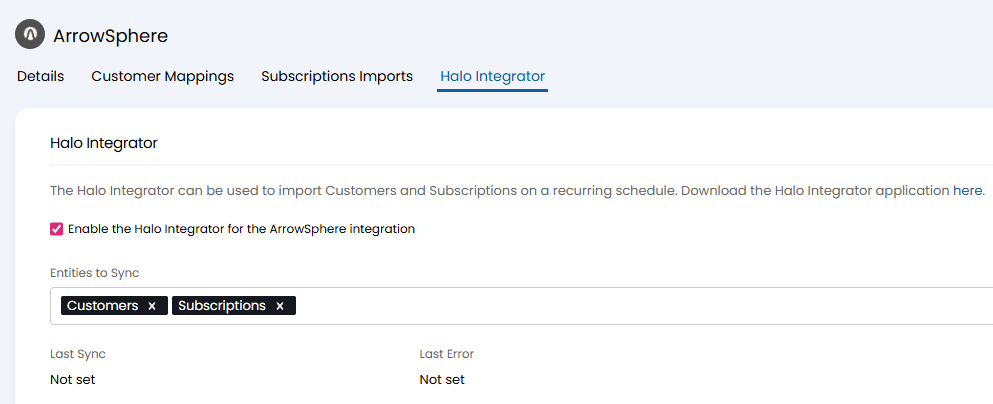
Fig 12. Enabling the Halo integrator.