KashFlow Integration
- integration
- accounting
- kashflow
In this guide we will cover:
- What is the KashFlow Integration?
- Enabling the KashFlow Module
- Connecting to KashFlow
- Tax Rates
- Customers
- Products
- Suppliers
- Syncing to KashFlow
What is the KashFlow Integration?
The KashFlow integration can be used to sync invoices, with the customers, products, and suppliers associated with them.
Enabling the KashFlow Module
In Configuration > Integrations > Accounts and Payments, hover over the "KashFlow" module and click the "+" that will appear to enable this.
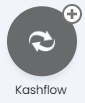
Fig 1. Enabling KashFlow.
Connecting to KashFlow
Click into the module, which will bring up a list of any tenants you have already set up. Click "New" in the top right to create a new one.
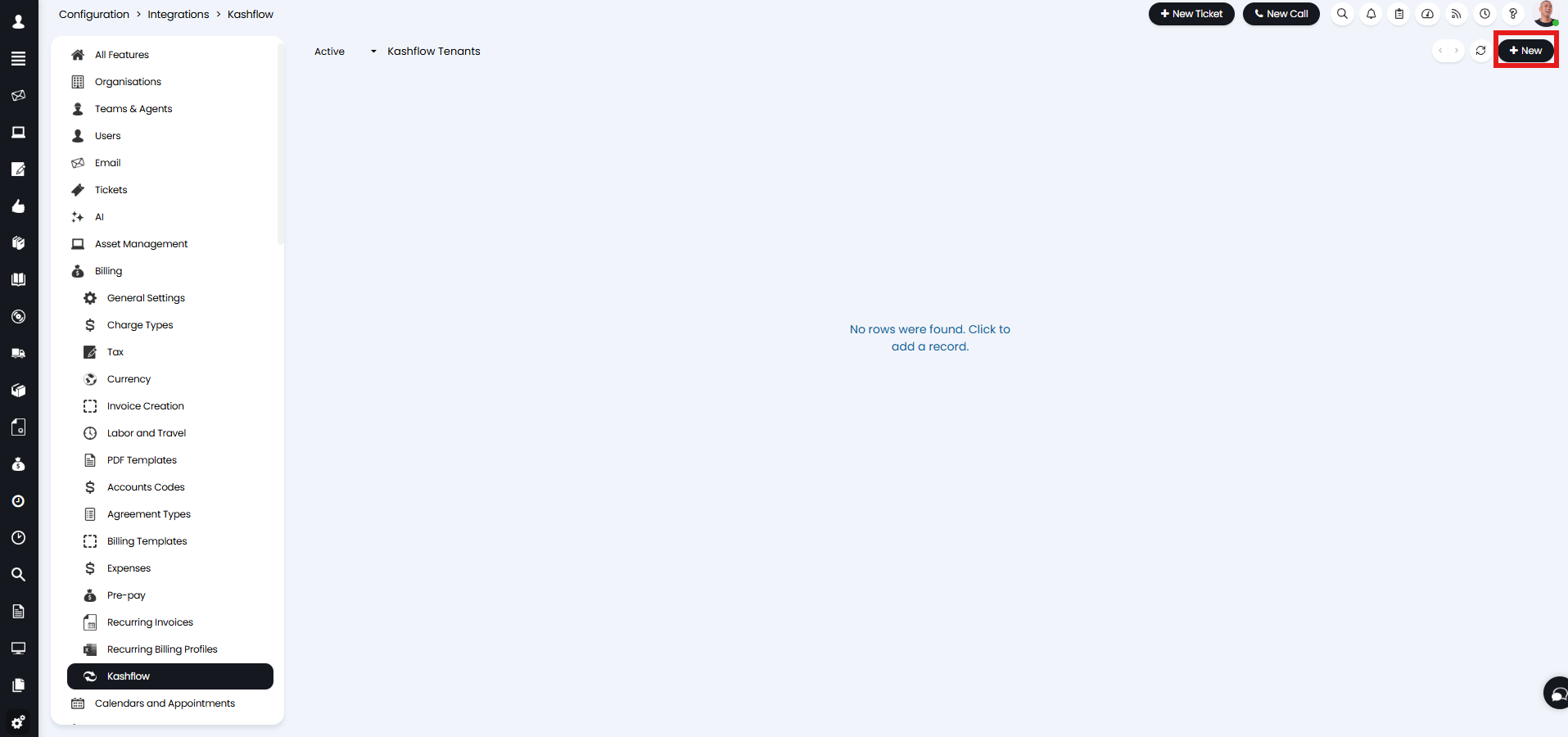
Fig 2. Adding a new tenant.
You can then create a connection to KashFlow. Give it a relevant name, and enter the username and password of who the integration should log in as.
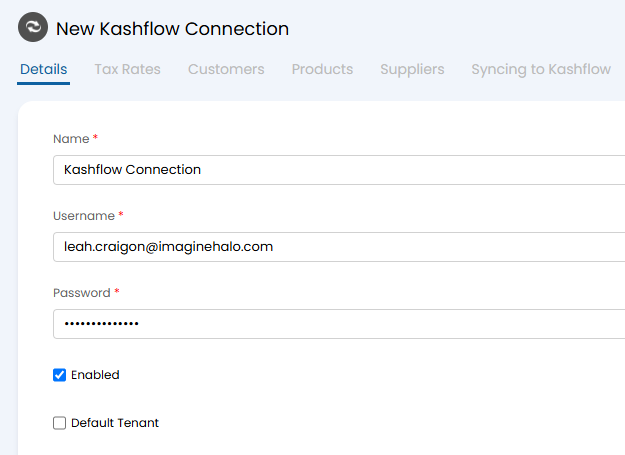
Fig 3. Entering credentials.
You will then need to enable API access in KashFlow if not done already. Within "Settings", go to "Apps" and click "API Settings" in the top right corner.
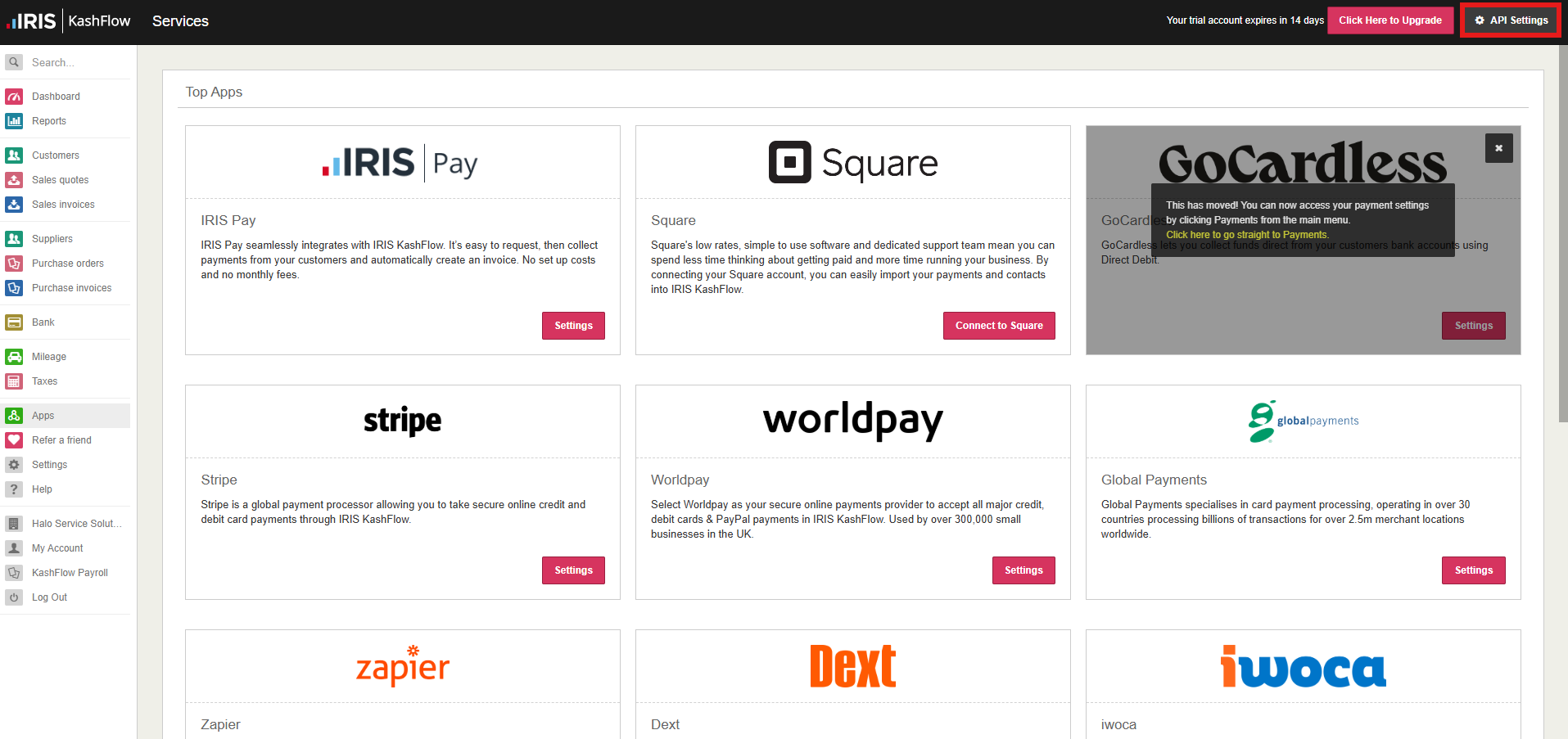
Fig 4. API Settings button.
Here, you will get the option to "Enable SOAP API". Upon enabling, the other options will appear such as restricting by IP address. In this example, we will use the base SOAP API with no IP or auth restrictions.
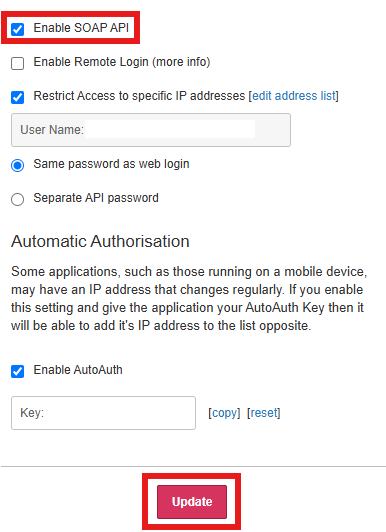
Fig 5. Enabling the API.
Tax Rates
Once connected, you can import your tax rates. If a tax rate with the same name or KashFlow ID exists, it will update this.
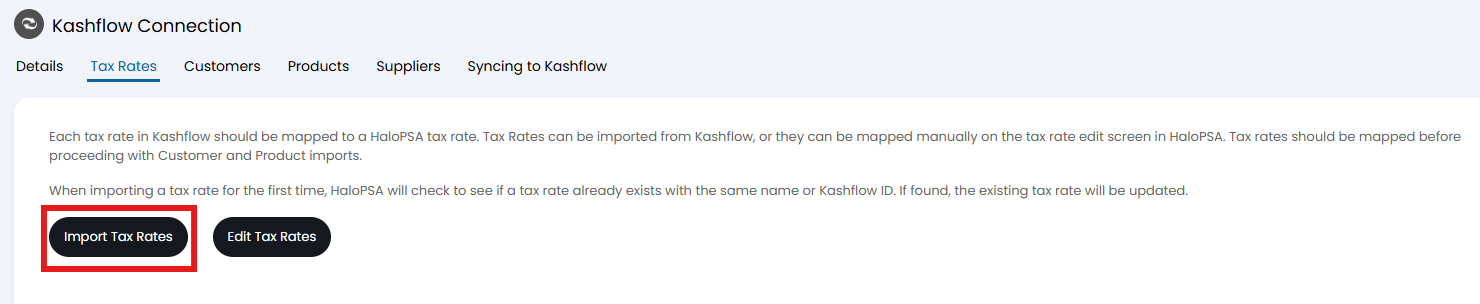 Fig 6. Import Tax Rates button.
Upon clicking, the tax rates will be automatically imported. The number of tax rates will show in the popup.
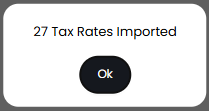 Fig 7. Tax rate import popup.
You can tax rates from KashFlow automatically on a daily basis, this will update any existing rates and create new rates. This is enabled using the setting "Import tax rates daily" under the "Tax Rates" tab. When enabled, the latest tax rates will be automatically imported during the daily task scheduler run. This helps to keep your tax rates up to date without having to re-import manually.
Customers
Once your tax rates are imported, you can import your customers. If you have top levels enabled (Configuration > Users > General Settings), a default top level to assign the customers to can be set here. You can then also set the tax rates: either a percentage, no tax or use product tax.
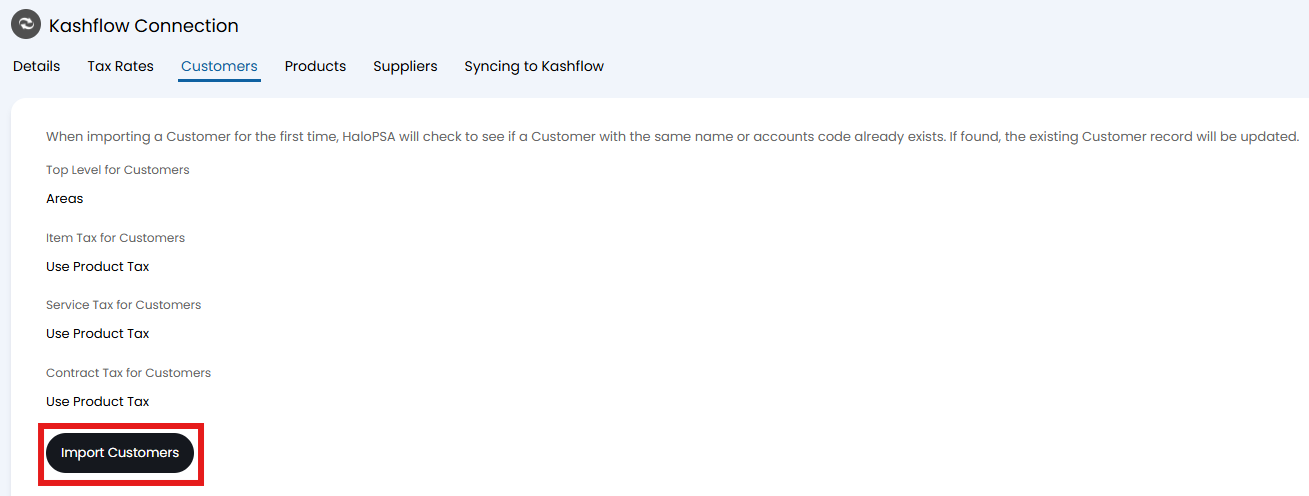
Fig 8. Import Customers button.
A customer like the below in KashFlow...
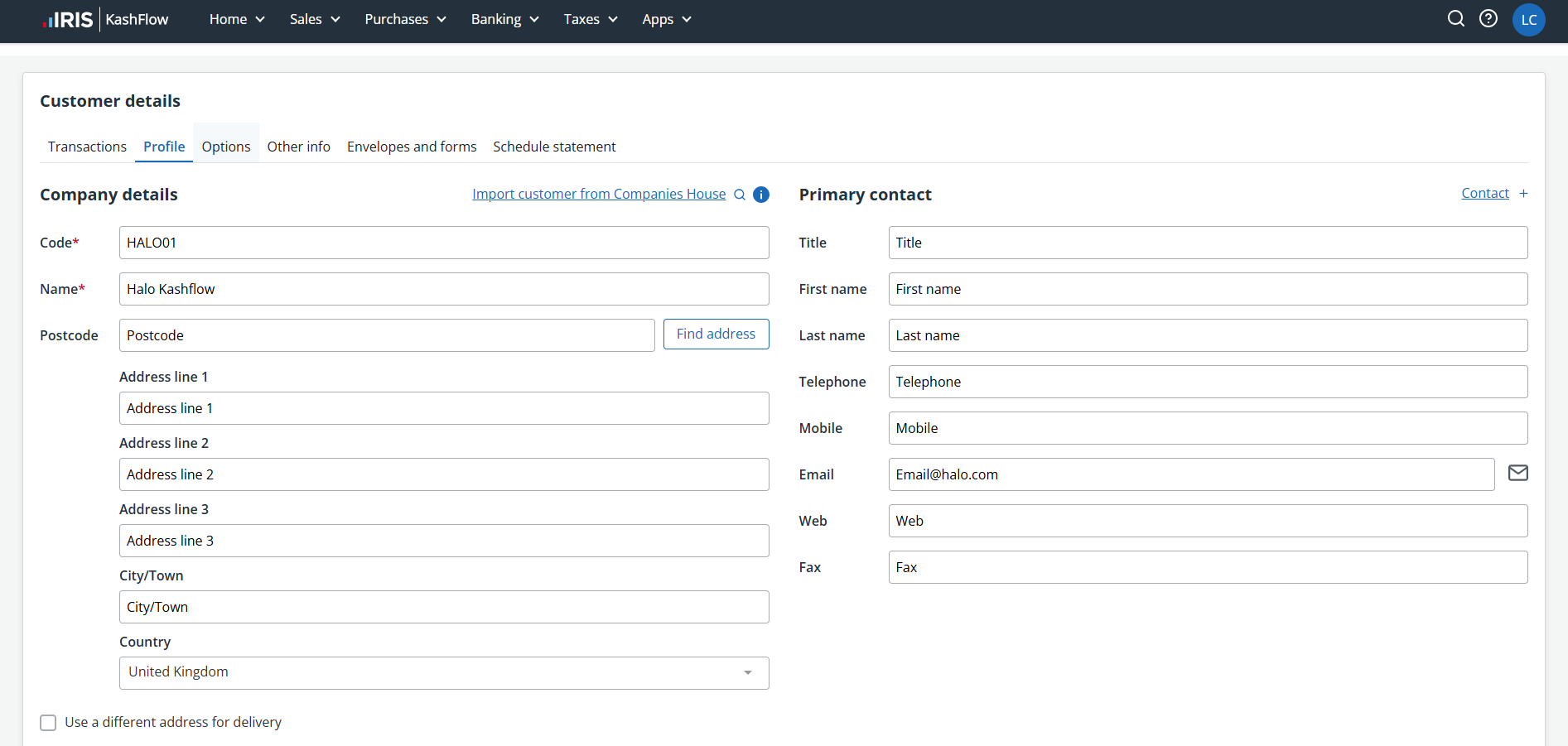
Fig 9. KashFlow customer.
…will then appear like below when imported into Halo.
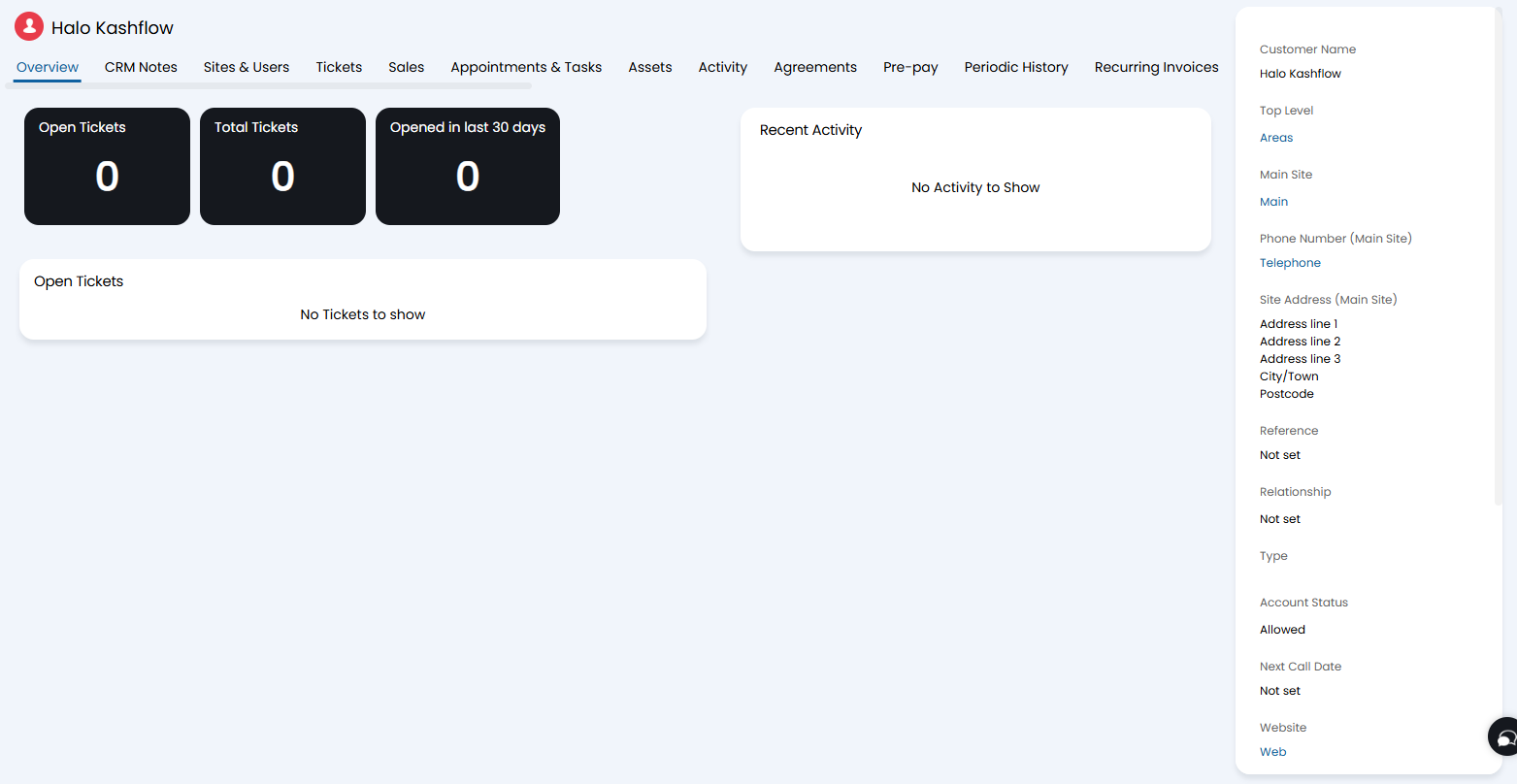
Fig 10. Imported customer.
Products
The "products" import refers to accounts codes and products within a Halo context. You can first set a "Product Group" to use for the imported products.
You can import your products and sub-products here. The products will import as a sales code within Halo, and the sub-products will import as a product. Ensure you import the products before the sub-products to allow these to match correctly.
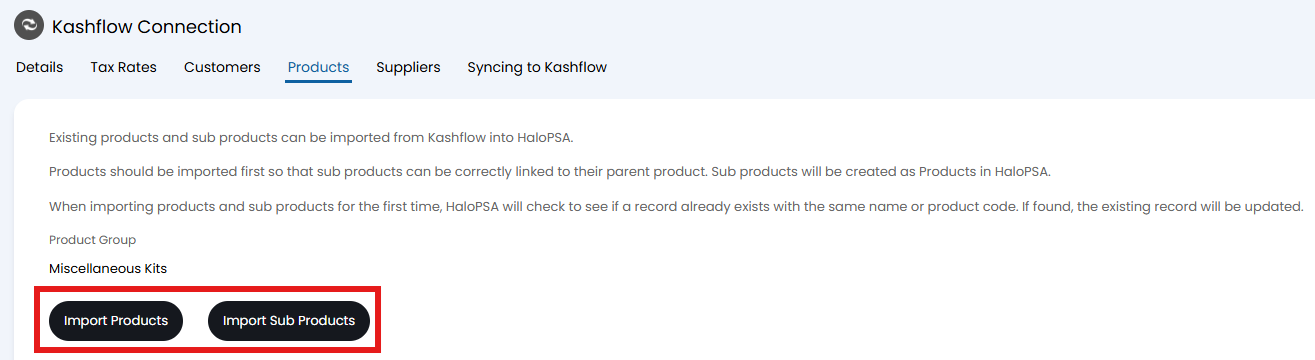
Fig 11. Products and sub products import.
A sales code and its associated product like below...
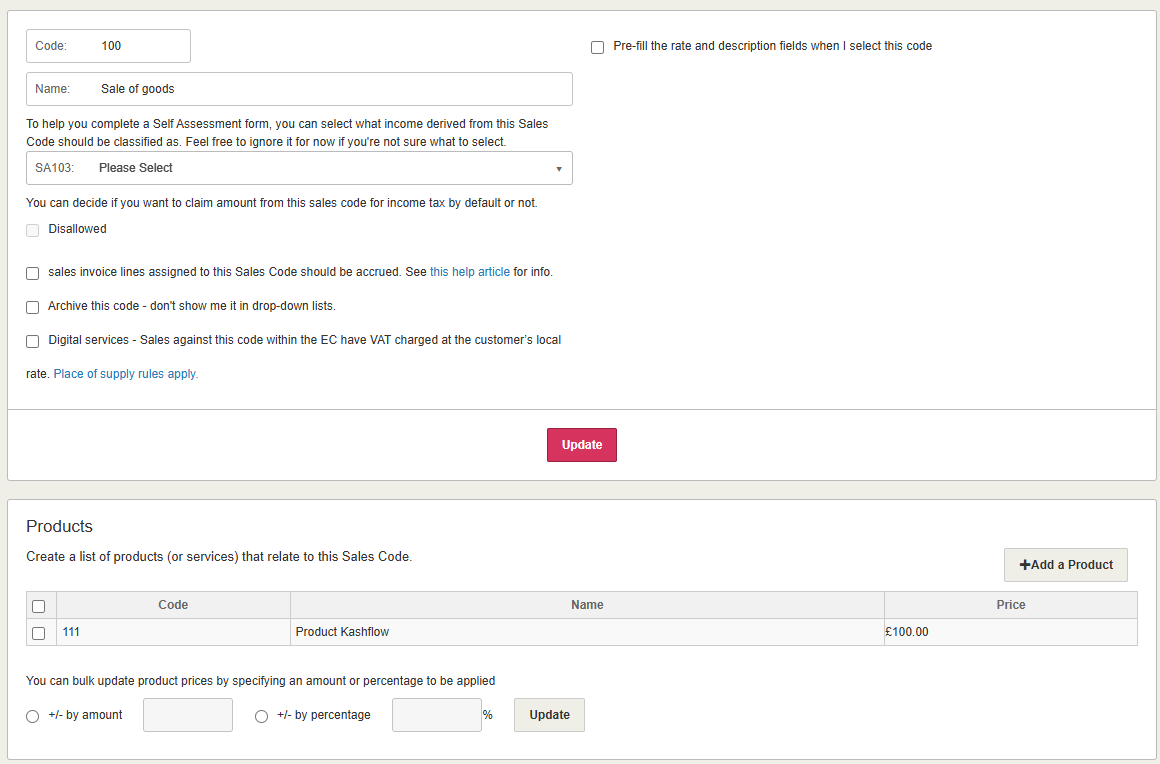
Fig 12. Sales code and associated product in KashFlow.
…will import as a lookup code with entity "KashFlow Products".
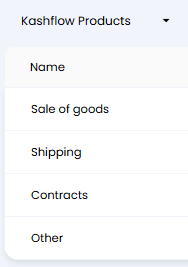
Fig 13. KashFlow Products lookup codes.
…and a product linked to the tenant.
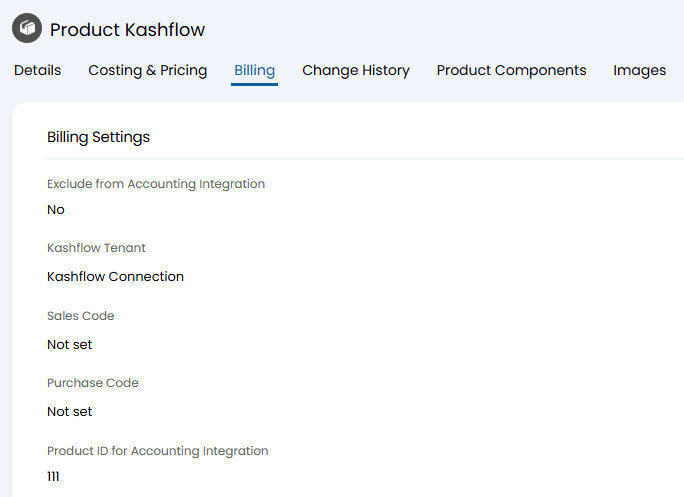
Fig 14. Imported sub product.
Suppliers
Suppliers can be imported, and if top levels are enabled, one can be assigned to them.
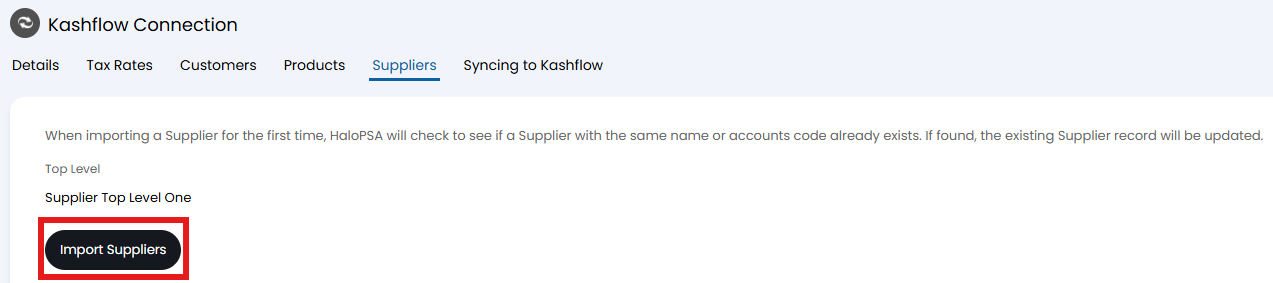
Fig 15. Suppliers import.
A supplier that appears like below in KashFlow...
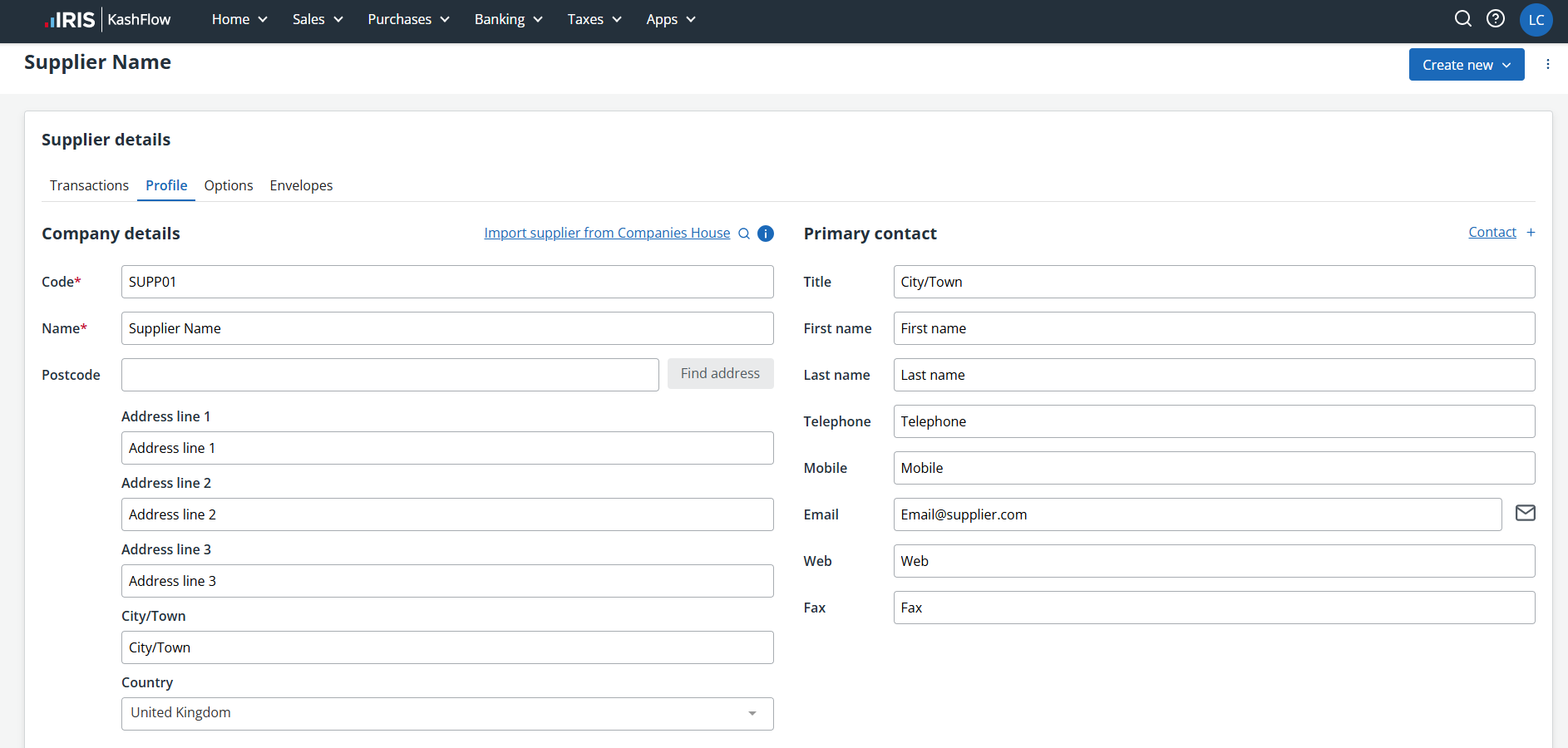
Fig 16. Supplier in KashFlow.
…will be imported like below into Halo.
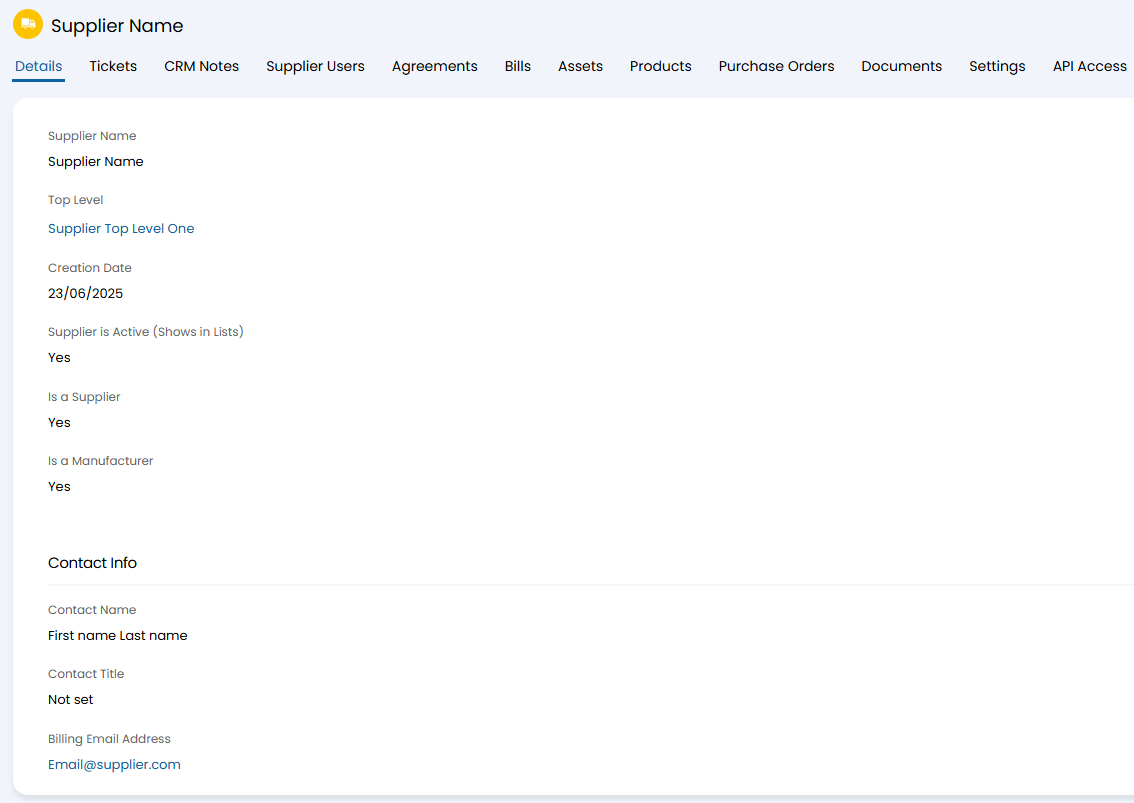
Fig 17. Imported supplier from KashFlow.
Syncing to KashFlow
The final tab is to enable syncing to KashFlow. Upon enabling the first option, y=further options will show. You can set a a default sub product code to use if a product is not matched, and choose if a popup message should show after syncing.
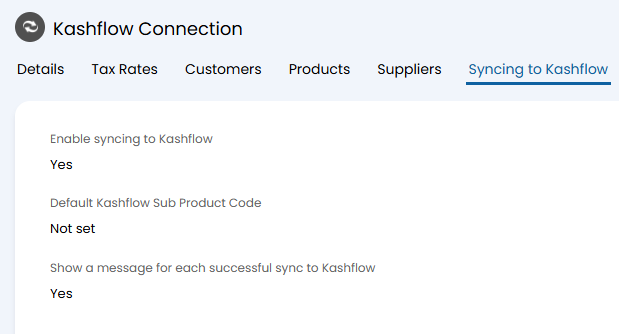
Fig 18. Syncing option.
If the sync message is enabled, the following popup will show after creating an invoice.
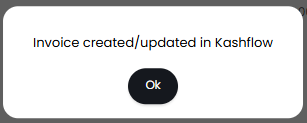
Fig 19. Invoice sync popup.
The following invoice made in Halo...
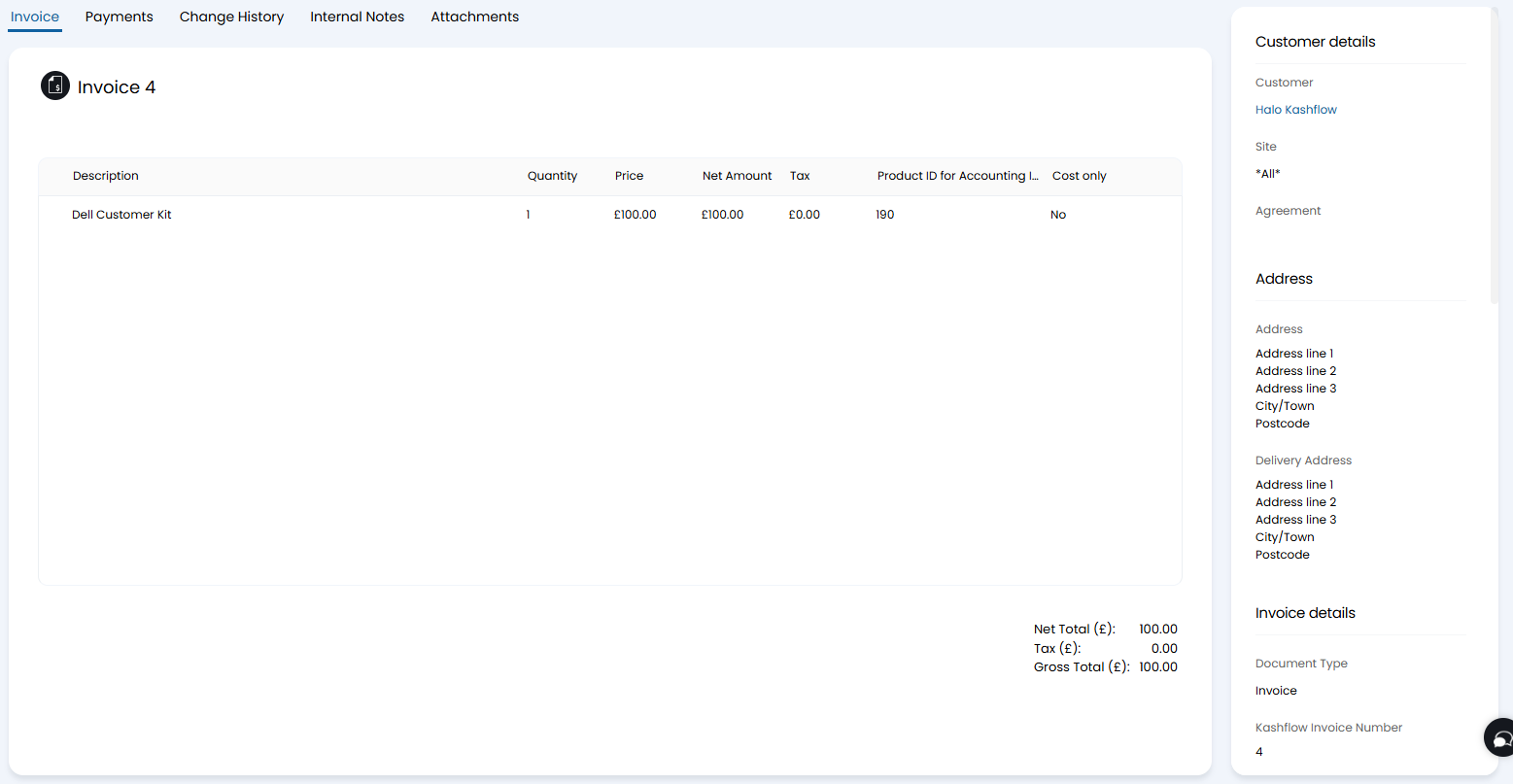 Fig 20. Halo invoice connected to a KashFlow customer.
…has synced to KashFlow.
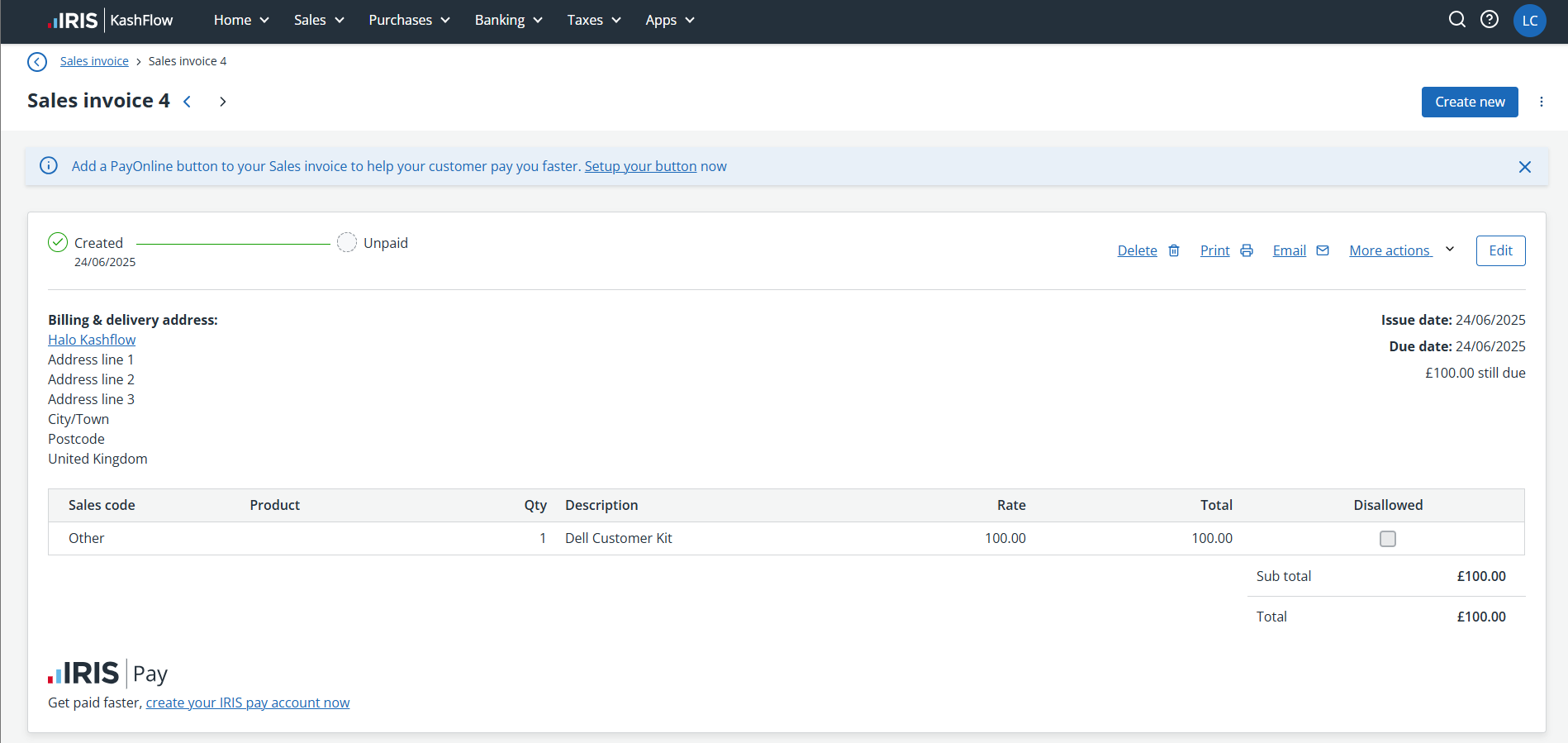
Fig 21. KashFlow sales invoice.