PandaDocs Integration
- PandaDocs
- Panda docs
- document creation
- Panda documents
In this guide we will cover:
- What is the PandaDocs Integration?
- Connecting to PandaDocs
- Setup for creating Documents using a chosen template
- Setup for Creating Documents from an Uploaded file
What is the PandaDocs Integration?
The PandaDocs integration allows you to create documents in PandaDocs from your Halo instance. The document created in PandaDocs can contain data from Halo, including but not limited to tickets, invoices, quotes, agreements and purchase orders, streamlining the document creation procedure. There are two methods that can be used to create documents in PandaDocs, using a template or uploading a file.
Template method- Allows you to have a document created using a chosen template in PandaDocs. Data from Halo will be used to create a document in PandaDocs in the format of the chosen template. The document that is created is much more customisable but setup for this is more complex as each field within the template will need to have a value or variable assigned. This method should be used when you would like to create documents containing data from Halo but formatted with existing templates you have in PandaDocs.
File upload method - Allows you to have a document created in PandaDocs based on an attachment uploaded to the ticket. The document that is attached/uploaded will have a copy created in Pandadocs, using the same format and data. You could use this method to send quote PDFs created in Halo to PandaDocs. This has a much more straightforward setup. This method should be used when documents are created/formatted using templates within Halo, but you would like these to exist in PandaDocs too.
This integration is runbook based, each creation method uses it's own runbook. This means to set up the integration you will need to edit the runbook controlling how data is synced for your chosen method. We will run through how to do this in this guide.
Note: We do not currently integrate with PandaDocs quote signing ability.
Connecting to PandaDocs
First you will need to enable the integration module, head to Configuration > Integrations, enable the 'PandaDocs' integration module using the '+' icon. Enabling the module will automatically download the runbooks required for this integration.
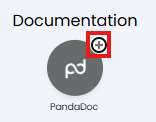
Fig 1. Enable integration module
Once enabled click into the integration module to begin configuration. Here, you will see you need to enter an API key, this is used to authenticate your connection to PandaDocs.
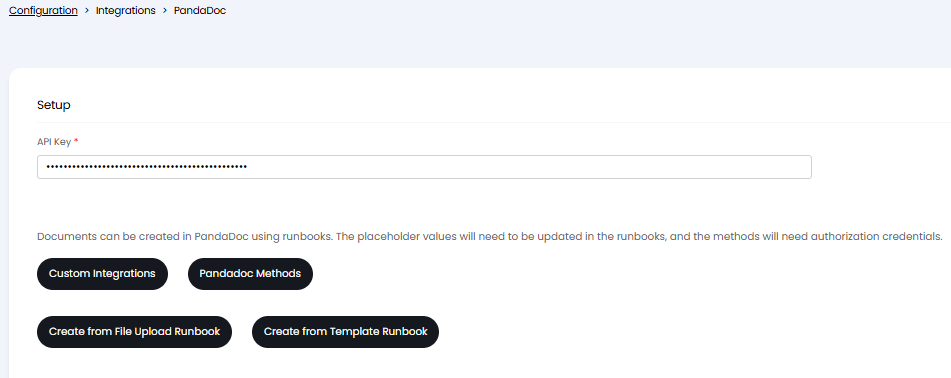
Fig 2. Integration setup page
Obtain API Key from PandaDocs
The API key will need to be obtained from your PandaDocs instance. When logged into PandaDocs head to Settings > Integrations > Integrations > API, from here you can generate an API key, ensure you copy the key once generated.
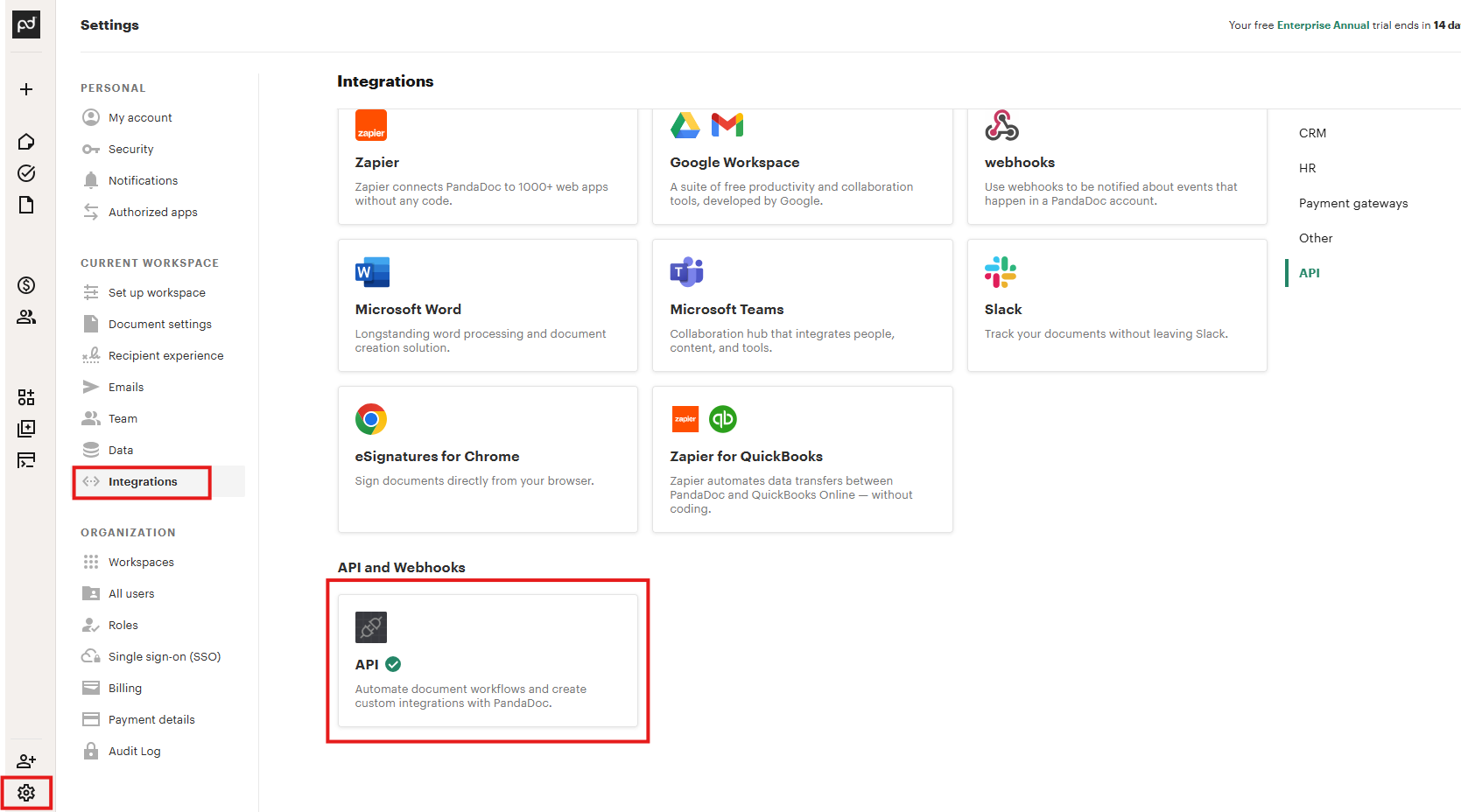
Fig 3. Integrations area in PandaDocs
Paste the API key field into Halo.
Configure Document creation
Upon enabling the PandaDocs module two runbooks will be added to your instance. One creates documents in PandaDocs using the template creation method, the other creates documents in PandaDocs using the file upload method.
The runbook you need to edit will depend on the creation method you are planning on using, if you would like both options, you will need to configure/edit both runbooks. Follow the respective sections of this guide for setup instructions.
Setup for Creating Documents using a Chosen Template
When creating documents in PandaDocs using a chosen template you will need to configure the runbook to contain the following:
- ID of the template in PandaDocs the document will be created with
- Recipient of the document
- Any additional data you would like to be included in the document
Note: Variables will be used to have data from the ticket/opportunity populate variables/fields in the PandaDocs template.
First, open up the runbook used for this creation method, this can be opened using the button 'Create from template runbook' on the integration configuration page.
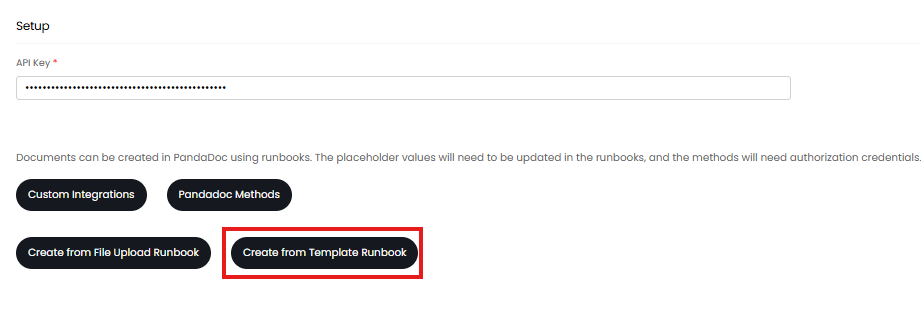
Fig 4. Link to 'Create from Template' Runbook
When opened you will be taken to the 'Details' tab of the runbook. Click into the 'Flow chart' tab. Edit the page and edit the first step.
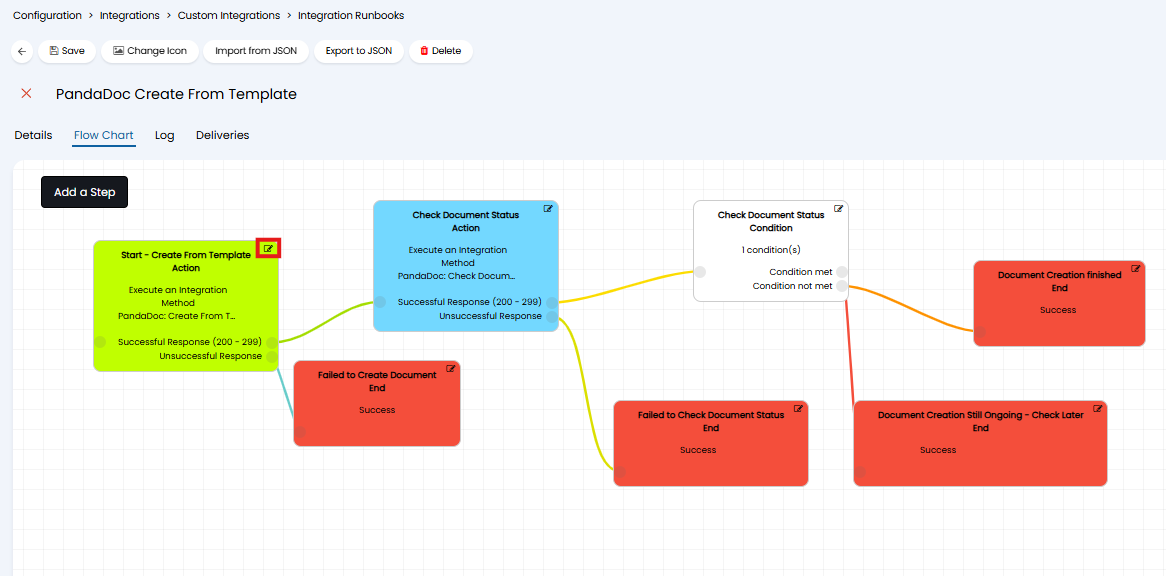
Fig 5. Edit runbook step
Within the step you will see the method 'PandaDoc: Create from Template' is set, use the button 'Edit Method' then head to the 'Body' tab.
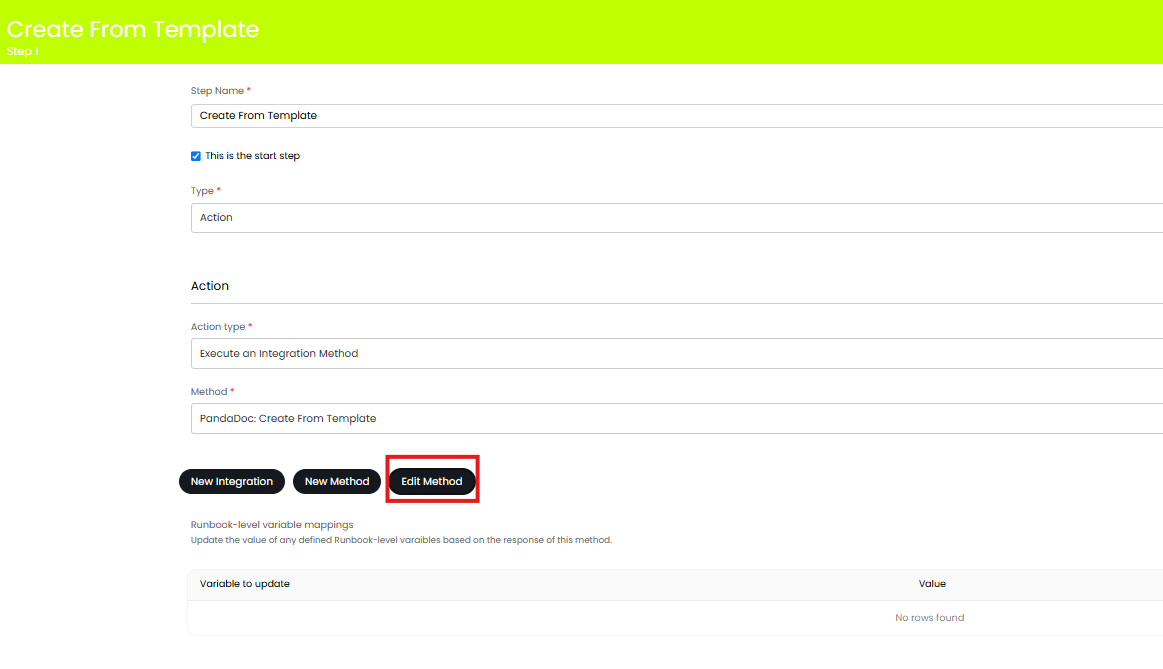
Fig 6. Edit method of step
The method body contains the request that is being sent to the PandaDocs application. You will need to edit the body here to control/customise what data is sent to PandaDocs when a document is created.
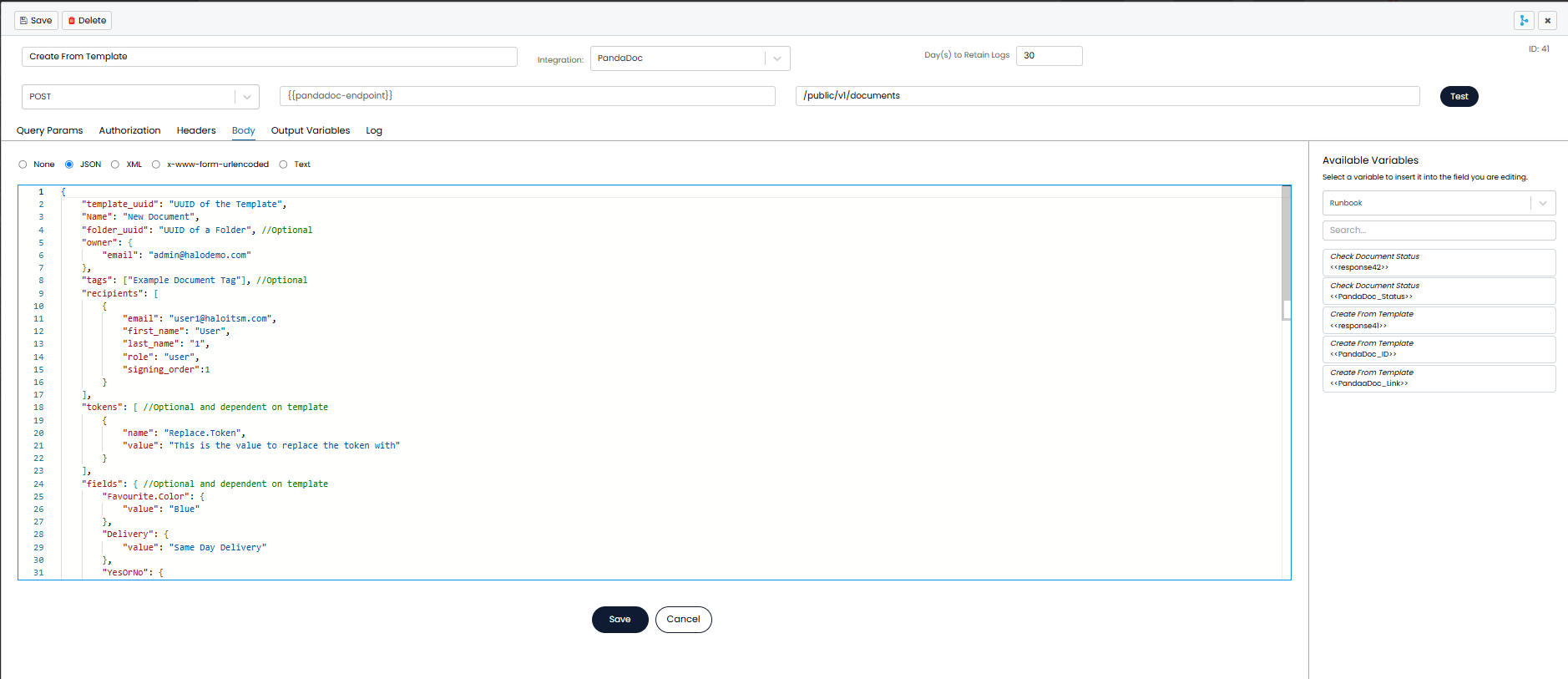
Fig 7. Method body, request being posted to PandaDocs
The method set here out-of-the-box will set some PandaDocs fields on a template. However, depending on the template you are using/having created, you will need to add to the method to ensure additional fields are populated. For example, if you are creating a purchase order template you will need to include the PO fields on the PandaDocs template.
We will break down each section of the method here to edit.
Specify which template to use
"template_uuid": "UUID of the Template" - Here, you will need to replace the blue text in quotations with the UUID of the template in PandaDocs you would like to be used to create a document. This will be the template used to format the information sent to PandaDocs.
To obtain the UUID of the template, open up the template in PandaDocs, when open you will see the template ID in the URL.
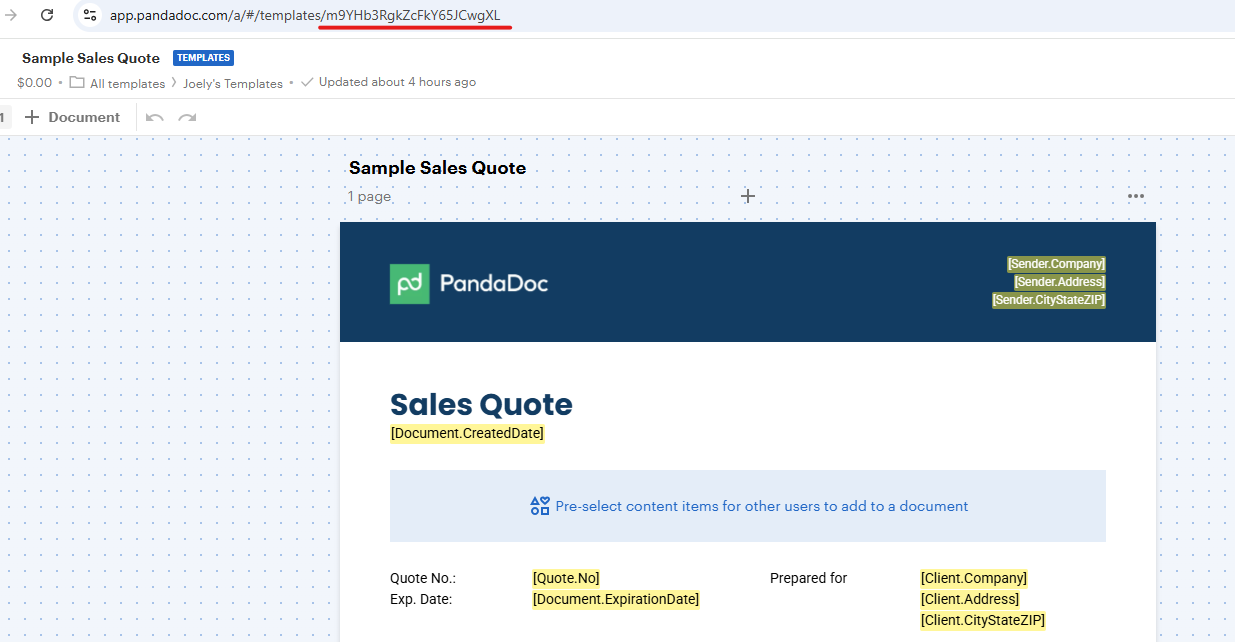
Fig 8. Template UUID
Specify Which folder to create the template in
To obtain the folder UUID you will need to open up the folder in PandaDocs, then you will be able to see the UUID of the folder in the URL.
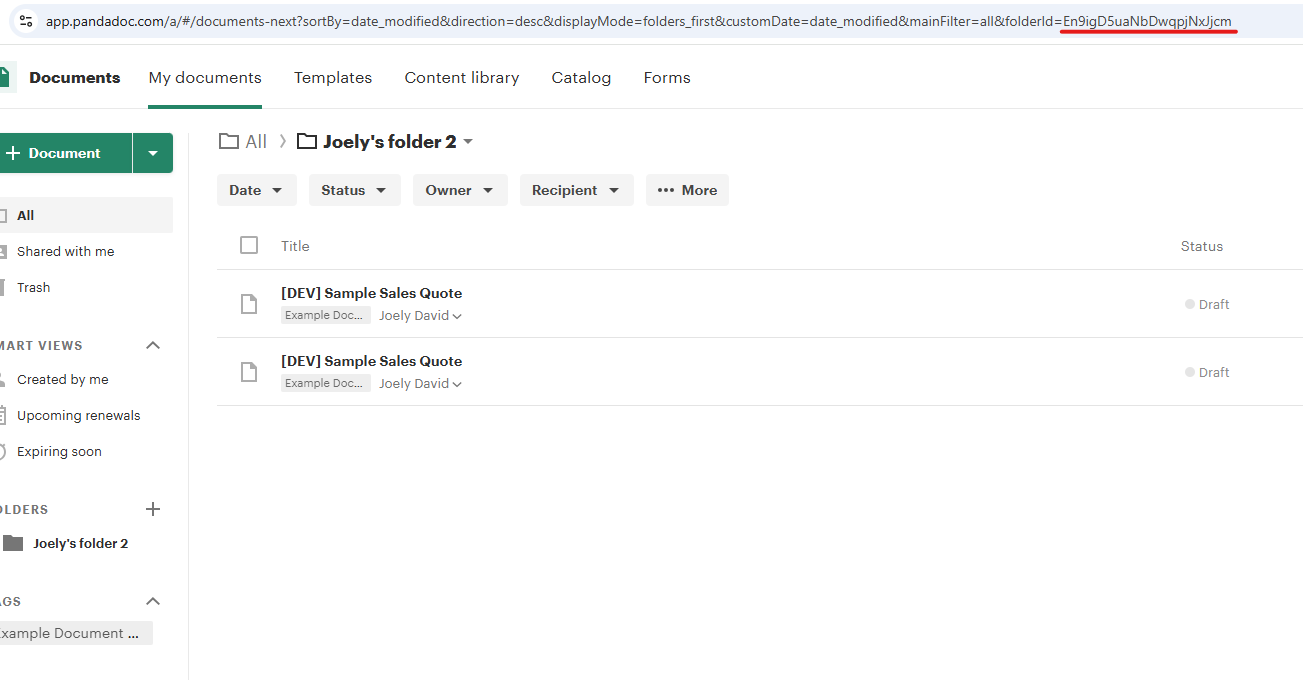
Fig 9. Folder UUID
Note: Ensure the folder you are using is a document folder not a template folder.
Specify owner of the document
Specify Document Tags
Specify other values
Any other fields in the method can have variables set against them as the value, this allows data from the ticket to be used when creating the document in PandaDocs. For example, you may want to set the recipient details of the document to be the ticket's end user's details.
A list of available variables can be found on the right-hand-side of the page when viewing the step body. Use the dropdown menu to change the entities you are viewing variables for.
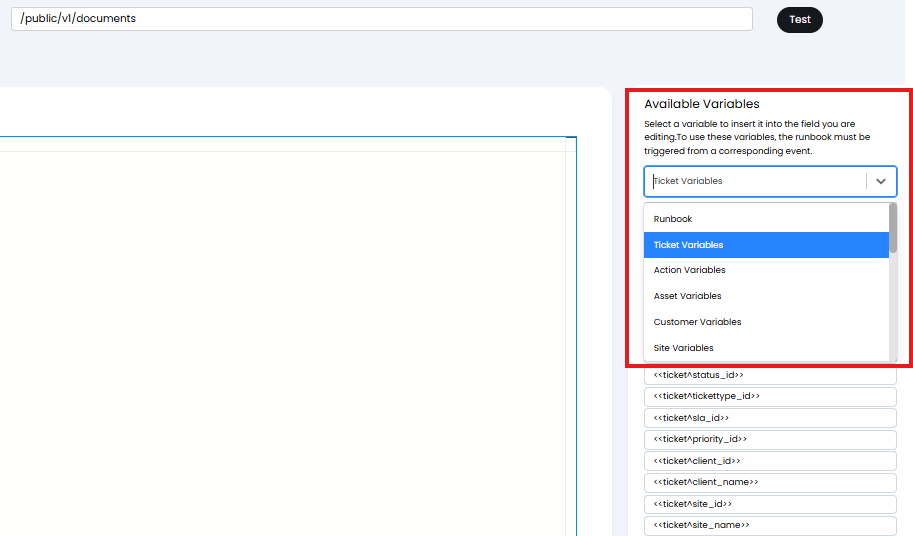
Fig 10. Runbook variables
The variables that show here are the 'pre-set' variables, these cover basic data stored against the ticket, as well as all ticket custom fields. If you require ticket data to be sent to PandaDocs that does not seem to be available in a variable here you can have it pulled across, however, additional runbook configuration would need to be completed that is not covered in this article. Alternatively, you could enter the data you require into a custom field against the ticket, then set the custom field data to be pulled across.
Note: If your PandaDocs template contains a table that you would like data to be posted into (e.g. pricing table) when the document is created, you will need to enable data merge against the table in order for Halo to post data to PandaDocs in the format of this table. To do this open up the template you are using in PandaDocs, select the table > properties, now in the right-hand pane you will see 'data merge' settings. Click into here to configure data merge and enable it for this table.
In the Fig 11 example, I have set the recipients of the document to be determined by data in custom fields.
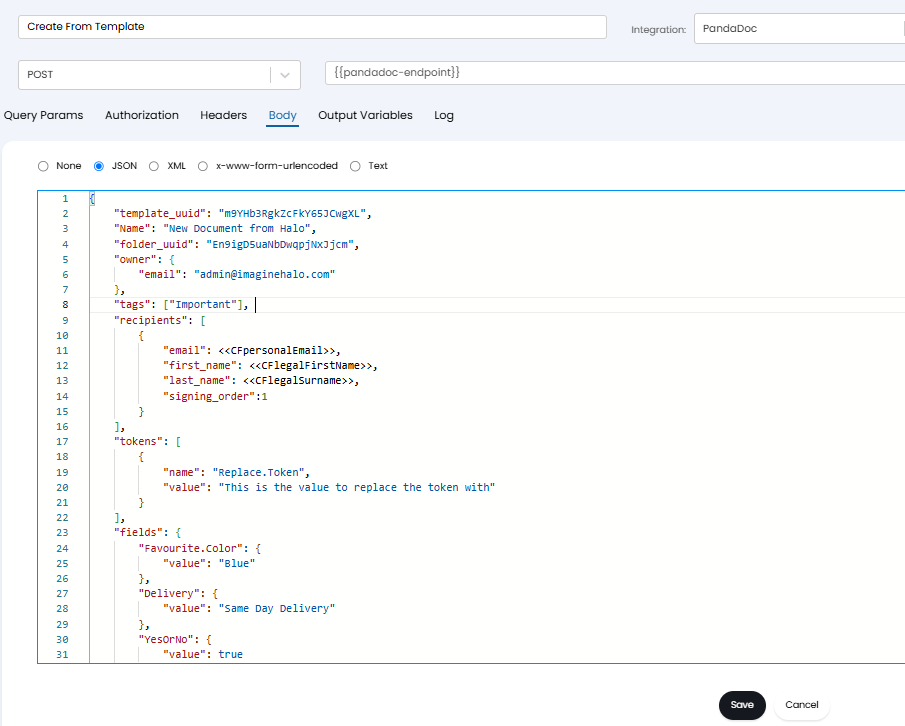
Fig 11. JSON body of method, use variables to have Halo ticket data used to populate template in PandaDocs
Note: When posting custom fields in the JSON body they do not need "" around them.
Once you have populated all the fields you require here remove any fields that you are not using, i.e. do not need to populate on the template. Also ensure you have removed any comments in the body, comments will be any characters in green prepended by '//'. Fig 12 shows a basic complete body with fields not required and comments removed.
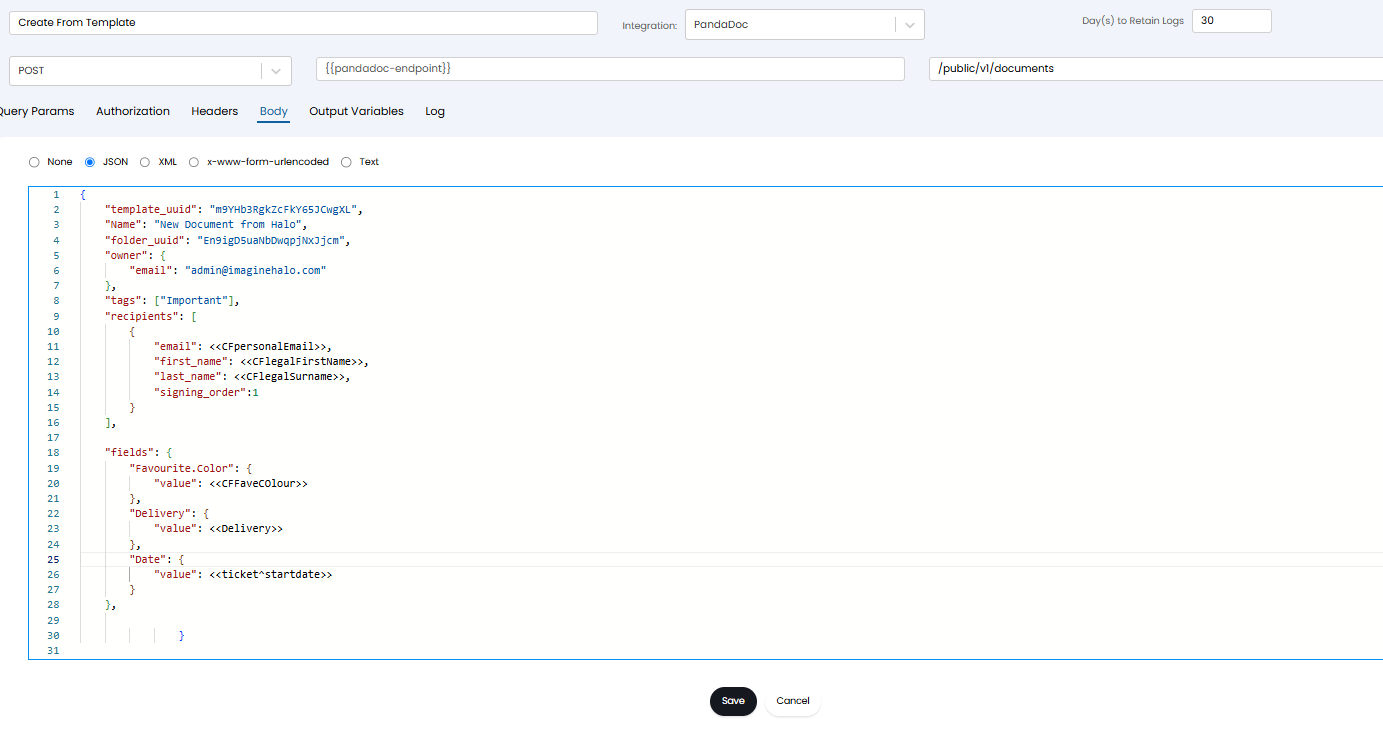
Fig 12. Example body for PandaDoc to be created using template
Save this step and the whole of the runbook.
Now you will need to edit the second step of the runbook (step 4).
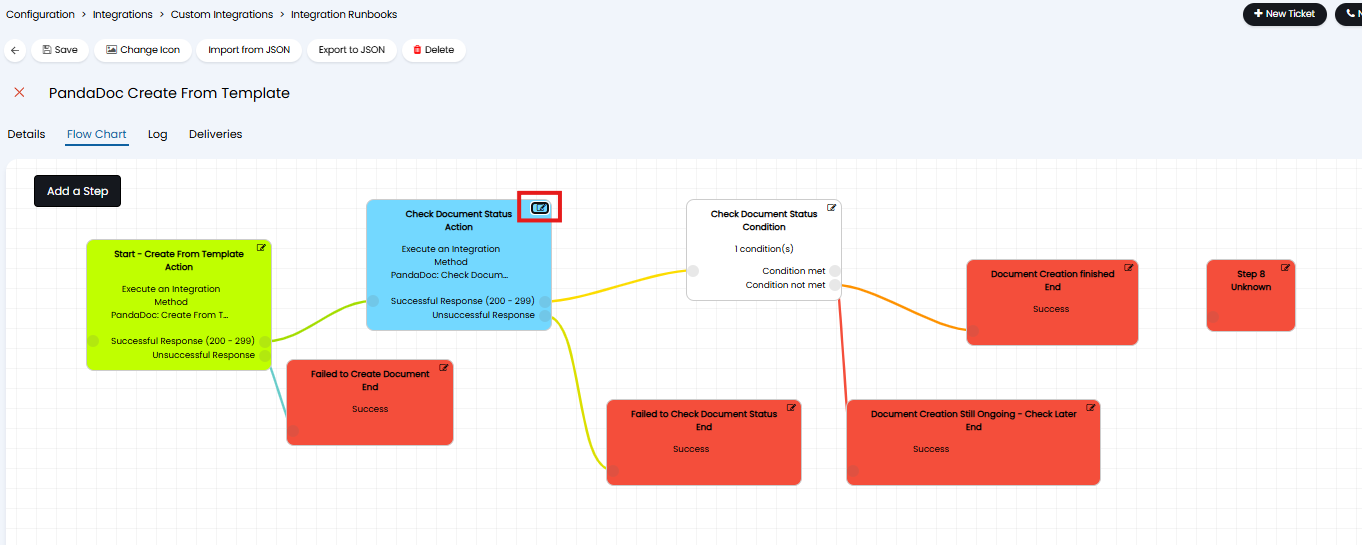
Fig 13. Edit runbook step
Within the step, edit method. Here, you will need to add an "!" to the endpoint being used at this step. This will just ensure the PandaDoc ID does not have speech marks around it, to allow the GET to be successful. Add the "!" as shown in Fig 14.
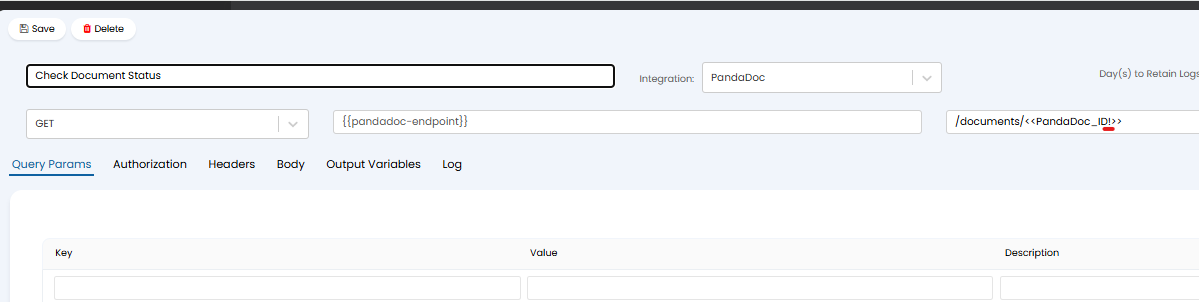
Fig 14. Edit endpoint
Note: This may already be added to your endpoint, depending on your version of Halo. Do not add this if this is already present.
Now your runbook configuration is complete, ensure this step and the whole runbook is saved. You will now need to create an action to trigger this runbook and create a document in PandaDocs.
Action to Trigger Document Creation in PandaDocs
To create this action head to configuration > tickets > actions > new. Create an action with the following configuration:
- System Use = Send Webhook/Queue Integration Runbook
- Webhook/Integration Runbook = PandaDoc Create From Template
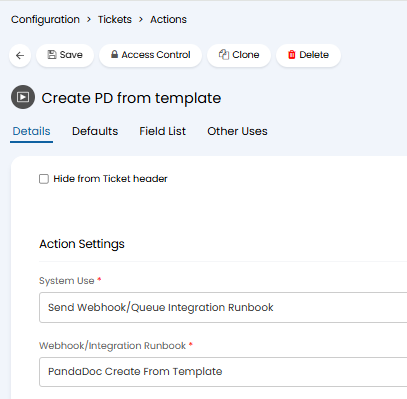
Fig 15. Action to have PandaDoc created from template
Once this action is created add it to the relevant workflows to allow your agents to use it.
Triggering Creation
When this action is used the runbook will trigger and a document will be created in PandaDocs using the template set against the runbook and data from your Halo instance.
Setup for Creating Documents from an Uploaded file
When creating a document in PandaDocs using an uploaded attachment/file you will need to configure the runbook to do the following:
- Choose folder the document is created in (optional)
- Set recipient of document
First, head to Configuration > Integrations > PandaDocs > Create from file upload runbook, this will take you to the runbook used for this creation method.
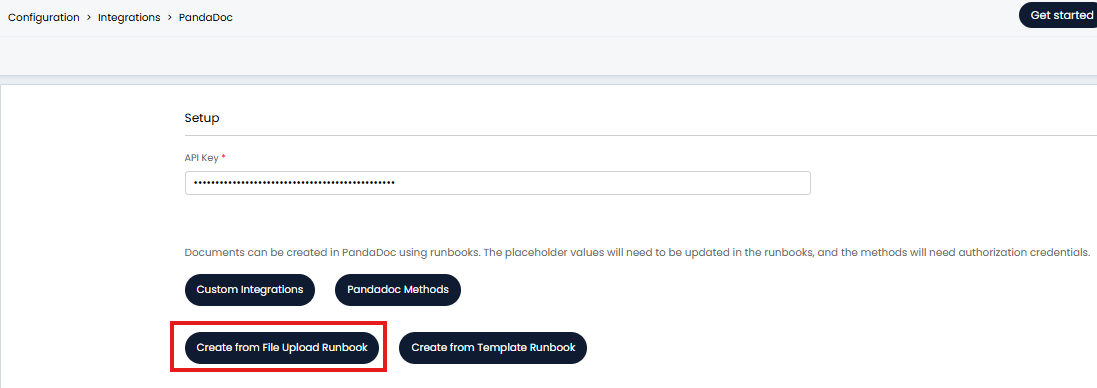
Fig 16. Create from File Upload runbook button
When the button is used you will be taken to the 'details' tab of the runbook, navigate to the 'Flow Chart' tab. From here edit the page and edit the first step of the flow.
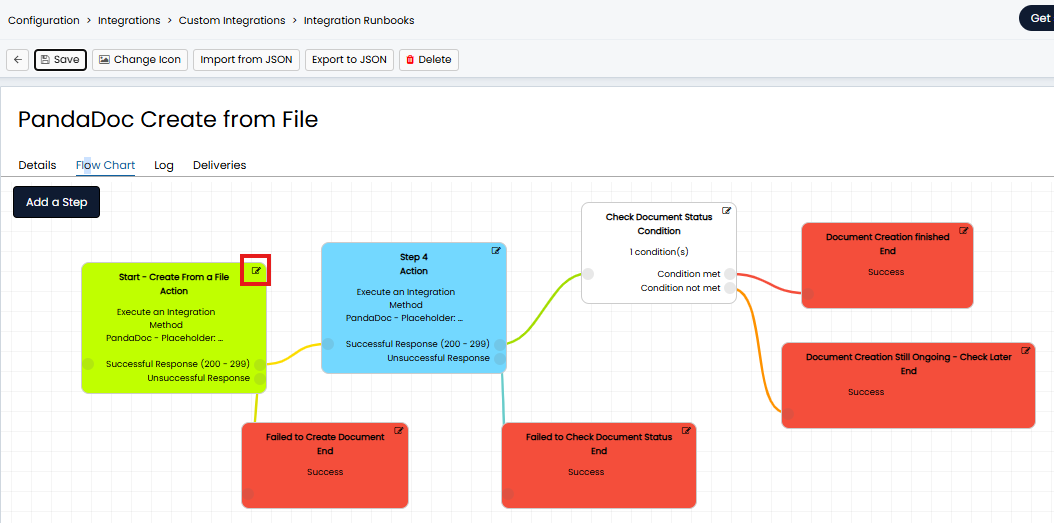
Fig 17. Edit step to create PandaDoc from file upload
Now select edit method > Body. Here, you can edit the body to determine what information is passed across to PandaDocs when the document is created.
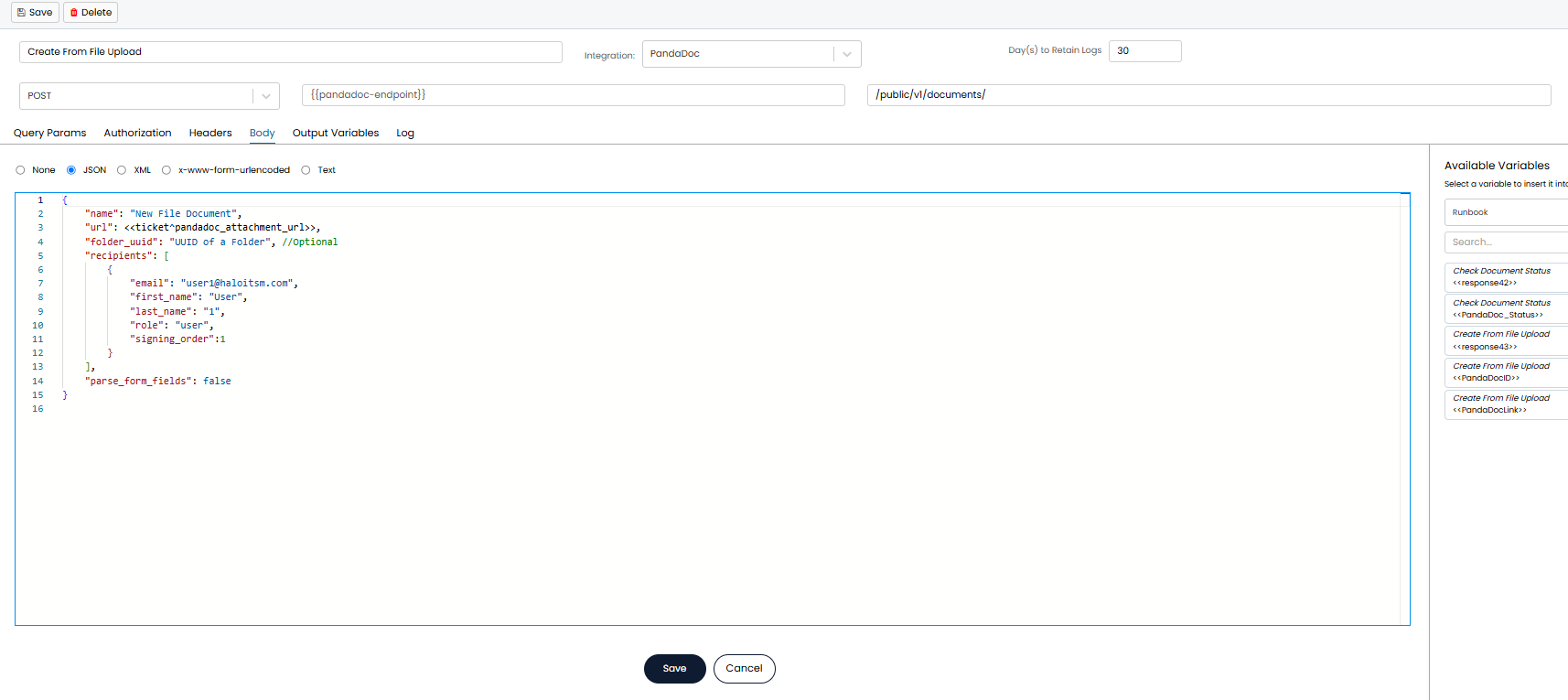
Fig 18. Step Body to create PandaDoc using file upload
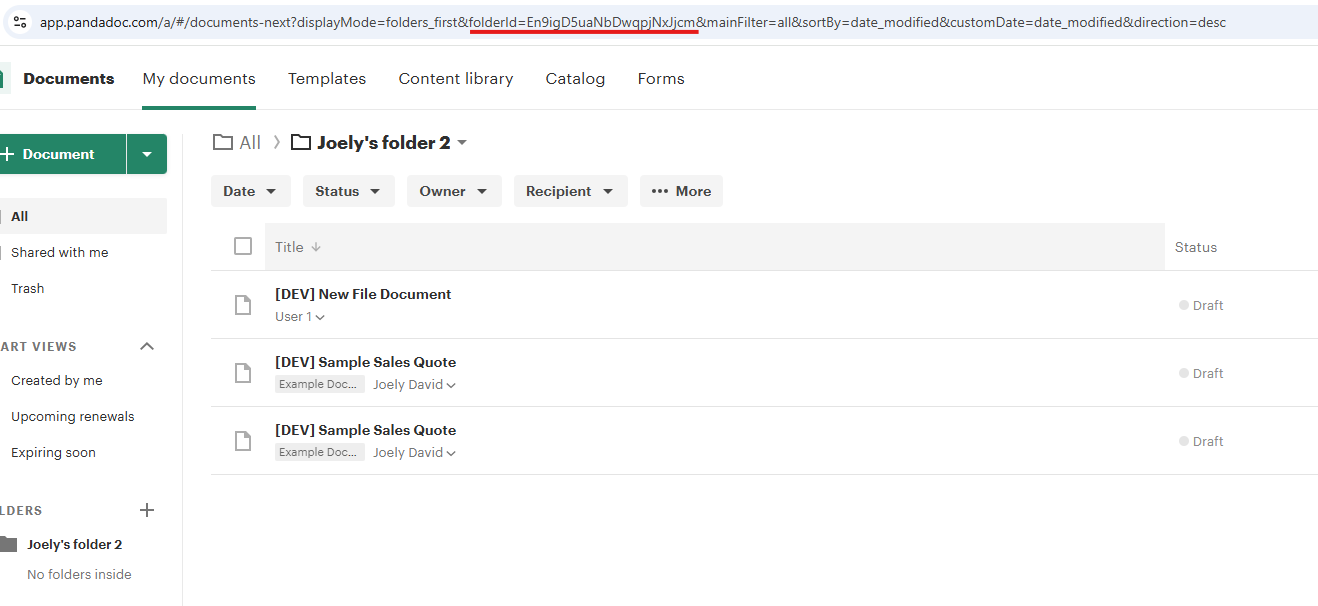
Fig 19. Folder ID in URL
Fields in the method can have variables set against them as the value, this allows data from the ticket to be used when creating the document in PandaDocs. For example, you may want to set the recipient details of the document to be the ticket's end user's details.
A list of available variables can be found on the right-hand-side of the page when viewing the step body. Use the dropdown menu to change the entities you are viewing variables for.
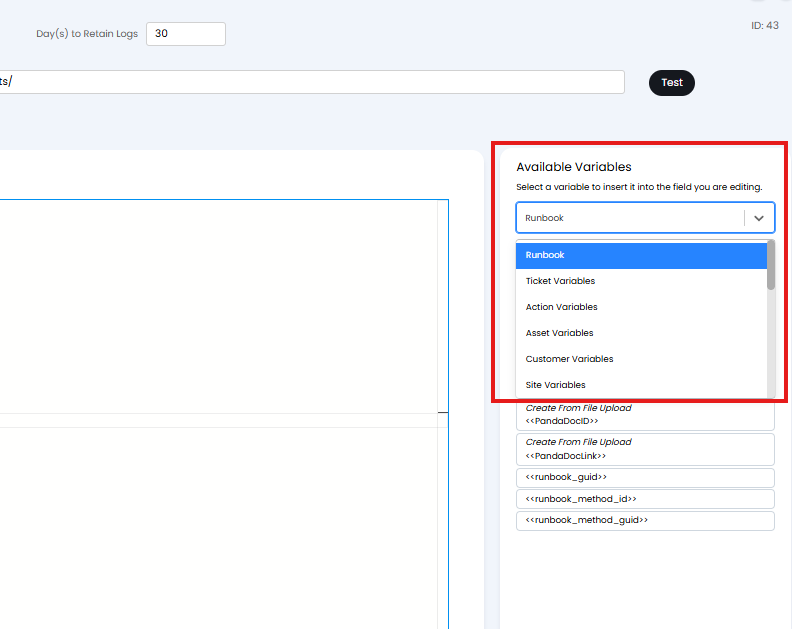
Fig 20. Runbook variables
The variables that show here are the 'pre-set' variables, these cover basic data stored against the ticket, as well as all ticket custom fields. If you require ticket data to be sent to PandaDocs that does not seem to be available in a variable here you can have it pulled across, however, additional runbook configuration would need to be completed that is not covered in this guide. Alternatively, you could enter the data you require into a custom field against the ticket, then set the custom field data to be pulled across.
In the Fig 21 example, I have set the recipients of the document to be determined by data in custom fields.
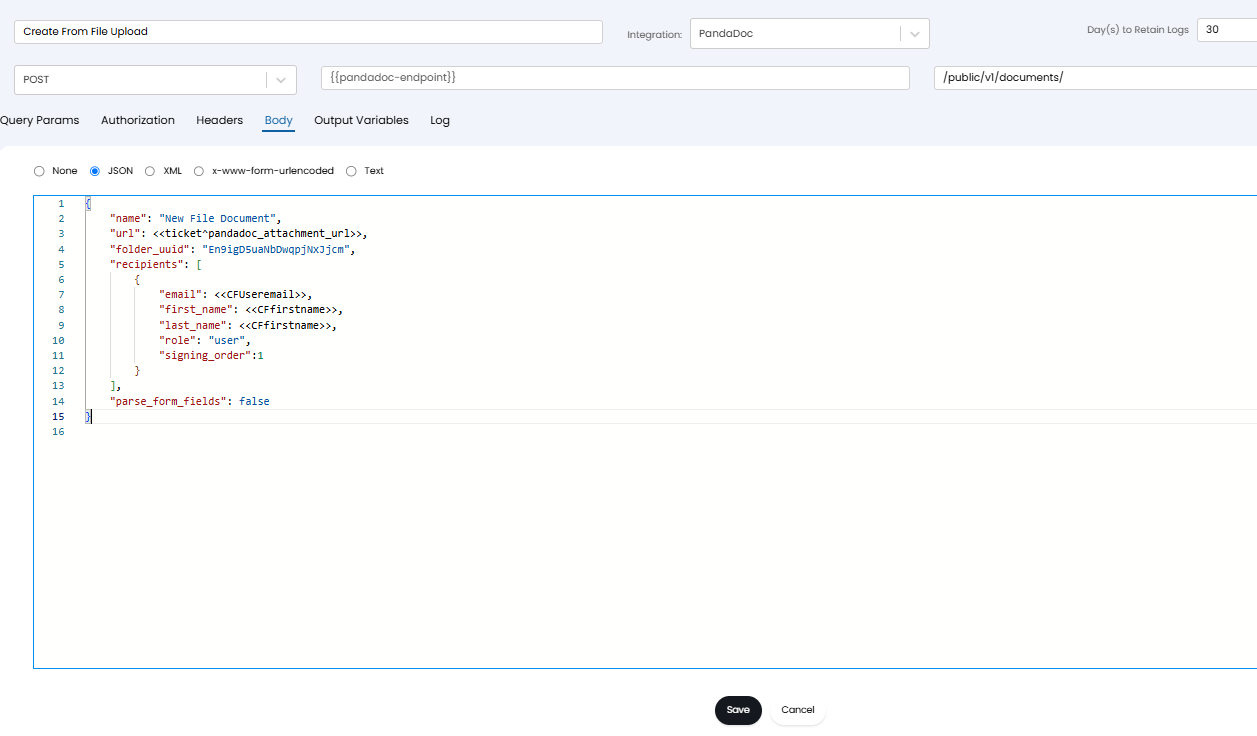
Fig 21. Example body, recipients of document determined by custom field data
Once you have configured the runbook step body here, make sure you remove any comment tags. Comments will be any characters in green prepended by '//', shown in Fig 22.
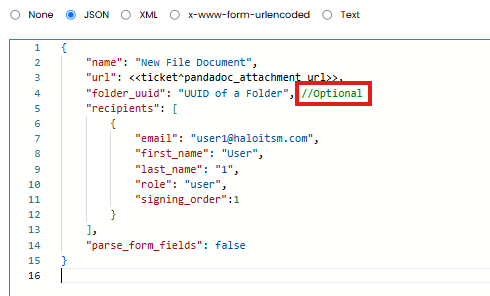
Fig 22. Comment
Make sure you save the step and the whole runbook (there will be multiple save buttons).
Now you will need to edit the second step of the runbook (step 4).
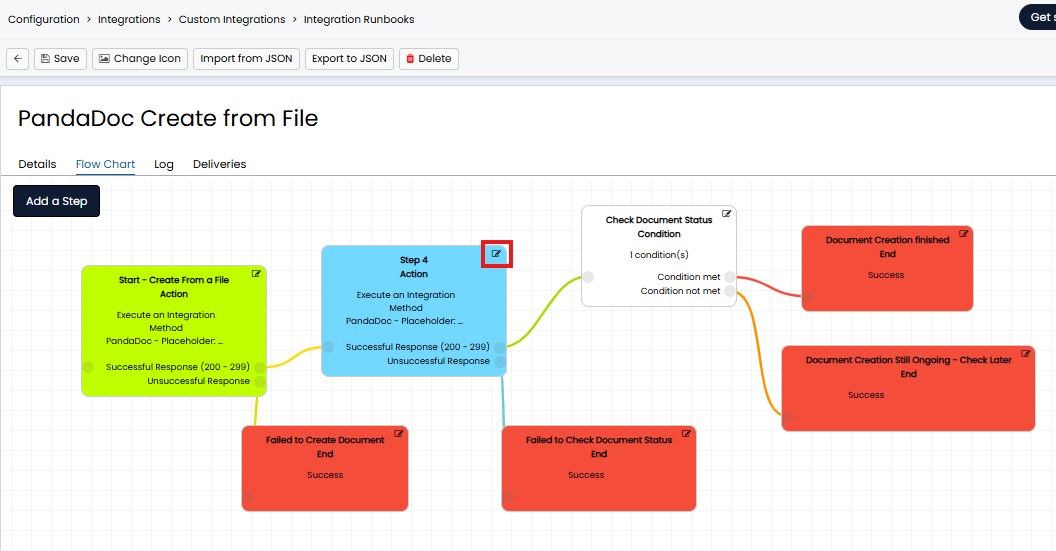
Fig 23. Edit runbook step
Within the step, edit method. Here, you will need to add an "!" to the endpoint being used at this step. This will just ensure the PandaDoc ID does not have speech marks around it, to allow the GET to be successful. Add the "!" as shown in Fig 24.
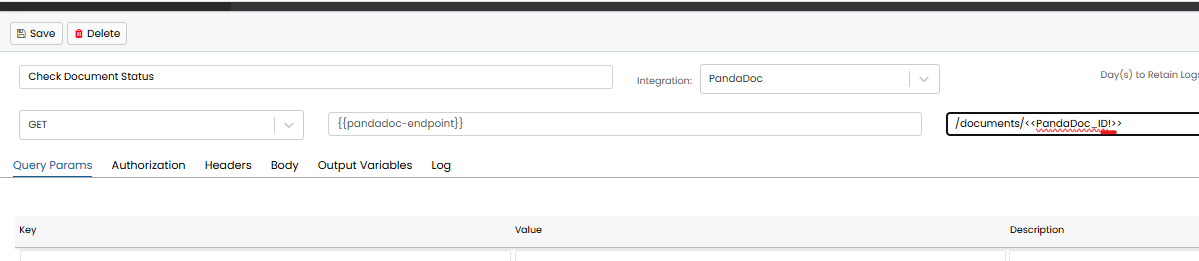
Fig 24. Edit endpoint
Note: This may already be added to your endpoint, depending on your version of Halo. Do not add this if this is already present.
Now your runbook configuration is complete, ensure this step and the whole runbook is saved.
Trigger Document Creation for File Upload Method
Two things will need to be done to have a PandaDocs document created from a file upload:
- Add the 'PandaDoc Attachment' field to the ticket field list
- Create an action that triggers this runbook
To add the 'PandaDoc Attachment' field to the ticket field list head to configuration > tickets > ticket types > select a ticket type > field list tab > add field, search for 'PandaDoc Attachment' and save.
To create a new action to trigger the runbook head to configuration > tickets > actions > new. Create an action with the following configuration:
- System Use = Send Webhooks/Queue Integration Runbook
- Webhook/Integration Runbook = PandaDoc Create from File
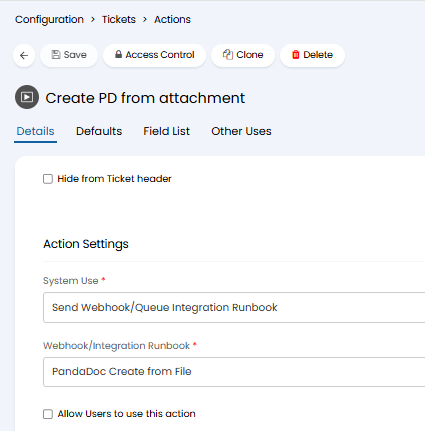
Fig 25. Action to trigger PandaDocs creation from file upload
Once this action is created ensure you add this to the relevant workflows so agents can use this action.
Trigger Creation
When you would like to trigger PandaDoc document creation using this method, you will first need to choose the file that you would like to be created in PandaDocs. Select this file in the 'PandaDoc Attachment' field against the ticket.
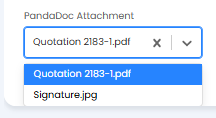
Fig 26. PandaDoc attachment field
You will be able to choose from attachments against this ticket, so ensure the file you want to create is uploaded to the ticket as an attachment.
Once the field is set, use the action created earlier (Create PD from attachment). This will result in the selected attachment being created in PandaDocs. To have another document created, simply change the 'PandaDoc Attachment' field and run the action again.