Prometheus Integration
- Promethus target
- Promethus alert
In this guide we will cover:
- What is the Prometheus Integration?
- Connecting to Prometheus
- Configuring Asset Imports
- Automatically import/update Assets on a schedule
- Alerting
- Have assets create instantly in Halo when created in Prometheus
What is the Prometheus Integration?
The Prometheus integration can be used to import targets from Prometheus as assets into Halo. Once imported assets can be synced automatically on a schedule. Webhooks can also be used to have assets in Halo create automatically as soon as a new target is detected in Prometheus.
Alerts from Prometheus can also be synced to Halo, with new alerts creating a ticket in Halo. When the alert is resolved in halo this will resolve the ticket automatically in Halo. Allowing agents to monitor Prometheus alerts from within Halo.
Connecting to Prometheus
First you will need to enable the module for this integration. Head to Configuration > Integrations and enable the Prometheus module using the '+' icon.
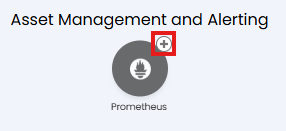 Fig 1. Enable integration module.
Once enabled click into the integration module to begin configuration.
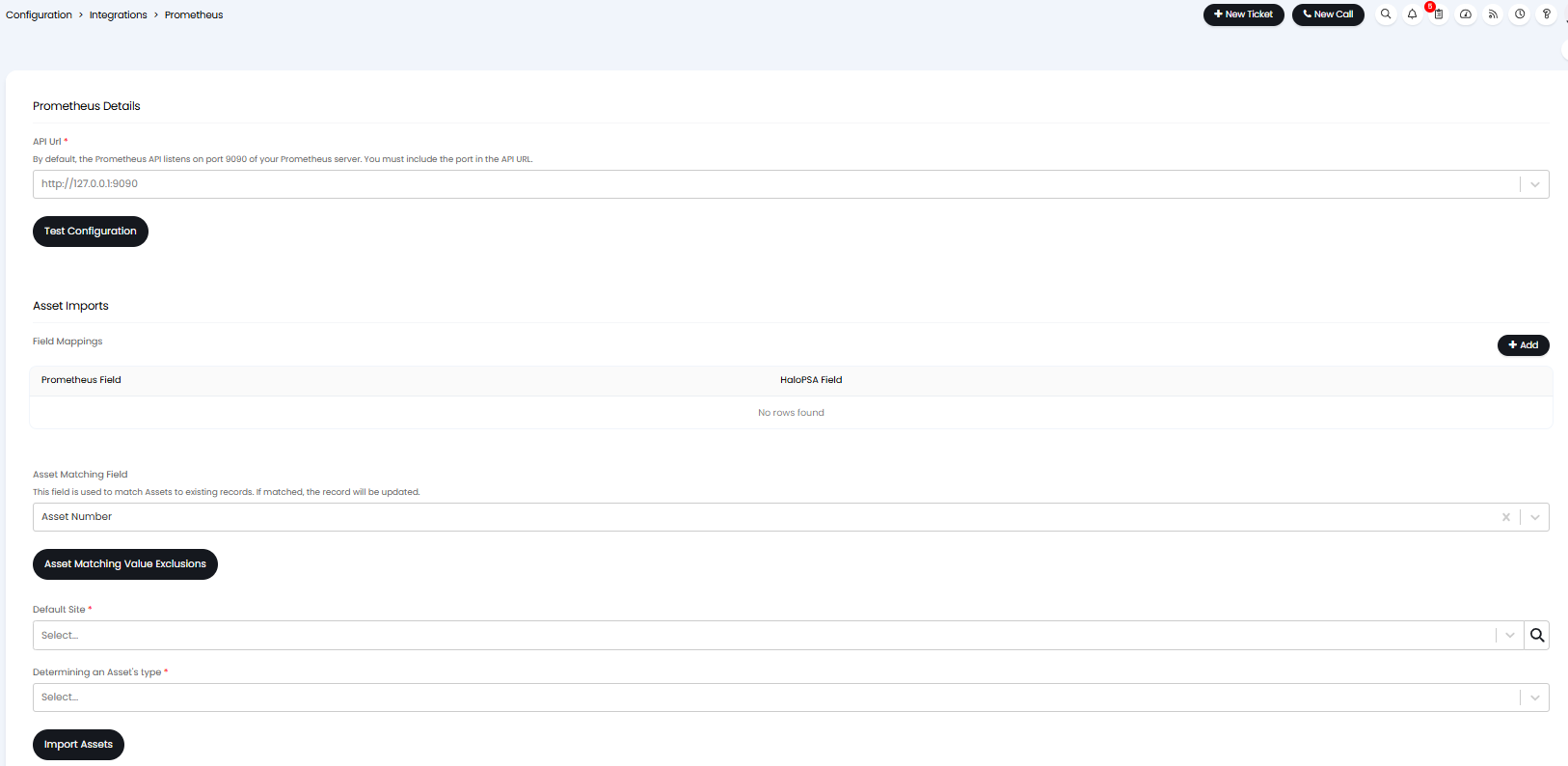
Fig 2. Prometheus setup page
In order to connect you will need to enter your API URL in the 'API URL' field.
To obtain this you will need to check your Prometheus configuration file to see the server address and port Prometheus is running on.
If Prometheus is running on your local machine or server, the URL is usually: http://<server-ip>:9090/
Where '<server-ip>' is your server’s IP address. Use 'localhost' if it's running on your local machine.
Multiple API URLs can be connected to by entering each URL in the field here. This allows you to import targets/manage alerts from targets on different servers.
Once entered use the 'Test Configuration' button to ensure you have connected successfully.
Configuring Asset Imports
Targets (assets), along with their fields can be imported from Prometheus into Halo. You will need to configure how assets are created and matched to targets in Prometheus.
First set the Asset matching field, this field is used to match assets to existing records. If matched, the record will be updated, otherwise a new asset will be created. The field chosen here should contain the unique identifier of the asset.
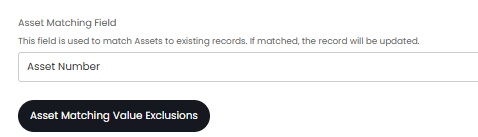
Fig 3. Asset matching field.
Asset Matching Value Exclusions - Here you can set assets to not be matched using the matching field if the matching field contains a certain value. For example, if two assets have the matching field set to be 'None' they would match even though they are separate assets. By adding the value 'none' to the matching value exclusions list you can ensure the assets are matched using their Promethus ID instead.
Now you will need to map Halo asset fields to a Prometheus field. Both system and custom Prometheus field types can be mapped. Create a mapping by adding to the 'Field Mappings' table.

Fig 4. Asset field mappings.
If you would like a new field to be created in Halo for the Prometheus field select '*Create a new Field during the next import*'.
Use the 'Default Site' field to determine the site that assets/targets from Prometheus are assigned to in Halo. All assets will be assigned to this site on import.
As Prometheus does not have the same concept of asset types as Halo, you will need to choose how the type of the asset is determined using the field 'Determining an Asset's type'.
Determining an Asset's type
Use the same type for all Assets
If you would like all imported assets to have the same asset type when imported set the 'Determining an Asset's type' field to be 'use the same type for all Assets' then set the 'Asset Type' field to be the asset type you would like assets from Prometheus to be.
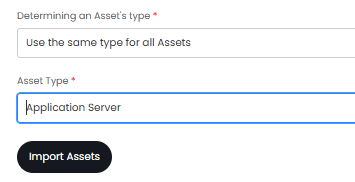
Fig 5. Use the same type for all assets.
Use a field to determine each Asset's type
This setting is used if you have a field in Prometheus that already determines an asset's type and you would like the types to be consistent between Halo and Prometheus.
Set the 'Determining an Asset's type' field to be 'Use a field to determine each Asset's type'. Then in 'Field for determining an Asset's type' choose the field you would like the type to depend on. The field you choose must contain the name of the desired asset type, if this name can be matched to an existing asset type in Halo, it will be assigned this asset type. If this field is not populated, the asset will be created under the default asset type set instead. Note that the names must be identical in order to match.

Fig 6. Use field for determining asset's type.
In the Fig 6 example new assets will be assigned to an asset type in Halo based on their 'scrapePool' field. If the data in this field matches the name of an asset type in Halo this asset will be created under the matched asset type. If a match cannot be made a new asset type will be created, under the asset group 'Configuration Items'.
Determine Asset type using rules
This option is used when you would like assets to be created as different types but you do not have a single field in Prometheus that represents the desired type.
Set the set the 'Determining an Asset's type' field to be 'Determine asset type using rules'. Now you will be able to set asset's types based on rules. These rules are based on field values, and if matched will assign an asset to the chosen asset type. When creating a rule first add criteria for the rule, select the Halo field that you would like to base the criteria on, then set the rule type and the outcome needed in the field to match the rule. If an asset matches this rule it will be imported as this asset type.
When using this method you will need to complete the 'Default asset Type' field. If an asset is imported that does not match any of these rules, it will be created under the set default asset type.
When you are happy with your asset import settings hit 'Import Assets' to complete a manual import.
Automatically import/update Assets on a schedule
To have assets be imported on a regular basis automatically, and any updates made to assets imported from Prometheus sync regularly enable the Halo integrator for the integration. Enable this using the setting shown in Fig 7.
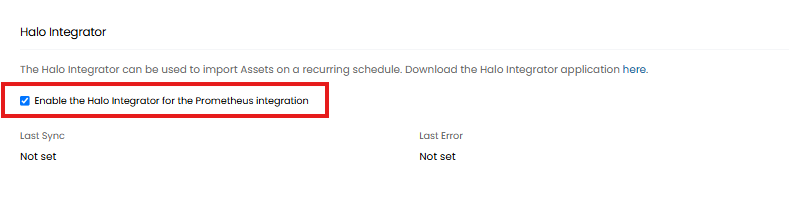
Fig 7. Enable Halo integrator for integration.
Once enabled assets will be imported and updated on a daily basis.
Deactivate Assets in Halo when they are not returned from Prometheus (Halo Integrator only) - When enabled assets will be deactivated in Halo when they cannot be found (have been removed from) Promethus. This only applied to imports completed using the Halo integrator, not manual or webhook imports.
Alerting
Alerts from Prometheus can be synced to Halo, creating a ticket each time an alert is raised. Then when the alert is resolved in Prometheus this will close the ticket off in Halo.
The alerting functionality uses the Prometheus alertmanager tool in conjunction with webhooks to sync alerts between instances.
To set this functionality up enable 'Enable alert processing via webhooks' found on the Prometheus setup page in Halo.

Fig 8. Enable alert processing.
Once enable you will see some setup steps on the configuration page but we will run through these steps in more detail on this guide.
Step 1 - Download Alert manager
To set this functionality up first download the Prometheus Alertmanager tool, a link to download this can be found on the integration setup page.

Fig 9. Download alert manager.
Step 2- Add the Alertmanager server to the Prometheus configuration file
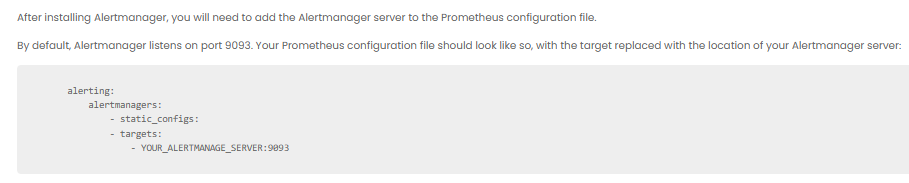 Fig 10. Add alertmanager server to Prometheus configuration file
Open up your Prometheus configuration file and navigate to the alerting section. Here add your alertmanager (just downloaded) as a target. This will follow the format: YOUR_ALERTMANAGE_SERVER:9093 (as 9093 is the default port).
Step 3 - Add a Webhook Receiver in the Alertmanager configuration file
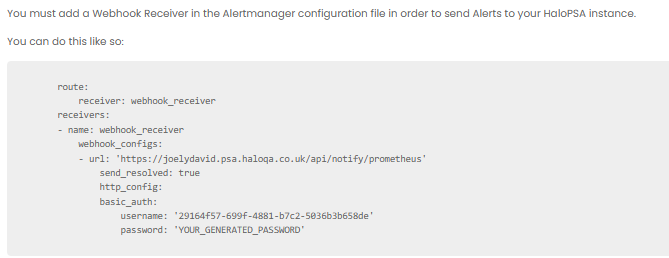
Fig 11. Add Webhook Receiver in the Alertmanager configuration file.
Open up your alert manager configuration file and add a new receiver. The receiver will follow the format shown in figure 11 using your Halo URL with the /api/notify/prometheus endpoint as the URL to post the webhook to.
The username and password can be obtained from your Prometheus setup page in Halo, scroll past the alerting setup steps. You will need to generate a password before you can copy/paste this.
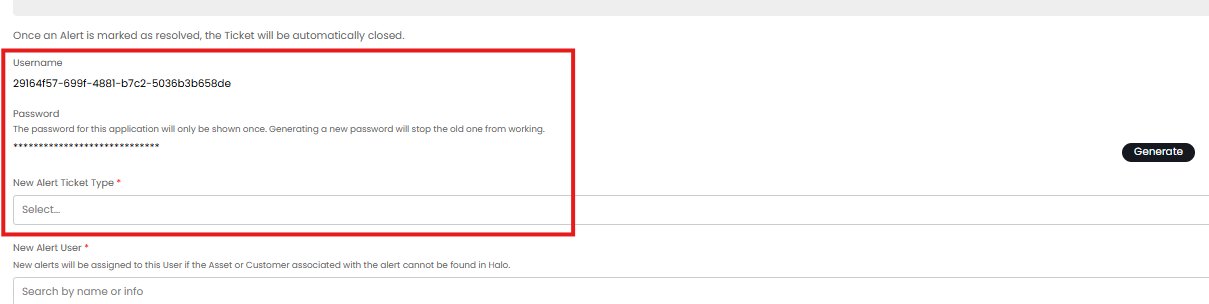
Fig 12. Username and password for webhook
Step 4 - Create Rules
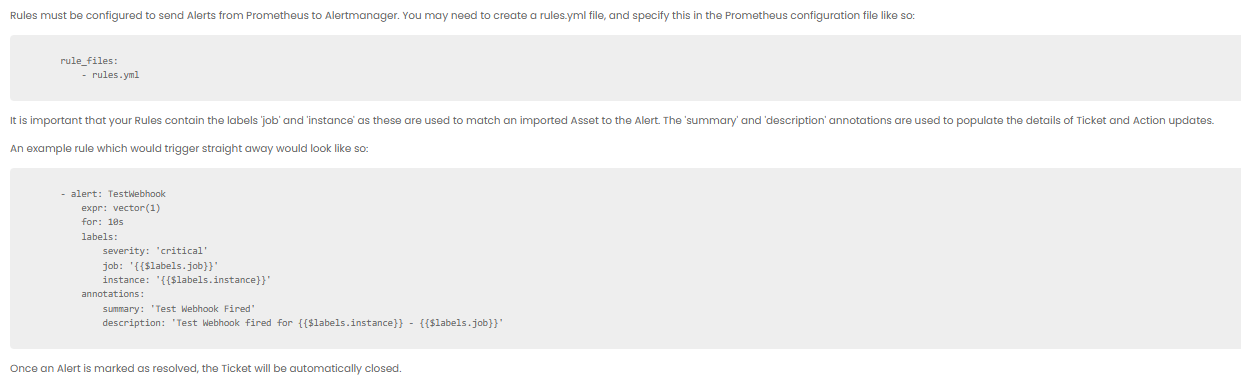
Fig 13. Example rule configuration.
Create a rules.yml file containing criteria that need to be met for an alert to be triggered, along with labels for data that will be synced to Halo when an alert is triggered. For example:
- name: example-alert-rules
rules:
- alert: HighCpuUsage
expr: avg(rate(cpu_usage_seconds_total[1m])) by (instance) > 0.9
for: 5m
labels:
severity: critical
job: '{{$labels.job}}'
instance: '{{$labels.instance}}'
annotations:
summary: "CPU usage on instance {{ $labels.instance }} is above 90%."
description : "CPU usage has been above 90% for the last 5 minutes.
In the above example I have created an alert that will be triggered when CPU usage exceeds 5 minutes. The 'alert' line defines the name of the alert. The 'expr' line defines criteria for the alert, in this example average CPU usage over 1 minute exceeds 90%. The 'for' line defines how long the criteria need to be met for.
The following labels will need to be included in the rule:
- job (used to match an asset to the alert)
- instance (used to match an asset to the alert)
The following annotations will need to be included in the rule:
- summary (populates the ticket summary field in Halo)
- description (populates the ticket description field in Halo)
Variables can be used in the summary and description annotations to pull data from Prometheus into the ticket in Halo.
Once you have created your rules.yml file you will need to add/specify this to your Prometheus configuration file, like so:
rule_files:
- rules.yml
Step 5 - Choose ticket type and user for alert tickets
Now head back to the setup page in Halo, under the 'Alerts' section here choose the ticket type that is used for alerts from Prometheus as well as the default user tickets will be assigned to.
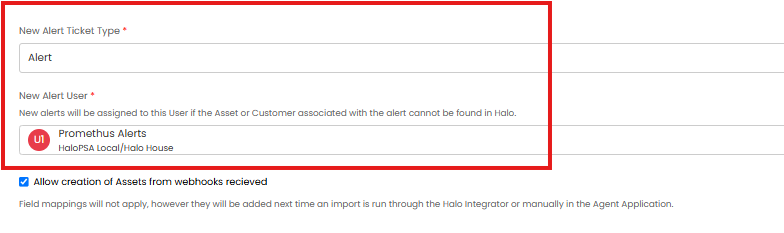
Fig 14. Alert and user ticket type.
All alerts from Prometheus will be created using this ticket type, if you are using multiple alerting tools you may want to create a ticket type specific to 'Prometheus alerts' otherwise you can use our out-of-the-box ticket type 'Alerts'.
When an alert logs a ticket in Prometheus the ticket will be assigned to the user assigned to the asset the alert is for. If there is no user assigned to the asset the ticket will be assigned to the general user of the customer the alert is for. If neither of these can be associated with the alert the ticket will be assigned to the default end user set here.
We recommend creating a new user dedicated to Prometheus alert tickets, this user can be marked as a service user to exclude them from user counts (for billing).
Have assets create instantly in Halo when created in Prometheus
Note: If you have not set up the alerting functionality prior to this ensure you have downloaded the Prometheus alert manager tool and added this to your Prometheus configuration file.
The Halo integrator will ensure any newly created assets in Prometheus will be created in Halo on a daily basis. But if you would like assets to be created in Halo as soon as they are created in Prometheus you will need to enable the setting 'Allow creation of Assets from webhooks received' found on the integration setup page in Halo.
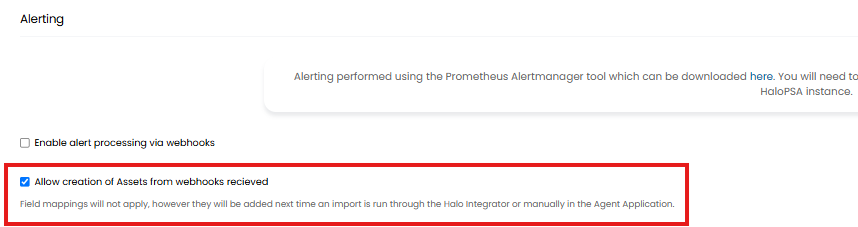 Fig 15. Allow creation of Assets from webhooks received.
Once enabled you will need to create a webhook in Prometheus that is triggered each time an asset is created in Prometheus.
You will need to create rules.yml file containing criteria that need to be met for an asset creation webhook to be triggered, similarly to the alert rule created previously for alerting. Essentially you will need to create an alert that is triggered each time an asset/target is created, but instead of the webhook being posted to the notify endpoint in Halo, it will be posted to the asset creation endpoint.
As Prometheus do not have set 'asset creation' criteria you could create a rule containing "expr: up == 1" which checks if the target is up and reachable (availability changed from 0 to 1).
Once you have created you rules.yml file you will need to add/specify this to your Prometheus configuration file.
Now you will need to configure the webhook that is send when this alert is triggered in the alertmanager configuration file. For example:
route:
group_by: ['alertname']
group_wait: 30s
group_interval: 5m
repeat_interval: 1h
receiver: 'webhook_receiver2'
receivers:
- name: 'webhook_receiver2'
webhook_configs:
- url: 'https://YOURHALODOMAIN/api/asset'
send_resolved: true
http_config:
basic_auth:
username: 'USERNAME FROM SETUP PAGE'
password: 'YOUR_GENERATED_PASSWORD'
In the above example you will need to replace 'alertname' with the name you gave to your asset creation alert. This will ensure this webhook is only used when this alert is triggered.
Now each time a new target is detected by Prometheus, a webhook will trigger to create a new asset in Halo.
As we have not specified any fields to be pulled across/mapped here when the asset is created it will not contain any field values from Prometheus. However, when the Halo integrator next runs for the integration, this information synced and the fields populated in Halo.