Hopewiser Integration
- integration
- address
- hopewiser
- user address
- address lookup
In this guide we will cover:
- What is the Hopewiser Integration?
- Enabling the Hopewiser Module
- Connecting to Hopewiser
- Using the Address Lookup on a User
- Using the Address Lookup on a Ticket
What is the Hopewiser Integration?
The Hopewiser integration can be used to search addresses from Hopewiser on a user in Halo or on an address ticket field, helping to ensure the addresses you set are entered correctly. It is connected via an API token created within Hopewiser.
Enabling the Hopewiser Module
In Configuration > Integrations > Miscellaneous, you will find the Hopewiser module. Hover over it, and click the plus (+) to enable it.
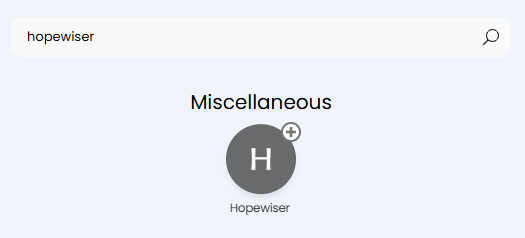
Fig 1. Enabling the Hopewiser module.
Connecting to Hopewiser
In Hopewiser, login to your portal and click "Create Token" on the home screen. You will be taken to this page, where you can view a list of tokens, and create a new one. Click "Create Token" here.
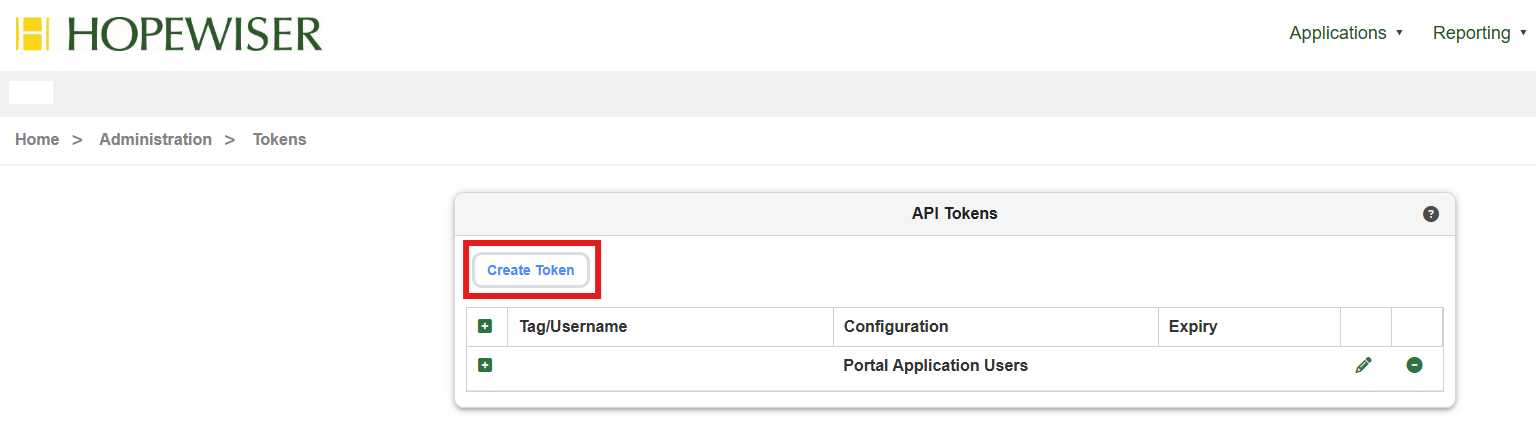
Fig 2. Token list in Hopewiser.
A popup will show to set a username, password, and default address reference for the token. Set these, and make note of the username and password.
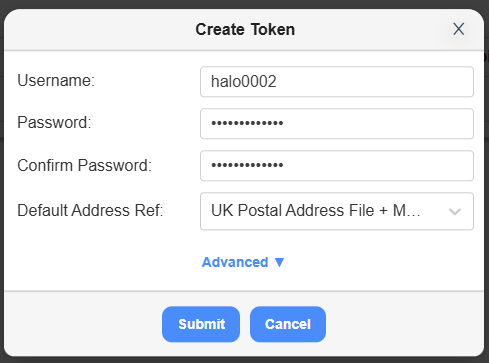
Fig 3. Creating a token in Hopewiser.
After clicking "Submit", another popup will show that the token has been created.
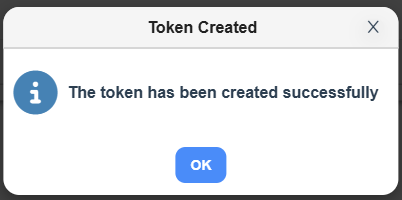
Fig 4. Token creation popup in Hopewiser.
Back in Halo, click into the Hopewiser module. Enter the username and password you previously made note of in the corresponding fields at the top of the page. The "Master Address File" dropdown can then load the address references from Hopewiser.
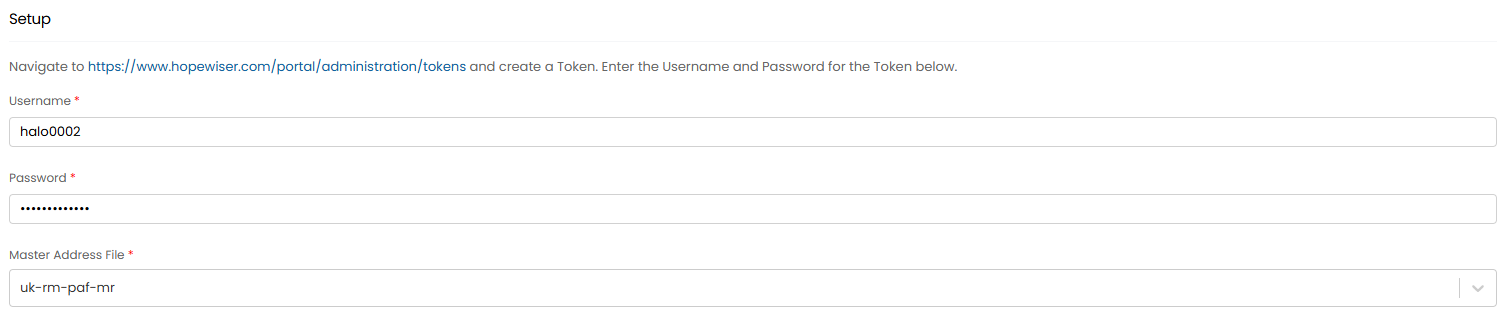
Fig 5. Setup in the Hopewiser module.
Using the Address Lookup on a User
Choose a user within a customer/site, and in the "Details" tab, scroll until you see the "Addresses" dropdown. Upon expansion of this dropdown, a table will show. Click "Add".
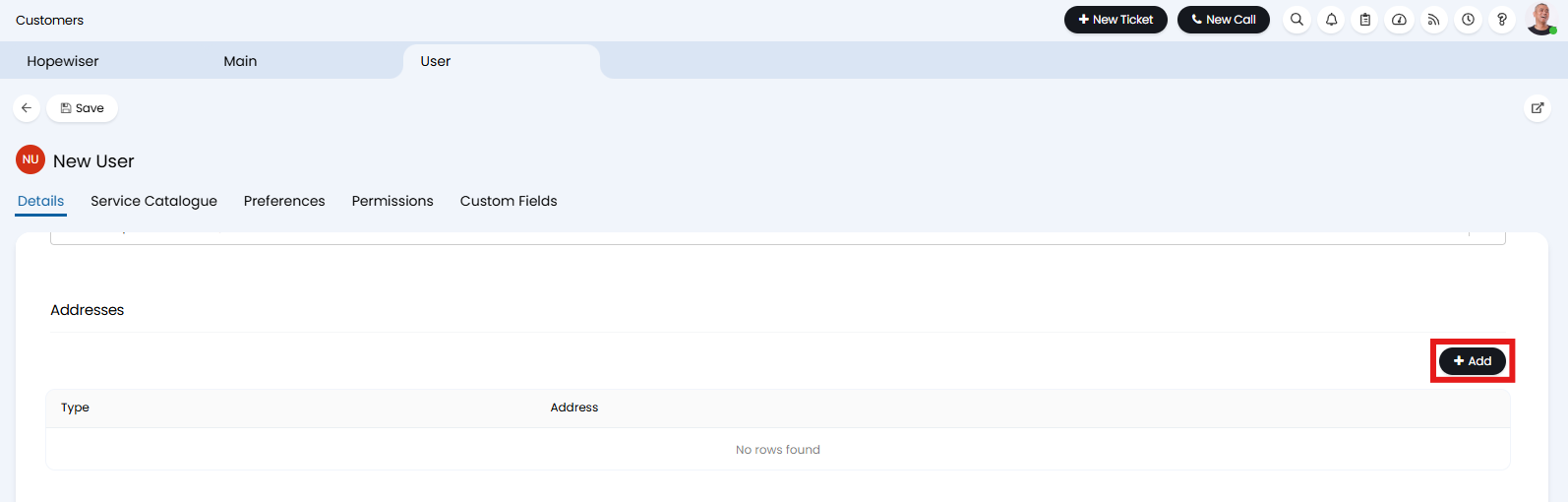 Fig 6. Addresses table on a user.
A popup will then show to set an address. Two new fields will now show: "Address Search" and "Address Search Results".
Upon entering a phrase into the "Address Search" field, click "Search". The "Address Search Results" field will then show a dropdown list of addresses that fit that criteria. Choosing an address within that list will also then auto-fill the address lines underneath.
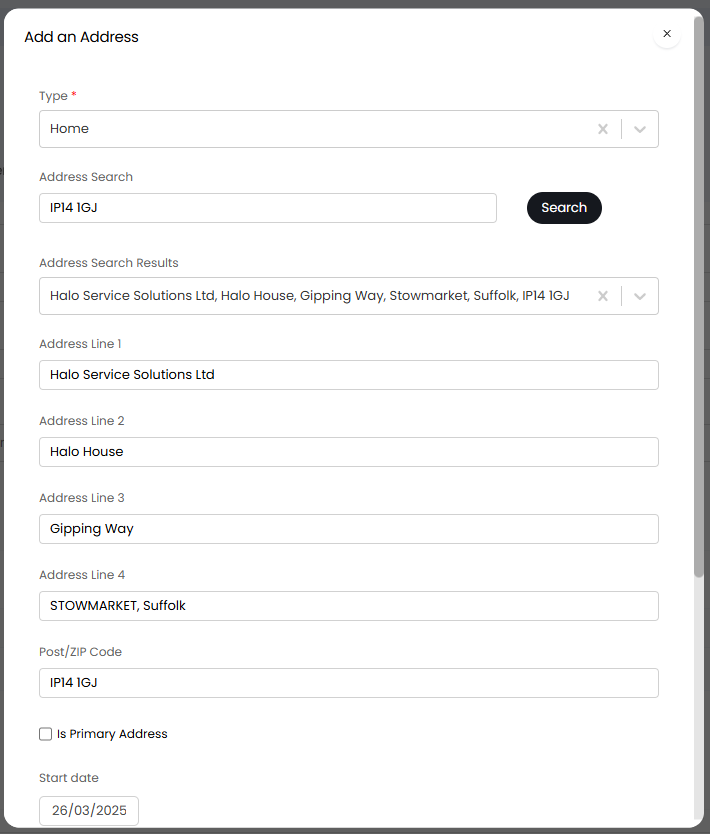
Fig 7. Auto-filled address based on the address search.
When tickets are logged against that user, it will then show that address in the "End-User details".
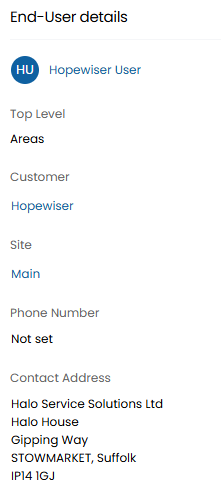
Fig 8. Contact Address on a ticket.
Using the Address Lookup on a Ticket
The address lookup can also be used on the new ticket screen. First, the "New ticket address field input" dropdown must be set to "Hopewiser Address Search" in Configuration > Users > General Settings > General Settings. From v2.244+, this can be overridden per Ticket Type in the settings tab.
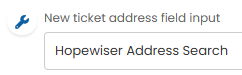
Fig 9. New ticket address field input.
When creating a ticket, any ticket type that has the "Address" field added to the field list will show the below. Whilst the address will auto-populate from the user, the address search can also be used in the same way here. Upon searching a string, a dropdown will show to select the address. After selection, the fields will populate with the address like with the user search.
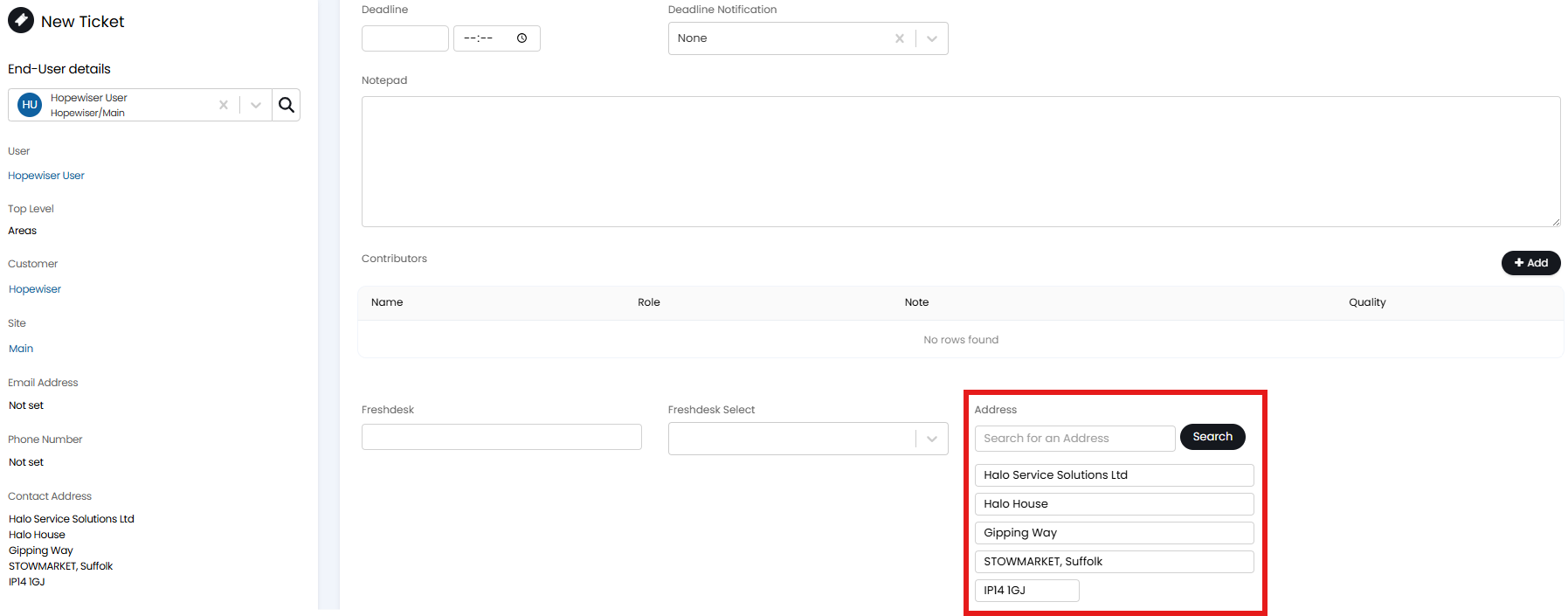
Fig 10. Address search on the new ticket screen.