New Relic Integration
- Relic
- NewRelic
- Relic integration
- Relic incidents
In this guide we will cover:
- What is the New Relic Integration?
- How to connect to the New Relic Integration
- Choosing an Integration version
- Legacy- Halo Integrator method
- Current - Webhooks
- Viewing Alerts
What is the New Relic Integration?
The New Relic integration allows you to manage incidents from New Relic in your Halo instance. When a issue is raised in New Relic this will create a ticket in your Halo instance. This can then be resolved either in Halo or in New Relic, when resolved in one application this will close the alert/ticket in the other application too.
A new integration method is available which allows issues to log tickets in Halo using webhooks. This method will process alerts faster also allowing logged tickets to pull in the priority and associated asset info from New Relic. When the issue is closed in New Relic the ticket in Halo can be updated with a chosen status rather than the ticket closing.
How to connect to the New Relic Integration
First head to Configuration > Integrations > Incident Management and enable the New Relic integration module.
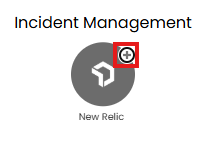
Fig 1. Enable integration module
Once enabled click into the integration module to see the integration setup screen.
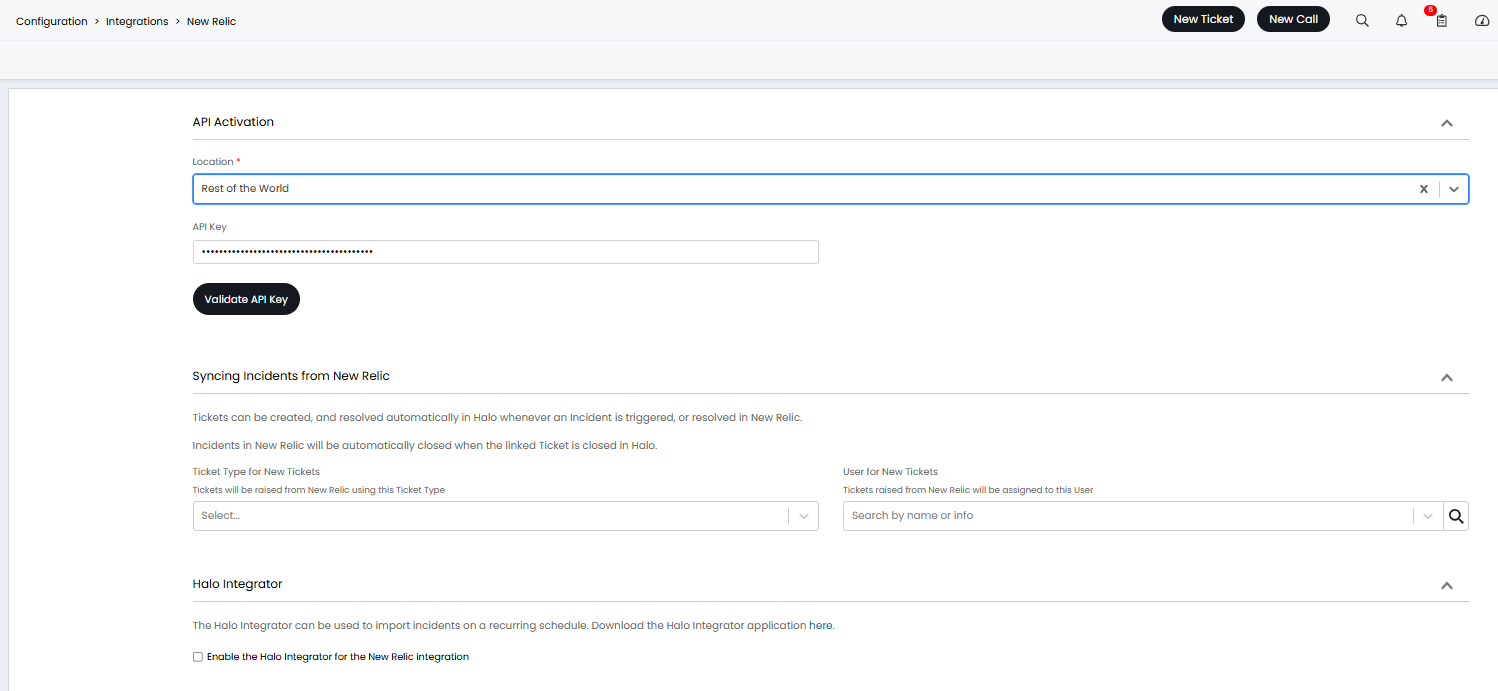
Fig 2. Integration setup page in Halo
Here, you will first need to select the Location that your New Relic instance is hosted in, options include 'Europe' or 'Rest of the World'. Then you will need to enter an API key.
Obtain API key
You will need to obtain a User API Key from new Relic.
To obtain this head into you new Relic instance > select your profile > Administration area > API keys > Create Key, when creating a key choose 'User' as the 'Key Type'. Name the key and create.
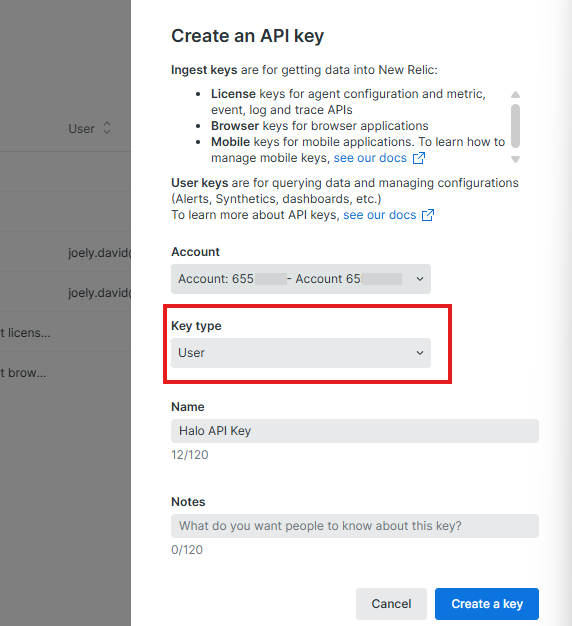
Fig 3. Create API key in New Relic
Once created copy the key and paste it into the 'API Key' field in Halo. To validate your connection use the 'Validate API Key' button (you may need to validate twice before a success message appears).
Choosing an Integration version
Only follow the section in line with the integration method you are using, we recommend using the 'Current' method as this supports all functionality.
Legacy- Halo Integrator method
In the 'Integration Version' field choose 'Legacy' in the 'Integration Version' field.
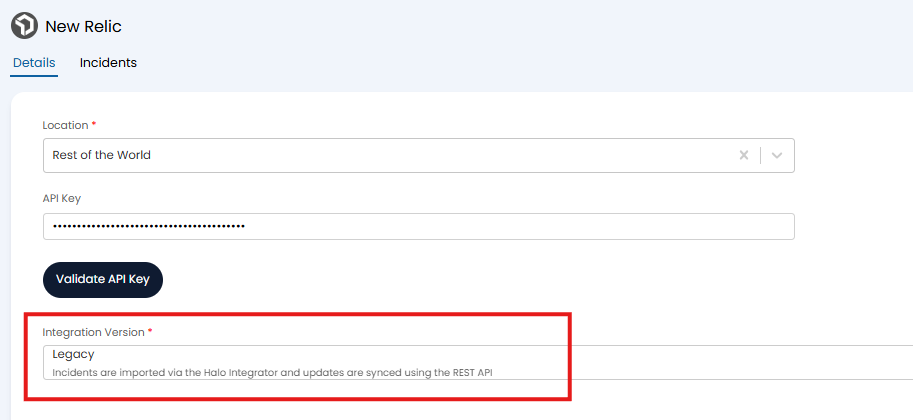
Fig 4. Legacy integration version
Configuring Ticket Creation
Now you have connected you will need to determine what ticket type is used when new tickets are created from New Relic incidents and which user will be the end user of these tickets. This is determined using the fields highlighted in figure 5 (these fields will be under the 'Incidents' tab).

Fig 5. Settings to determine ticket type and user for alerts from Relic
We recommend creating a new service user dedicated for New Relic alert tickets, to make reporting on these alerts easier.
Enabling Sync
To have incidents/alerts imported on a recurring schedule and updates synced back to Relic you will need to enable the Halo integrator for the integration. This is enabled using the setting highlighted in figure 6.
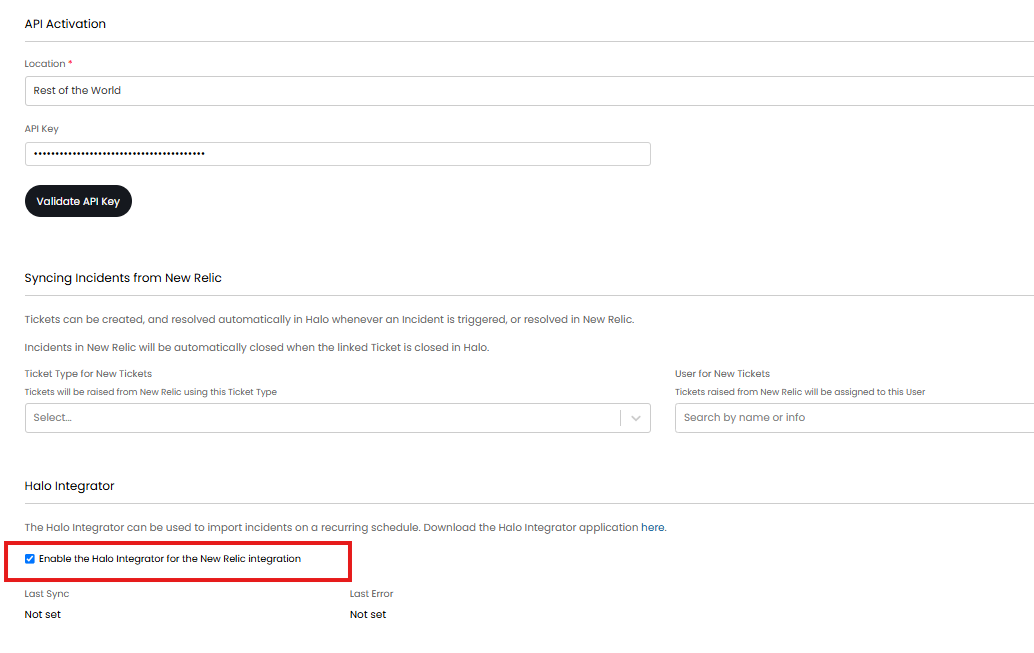
Fig 6. Enable Halo integrator for New Relic
Once enabled the integrator will run for this integration on a daily basis (once every 24 hours). Therefore, alert tickets and incidents in Relic will be updated on a daily basis after the integrator has run.
Current - Webhooks
When this integration version is chosen additional functionality will be available including a faster syncing of alerts, mapping New Relic and being able to choose the status the ticket moves to when the New Relic issue is closed.
To use this method choose 'Current' in the 'Integration version' field.
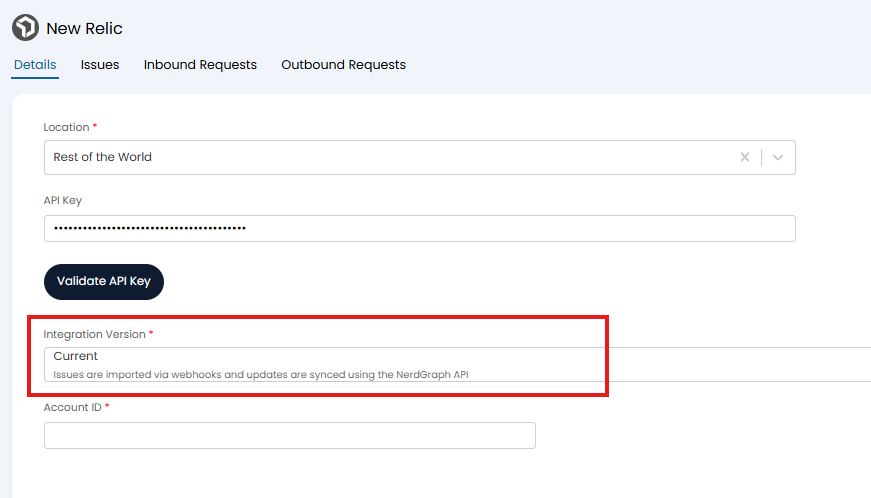
Fig 7. Current Integration version
When this method is chosen you will need to enter your New Relic account ID that is tied to the API key generated for connection. You account ID can be seen when generating the API key, as shown in figure 3.
In order to have issues in New Relic log tickets in Halo you will need to setup a webhook in New Relic which will be used to send a request to Halo to create a ticket when an issue is raised. Navigate to the 'Issues' tab, here you will be provided the details you need.
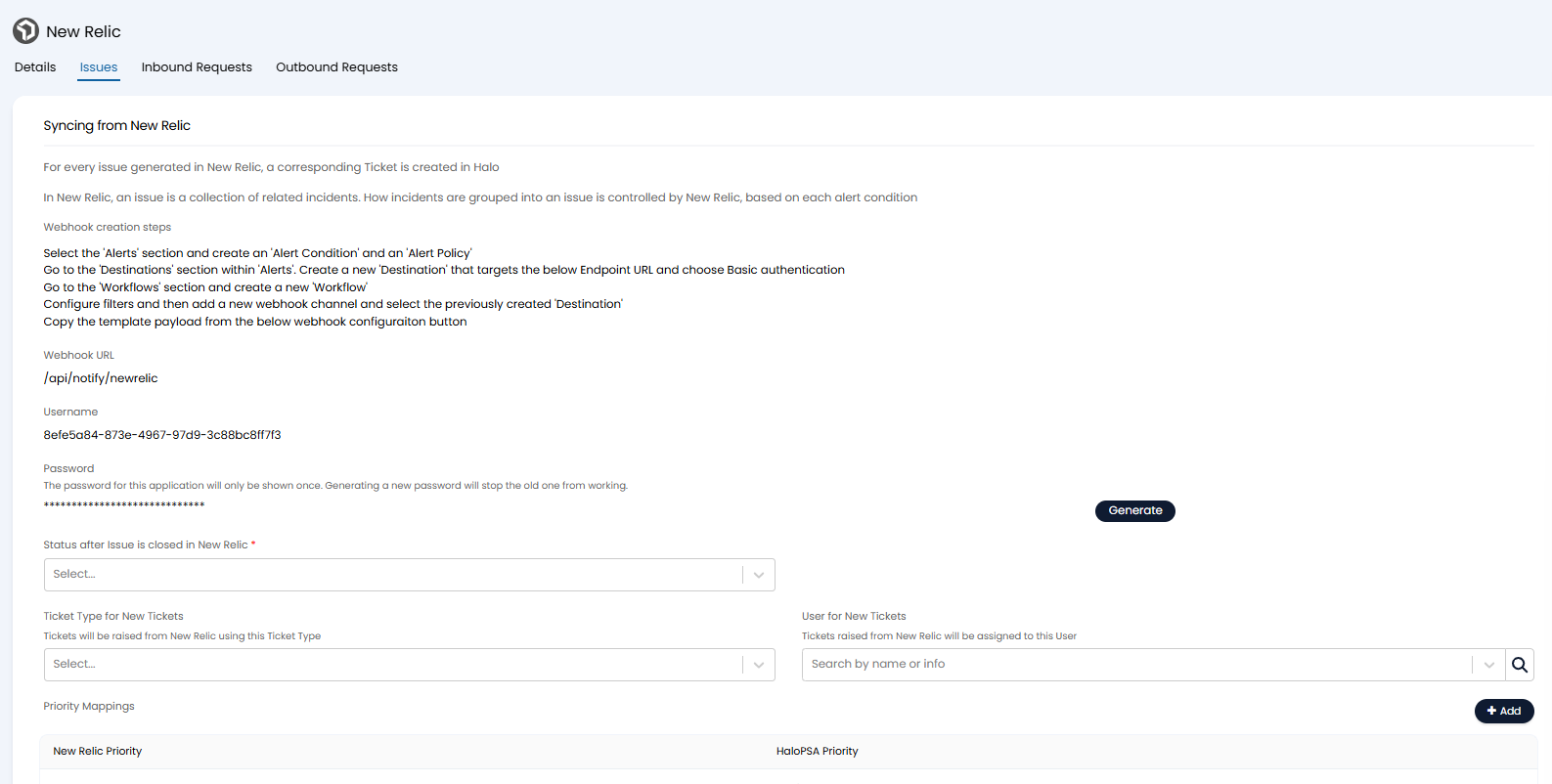
Fig 8. Issues tab
Webhook setup- Use the following steps to setup a webhook in New Relic
1. Select the 'Alerts' section and create an 'Alert Condition' and an 'Alert Policy'.
2. Go to the 'Destinations' section within 'Alerts'. Create a new 'Destination' that targets your Halo Endpoint URL.
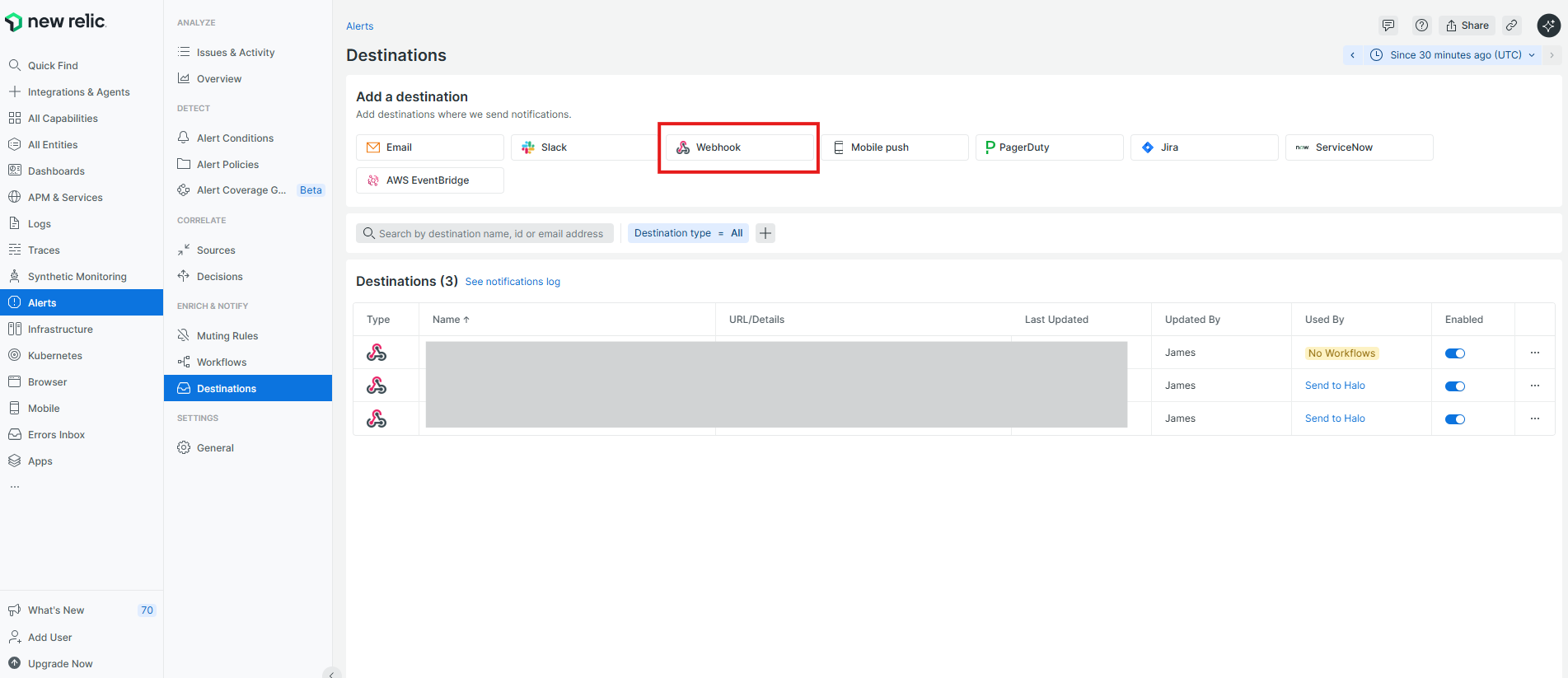
Fig 9. Create New alert destination
The Endpoint URL can be obtained by selecting the 'Webhook Configuration' button on the integration setup page in Halo.
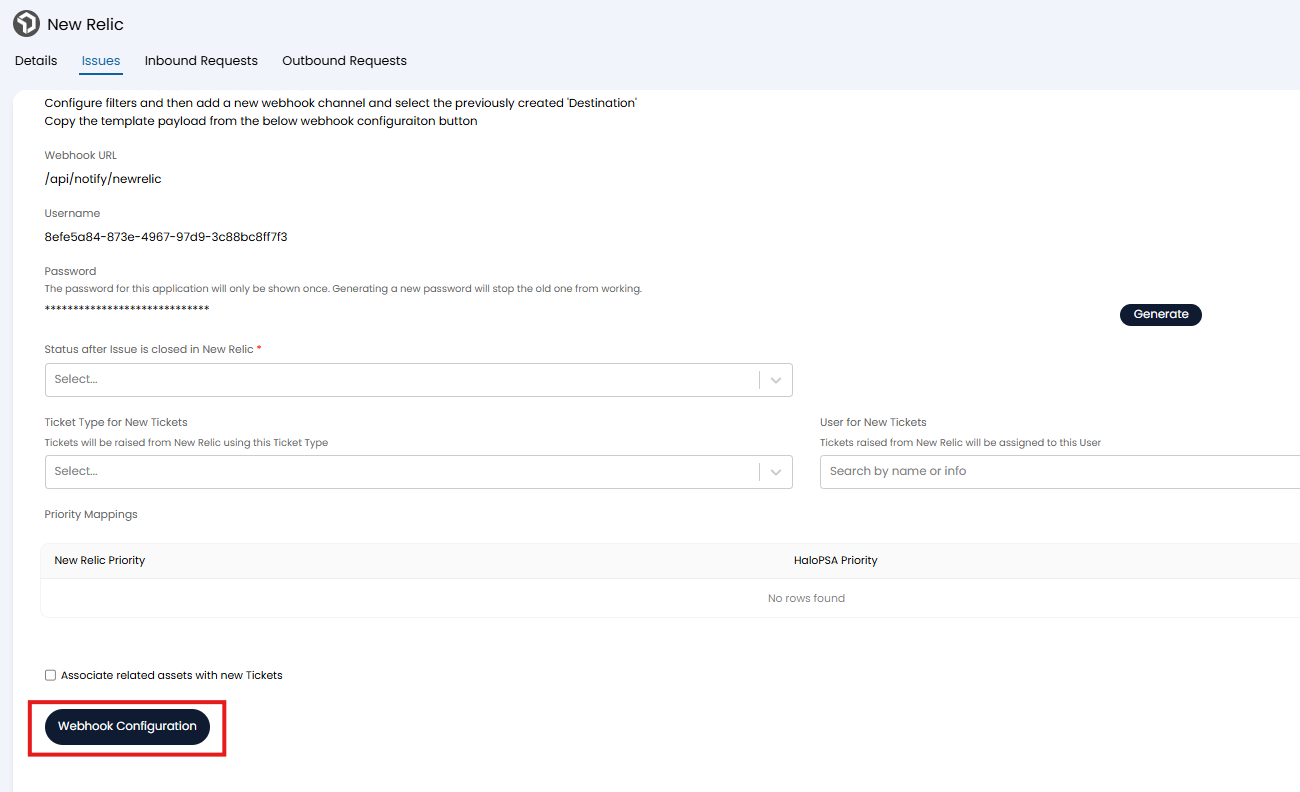
Fig 10. Webhook configuration Button
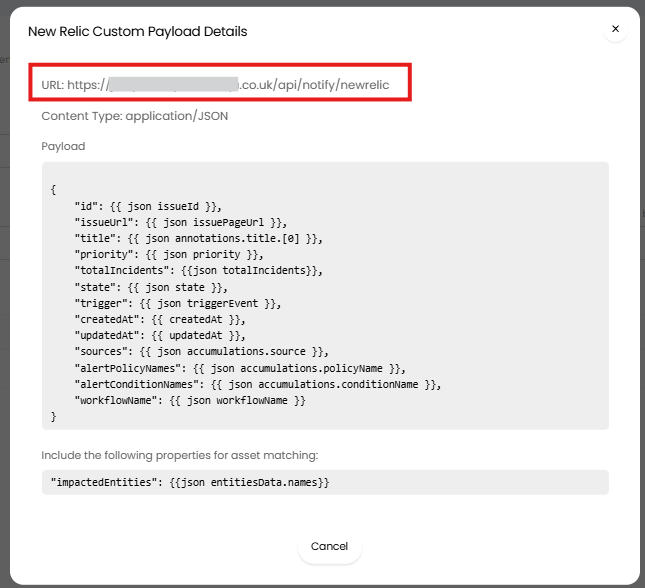
Fig 11. Endpoint URL for New Relic webhook
Then ensure you choose 'Basic Authentication' for your webhook. The username and password required can be viewed/generated from the integration setup page in Halo (figure 10).
Once your destination is saved go to the 'Workflows' section and create a new 'Workflow'.
Configure filters to determine which issues will trigger an alert and then add a new notify channel with the type webhook. Select the previously created 'Destination' and in the 'Payload' copy and paste the templated payload provided in the integration setup page in Halo (figure 11).
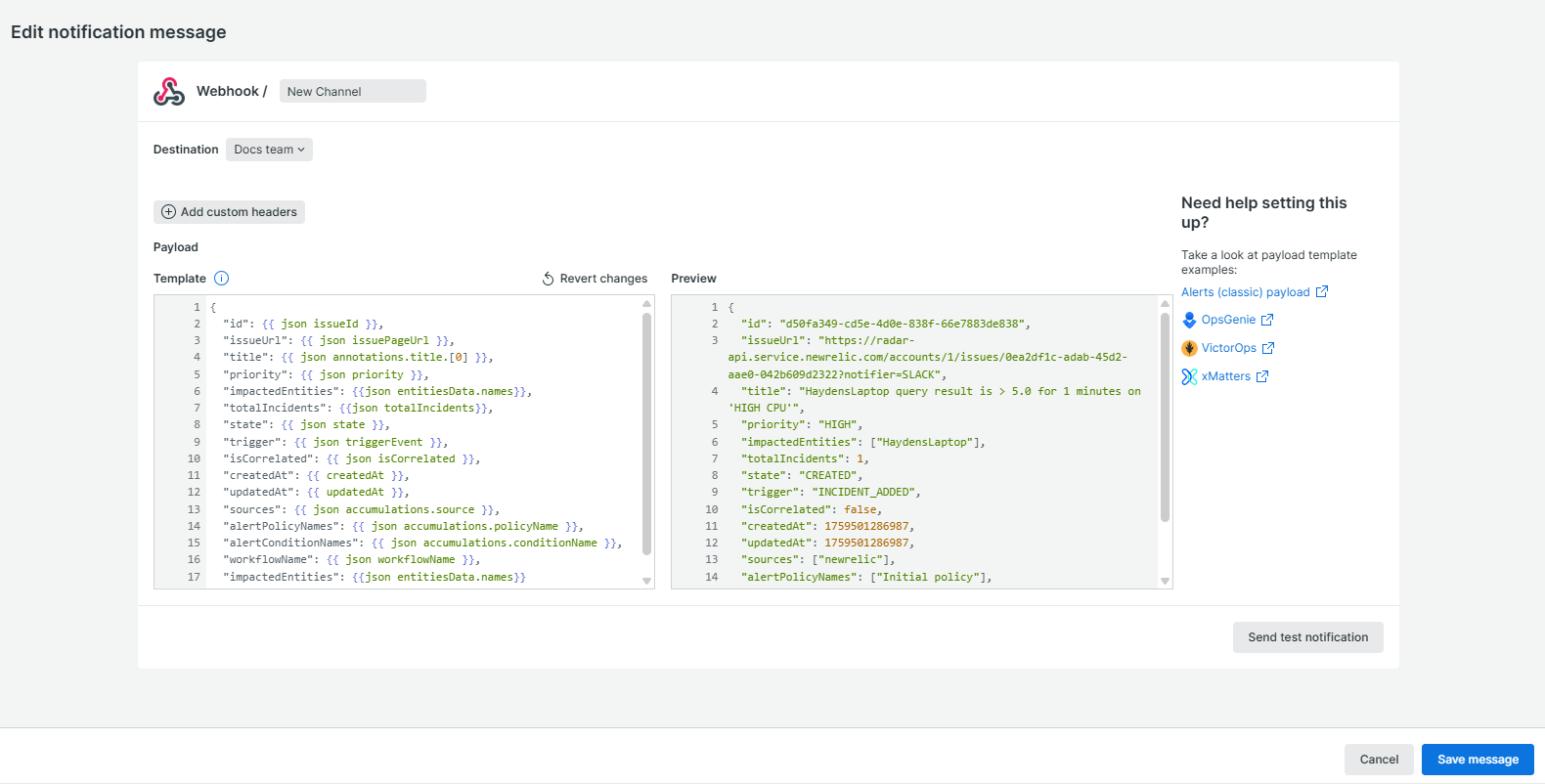
Fig 12. Webhook destination and payload
Note: If you would like the ticket logged to be associated with the asset the alert originated from ensure you include the JSON key/value pair "impactedEntities": {{json entitiesData.names}} in the webhook payload.
Once the workflow is saved, webhook setup is complete.
Configure How Alerts are Logged
Head back to the integration setup page in Halo to complete further configuration.
Status after Issue is closed in New Relic - Here, choose the status you would like tickets in Halo to have when the issue is closed in New Relic. If you would like the ticket to be closed when the issue is closed ensure you choose the 'Closed' status here.
Ticket Type for New Tickets - Determines which ticket type will be used to log alerts from New Relic. You may wish to create a dedicated ticket type for this or use the 'Alert' ticket type. If you would like the ticket logged to contain priority information from New Relic, ensure the ticket type has the 'Priority' field in the field list.
User for New Tickets - Determines the user tickets logged from alerts will be assigned to.
Note: The ticket type logged and user the ticket is assigned to can be dynamic based on the alert by customising the JSON payload for the webhook.
In order to have the ticket logged assigned the correct priority based on it's New Relic priority ensure you complete the 'Priority Mappings' table as shown in figure 13.

Fig 13. Priority Mappings
Associate related assets with new Tickets - Enable this if you would like the logged ticket to be associated with the asset that the alert originated from.
Syncing to New Relic
When the alert ticket is closed off in Halo the linked New Relic issue will be closed too. If you would like a message to appear in Halo each time this sync occurs enable 'Show a message for each successful sync to New Relic'.
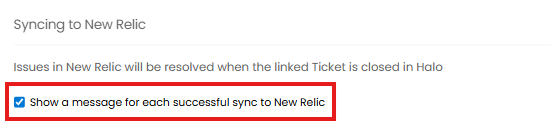
Fig 14. Show a message for each successful sync to New Relic
Viewing Alerts
Once the integration is connected incidents in New Relic will create tickets in Halo. The summary of the ticket will contain details of the incident, including:
Alert/Incident name
Threshold and conditions for triggering
Entity that triggered the alert/incident
If you are using the 'Current' integration method additional information will be added to the ticket logged if configured to do so.