Rapid7 Integration
- integration
- Users
- runbook
- rapid7
In this guide we will cover:
- What is the Rapid7 Integration?
- Enabling the Rapid7 Module
- Connecting to Rapid7
- Runbooks from Rapid7
What is the Rapid7 Integration?
The Rapid7 integration is runbook-based and can be used for Ticket creation and alert management.
Enabling the Rapid7 Module
In Configuration > Integrations > Asset Management and Alerting, you will find the Rapid7 module. Hover over this and press the plus (+) in the corner to enable it. It will then show a cross (X) when enabled.
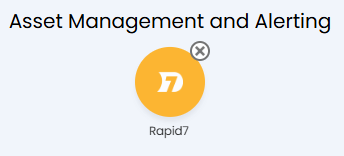
Fig 1. Enabled Rapid7 module.
Upon enabling the module, the relevant runbooks will be added to your instance. These can be quickly accessed by the three buttons within the module, or within the list in Configuration > Integrations > Custom Integrations > Integration Runbooks.

Fig 2. Rapid7 runbook buttons.
Connecting to Rapid7
To connect, enter your URL and an API Key generated from Rapid7 in the provided fields.

Fig 3. Connecting to Rapid7.
Runbooks for Rapid7
Webhooks will need to be set up in Rapid7 to trigger the runbooks when an investigation is created.
Upon enabling the module, three runbooks and a system method will be downloaded.
- Rapid7 Investigation Creation: Creates a ticket when an investigation is opened in Rapid7.
- Rapid7 Alerts Creation: Obtains any new alerts and adds them to the ticket on a schedule.
- Rapid7 Investigation Close: Closes the investigation in Rapid7. Triggered from a workflow or action on a ticket.
The method uses the URL and API key entered in Fig 3 to authorise.
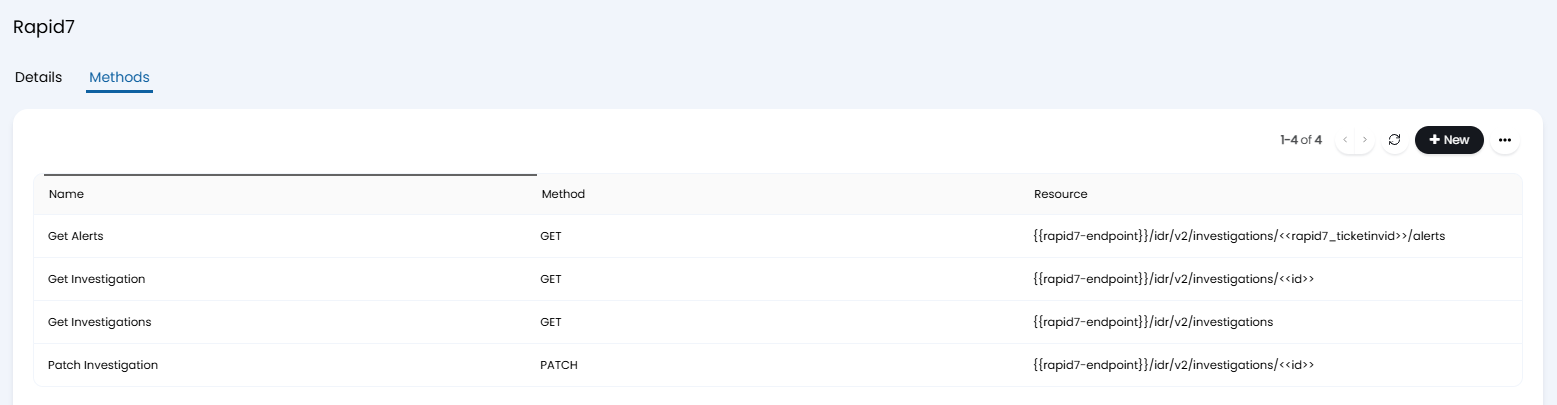
Fig 4. Rapid7 system method.
Within each runbook, there will be "placeholder" values that can be changed to edit the behaviour of the integration. For example, in the "Rapid7 Investigation Creation" runbook, you may want to customise what ticket type is logged from it by changing the ID here in the "Add/Update Ticket" step.
You could also do the same within the "Create Action" step to customise how the automatic action appears on the ticket, i.e. whether it shows to the end-user.
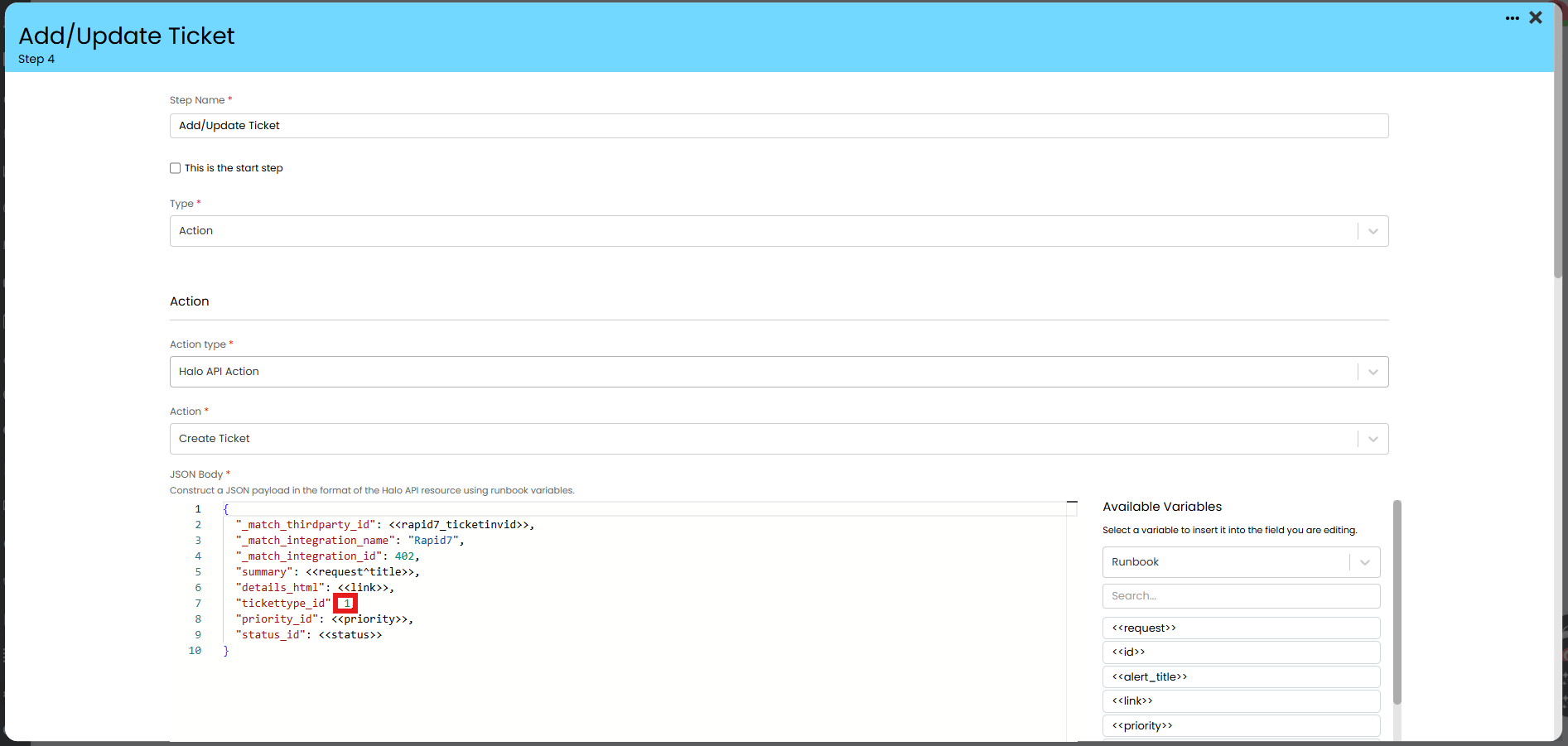
Fig 5. Customising the runbook.
Whilst the ticket creation and alert updates are triggered from Rapid7, the closure is triggered from within Halo. This can be done via an action or a workflow.
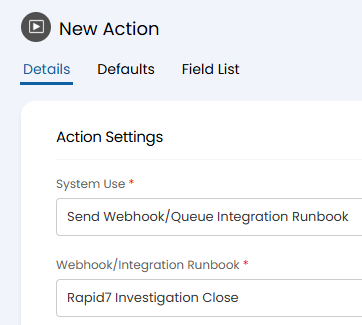
Fig 6. Action to trigger the runbook closure.