Zendesk Migration
- Migration
- Zendesk
- HelpDesk Migration
In this guide we will cover:
- What is the Zendesk Migration Tool?
- Getting Zendesk Credentials
- Connecting to Zendesk
- Importing Data
What is the Zendesk Migration Tool?
The Zendesk migration tool can be used to import data from your Zendesk instance into Halo. It can import organisations (customers), users, articles, and incidents by connecting via an API token from Zendesk.
Getting Zendesk Credentials
Logging into your Zendesk instance, navigate to the "Admin" tab and click "Go to Admin Center".
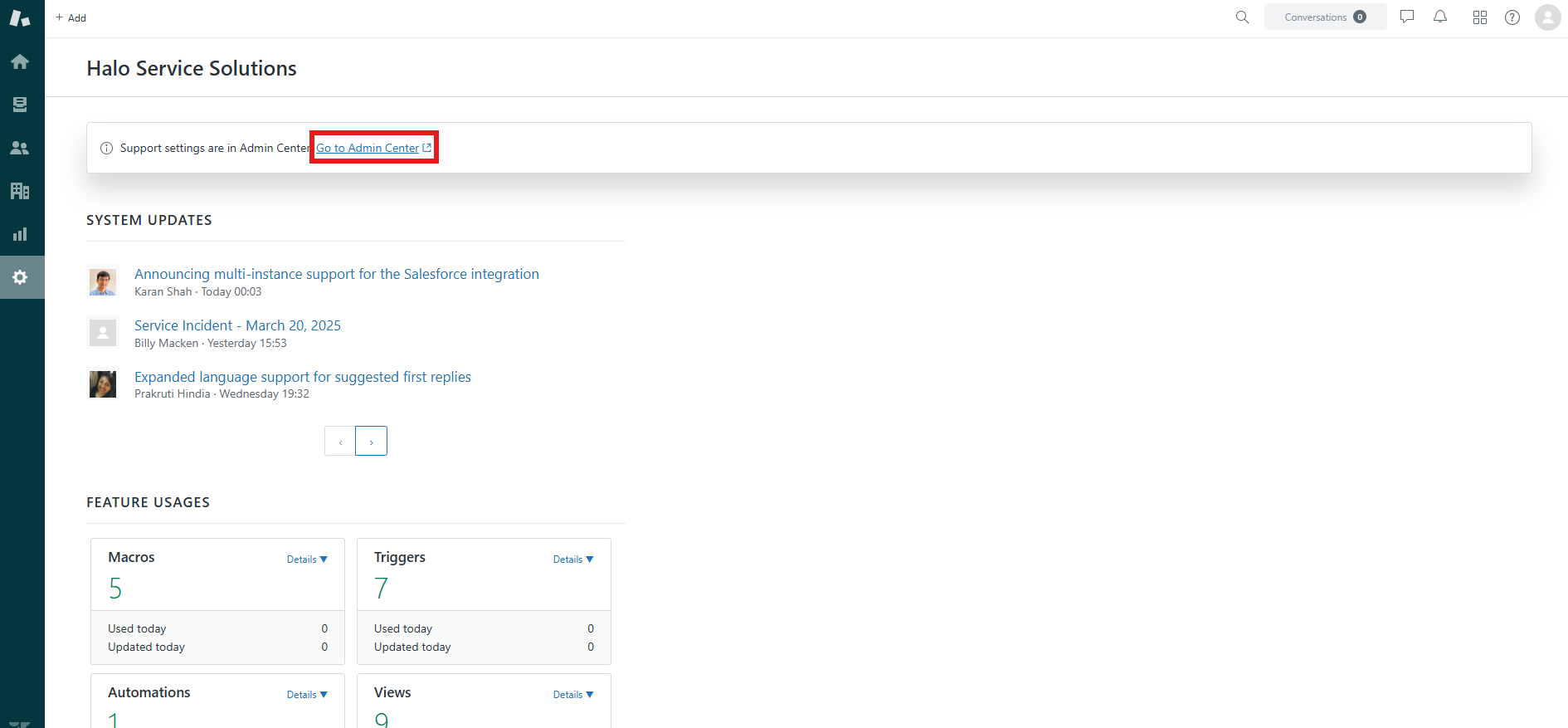
Fig 1. Admin configuration in Zendesk.
In the Admin Center, navigate to Apps and integrations > APIs > Zendesk API. Click "Add API token", name the token, and then make note of the value that appears. After you exit this screen it will not show again.
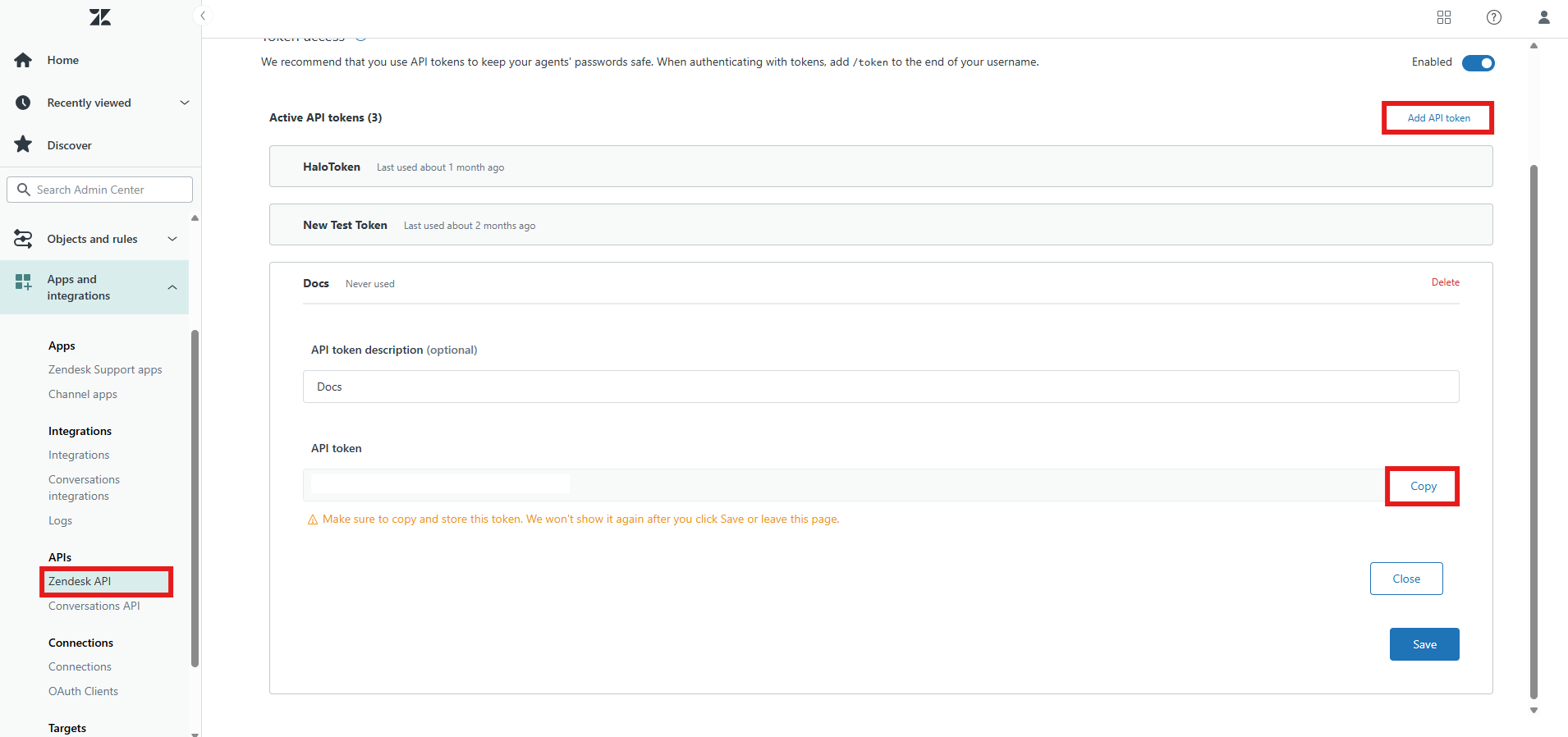
Fig 2. Generating an API token in Zendesk.
Connecting to Zendesk
Back in Halo, go to Configuration > Migrations > Zendesk Migration. At the top of the page, there are three fields : Zendesk URL, Email Address and API Token. Enter the corresponding values into these fields.
The URL should be your URL without any additions at the end, the email address that of the account that generate the API token, and the API token the one we generated previously.
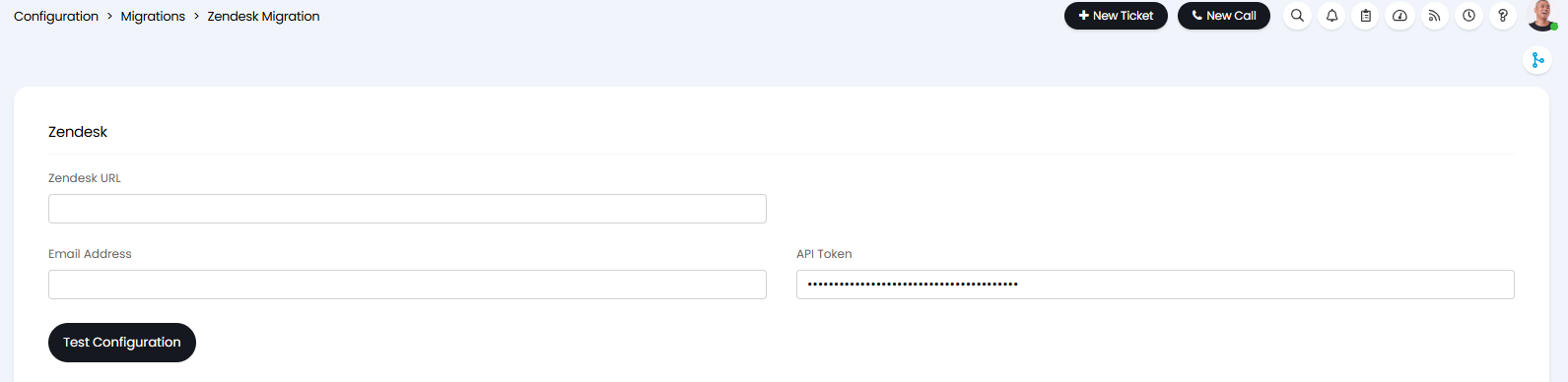
Fig 3. Configuring the Zendesk migration.
Upon filling these in, click the "Test Configuration" button. This will show the below popup if the connection is set up correctly, and will show an error to help troubleshoot if not.
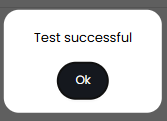
Fig 4. Test successful popup.
Importing Data
Once the setup is all confirmed, you can now import your entities.
Select which entity you wish to import in the dropdown, here we are using "Organisations" as the example. Click the "Import Now" button upon selection.

Fig 5. Selecting the Zendesk entity.
A popup will then appear for the additional configuration for that entity. Since we chose organisations, we can select the top level to be assigned to these customers.
If selecting users, you will need to set the default site.
If selecting articles, you will need to select the FAQ list to add these to.
If selecting incidents, you will need to select the ticket type to import these as, which statuses should be included on the import, and the minimum creation date (i.e. import tickets created from this date onwards).
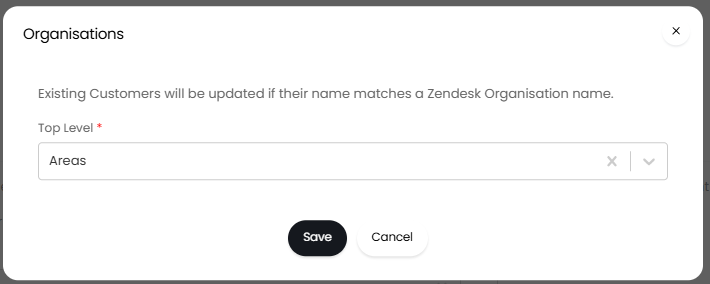
Fig 6. Organisations popup when importing.
Upon clicking "Save", the import screen will show. Select which you want to import (by default all will be selected), and then click "Start" in the top right to run the import. This may take a while dependant on the number of entities you are importing.
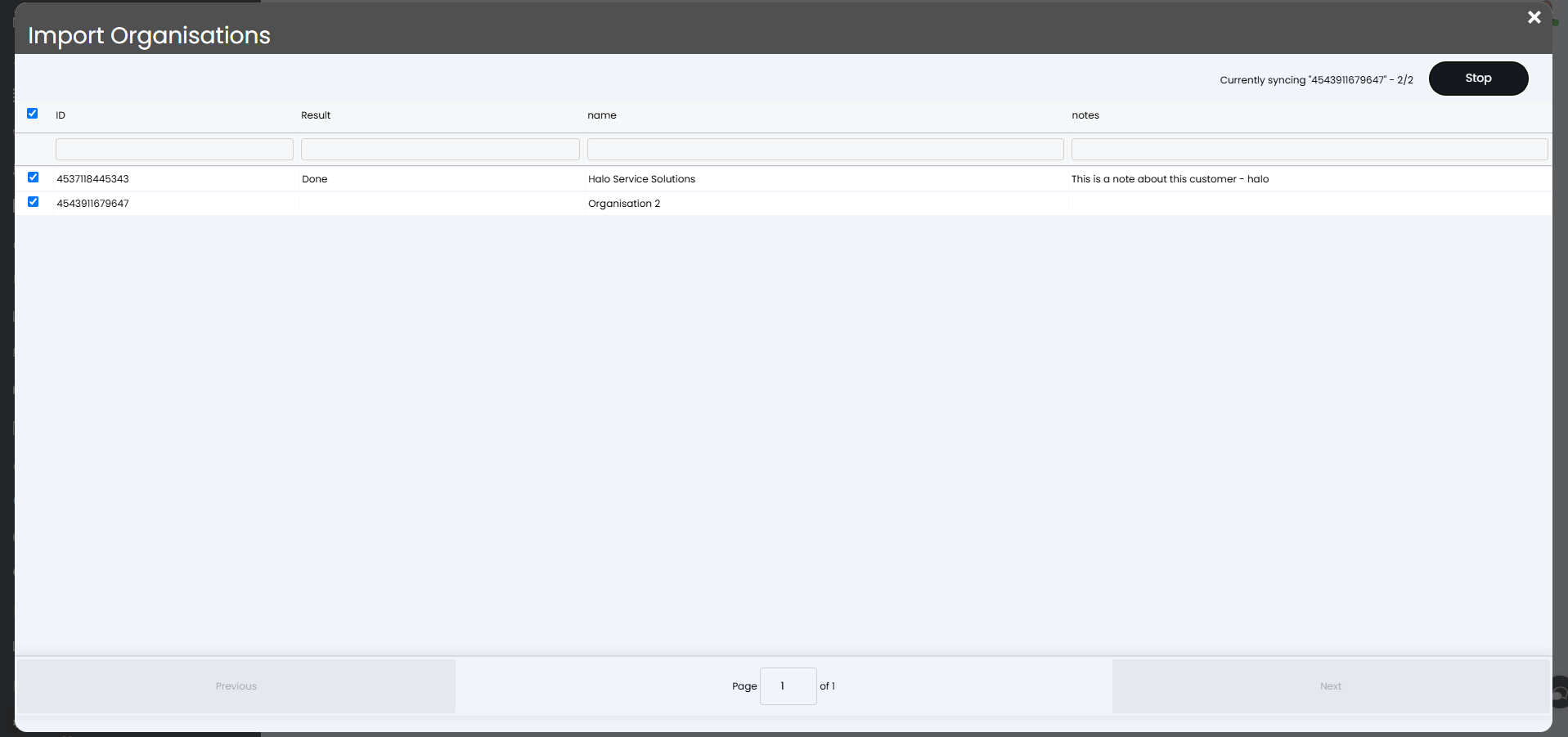
Fig 7. Import screen.
Organisations and users have matching abilities when importing. If any customers exist with the same name as the organisation, it will match and update the other fields with information instead of creating a new customer. For example, "Halo Service Solutions" in the first line of the import screen above has updated the existing record with the note.
Users will be updated if their email address matches an existing user.
Note: Matching must be exact, i.e. the customer name must be the same as Zendesk with no extra words, spaces, etc.
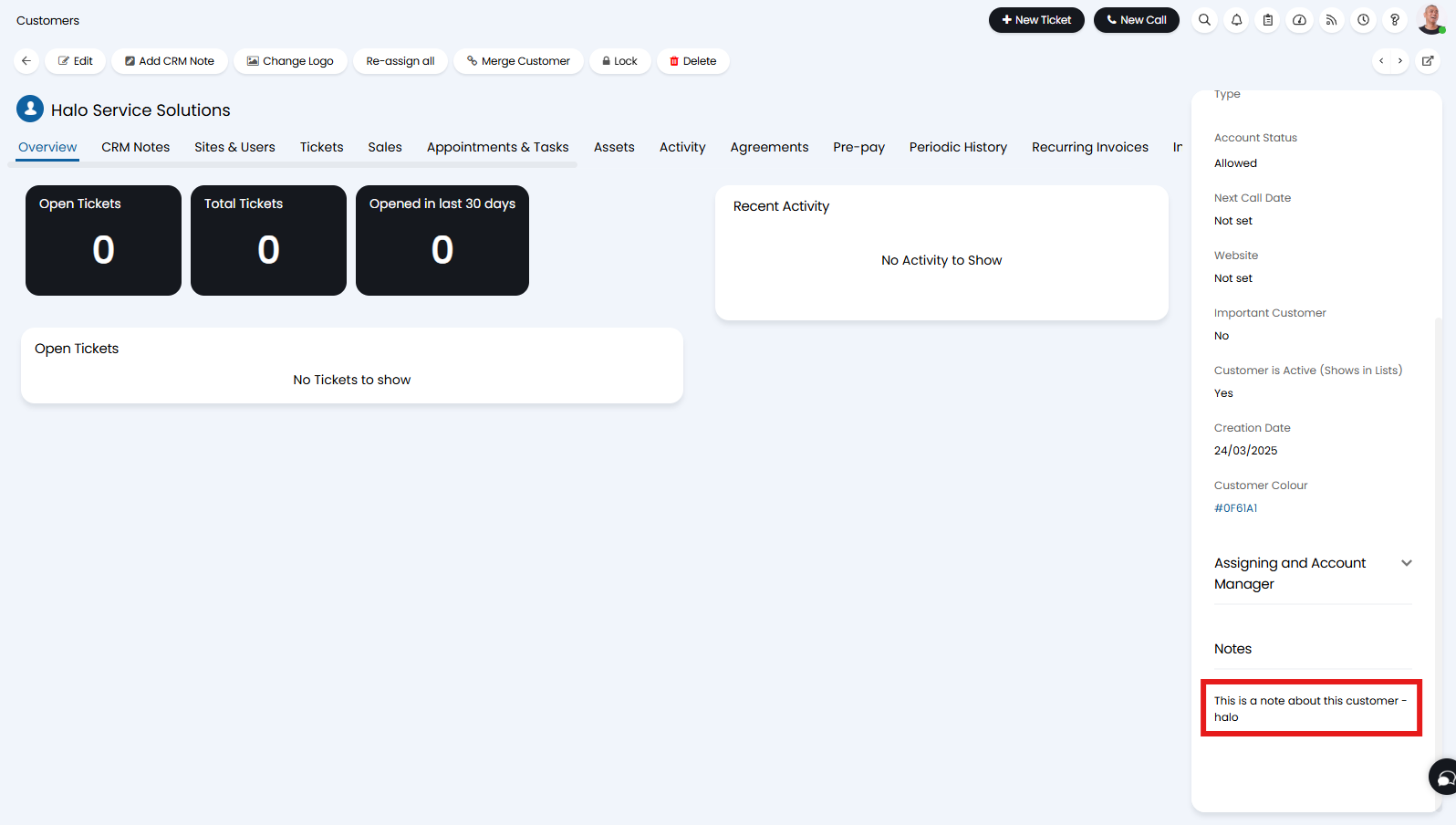
Fig 8. Updated existing customer.