ServiceNow Migration
- Migration
- ServiceNow
In this guide we will cover:
- What is the ServiceNow Migration Tool?
- Getting Details from ServiceNow
- Connecting to ServiceNow
- Importing Data
What is the ServiceNow Migration Tool?
The ServiceNow migration tool can be used to bring over data from a ServiceNow instance into Halo. It can migrate companies and locations, users, articles, incidents, problems, change requests and service requests.
Note: To import, the user (you) will need full API access within ServiceNow, and you will need read/write/modification access to the information that is being imported.
You need to be a user with "Web service access only" set against your profile.
You will need roles that will allow access of information from:
- Core company.
- User groups.
- Users.
- Choices.
- Journal fields.
- Incidents.
Getting Details from ServiceNow
The first step is to get the login details from ServiceNow. Click onto your profile picture, and navigate to "Manage Instance Password".
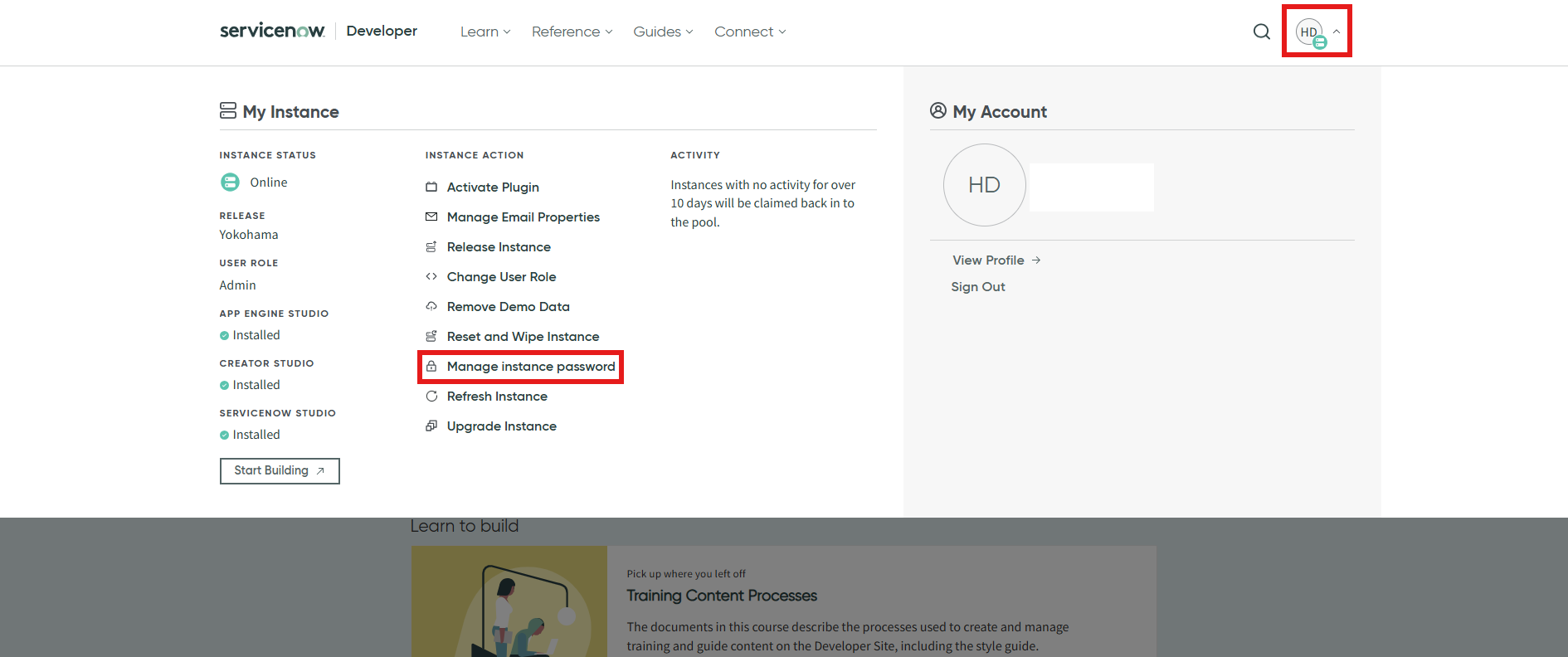
Fig 1. Getting the password details.
A popup will then show. Make note of these credentials and copy the instance URL, Username, and Password.
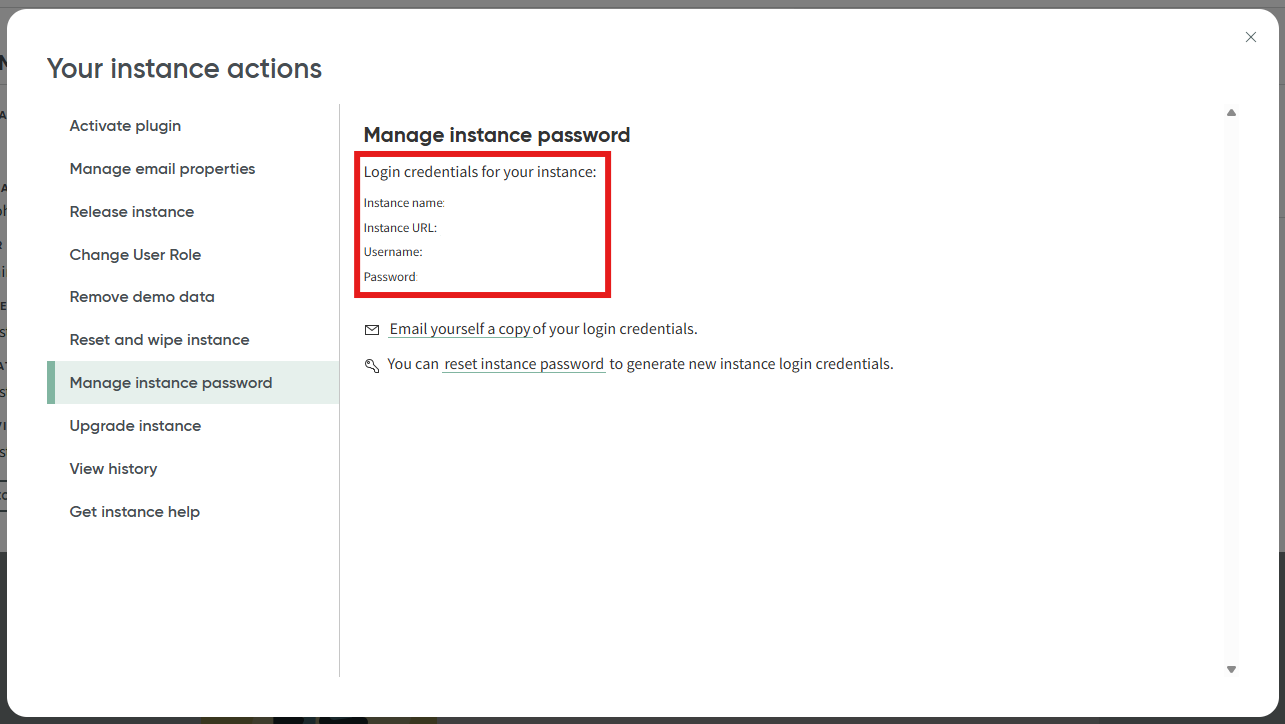
Fig 2. ServiceNow login details.
Connecting to ServiceNow
Now back to Halo. In Configuration > Migrations, open the "ServiceNow Migration" module. You will be faced with this screen to enter the details you previously made note of. Enter the URL, username, and password into their corresponding boxes.
Note: Locale is left empty, unless using a multi-tenanted ServiceNow instance and you only want to import data from one instance.
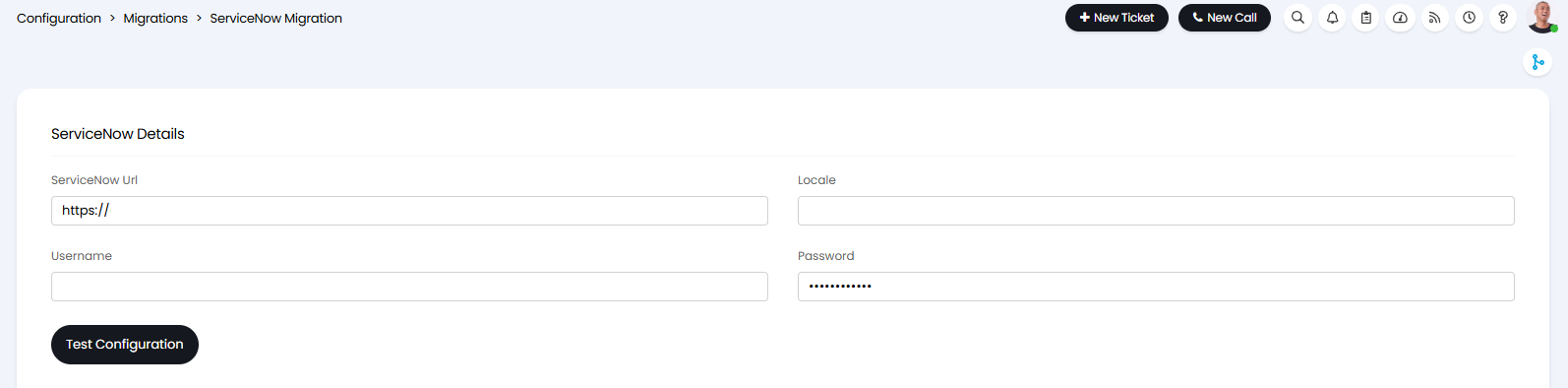
Fig 3. ServiceNow Details fields.
You can then click the "Test Configuration" button that shows underneath. It will load for a minute, and if successful, the following popup will show.
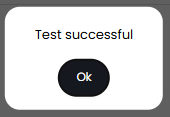
Fig 4. Test successful popup.
Importing Data
Once connected, you can then import your relevant entities. Here, I have selected to import incident tickets, and can then click the "Import Now" button.

Fig 5. Migrate Data from ServiceNow configuration.
A popup will then appear to configure relevant settings for that entity. For instance, importing customers will show options to select a top level if that is enabled, users will show selection of a default site, or articles will show selection of an FAQ list to add them to.
Note: You will be able to filter which articles are imported, based on their status. Allowing you to import only articles that are open (active) in ServiceNow.
For the example below, incidents required selection of a ticket type to import them as, which statuses to import, and a minimum creation date. This configuration will import the tickets as "Incident" ticket types, will import all tickets regardless of their status, but only those created after February 1st 2025.
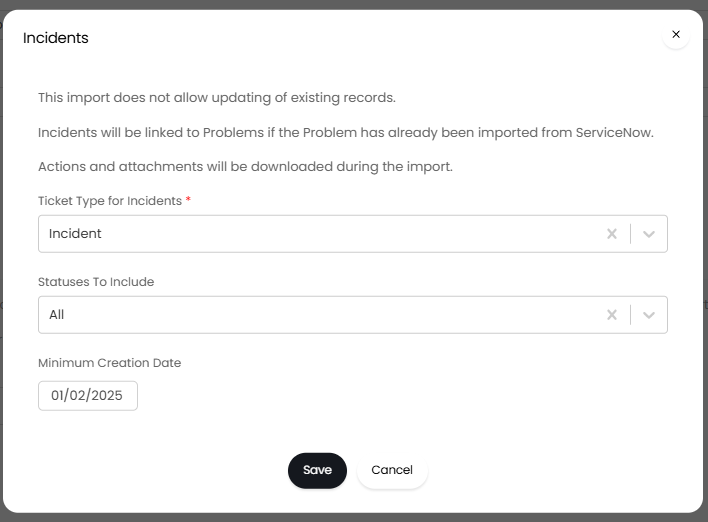
Fig 6. Incidents popup to configure the import.
Upon clicking the "Save" button, the import screen will appear showing items of the entity that meet that condition. By default, all will be selected to be imported, but individual ones can be set if wished. Click "Start" and let the import run. Depending on how many items that entity contains, this may take a while.
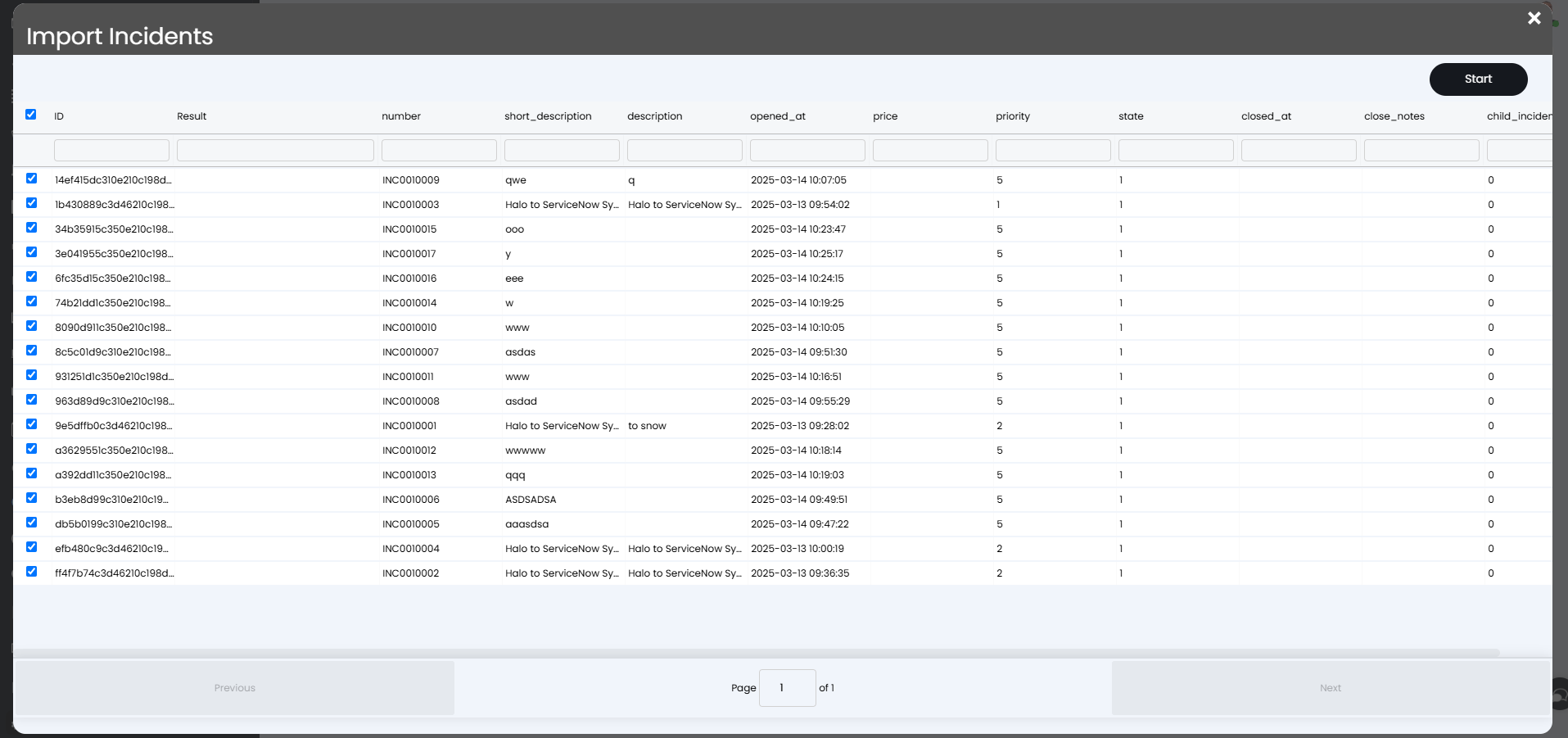
Fig 7. Import screen.
After the sync is finished, the import is completed. Below is an example ticket that has been imported via the above. The "ServiceNow Number" field shows in the "Ticket information" on the right hand side, and the summary, details and SLA have been mapped based on the import. It has been assigned the ticket type that was set in Fig 6.
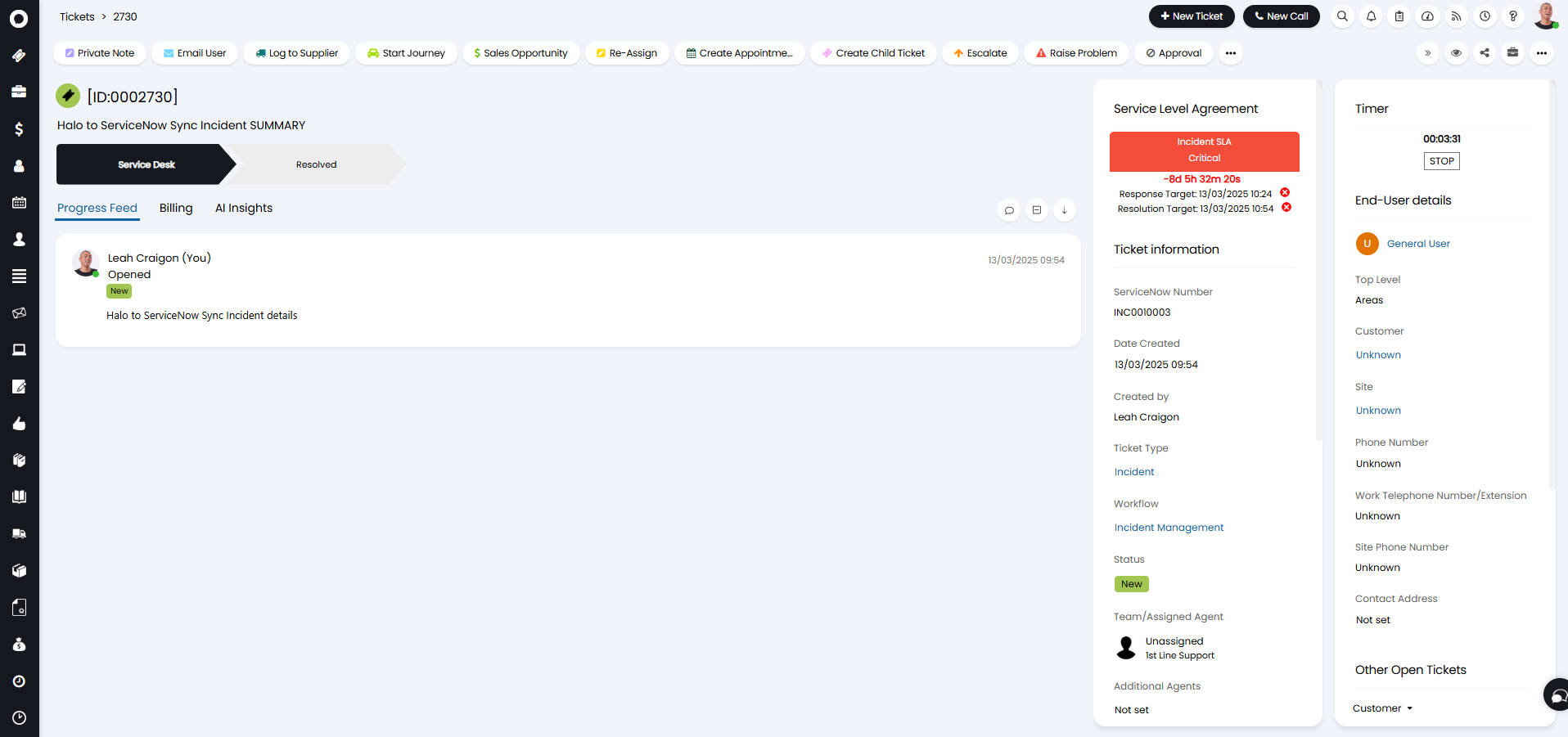
Fig 8. Imported incident ticket from ServiceNow into Halo.