Freshdesk Migration
- Migration
- freshdesk
In this guide we will cover:
- What is the Freshdesk Migration?
- Generating a Freshdesk API Key
- Connecting to Freshdesk
- Mapping Fields
- Migrating Data from Freshdesk
- Migrating via the Halo Integrator
- Update Previously Imported Tickets
What is the Freshdesk Migration?
The Freshdesk migration tool can be used to bring over data from your Freshdesk instance into Halo. Tickets, articles, companies and canned texts can be imported with this method via the API.
Generating a Freshdesk API Key
In Freshdesk, go to your Profile settings in your account, and click "View API Key" in the "Your API Key" area. Copy this/make note of it.
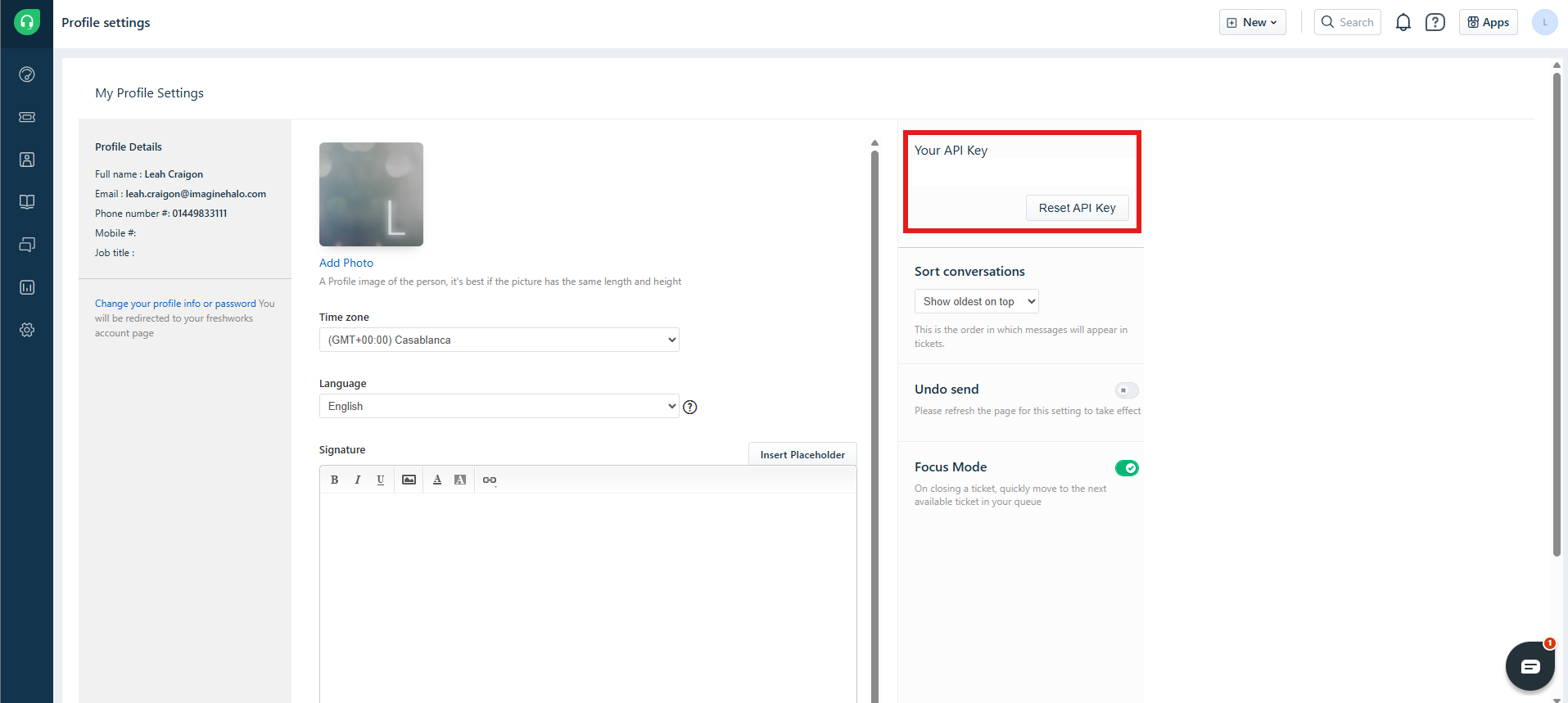
Fig 1. Generating an API key.
Connecting to Freshdesk
In the Freshdesk module (Configuration > Migrations > Freshdesk), you can first put your Freshdesk URL and API Key in the top fields.

Fig 2. Entering the Freshdesk credentials.
Once entered, click the "Test Configuration" button. If the correct credentials are entered, the following popup will show. If there are any errors, they will show in its place to help troubleshoot it.
Fig 3. Popup from correct configuration.
Mapping Fields
Each of these mapping tables function the same way.
Company Mappings
The first set of mappings if for any company fields. Click the "Add" button to show the popup with two dropdowns - one for the Freshdesk field and one for the Halo field. Here is where you can select each field that corresponds with the other.
You can also map multi-select fields here and for tickets.

Fig 4. Company Mappings table.
Ticket Mappings
Ticket Type
The first table for ticket mappings is to map a field in Freshdesk to a ticket type in Halo.
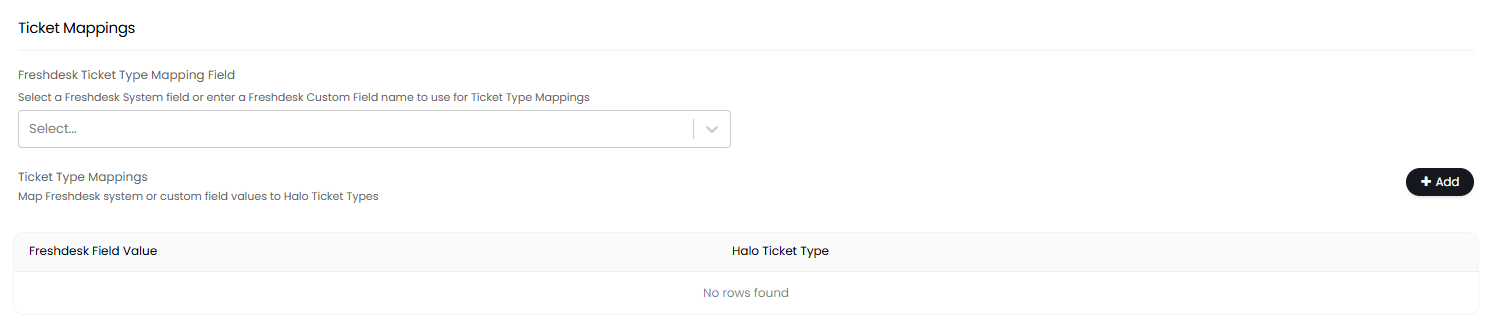
Fig 5. Ticket Type mappings
Team
The next is for the team assigned to the ticket, where you can map the Freshdesk team to the Halo team.

Fig 6. Team Mappings table.
Agent
Agent mappings are done automatically, by email primarily or by name if that does not match.

Fig 7. Agent Mappings notice.
Status
You can then map the ticket statuses here. You can also select to use a custom status ID instead of a Freshdesk status.

Fig 8. Status Mappings table.
Priority
Next is priority mappings. The numbers used for the Halo priorities are based on the priority level set against them on the SLA of the ticket type you are going to use to import. (The ticket type will be selected later).
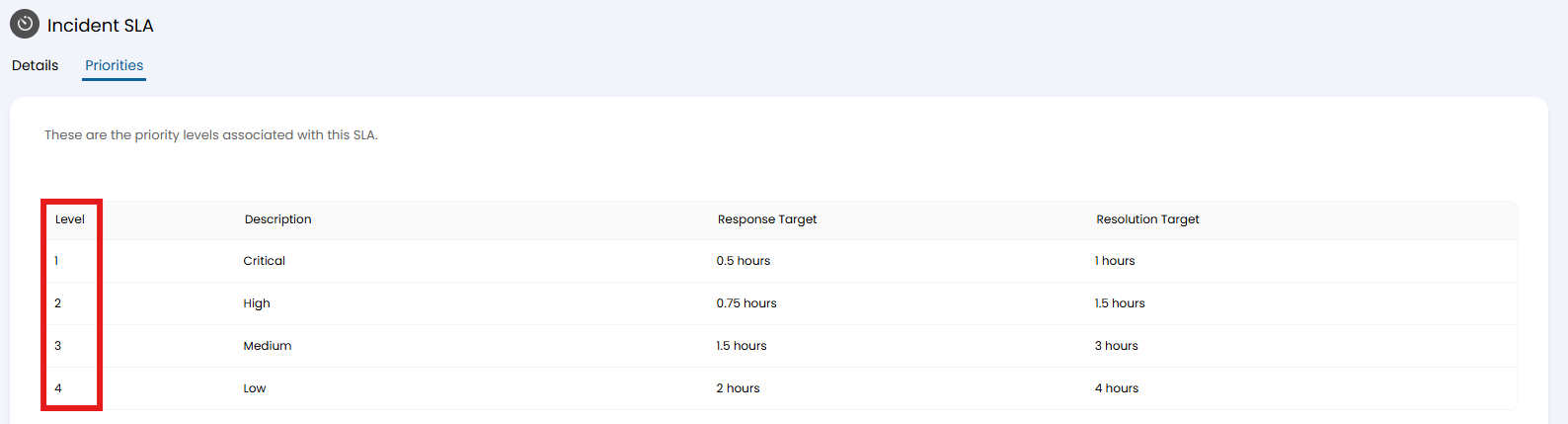
Fig 9. Priorities on an SLA with an associated numerical level.

Fig 10. Assigning the priority numbers.
Freshdesk Fields
You can then map the Freshdesk fields ("Type", "Product" or "Source") to Halo custom fields.

Fig 11. Freshdesk Field Mappings table.
Actions
To use this feature, a custom field of entity "User" and input type of "Integer" must be created to store the Freshdesk User ID. This can be set with a spreadsheet import with data from Freshdesk. This will match the action to display on the ticket the user who completed it.

Fig 12. Selecting a Text Integer field to import the Freshdesk User ID based on.
Canned Response
Variables can be mapped from Freshdesk into Halo in the below format.

Fig 13. Variable mappings.
Migrating Data from Freshdesk
Finally, you need to choose what to migrate across from either:
- Tickets: Imports tickets based on mappings set above.
- Articles: Imports knowledge base articles, Freshdesk drafts will be imported as inactive articles.
- Companies: Imports new customers, but will not update existing records.
- Canned Text: Imports new canned texts, but will not update existing records. Attachments will also migrate.
- Article Categories, Folders and Sub Folders: Imports as FAQ lists, so articles can be imported into these.
Select the entity in the dropdown, then click the "Import Now" button. In this example, we will use "Tickets".

Fig 14. Selecting what to import.
A popup will then show to configure the ticket type the tickets should be created with, the cut-off date for when tickets were last updated, and to select statuses to import. If left blank, all statuses will be imported.
You can also choose whether to allow matching of Users on Name, or only by email address.
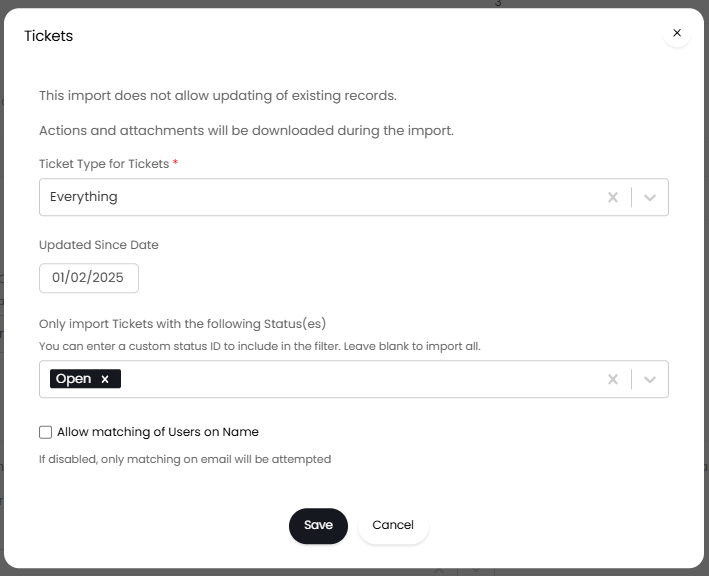
Fig 15. Choosing ticket criteria if importing tickets.
Upon clicking "Save", an import screen will be generated with the values within the entity that fit the criteria set above. Now click "Start" to import.
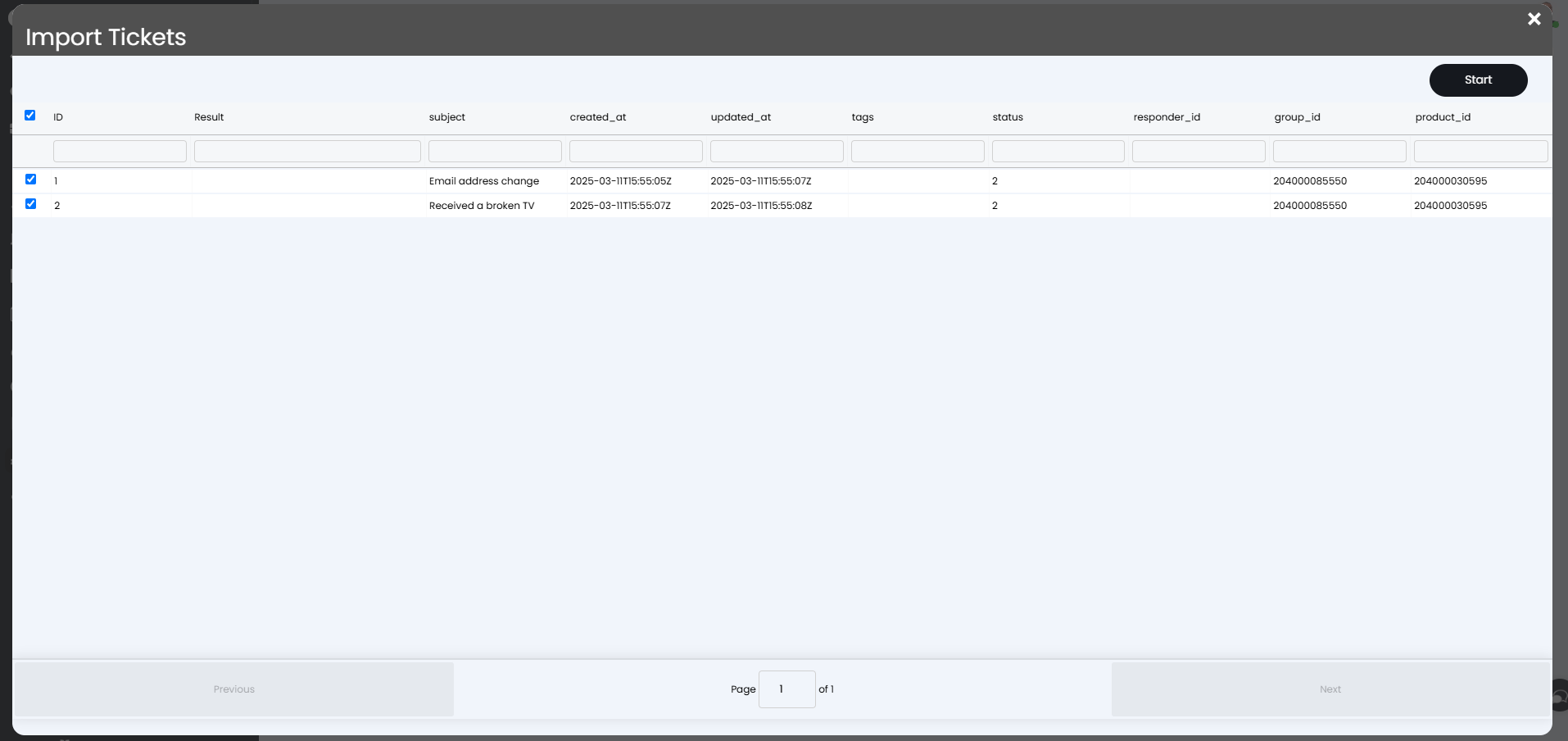
Fig 16. Import screen.
Migrating via the Halo Integrator
The Halo integrator can be used to migrate tickets on a schedule over a period, useful for larger migrations.
After enabling the integrator, you can choose to restrict which tickets are imported by their last updated date/time, as well as if the migration is continuous or only 30,000 tickets per run (per day). This is recommended if the integrator is being run for a long period of time on a system with low memory.
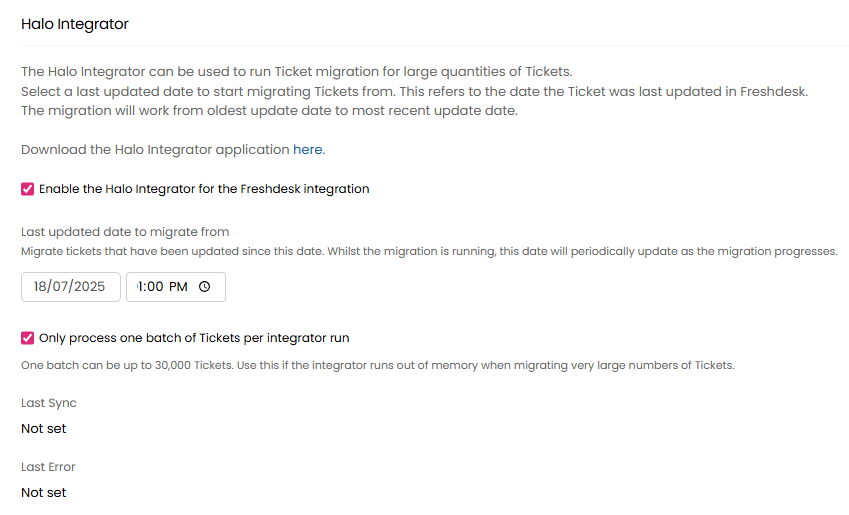
Fig 17. Halo Integrator migration.
Update Previously Imported Tickets
Tickets that have already been imported from Freshdesk can be re-imported to update the following fields:
- Ticket Type
- Agent
- Team
- Tags
Useful when changes have been made to the tickets in Freshdesk since importing them into Halo.
To do this, ensure that when you are re-importing tickets from Freshdesk you enable the settings highlighted below.
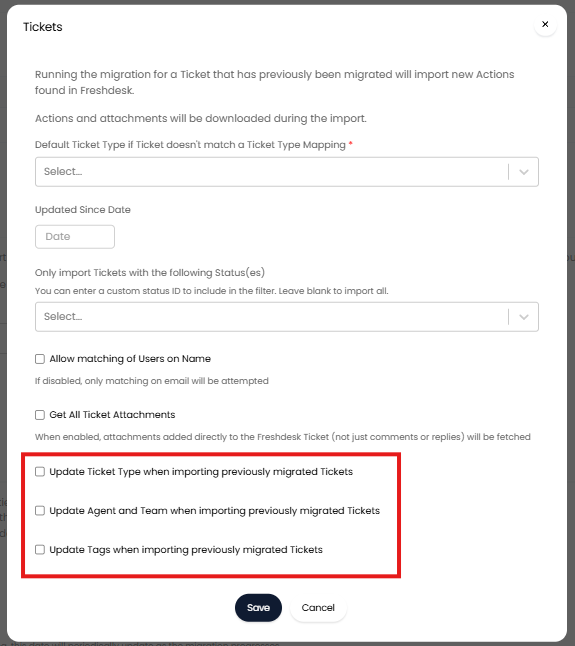
Fig 18. Settings to allow existing tickets to be updated during import.
Tickets will match based on the Freshdesk ID associated with the ticket, this will be set when the ticket is initially imported/created.