PDF Templates
- html
- template
- Asset Template
- XML attachment
- XML template
- invoice template
- quote template
- purchase order template
- xml
In this guide we will cover:
- What are PDF Templates in Halo?
- How to Customise your PDF templates
- Who can configure PDF Templates?
- XML Ticket Templates
What are PDF Templates in Halo?
PDF templates are used when printing or generating PDFs for various entities within Halo. This allows those entities to be exported in a document-friendly format for distribution to customers, agents, or anyone else outside of Halo. The entities that can be exported as a PDF are as follows:
- Tickets
- Quotations
- Sales Orders
- Purchase Orders
- Invoices
- Agreements
- Reports
- Composite Reports
- Consignments
- Knowledge Base
- Assets
- Bulk Assets
- Products (to link to Quotation Templates)
These entities will all use a standard PDF template by default, some of which (e.g. contracts) will need editing before they are suitable for use. Each of these entities can also use a custom PDF template. PDF templates can be edited and added via Configuration > Reporting > PDF Templates. You can select which entity's templates you're viewing in the top-left.
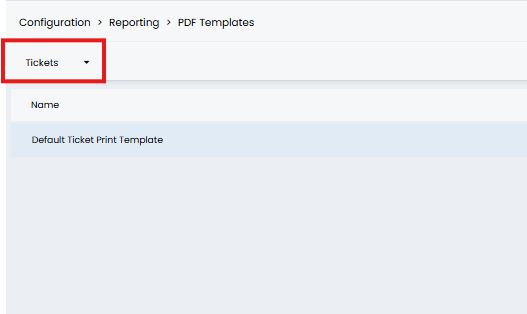
Fig 1. Select entity for PDF template
How to Customise your PDF templates
In this guide we will cover general PDF template customisation that can apply to most of the template entities. However, the customisation options you have will depend on the entity you are customising the template for. In this guide we will use a purchase order template as an example.
When editing a template you will be taken to the 'Details' tab.
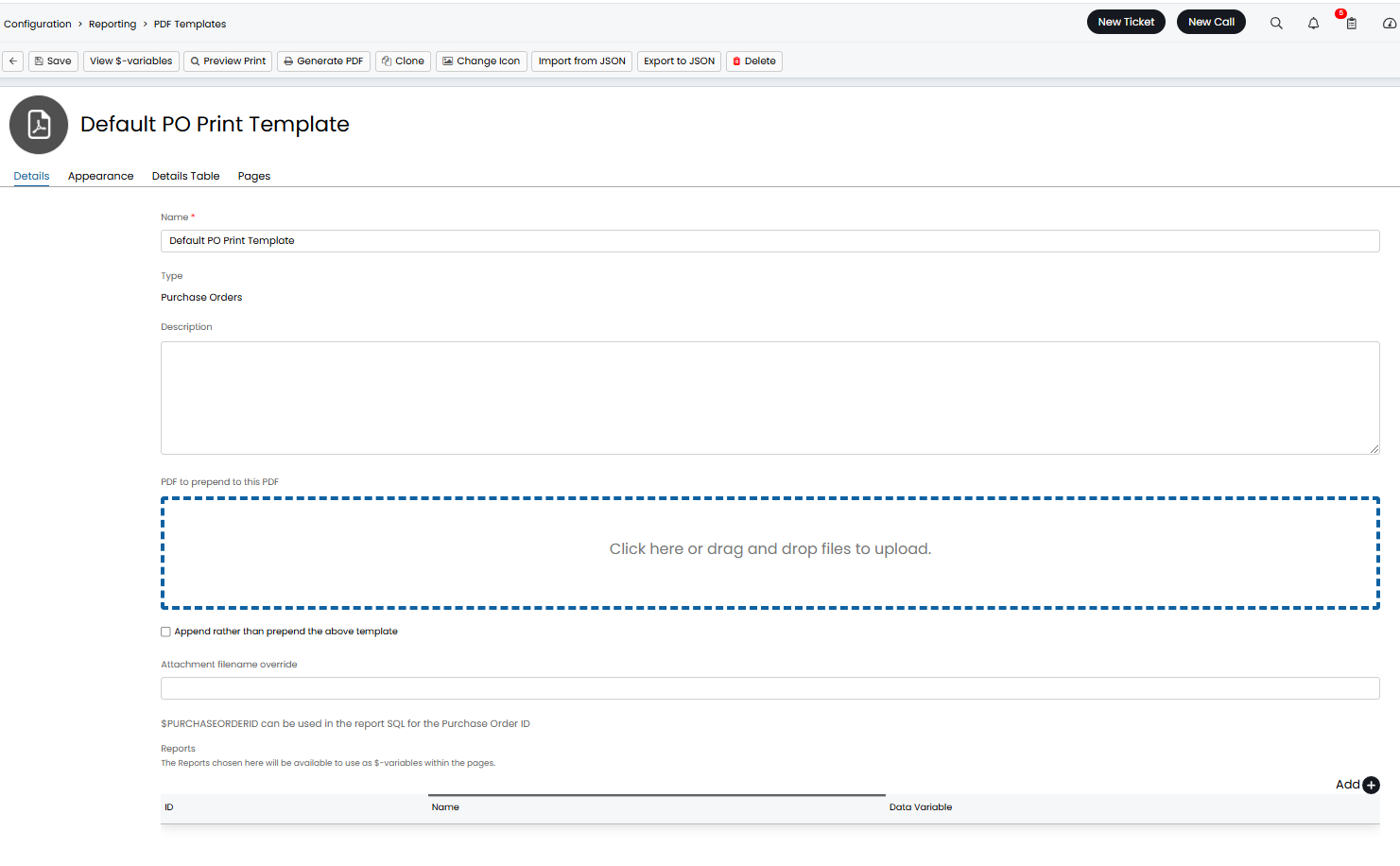
Fig 2. Details tab against PDF template
Here you have the options to name the template, prepend (or append) an additional PDF to the template and attach a report to the template. For information on how to attach a report/report data to a PDF see our dedicated guide.
Appearance
Under the 'Appearance' tab you can control how the PDF looks. This allows you to configure the basics of how the PDF will look, most appearance customisation can be done using the HTML for the template.
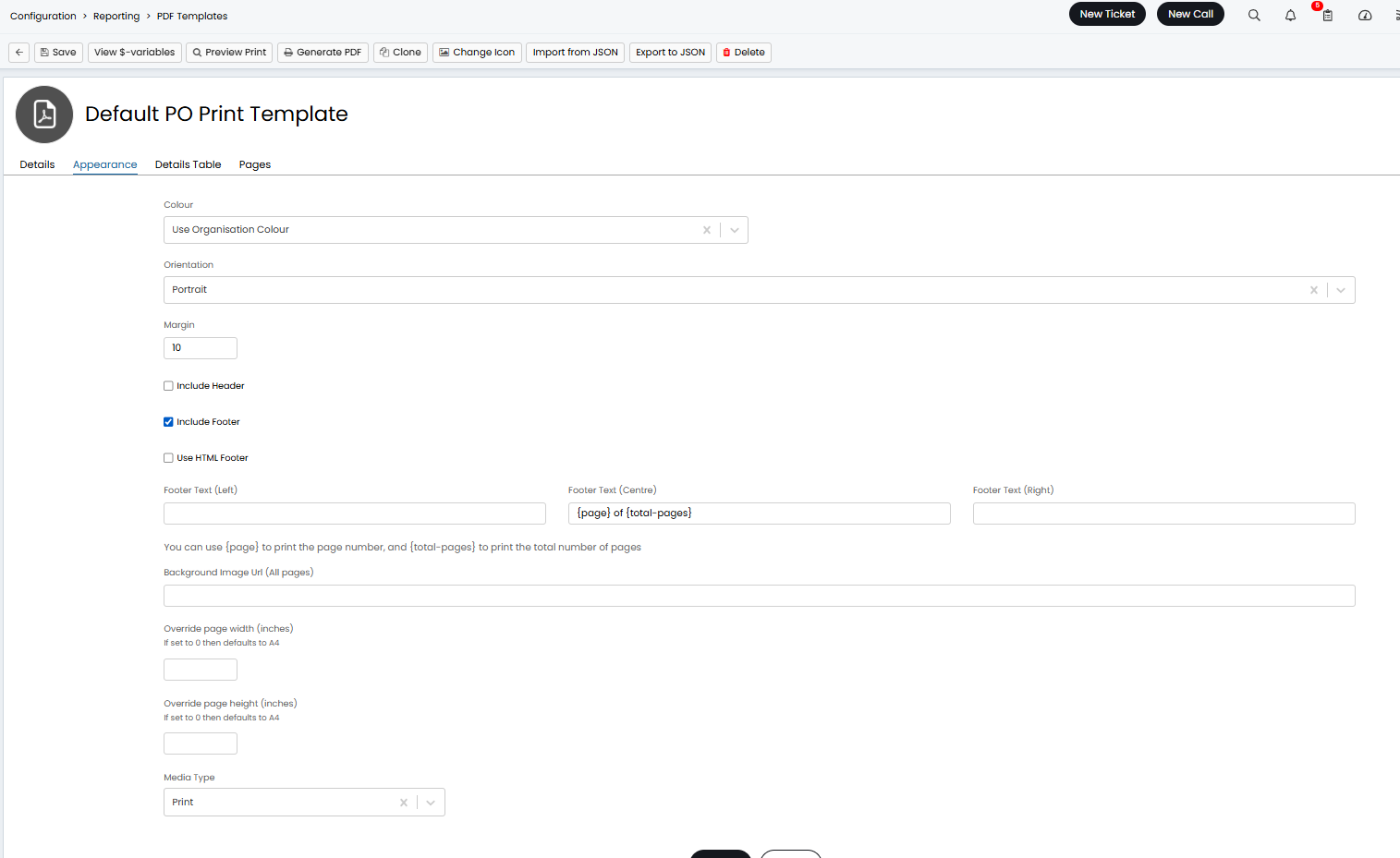
Fig 2. Appearance option for PDF template
If you have enabled a footer and/or header for the template you can enter the text you would like to display and where in the footer you would like this. A variable for the page number is entered here by default.
If you enable the use of a HTML footer you will be able to use HTML to customise what appears in the footer and how this looks. Dollar variables can be included here to pull data stored in your Halo instance (such as your organisation details). If you are using a HTML footer you will need to set the height of this footer in pixels.
A Background image URL can be set for the template, this image will be imposed as the background of every page on the template.
The page height and width can be overridden here, but leaving these fields blank will result in an A4 size page being used.
The media type, the type chosen will will determine if the PDF is rendered in a way that is more accessible for printing or viewing the PDF on a screen.
Details Table
Under the 'Details Table' tab you can set what fields will show in the details table on the template. The details table contains the specific line information, such as the name of the item, the description, price quantity etc.
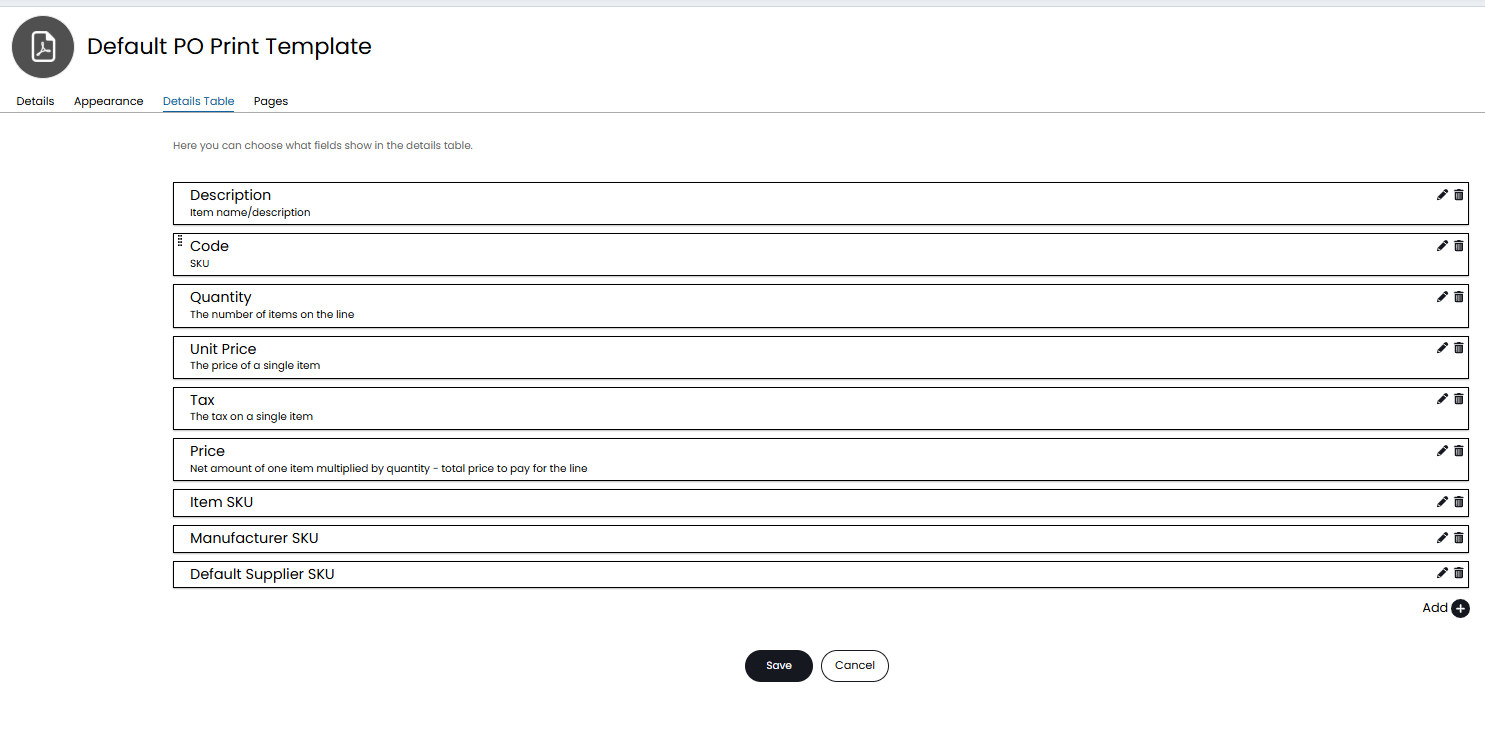
Fig 3. Details table setup
Each button here represents a column that will appear in the table, these buttons can be dragged and dropped to re-order the columns in the table. Additionally buttons can be edited to change the name of the column and how data in this column is aligned.
Adding new columns to the details table
Add a button here to see what fields are available to be added as a column.
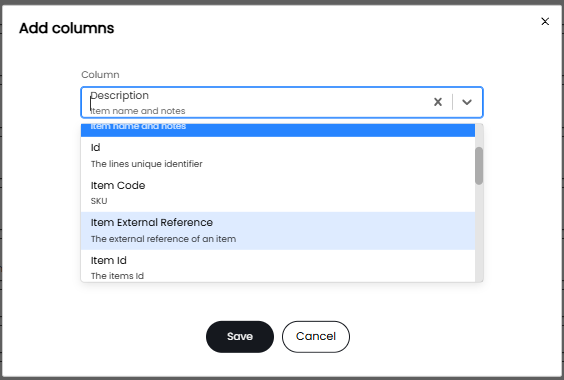
Fig 4. Adding a new column
If the column you would like to add is not covered by one of the pre-set options here you can add a custom column by selecting 'Add a custom column' here.
Adding custom Columns
Custom columns are used to pull data from variables. When adding a custom column enter a $-variable into the cell content to pull the data associated with this variable.
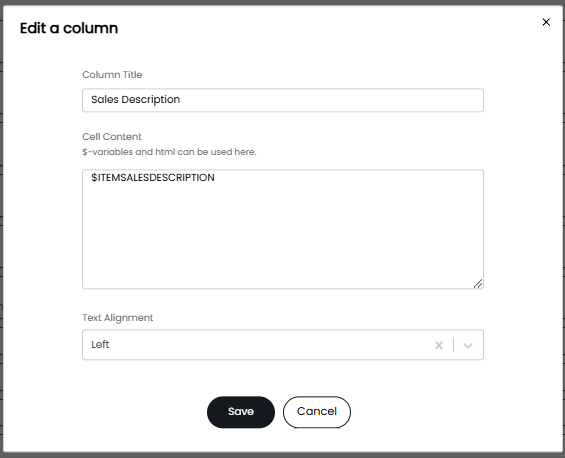
Fig 5. Custom column example
In the Figure 5 example I am creating a custom column that will contain the sales description for each line item.
Note: From v2.258+ item sales, purchase and user description fields can contain html, therefore if creating a custom column for one of these fields, this html will be applied to the line on the pdf.
To see a list of available variables use the 'View-$variables' button against the template and filter the variables by 'Product'.
Customising how the template looks using HTML
Most template customisation is done by editing the HTML of the template. To edit the HTML head to the 'pages' tab. On the table on this page there will be a line for each page of the document, each 'page' may take up more than one page space in the document but they are organised into these sections.
Use the pencil icon against the line to edit the HTML for the page.
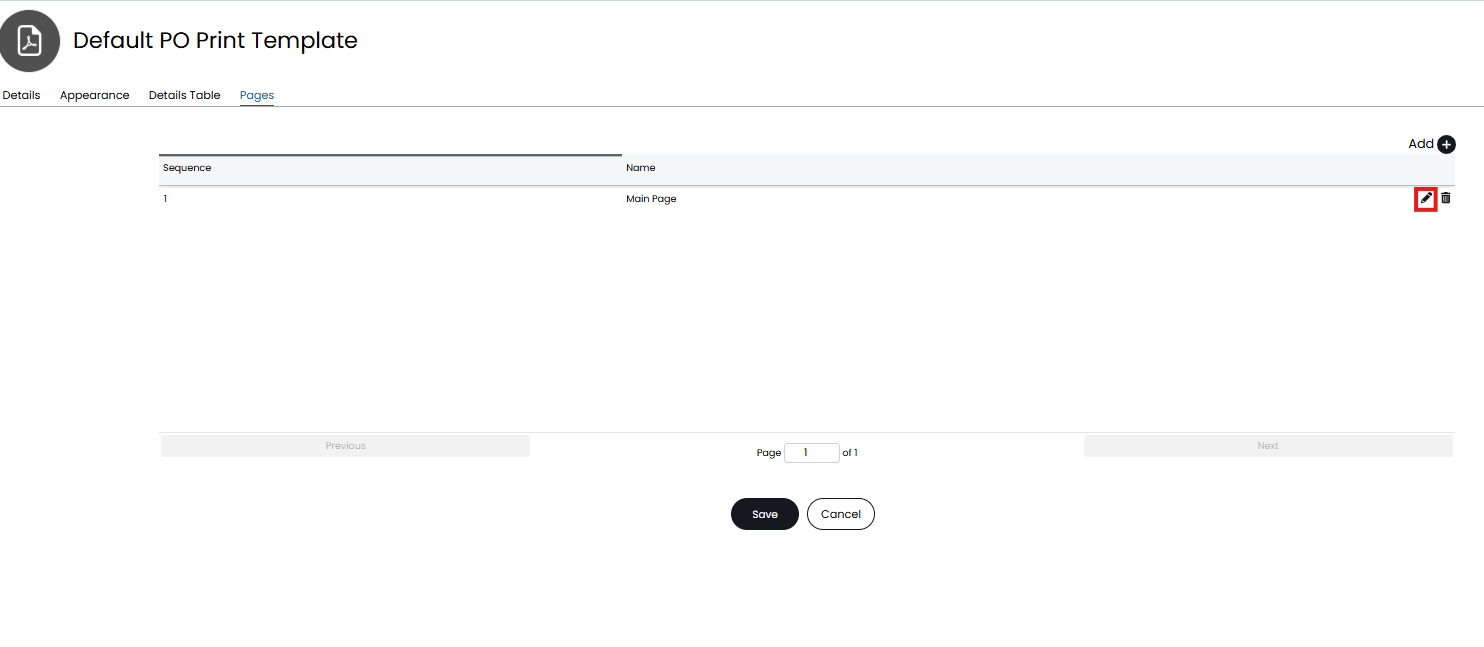
Fig 6. Access HTML for the template
Here you will see the core HTML for the page.
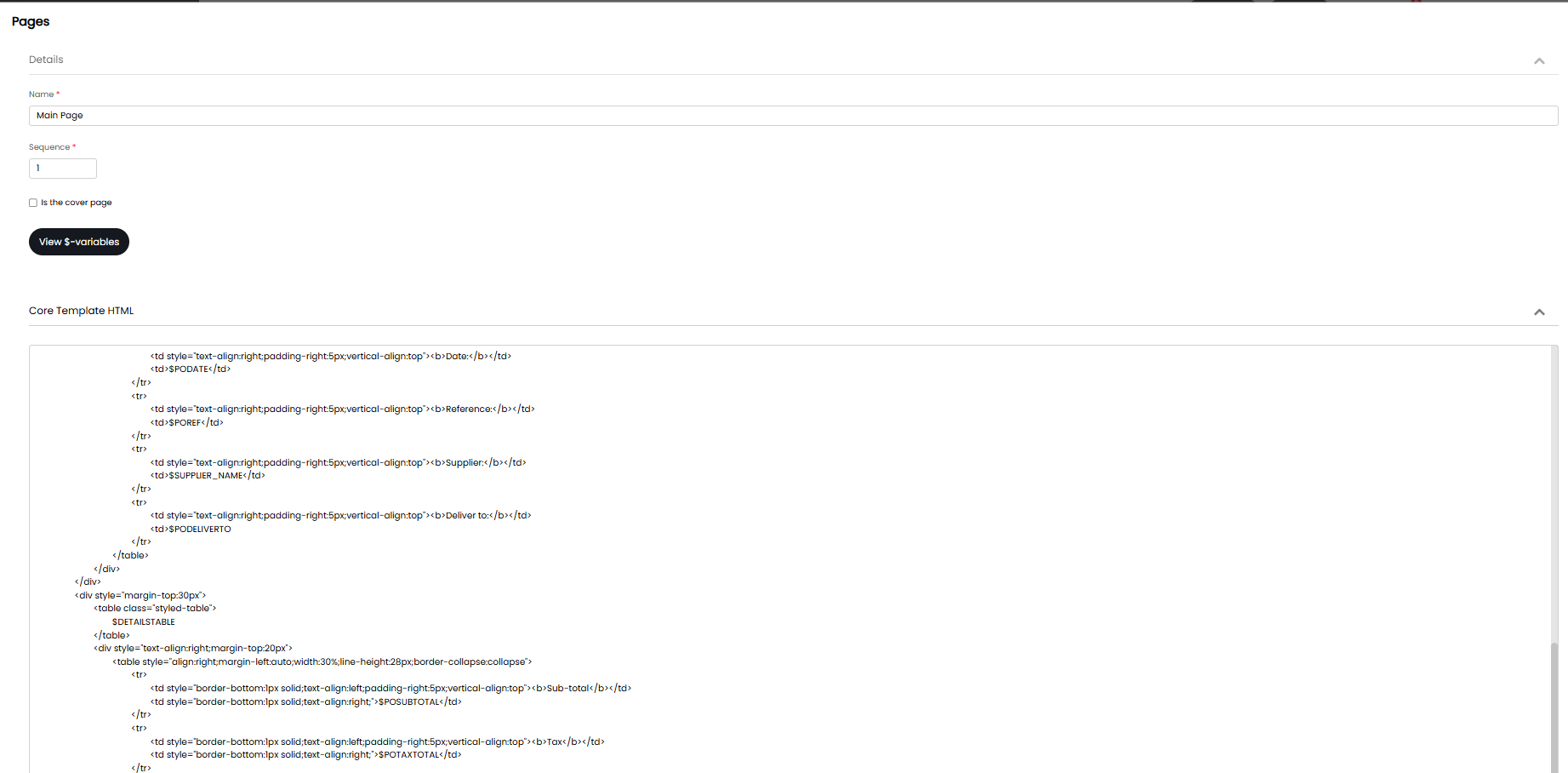
Fig 7. Core HTML for the page
As well as sub HTML.
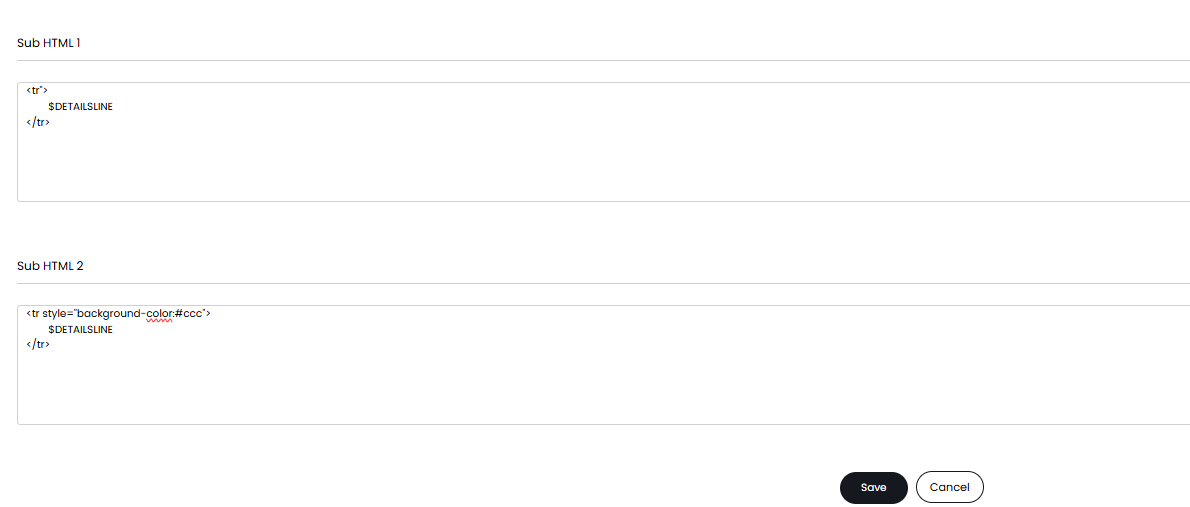
Fig 8. Sub HTML
Sub HTML is used here to add styling to rows in the details table. The variable $-DETAILSLINE refers to lines (rows) in the details table, in the figure 8 example styling has been applied to every other row in the details table so that every other row has the background colour #ccc.
From v2.238+, Quote variables will populate when using Invoice PDFs when the invoice is raised from a Quote.
If you are customising your template and would like to preview how this looks you can use the 'Generate PDF' button against the template to generate a test PDF. The PDF generated will take data from your most recently created entity this template is for (i.e. the most recently created invoice, purchase order etc.). The 'Preview Print' button can be used to preview, however, a more accurate preview will be obtained by generating a PDF.
Previewing Template Changes
When customising your templates you are able to preview how the template will look when in use, using existing data.
Changes can be previewed using the 'Preview Print' and 'Generate PDF' buttons within the PDF template.
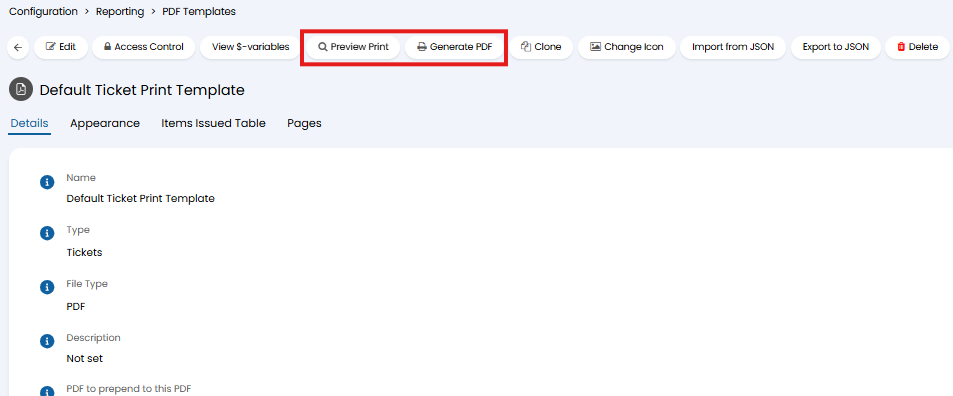
Fig 9. Button to preview PDF template
Preview Print - This will allow you to preview the PDF template within the browser, useful for quick checks.
Generate PDF - This will generate a PDF using this template, this can then be downloaded. Useful when significant changes have been made to the template.
You will be able to choose which data is used to generate this PDF. That is, if the PDF template is for tickets, you can select which ticket in your instance is used to generate the example PDF, the data from this ticket will be used to create a PDF using this template.
Note: This will not store a record of the generated PDF in your Halo.
From v2.238+, changes made to PDF template pages will show in config tracking, allowing changes to be pushed between connected instances.
Who can configure PDF Templates?
Selected agents can be given permission to create and edit PDF templates.
To allow an agent to create new PDF templates, they must be given the permission 'Can Create PDF Templates', either at agent or role level.
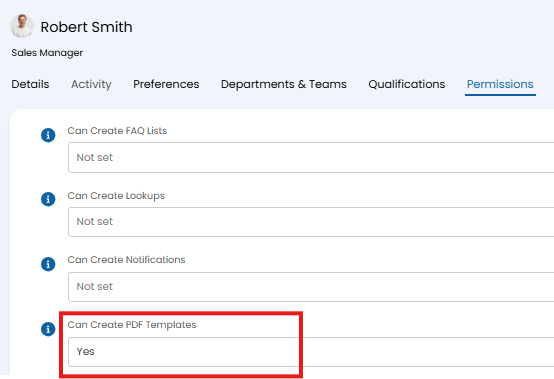
Fig 10. Permission to create PDF templates
This permission will allow the agent to create new PDF templates, but not edit existing templates, unless they were the one to create the template.
If you would like an agent to be able to view/edit an existing template you can give then access control to each template you would like them to be allowed to edit. To do this, navigate to a template, select the 'Access control' button. Here you can select an agent/role/team/department and what level of access they should have.
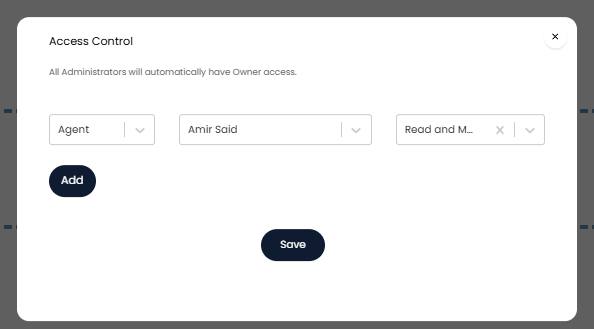
Fig 11. Access control on a PDF template
XML Ticket Templates
For templates using the "Tickets" entity, you can change the "File Type" from "PDF" to "XML".
Note: Changing between the two will overwrite the PDF Pages/XML Attachments.
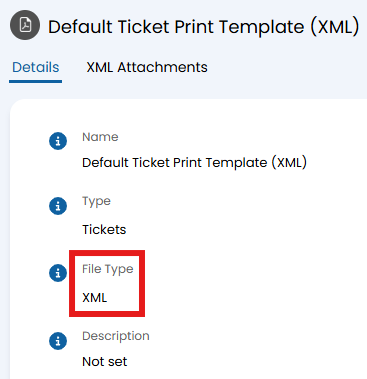
Fig 12. File Type.
Within the "XML Attachments" tab, you can then configure the template.
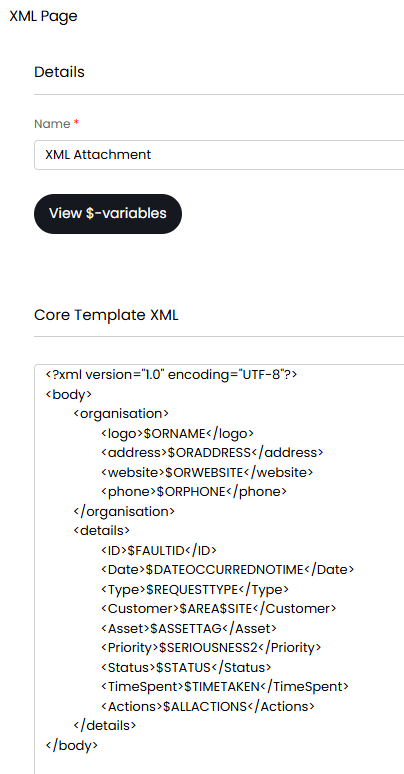
Fig 13. XML Template.
When previewing the template, the above example shows like the below with an expandable dropdown.
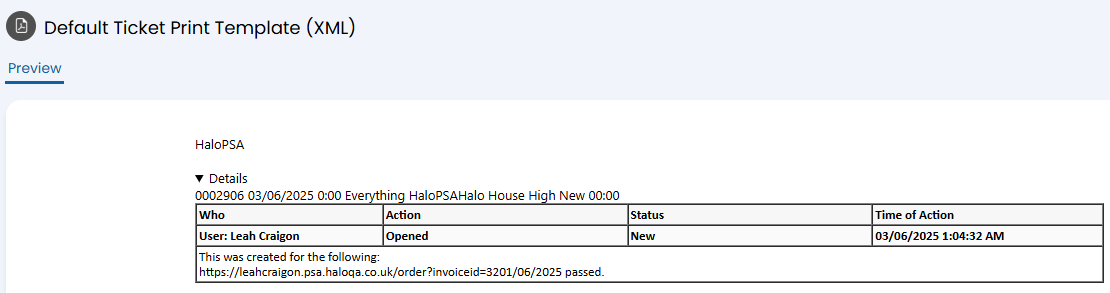
Fig 14. XML Template example.