Site24x7 Integration
- integration
- Integrations
- Alerts
- Alerting
- site24x7
In this guide we will cover:
- What is the Site24x7 Integration?
- Creating the Site24x7 Webhook
- Creating Alert Tickets
- Asset Matching
What is the Site24x7 Integration?
The Site24x7 integration can be used to automatically create alert tickets in Halo when services are considered down in Site24x7.
Note: Site24x7 also has this guide on configuring third-party URLs, which may also be helpful during the setup.
Creating the Site24x7 Webhook
First, enable the integration in Halo. Go to Configuration > Integrations > Asset Management and Alerting, hover over the "Site24x7" module, and click the "plus" (+) icon to enable it.
Fig 1. Enabling the module.
Clicking into the module will then bring you to this page. The three fields at the top ("URL", "Username" and "Password" are what we will use to configure the webhook in Site24x7.
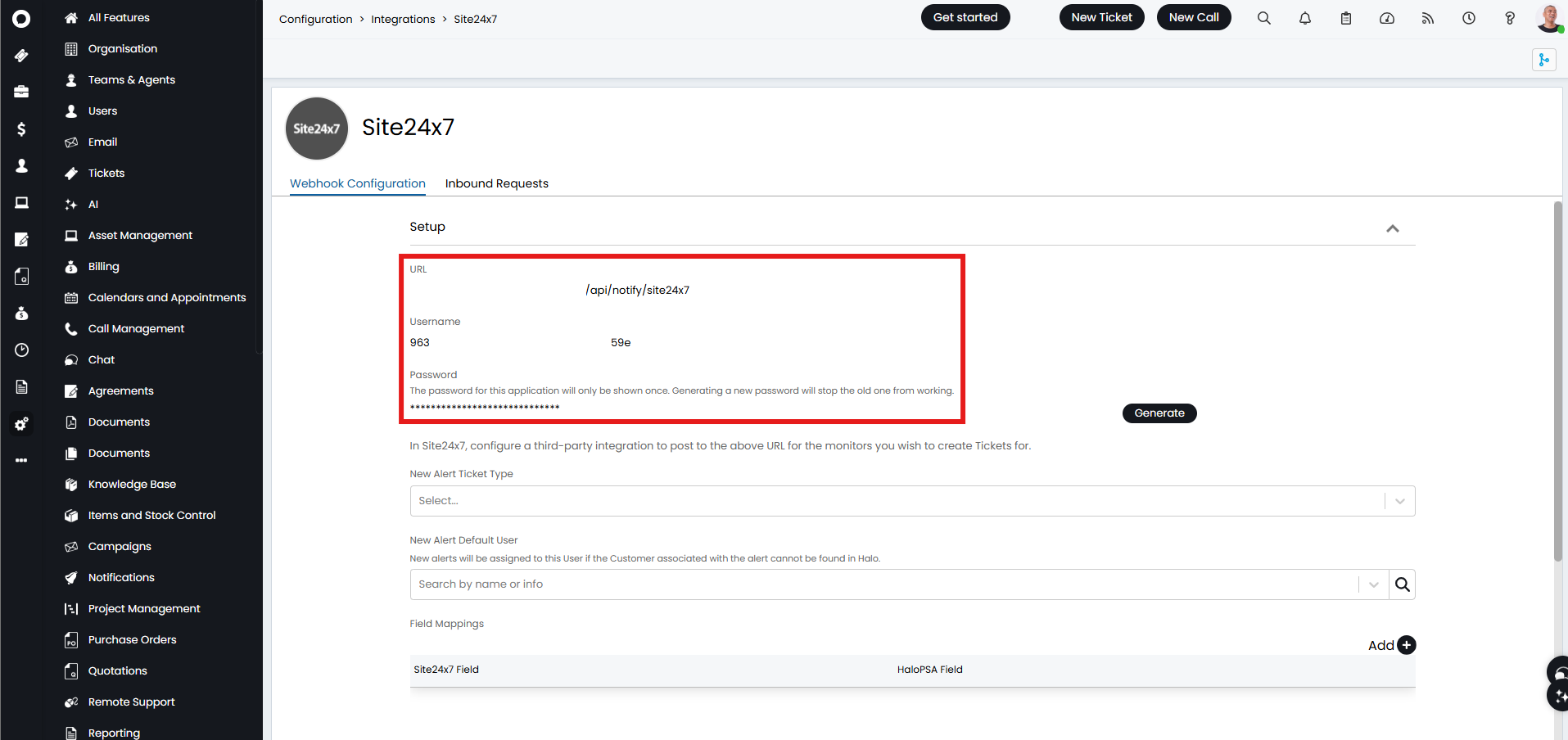
Fig 2. Site24x7 setup.
In Site24x7, go to "Admin" > "Third-Party Integrations" > "Add Third-Party Integration" > "Webhooks".
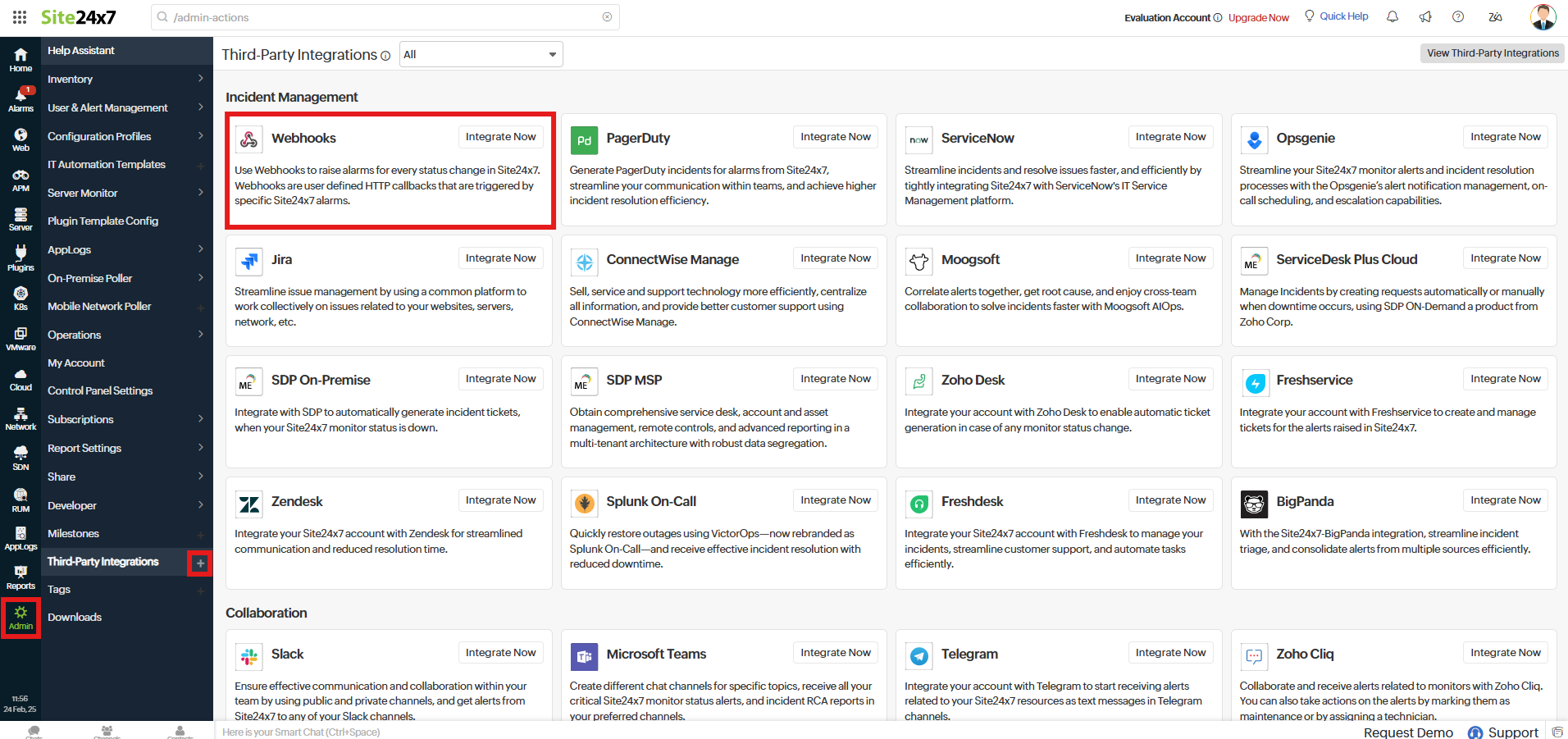
Fig 3. Going to create a webhook in Site24x7.
You will then be able to configure your webhook.
1) Name your webhook so you can easily identify it is for Halo.
2) Enter the URL from Fig 2 into the "Hook URL" box. Note: If Site24x7 says this is an invalid URL, try typing manually instead of copy/paste.
3) Set the HTTP Method as "POST".
4) Enable the "Post as JSON" checkbox.
5) Set your accessibility to "Global".
6) Enter the Username from Fig 2 into the "User Name" box.
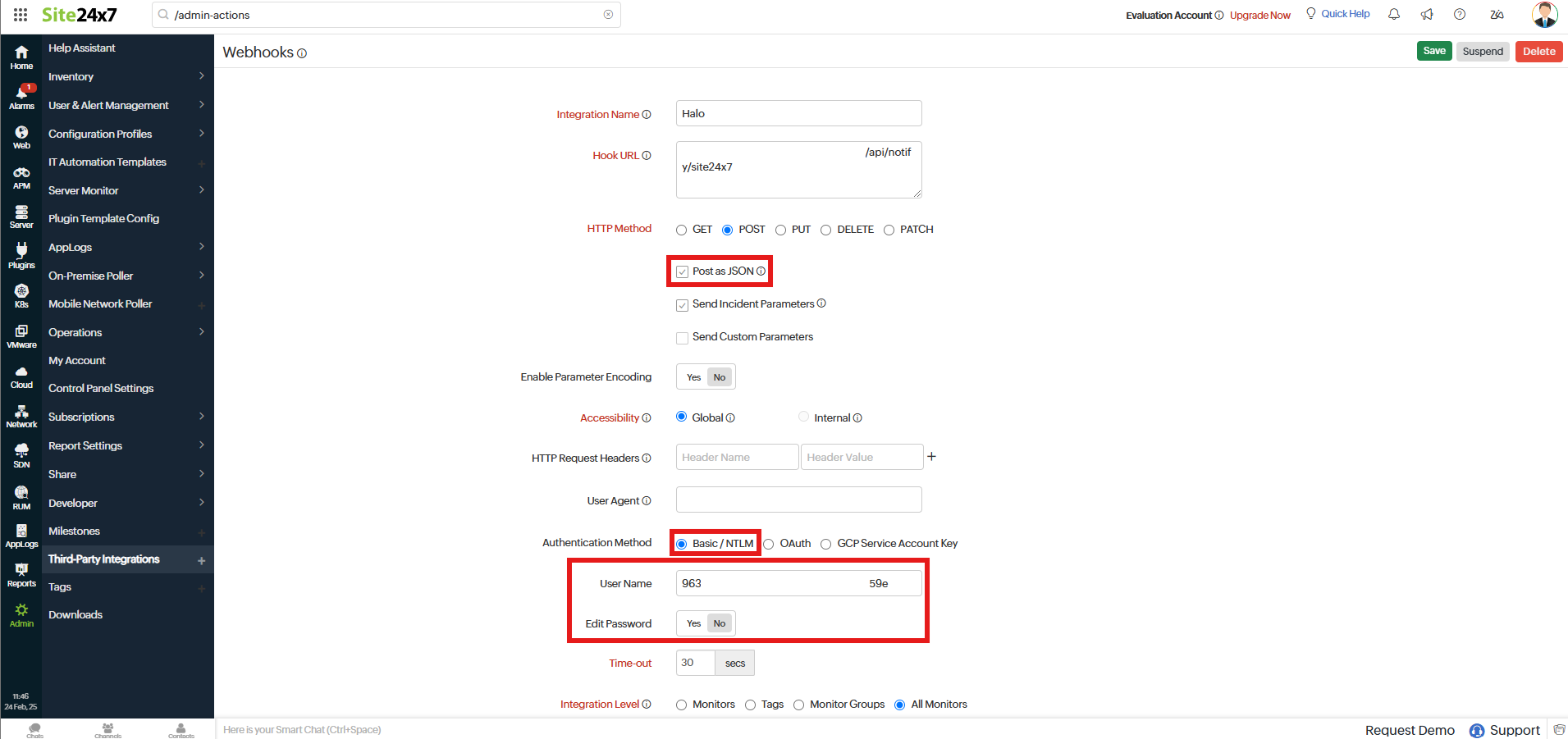
Fig 4. Creating the webhook.
Note: If using the MSP flavour, enable "Send Custom Parameters" and add {"Customer":"$MSP_CUSTOMER_NAME"} to the textbox.
You will need to go back into Halo to generate the password for the password field underneath the username.
Note: Keep both Site24x7 and Halo open in a tab each when configuring this.
Click the "Generate" button in the Site24x7 module to generate a password. One will then appear where you can then click the "Copy" button that appears to copy it to your clipboard.

Fig 5. Generating a password.
Now, paste that password into the "Password" box on the Site24x7 webhook.
Scrolling down will then show the "Manage Tickets Configuration" dropdown. Open this.
1) Set "Manage Tickets" to "Yes".
2) Put the "JSONPath Expression" as "$ticketid".
3) Set the methods to "POST".
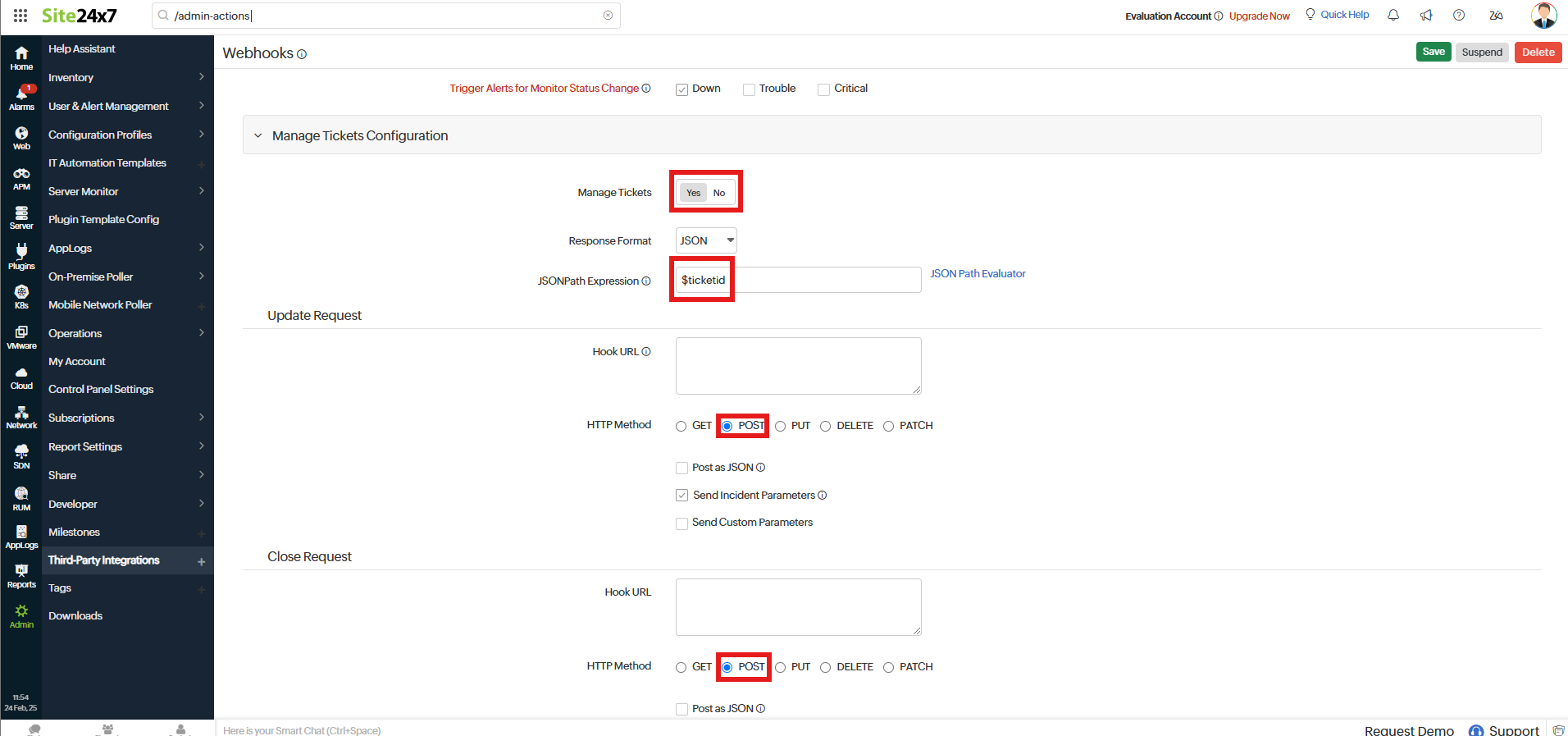
Fig 6. Setting the ticket management settings.
Save, and you have created the webhook. You can click to "Trigger Test Alert" to check your configuration is correct. If it fails, you can view the reason here.
Note: This will not create a ticket.
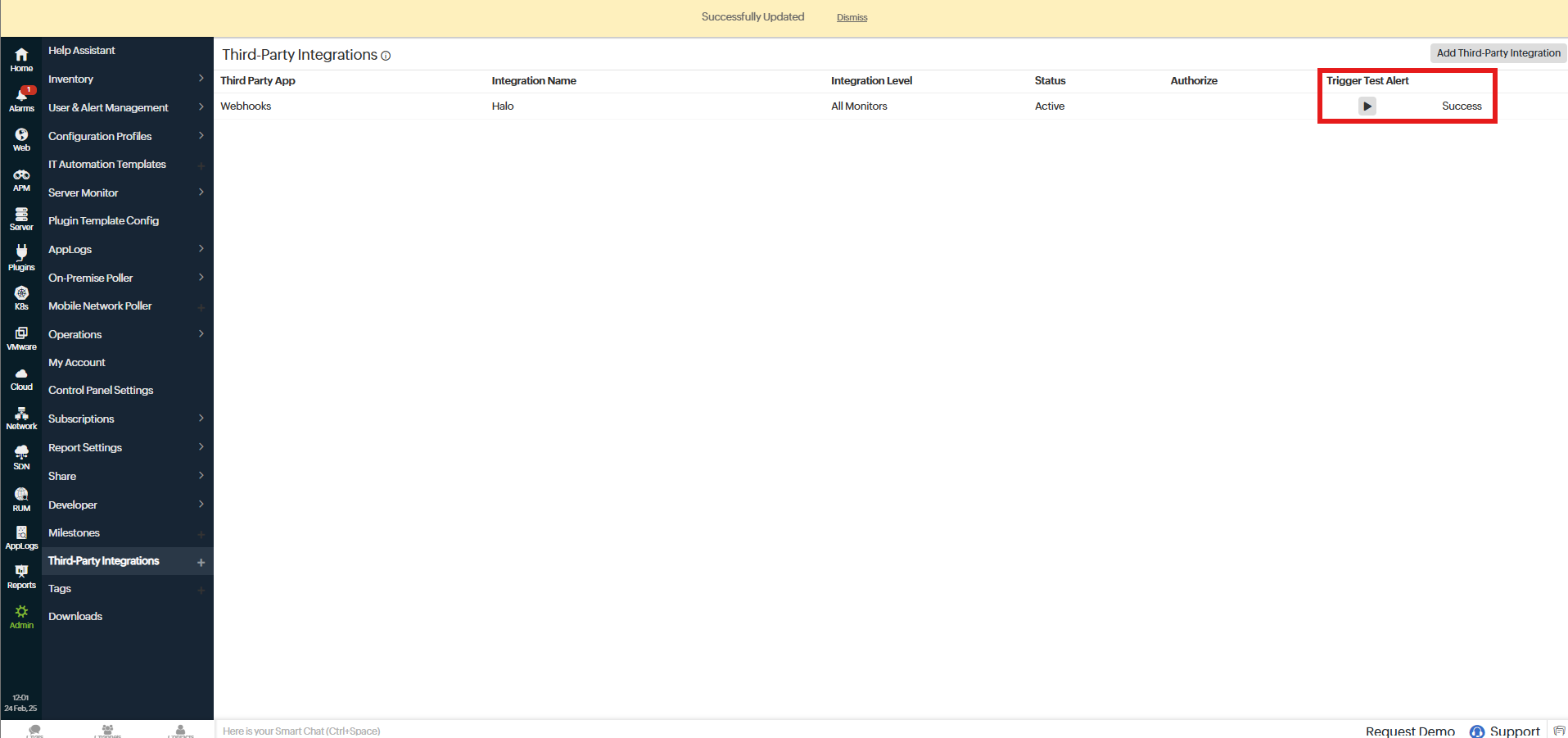
Fig 7. Trigger Test Alert
Creating Alert Tickets
Now that the webhook is set up, you can configure tickets to be created.
In the Site24x7 module, you will need to select a ticket type and default user for the tickets to be created. Here we are using the pre-built "Alert" ticket type with no workflow attached to avoid any potential errors, i.e. not creating tickets if they have a mandatory field for example.
You can also map your Site24x7 fields to custom fields in Halo to bring across any necessary information.
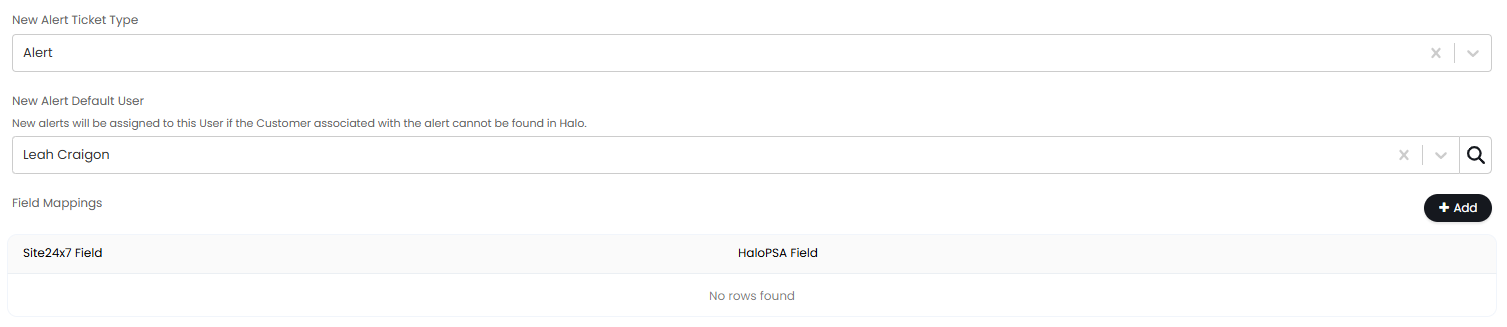
Fig 8. Setting default user and ticket type.
Tickets will be created based on the threshold set in Site24x7 against the monitor.
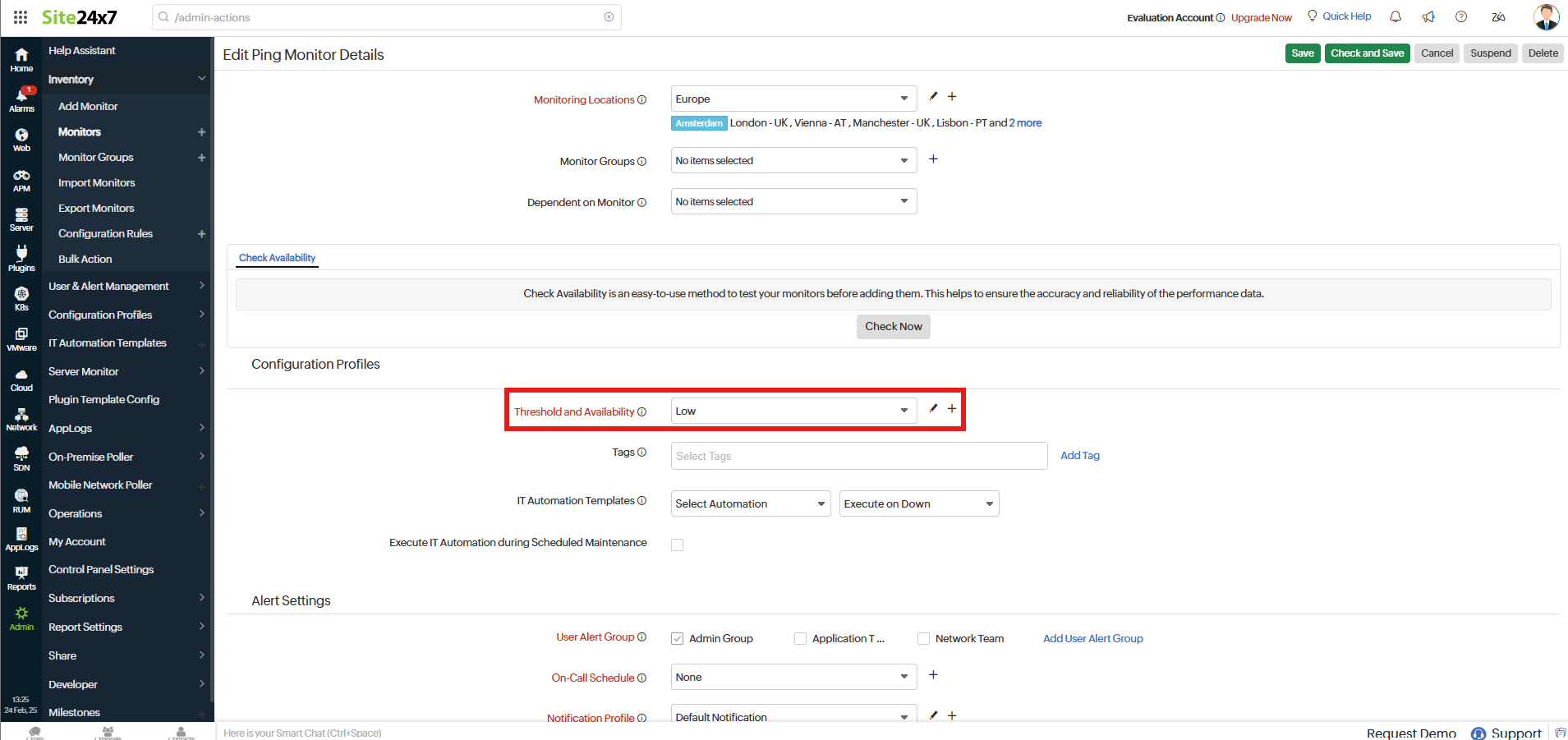
Fig 9. Threshold against the monitor.
If the monitor is considered "Down" by this threshold in Site24x7, the alert ticket will be created in Halo.
It will be opened as the default user you selected. When Alerts are created, a match is attempted against the Customer name using the value provided in the webhook against the "MSP_CUSTOMER_NAME" or "CUSTOMER" field. If a match is found, the General User for the main Site of that Customer is used. If no match is found, the User set in the "New Alert Default User" will be assigned instead.
Any further actions on the ticket will show as from Site24x7.
The ticket will also show which monitor it is referencing both in the summary, and in a field in the ticket information.
Once the monitor is considered up in Site24x7, the webhook will fire and automatically close the ticket.
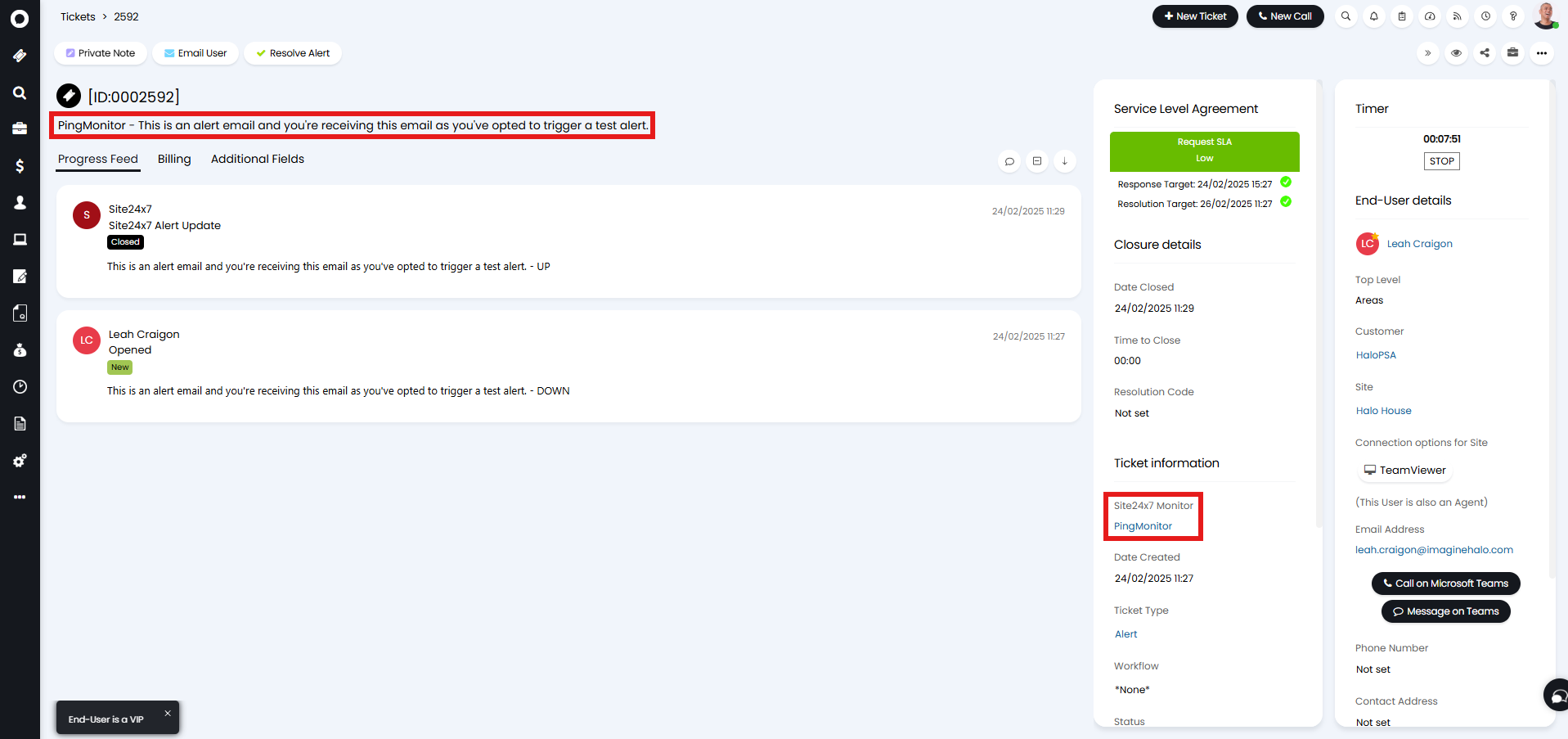
Fig 10. Ticket created and closed by Site24x7.
To see any webhooks that have been sent regarding Site24x7, the following report can be ran:
FROM integrationrequest
WHERE irmsid = 338
Asset Matching
Assets will be matched based on the "Asset Matching Field", against the "MONITORNAME" field provided in the incoming Alert webhook.
If the "Asset" Field is added to the Ticket Type, this will automatically be linked.

Fig 11. Asset matching.