LapSafe Integration
- integration
- Assets
- cmdb
- Asset Management
- lapsafe
In this guide we will cover:
- What is the LapSafe Integration?
- Enabling the LapSafe Integration
- Configuring the Integration
- Creating Actions
- Using LapSafe in Halo
What is the LapSafe Integration?
The LapSafe integration can be used to organise locker bays and their corresponding codes for drop-off, collection and swaps. Codes and locations can be emailed out to the user to open the lockers.
Enabling the LapSafe Integration
In Configuration > Integrations > Asset Management and Alerting, hover over "LapSafe" and press the "plus" icon to enable the module.
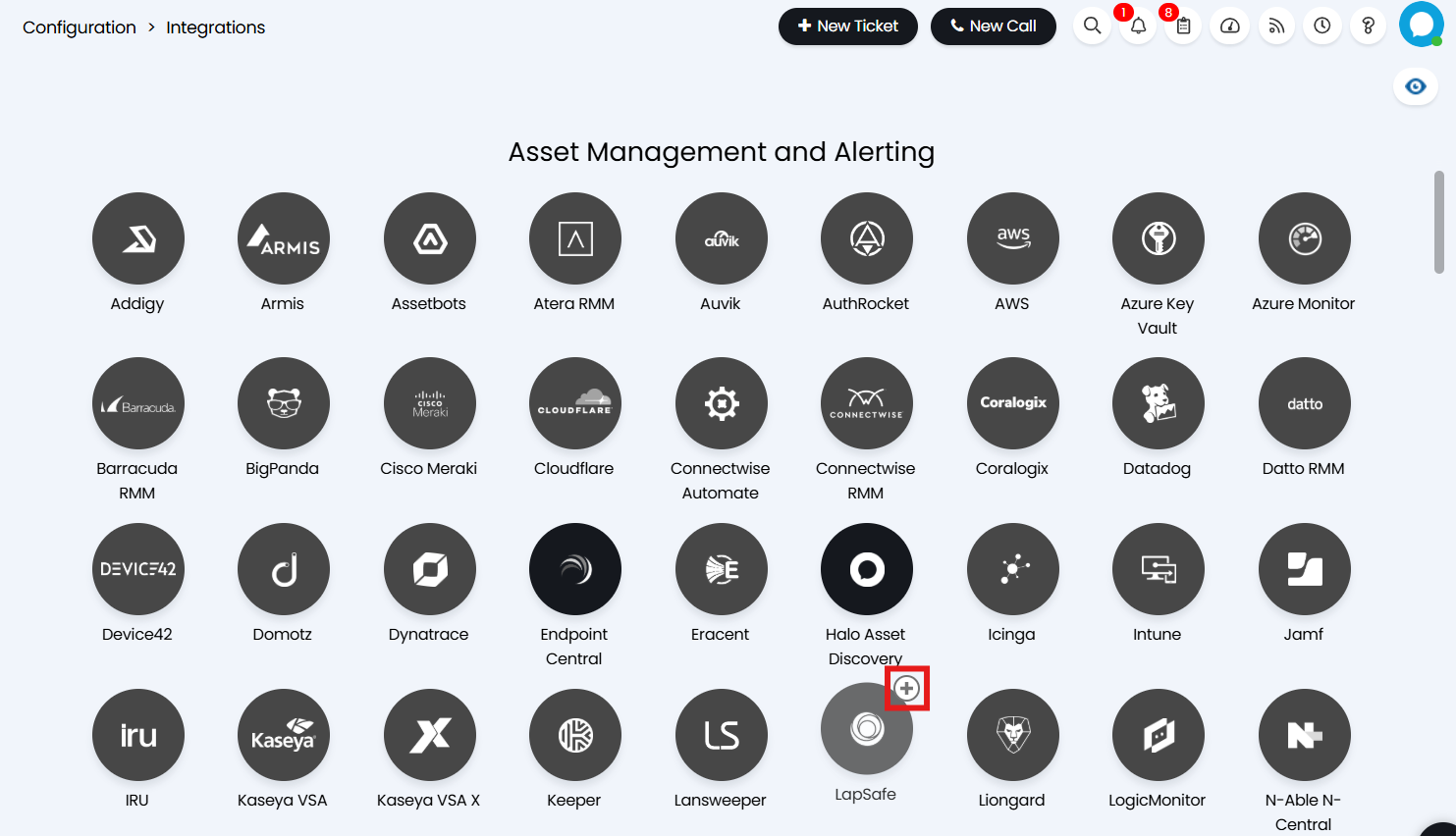
Fig 1. Enabling the LapSafe integration
Configuring the Integration
Configuration tab
Click into the module and you will see this screen.
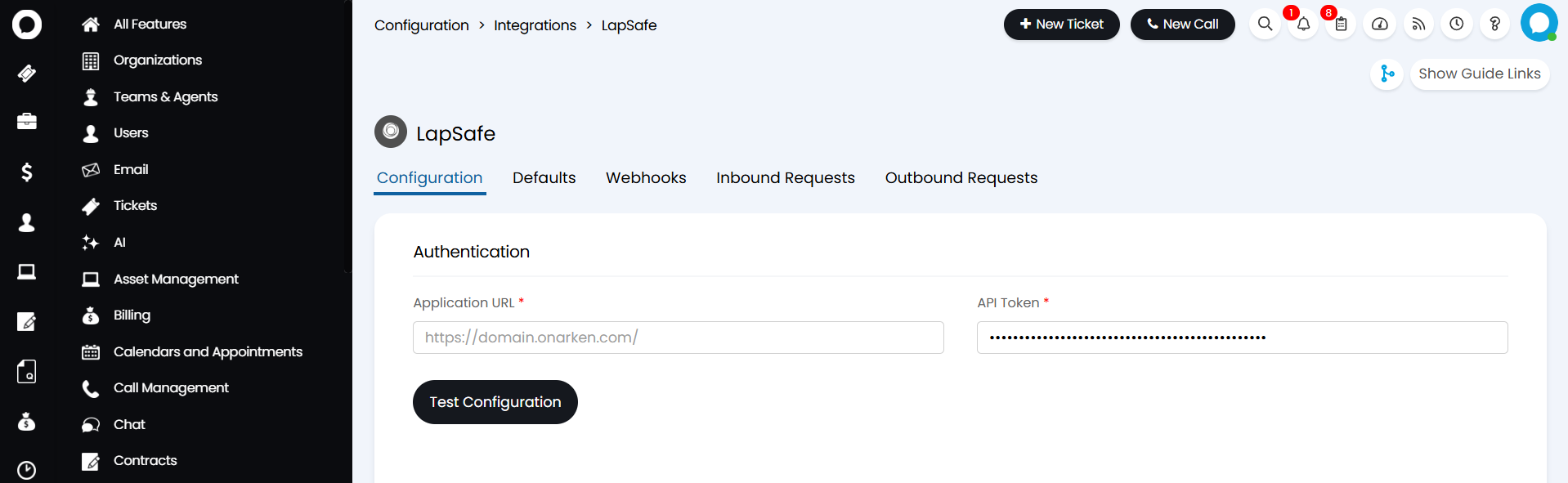
Fig 2. Entering LapSafe tenant details
Here, enter your LapSafe/ONARKEN URL and an API token. The token can be found in LapSafe within "My Profile" > "API Tokens", and click "New personal access token". The token will then appear in the green bar above, copy this into the field.
Note: ONARKEN tokens have a number and a straight slash at the start, (i.e. 1|_____, 2|_______), do not include this first part when copying.
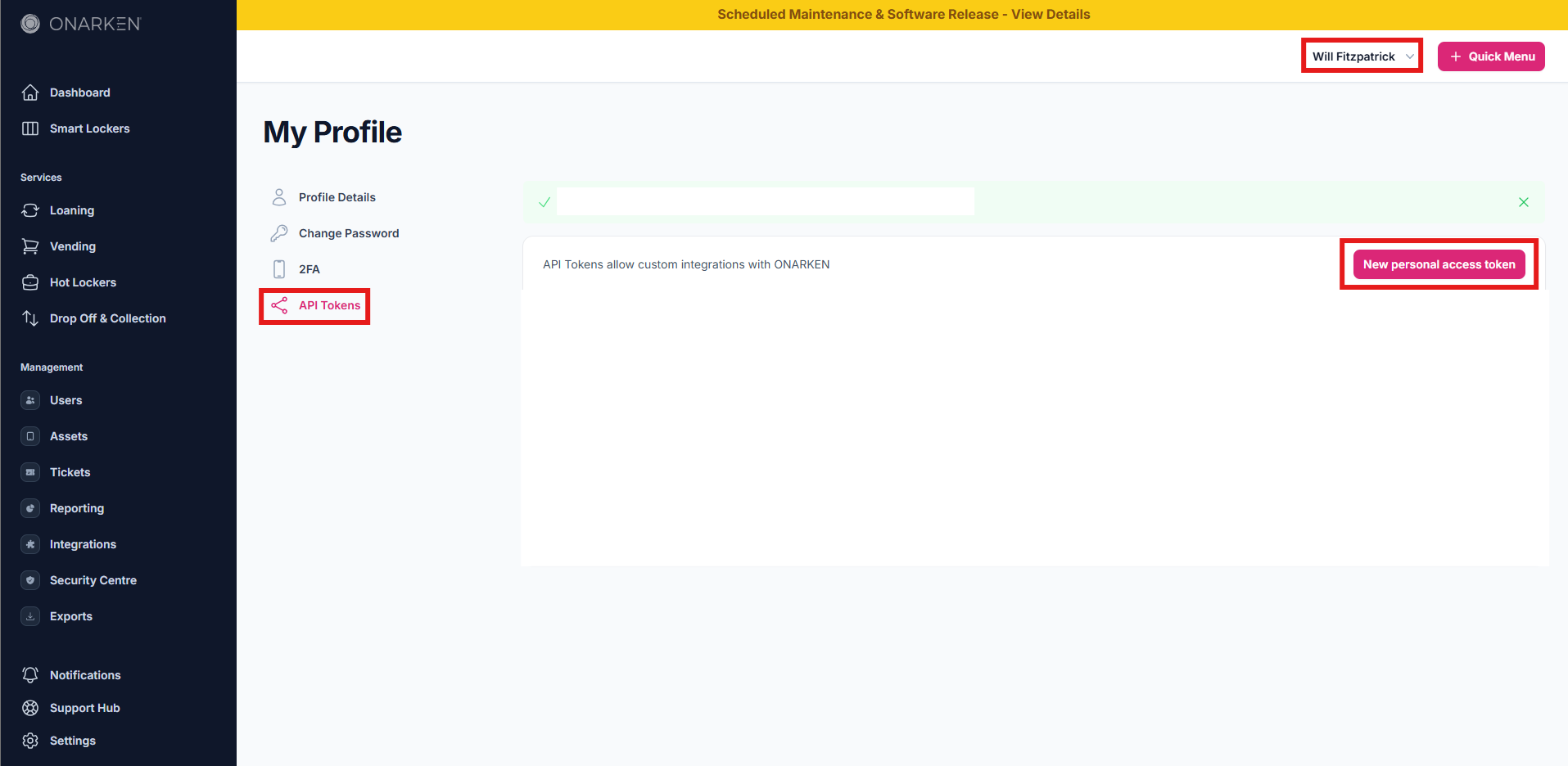
Fig 3. Getting the API token from LapSafe
You can then click the "Test Configuration" button. If the credentials are correct, it will say "Test successful", and you can continue to configure.
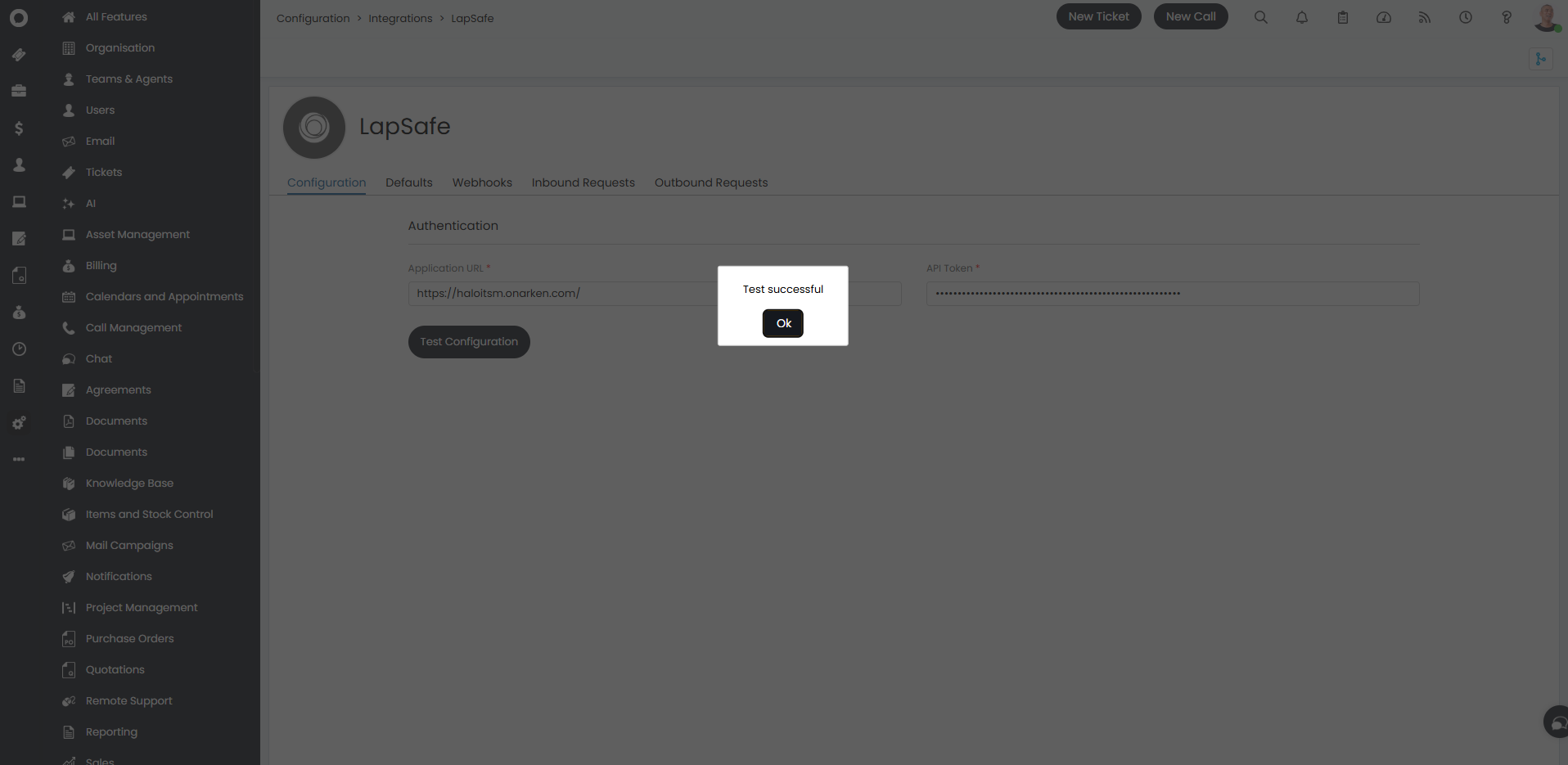
Fig 4. Testing LapSafe configuration
Defaults tab
In the "Defaults" tab, you can then configure the default configuration used for the integration, such as which installation and bay size.
Actions will need to be configured to use these, this will be covered in the next section of this guide.
You can prevent User information from being sent to LapSafe by selecting the "Do not send User information to LapSafe" checkbox.
There are also email templates used when setting the asset drop off, collection and swap. By default, pre-made ones are set here, but these can be changed if you wish.
Note: If using your own templates, make sure to include the $-LOCKERNAME and $-LOCKERCODE variables, as these are what will be populated with the information when sending the email.
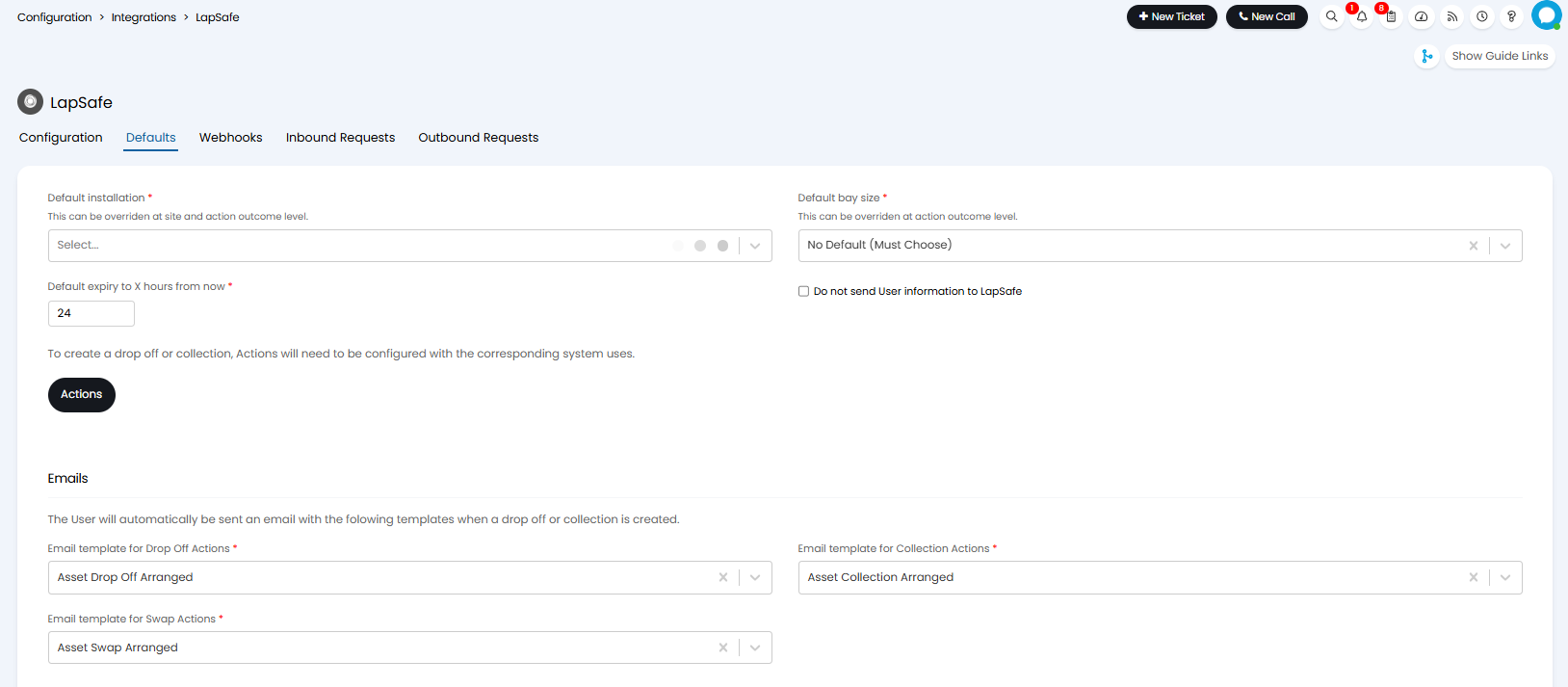
Fig 5. Defaults tab
Webhooks tab
In the "Webhooks" tab, you can put a secret for webhook creation if you wish LapSafe to automatically update. This can be configured in "Settings" > "Webhooks" in your LapSafe tenant.
You can set a default status for Drop off and Collection expiry. This can be overridden per Ticket Type.
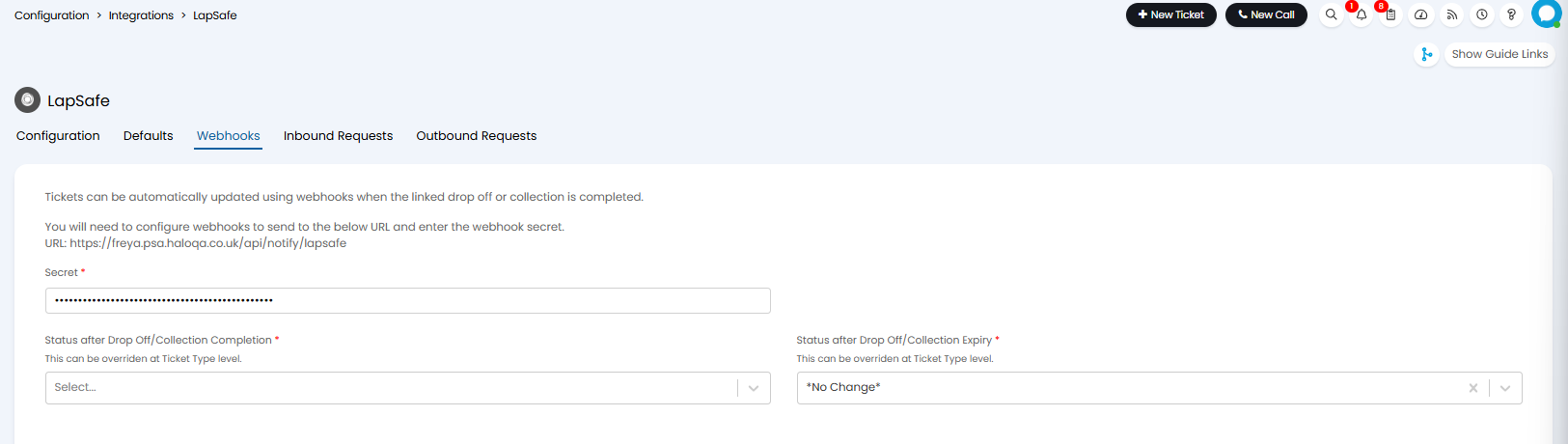
Fig 6. Webhooks tab
Creating Actions
Actions with LapSafe-specific system uses need to be created for the drop-off/collection.
First, create an action for the drop-off function. Use the "Create Drop Off" system use, and set either a default installation or set to choose one when using.
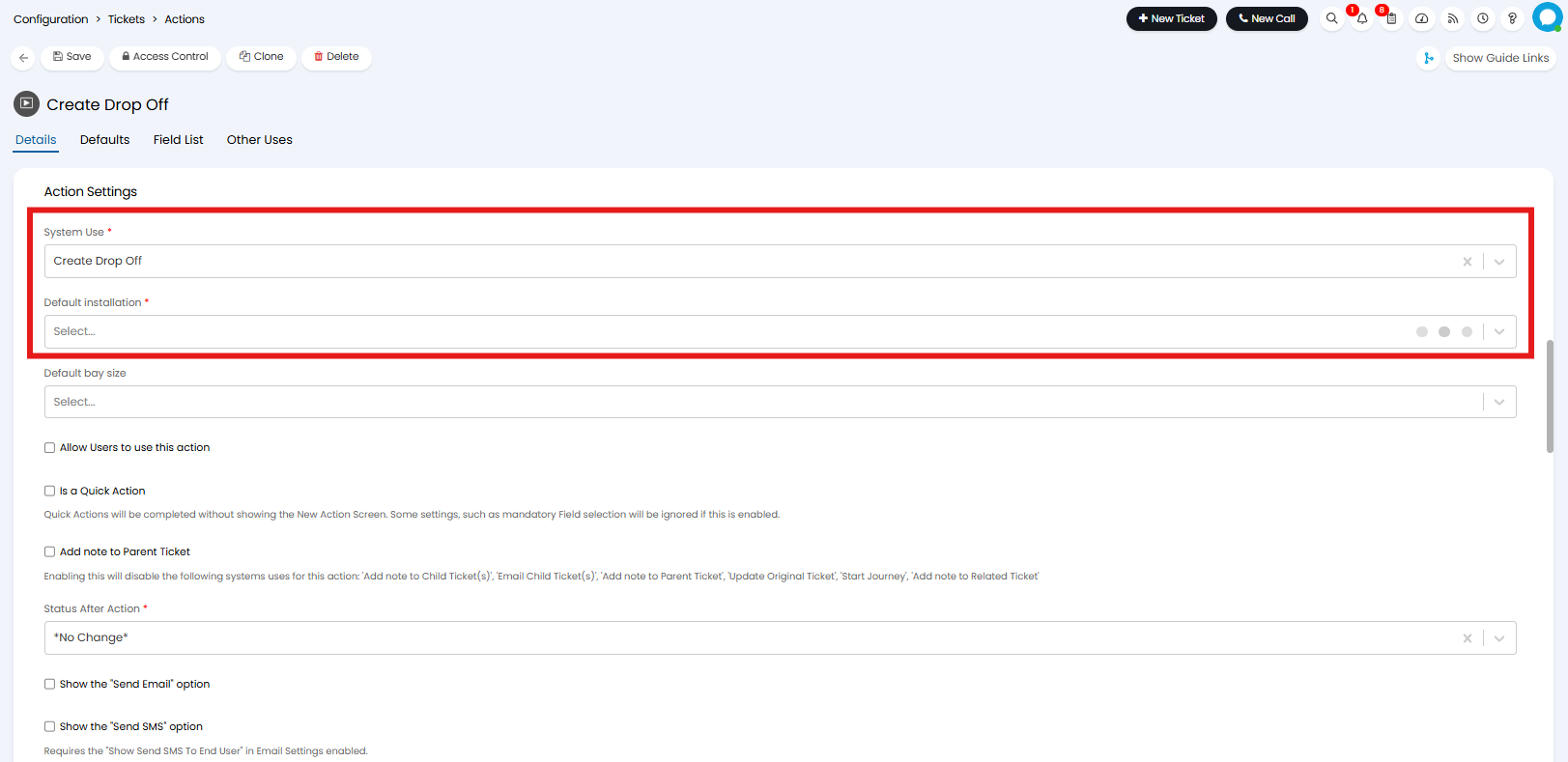
Fig 7. Create Drop Off action
Next, create an action with the "Create Collection" system use, and also set if you wish to use a default installation.
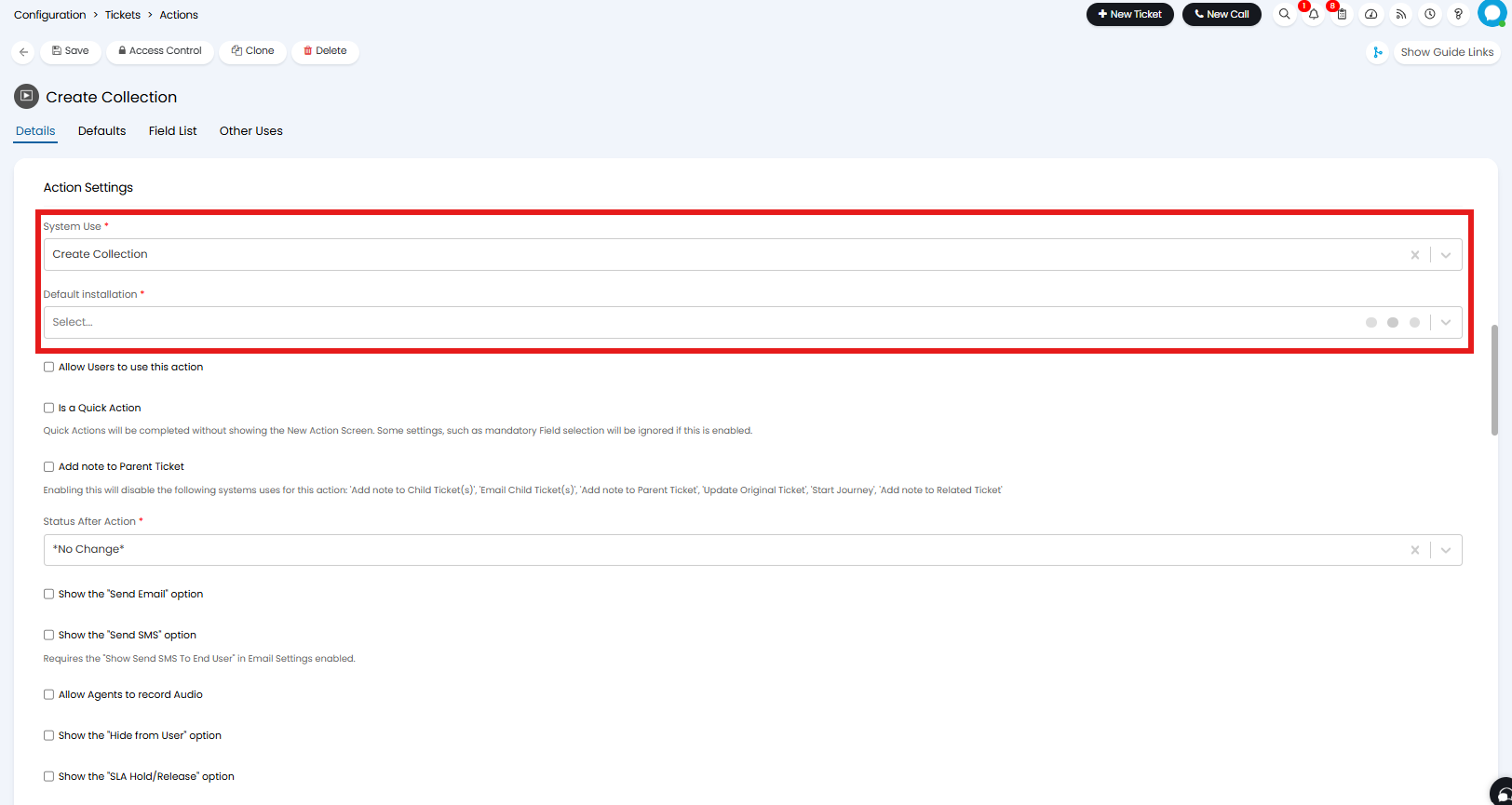
Fig 8. Create Collection action
Finally, create an action with the "Create Swap" system use if you use this function, and once again if a default installation is used.
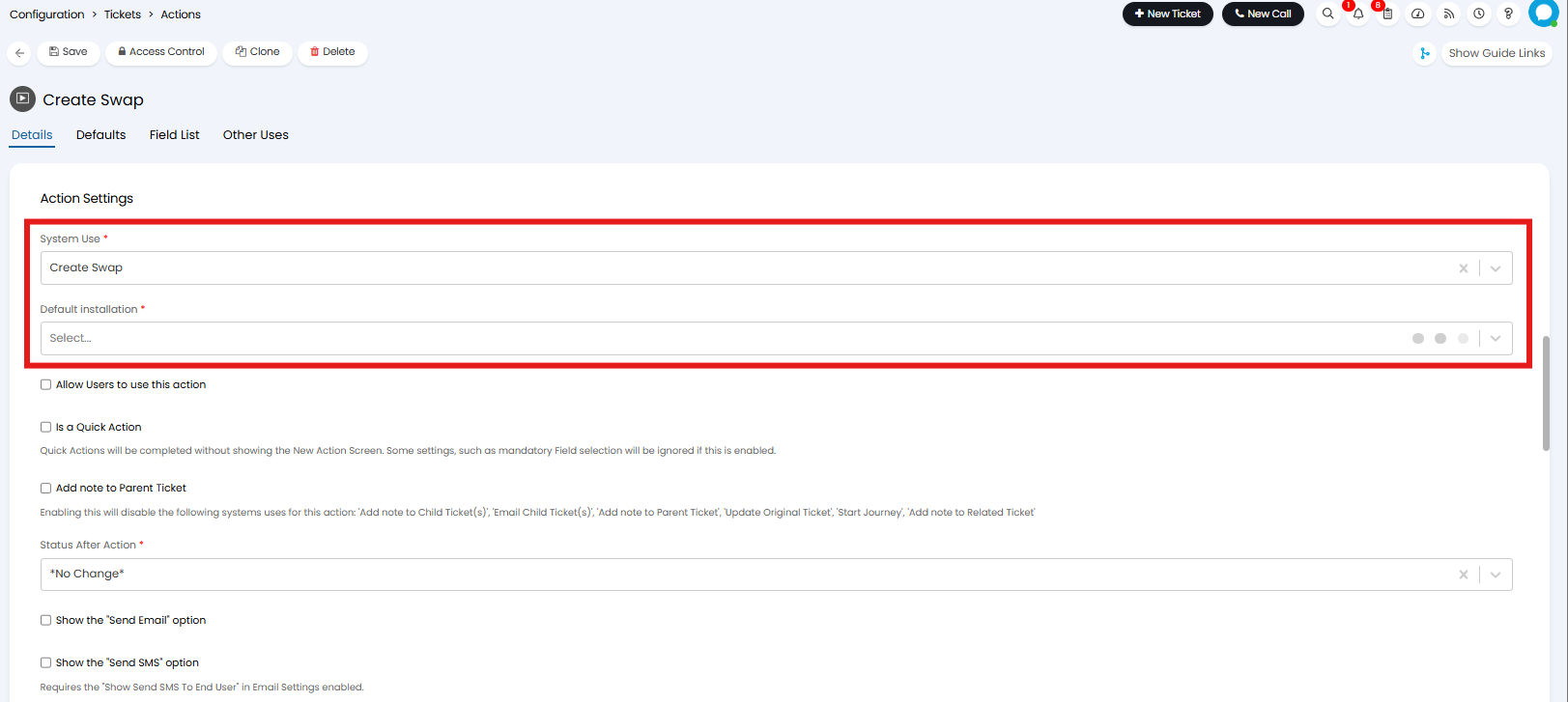
Fig 9. Create Swap action
To each action, add the LapSafe fields to the field list. These can also be added to the ticket type.
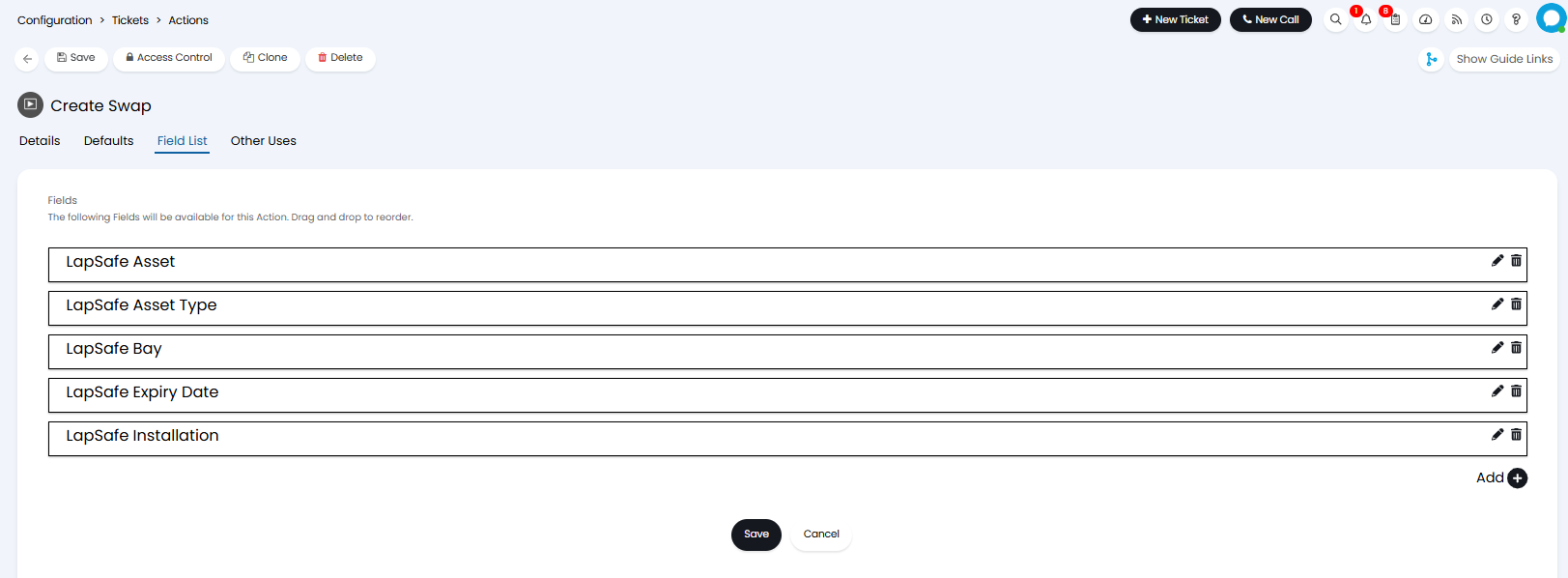
Fig 10. LapSafe fields
Drop offs, collections, and swaps can be initiated when a ticket is logged. To set this, head to the integrations tab of the relevant Ticket Type (Configuration > Tickets > Ticket Types) and set the "LapSafe Action to do when logging Tickets of this Ticket Type" to the LapSafe action you would like to perform.
From this version there is also the option to set a "Default LapSafe Asset Type". This filters the Assets available for collection to the specified Asset Type.
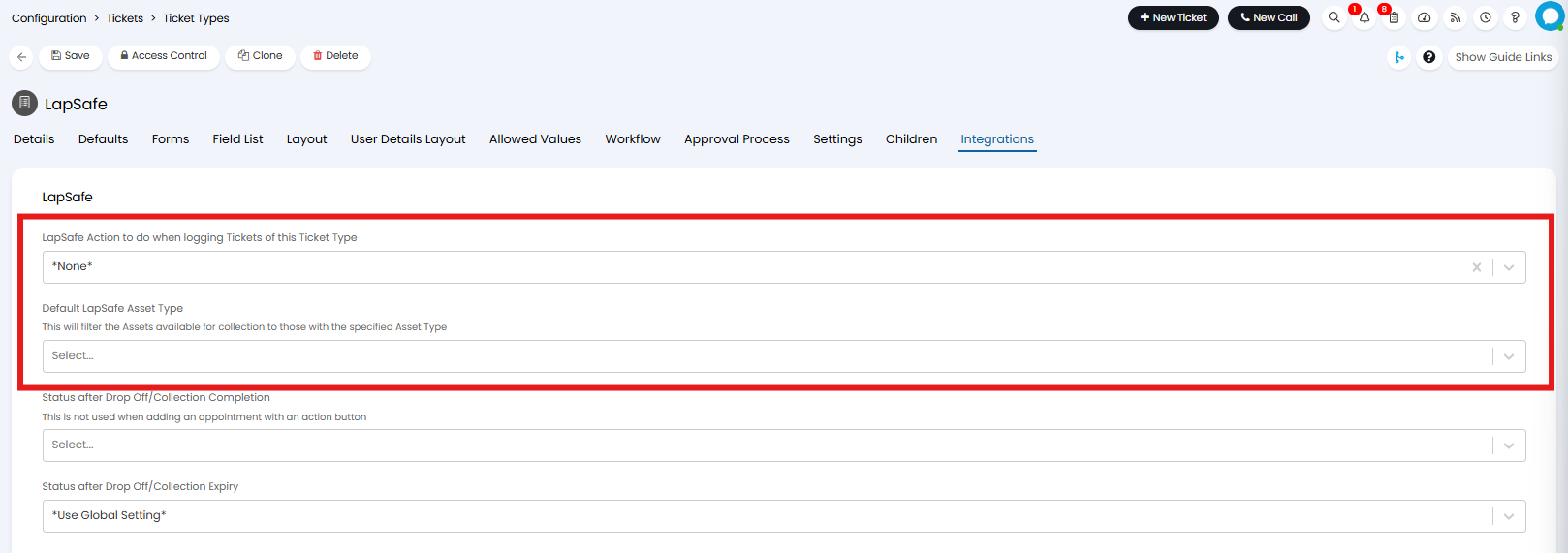
Fig 11. Ticket Type settings
This allows users to log tickets which will immediately link to LapSafe, rather than relying on an Agent or an automation. Users are also able to be granted access to actions with the system uses of "create drop off", "create collection", and "create swap", by selecting the "Allow Users to use this action" checkbox in the Details tab of the action.
Using LapSafe in Halo
The configured actions can then be used on a ticket to arrange drop offs, collections, and swaps.
First, let's use the "Create Drop Off" action. Fill in the LapSafe fields added to the action, and upon saving, a separate email action will send off as well.
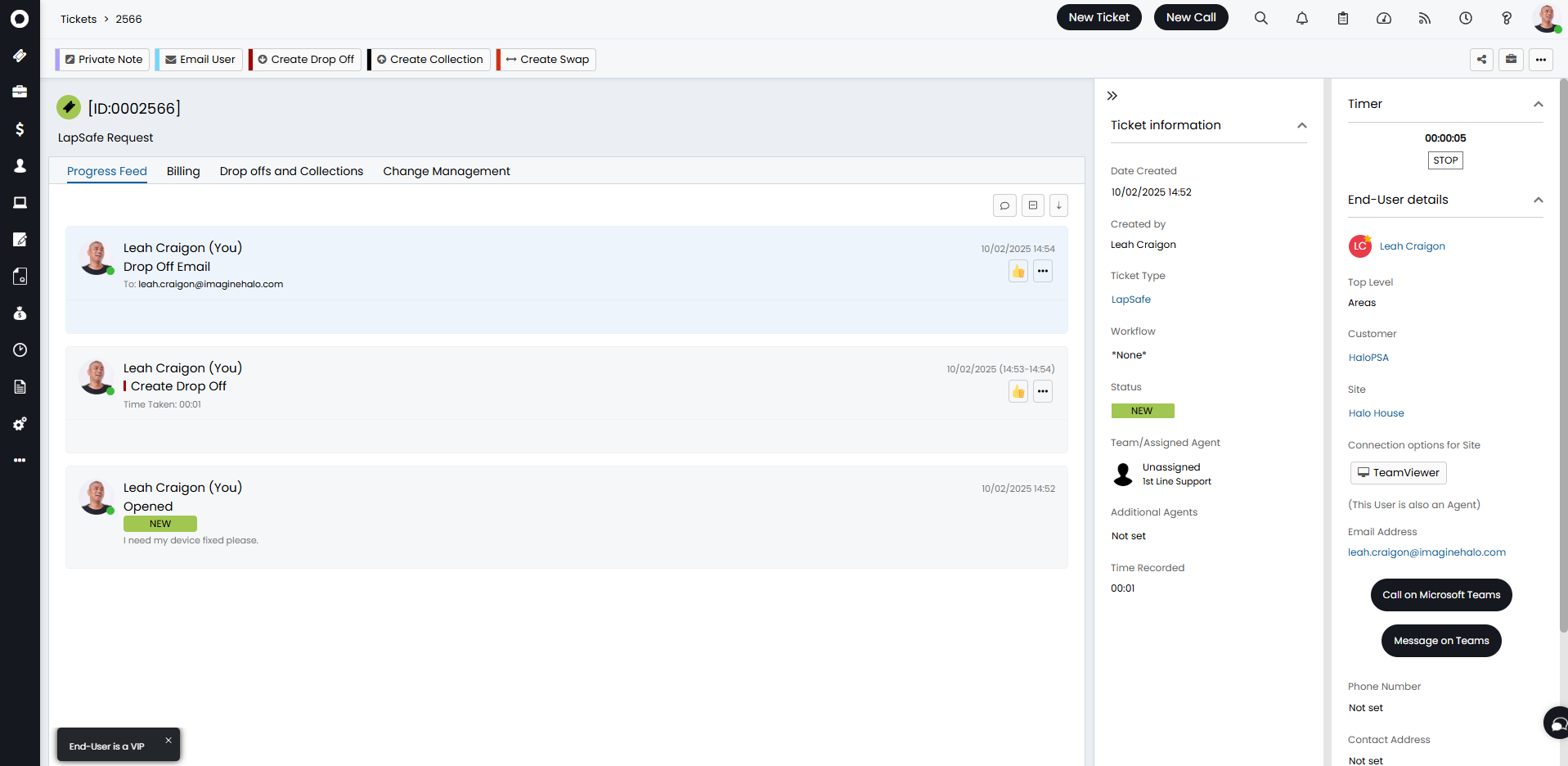
Fig 12. Create Drop Off action used
This email will use the "Asset Drop Off Arranged" template (ID: 321) unless this was changed in the defaults tab of the integration.
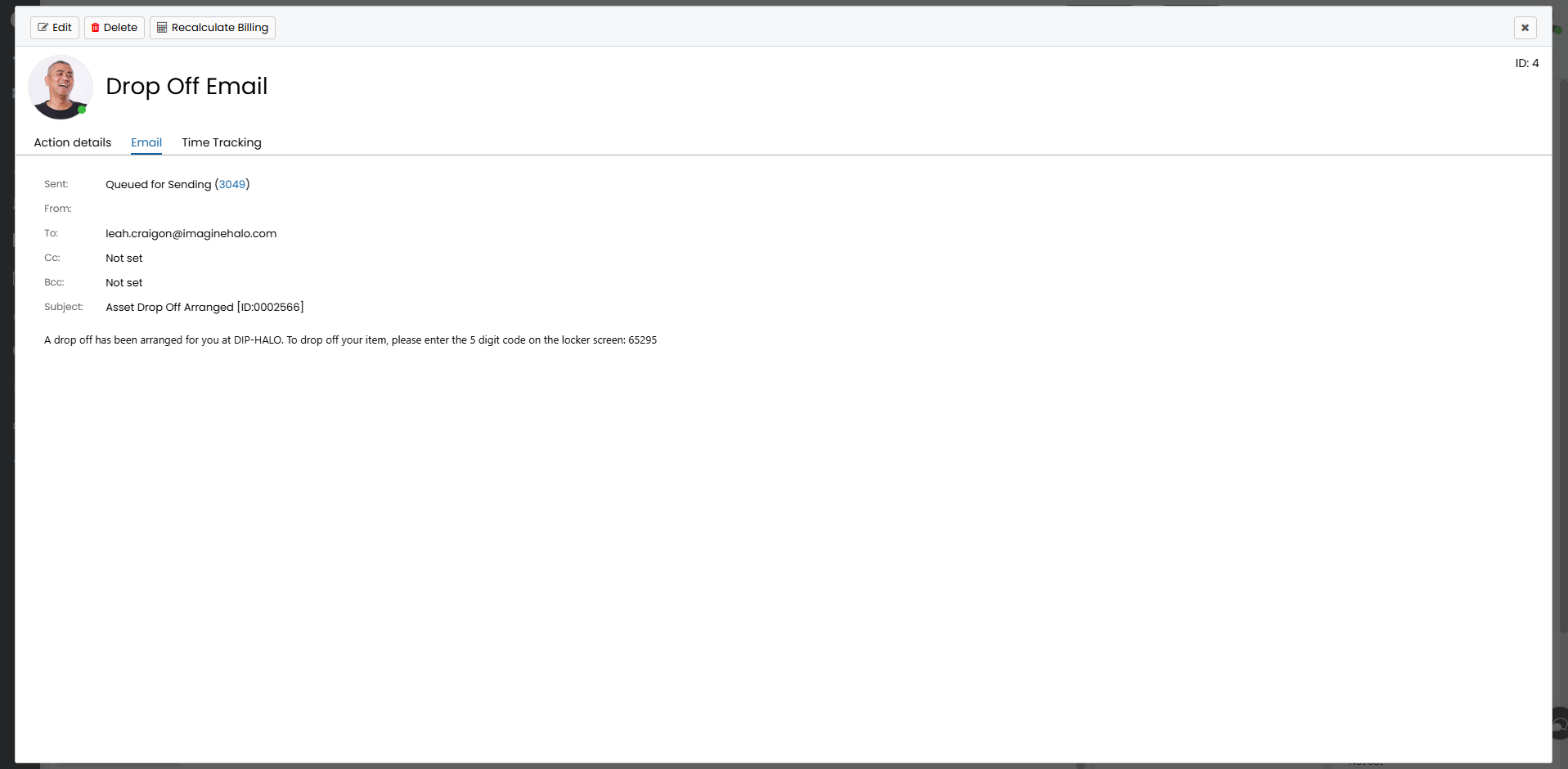
Fig 13. Email template sent from drop off
Upon first use of one of these actions on a ticket, a tab called "Drop offs and Collections" will appear. Here, a list of LapSafe requests associated with the ticket and their current status will show. You can also right click to complete/cancel these manually.
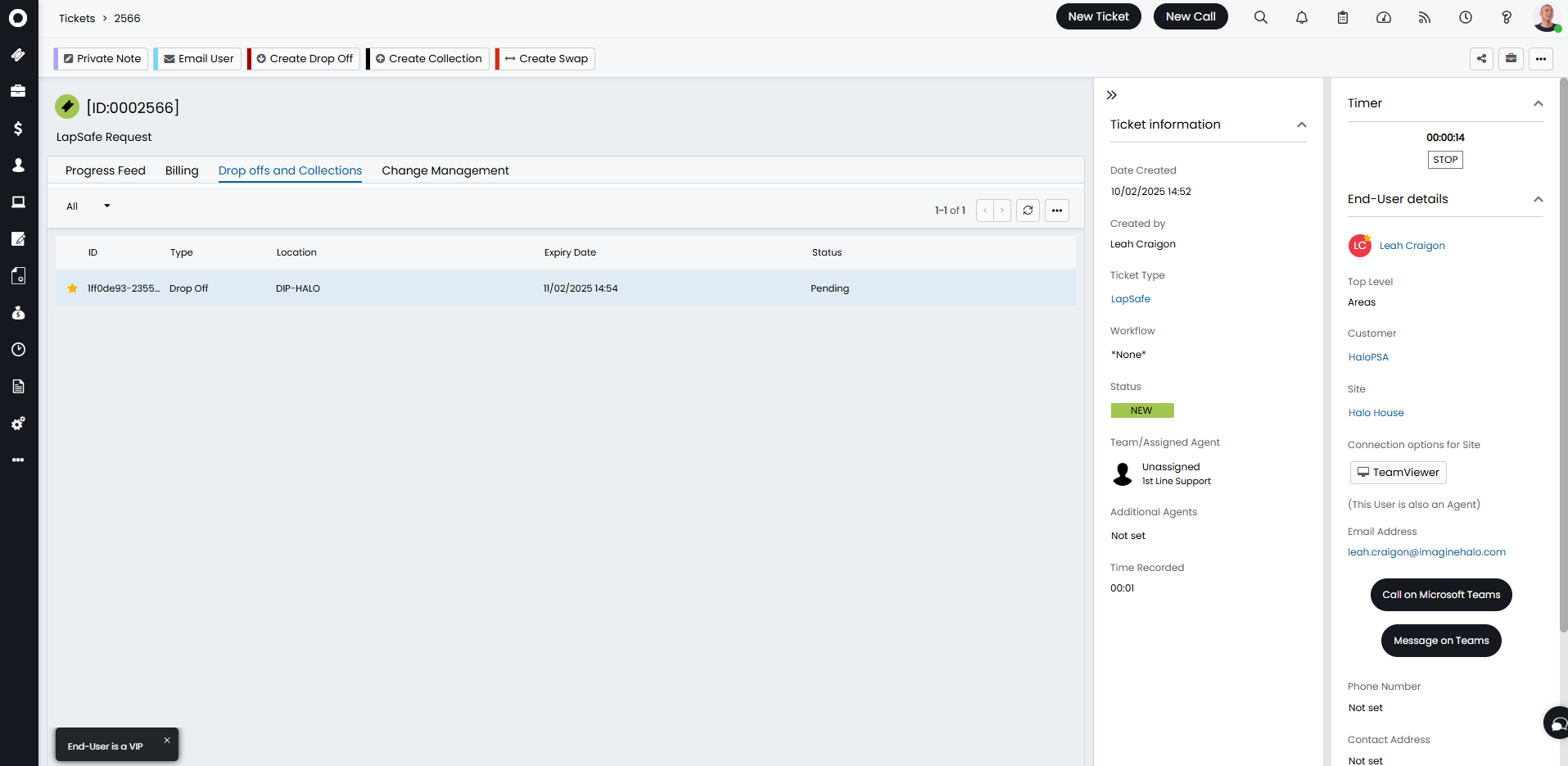
Fig 14. Drop offs and Collections tab
Upon completion of the drop off, a "Drop Off Completed" action will automatically appear on the ticket.
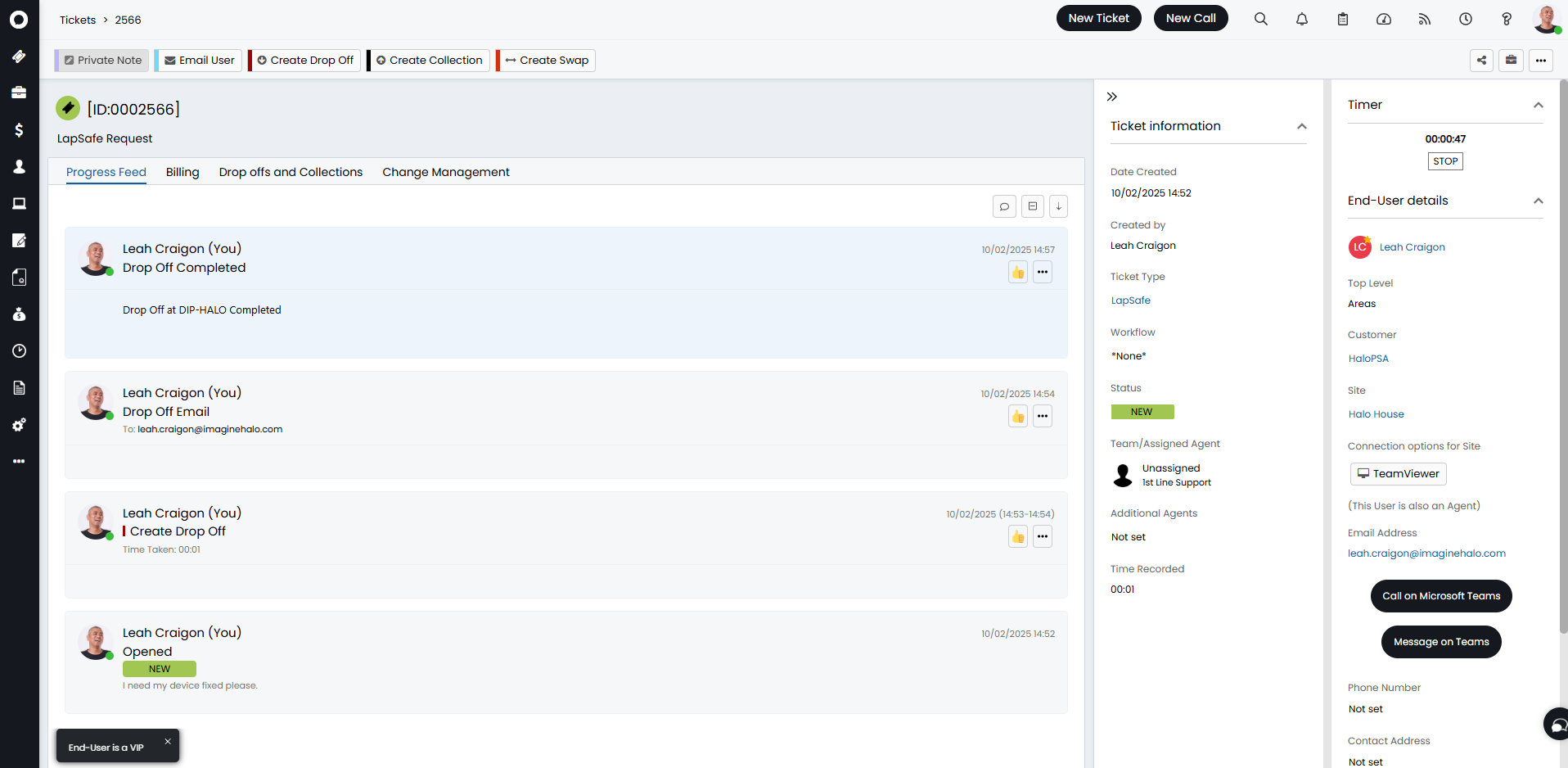
Fig 15. Drop Off Completed action
Next, let's use the "Create Collection" action. This will follow the same system - fill in the LapSafe fields, save the action, and an email will be sent out.
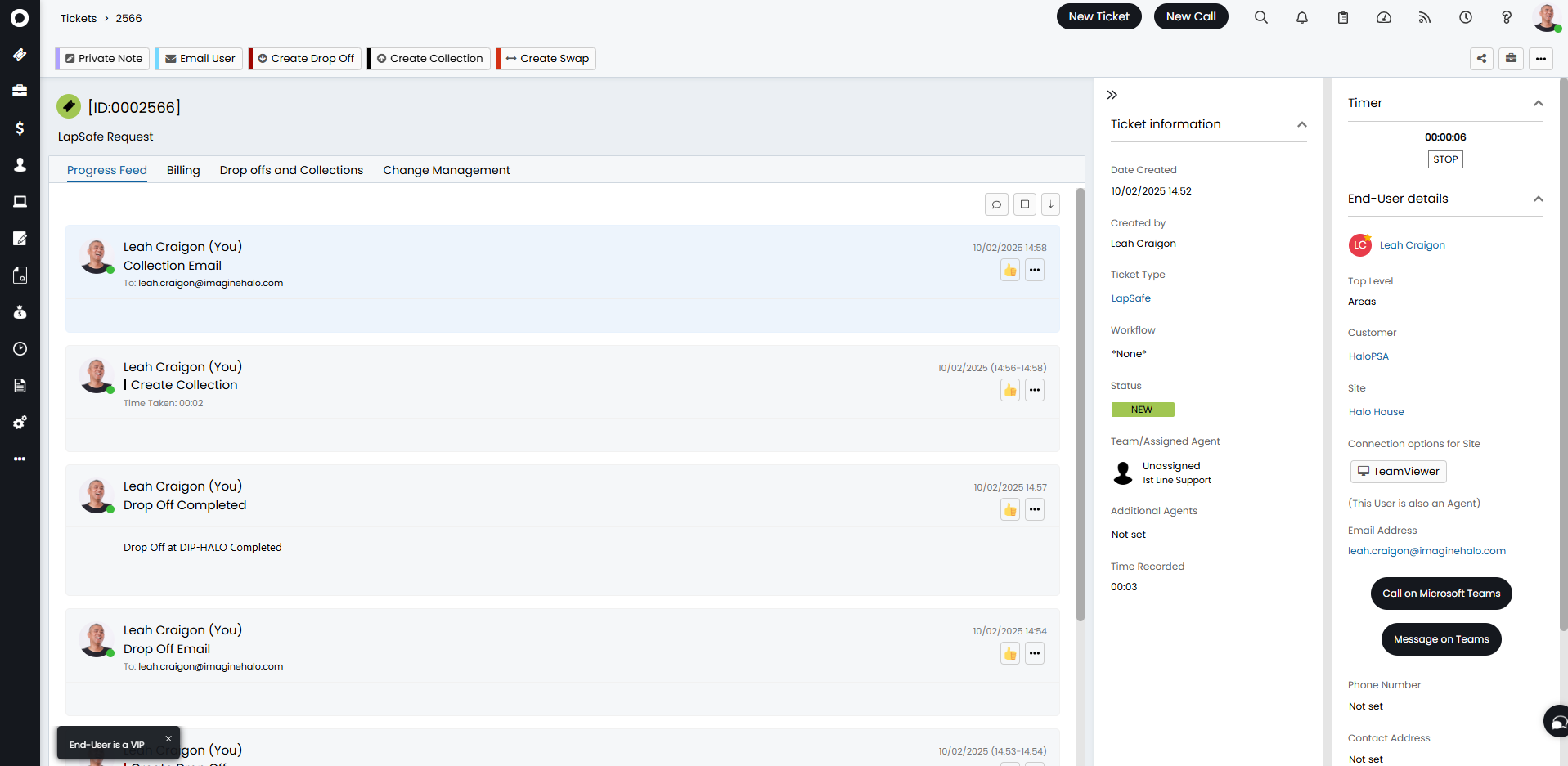
Fig 16. Create Collection action used
The template used for this system use is "Asset Collection Arranged" (ID: 324) unless it was changed from the default in the integration configuration.
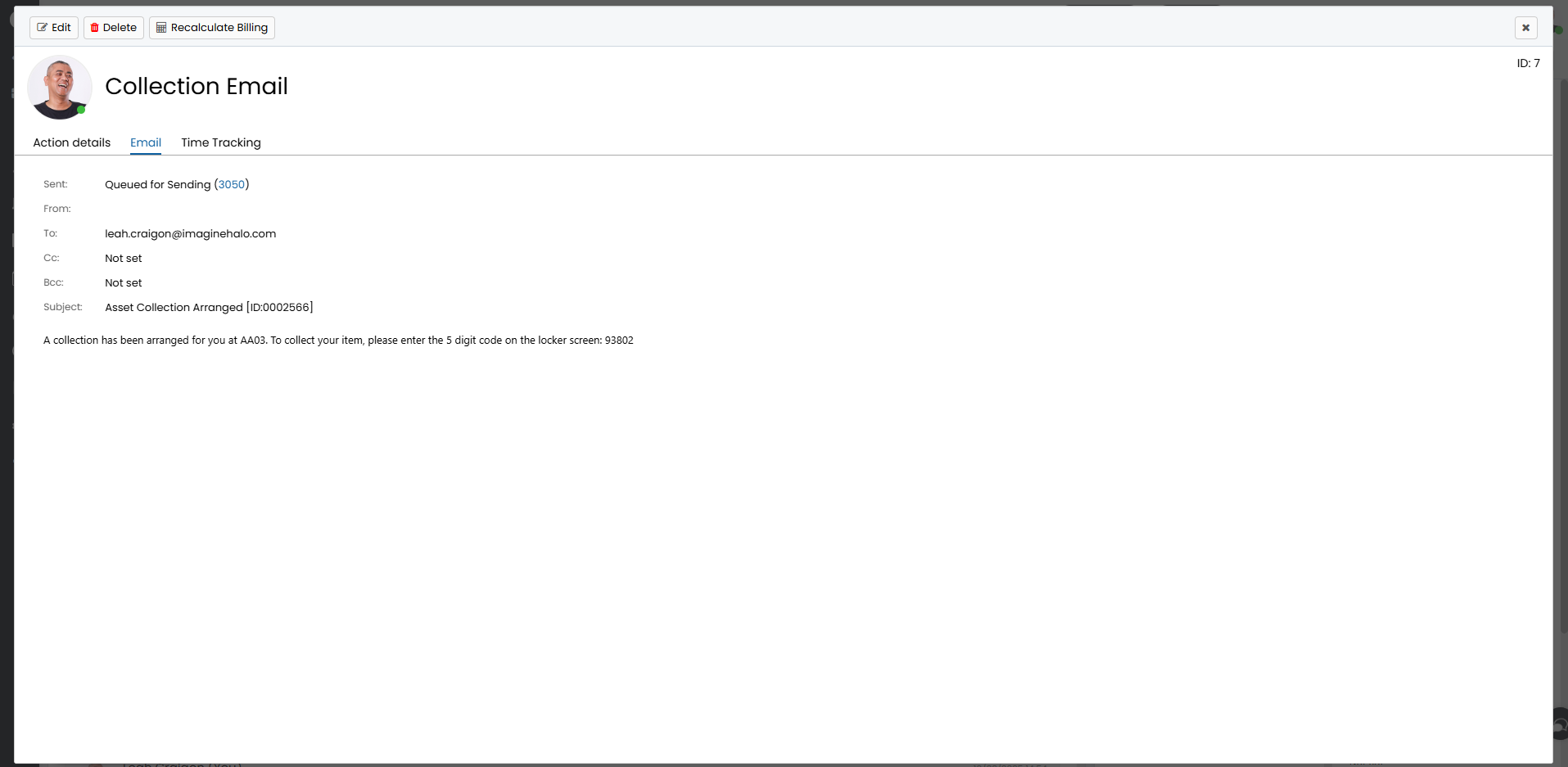
Fig 17. Email template sent from collection
Upon completion, the "Collection Completed" action will automatically appear.
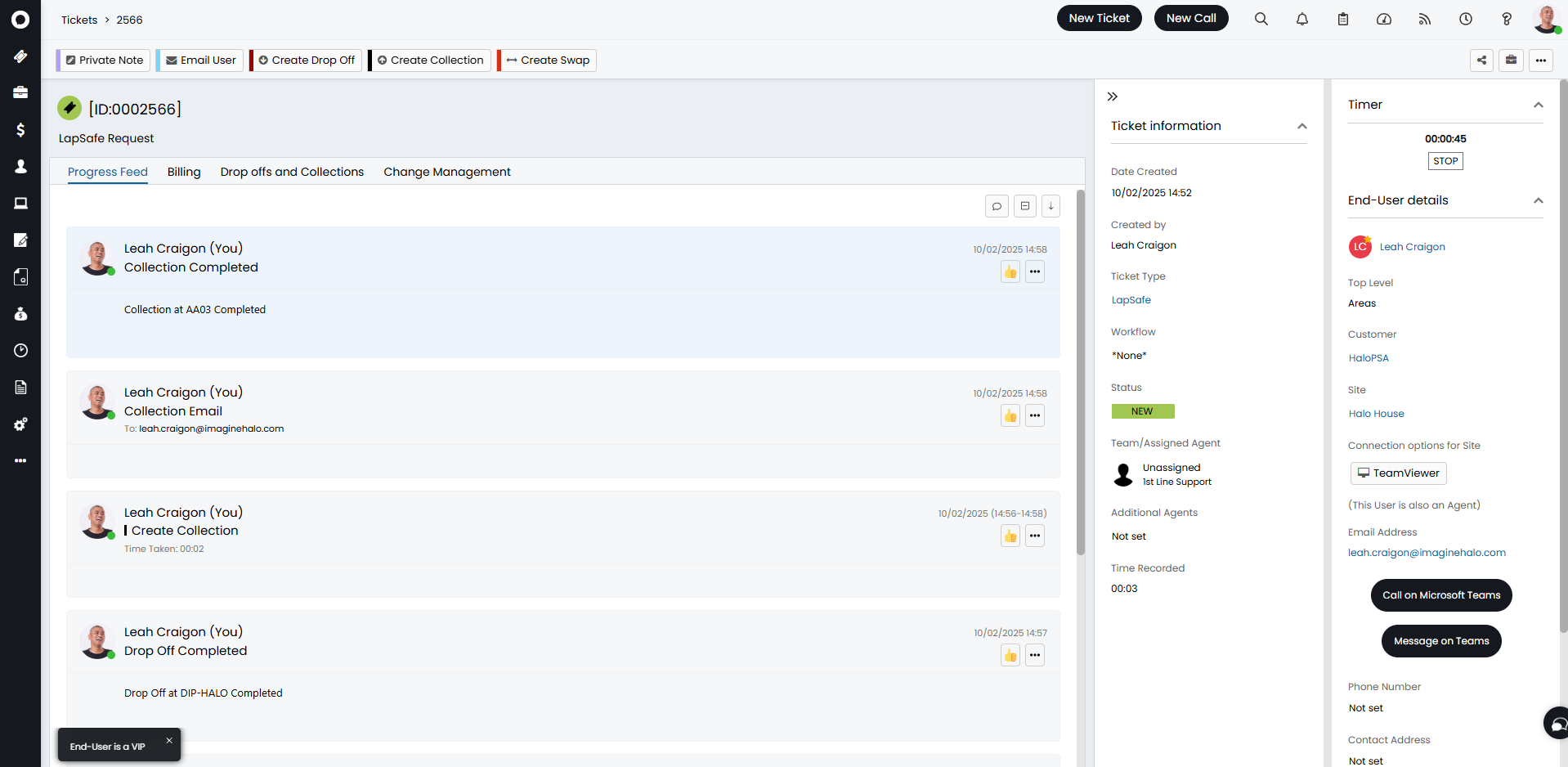
Fig 18. Collection Completed action
Finally, let's use the "Create Swap" action. This will also follow the same process as the previous two - filling in the LapSafe fields, saving, and an email being sent.
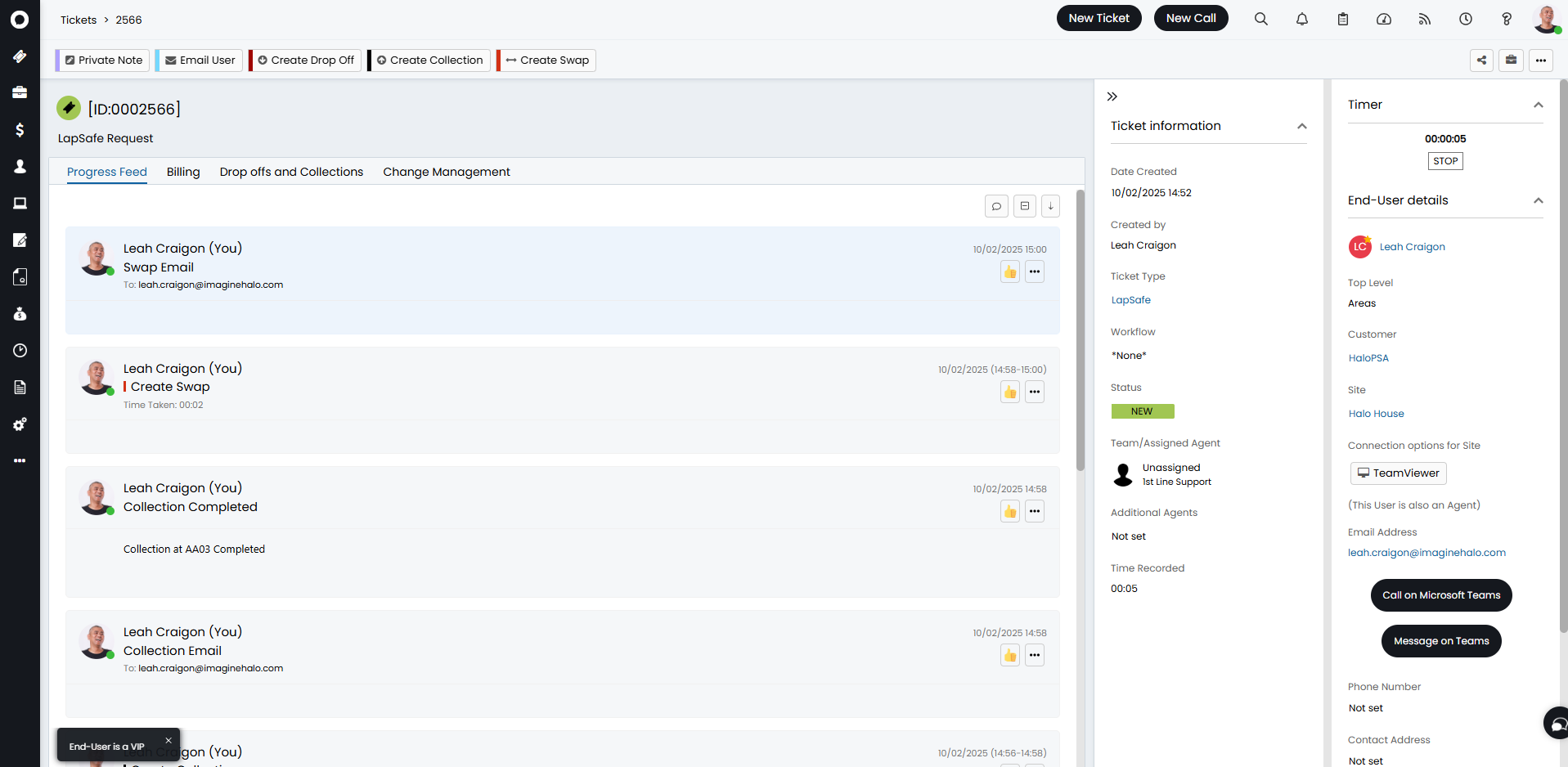
Fig 19. Create Swap action used
The template sent out is the "Asset Swap Arranged" (ID: 333) unless changed from the default in the integration configuration.
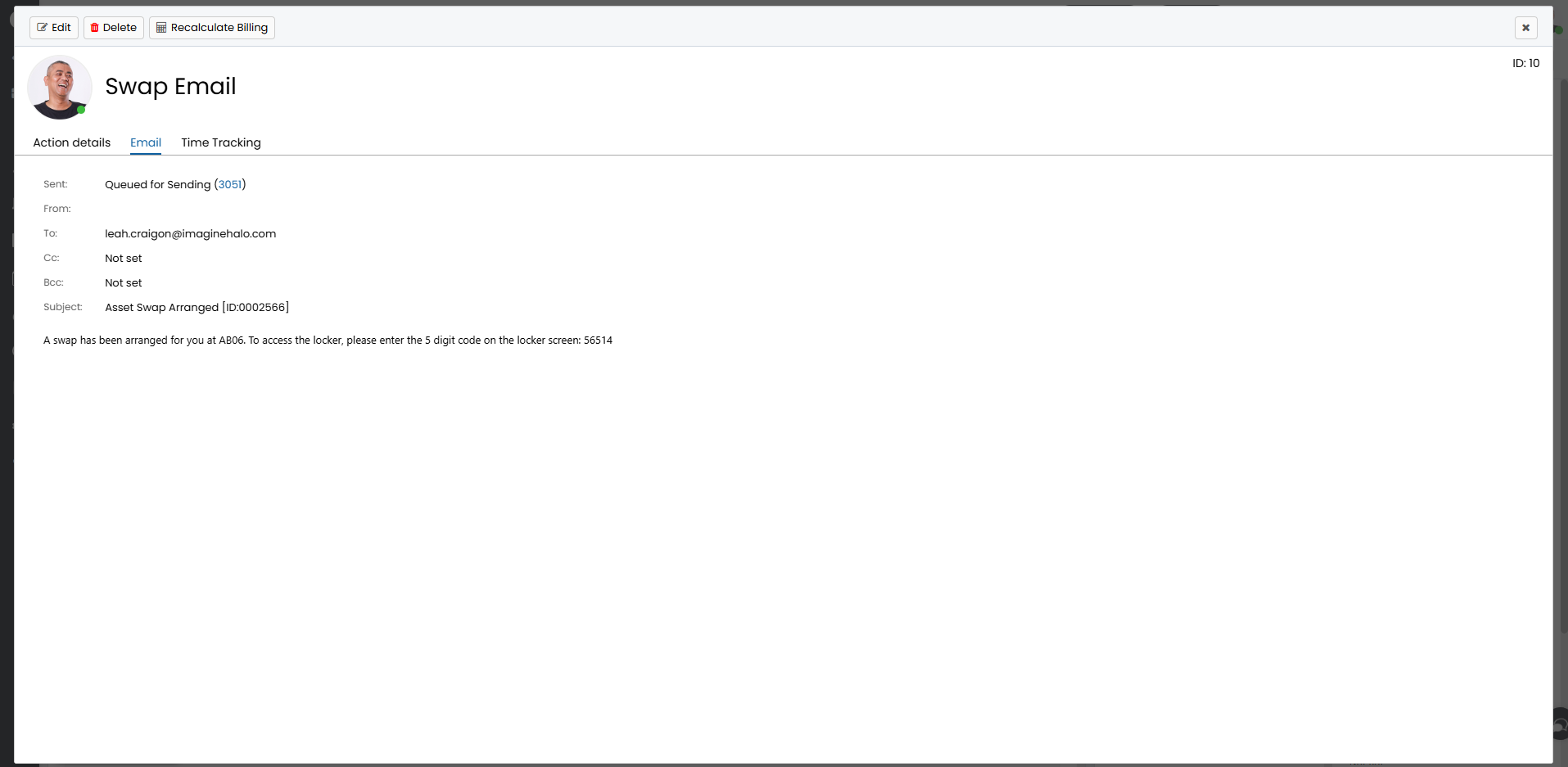
Fig 20. Email template sent from swap
The "Swap Completed" action will also automatically appear upon completion.
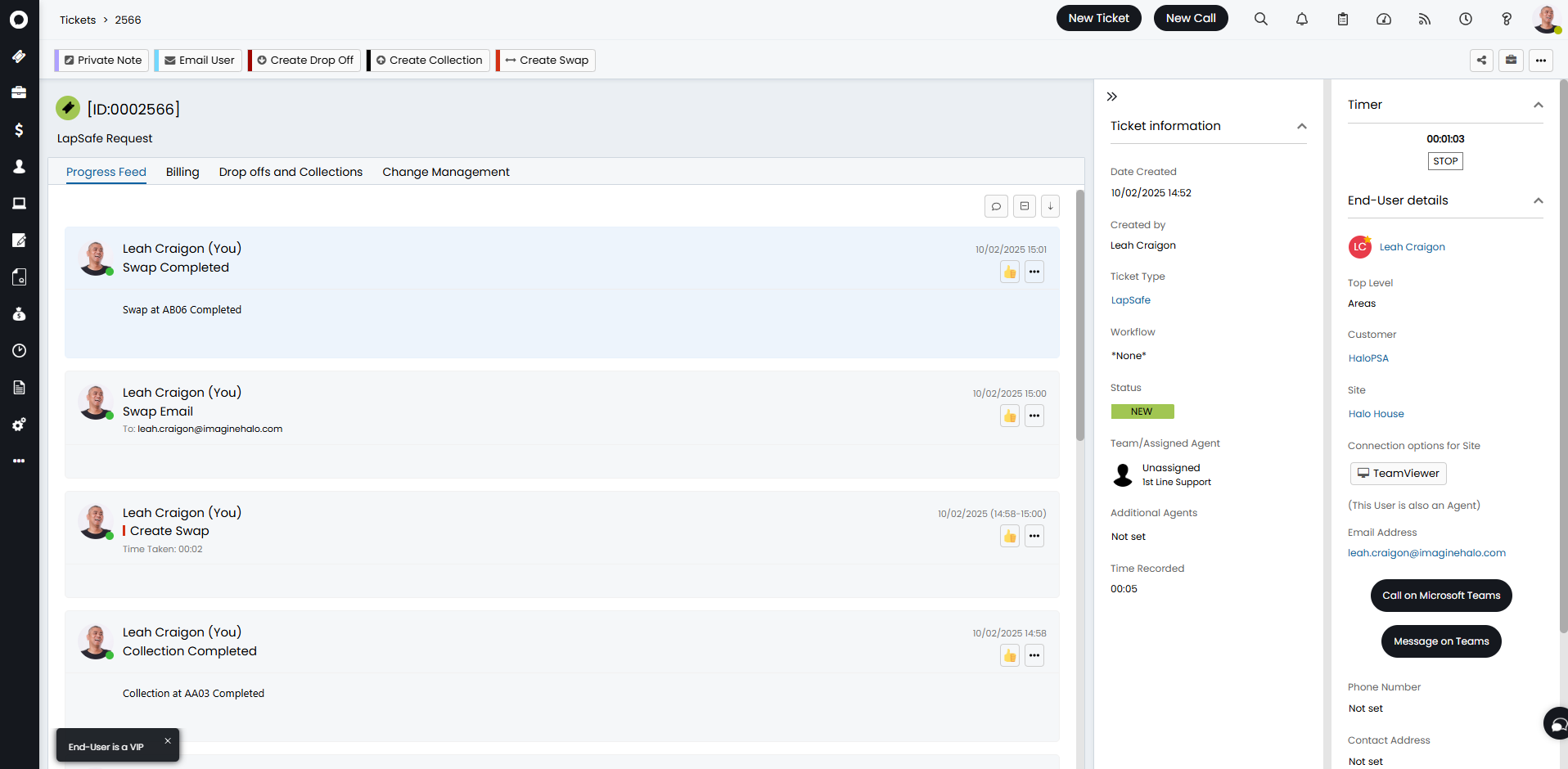
Fig 21. Swap Completed action
The swap action has been enhanced. An asset's name can be typed into the "LapSafe Asset" field, and then the "LapSafe Bay" field will only show fields with that asset for swapping. This requires an asset to be created in Halo with the same name as the one in LapSafe, as well as being assigned to an asset type that also matches the name of the one in LapSafe.
Here is an asset in Halo with the name "asset1" and the asset type "assetype1".
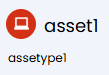
Fig 22. Asset with asset type and name to match a LapSafe asset
This matches to the ones in LapSafe, so when typing the asset name, the bay that appears is the one it is contained within. This reduces possibility of agent error by selecting the wrong bay.
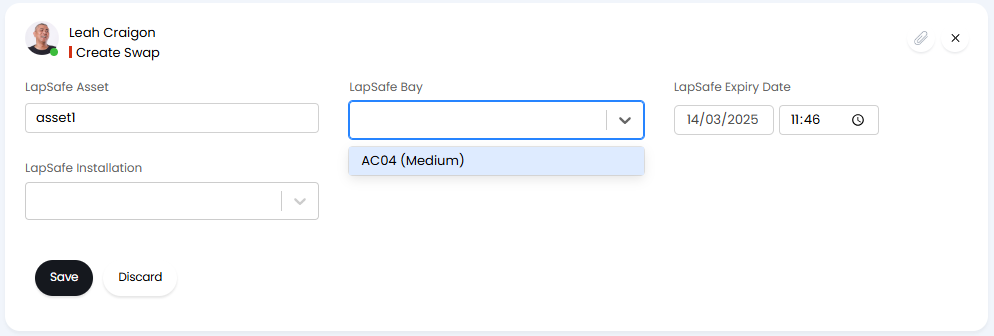
Fig 23. Bay that asset is contained in is the only one that appears
However, what if a drop-off is cancelled for instance? Another drop-off action has been created and is pending as seen below.
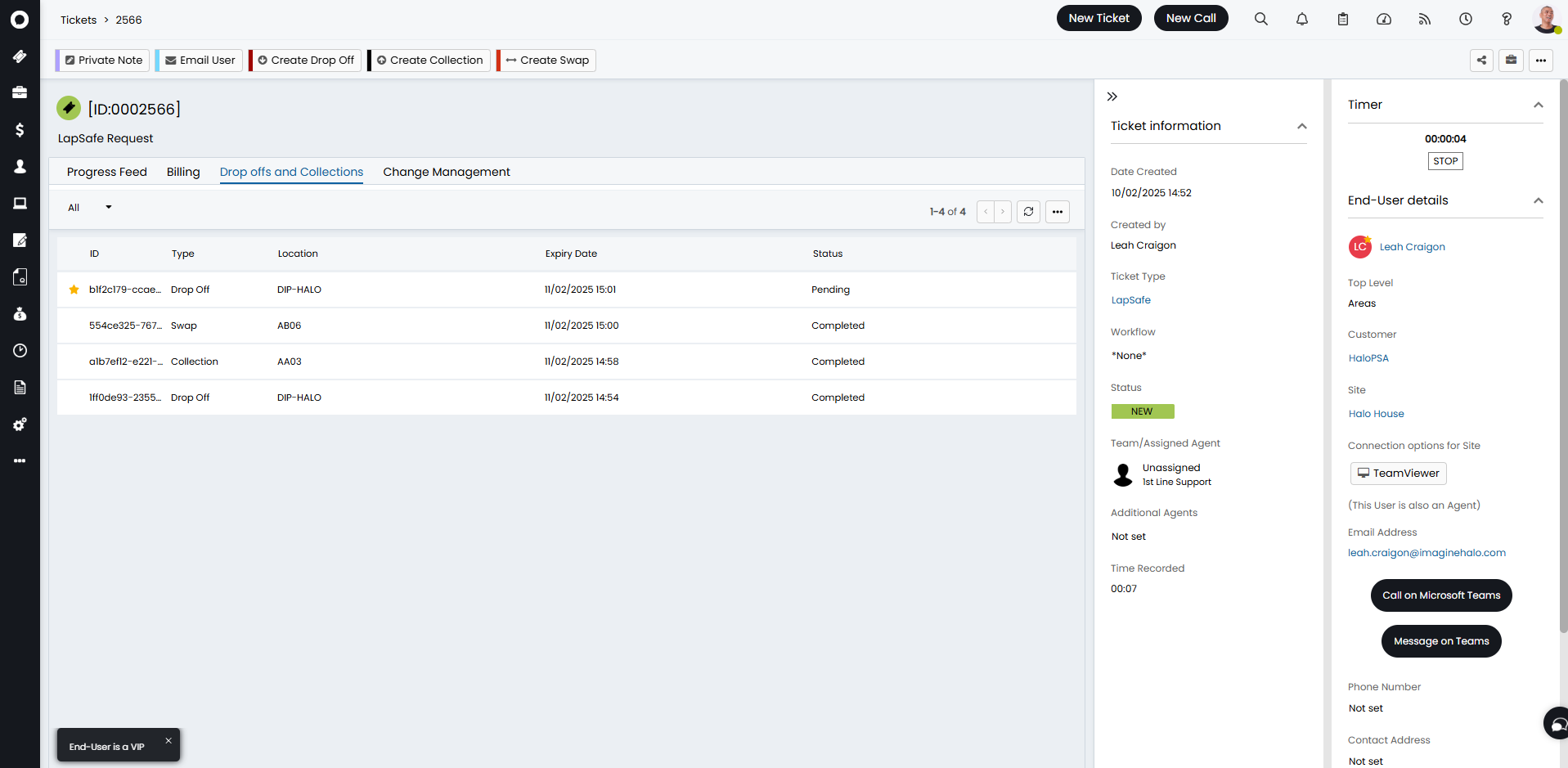
Fig 24. Pending drop off
If we then cancel this, a "Drop Off Cancelled" action will automatically appear.
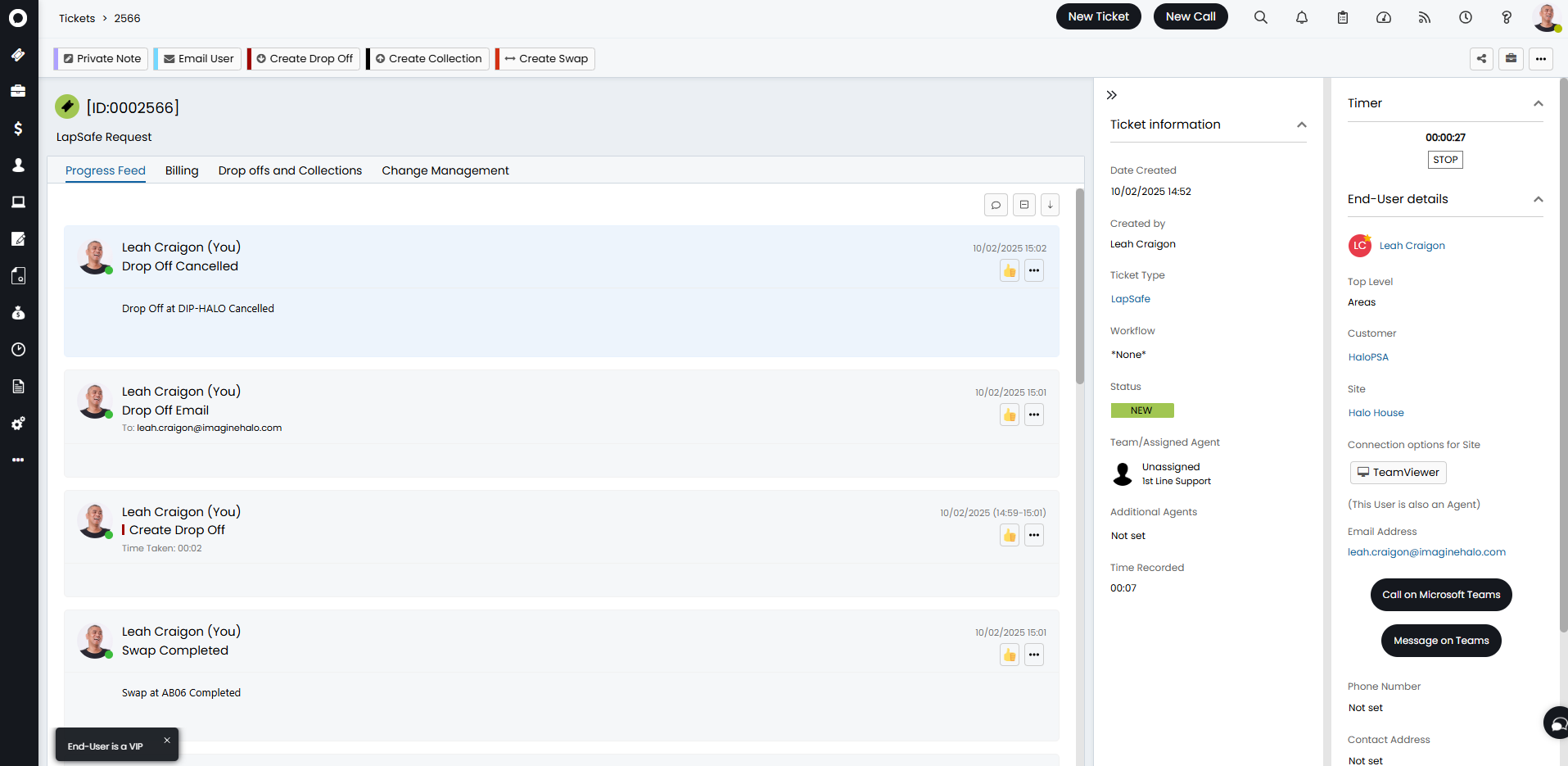
Fig 25. Drop Off Cancelled action