KeyCloak Integration
- integration
- SAML
- SAML 2.0
- keycloak
In this guide we will cover:
- What is the KeyCloak Integration?
- Connecting to KeyCloak
- User and Agent Mapping
Related Guides:
What is the KeyCloak Integration?
The KeyCloak integration allows use of SAML to authenticate users and agents.
Connecting to KeyCloak
Go to the SAML (AD FS) integration within Halo and ensure it is enabled.
Click into the module and then click this button to download the Metadata.
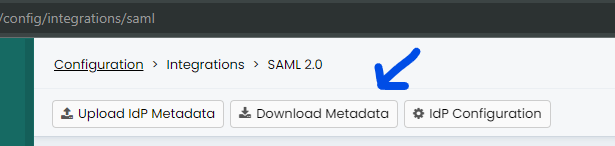
Fig 1. Download Metadata button.
Once downloaded, you will need to add 'contactType="technical"' to the <md:ContactPerson> tag, such as below.
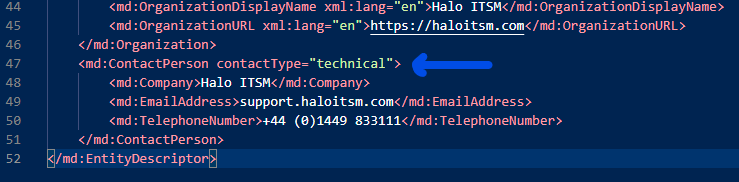
Fig 2. Adding contact type in.
This is because KeyCloak uses this as a validator.
Next, go to KeyCloak admin portal, select the realm you are wanting to use with Halo and select 'Clients'. Then, select "Import client".
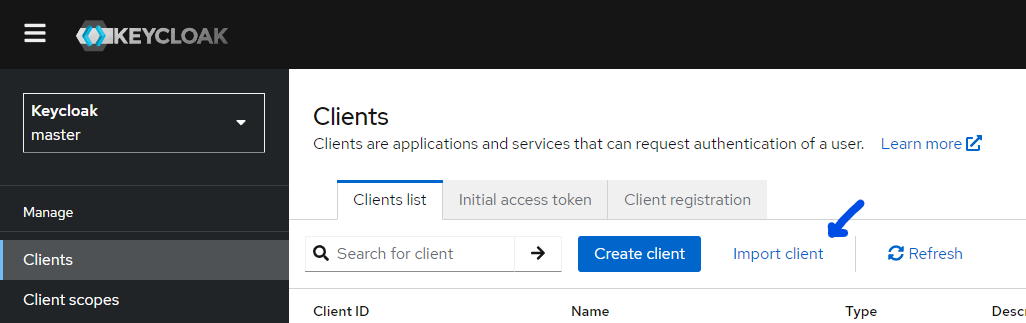
Fig 3. Import client button.
From there, upload the metadata we downloaded and edited from Halo and click 'Save'.
Now, head over to 'Realm settings' and select 'SAML 2.0 Identity Provider Metadata'.
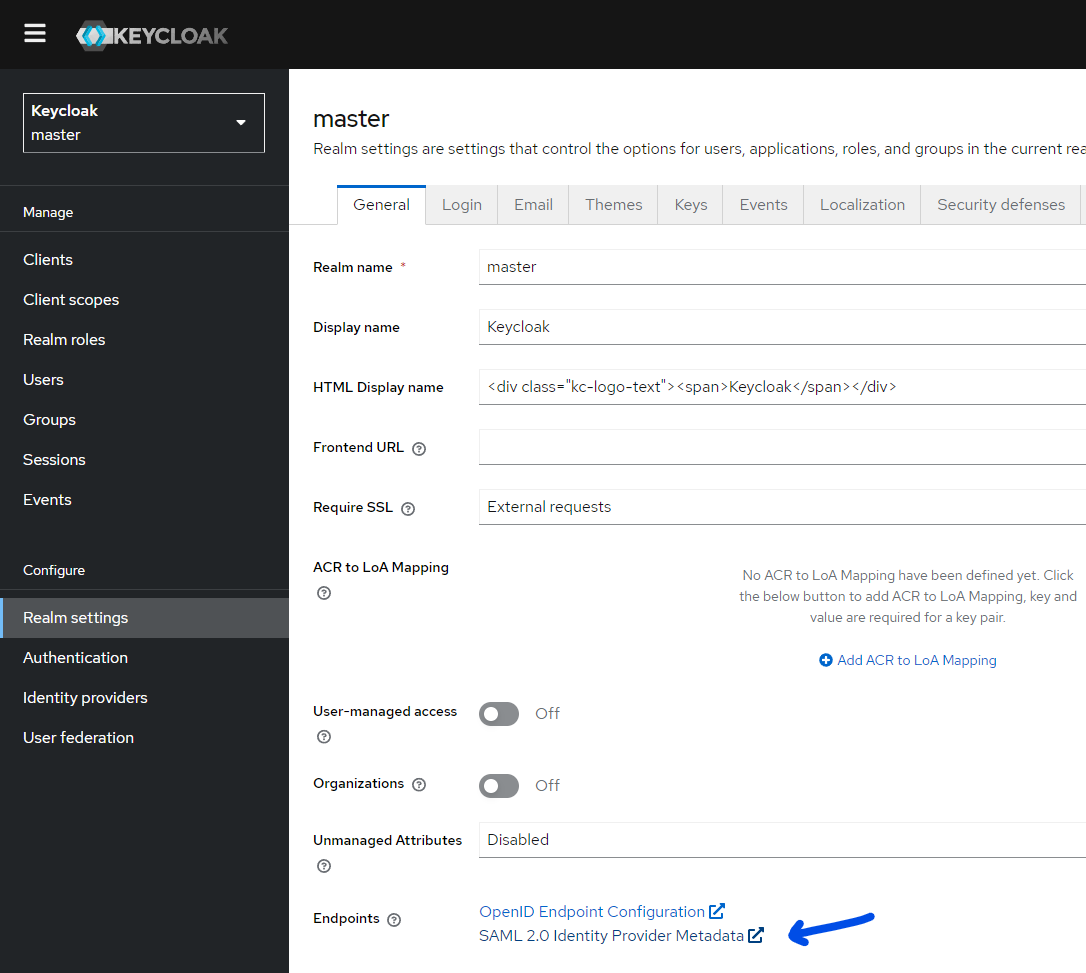
Fig 4. Selecting the endpoint.
This will either pop out or download an XML file, you want to open this and take a note of the below two values:
- Single Sign On Service Location where the binding is for HTTP-POST: <md:SingleSignOnService Binding="urn:oasis:names:tc:SAML:2.0:bindings:HTTP-POST" Location="http://localhost:8080/realms/master/protocol/saml"/>
- X509Certificate value
You then need to head over to Halo and add the Location URL to the 'Login URL' section and copy the certificate value in the 'X509 Certificate for signature validation' section, ensuring to have -----BEGIN CERTIFICATE----- and -----END CERTIFICATE----- and the start and end respectively:
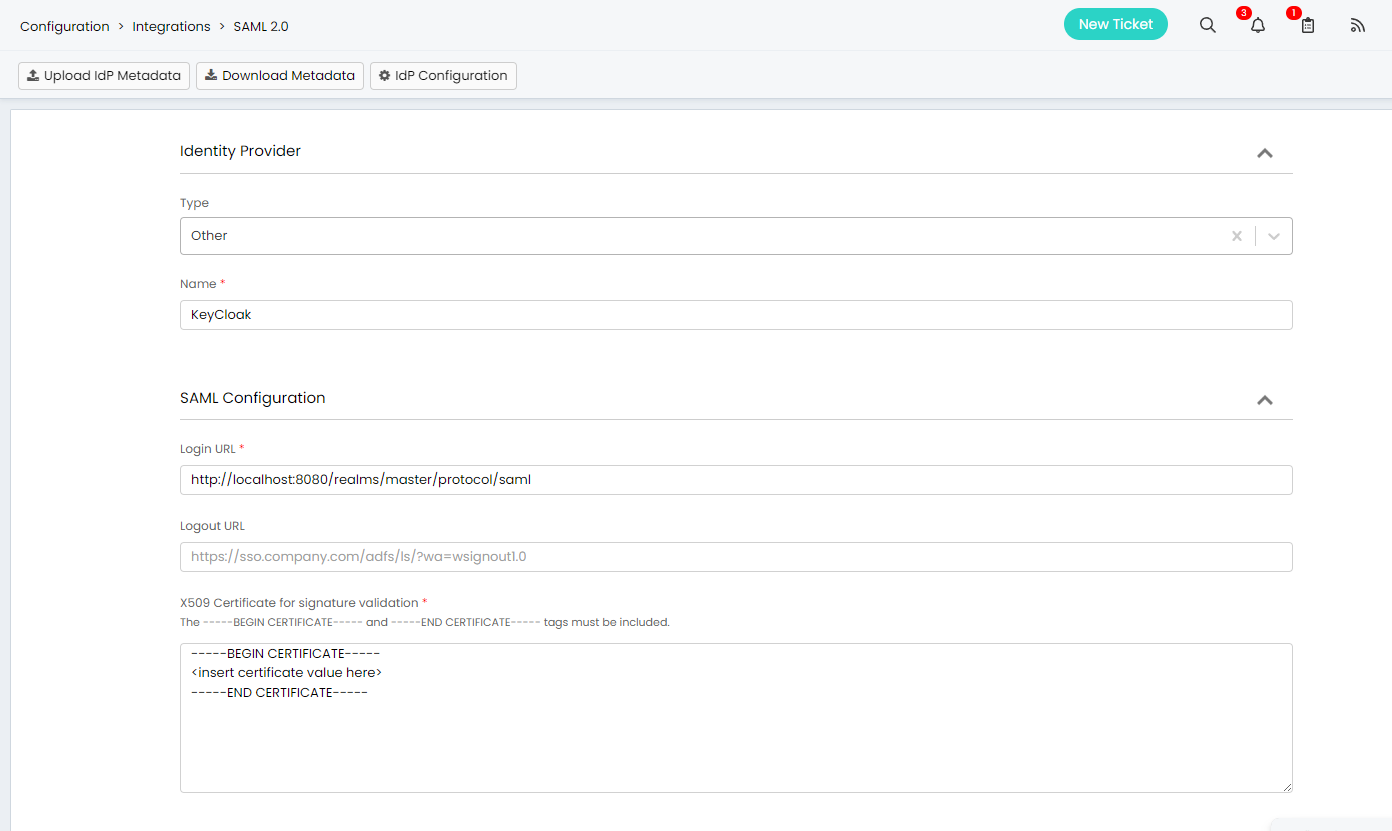
Fig 5. SAML configuration.
You also need to ensure that 'Sign all AuthnRequests sent to the identity provider' is selected.
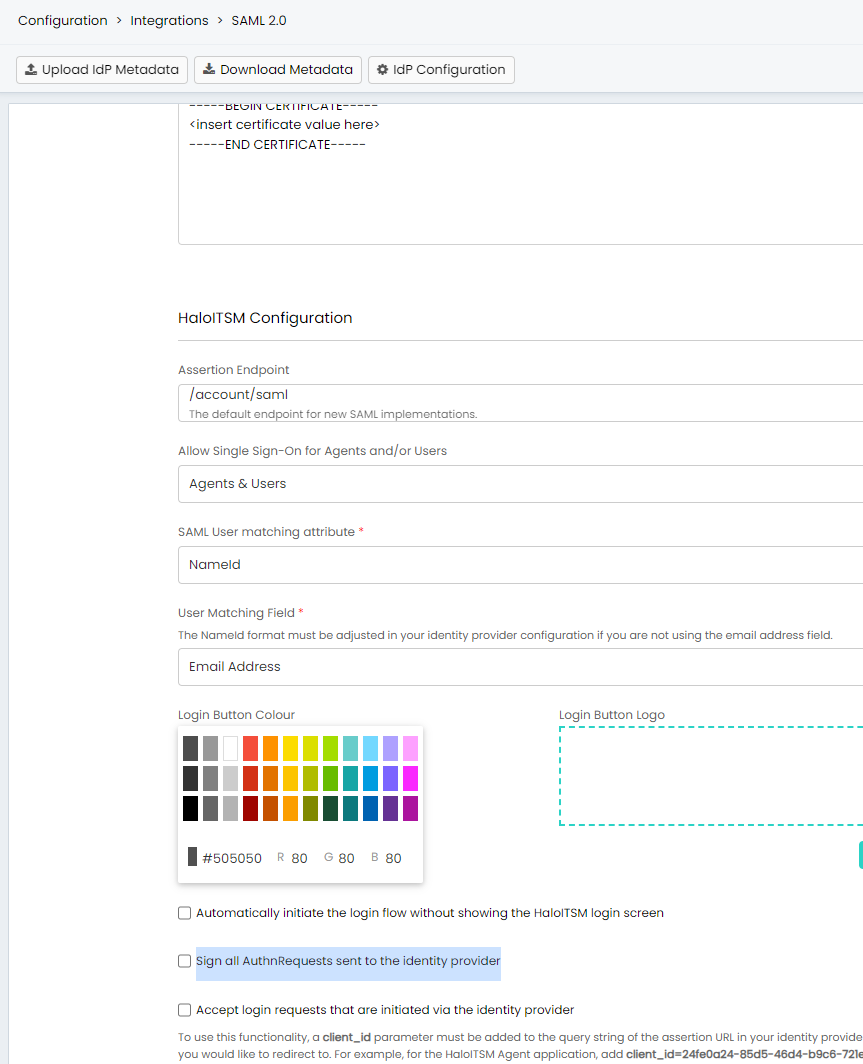
Fig 6. Enabling signing of AuthnRequests.
User and Agent Mapping
You now need to configure the mappings to ensure the users within KeyCloak match the users within Halo. You can do this with either email address or a custom value stored in any other the other fields. To do this using email, you need to ensure that email is set for the Name ID format in KeyCloak, which is done by going to the client configuration.
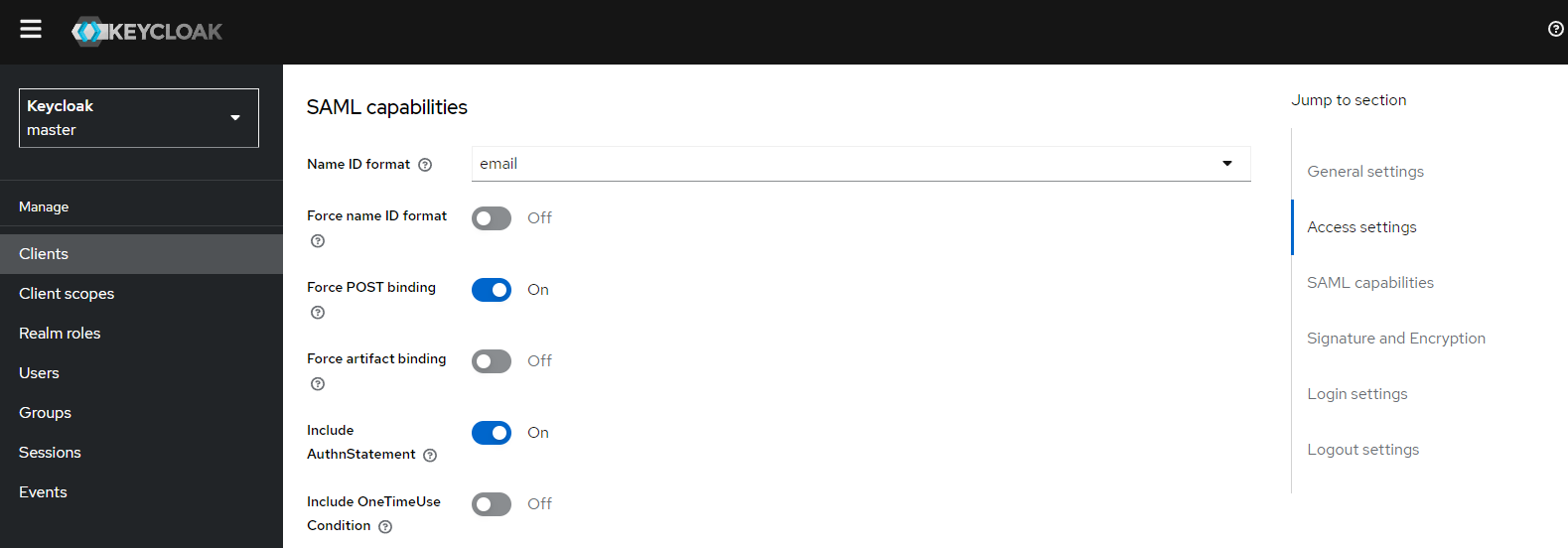
Fig 7. Setting format to email.
And that the 'User Matching Field' within Halo is set to email.
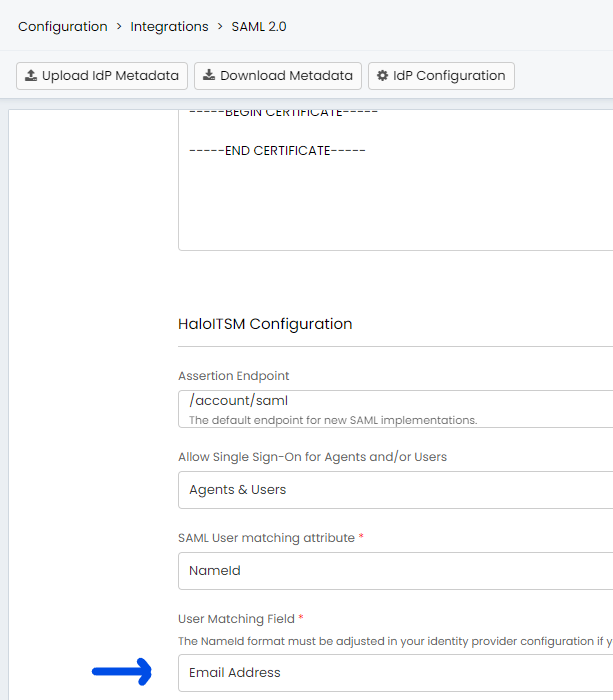
Fig 8. Setting the user matching field to email.