Virima Integration
- integration
- Asset Management
- Virima
In this guide we will cover:
- What is the Virima Integration?
- Connecting to Virima
- Site Mappings
- User Mappings
- Asset Imports
- Miscellaneous Settings
- Syncing
- How to import Assets from Virima
What is the Virima Integration?
The Virima integration can be used to import assets from Virima into Halo. If there is a user and/or software associated with this asset in Virima, this can also be imported into Halo.
Note: This integration will not create new users in your Halo. If an asset has an associated user, it will attempt to match this Virima user to a Halo user and assign this asset to this user in Halo.
Connecting to Virima
First head to Configuration > Integrations and enable the Virima module.
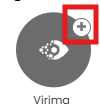
Fig 1. Enable module
Once enabled add a new record and you will see the details tab, here you will need to enter some credentials to connect to your Virima.
In the 'Name' field give this connection a name. In the 'URL' field enter your Virima URL. In the 'Tenant ID' field enter your Virima tenant ID and for the 'API Token' field you will need to contact Virima to generate an API token and enter it in this field.
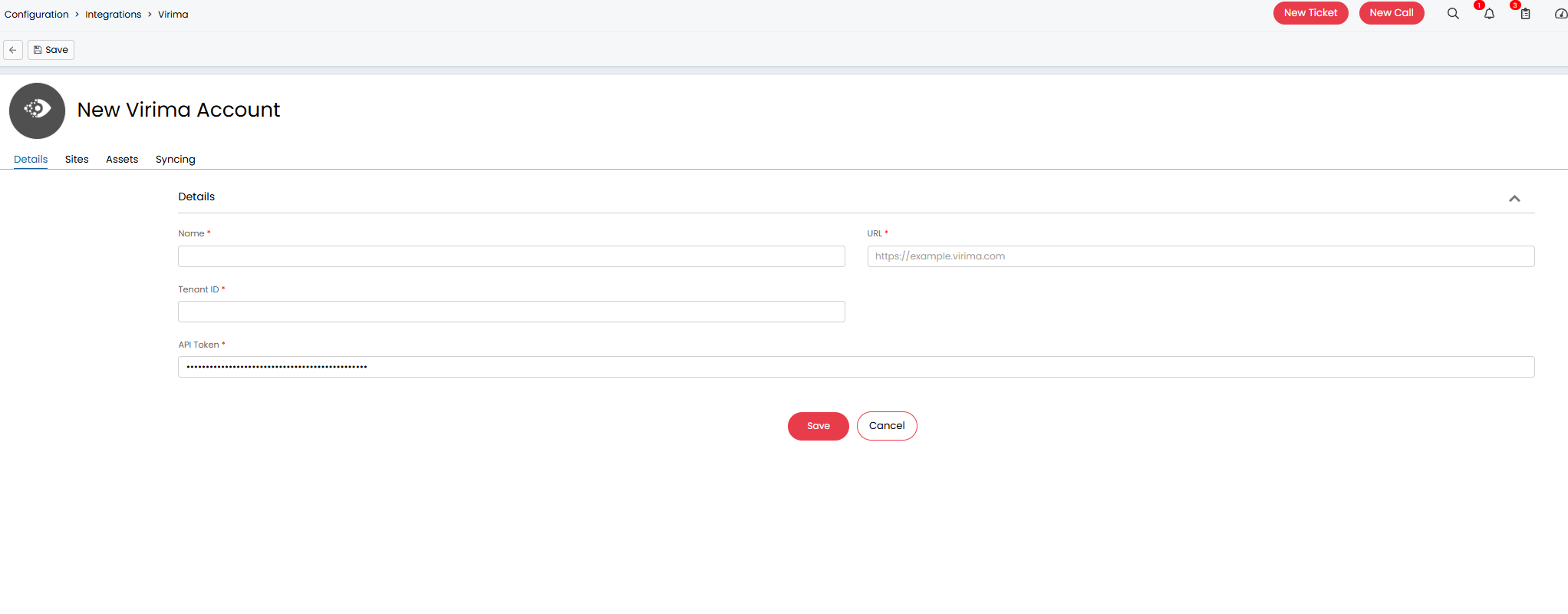
Fig 2. Credentials fields for Virima
Once you have entered all your credentials, save and you will now be connected. You can test your connection using the 'Test configuration' button (this will appear once credentials are saved).
Site Mappings
Now head to the 'Sites' tab. Virima does not have a concept of 'sites' or 'customers' so you will need to configure some site rules to determine which Halo sites Assets are imported into.
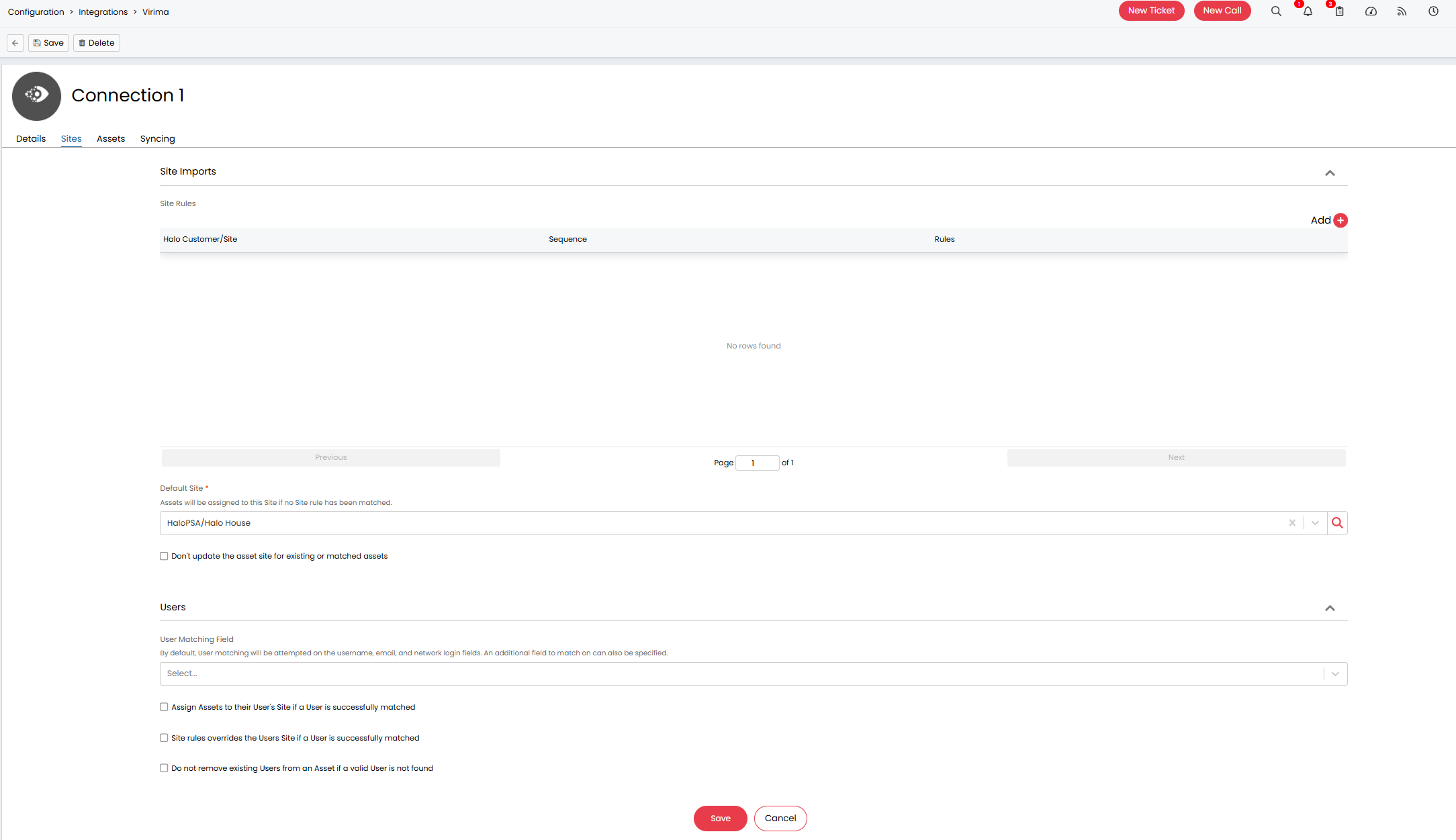
Fig 3. Sites tab under Virima configuration
To create a site mapping rule add to the 'Site Rules' tab. Here you can set some criteria based on an asset field, if an asset meets this criteria it will be imported to the selected site. In the figure 4 example any assets that have the 'asset number' field starting with 'Terrys-' will be imported to the customer Terry's Chocolate and the site 'Melbourne'.
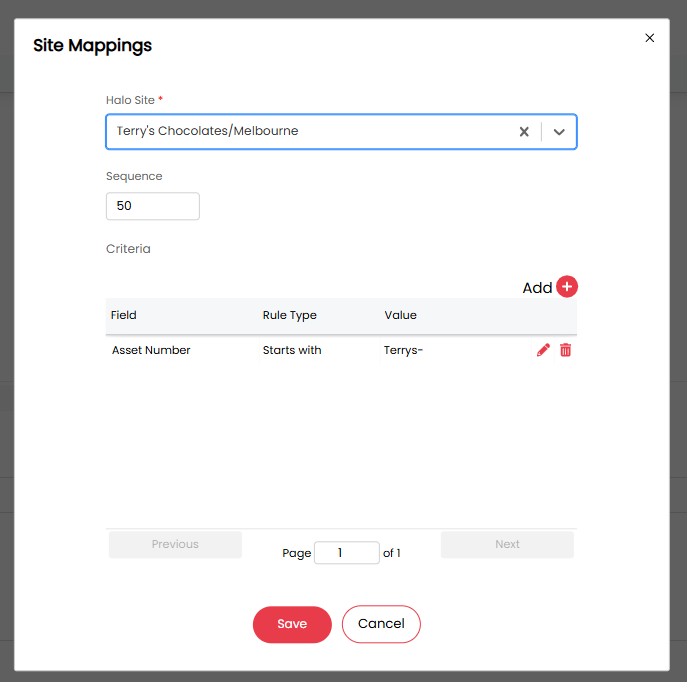
Fig 4. Site rule mapping example
You will also need to set a default site, this is the site that assets will be imported to if they do not match a mapping.
Don't update the asset site for existing or matched assets - When this setting is enabled assets will be imported to a site in line with the site rules/default site, but after the initial import their site will not change. This allows you to change the asset fields that rules are based on without this changing the site of any existing assets is under when the sync runs.
User Mappings
Allow User matching - Use this to enable user matching for all assets imported from Virima. This will result in users being assigned to assets in Halo based on their assigned user in Virima. If you would not like assets imported from Virima to be matched to a user in Halo, or only have this happen for selected asset type, disable this.
Allow user matching for specific Asset Types only
To do this ensure "Allow User matching" is disabled for the integration. Then you will need to enable user matching for each asset type in Halo you would like users to be matched for. Head to Configuration > Asset Management > Asset Types > select a type > Details tab > Integrations section > choose "Virima" in the "Integrations to allow User matching" field. Now, when assets of this type are imported from Virima, user matching will occur.
User matching field - Here you can set an additional field that is used to match users in Virima with users in Halo. Users will attempt to be matched on username, email and network login regardless of what is set here. But, you can choose an additional field to use for matching if you use another field to uniquely identify users.
Assign Assets to their User's Site if a User is successfully matched - When enabled, assets will be imported to the same site as their user, if they match on a user. This will override the site mapping rules.
Site rules overrides the Users Site if a User is successfully matched - When enabled, assets will be imported to the same site as their user, unless they match a site mapping rule. If they match a site mapping rule they will be imported to the site in line with the rule instead.
Do not remove existing Users from an Asset if a valid User is not found - When enabled, if the asset is currently matched to a user but when the sync runs they cannot be re-matched to this (or another) user, the existing user will remain assigned to that asset. If disabled the user will be un-assigned from the asset after the sync if it cannot be re-matched.
Allow partial matching on the email address, network login and User matching fields - When enabled, if a user in Virima cannot be successfully matched to a user in Halo using exact matching, matching can be attempted using partial matching. Users will be matched if they share a username, email, network login or 'User Matching Field' that matches partially.
Asset Imports
Head to the 'Assets' tab. Here you can configure what details are imported from assets.
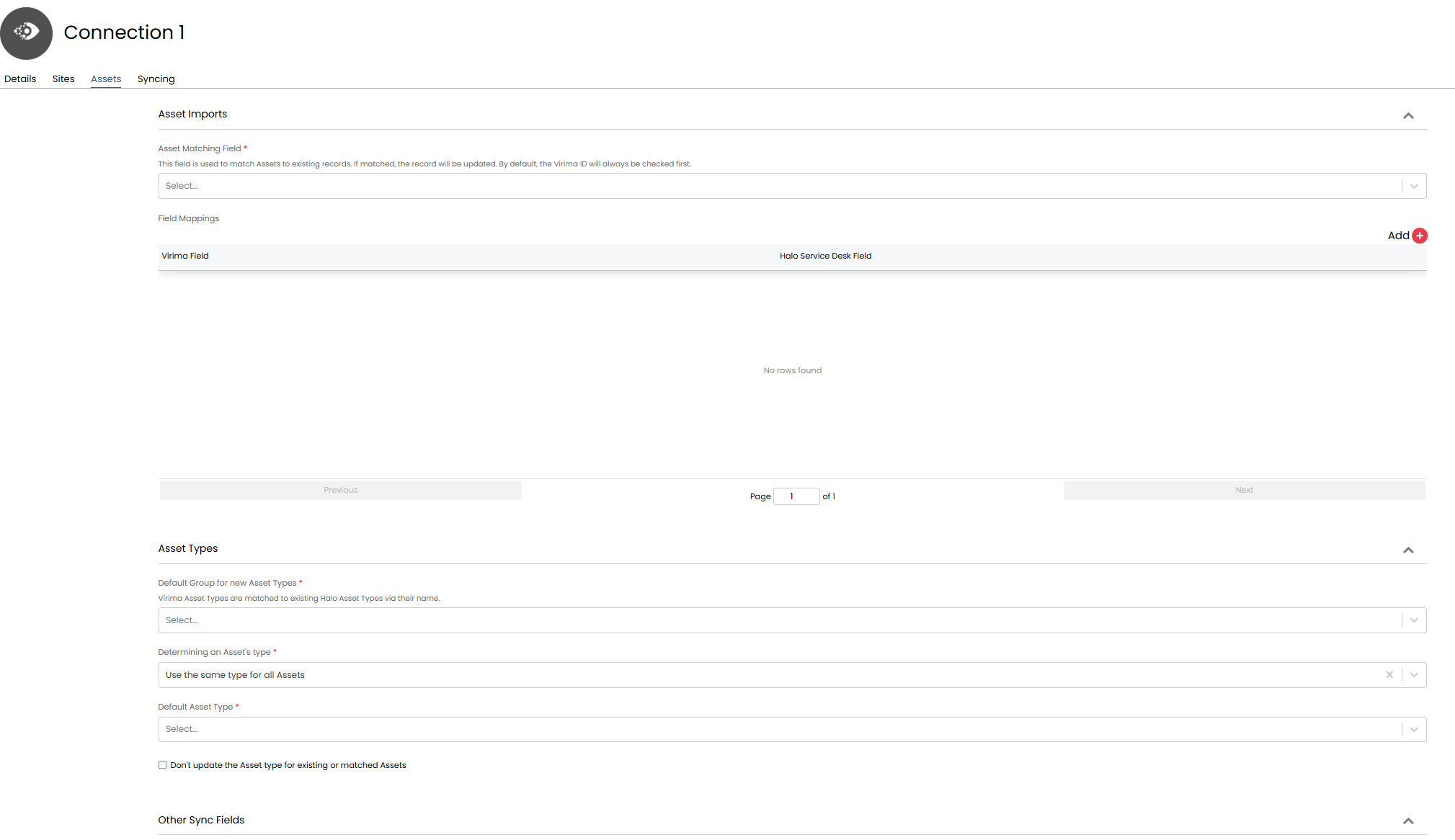
Fig 5. Assets tab under Virima configuration
Asset matching Field - Here you can set which field is used to match assets in Virima to assets in Halo. The asset unique identifier field should be selected here.
Asset Fields
In the field mappings table you can map a Virima field to a Halo field, this determines which field data from Virima gets imported into in Halo. When creating field mappings you can either select a Virima field from the dropdown, or enter a custom attribute.
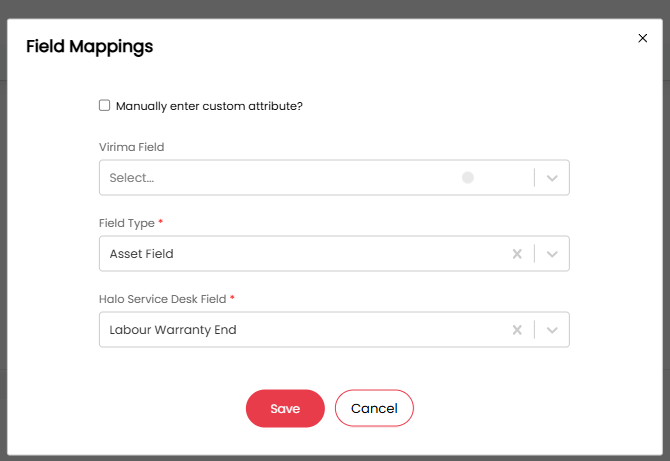
Fig 6. Creating asset field mappings
To map a Halo field to a Virima custom attribute check 'Manually enter custom attribute?' and a free text field will appear. Here, you will be able to enter the name of the attribute, ensure it is an exact match to how the field is named in Virima.
You can also have a Virima field create a new field against an asset in Halo by selecting '*Create a new Field during the next import*' in the Halo service desk field.
Asset types
Virima does not have a concept of asset types so you will need to configure how asset types are determined for assets imported from Virima.
First set a default asset group, this will be the group new asset types are created under.
Use the 'Determining an Asset's type' field to determine how asset types are assigned to imported assets. The asset types of the assets can either use a fixed type for all assets, be determined from a field, or use asset type mappings that are determined using rules based on the values of the mapped asset fields.
If you would like all imported assets to have the same asset type when imported set the 'Determining an Asset's type' field to be 'use the same type for all Assets' then set the 'Default Asset Type' field to be the asset type you would like assets from Virima to be. Figure 7 shows how to set this so all assets are imported as the 'Laptop' asset type.
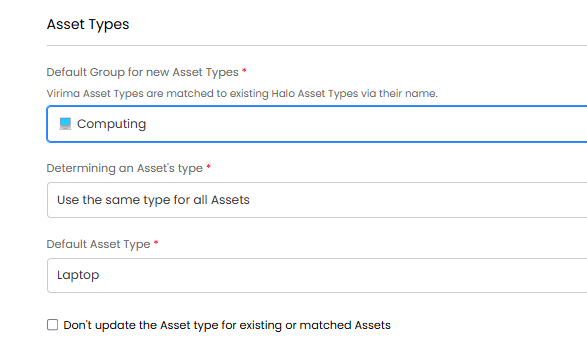
Fig 7. Settings for assets to be imported as the same type
If you would like all imported assets' types to be determined by a particular field, set the set the 'Determining an Asset's type' field to be 'Use a field to determine each Asset's type'. Then in 'Field for determining an Asset's type' choose the field you would like the type to depend on. The field you choose must contain the name of the desired asset type, if this name can be matched to an existing asset type in Halo, it will be assigned this asset type. If the name is not the same as an asset type in Halo, a new asset type will be created. Note that the names must be identical in order to match. This setting is used if you have a field in Virima that already determines an asset's type and you would like the types to be consistent between Halo and Virima. You will still need to populate the default asset type field, assets that do not have the selected field populated will be imported as the default asset type. In figure 8 asset types will be determined by the value in the field 'Operating System'.
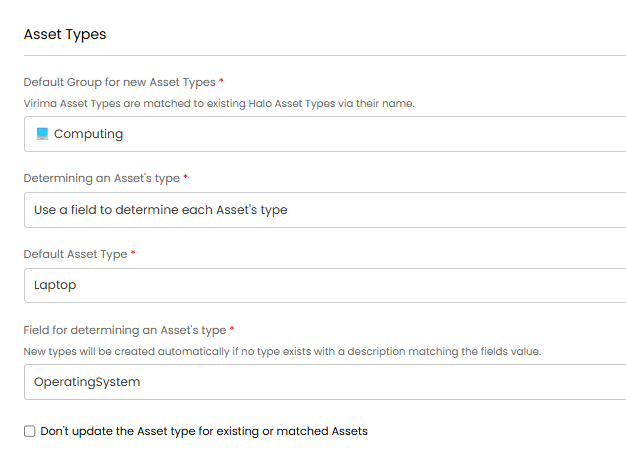
Fig 8. Settings for asset types to be determined by a field
If you would like asset types to be determined by asset rules set the set the 'Determining an Asset's type' field to be 'Determine asset type using rules'. Now you will be able to set asset's types based on rules, These rules are based on field values, and if matched will assign an asset to the chosen asset type. When creating a rule first add criteria for the rule, select the Halo field that you would like to base the criteria on, then set the rule type and the outcome needed in the field to match the rule. If an asset matches this rule it will be imported as this asset type. For example, in figure 9 the rule I have set up will check the name field of an asset, if the name begins with 'LAP' the asset will be imported with the 'Laptop' asset type.
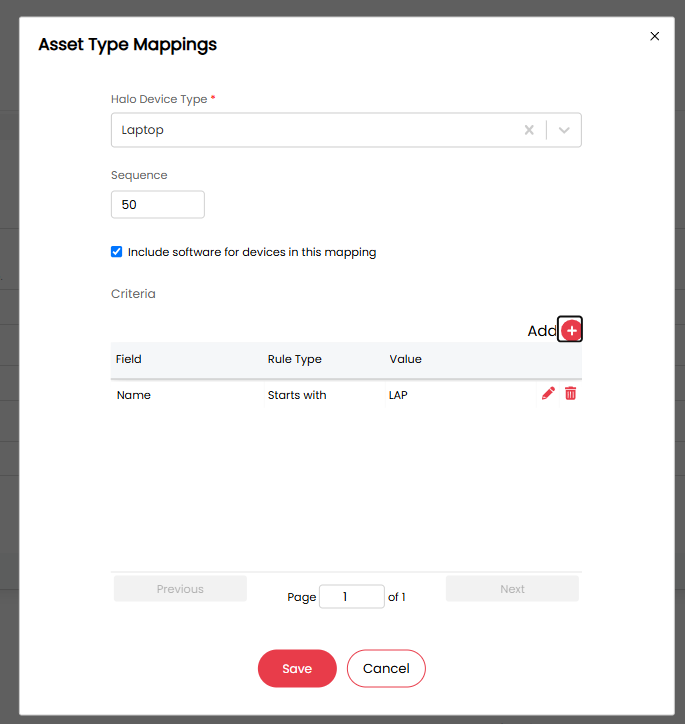
Fig 9. Determining asset type with rule setup
If an asset is imported that does not match any of these rules, it will be created under the default asset type. Alternatively, if you would like to not import assets that do not match these rules, set the 'Default Asset type' to 'Don't import assets that do not match any rules'.
Don't update the Asset type for existing or matched Assets- If enabled, any assets that match to an existing asset when importing will not update the existing asset with a different asset type from Virima. This allows you to change asset type data in Virima without it affecting the existing assets in Halo.
Other sync fields
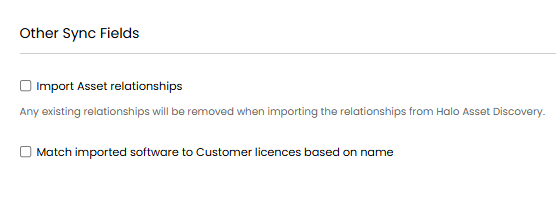
Fig 10. Other sync fields
Import Asset relationships - When enabled asset relationships will also be imported from Virima, visible under the 'relationships' tab of the asset in Halo.
Match imported software to Customer licences based on name- When enabled if software against an asset has been imported from Virima this will match on an existing customer software licence if they have the same name. If they match the quantity of the software imported will be deducted from the licence count and the associated asset will appear under the 'asset' tab against the software licence.
Miscellaneous Settings
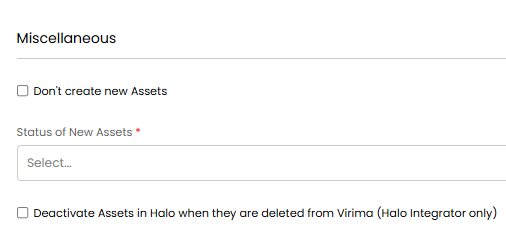
Fig 11. Miscellaneous settings
Don't create new Assets - When enabled the sync/import will only update existing assets, no new assets will be created.
Status of New Assets - Choose the status assets have when they are created by this integration
Deactivate Assets in Halo when they are deleted from Virima (Halo Integrator only) - When an asset is deleted from Virima they are deactivated in Halo. This will only apply when the integrator is enabled.
Once you are happy with your configuration save the page and hit the 'import assets' button at the bottom of the page to start the import.
Syncing
To have assets update on a scheduled basis you will need to enable the Halo integrator for this integration. This can be done under the 'Syncing' tab by checking 'Enable the Halo Integrator for the Virima integration'. Once enabled the sync will take place daily.
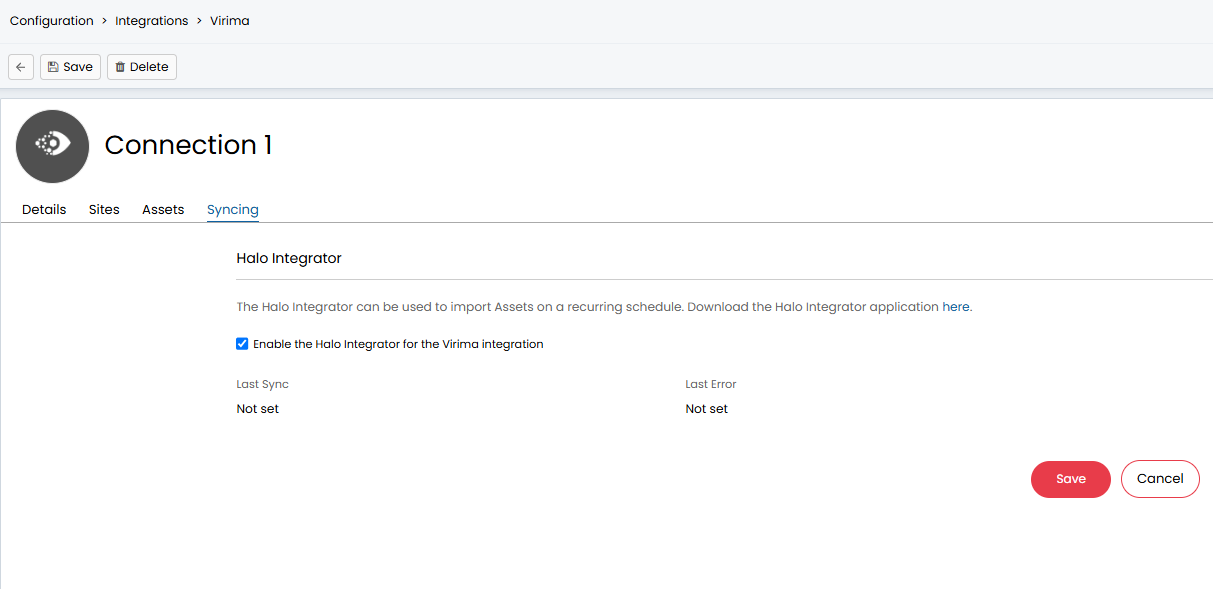
Fig 12. Enabling the Halo integrator
ViVID Diagram
For assets that have been imported from Virima a tab will automatically appear against the asset in Halo showing the ViVID diagram for the asset.
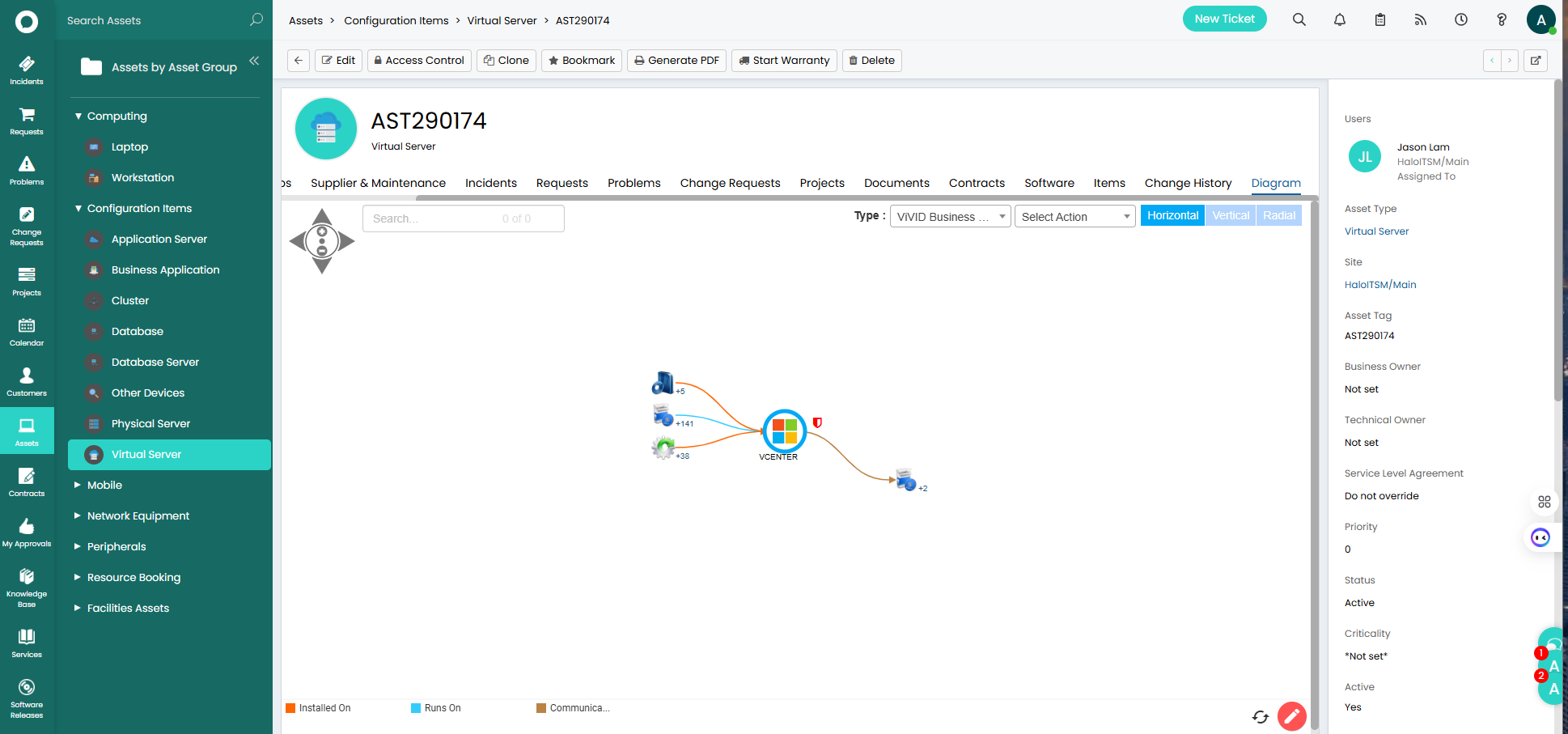
Fig 13. ViVID diagram Tab on Halo Assets
If you would like to modify the name or link of the tab you can navigate to Configuration > Custom Objects > Custom Tabs > select the ViVID diagram tab, here you can edit the tab.
ViVID Diagram on Tickets
The ViVID Diagram can be viewed within tickets related to assets from Virima. When an asset that has been created from Virima is the primary asset against a ticket in Halo a tab will appear within the ticket where the ViVID diagram can be viewed.
Note: If the primary asset for the ticket is not from Virima the tab will not show.
When opening the tab you will be prompted to log into Virima (unless you are already logged in in the same browser). Once logged in the diagram for the asset will show.
This tab can be enabled/disabled for each ticket type. To do this head to Configuration > Tickets > Ticket Types > select a type > Layout tab > change the "Tab Layout" to "Custom". From here you can edit the "ViVID Diagram" tab and set it to show/hide.
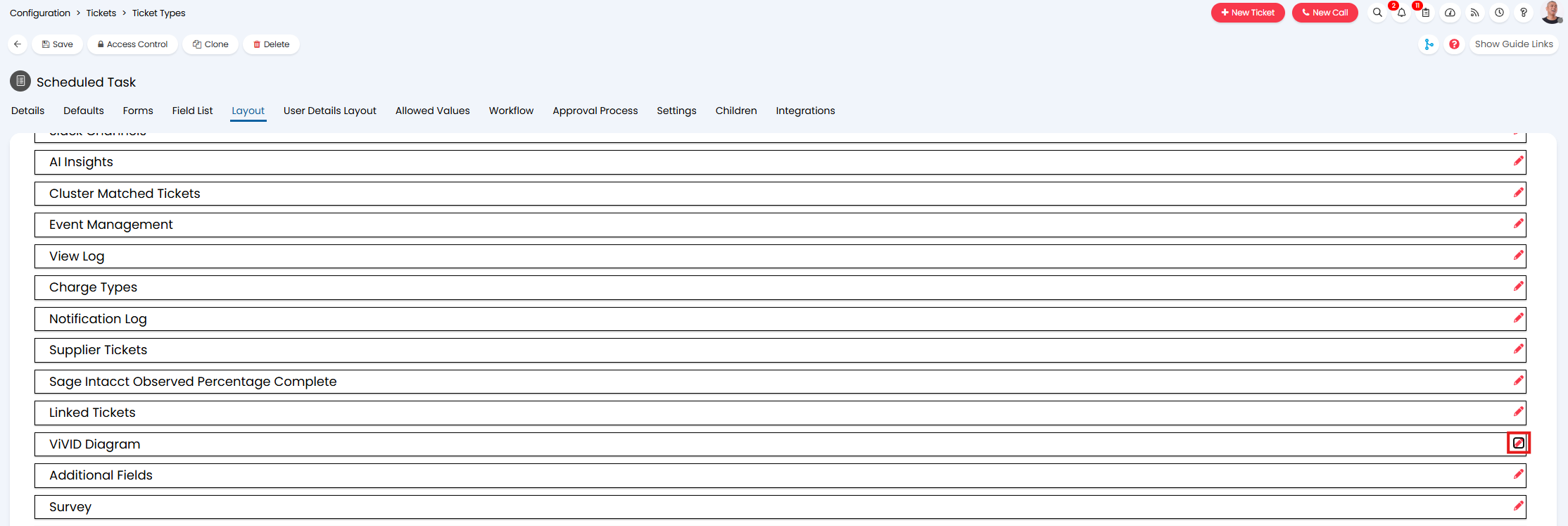
Fig 14. Edit visibility of ViVID Diagram tab on Ticket Type