Integrating Tech Data Reseller (Hardware data) with the Etilize Catalogue
- tech data
- Techdata reseller
- Filter tech data items
- Tech Data Etilize
- Quote using Tech Data
In this guide we will cover:
- What is the Tech Data Reseller Integration?
- Setting up the Tech Data Reseller Module
- Connecting Tech Data with Etilize
- Adding Etilize Items to Quotations
What is the Tech Data Reseller Integration?
Tech Data Reseller can be integrated with Halo to browse up-to-date catalogue prices.
Setting up the Tech Data Reseller Module
Make sure to enable the respective integration module on the Configuration > Integrations page, the product catalog now has its own section of the integration page.
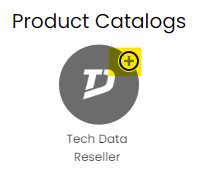
Fig 1. Turning on the Tech Data Reseller Module
Create and connect a Tenant from the reseller integration page, as this is a developer account, it was application type: Sandbox, Production should be used when connecting.
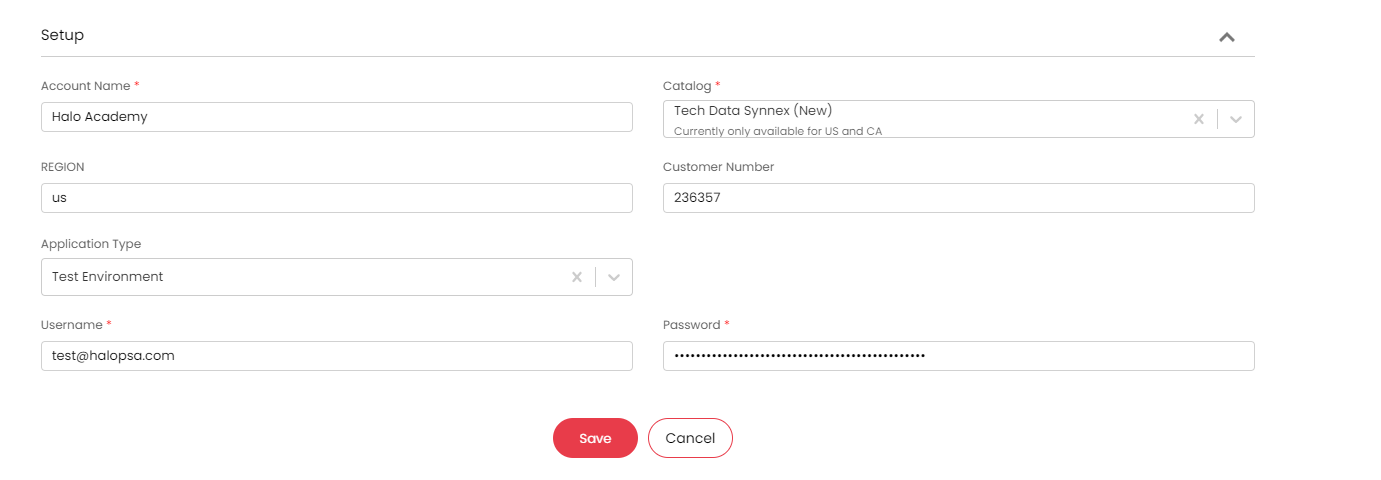
Fig 2. Setup page in Details tab on Tech Data module
Note: To obtain credentials for Tech Data, you will need to contact them and request access to their XML Online Check Service. You will also need to provide them with our IP addresses to be whitelisted, which can be found here: https://halopsa.com/guides/article/?kbid=1446
Connecting Tech Data with Etilize
Currently supported Etilize locales:
- English (US) USA
- English (UK) - UK
- English (US) Canada
- Swedish - Sweden
- English (UK) - Australia
The Etilize Integration module is on by default in the HaloPSA trial, please enable it if it's not currently on. There are no credentials to input, as this is a part of HaloPSA:
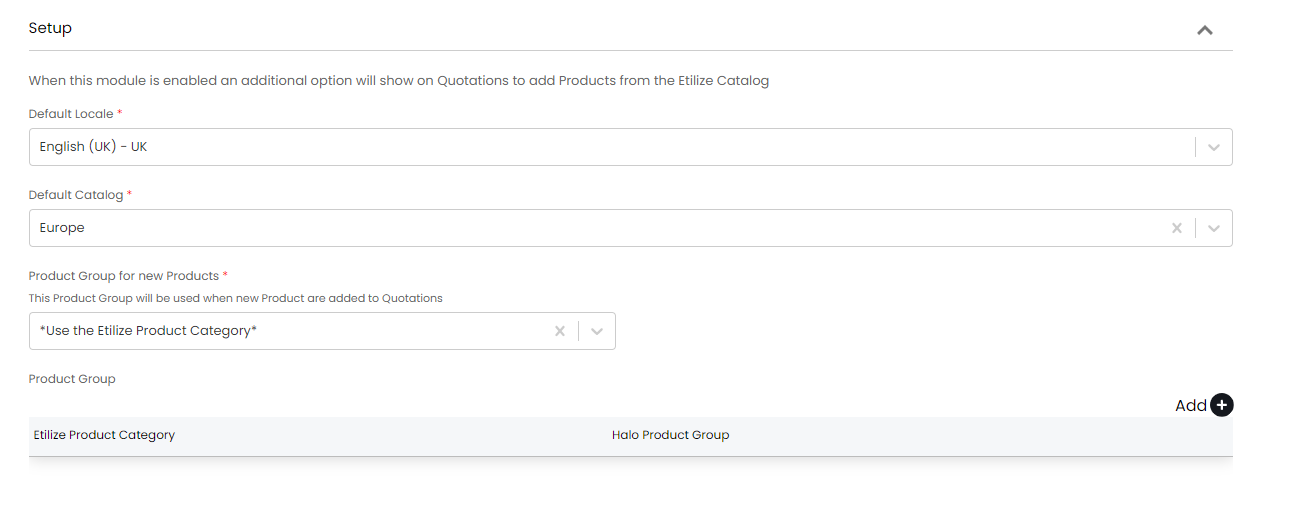
Fig 3. Etilize Setup page in the module configuration
There are also options in the Etilize set up screen to choose a default 'Tenant' to search the catalogs with, these must be filled in for the integration to work.
The following single select options will be dynamically visible based on the reseller integration modules you have enabled (Tech Data Reseller and/or Ingram Micro Reseller):

Fig 4. Setting a default Tenant to search catalogs with
Adding Etilize Items to Quotations
You will be able to find the connected Tenant when search from the "Add Etilize Items" catalog.
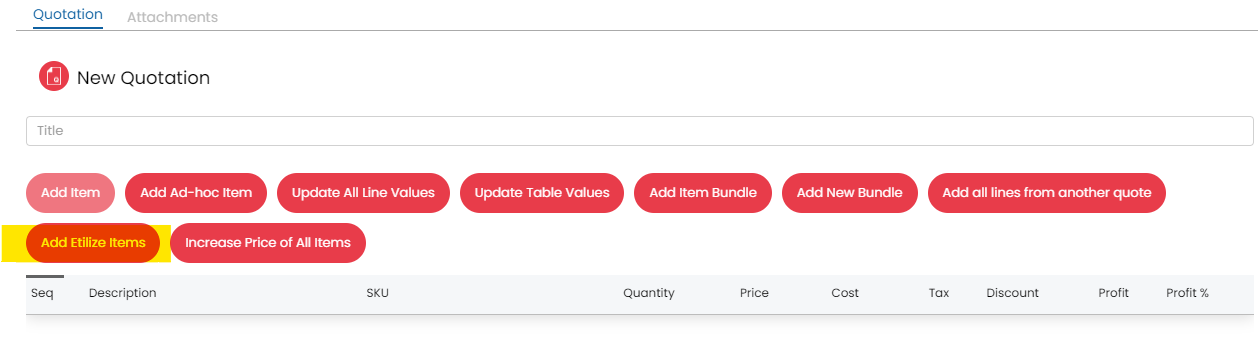
Fig 5. Add Etilize Items button now on Quotations
Then you will have a Tech Data Reseller tenant single select you can add to:
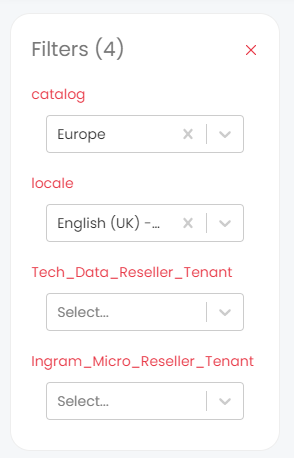
Fig 6. Filters when adding items
After adding in the tenant, you will be able to browse the catalogues prices and quantities in real time.
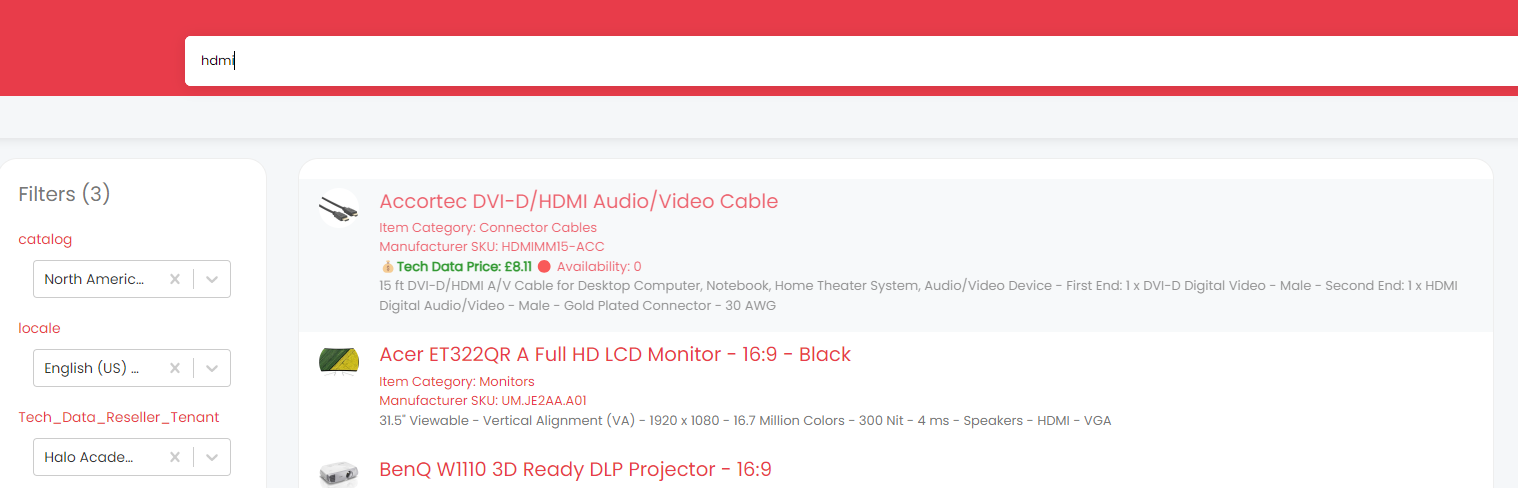
Fig 7. Searching for items to add
These function in tandem with the Etilize integration to provide further information regarding products availability and price when using the 'Add Etilize items' option on billing orders. The cheaper price out of the two catalogues (if both are enabled) will be selected when adding the item to the order and the default mark up will be applied.
If i.e. the Ingram Micro Reseller integration module is turned off, only the default for the Tech Data Reseller would show, as it is turned on:
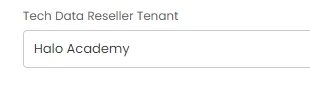
Fig 8. Tech Data tenant box
The tenants can be modified on the item search screen itself as well.
Filtering Etilize items that appear in search
You can filter search results of Etilize items by category, manufacturer and attribute. These filters can be applied in conjunction with a search to assist you/narrow down search results.
To enable this functionality head to Configuration > Integrations > Etilize and enable 'Show category, manufacturer, and attribute filters when searching Products'.
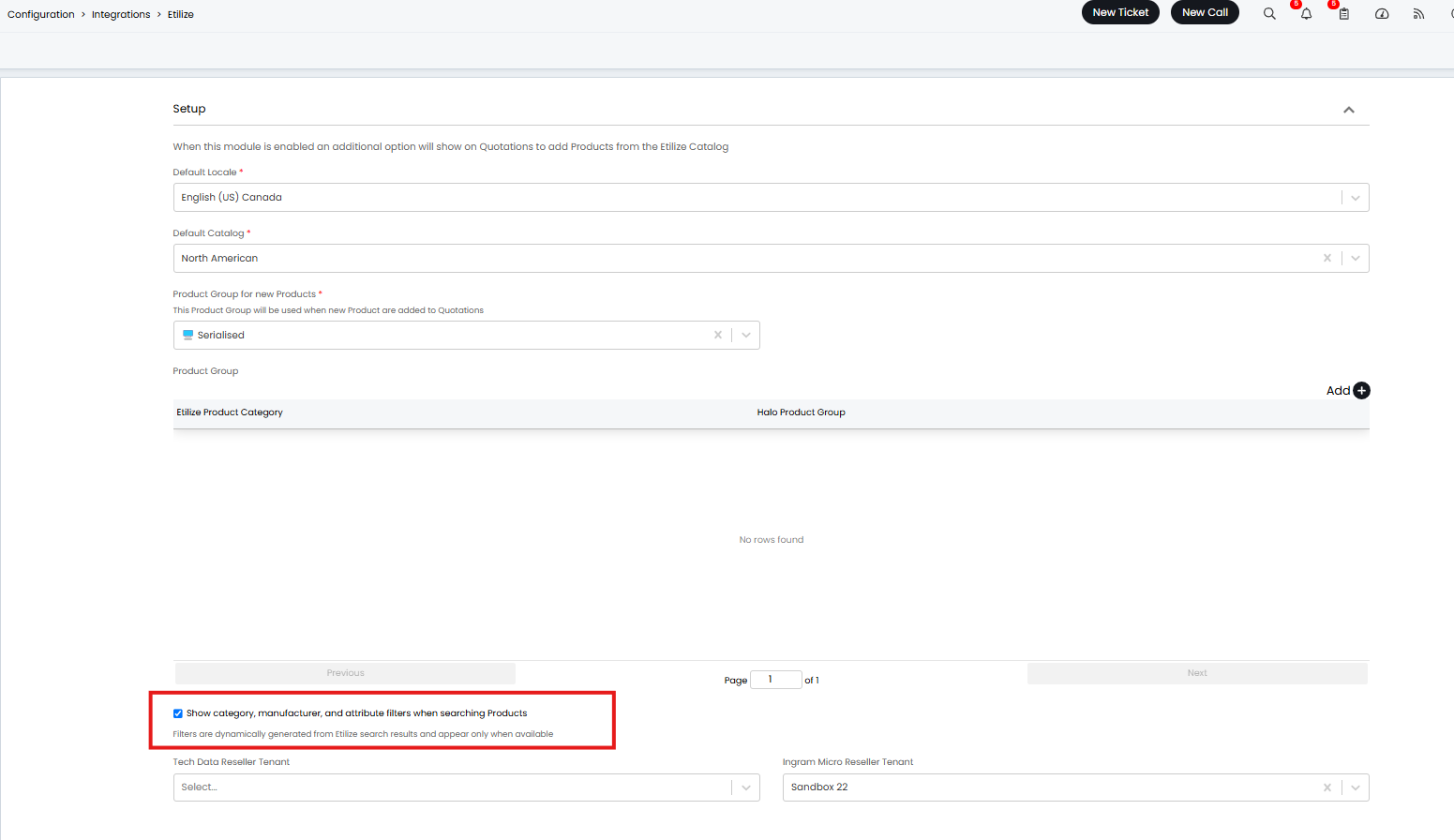
Fig 9. Enable additional filters when searching Etilize products
Now this is enabled when an item search is complete an additional field will show in the search 'Filters'.
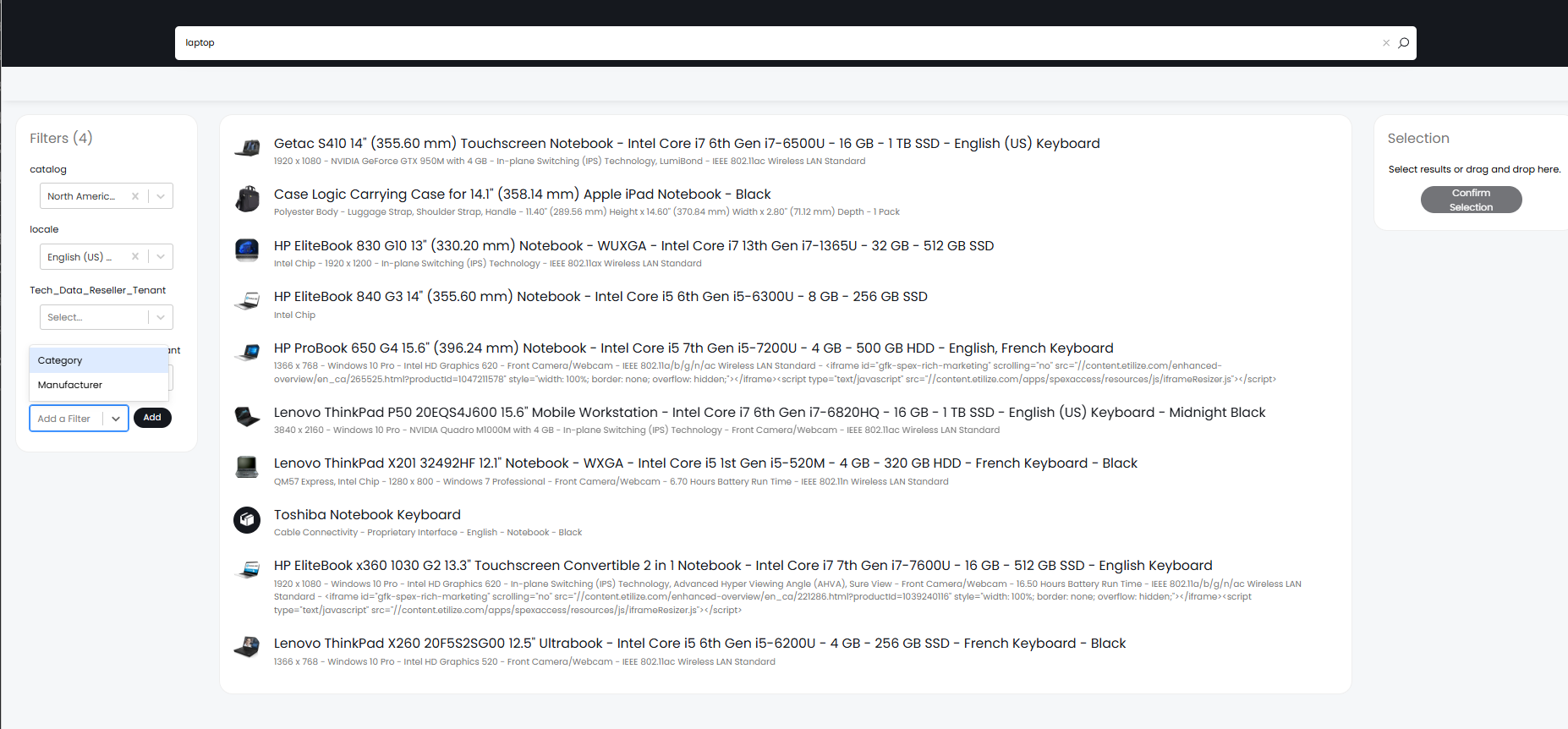
Fig 10. Etilize filters for search
Here you can choose to filter the search results on category, manufacturer and attribute. The filter options that are available will depend on what you have searched for, for example the category filter will only appear when you have searched a term they contains category values that can be filtered on.
Note: You will need to search for an item before this additional filter field will show.