Adobe Acrobat Sign Integration
- quotation
- quotes
- quote
- adobe acrobat sign
- adobe sign
- quotations
In this guide we will cover:
- What is the Adobe Acrobat Sign Integration?
- Connecting Halo to Adobe Acrobat Sign
- Sending Quotes Back into Halo
- Signing a Quote in Adobe Acrobat Sign
What is the Adobe Acrobat Sign Integration?
The Adobe Acrobat Sign Integration can be used for signing quotations created in Halo and then transferring them back into Halo. The E-signature can be drawn or a signature can be generated from a text input from within the Adobe link sent to the user. Once the quote is sent back to Halo, the status will be updated to Accepted (the status that has been set on the integration page). As at this point, the user has signed off on the document via their inbox.
Connecting Halo to Adobe Acrobat Sign
Enable the Integration by clicking the "+" sign on the module (you will find the below in Configuration > Integrations > *Search for Adobe*):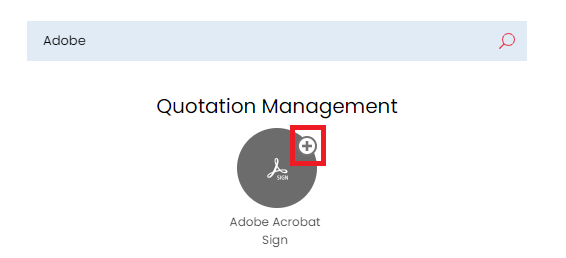
Fig 1. Enabling the module
The settings dropdown should be populated with a default tenant, tenants can be created via the "new" button located on the top right of the screen.
To connect your tenant you will need to create an API application within Adobe sign, to authorise the connection with Halo.
Head to your Adobe sign instance > API > API applications > New application. Here, give the application a sensible name and choose the domain. If using the partner domain ensure the user that later authenticates the connection can create agreements in Adobe.
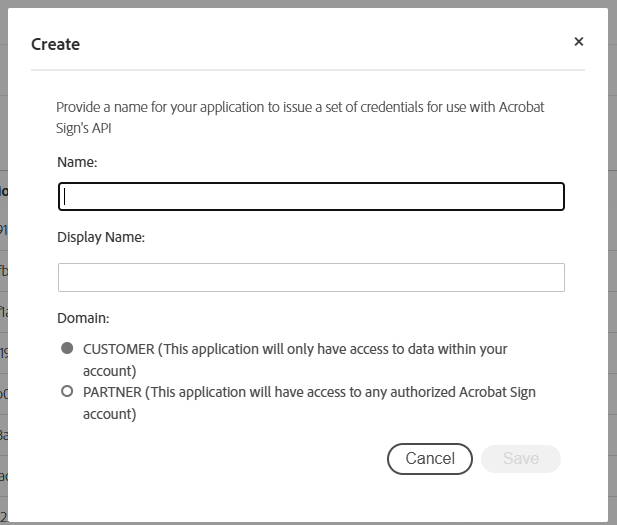
Fig 2. Create new API application in Adobe
Once you have created the application you will need to configure OAuth for the application. Do this by selecting the application in Adobe > Configure OAuth. Enter your redirect URI, this will differ depending on the version and Halo product you are using.
On versions prior to v2.200 one of the following redirect URI will need to be used (in line with the Halo product you are using):
- https://auth.halopsa.com/externalauth
- https://auth.haloitsm.com/externalauth
- https://auth.halocrm.io/externalauth
On versions v2.200+ you the following redirect URI will need to be used:
But the exact redirect URI you need can be found on the setup page for the integration in Halo.
Note: If you have disconnected to the integration and are reconnecting, if your Halo instance is on v2.200+ you will need to use the new redirect URI (https://YOURHALODOMAIN/authcallback).
Then add the following scopes to the application:
- Agreement_write
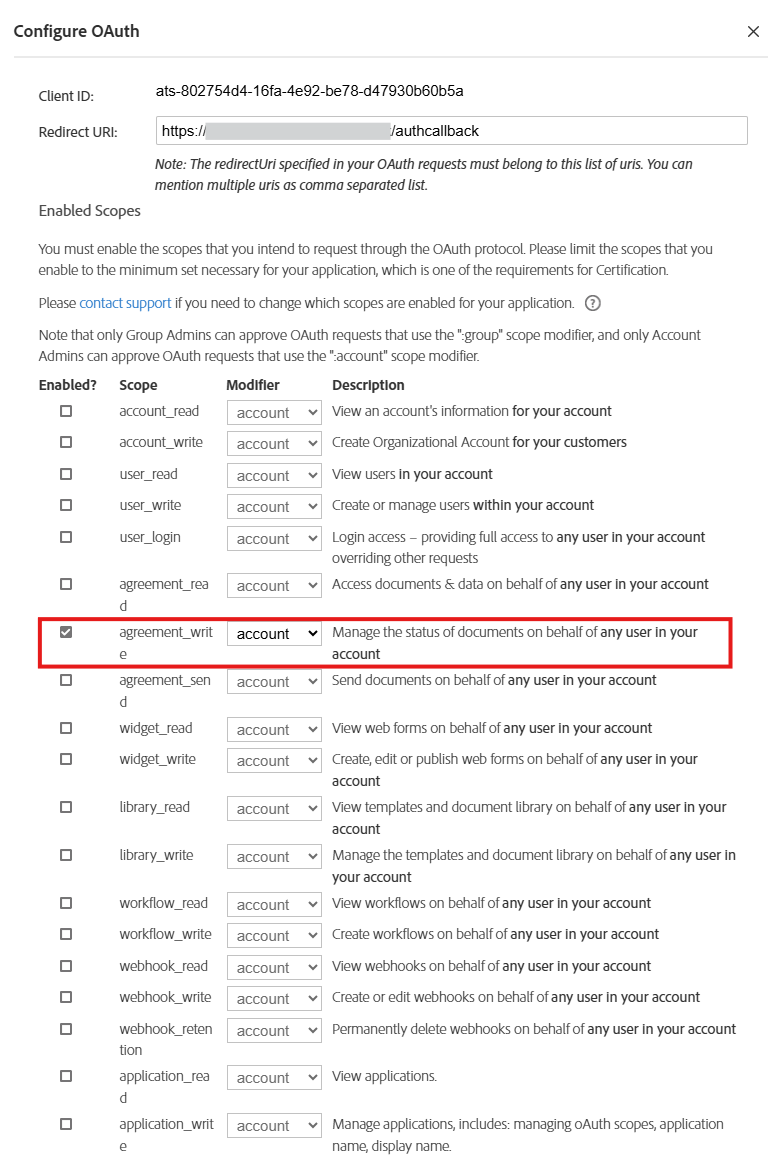
Fig 3. Scopes to add to application
Now, copy the application ID and secret and paste these into the relevant fields in Halo.
You will also need to enter the correct region code for in Halo (in the Login Shard field), this can be found in your Adobe URL. Once you have saved the connection details, use the connect button after naming and saving the tenant, you will be redirected to a login screen for Adobe Acrobat Sign.
Send Quotes to Adobe
Create the webhook on the webhook tab, it is as simple as generating a new secret and then creating a webhook.
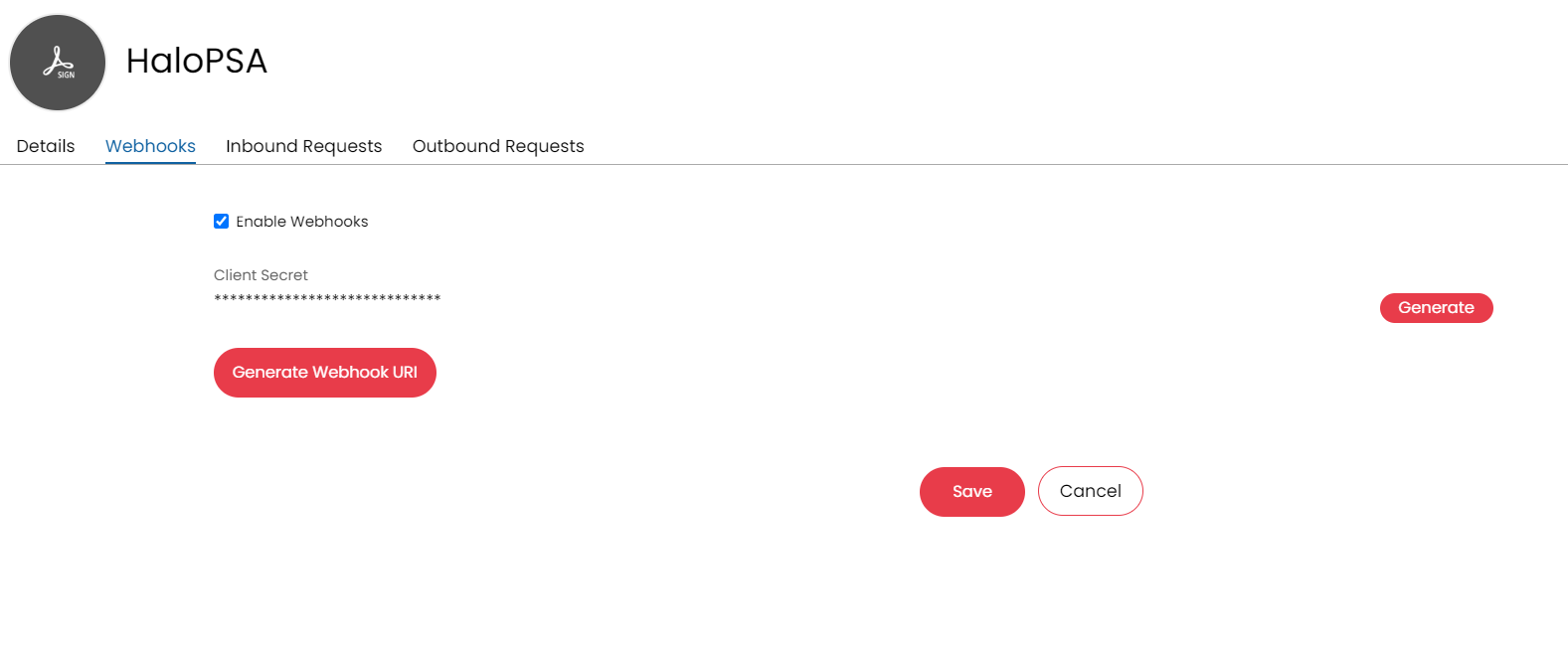 Fig 4. Enabling webhooks
Sending Quotes Back into Halo
Within the API section of Adobe Acrobat Sign, you can create a webhook which will send the quotes back into Halo (without the signature).
Create the webhook with the following settings:
- Scope: Account
- URL: The URL will be that of the webhook generated from the integrations page in Halo
- Events: Agreement Participant Completed
- Notification Parameters: Agreement Info, Agreement Participant Info, Agreement Signed Document.
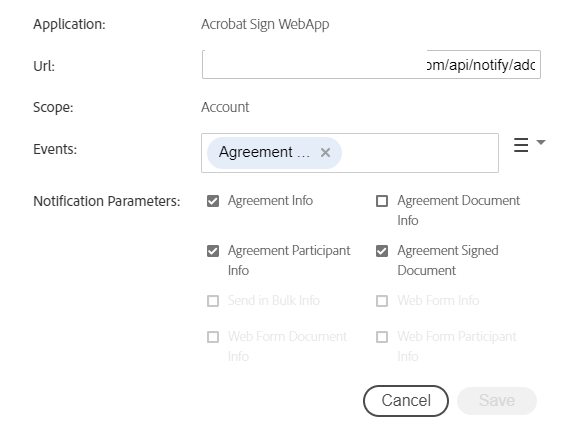
Fig 5. Configuration of the webhook
The status update on the quote may take a few minutes to pull through. After the quote has been signed for via the end-users inbox (The email it sends to will be the email associated with the user of the quote), the status of the quote will be updated to the "Status if Accepted" single select option, which is in the settings dropdown of the Adobe integration page in Halo.
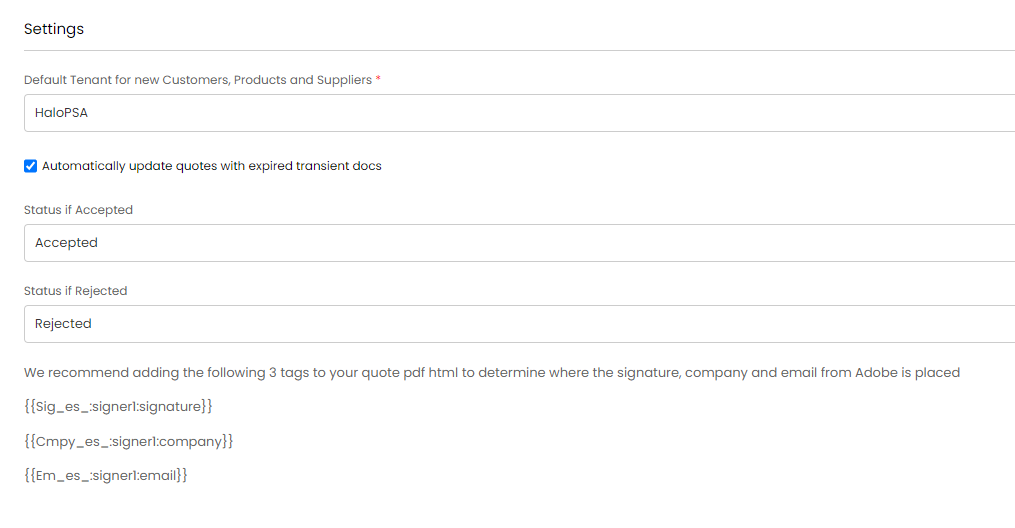
Fig 6. Settings
You will need to add in the above tags onto your PDF template, for the signature, company, and email fields to pull through to Adobe Acrobat Sign. By default the signature field and the email field will be available on the quote screen in Adobe. These tags are not synced to the Halo side, the formatting of tags are for the quotation page of Adobe. So editing the PDF Template for your quote, means you can decide the position of the tags on the adobe quotation.
Tags
{{Sig_es_:signer1:signature}}
{{Cmpy_es_:signer1:company}}
{{Em_es_:signer1:email}}
Signing a Quote in Adobe Acrobat Sign
Go to a quote and attach the adobe tenant to the quote via the right hand side details pane, and then use the sync to third party button. As soon as this is synced the quote will be sent out to the user from Adobe. 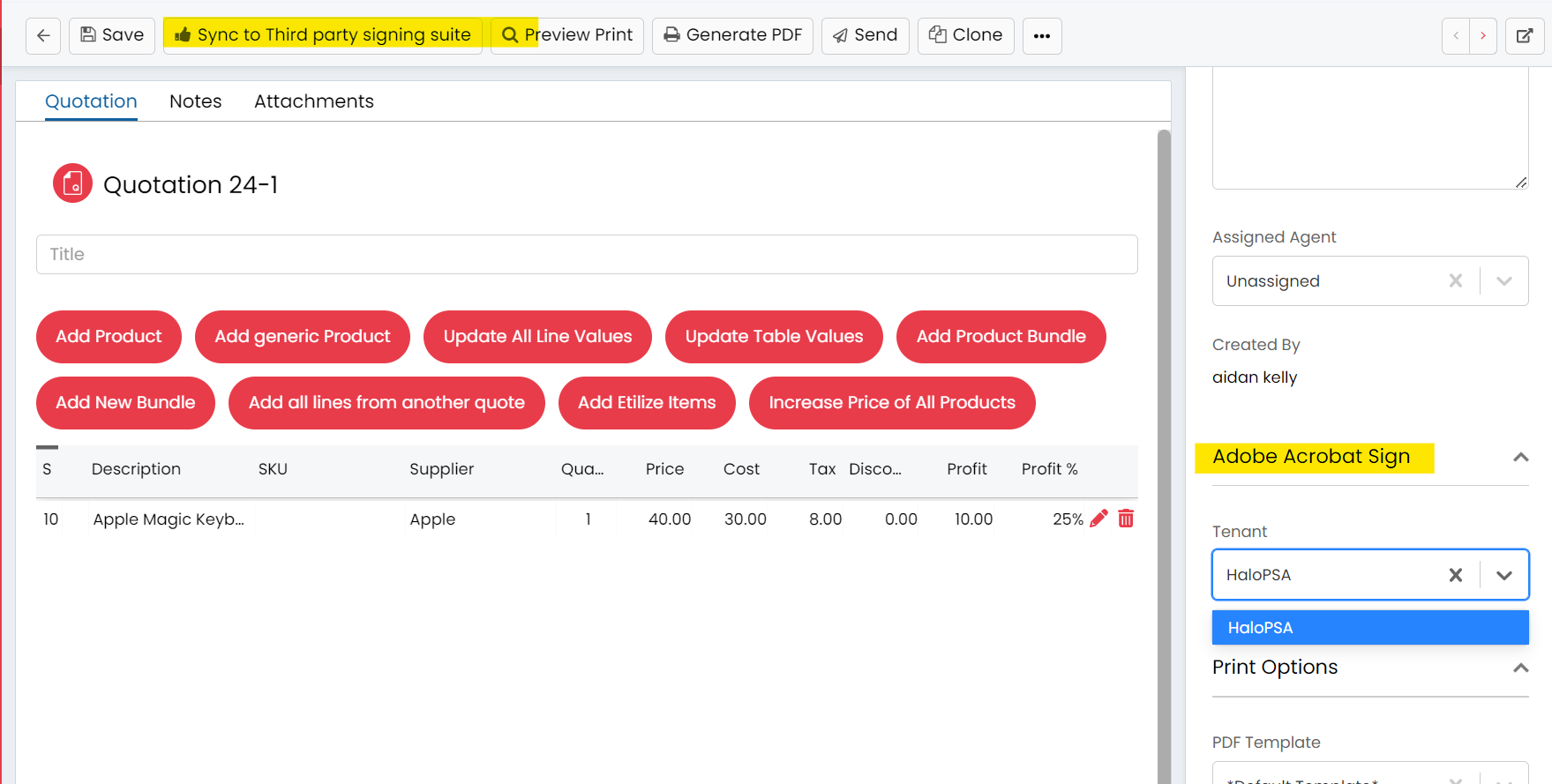
Fig 7. Adobe button on a quotation
Once synced to the third party (make sure the user on the quote has a valid email address), it will show on the Adobe side.

Fig 8. Adobe showing In Progress

Fig 9. In Progress list
From here you can view the quote.
This document can be signed from the users inbox and then it will be sent back into Halo via the webhook created on Adobe Acrobat Sign, and update the status of the quote to "Accepted" status which has been set on the integration page.
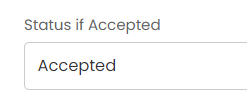
Fig 10. Status is Accepted