GitHub Integration
In this guide we will cover:
- What is the GitHub Integration?
- Configuring GitHub
What is the GitHub Integration?
The GitHub integration is essentially a Webhook set up in GitHub which adds links to commits from the Change Information tab which have the body of the commit equal to the ticket ID. This Integration will process:
- Pushes: If the comment of a commit is a Ticket id, a link to the commit will show on the Ticket.
- Pull request: Creation of a pull request with #ticketId in the branch name will link the Ticket to the PR and update the base branch and product on the Ticket. On merging the PR the pull request merge Action will be performed. Enable Release note tagging on this action to tag to the latest unreleased software release for that branch when merging.
- Pull request reviews: An approve or reject will add a vote to a tickets approval process. Populate the GitHub username at Agent level to match the review to an Agent.
Configuring GitHub
First you will need to enable the GitHub Module. To do this head to Configuration > Integrations, Miscellaneous section, and hover over the integration. Now click the plus (+) symbol to enable GitHub.

Fig 1. Enabling the GitHub module.
Once you have enabled the module click into it to open the GitHub Integration configuration. The GitHub integration is essentially a Webhook set up in GitHub which adds links to commits from the Change Information tab which have the body of the commit equal to the ticket ID. You'll need to setup a webhook in GitHub that points to the URL *Your Domain*/api/notify/github. To create this Webhook copy the payload URL found at the top of the GitHub Integration page.
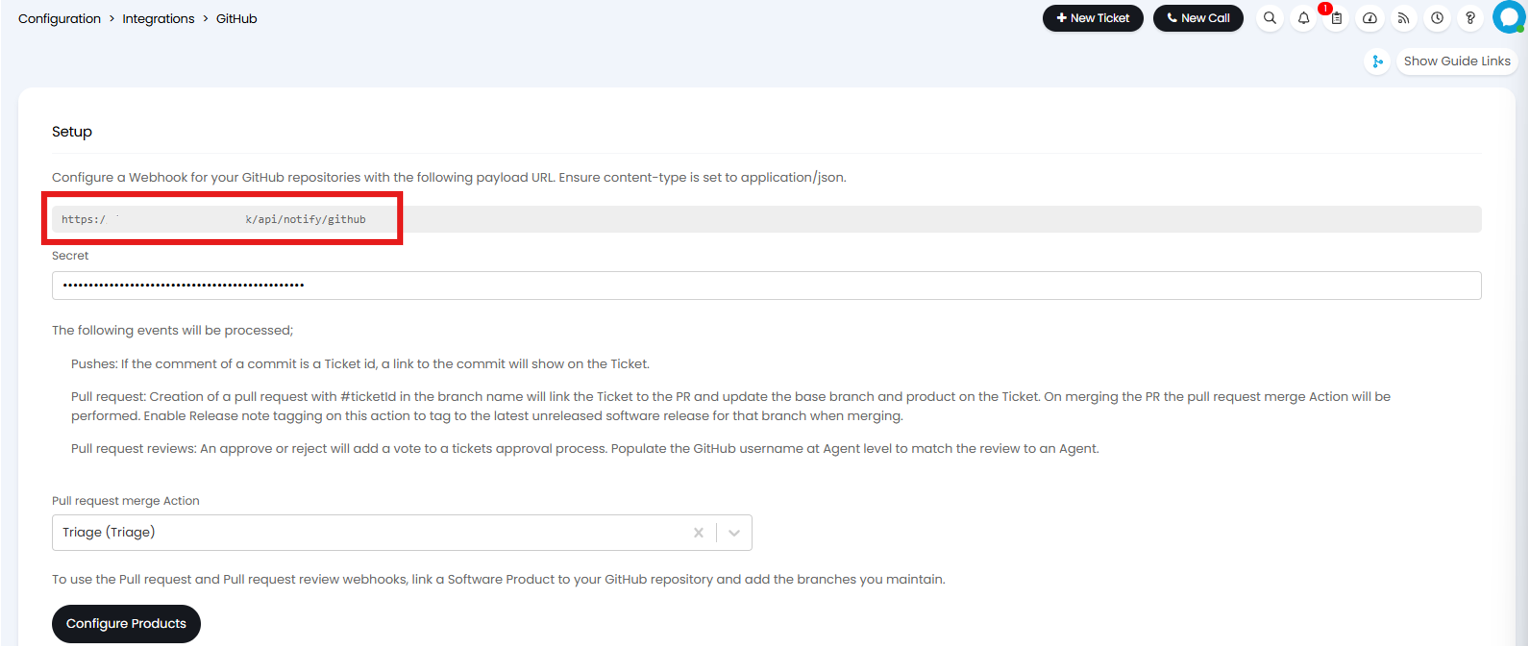
Fig 2. Payload URL.
Now head to GitHub and open the side menu and select "Repositories". Now choose the "My repositories" tab. Select the cog icon on the repository you would like to connect to Halo. If you do not have an existing repository you will need to create one using the "New repository" button.

Fig 3. GitHub Repositories.
The cog icon will take you to the settings tab of your repository.Select "Webhooks" from the settings list on the left hand side, and click "Add Webhook".
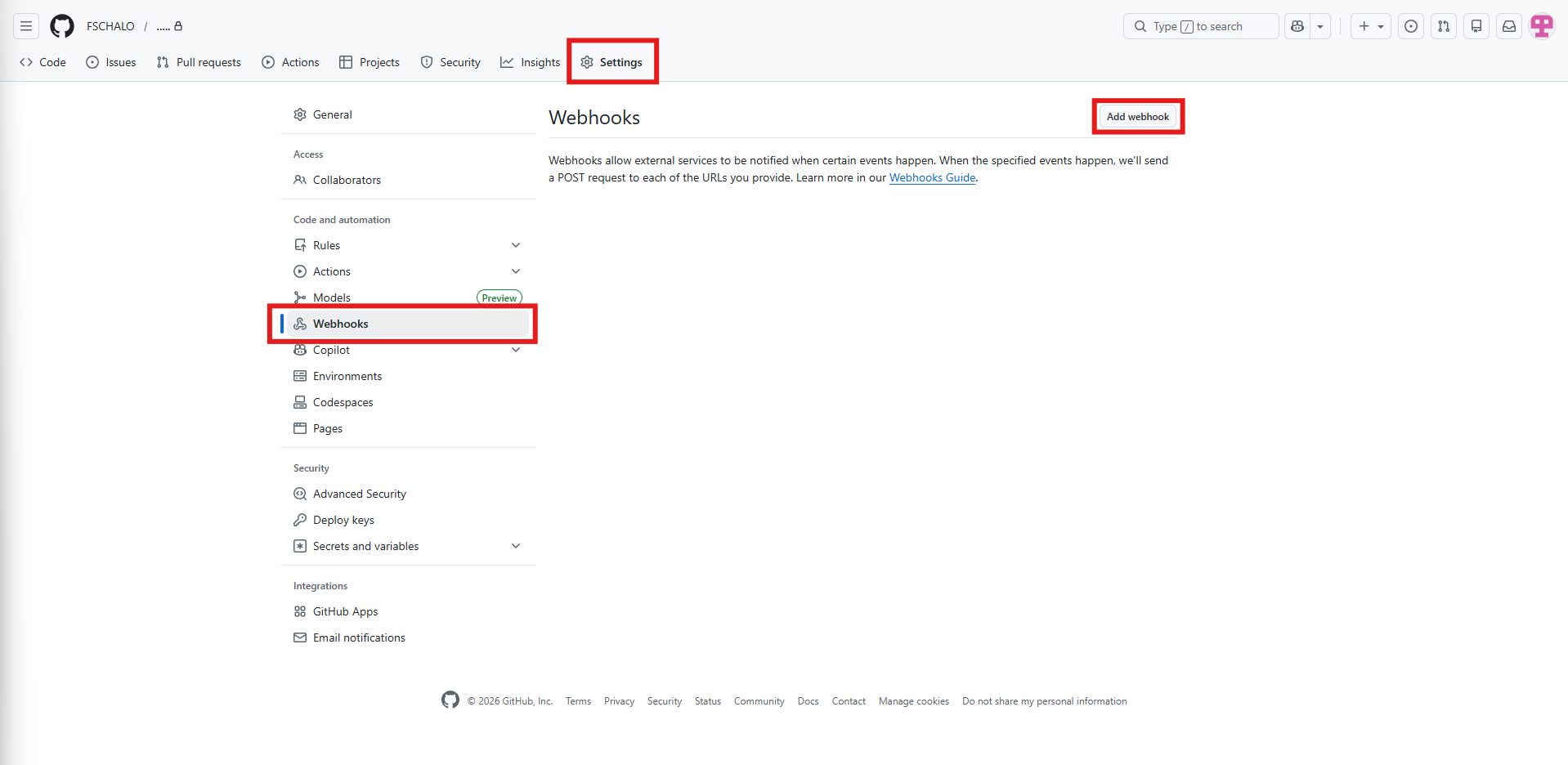
Fig 4. Webhooks in GitHub.
Now paste your Payload URL from Fig 2 into the "Payload URL" field. Set the content type to "application/json", and create and copy a secret. Now choose which events you would like to trigger the Webhook from GitHub, and set the Webhook to be active.
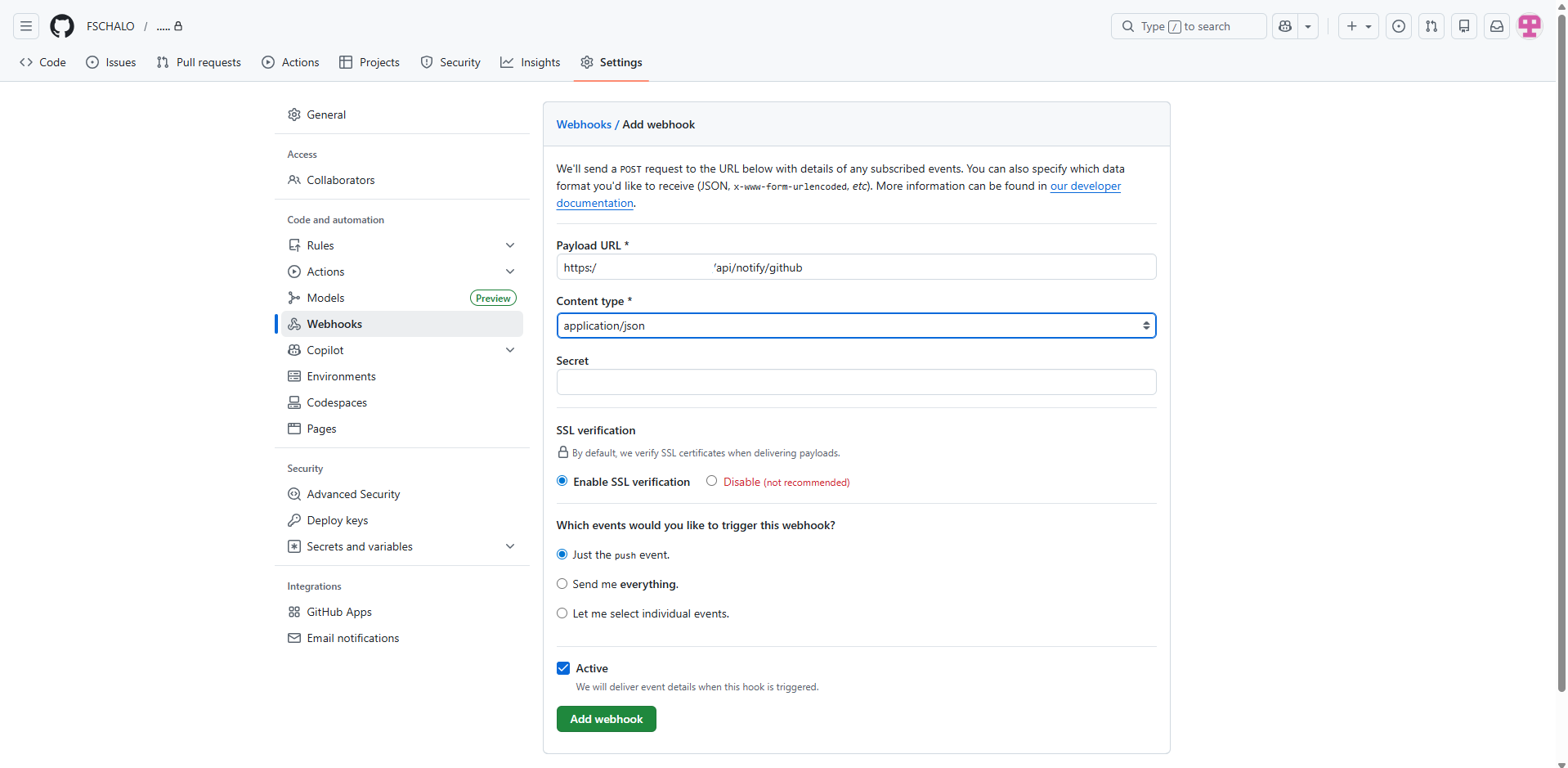
Fig 5. Creating a Wehook in GitHub.
Once you have set up your Webhook head back to the Integration setup in Halo. Here paste your Webhook secret, and set a “Pull Request Merge Action” using the drop-down. The action you choose here will be the action performed whenever the integration runs.
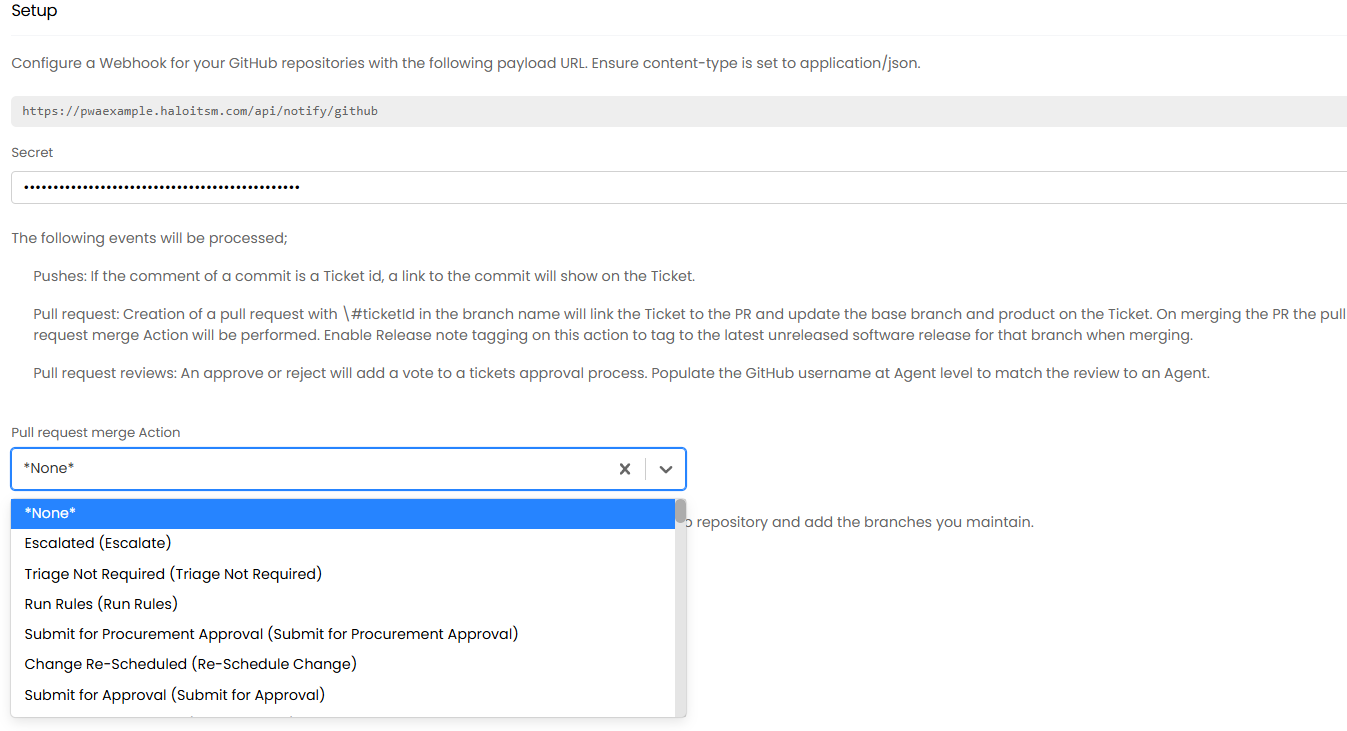
Fig 6. Pull request merge Action.
Below this you will find the "Configure Products" Button. Clicking this will take you to a list of your Software Release Products.
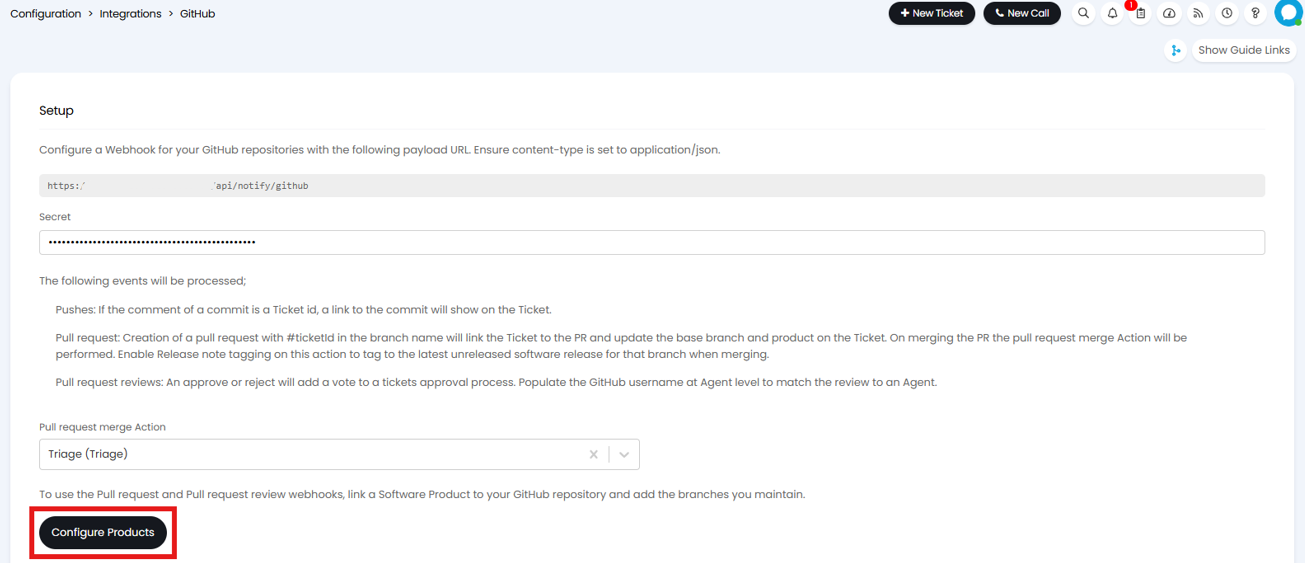
Fig 7. Configuring Products.
Here select a product and use the field to link to your GitHub Repository using the format Owner/Repository name.
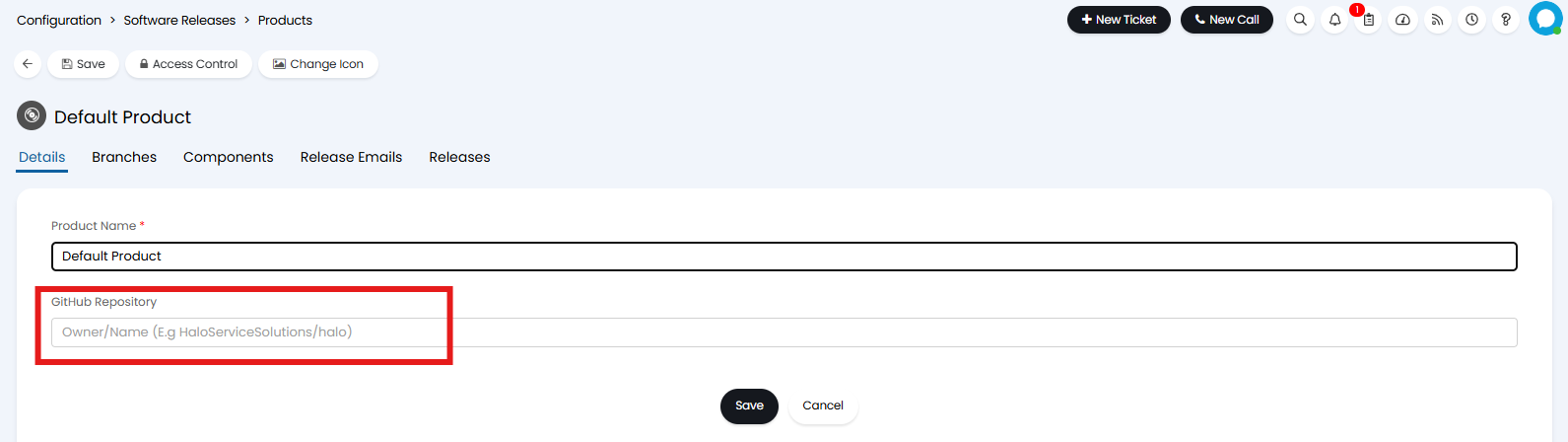
Fig 8. Linking a GitHub Repository to a product.
After this, the integration should function as intended by the information outlined in the integration page.