Surcharges
- flat fee charges
- travel surcharge
In this guide we will cover:
- Using Surcharges
- Enabling & Creating Surcharges
- Selecting the Surcharge to Apply for a Client
- Surcharges in Action
- Set Surcharge Limit
- Applying Surcharges to Zero Value Charge Rates
Admin Guides:
Using Surcharges
Before we look into configuring Surcharges, lets make sure we understand how Surcharges work. There are two primary places to enable/configure surcharges: Charge Types & Client records.
Charge Types - Each Charge Type has an option "Apply Surcharge". Generally speaking, this option would be enabled on a Charge Type like 'Site Visit' or 'On-Site Support' & would equate to an additional call out fee.
Client Records - The above option in your Charge Types simply states that a Surcharge can be applied when using that Charge Type, however the specific Surcharge band that will be applied is set at Client level. Within the Billing tab of a client, you will find a single select 'Surcharge' field. The option you select in here will be the Surcharge applied to the client fee, when using a Charge Type that applied Surcharges.
Surcharges will then apply a flat fee (based on the band selected at Client level) for each Action that uses a Charge Type with Surcharges applied. This banding is useful if you categorise call out fees based on the distance to the client, you can set up banding based on location, for example as an MSP the surcharge for a local client (~=20mile radius) may incurr a fifth of the cost for a client so far away that the technician needs to book accommodation. Lets now take a look at enabling, configuring & applying Surcharges via a brief example.
Enabling & Creating Surcharges
If you head to Configuration > Billing, you will find a 'Surcharges' module:
Fig 1. The Surcharges Module
Hover over the module & click '+' to enable associated functionality. If you head into this module, you'll find a series of records (rows) that equate to surcharge 'bands' - each record simply has a name and a rate:
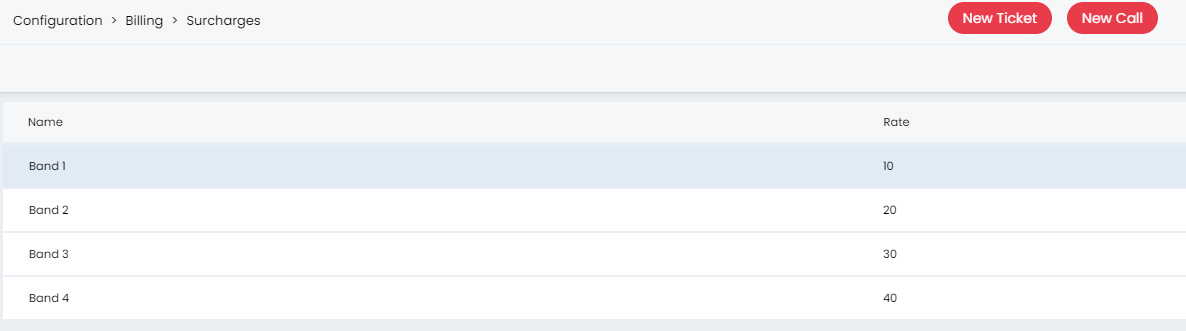
Fig 2. Surcharge Records
In here, you can add new records or amend existing records via clicking into them.
If you now head to Configuration>Billing>Charge Types, then into a Charge Type, you'll see an 'Apply Surcharge' flag on the Rates tab:
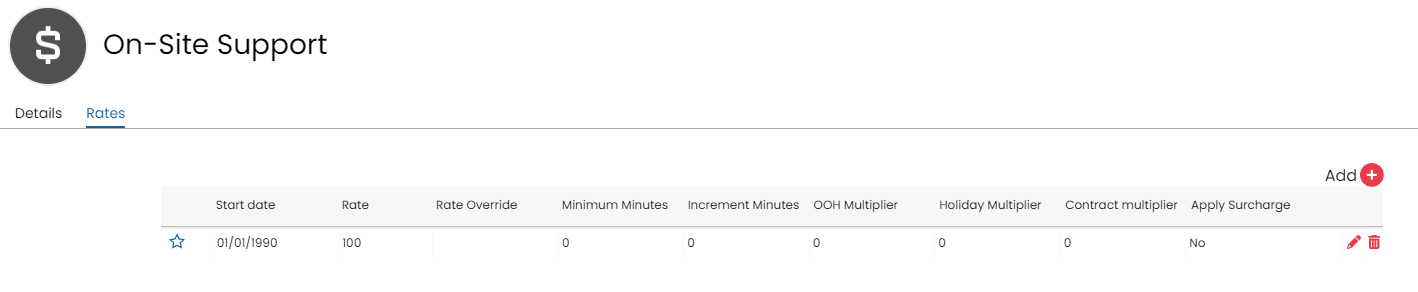
Fig 3. The 'Apply Surcharge' option within a Charge Type
Click 'Edit', then the Pencil on the RHS of the Rate to edit the details. This is where you can enable applying Surcharges in your Charge Types:
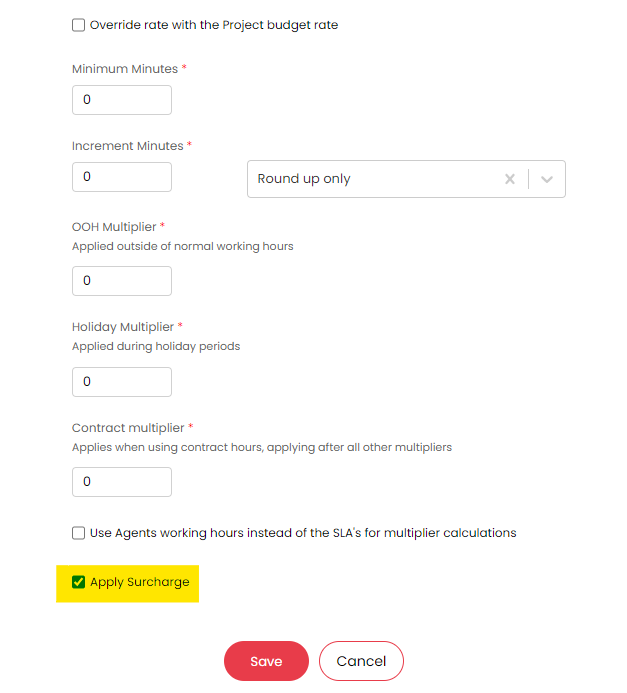
Fig 4. Enabling the 'Apply Surcharge' option
Selecting the Surcharge to Apply for a Client
We just saw how we enable the application of Surcharges to certain Charge Types, but we still need to tell HaloPSA what Surcharge to apply. This is done per Client - if you head into the Billing tab for a Client record you will see the 'Surcharge' field:
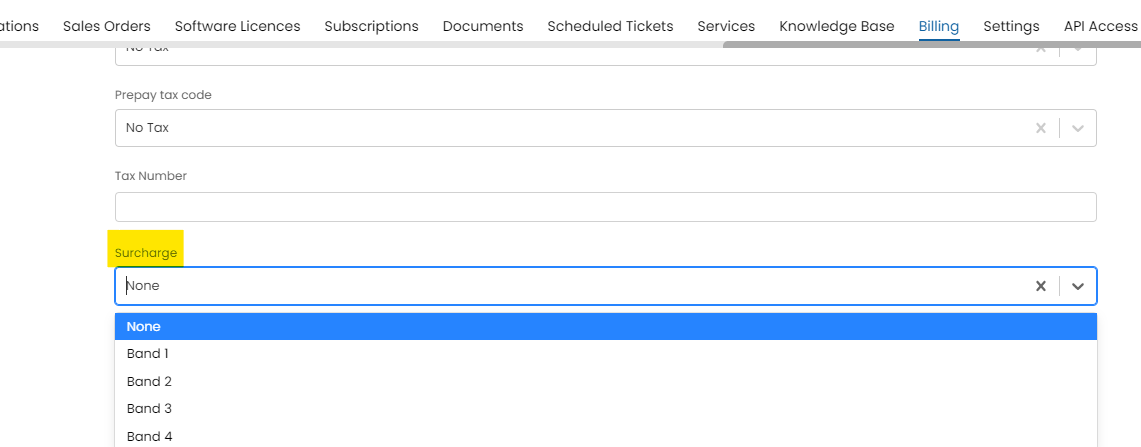
Fig 5. Selecting Which Surcharge to Apply to my Client
Click edit, select the relevant Surcharge & click Save to save your changes. You can also apply a surcharge at site level of a customer, to do this you will add the surcharge from the billing tab of the site.
Surcharges in Action
In the above explanation, I enabled applying Surcharges to my 'On-Site Support' Charge Type & applied the 'Band 2' Surcharge to my Client 'Customer 1' - so now let's take a look at invoicing the Client for some On-Site Support time in order to see the end-result. Let's say we have the following scenario to consider:
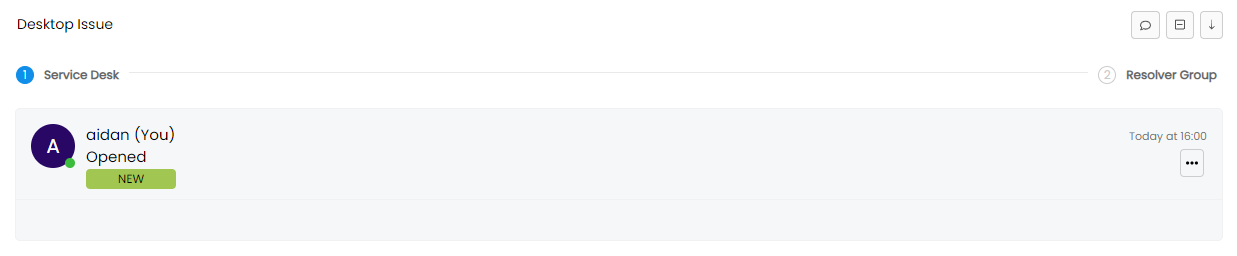
Fig 6. Example Ticket
The first thing I'm going to do in this example is add an Action & apply the 'Remote Support' Charge Type. Remember, we did not specify that we are applying Surcharges on Remote Support - only On-Site Support. This may equate to an initial troubleshooting call with the client:
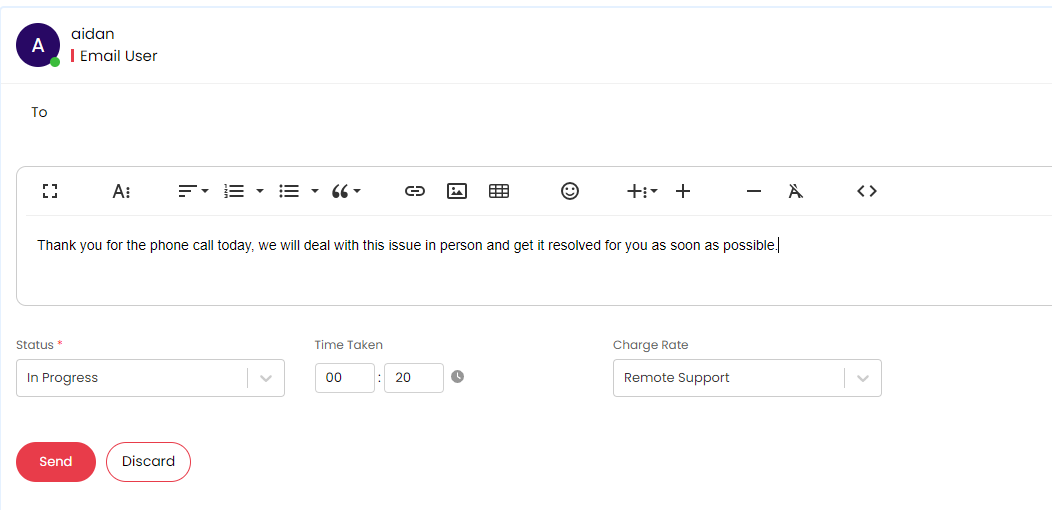
Fig 7. Emailing the end-user via the 'Email User' Action
Note: I have applied the 'Remote Support' Charge Type by selecting 'Remote Support' in the Charge Type drop down.
The Technician may decide that a site visit is required to fix/replace the faulty hardware. After the visit is complete, the Technician comes back into Halo & closes the Ticket, this time applying the 'On-Site Support' rate:
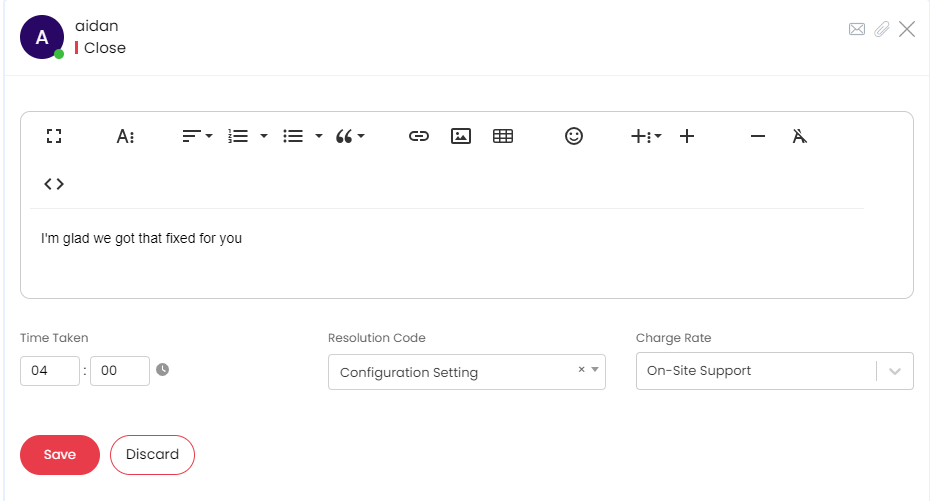 Fig 8. Closing the Ticket via the 'Close' Action & specifying the time on site (4hrs) & the 'On-Site Support' Rate
The resulting invoice that is generated would look something like the below:

Note how there are 3 lines on our invoice for:
- Remote Support
- On-Site Support
- Surcharge
While our Remote/On-Site Support Rates have been billed at an hourly rate (which you can see via the Quantity), our Surcharge has a Quantity of 1 - this is because there was one Action added to our Ticket that had a Surcharge when applying the Charge Type (On-Site Support).
Customer Agreement Level Surcharge
Additionally you can set the surcharge at customer agreement level, so that when the customer agreement is in use and there is an associated surcharge, the surcharge used will be based on what is set at customer agreement level.
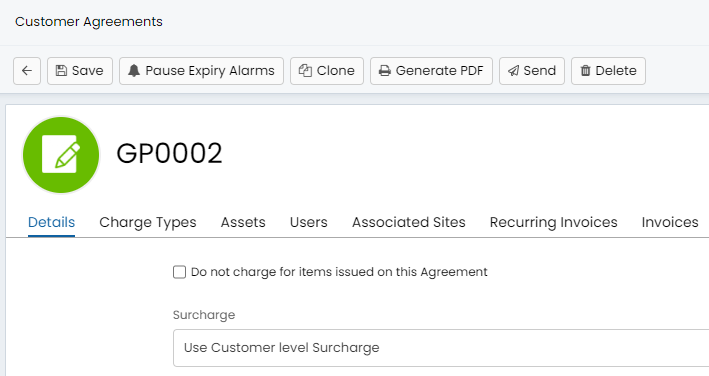
Fig 10. Customer Agreement Surcharge Setting
Travel Surcharge
If travel charge types have been enabled (Within Configuration > Billing > Labour and Travel):

Fig 11. Use Travel Charge Rates Option
You can also set a default travel charge type, on which you can see in the above screenshot, has a surcharge associated to it. To configure this surcharge, go to Configuration > Billing > Charge Types and select a charge type of use: Travel:
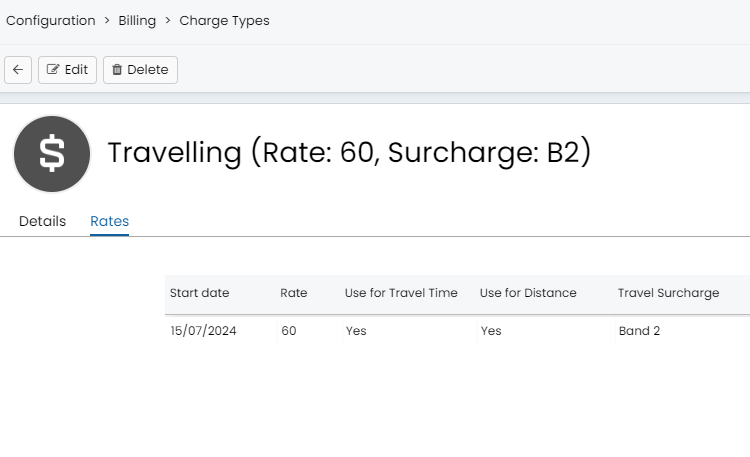
Fig 12. Travel Surcharge
This will now show as a travel surcharge, as it is associated to a travel charge type.
Set Surcharge Limit
You can also limit surcharges so only one is applied per ticket, this can be enabled from within Configuration > Billing > Labour and Travel > *Click into the Charge Type Settings dropdown:

Fig 13. 'Surcharge will only be added to an Invoice once per ticket' setting
With this setting enabled, the surcharge will apply once per ticket. This could be useful if the ticket was used to track on site support and there was a call out fee associated with the on site support. This call out fee can be billed via the surcharge.
Applying Surcharges To Zero Value Charge Rates
From version 2.251, you will be able to apply surcharges to zero value charge rates, whether or not you choose to show the zero rate labour on your invoices.
To enable the option to invoice for surcharges on zero value charge rates, navigate to Configuration > Billing > Labour and Travel. Once on this page, enable the setting "always show surcharges in ready for invoicing even if the charge rate is zero value".
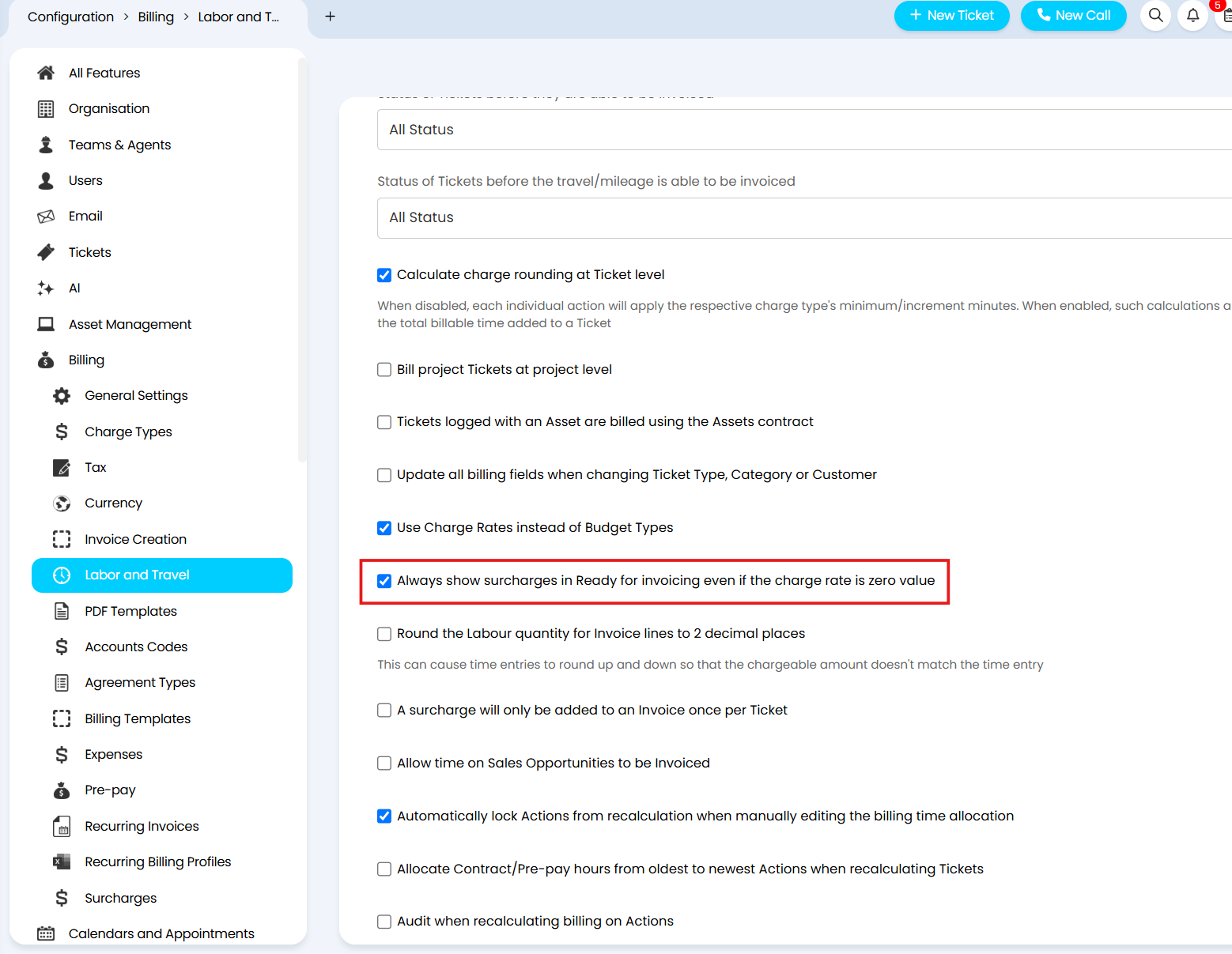
Fig 14. The option to apply surcharges to zero rate charge rates
With this setting enabled, surcharges can be charged to a client when a zero value charge rate has been used without having to include that zero value labour line on the invoice, reducing unnecessary noise on client invoices.
In the example action in Figure 15, you can see that I have logged time using a zero rate charge rate that has applied a surcharge.
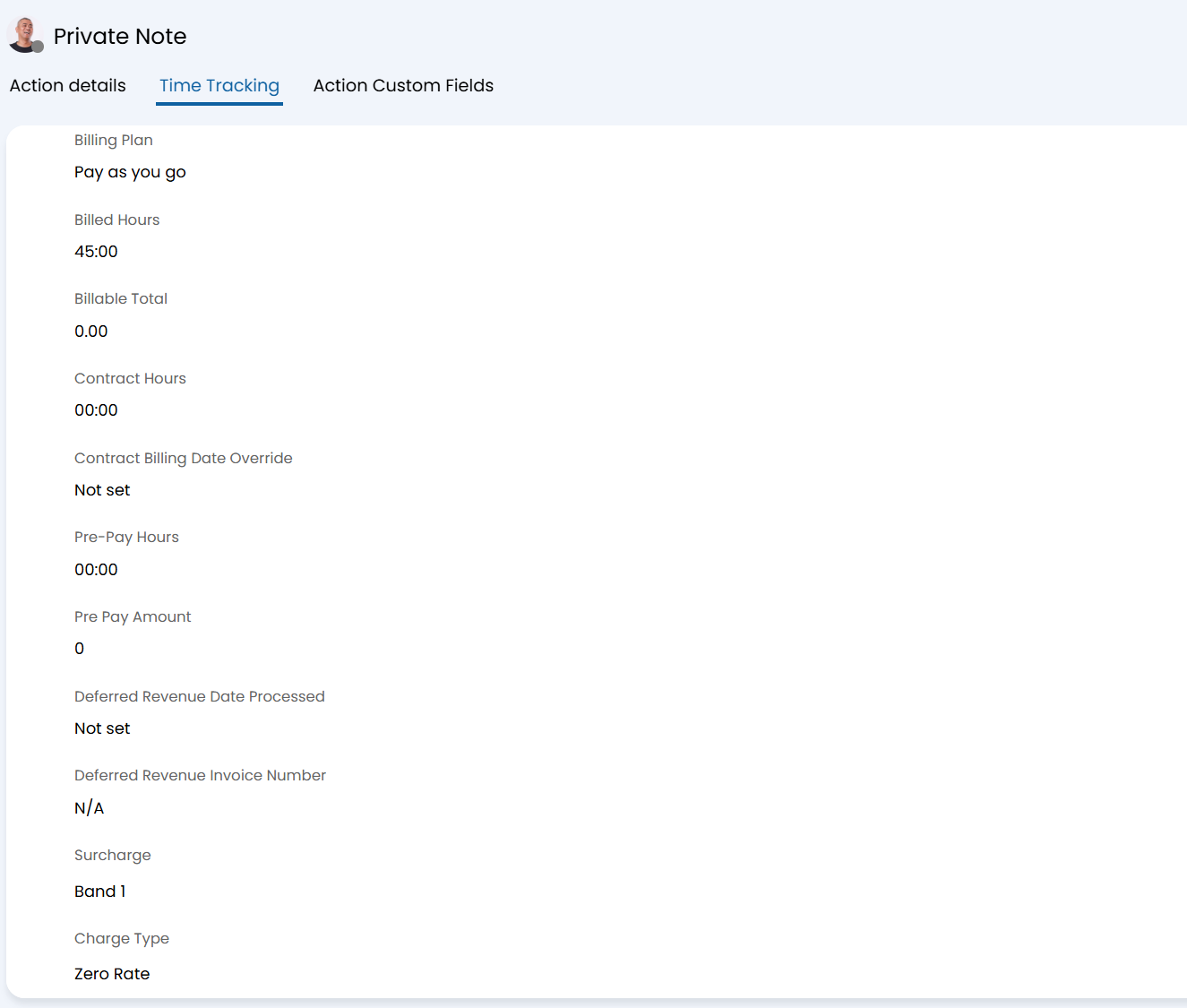
Fig 15. An action logging time using a zero rate charge rate that has applied a surcharge
In Configuration > Billing > Invoice Creation, the setting to include zero rate labour on invoices has been disabled.
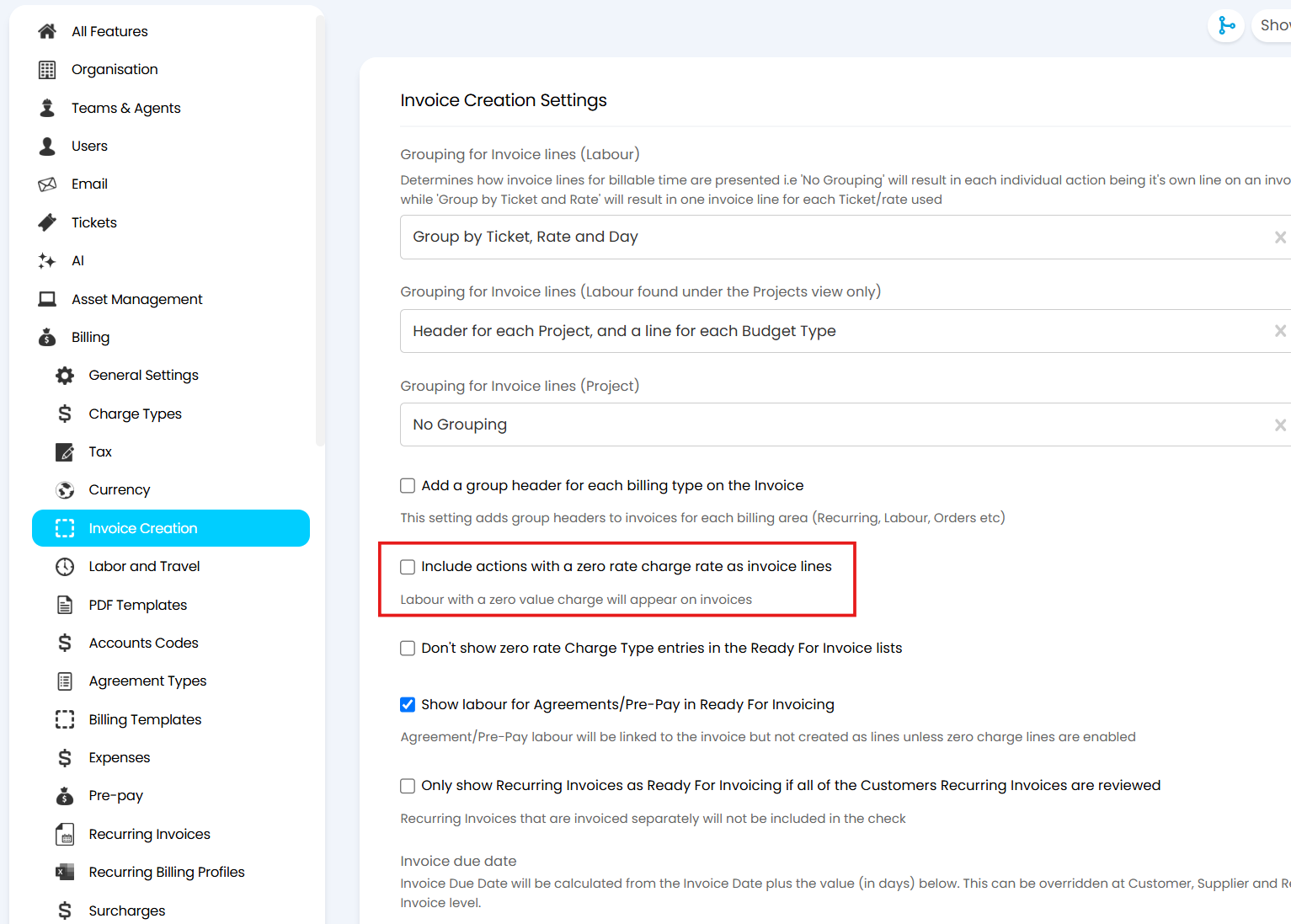
Fig 16. Excluding zero rate labour lines from invoices
With this setting disabled, but the setting in Figure 14 enabled, when I generate the invoice for the labour, only the surcharge line will show.
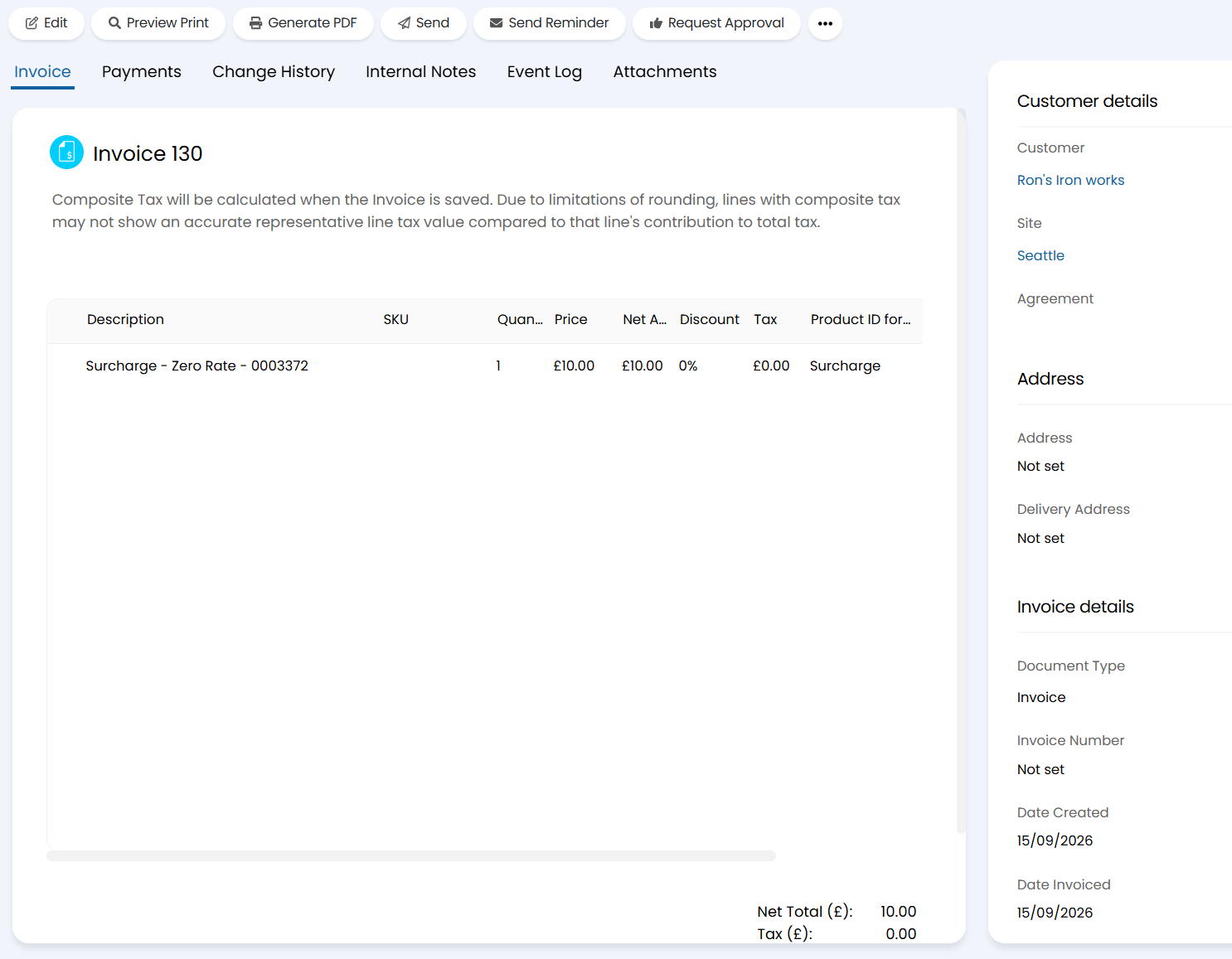
Fig 17. An invoice for zero rate labour, showing only the surcharge line