Shopify Integration
- integration
- shopify
- ecommerce
- e-commerce
- e commerce
In this guide we will cover:
- What is the Shopify Integration?
- Enabling the Module
- Generating a Shopify Access Token (Legacy)
- Connecting Shopify using the Dev Dashboard
- Connecting Shopify in Halo
What is the Shopify Integration?
The Shopify integration will allow you to import your Shopify Customers as Contacts or Customers in Halo. You can also import their Orders for contextual information on Tickets related to that Contact.
Enabling the Module
In Halo head to Configuration > Integrations, and hover over the Shopify button. Click the plus (+) icon to enable the Module.
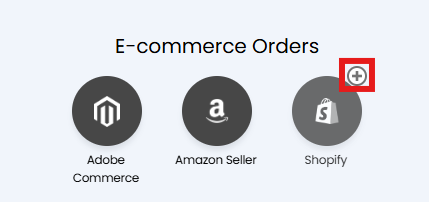
Fig 1. Enabling the Module
Generating a Shopify Access Token (Legacy)
Go to your Shopify admin centre for the Shop you wish to connect to Halo. On the left, click Apps > App and Sales Channel Settings.
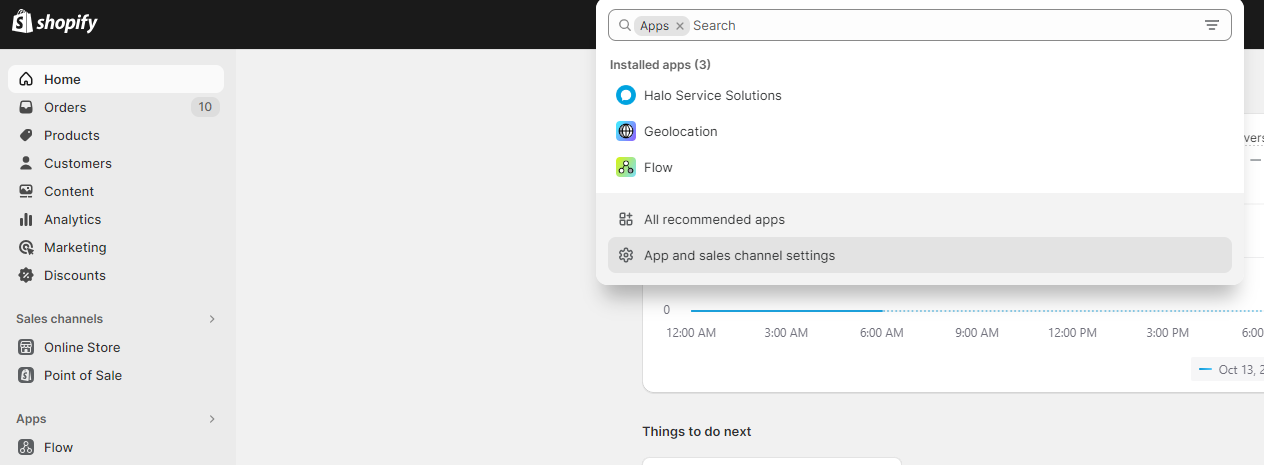
Fig 2. Shopify settings
Click Develop Apps. You may have to allow Custom App Development on the next screen.
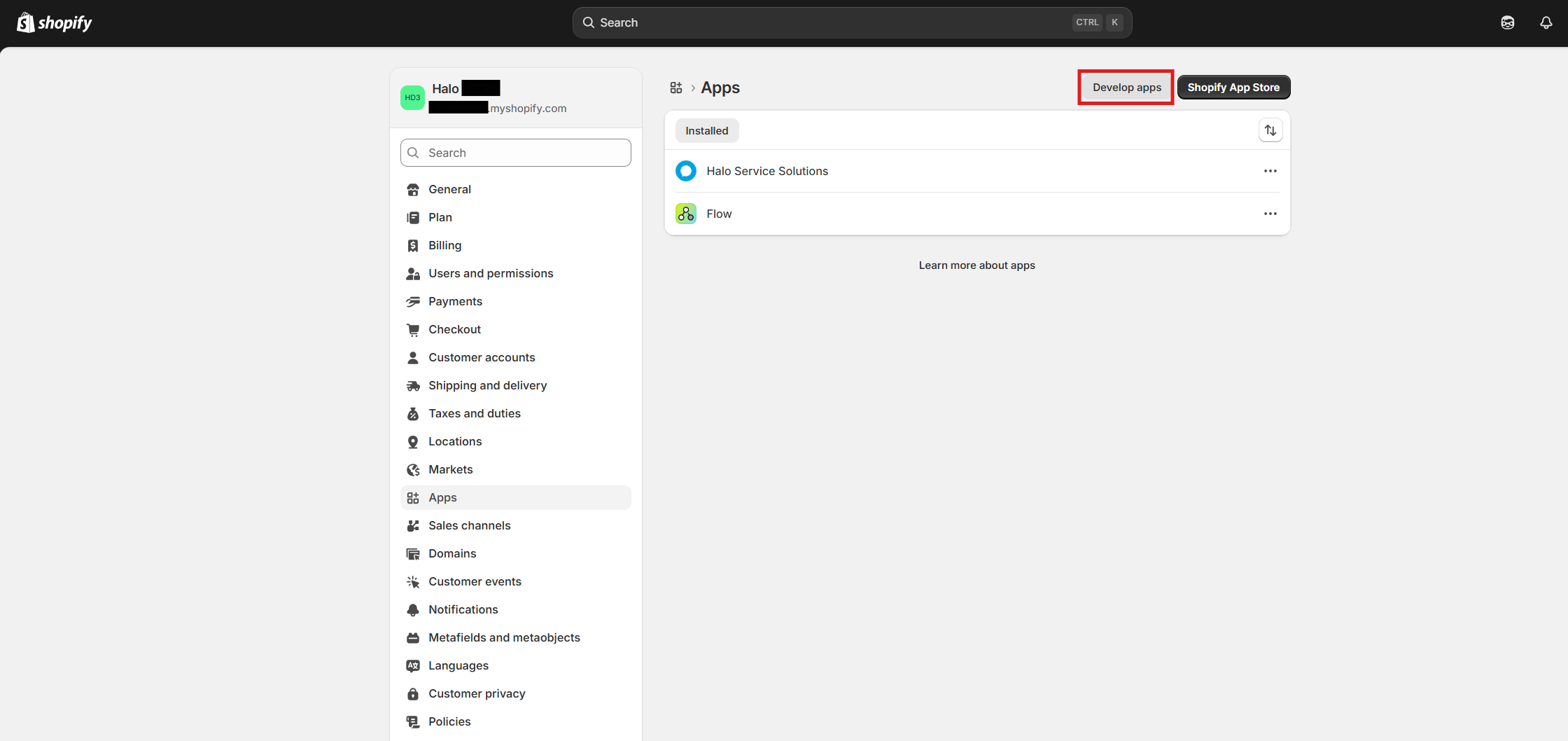
Fig 3. Shopify Apps.
Click Create an App, give the App a name, for example "Halo" and click Create App.
In the Overview tab, click Configure Admin API Scopes.
Add the read_customers and read_orders scope and then click save.
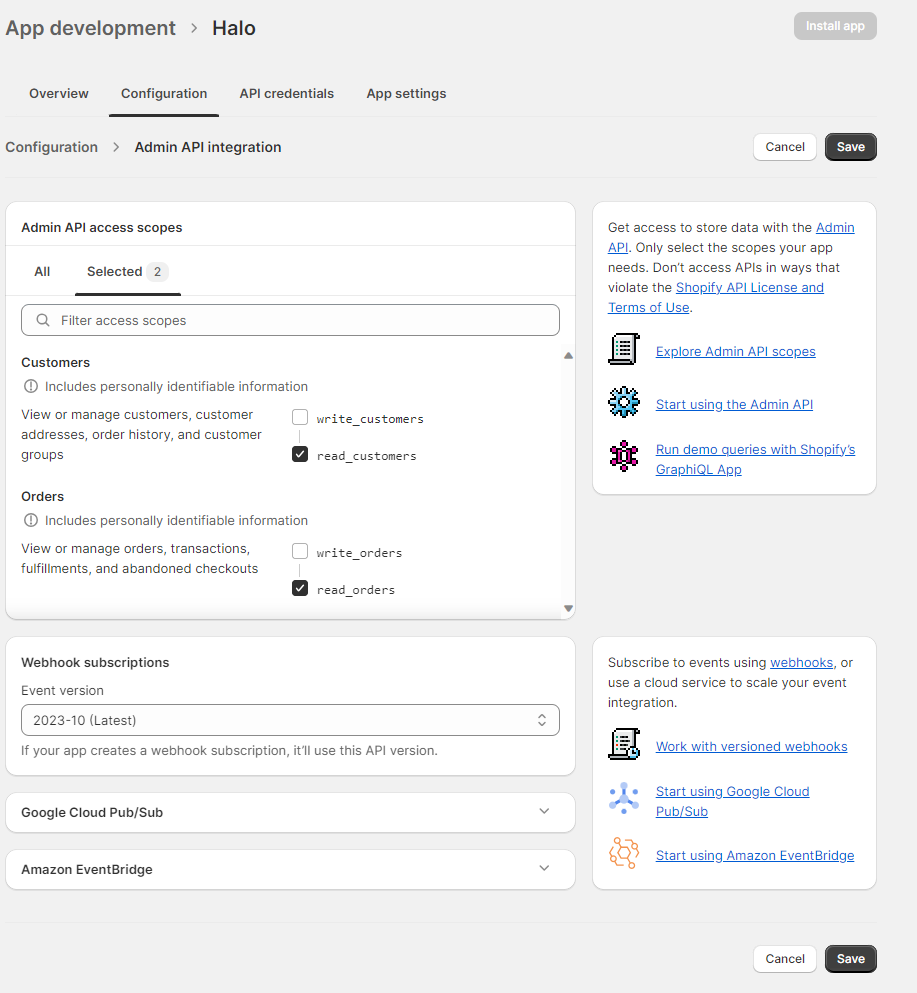
Fig 4. API configuration
In the API Credentials tab, click Install App. You will now be able to reveal a Admin API access token. This will need to be inputted into the Halo configuration page so copy this.
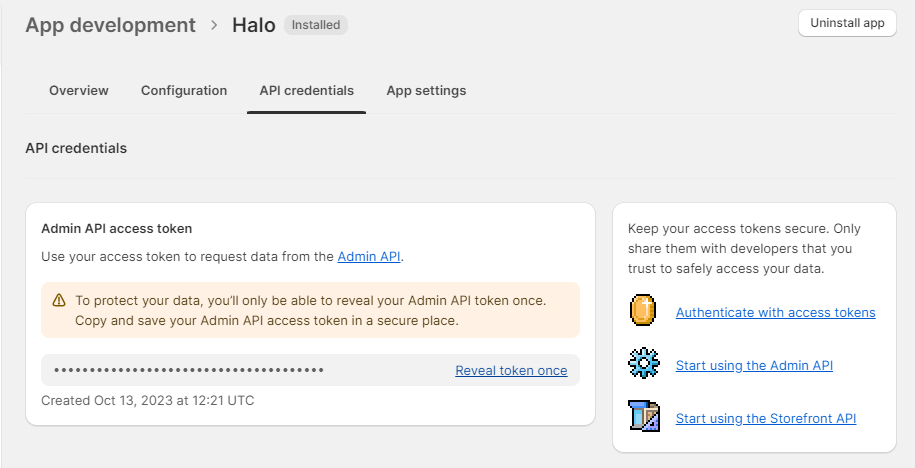
Fig 5. Generating an access token
Connecting Shopify using the Dev Dashboard
As of 2026, New Apps will need to be created using the "Build apps in Dev Dashboard" option in Shopify.
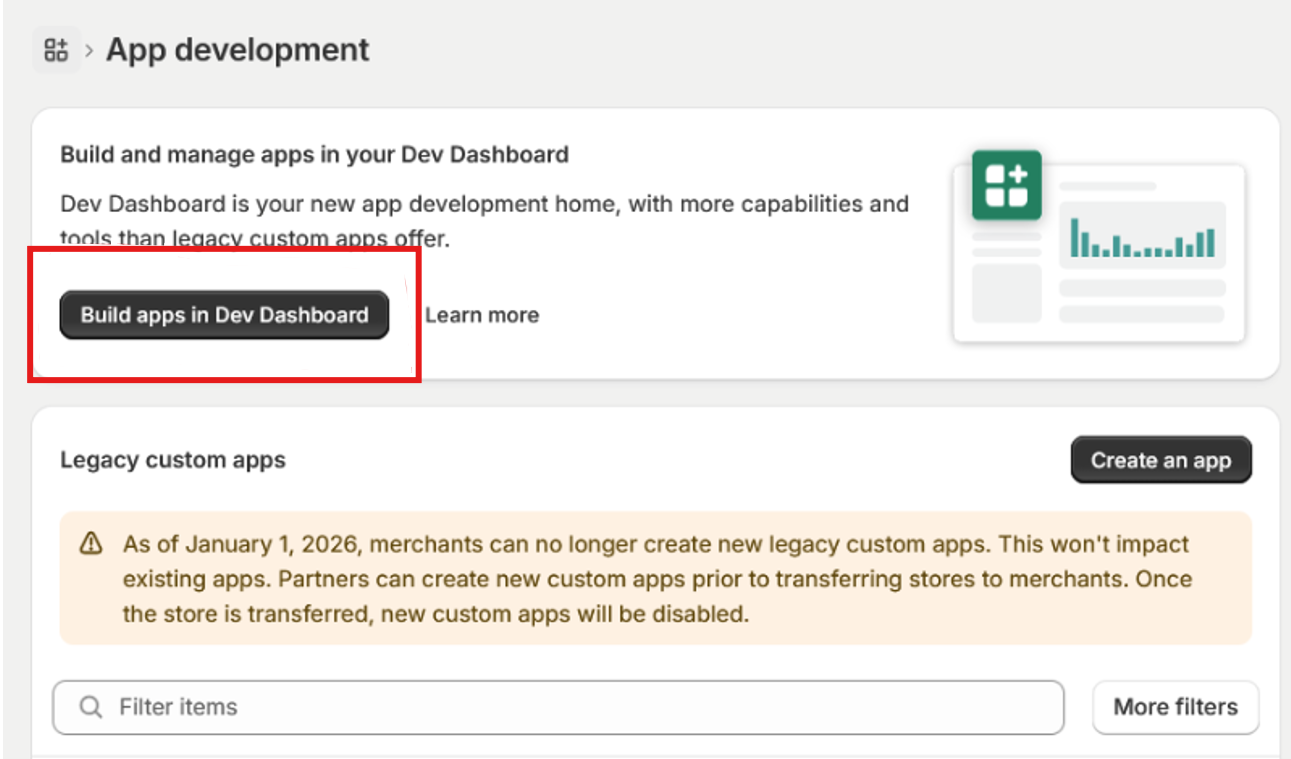
Fig 6. Dev Dashboard apps
Create a new app, set a name and click create. Next set a placeholder in the App URL.
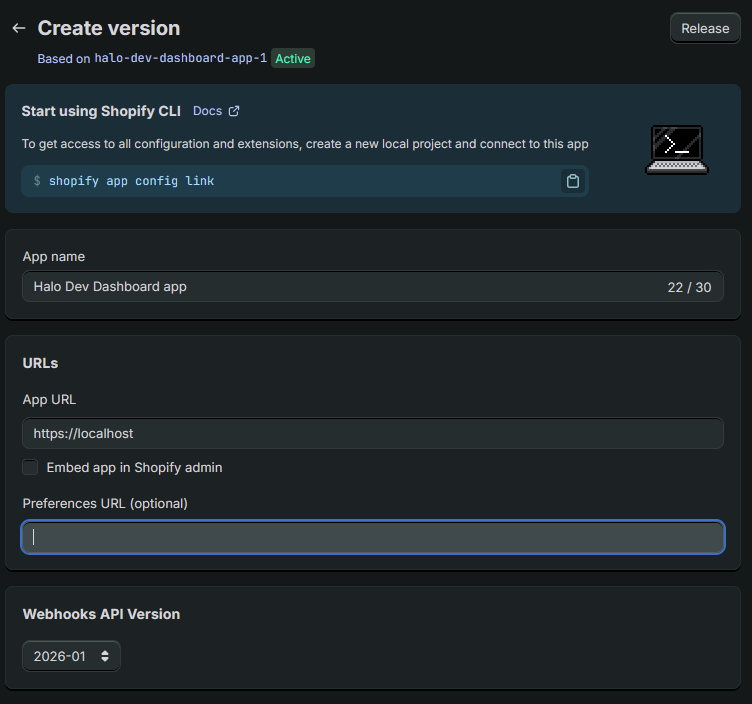
Fig 7. Dev Dashboard app creation
Add the scopes read_customers, and read_orders, then add these scopes to the Access field.
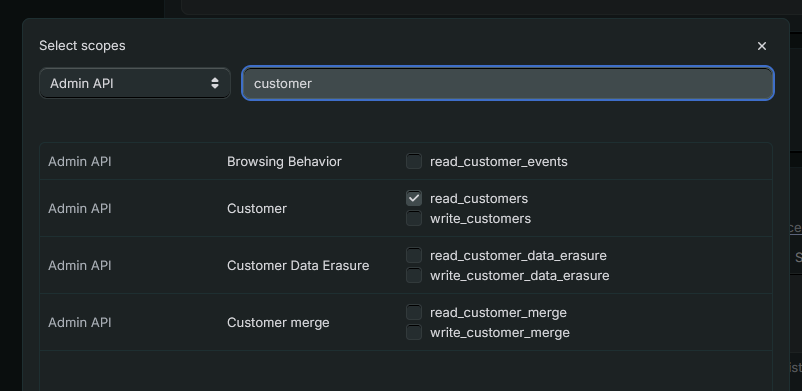
Fig 8a. Adding read_customer scopes
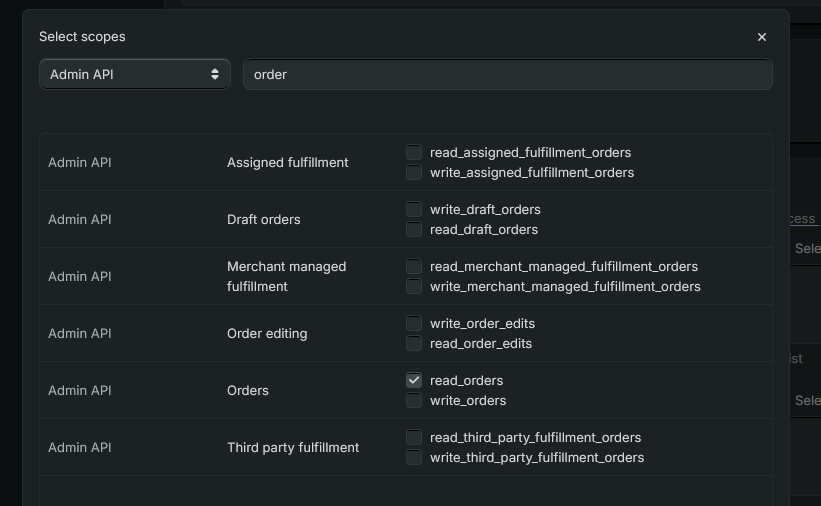 Fig 8a. Adding read_orders scopes
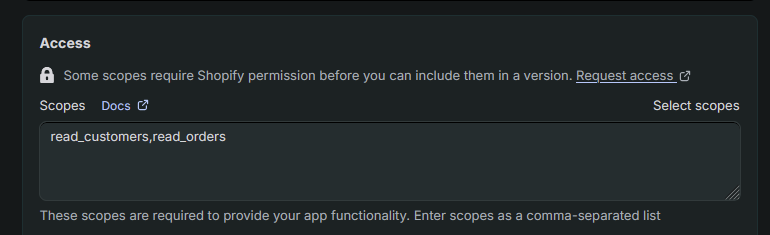
Fig 9. Adding scopes
Now you can click "Release".
Now within your new app click on the Settings section.
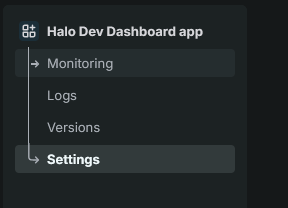
Fig 10. Finding credentials
Here you will find the credentials needed to connect to Halo.
Connecting Shopify in Halo
In Halo, navigate to Configuration > Integrations > Shopify and click Add/Edit Shopify Shop and click New.
You will need to specify the Authentication Method. Any newly created apps will need to be created using the Dev Dashboard app, and will need to have this option selected here. All existing stores will keep the Legacy custom app option.
Enter your Shopify store name. For example, if your myshopify URL is "halo.myshopify.com", enter "halo". Enter the Admin API access token (if using the Legacy Custom app), or Client Credentials (Dev Dashboard app) and check the box to enable the connection, then press save.
You should now be able to import Customers and their Orders. Complete any other configuration in Halo such as field mappings for Customer imports.
Please note that it may take a while to load the import screens if you have lots of Customers and Orders.
Note: If you are working in an instance of Halo that is on version 2.230.1 or later, you can choose to also import the lines/products that make up the order by enabling the "Import line items" checkbox in the Order Imports section of the integration. These lines will show under the relevant order within the E-commerce Orders area and will be held in the EcommerceOrderLine table in the database for reporting purposes.