Microsoft Power Automate Integration
- integration
- automation
- Microsoft
- microsoft power automate
In this guide we will cover:
- What is the Microsoft Power Automate Integration?
- Application Registration
- Microsoft Power Automate Configuration
- Flows
- Common Issues
- Trigger a Microsoft Power Automate flow using Halo Webhooks
What is the Microsoft Power Automate Integration?
The Microsoft Power Automate integration allows you to use Azure Power Automate to create flows that interact with the Halo API, allowing the automation of certain processes.
To set this up you need to create a registered application in Halo and use this to create a custom connector.
Application Registration
To register a new application, go to Configuration > Integrations > Halo API > Applications. Here you can create a new application with the authentication method "Authorisation Code (Native Application). This will need to be set to use a client secret.
The redirect URLs need to be set to "https://global.consent.azure-apim.net/redirect/{guid}" (This is generated automatically during the authentication setup in Power automate.) and "Allow Agent Logins" needs to be set.
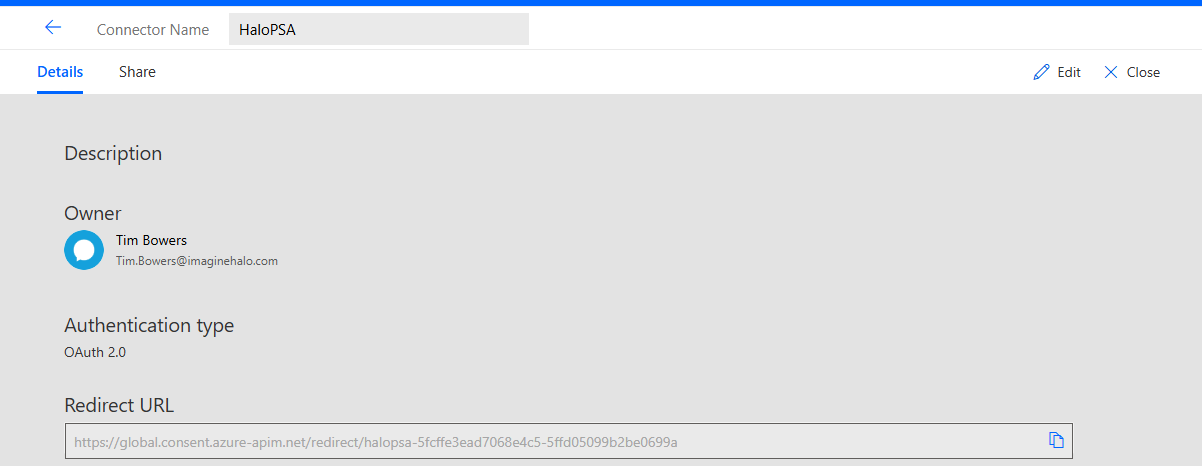
Fig 1. Setting the Redirect URL.
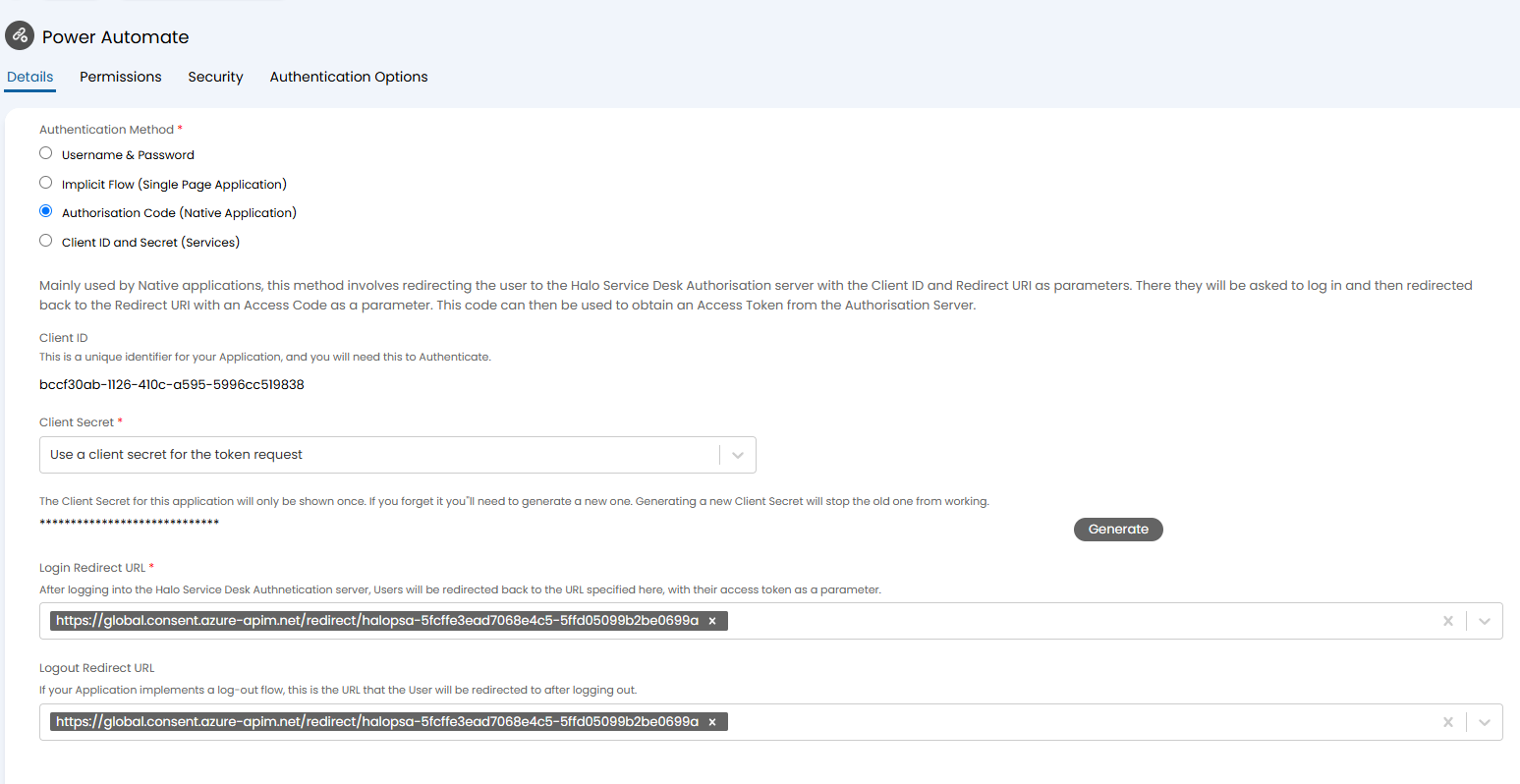
Fig 2. Configuring the application.
The application needs to be granted the correct permissions for the API calls you wish to make. Granting all permissions is not recommended.
Microsoft Power Automate Configuration
With the Halo application now registered, you can go to Microsoft Power Automate to configure your custom connector.
In Power Automate, go to Data > Custom Connectors. If you don't have a Data tab, then go to More > Discover All and find Custom Connectors under the Data column.
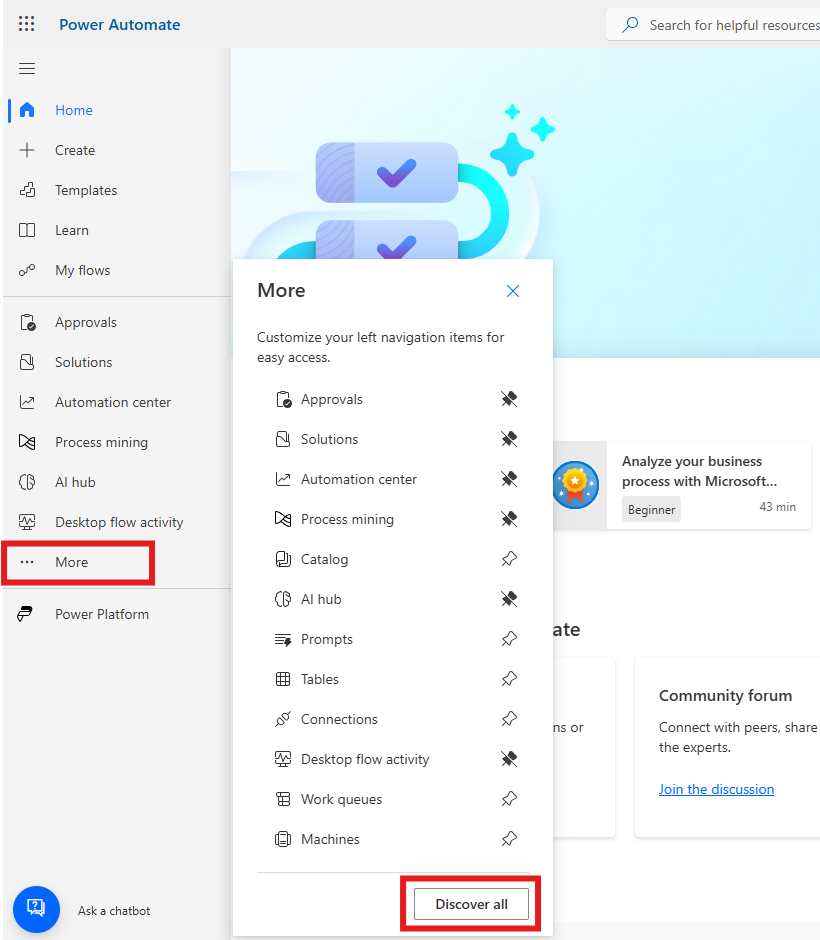
Fig 3. 'Discover All' button.
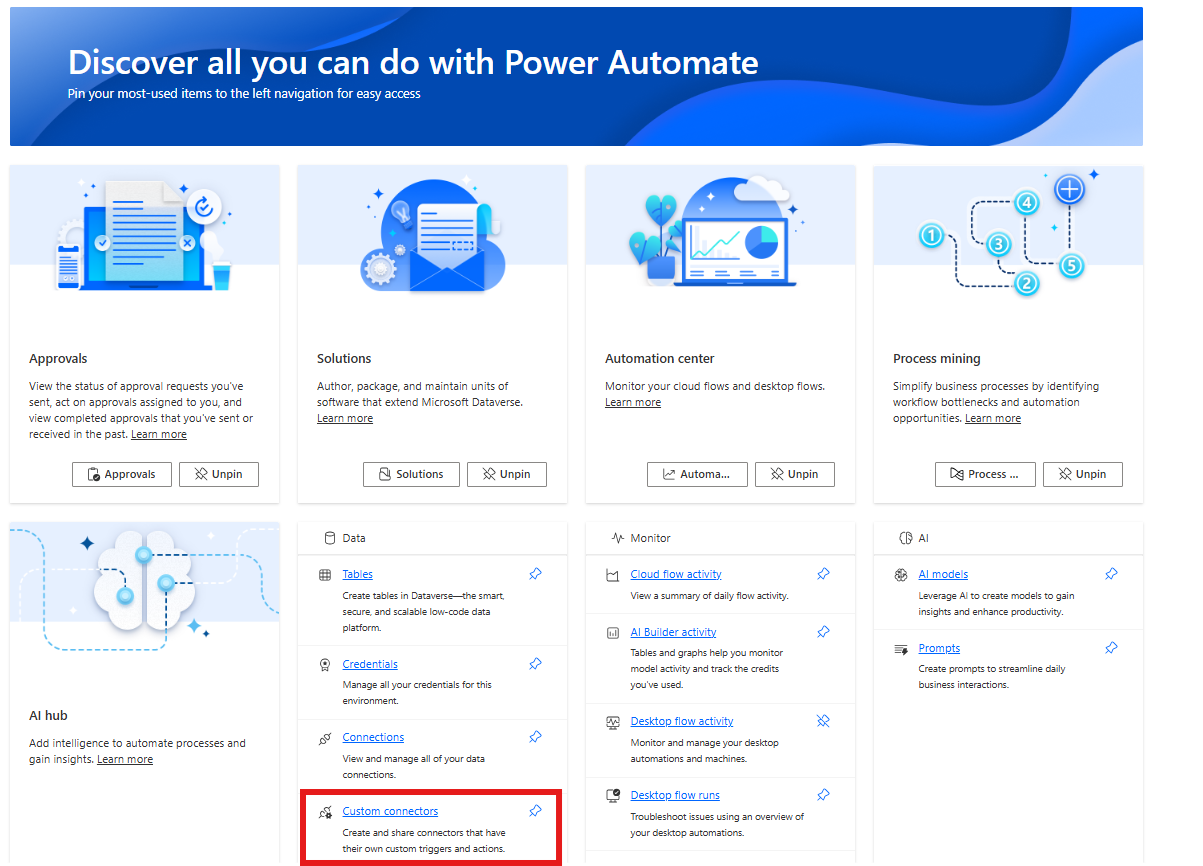
Fig 4. Adding a Custom Connector.
Create a new custom connector from blank.
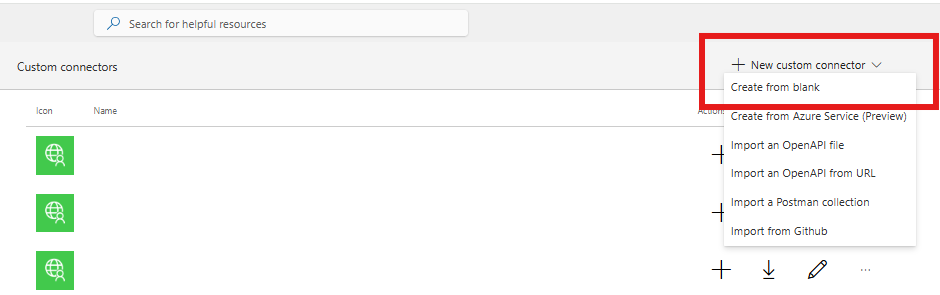
Fig 5. Creating a Custom Connector from Blank.
Ensure the scheme is set to "HTTPS" the host is set to your Halo URL and the base URL can be left as "/".
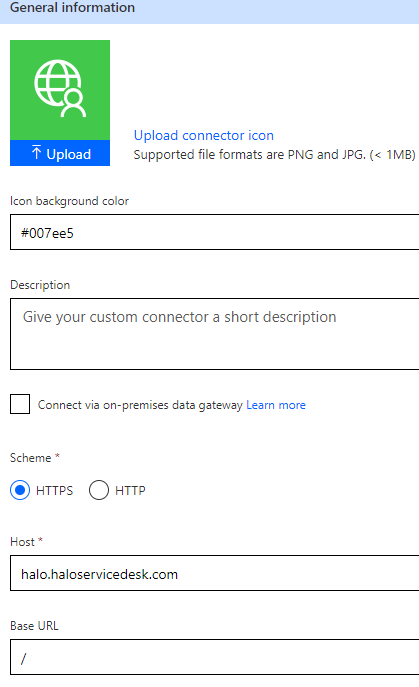
Fig 6. Custom connector configuration.
Authentication
The authentication type is "OAuth 2.0" and the identity provider is "Generic Oauth 2".
The Client ID and secret from your registered application can then be entered. The authorization URL should be your instance's /authorize endpoint and the token and refresh URLs should be your /token endpoint.
You then need to specify the scopes you set for your application. For example, if your flow will be reading and editing tickets you will need to give it the scopes "read:tickets" and "edit:tickets".
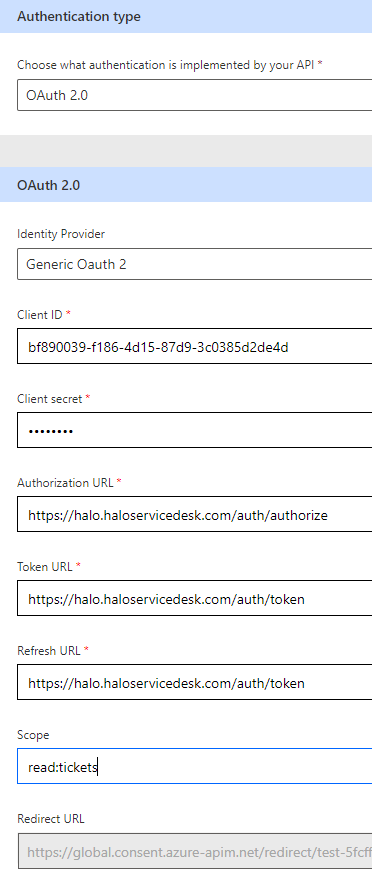
Fig 7. Authentication configuration.
Note: If you would like automated token refresh, then you should also include the "offline_access" scope.
Copy the Client ID/Secret obtained in Halo in the previous step. Your Authorization URL is your Halo URL '/auth' i.e.: https://halo.haloservicesolutions.com/auth/authorize and your Token and refresh URL should be your halo URL /auth/token i.e.: https://halo.haloservicesolutions.com/auth/token
The value shown in the "Redirect URL" field is the URL you need to use as your Halo application redirect URL.
Definition
You can specify the actions, triggers, and policies that can be used as part of your custom connector here. This is how you can set up the API calls and responses that will be used as part of your flow.
In order to make Get/POST requests to your Halo instance from a flow you will need to configure the API calls you would like to be able to make as an action. Figure x shows a new action being created, when adding an action you will need to give it a summary, description and Operation ID, these are just used to reference the action and the operation it executes.
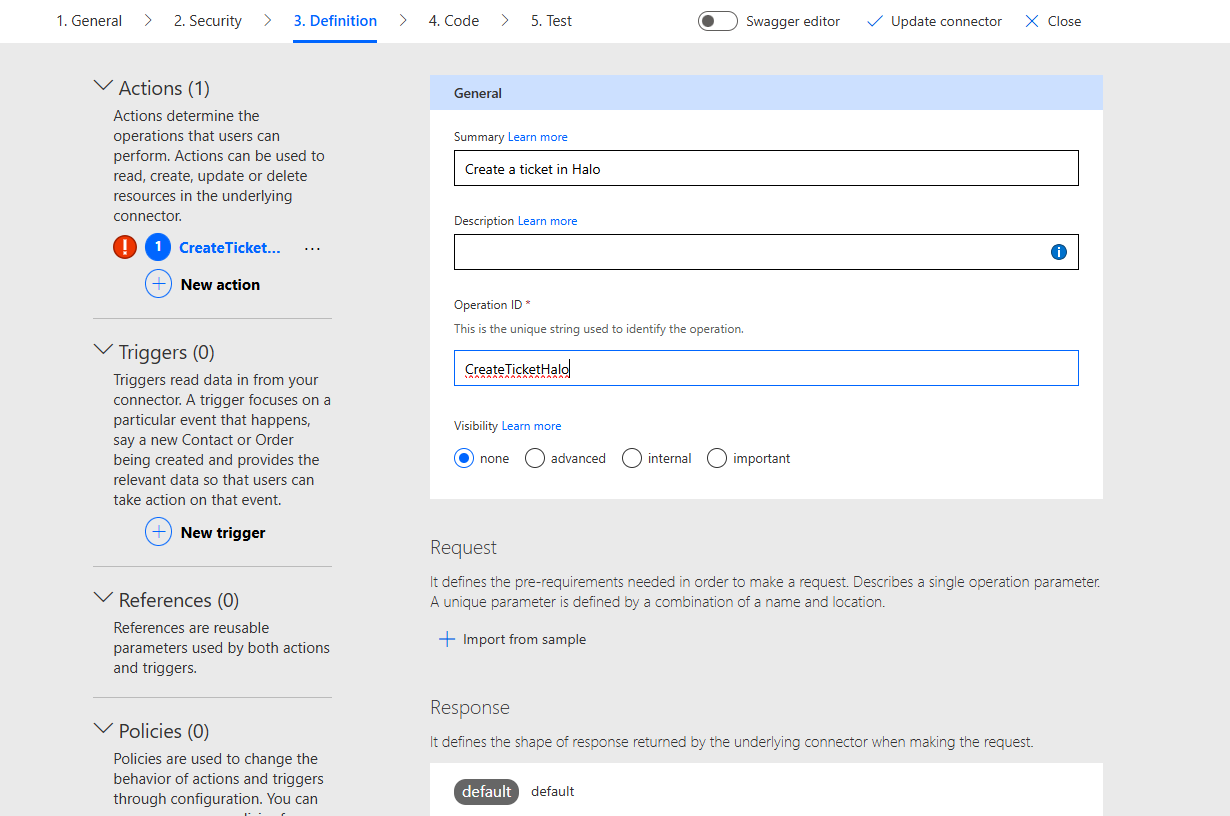
Fig 8. New Action
If you would like the action to send a request to Halo, add a 'Request'.
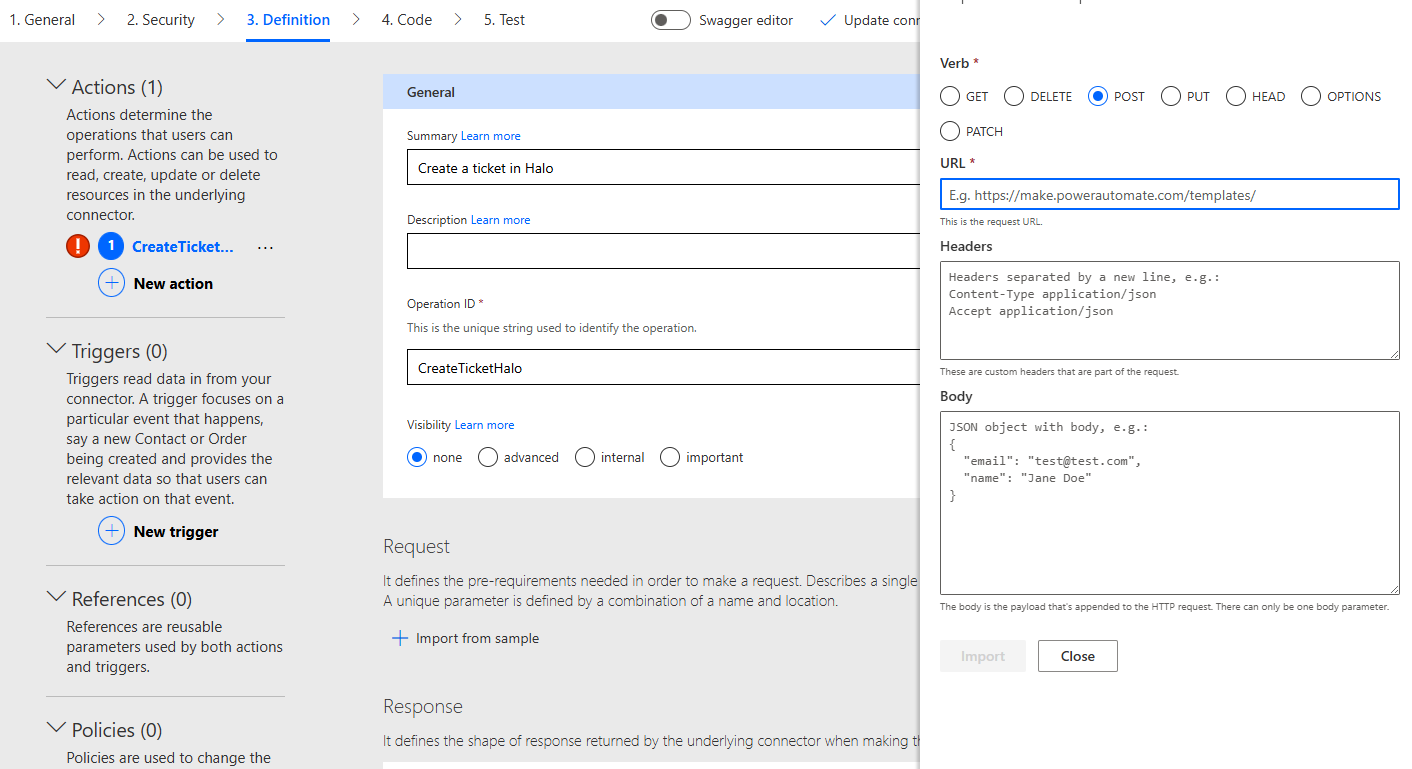
Fig 9. Adding request to action
Verb - Here choose what the request should do.
URL- Here, enter the URL the request should be sent to. Our API documentation outlines the endpoints required for each action you would like to execute via the API.
Headers - Enter the headers for your request here.
Body - Enter the payload that will be sent to the Halo API.
In the figure 6 example a request has been created that will create a ticket in my Halo instance, that has the ticket type 'Incident'.
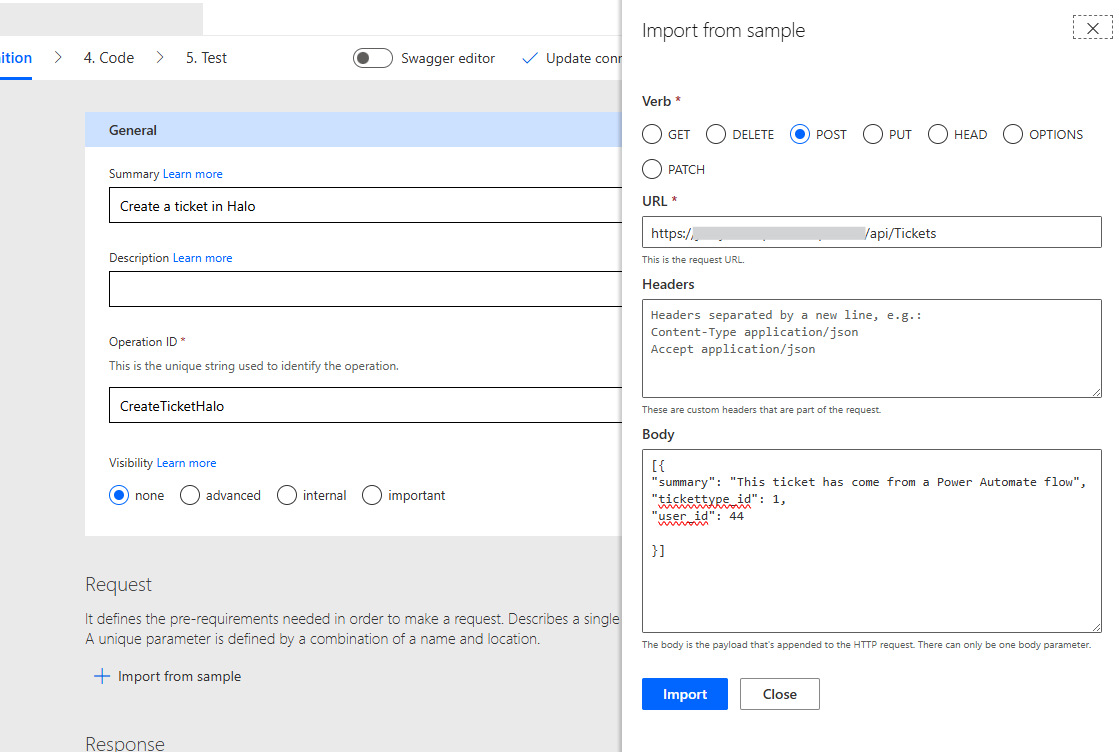
Fig 10. Example request setup
You will need to make an action under this connector for each API request you would like to be able to send to your Halo instance. When configuring your flow you will then be able to choose which operation (action) to execute at a set step.
For further guidance on how to make specific API calls, consult our API documentation.
Test
You can then test and verify your connector works before saving it.
Flows
Once your custom connector has been configured, you can then configure a custom flow in the My Flows section on Power Automate. You will be able to select your custom connector and its actions when configuring steps of your flow.
To do this, add an action to your flow, select the custom connector you configured for your Halo instance > select the operation to execute at this step > select a connection to use to complete this operation > now complete any input fields required.
Now when the flow reaches this step the configured request will be executed.
Common Issues
The resource you are looking for has been removed, had its name changes, or is temporarily unavailable
When testing the connector and seeing the error below, it is recommended to enable Reference Tokens in Configuration > Security and Performance (see second screenshot below).


Important: When enabling these everyone will be logged out of your Halo and any integrations you currently have setup with Halo will need to be re-authenticated.
Trigger a Microsoft Power Automate flow using Halo Webhooks
Microsoft Power Automate flows can be triggered using webhooks in Halo, allowing flows to begin when certain events occur in your Halo instance. For information on how to configure this checkout our dedicated guide: Trigger a Microsoft Power Automate flow using Halo Webhooks.