Embedding a Ticket/Form onto your Website
In this guide we will cover:
-Embedding a Ticket on an external website
Embedding a Ticket on an external website
Head to Configuration > Tickets > Ticket Types, select the Ticket Type you would like to embed. Within the Forms tab you will find the Anonymous Access & Embeddable section, from this section, copy the Embed code and embed this into your Website.
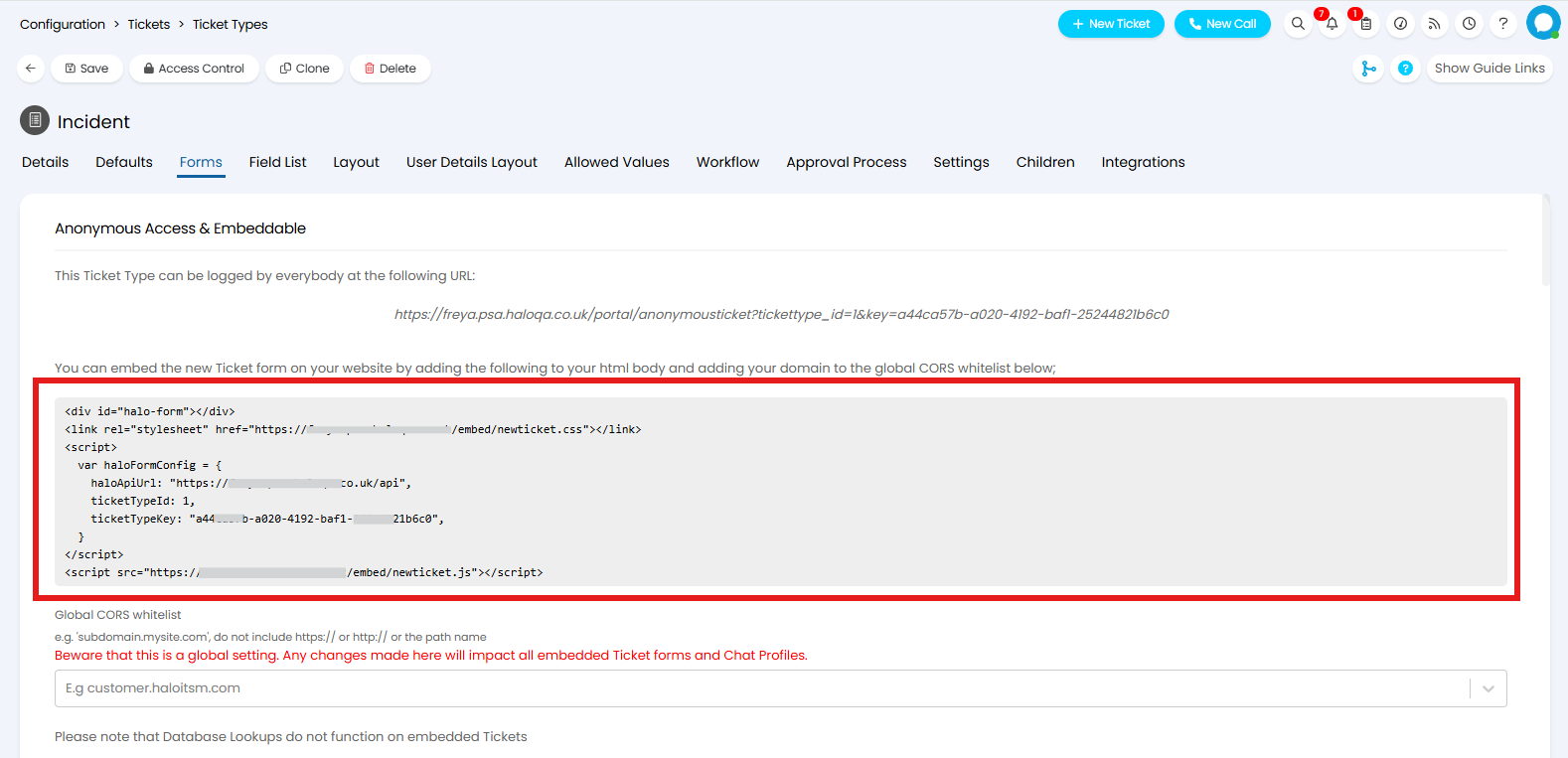
Fig 1. Ticket Embed Code
Next you will need to add the website domain to the 'Global CORS whitelist'. For example: "halo.com".
Once embedded, the Ticket form will show on your website.
Note: Database Lookups are not supported on embedded Tickets.
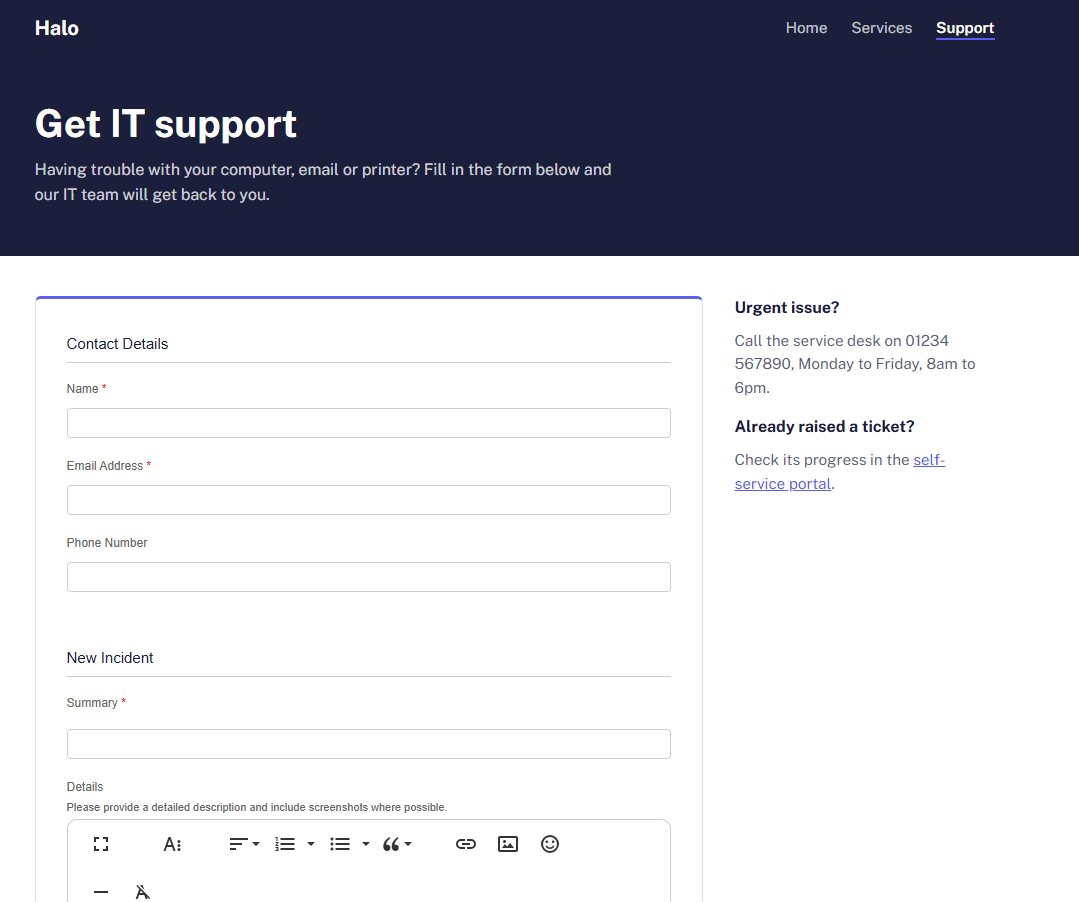
Fig 2. Embedded Ticket
When a Ticket is created using the embed form, the Ticket will appear in Halo with a source of "web". This will show against the Ticket if the "Source" field has been added to the Ticket Type.
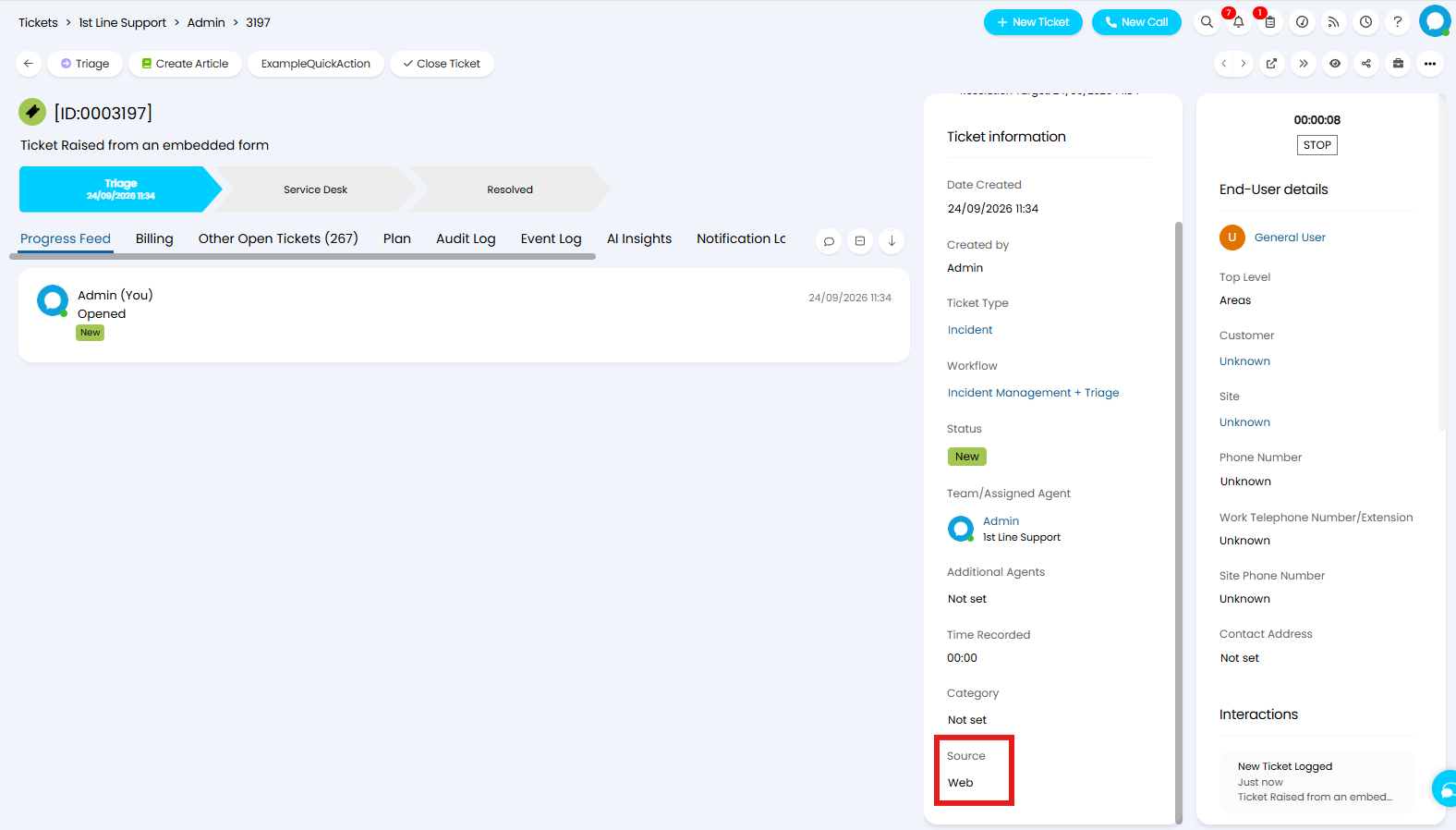
Fig 3. Ticket with a source of "Web"
The following lines of SQL can be used to establish a Ticket's source when reporting:
(select fvalue from lookup where fcode=frequestsource and fid=22) as [Ticket Source]
from faults
Props
All the basic props of the Widget are listed here.
| Property | Type | Mandatory | Description |
|---|---|---|---|
| haloApiUrl | string | true | Your Halo API url. |
| ticketTypeId | int | true | The id of the ticket type to use. |
| ticketTypeKey | string | true | The key of the ticket type to use. Only required if global anonymous access is disabled. |
| colour | string | false | The primary colour of buttons. Accepts a HEX colour. E.g #E83C4A. |
| languageId | int | false | Id of a language to use. |
| language | string | false | Code of a language to use. E.g "en-US" |
| organisationId | int | false | Id of an organisation. Used to determine branding. |
| accessToken | string | false | Specify a user or agent Halo access token to use chat whilst authenticated as a user or agent. |
| defaultSummary | string | false | Overriding default for the summary field. |
| defaultDetails | string | false | Overriding default for the details field. |
| debug | bool | false | When set to true, additional logging will show in the console. |
| hideContactDetails | bool | false | When set to true, the contact details (name, email and phone number) are hidden. Set this when you know the user is logged in and getJwt will return a token. Has no effect without getJwt. See User matching for when they are shown again. |
| getJwt | function | false | Called when the form is submitted. Should return (or resolve to) a JWT identifying the user. See User matching. |
User matching
If your visitors are already signed in to your own site, the ticket can be logged against their Halo user instead of asking for a name and email. A new user is created if no match is found.
- On the ticket type, enable embedded form user matching and set an identity token secret key, a site for new users and any claim mappings.
- On your server, sign a JWT with the secret key using HS256. It must include
exp, andsubis used to match the user. Map other claims, such as the email address, to user fields with the claim mappings. - Pass a
getJwtfunction that fetches the token from your server. It is only called when the form is submitted, and can be async.
<script>
  var haloFormConfig = {
    haloApiUrl: "https://yourhalo.com/api",
    ticketTypeId: 1,
    ticketTypeKey: "your-ticket-type-key",
    hideContactDetails: userIsLoggedIn,
    getJwt: async () => {
      const response = await fetch("/my-server/halo-token");
      return await response.text();
    },
  }
</script>
When the token is verified, the ticket is logged against the matched user and uses their email address and phone number. Anything entered in the contact details is ignored.
Use hideContactDetails to choose whether the contact details are shown, for example by hiding them only for users who are logged in to your site. What happens when the token is missing or can't be verified depends on whether the ticket type requires an identity token:
- Not required:
- If the contact details are hidden, the ticket isn't logged. Instead, they are shown so the user can enter their name and email and submit again as an anonymous ticket.
- If the contact details are shown and
getJwtreturns nothing, the ticket is logged anonymously using the details entered. - If the contact details are shown and the token can't be verified, the ticket isn't logged and the user is asked to submit again. The next submission is logged anonymously.
- Required: the ticket is not logged and an error is shown.