Quoter Integration
- quotes
- Quoter
In this guide we will cover:
- What is the Quoter Integration?
- Quoter's Method
- Halo Method
- Extra: For When both Quoter and Halo are Integrated with Xero
Important: There are two integrations available for Quoter, one built by Halo and one built by Quoter. If your opportunity/sales process is achieved via Quoter, use Quoter's method. If your opportunity/sales process is handled within Halo, the best option is to use Halo's method. Both integration methods are listed below. Only setup the integration using one of the outlined methods.
What is the Quoter Integration?
Quoter can be integrated with Halo to create and sync quotations, and allow electronic acceptance and tax automation.
Quoter's Method
For information on how to setup the integration using Quoter's method please see their documentation here: Halo PSA Integration Overview and Setup.
Halo Method
First make sure the Quoter integration is not configured using the Quoter's method.
Make sure the module is enabled in Halo, this is found in Configuration > Integrations > *Search for Quoter*, and turn on the module by clicking the '+' icon.
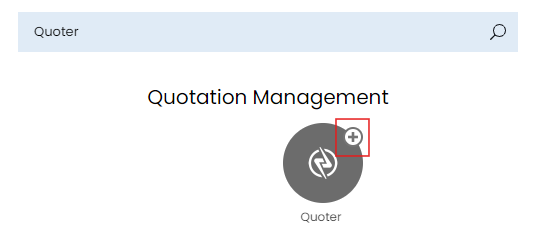
Fig 1. Enabling the module.
When connecting to Quoter, you will need to create an API Key in Quoter, to do this, use the following steps. Click the name on the account, which is found in the top right hand side of Quoter.
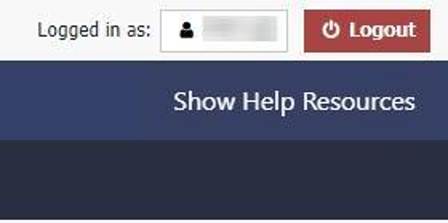
Fig 2. Account name in corner.
Then click into the API Keys section.
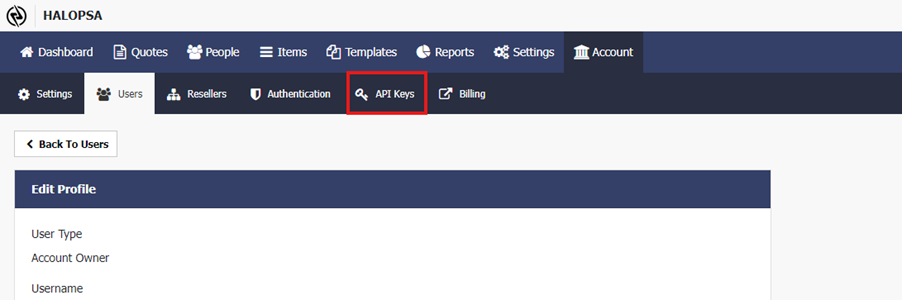
Fig 3. API Keys tab.
Then create a new API Key and copy the Key that is generated on creation (store this in a secure document), and copy the Client ID as well.

Fig 4. Creating an API key.
Input the credentials to Halo (the API Key being the key copied on creation).
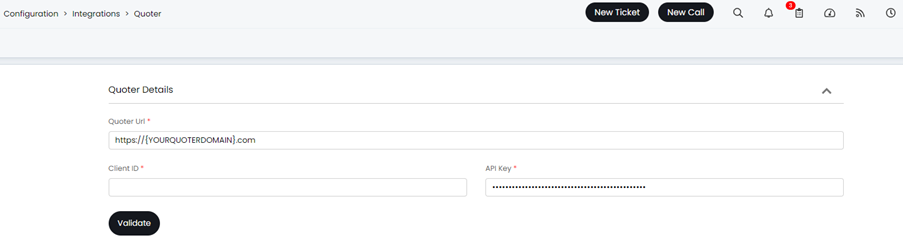
Fig 5. Entering connection details.
After connecting, you can create an integration of type "custom webhook" from within Quoter.

Fig 6. Integrations area.
This option can be found at the bottom of the integrations list.
Fig 7. Custom runbook selection.
The integration created should look like this.
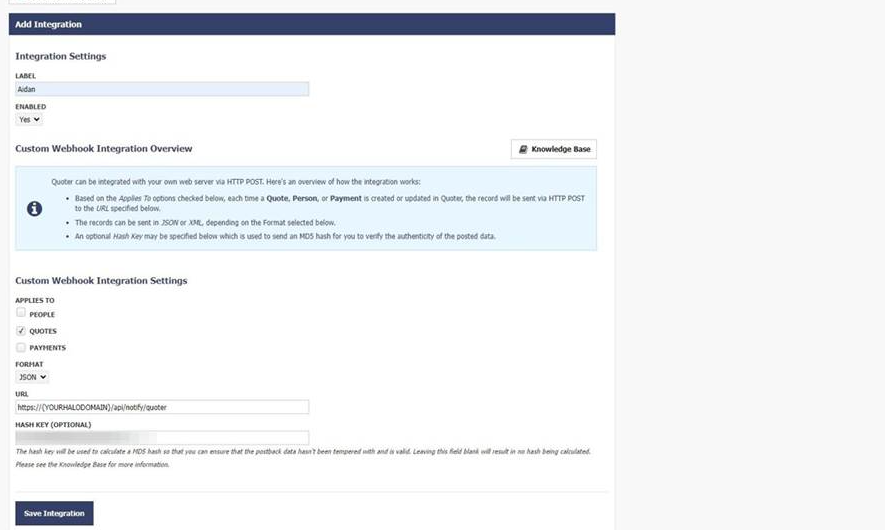
Fig 8. Integration configuration.
An Overview of the Processes Being Executed in Halo
Actions can be created which allow you to open the new quote screen in Quoter from an opportunity. When performing the action, Halo will attempt to find an existing user in Quoter based on the opportunity email address. Once the quote has been created in Quoter, the quote can be automatically created in Halo via a webhook from Quoter. The quote will be linked to the latest open opportunity in Halo which matches the email address of the user assigned to the quote.
Configuring Quotes and Webhooks for Sending and Receiving
From here, you have a 'Default Quote Template' option. This will be the Quote template used when opening a Quote in Quoter from HaloPSA (this is where you enter the Quote Template 'URL' obtained in the previous step.
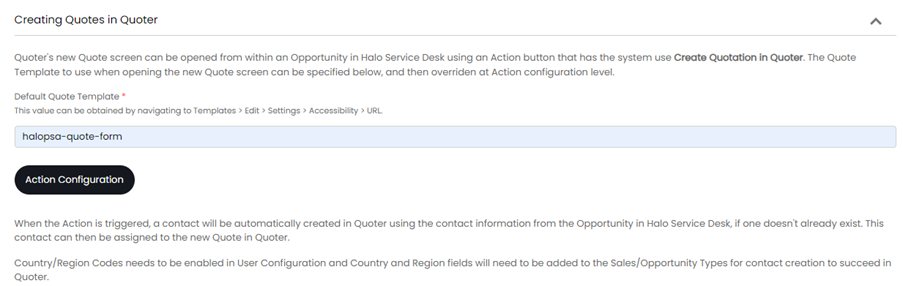
Fig 9. Quote configuration.
Configure the webhook by adding in the Hash Key that was generated in the Custom Webhook Integration.

Fig 10. Syncing configuration.
To allow for the new Quote screen in Quoter to be opened from Halo, create a new Action (Configuration > Tickets > Actions) with system use 'Create Quotation in Quoter'.
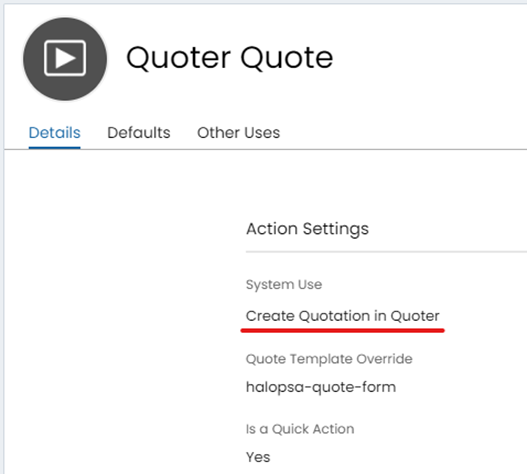
Fig 11. System use for Quoter.
Within the configuration for the Action, you will also see the option to override the Quote Template default (if applicable). Assuming this Action has been added to any Workflows applied to your Halo Opportunity types, you should now see this Action on the Opportunity.
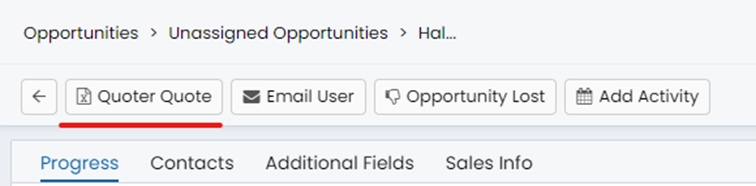
Fig 12. Action button for Quoter.
Note: To facilitate this system use, you must ensure that the Country & Region fields are populated before the time of redirecting to Quoter. Country & Region fields are enabled via Configuration > Users.
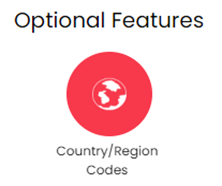
Fig 13. Country code module.
Once this module is enabled, you can add the below fields to your Opportunity type(s).
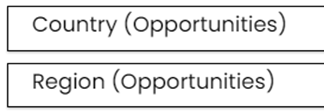
Fig 14. Fields on the opportunity type.
When being redirected to Quoter, the integration will attempt to match the email address for the Opportunity Contact.
Fig 15. Email address on a user used for matching.
To the email of a 'person' in Quoter.

Fig 16. Email in Quoter.
Failing this Halo will create a user in Quoter with the details from the Opportunity contact in Halo, you must enable this setting from the Quoter integration module, to create 'contacts' in quoter, when no existing are found.

Fig 17. Creating contacts setting.
Defaulting Field Values
The final option within the Quoter configuration is concerned with setting some default values for entities synced between the two applications.
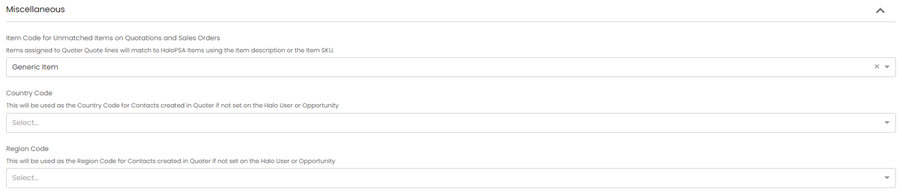
Fig 18. Miscellaneous configuration.
By default, Halo will match Quote lines for Quotes created from Quoter to existing products in Halo by name or SKU. If no existing products in Halo are found based on this data, then the 'Item Code for Unmatched items on Quotations & Sales Orders' option can be used to set the Item Code/Accounts ID for invoice lines subsequently created. The mappings for item group/ product category are set within Quoter now, as explained above.
Default options for Country/Region Codes can also be set here, in the eventuality that these fields are not pre-set on the Opportunity.
When using the create quote in quoter option, you can link the opportunity ID when creating the quote.
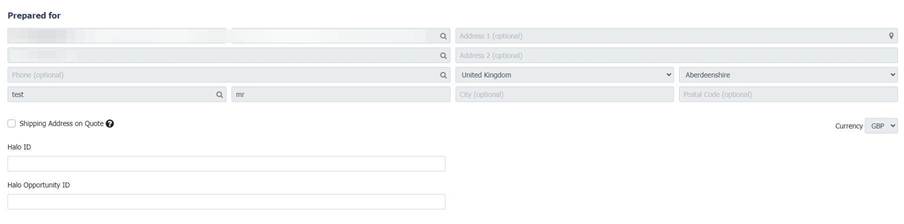
Fig 19. Opportunity ID field.
Extra: For When both Quoter and Halo are Integrated with Xero
For those individuals who have both Quoter and Halo integrated with Xero, the below is worth noting. If the Xero Integration is in use within your Halo, there will be a section of the Quoter integration Module which covers 'Linking Invoices to Opportunities (via Xero)'
When integrated with Xero, Quoter provides the option for contacts to 'Approve & Pay' the Quote. In order to 'close the circle' between the 3 integrations, we advise enabling webhooks for Invoice creation/updated within the Xero configuration in Halo.
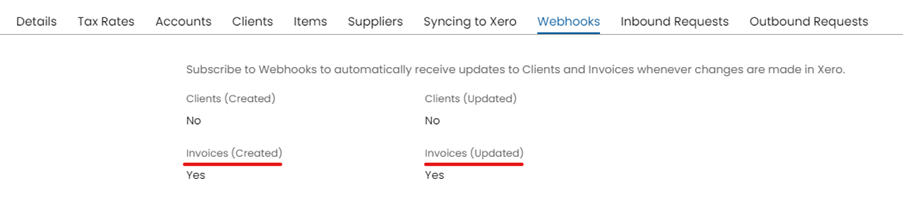
Fig 20. Webhooks for Xero.
This will mean that the Invoices created in Xero, from Quoter, will be posted over to Halo. Halo will then associate this invoice with the associated Sales Order/Quote that has in turn been created by Quote.
Configuration within the Quoter Integration module in Halo.
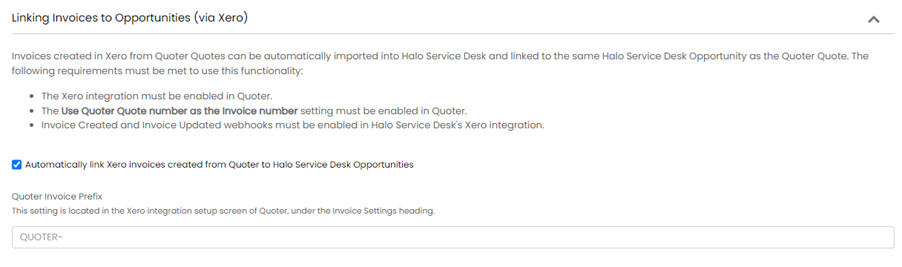
Fig 21. Xero configuration in Quoter module.