Domotz Integration
In this guide we will cover:
- What is the Domotz Integration?
- Creating an API Key
- Halo Configuration
- Halo Integrator
What is the Domotz Integration?
Domotz can be integrated with Halo to import agents and assets, and automate syncing of assets between the two platforms.
Creating an API Key
This integration requires some configuration within your Domotz portal before the integration configuration can be completed in the Halo Application. To communicate with Domotz via its API, an API Key must be generated in Domotz. To do this, navigate to your Domotz Portal and then to Settings > API Keys, or click here .
You can then click the Create an API Key, give it a name and then make sure you copy your API Key to the API Key field in the Halo Domotz configuration and the Endpoint URL to the Halo Application URL field in the Halo Domotz configuration.
You can then test your credentials to ensure Halo has a connection to your Domotz API.
Halo Configuration
Every field on the Domotz configuration page marked with a red * configuration must be filled out in order to facilitate the integration.
Agent Import Configuration
You must import your Domotz Agents before importing your devices as devices are found based off of Agents.
The following fields allow you to set a default Asset type and site for your Domotz Agents:
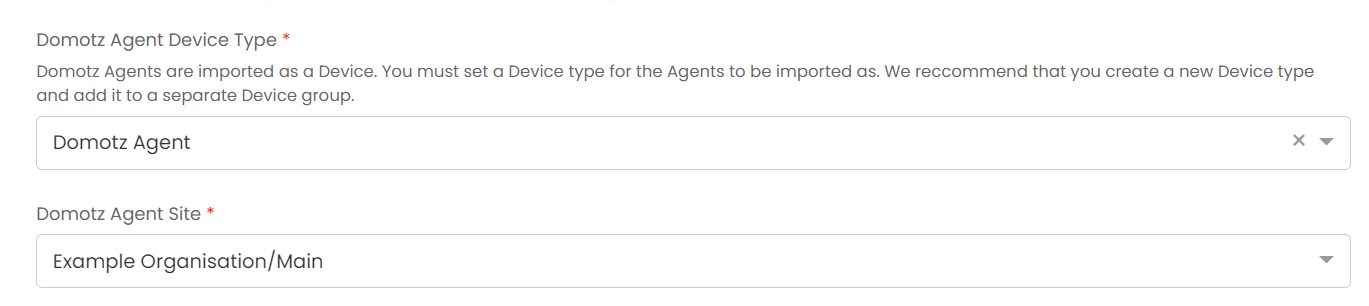
Fig 1. Device type and site.
For simplicity, we recommend creating a new Asset Type specifically for your Domotz Agents.
You could then add this Asset type to a group in order to keep your Asset view organised:
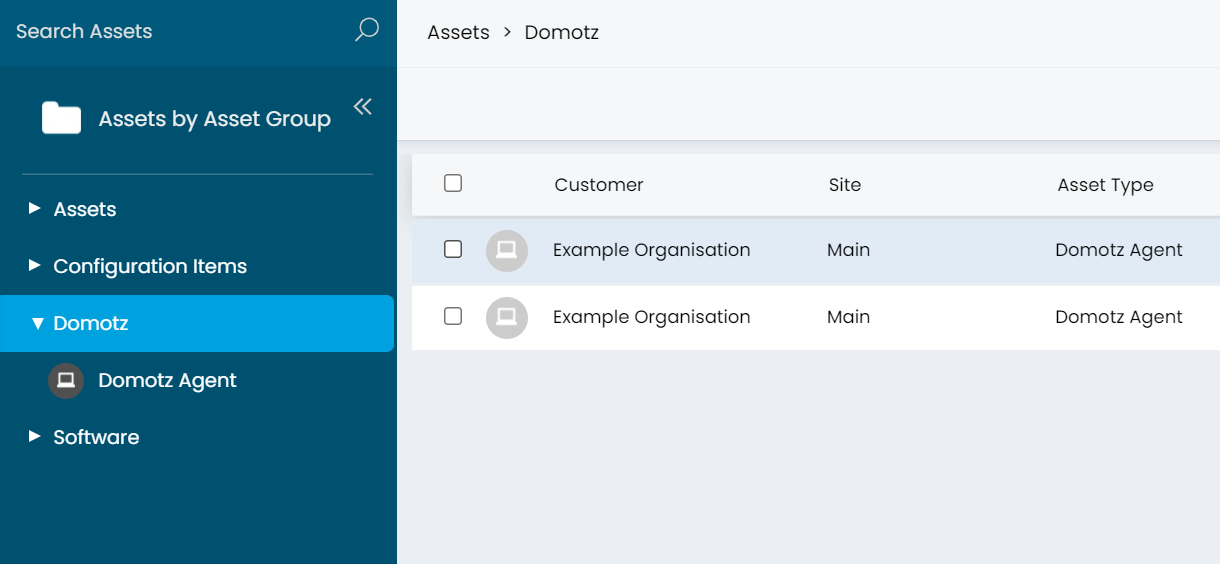
Fig 2. Imported assets.
You can then fill out any field mappings you may want for these Agents. These are not necessary and will not impact importing of your devices.
Finally you can use the "Import Agents" button to import your Domotz Agents.
Device Importing
You can now proceed with configuring and importing your devices into Halo.
You can map Device types from Domotz to Asset Types in Halo. Any devices that are imported which do not have an associated mapping will use the Default Asset type which can be set below the type mappings.
There is not customer matching for Domotz Devices so you should set a default site for assets to be imported at. If you change the site of an asset after importing, it will remain at that site after subsequent imports.
You can then map Domotz device fields to Asset fields in Halo.
Finally you can import your devices using the "Import Assets" button.
A button will appear at the top of each asset that links to its corresponding Domotz asset URL. This will only show if both the agent and asset are linked and imported correctly.
Halo Integrator
The device import can be run on a schedule using the Halo integrator.
You must have an up to date version of the Halo Integrator and ensure you enable the integration for the Halo Integrator on the Domotz configuration page.
Finally in the miscellaneous settings, you can allow devices in Halo to be made inactive if they are deleted from Domotz. Please note this will only have an effect if the import is through the Halo Integrator.