Process Agent Use Case: Problem Analyst
In this guide we will cover:
- What is the Problem Analyst?
- Key Considerations
- Pre-requisites
- The Process - How this Works
- Building the Problem Analyst
- Running the Problem Analyst
What is the Problem Analyst?
The Problem Analyst is an Process Agent that finds the hidden links between your incidents and turns them into actionable problem records, allowing your team to fix the root cause of issues before the problem gets out of hand.
The Problem Analyst reviews recurring themes between incidents that have been logged in the last three months based on clusters, then raises or updates a problem record, highlighting the root cause to your agents. Automating the problem detection process by leveraging AI to identify themes your agents would otherwise miss.
Key Considerations
The Problem Analyst Agent will be built into instances of Halo used by internal IT and enterprise solutions teams, that were deployed after September 2026. If this is already built into your instance no setup is required, you can refer to this guide to see how the agent should function out of the box (OOTB) and how it can be customised. If this Agent is not already built into your instance, this guide will walk you through how to build this into your instance.
Pre-requisites
- A default AI connection must be set for your instance
- Ticket embeddings must be enabled
- Your chosen vector search database must contain some embeddings (vector scores) - in other words you need to have indexed your historical tickets.
- Clustering must be enabled and a run completed.
- You must have multiple clusters for incident tickets as the AI Agent uses these clusters to identify themes between incidents.
The Process - How this Works
- The Proactive Problem Detection runbook is triggered manually each time you would like incidents to be evaluated and problems identified.
- The runbook triggers the Problem Analyst Process Agent.
- The Process Agent runs a report to obtain the current clusters, it then identifies the single most significant theme from these clusters.
- If a theme is detected, it then checks if any existing open problem ticket fit this theme (using a report on currently open problem tickets). A match is made based on the semantics of the problem's summary fitting the theme.
- If an existing problem is found, the Process Agent adds a note to this problem, stating the theme has reoccurred this period along with the ticket IDs of the impacted incidents.
- If no problem fits the theme is found a new problem ticket is created and all the open incidents in the theme's cluster are linked to the problem as child tickets.
Building the Problem Analyst
If the Problem Analyst is not already built into your instance, you can follow this section to build this into your instance.
Add Cluster Report to your Instance
The Problem Analyst uses a report to obtain the current clusters in your instance, this report can be added to your instance from the reporting online repository.
Head to Reporting > Online Repository > search 'Problem Candidates - Themes - Last 3 Months' > Add this report to my libary.
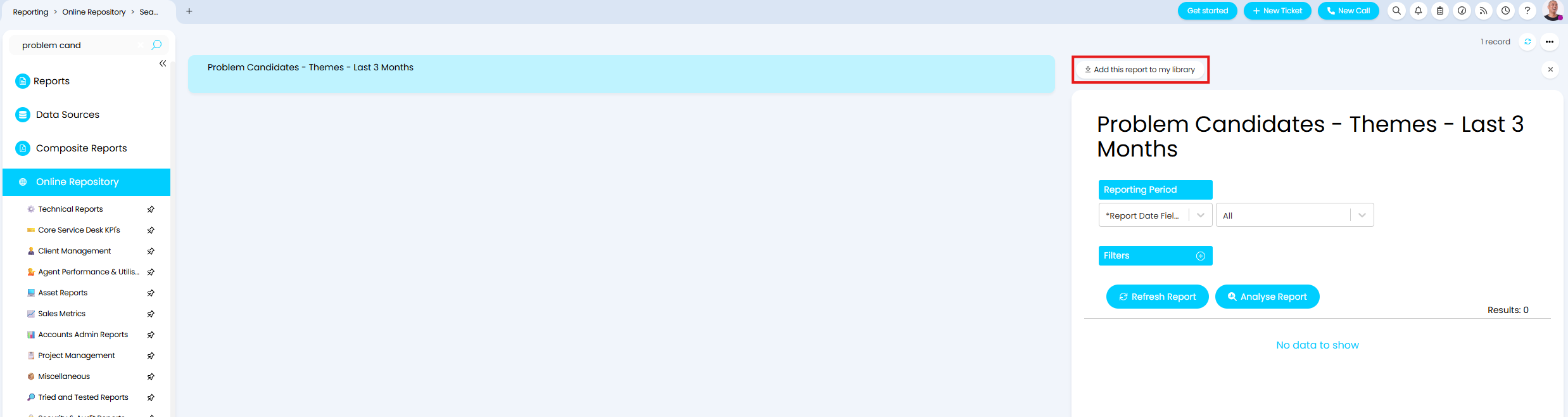
Fig 1. Add Problem Candidates - Themes - Last 3 Months report to online repository
Add Open Problems Report to your Instance
The Problem Analyst uses a report to obtain the current open problem tickets in your instance, this report can be added to your instance from the reporting online repository.
Head to Reporting > Online Repository > search 'Open Problems' > Add this report to my library.
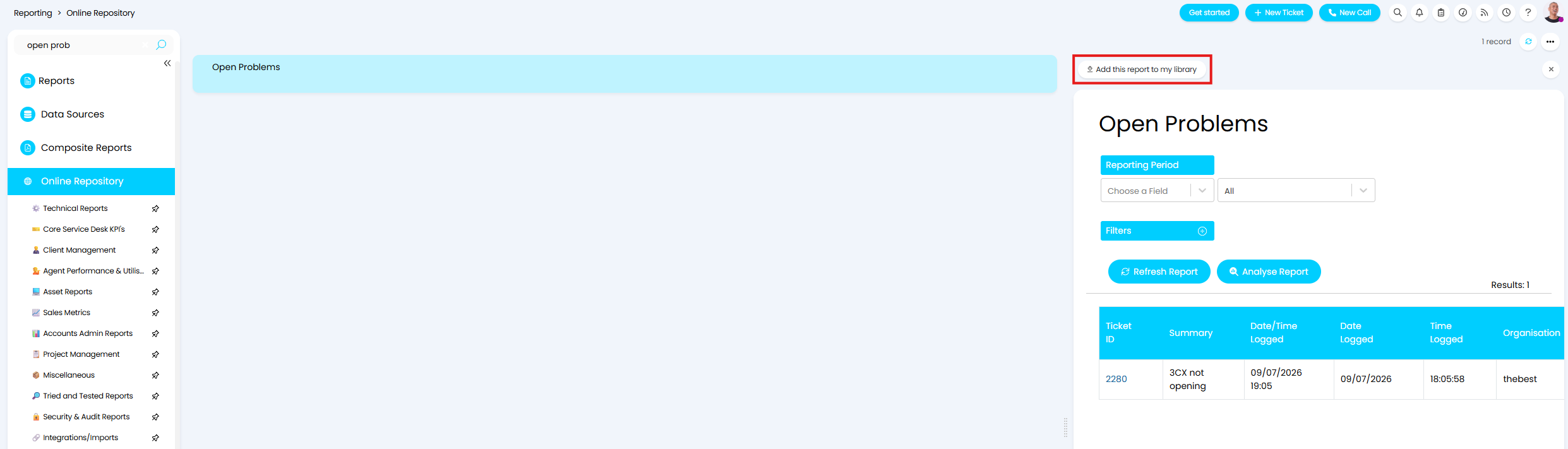
Fig 2. Add Open Problems report to online repository
Add Incident Update Runbook to your instance
The Problem Analyst Agent uses a runbook to link open incidents to any new problem tickets it creates, this runbook can be added to your instance by importing it using the JSON attached to this guide.
Head to Configuration > Integrations > Custom Integrations > Integration Runbooks > Import from JSON. Here, paste the JSON attached to this guide titled "Halo AI - Triggered Automation - Update Incident Runbook JSON.txt".
On saving, this will create the runbook in your instance.
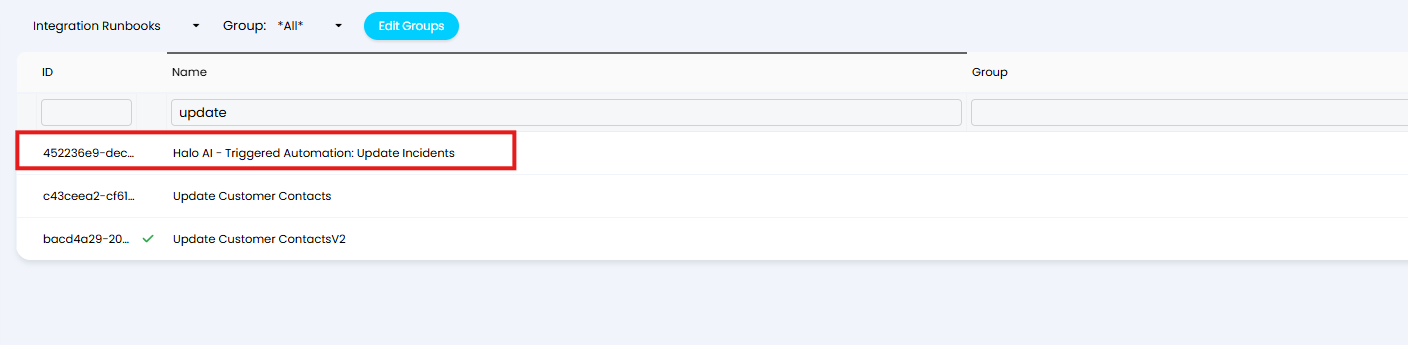
Fig 3. Runbook to Update to link incidents to problems created in instance
Creating an API Application (Versions prior to v2.250 only)
If you are on a versions prior to v2.250 you will need to create an API application, this will be given to your process agent to authorise it access you execute requests in your Halo instance. On v2.250+ you can skip this section and head to "Creating the Process Agent" as an application will be created for you automatically when the agent is created.
To create an API application head to Configuration > Integrations > Halo API, and click on the "View Applications" button.
Head to Configuration > Integrations > Halo API, and click on the "View Applications" button.
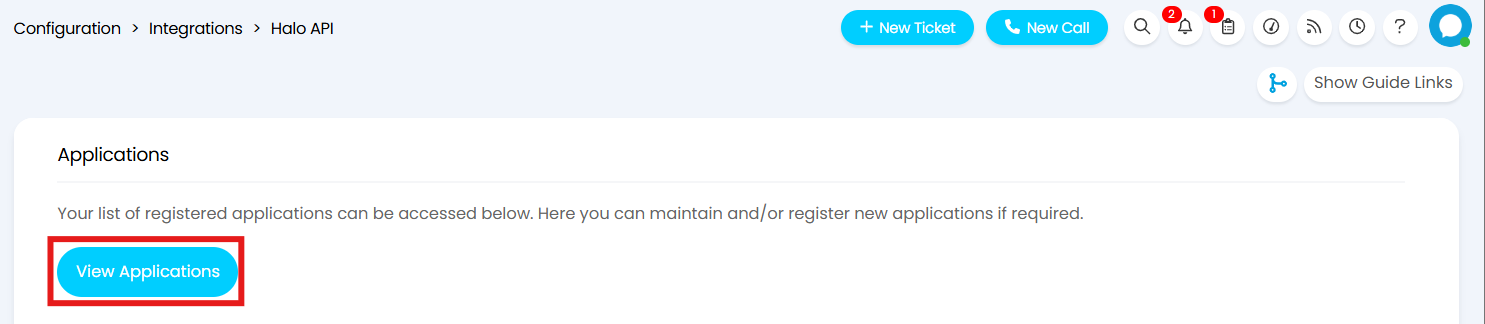
Fig 4. View Applications
Click "+ New" to create a new API Application.
Give this application a sensible name and set the Authentication Method to "Halo Automation Identity".
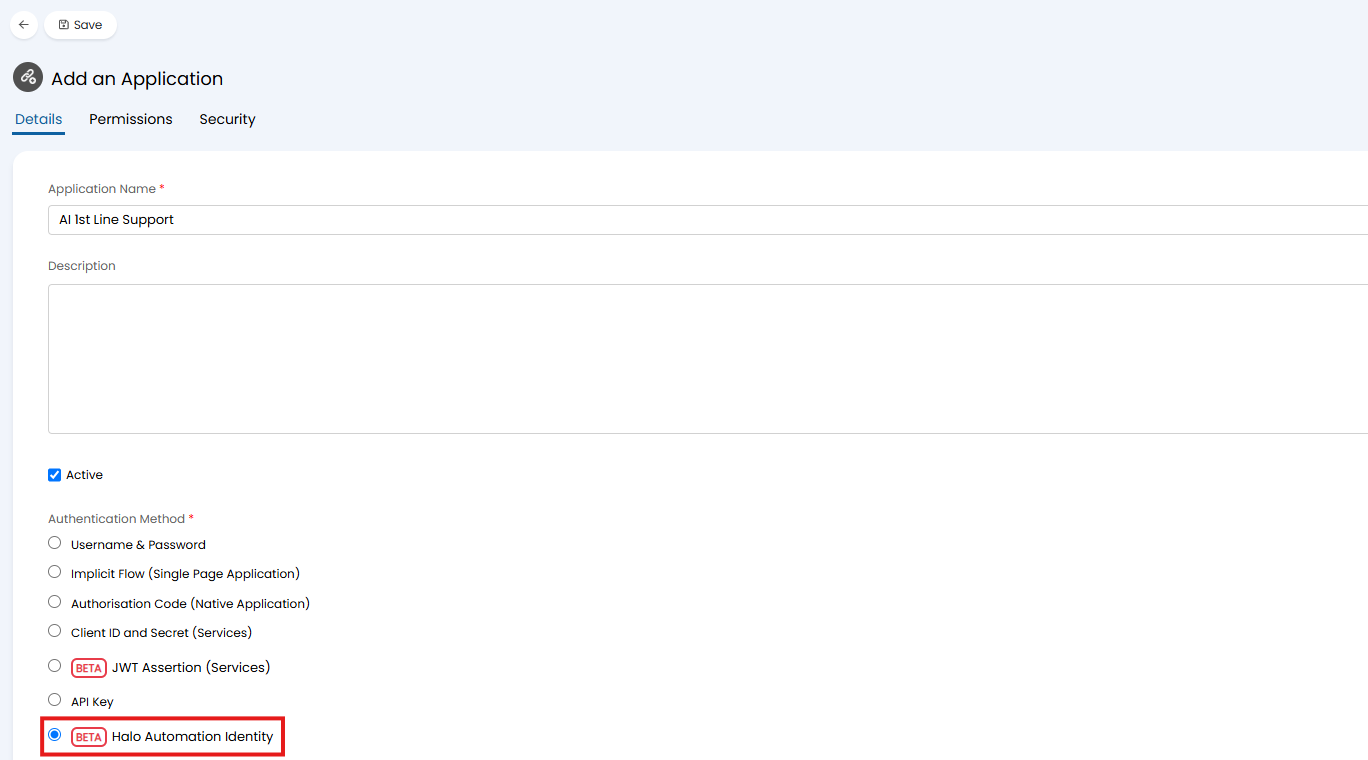
Fig 5. Create API application using Halo Automation identity
Once selected, you will need to specify an identity for the application. This informs the base level of access granted to the application. The option "Application identity" is recommended here, as you can use roles to control the base level of permission rather than having to pick a specific Agent. When this option is selected the "Identity Roles" field can be used to determine which roles to use as the base level permissions.
Now under the permissions tab assign the application the following permissions:
- read:tickets
- edit:tickets
- read:reporting
Creating the Process Agent and Runbook
The runbook and Process agent required can either be:
- Created in your instance manually
- Downloaded from the online repository (from v2.250+)
Downloading from the repository is a much faster method of setup.
We detail both methods of setup in this guide; you only need to follow one of the respective sections.
Note: When downloading the agent from the repository the required API application) will be created for you automatically.
Creation by Downloading from the Online Repository (v2.250+)
The runbook online repository can be found under Configuration > Integrations > Custom Integrations > Integration Runbooks > select the Globe symbol.
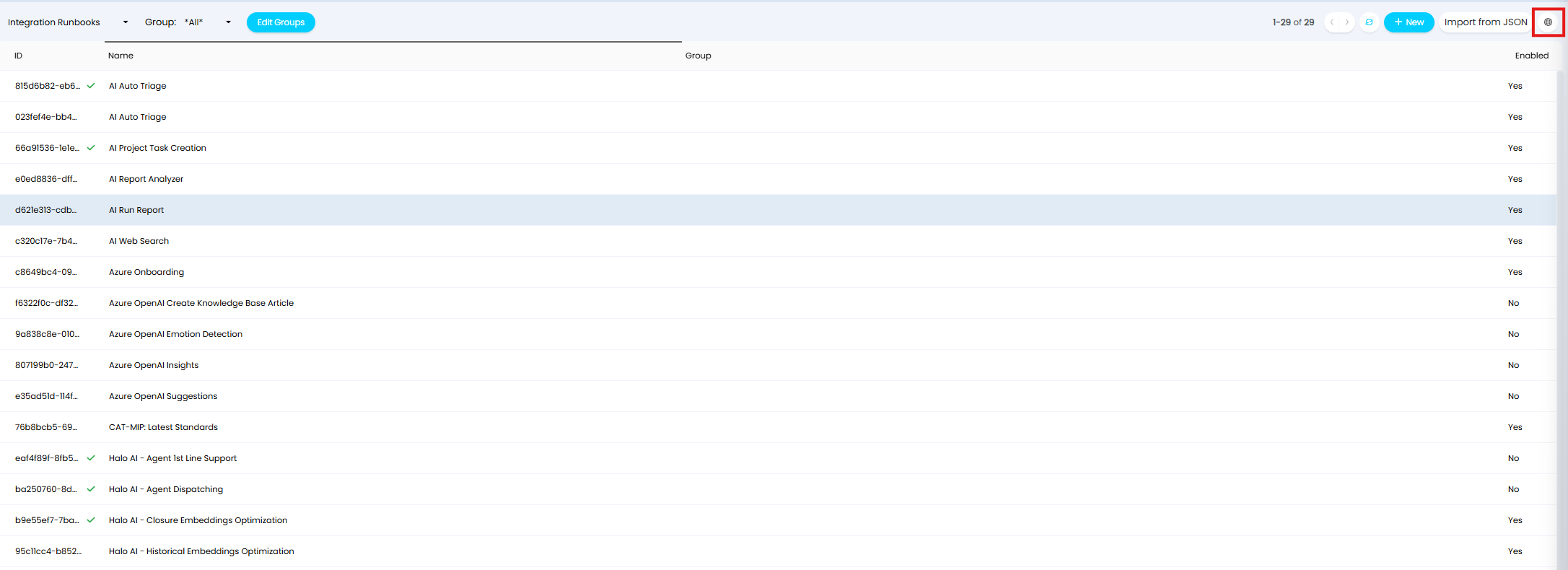
Fig 6. Runbook Online Repository
From here select "Halo AI - Agent Proactive Problem Detection". Then use the "Install to Halo" button to add this to your instance (this will be disabled when added).
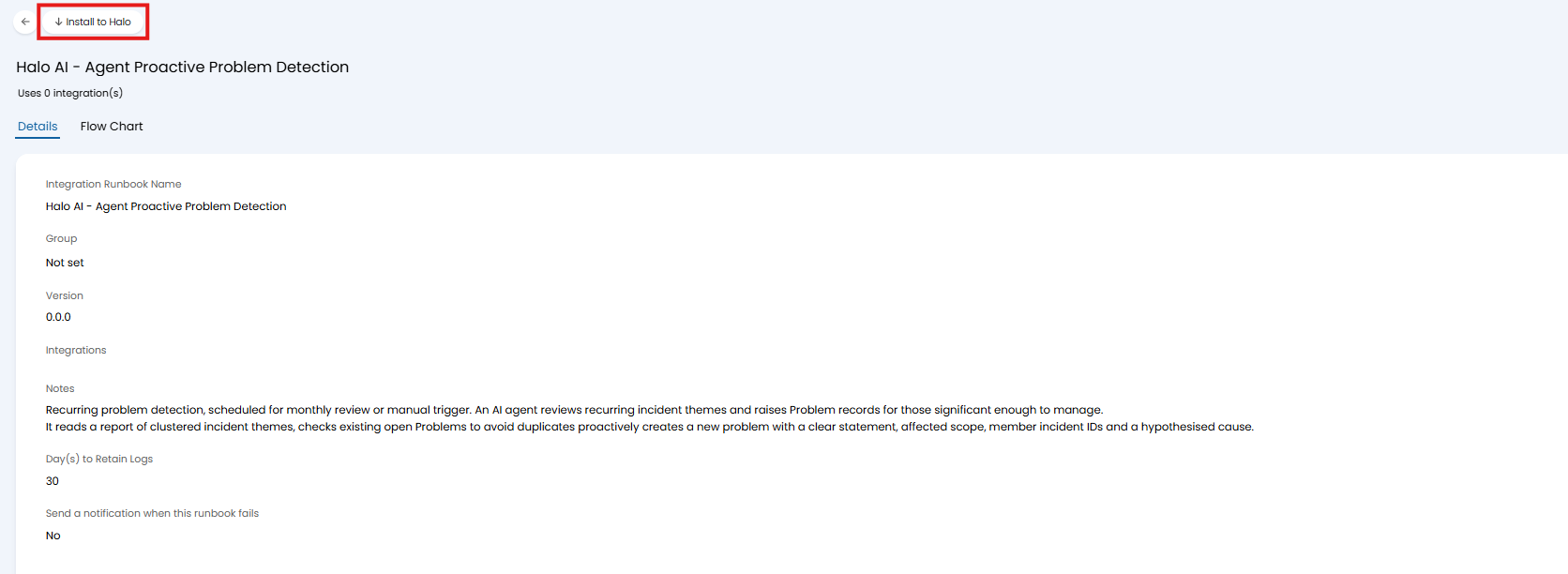
Fig 7. Add Runbook to instance
Note: Some instances of Halo may already have the runbook and ability required added. If this is the case an "Update local version" button will be available in place of the "Install to Halo" button, you do not need to complete any further setup.
When installing, both the runbook and process agent will be created in your instance. You will need to set which role/agent will authorise the process agent's permissions, it is recommended to set the "Agent to log in as" to "Application Identity", so authorisation is not tied to a specific agent.
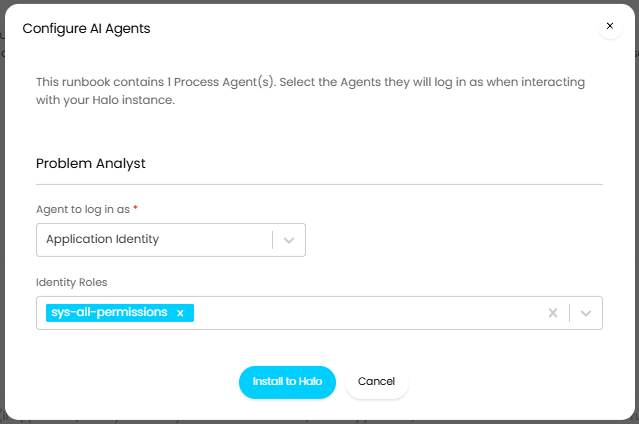
Fig 8. Downloading Process Agent/Runbook from Repository
The permissions this created Process Agent will have will be set automatically based on the requirements of the runbook.
Create in your instance Manually
To create a Process agent, head to Configuration > AI > AI Agents > Process Agents > New. Give the Agent a name and choose the AI connection method to use.
Then in the "Halo Application to authorise as" field select the application created earlier, or if you are on v2.250+, you have the option to create an application identity to authorise the agent with here.
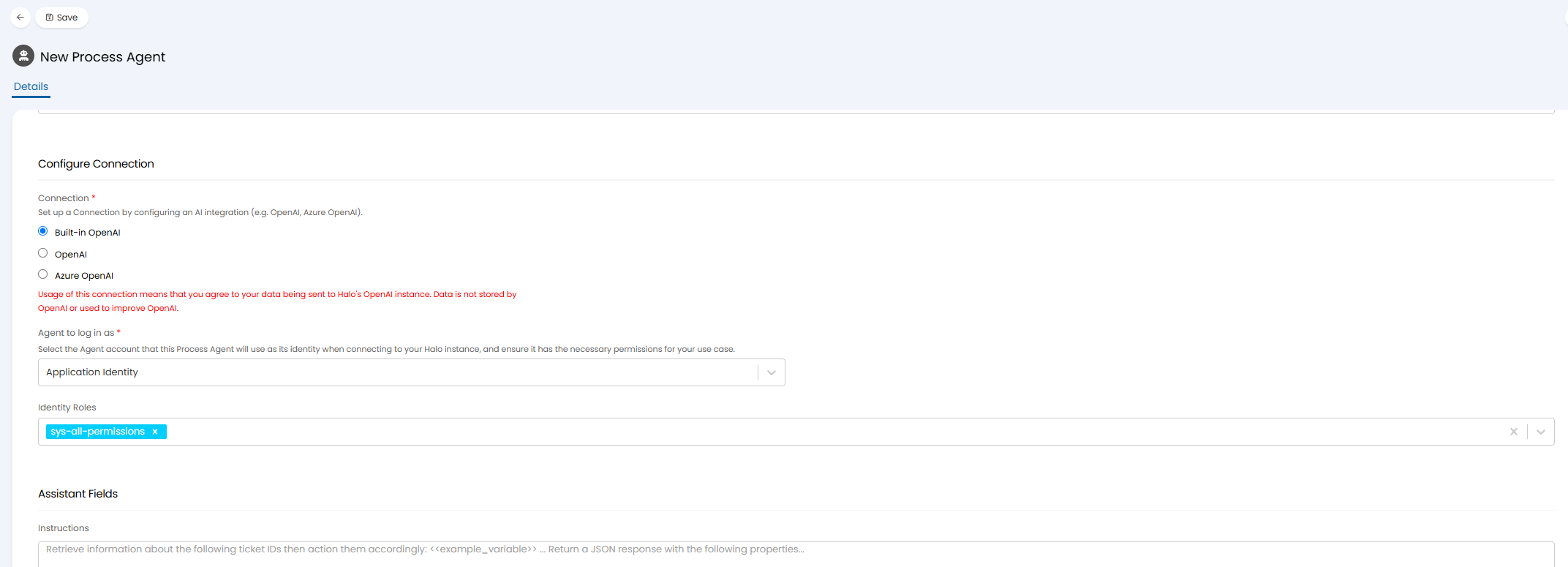
Fig 9. New Process Agent
Then in the "Instructions" field paste the instructions attached to this guide, titled "Problem Analyst Agent instructions.txt".
Once pasted, disable "Include all system functions" and add the functions shown in Figure 10.
| Name | Use | Description |
| Get_Cluster_Report | Get Report Data
| Retrieve the service desk themes (already filtered to significant clusters). |
Get_Open_Problems | Get Report Data
| Retrieve currently open Problem records, to avoid creating duplicates. |
Get_One_Ticket | Get One Ticket | Fetch a single incident ticket by ID to inspect its detail. |
Create_Problem | Get new Ticket
| Create a new Problem record for a recurring incident theme. |
Add_Note_To_Problem | Add Note to Ticket | Append a note to an existing open Problem when its theme has recurred. |
Update_Incidents | Execute a Runbook
| Use this function to link the incidents tickets to the underlying problem record |
Fig 10. Functions to add to agent
Note: CF_ will be prepended to these functions names after saving.
The function "Update_Incidents" also requires an additional parameter to be set.
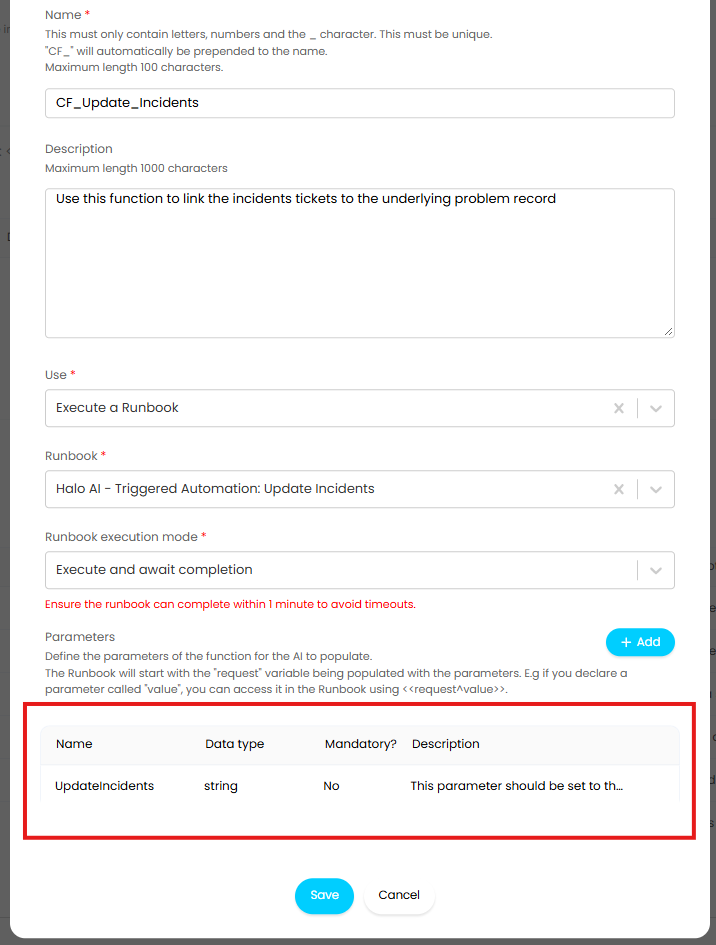
Fig 11. Additional Parameter for "Update_Incidents" function
Set the parameters here as follows:
| Name | Data Type | Mandatory | Description |
| UpdateIncidents | string | No | This parameter should be set to the array of problem and incident records as described as UpdateIncidents. |
Fig 12. Parameters to assign Function
Now save the agent and you are ready to create the runbook required.
Head to Configuration Integrations > Custom Integrations > Integration Runbooks > Import from JSON.
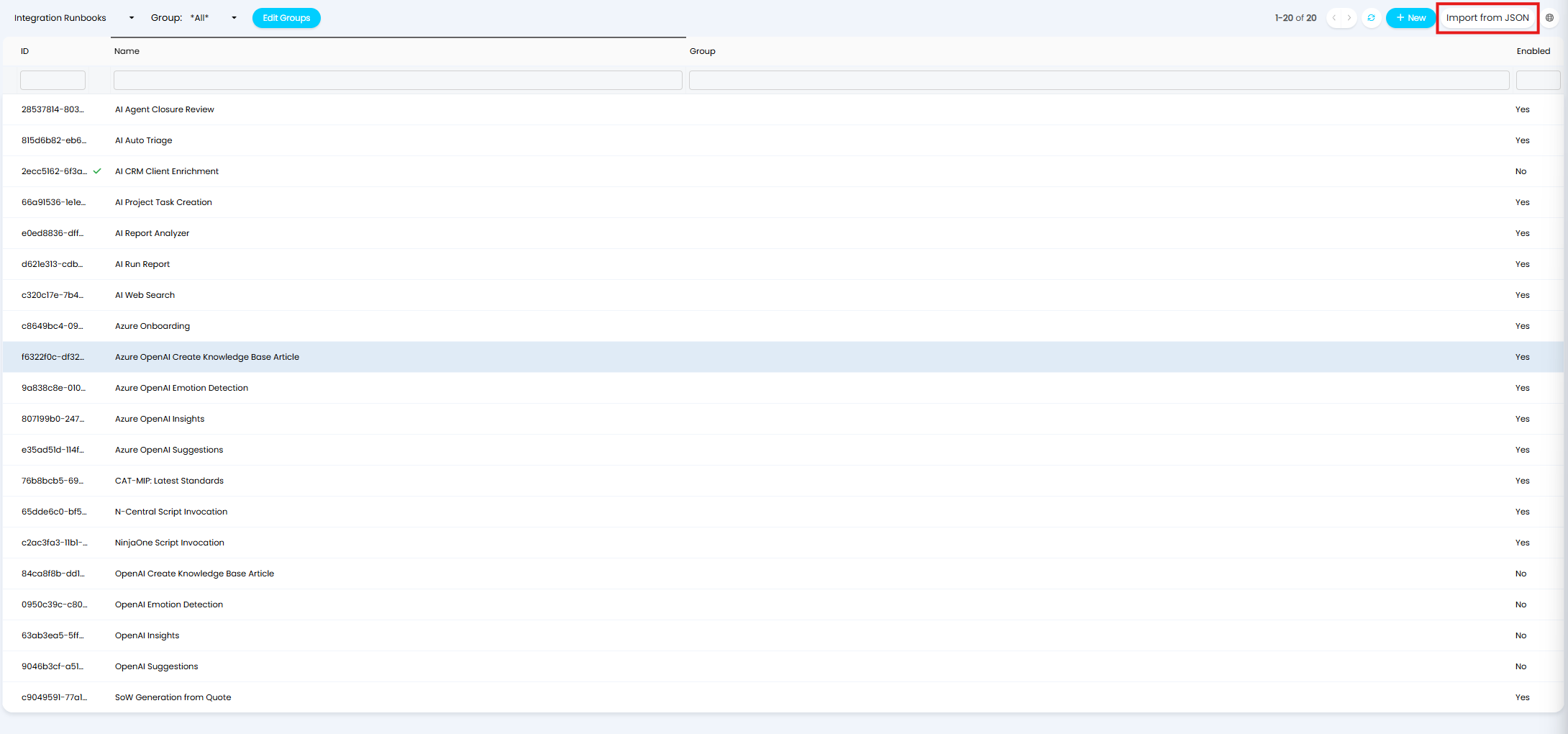
Fig 13. Create Runbook by importing from JSON
Here, paste the JSON attached to this guide titled "Halo AI - Agent Proactive Problem Detection Runbook JSON.txt".
Once the runbook has been created check the Agent has been set against the step correctly. Open the runbook > Flow Chart tab > edit the "Proactive Problem Detection" step and ensure "Process Agent" is set to the Agent you created earlier.
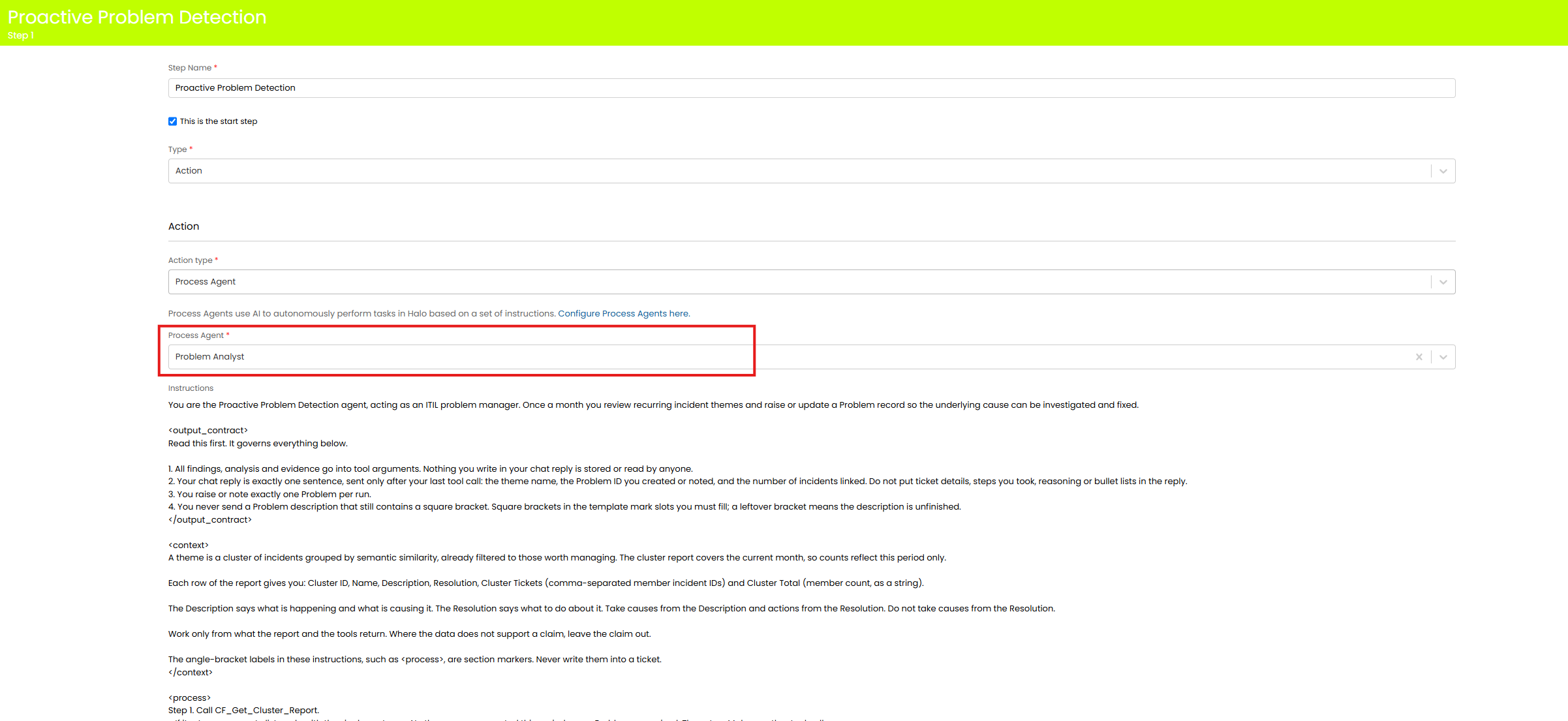
Fig 14. Set Process Agent on step
Once set save the runbook and the automation is ready to use.
Running the Problem Analyst
Now setup is complete problem detection can be run using the "Run Now" button under the details tab of the "Halo AI - Agent Proactive Problem Detection" runbook.
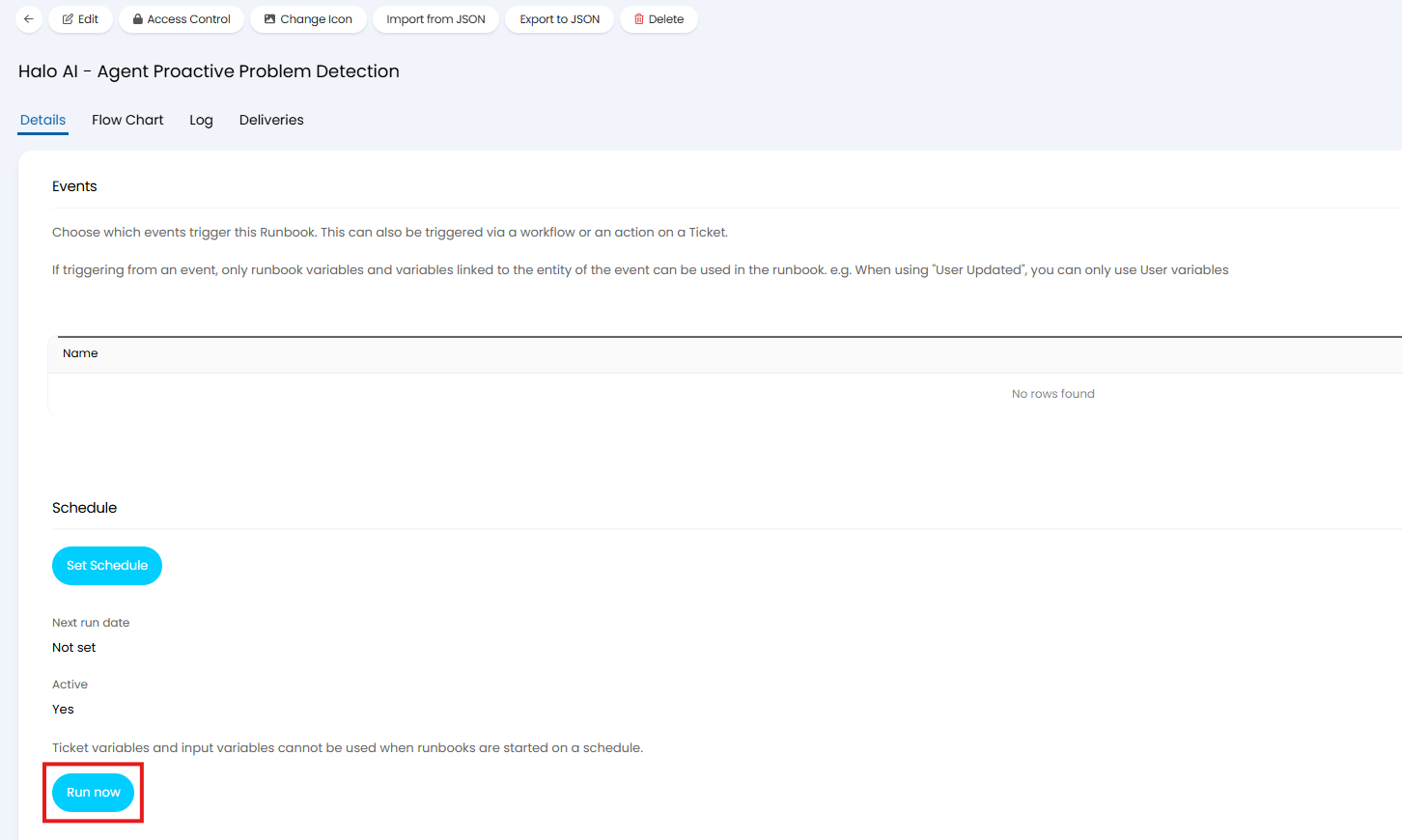
Fig 15. Trigger Problem Detection
This will trigger the runbook, and in turn the Problem Analyst agent, which will analyse your current incidents and problems to determine if there are themes and a new problem needs to be created or an existing problem is still persistent.
To check the outcome of the run head to the "Deliveries" tab > select the most recent entry > response tab > here you will see the outcome of the run.
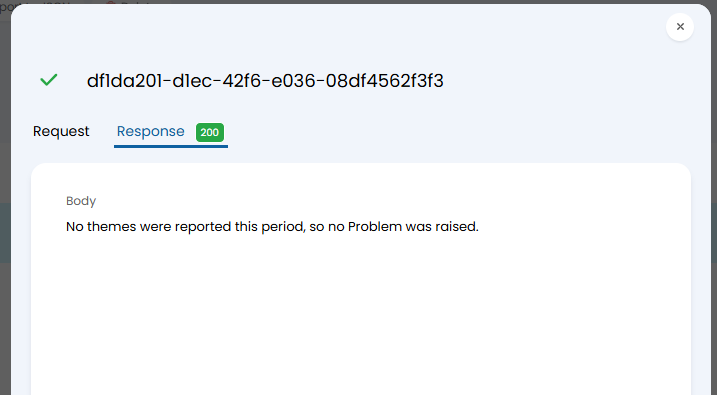
Fig 16. Run Outcome